

You answer one message, get copied on three more, and reopen a request you already read yesterday. The problem is no longer finding email. It is deciding which work belongs to you, which work someone else should own, and what must not disappear after you close the thread.
To manage email overload with AI, use it to propose priorities and prepare handoffs, then verify the decisions yourself. Give every actionable conversation one owner and one next step, and track delegated work with a separate review date. The goal is fewer unresolved commitments, not simply fewer unread messages.
This workflow uses ZenAion for connected-email review and drafting. It is designed for a busy manager or project lead handling requests, updates and CC traffic. You can keep your existing email app and task system.
1. Prioritize by consequences, not by unread count
Start with a manageable batch: recent direct requests, approaching commitments and unresolved project threads. Do not ask AI to rank months of email before you have decided what “important” means for your role.
Give it three pieces of context: decisions only you can make, current project deadlines, and who can own other work. A subject containing “urgent” is a signal to inspect, not sufficient evidence of priority. A quiet message blocking a customer launch may matter more.
| Queue | Decision rule | Next step |
|---|---|---|
| Decide or act | Your approval or action is needed, with a concrete consequence of delay. | Reply, make the decision, or reserve time for the work. |
| Delegate | A named colleague can own a defined outcome. | Prepare the handoff and obtain acceptance. |
| Waiting | A request has already been sent; someone else owes the next input. | Record a review date and the outstanding item. |
| Reference | No action or response is currently required. | Read later, file or archive. |
A message can change queues. “Ask the designer for the approved image” is your action until you send the request. Only then does it become a waiting item. Likewise, proposing a colleague as owner is not the same as that person accepting the work.
A prompt for a small batch of email
Use this template with selected email context you are permitted to process. For connected mail, identify the messages and scope explicitly. It is a suggested planning prompt, not a record of an automated assignment test.
Help me triage these selected email threads.
My role: [role]. Decisions only I can make: [list].
Current commitments: [projects and confirmed dates].
Possible owners and responsibilities: [names and roles].

For each thread, propose Decide/Act, Delegate, Waiting, or Reference.
Give the next action, stated deadline, consequence of delay,
and a short excerpt supporting your recommendation.
Separate requested deadlines from commitments already accepted.
If the owner or urgency is unclear, flag it for my decision.
Check later replies before treating an earlier request as open.
Return a proposed plan only. Do not send, assign, archive or schedule.
Read the proposed top items against the original threads. Correct the rules when a routine update is promoted or an important dependency is missed. Do not spend more time polishing the ranking than deciding what to do.
2. Use ZenAion to surface messages worth a decision
ZenAion’s Auto Inbox gives you a place to inspect email analysis before taking action. In the desktop app, open Powers → Routines → Auto Inbox. Connect the intended Gmail account through Open connector settings, choose Add with Assistant, and submit the prepared setup request. Select draft behavior in Routine setup, click Continue, then review the configuration before Enable as-is.
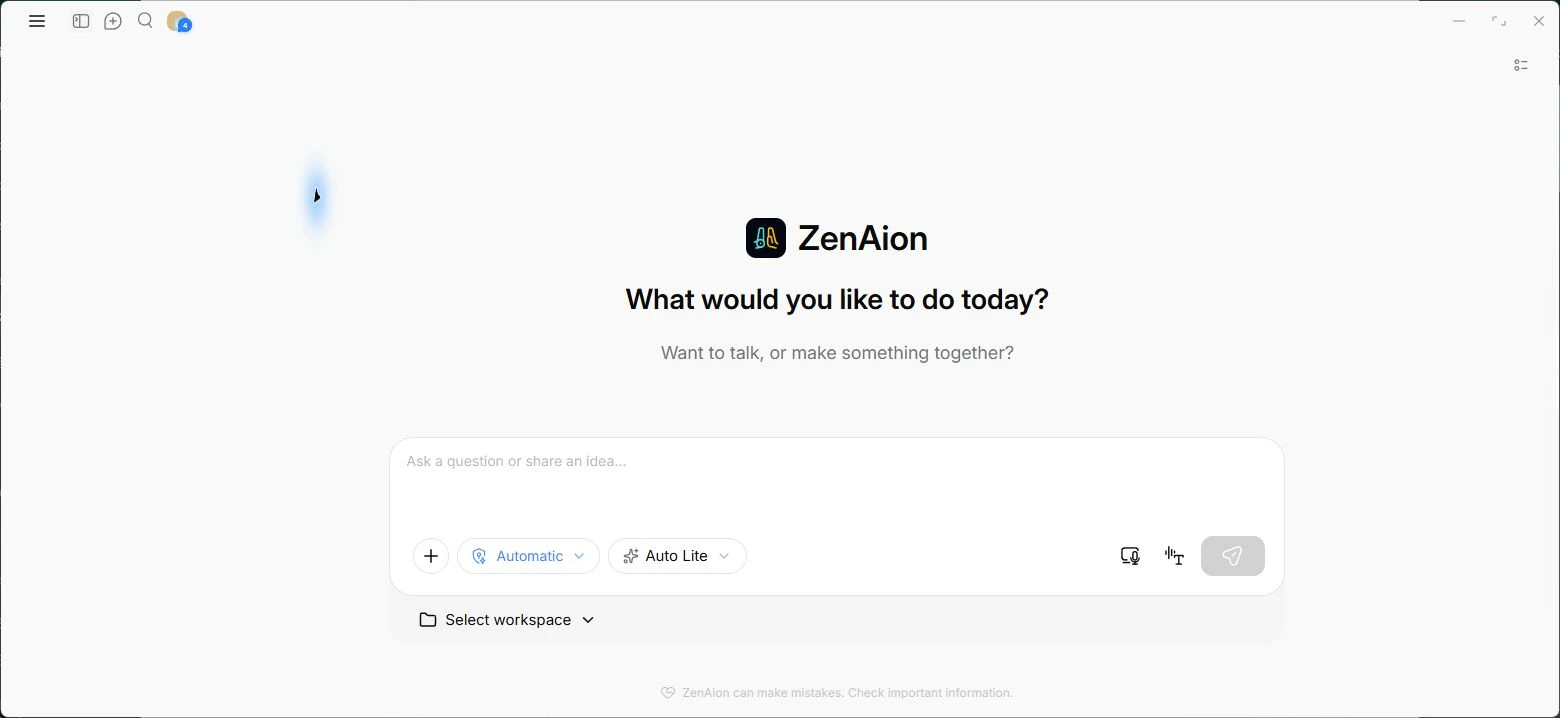
For the illustrated connection steps, use our Gmail Auto Inbox guide. Start with one mailbox and check Settings → Monitored mailboxes and your label rules. The tested routine prepares reviewable drafts; it does not automatically send emails or change calendars.
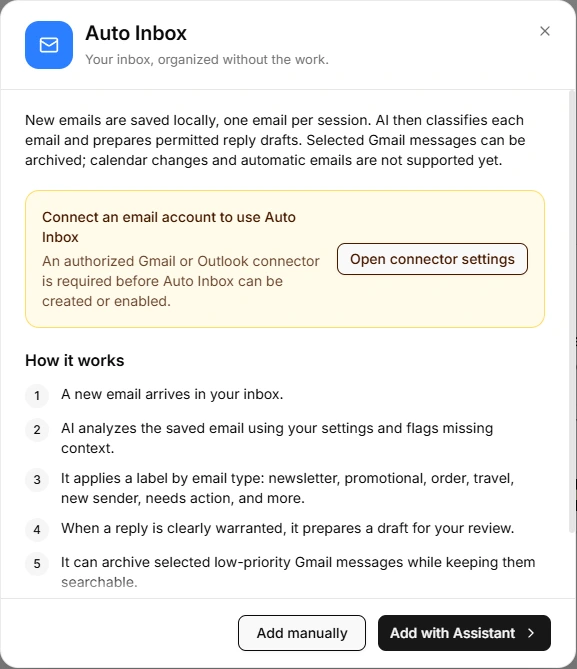
Review attention items instead of rereading the whole inbox
Open Recent sessions and inspect the request behind an attention flag. In a user-assisted Gmail test, a revised-quote request appeared as Needs attention, while its processing details said Label/category: Not performed. That distinction matters: the AI had recognized work, but had not applied the suggested label.
Click Chat beside the relevant session and explain what you need in your own words. For example: “Explain what needs my decision in this email and draft a reply for review. Flag any missing owner or deadline. Do not send anything.” Adapt this suggested prompt to the situation; there is no mandatory phrase. In the recorded test, a request to apply a label and prepare a reply produced a Gmail label and saved draft. That result does not establish independent team-workload ranking, colleague assignment or external task creation.
For an overloaded manager, use the chat first to clarify the decision: “What does this sender need from me, what can a colleague own, and which facts are missing?” Then request a specific draft. Keep unclear owners and unconfirmed deadlines visible rather than letting polished wording hide them.
3. Delegate an outcome with a clear owner
Forwarding a long conversation with “Can you handle this?” often creates another exchange. A useful handoff names the outcome, provides necessary context, identifies the owner, and asks for acceptance of the timing.
Consider this illustrative example: a client needs a revised quote, a designer’s approved image is still missing, and a delivery date needs confirmation. Keep the commercial approval with the person authorized to make it. Delegate the image request to the design owner and the delivery check to the relevant operations owner. Do not assign all three simply because one person was copied on the email.
Ask ZenAion to prepare the handoff
Draft a delegation request for this selected thread.
Proposed owner: [name and role].
Required outcome: [specific deliverable].
Context and source: [relevant thread or approved shared link].
Confirmed external deadline: [date, or Not stated].
Proposed internal checkpoint: [date and time zone].
Ask the owner to confirm availability and flag any blocker.
Do not claim they accepted, started or completed the work.
Exclude unrelated messages and attachments. Draft only; do not send.
A concise handoff might read: “Sam, could you obtain the approved product image and place it in the shared project folder? Maya needs it before approving the page. No delivery date has been agreed yet. Please confirm whether you can own this and suggest a completion time; I would like to review the status tomorrow afternoon.” That checkpoint is the manager’s proposal, not a deadline invented on the client’s behalf.
Review the recipient, permissions and timing, then send the request through your normal channel. Record Awaiting acceptance until the colleague agrees. If they cannot take it on, choose another owner or renegotiate the scope; do not let a sent message stand in for an accepted assignment.
Delegating work is different from granting inbox access
If someone needs to manage your mailbox itself, Gmail has a separate delegation feature that can grant permission to read, send and delete email. That is broader than handing off one task. Google also lists restrictions for delegated accounts, including unavailable Add to Tasks functionality. Check Google’s delegation documentation before building a shared-mailbox workflow around it. You do not need to grant inbox access just to send a colleague a clear assignment.
4. Follow up without creating another pile of reminders
Keep one record per outcome in the task system your team already checks. Include the owner, acceptance status, last contact, next review date and a reference to the source conversation. For a task connected to several messages, update that record rather than creating a new task for every reply.
At the review time, check the latest response before asking ZenAion for a follow-up. If no deadline was agreed, ask for timing instead of calling the work overdue. If the owner has already delivered, close the waiting item and identify the next action.
Prepare a brief follow-up for this thread.
The owner accepted: [outcome]. Last contact: [date].
Agreed completion date: [date, or Not agreed].
Latest status after checking for replies: [status].
Ask for the specific missing update or blocker.
Do not call it overdue unless an agreed date has passed.
Draft only; do not send or create another reminder.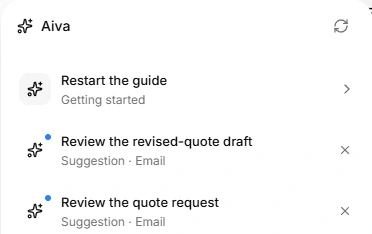
ZenAion’s Aiva panel can draw your attention to pending review. In the captured test it suggested reviewing the quote request and draft. Use those suggestions to reopen the relevant work, but keep ownership and due dates in your task record: an Aiva suggestion is not proof of an assignment or a scheduled follow-up.
For a single email that only needs to return at a better time, Gmail Snooze can bring it back to the inbox later. For multi-person work, use a task with an owner instead. Our email-to-task guide explains how to preserve the source and verify the saved task.
5. Reduce the mail that reaches your decision queue
AI triage will not solve an agreement that every update must CC the whole team. Establish simple communication rules: name the person expected to act, put the requested decision near the top, and keep “for information” updates distinct from requests.
Use narrow rules for predictable traffic. Gmail filters can label or archive matching messages; test the search results before saving a rule. Google notes that a reply is filtered only if it matches the criteria. See Gmail’s filter instructions. Avoid treating all CC mail as unimportant: a copied message can still contain an escalation or a dependency you own.
Reduce recurring newsletters you no longer read, route routine system notifications to a reviewable category, and choose one place for project updates. If switching accounts is part of the overload, fix account boundaries and your email app rather than adding another notification stream.
6. Run a short daily review
Try a 15-minute decision session as a starting point, adjusting for your role and response requirements. This is a suggested routine, not a measured time-saving claim:
- First 5 minutes: review new requests and confirm what needs your decision today.
- Next 5 minutes: approve replies and prepare clear handoffs. Record whether each proposed owner has accepted.
- Last 5 minutes: check waiting items due for review, update existing tasks and clear completed conversations.
Schedule separate work time for the decisions or deliverables that cannot fit into this review. After a week, check missed requests, unowned tasks, duplicate reminders and drafts needing major correction. Keep AI assistance where it reduces repeated reading; simplify the process if checking its output creates more work.
Questions about managing email overload with AI
Can AI decide which emails are truly urgent?
It can propose a ranking, but it needs your role, deadlines and dependencies. Ask for supporting excerpts and review uncertain cases. An important sender or urgent-sounding subject alone does not establish what must happen first.
Does ZenAion automatically delegate work to my team?
The demonstrated workflow covers email analysis and an explicitly requested label and draft. The delegation prompts here prepare proposed handoffs. Sending the request, confirming acceptance and saving the assignment remain separate steps; verify any additional integration in your own setup.
Should I automatically archive every message marked low priority?
Start by reviewing the classification. A routine update may still unblock an important task. Apply archive rules gradually, and keep a way to inspect the affected messages before relying on them.
What if a message has no deadline or obvious owner?
Mark the missing field rather than inventing it. Decide whether you should ask the sender, choose an owner or set your own review time. Keep an internal checkpoint separate from an agreed delivery deadline.
How do I stop AI follow-ups from becoming spam?
Check the latest thread before each follow-up, use one tracking record, and stop reminders when the outcome is complete. A drafted follow-up should ask for a specific missing update rather than repeat a generic nudge.
Do I need to reach Inbox Zero every day?
No. A useful end state is that important requests have owners and next actions, while waiting items have review dates. A smaller inbox helps only if unfinished work remains visible somewhere you reliably check.
Start with one overloaded project thread: decide what only you can do, prepare one precise handoff, and record when you will check the result. Once that loop works, apply it to the next batch. ZenAion is most useful here when it helps you reach a clear decision and draft the next communication, with ownership remaining visible throughout.
Related
Top 7 Best AI Garden Design Free Tools to Create Stunning Outdoor Spaces

Best AI Subtitle Generators for Videos, Reels, and Online Courses
AI Social Media Post Generator: Best Tools to Create Posts Faster
Best AI Manga Translation Tools for Manga and Webtoons

Best AI Research Paper Summarizers for Students and Researchers
Best 5 PDF Watermark Remover Tools