How to Turn Emails into Tasks with AI: A Practical Follow-Up Workflow
Turn emails into tasks with AI using ZenAion. Extract action items, verify deadlines, create Gmail tasks, and follow up without losing track of commitments.

An email that says “Could you send the revised quote and check with the designer?” contains at least two jobs. Leaving it unread preserves the message, but it does not tell you which job to do first—or when to follow up.
To turn emails into tasks with AI, extract each actionable request, verify its owner and deadline, save it in one task list with a reference to the original email, and schedule a separate follow-up for anything you are waiting on. Use AI to prepare the work; confirm that the task or message actually exists before treating it as done.
ZenAion’s Auto Inbox can surface mail that needs attention. Continue from a message’s Chat to request a label or reply draft, then save the underlying work in your task app. Start with one unfinished conversation.
1. Decide which emails deserve a task
A useful task describes an observable result. “Client email” is a reminder to reread something. “Send Maya the revised quote for 80 seats” tells you what completing the work means.
Before asking AI for a list, choose the outcome the message needs:
| What the email contains | What to do with it | Example |
|---|---|---|
| A request you can finish immediately | Reply or act, then file it | Confirm receipt of a document |
| Work you need to do later | Create a next-action task | Revise and send the quote |
| A response or deliverable owed by someone else | Create a waiting item with a review date | Check whether the designer supplied the image |
| Useful information with no action | Keep it as reference | Save the approved brand guidelines |
| A project with several outcomes | Split it into distinct actions | Prepare the quote, obtain the image, confirm delivery |
Avoid converting every incoming email. That moves the overload into another app. If the real problem is newsletters and labels, start with our Gmail organization guide; use this workflow for messages that create a commitment.
2. Find actionable email with ZenAion, then continue in Chat
The valuable part of ZenAion in an email-to-task workflow is the handoff from “this needs attention” to a specific next action. Auto Inbox surfaces the message; its Chat lets you work through the request. A saved reply draft is useful, but it does not complete the quote, approval or other work behind that reply.
Start from a message that contains unfinished work
Connect Gmail and enable Auto Inbox using the Gmail Auto Inbox setup walkthrough. Then open Powers → Routines → Auto Inbox → Recent sessions. Read the email’s details instead of turning every incoming message into a task.
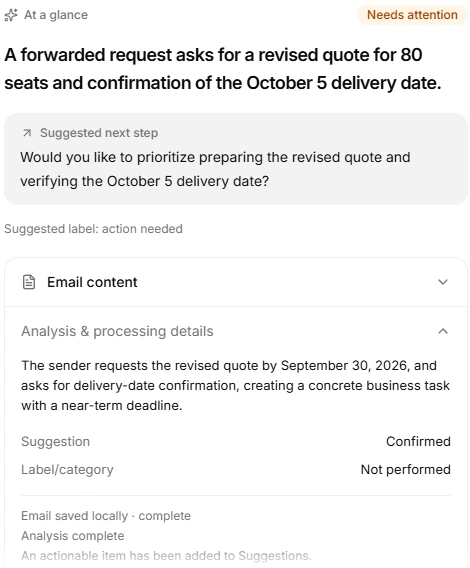
In the connected test, the request was to revise a quote for 80 seats by September 30, 2026 and verify whether October 5 remained the delivery date. The attention flag helps you find the work; it does not confirm that a label was applied or an external task was created.
Continue in Chat and distinguish drafting from doing
Click Chat beside the selected email and describe the next step you want. For example: “List the unfinished actions in this thread and prepare a reply draft for my review. Do not send it or create tasks in another app.” This is an adaptable planning example, not required wording. In the recorded test, the user asked for a label and reply draft; ZenAion applied Quote – Action Needed and saved a Gmail draft, which the user checked in the mailbox.
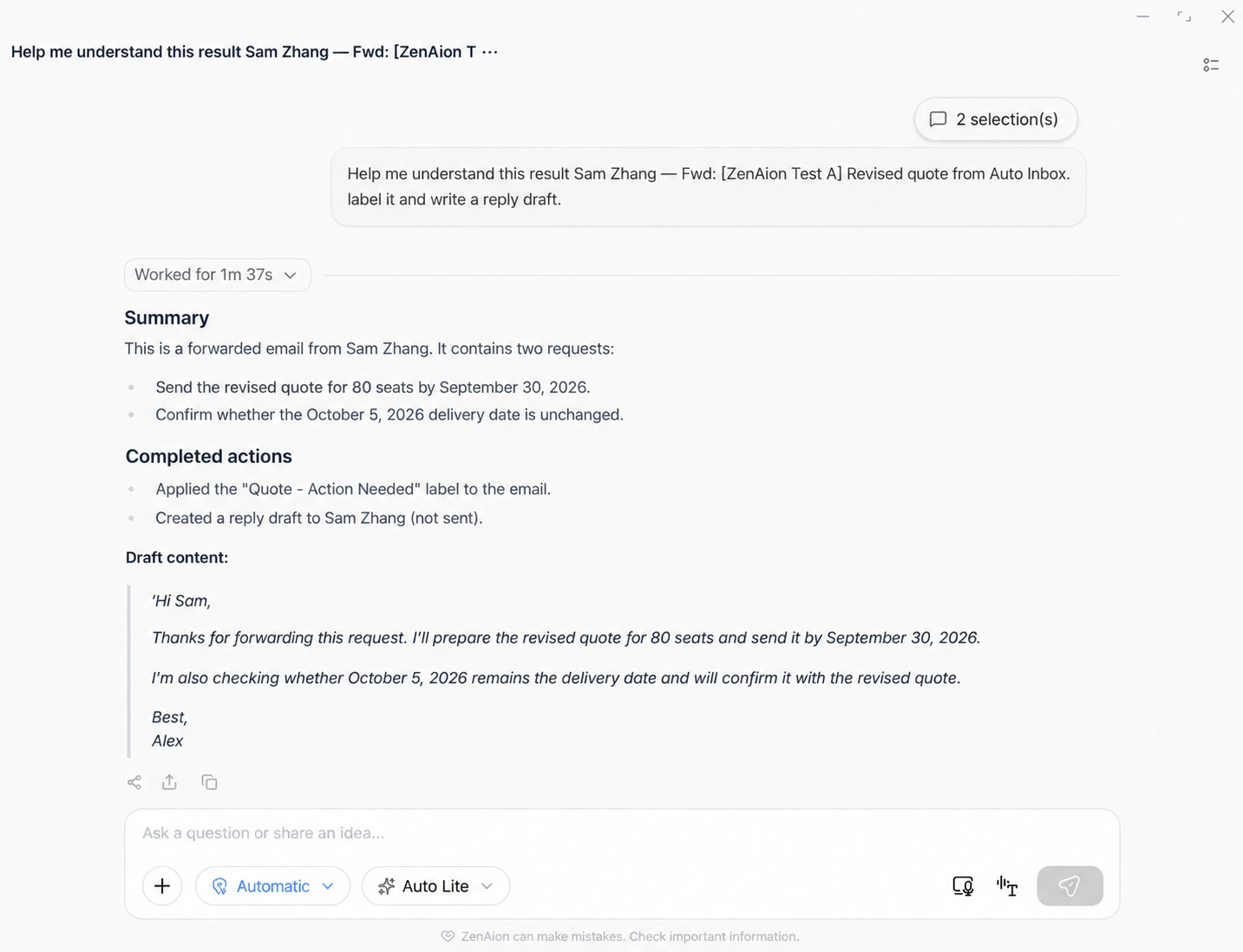
The draft said the quote would be sent by September 30 and that the delivery date was being checked. If you have not accepted that deadline or started the check, revise the wording. Keep requested deadline, accepted commitment and work completed separate in both the reply and task list.
Continue in this same chat with the action-list prompt below. Review the proposed tasks, then save them in your chosen task app. The test verified the Gmail label and draft after the explicit instruction; it did not demonstrate automatic Google Tasks creation.
Use Aiva to notice work still awaiting review
Open Aiva at the upper left. In the test it surfaced Review the revised-quote draft and Review the quote request. Treat those as prompts to review the communication and the underlying work, rather than two new tasks to duplicate in your task manager.
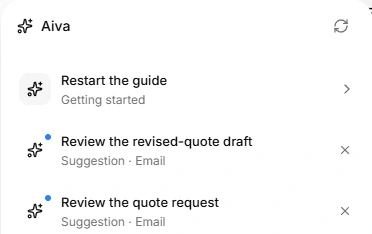
Keep the actual task in one place with its source email, owner and verified deadline. Aiva can draw attention to a pending item; your task list should tell you what must happen next and when you will check it.
3. Ask Chat for a concise action list
In the same email’s Chat, request the work behind the reply. This suggested prompt is for planning; it does not create tasks in another app:
For this selected email, list my unfinished next actions.
For each, give the owner, explicitly stated deadline,
completion condition, and a short supporting excerpt.
Separate requested deadlines from commitments I have accepted.
Keep dates to verify separate from task due dates.
Mark missing information as "Not stated" and flag later corrections.
Return a proposed list only; do not create external tasks or send mail.
Check each item against the latest message. Merge duplicate requests and keep questions separate from confirmed requirements.
4. Turn the quote request into two clear actions
Use the same Test A email shown above: a revised quote for 80 seats is requested by September 30, 2026, and the sender asks whether October 5 remains the delivery date. A practical task breakdown is:
- Prepare and send the revised 80-seat quote. September 30 is the requested deadline; confirm that it is feasible. The task is complete when the correct quote has been sent.
- Verify the October 5 delivery date and report the answer. No separate deadline for this verification was stated. Do not use October 5 as the task’s due date automatically.
This is a suggested task breakdown of the tested email, not proof of tasks created by ZenAion. The connected test verified a label and saved reply draft after a Chat instruction. Save the reviewed work in your task app next.
5. Save the verified actions in one task list
For a Gmail-based personal workflow, Google Tasks is a straightforward destination. Google’s official instructions explain that you can open an email and select Add to Tasks from the top toolbar, or find it under More. The resulting task is available in Google Tasks and the Gmail side panel, where you can add details and a date or time.
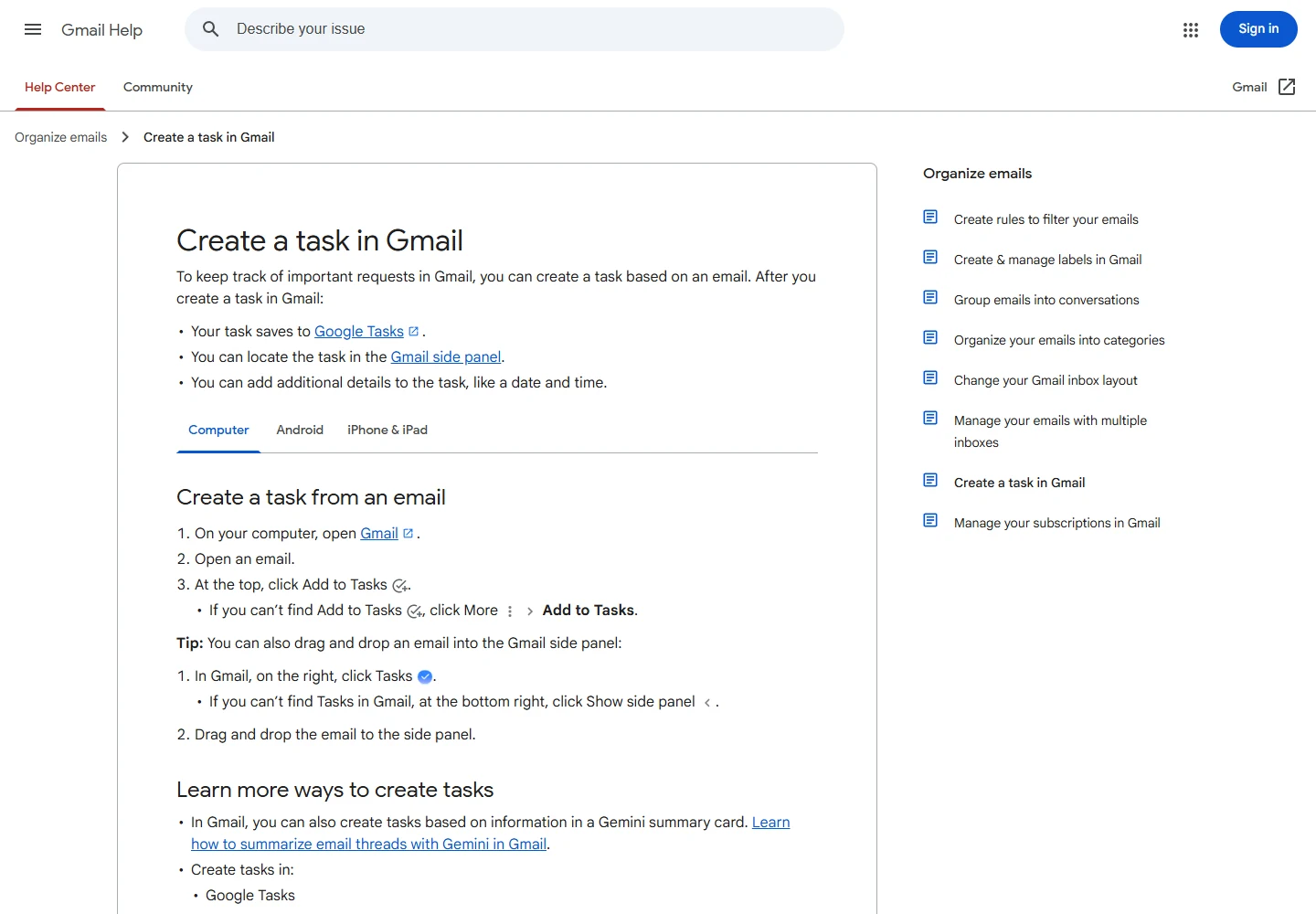
Use that feature to capture the source email, then edit the task into the specific action you verified. For the example above, “Revise and send Maya’s 80-seat quote” is more useful than the original email subject. Put the remaining actions into separate entries if they have different completion conditions.
If your team already maintains a shared task system, copy the approved actions there instead. Keep one authoritative task per outcome. A personal reminder can point to the shared task, but it should not become a second, independently maintained version of the same job.
Include a source reference in each entry: the original email link where usable, plus the sender, subject, and date. A private mailbox link will not necessarily open for a colleague, so give them the necessary context through an approved shared location.
For the quote task, a compact description could be:
Outcome: Send Maya the revised quote for 80 seats.
Due: September 30, 2026 (explicitly requested).
Source: Maya / revised quote thread / September 23, 2026.
Check before sending: seat count, pricing, recipient, attachment.
Done when: the correct quote has actually been sent.
If you manage more than one mailbox, record which account owns the conversation. Our multiple email account guide explains how to separate account roles without creating more inboxes than you need.
6. Track waiting items with a review date
After you actually request information from someone else, record what you are waiting for, who owes the answer, when you contacted them, and when you will check again. Your review date is a planning choice, not a deadline promised by the other person.
On that date, check the latest thread before asking Chat for a follow-up draft. State what was requested and whether a deadline was agreed. When the answer arrives, update the existing task and close the waiting item instead of creating another reminder.
7. Keep one reliable review loop
Review Auto Inbox’s sessions and Aiva suggestions, inspect any draft in Gmail, and check the saved work in your task list. A label, a draft, and a completed task are different outcomes. Keep one task per outcome and update it when new replies change the request.
Start with a small group of messages. Correct inaccurate labels or drafts before extending the routine, and leave unfinished actions visible until their results are confirmed.
8. Troubleshooting and common questions
Can AI turn an email into a task automatically?
It can help identify the action and prepare the task text. Creating a saved task in another app requires a supported integration or a manual step. If ZenAion gives you a list in a conversation, treat it as a proposal until you can see the entries in your actual task manager.
Is a summary enough for a complicated email thread?
Usually you also need the owner, next action, deadline, dependency, and source. Ask for these fields explicitly, then check whether later replies changed earlier requests. Keep a short summary as context rather than using it as the task title.
What if the email has no deadline?
Record “Not stated.” Decide whether to ask the sender or schedule your own review. Keep your planning date separate from an agreed deadline so neither the task list nor a generated follow-up misrepresents the request.
Should every email become a separate task?
No. Several emails can relate to one outcome, and one email can contain several outcomes. Organize around the work to finish. A new reply should normally update the existing task unless it introduces a genuinely separate action.
Can I use this without connecting my entire inbox to ZenAion?
Auto Inbox requires an authorized email connector. If you prefer not to connect an account, you can ask a regular chat to analyze selected excerpts instead, but it will not apply the connected-mail workflow described above.
Why do follow-ups keep multiplying?
Usually the original task, waiting item, and reminder are being maintained independently. Give the outcome one main record. When a reply arrives, update that record, close the old waiting state, and set a new next action only if work remains.
Start with one unfinished conversation
Choose a thread you keep reopening. Use ZenAion to prepare an action list and a reply draft, check the details against the actual message, and save the agreed next actions where you already review your work. Add a follow-up date for anything another person owes you.
The measure of success is simple: you can close the email and still know what happens next. Once that is true for one conversation, repeat the workflow for the rest of your actionable mail.
Related Reviews
5 Best Project Tracking Software Tools in 2026

From PDF to Editable Documents: A Practical Guide to Modern PDF Workflows

How to Manage Multiple Email Accounts: Separate Inboxes, Aliases, or One App?
Best 8 Online Course Platforms in 2026
Best 6 Free Cloud Storage Services in 2026
Disk Drill Review 2026: Is It Worth Using for Data Recovery?