Describe a complete edit
Name the object and the change you want. Mention details to keep. A focused request is easier to review.
Try describing
Change the red mug to navy blue; keep its shape, handle and the wooden table unchanged.
Edit photos with a conversation. Describe what to change, refine the result, and download the image you like.
Upload Image
Supports JPG, JPEG, PNG, BMP, WEBP, HEIC, JFIF · Up to 10 MB · 64–4096 px per side
Supports JPG, JPEG, PNG, BMP, WEBP, HEIC, JFIF · Up to 10 MB · 64–4096 px per sideCompare the original and selected result. Save the image before leaving or refreshing this page.
Editing your image…
Only upload images you have permission to edit. Avoid sensitive documents.
Explore a new color for a product photo. This example changes the shoe’s upper while keeping its shape and details. Drag the divider to compare.
Change the red shoe to cobalt blue. Keep the laces, sole, shape and all other details unchanged.
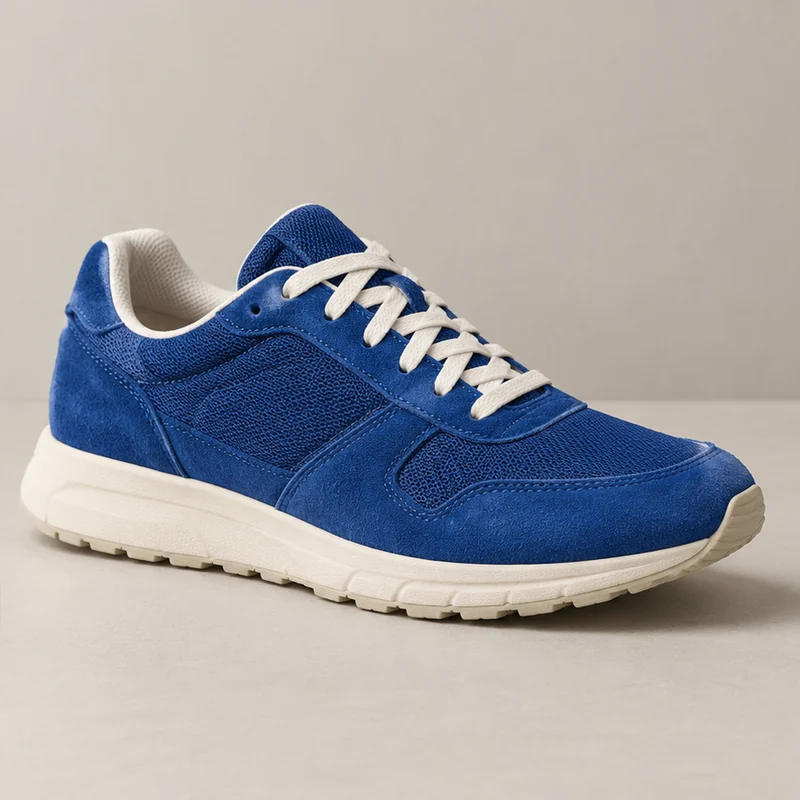
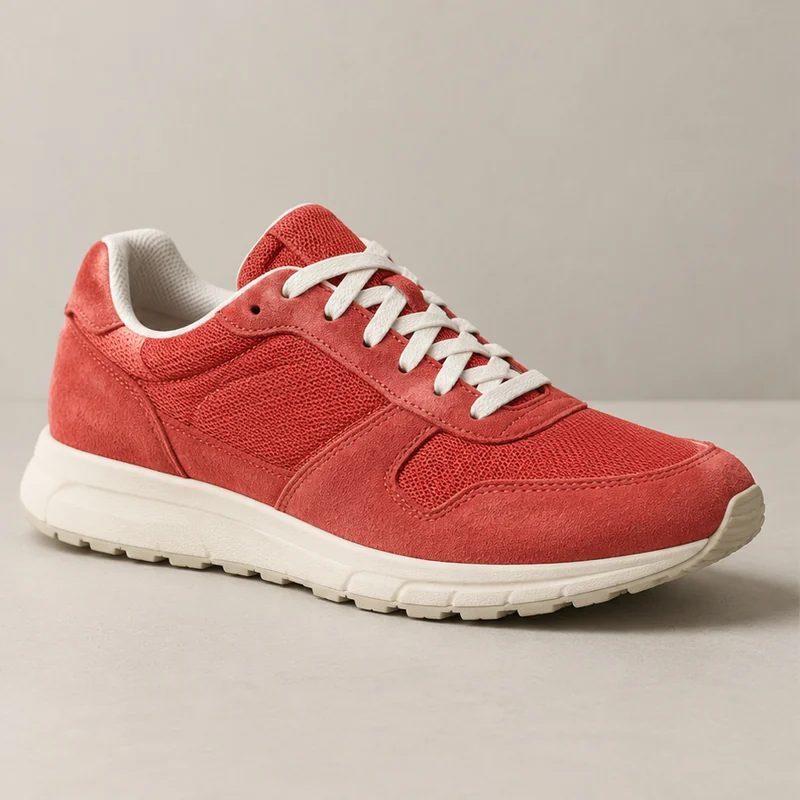 OriginalEdited image
 Upload a photo, describe a change, and review the result. No editing experience is needed.
Sign in and choose one photo. Use a clear original up to 10 MB. Each side must be 64–4096 pixels.
Say what to change and what to keep. Try a new color, softer light or an illustration. Review each result before continuing.
Continue from the selected version. Return to the original to try another direction. Download your favorite; each successful edit costs 5 credits.
Make one focused edit or refine your image in several messages. Viewing versions and downloading cost nothing extra.
Name the object and the change you want. Mention details to keep. A focused request is easier to review.
Change the red mug to navy blue; keep its shape, handle and the wooden table unchanged.
Use the latest result for your next instruction. Select an earlier version to explore another direction. Repeat key details if they start to drift.
First soften the light; then make the colors warmer while preserving the subject.
Explore a new look for your own photos. Check fine details before sharing.
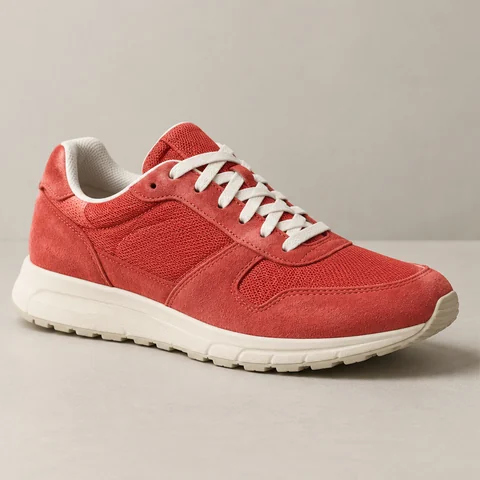
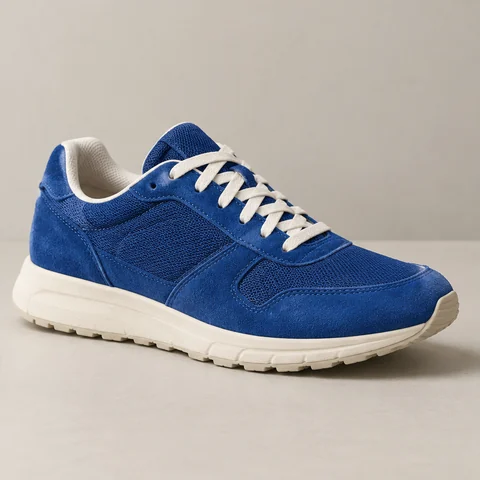
Try a new product color. Say which details should stay unchanged. Check logos, materials and proportions.
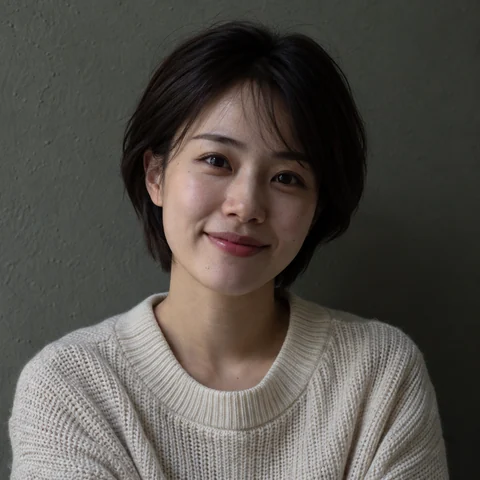

Brighten a portrait with softer light. Keep the face, expression and clothing unchanged. Review skin tones and natural detail.
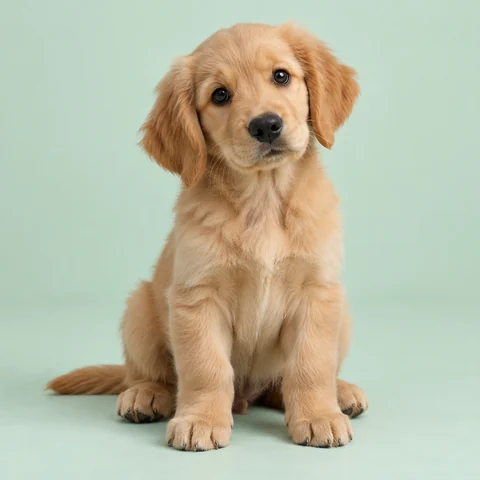
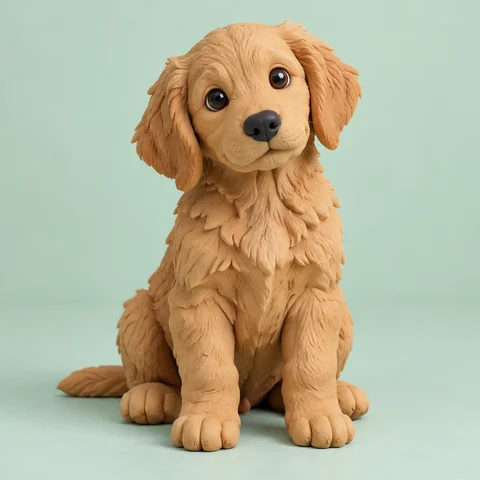
Turn a pet photo into a playful clay illustration. Describe the pose and features to keep. Check the result before sharing.
Describe changes to a photo’s background, objects, colors, lighting or style. AI generates a new image from the selected picture and your instruction. It does not provide manual brushes, exact pixel control or editable text layers.
Yes. After each successful edit, the result becomes the next starting point. You can select the original or one of the latest three previews. Recent instructions help with context, but distant details may need to be stated again.
Not always. AI aims to preserve what you do not ask to change, but faces, text, colors, framing or dimensions can drift. Check the full image before use. This is not a precise resize, transparent cutout or evidence-preservation tool.
Upload one JPG, JPEG, PNG, BMP, WEBP, HEIC or JFIF image up to 10 MB, with each side between 64 and 4096 pixels. BMP and HEIC files are converted before editing; the prepared image must also fit the 10 MB limit. If a HEIC file contains several images, only the first image is used.
Sign-in is required. Each message that returns an available image costs 5 credits, using gift credits first. Failed or empty results are free. Rechecking the same completed task, viewing versions and downloading do not create another charge.
Your image is uploaded for server-side AI processing, not edited entirely on your device. Avoid identity, financial or medical documents and other sensitive material. Edit only images you have permission to use. Do not alter evidence or misrepresent an original document.
Name the object and desired change, then say what must stay unchanged. Prefer one focused change at a time. Start from a clear image and review each result. Tiny text, complex scenes and exact brand details are harder to preserve.
No. Refreshing resets this page and clears the conversation and previews. Download images first. Already submitted work may continue, but a new submission closes the previous unfinished workflow in AirMore. In-page retry checks the same request without generating it again.