How to Manage Multiple Email Accounts: Separate Inboxes, Aliases, or One App?
Learn how to manage multiple email accounts with separate inboxes, aliases or one app. Compare options, set up your workflow and avoid wrong-account replies.

A work inbox, a personal address, an old account you still need, and a separate login for shopping: the problem is rarely the number alone. It is remembering where a message arrived, which address to reply from, and whether another inbox is hiding something important.
For most people, a practical setup is separate accounts for work and personal life, aliases for low-stakes categories, and one email app for the accounts they are allowed to view together. These options solve different problems and can work together. You do not have to merge your identities just to stop switching browser tabs.
Start with the boundaries you need, then choose how to read the mail. A cleaner app cannot fix an account structure that mixes client work, personal records, and promotional subscriptions indiscriminately.
Once you have defined each account’s role, ZenAion can help you review selected connected mailboxes. Keep the source account and reply identity clear throughout the process.
Separate accounts, aliases, and one app: what actually changes?
Think of an account as the mailbox, an alias as another address delivering to a mailbox, and an email app as the place where you open mail. A unified inbox is a combined view of connected accounts; it does not normally turn those accounts into one account.
| Approach | What it gives you | Best reason to use it | Main trade-off |
|---|---|---|---|
| Separate email accounts | Distinct mailboxes and account access | Work/personal boundaries or independently controlled projects | More sign-ins, recovery settings, and inboxes to maintain |
| Aliases or address variations | Additional receiving addresses associated with a mailbox | Sorting newsletters, sign-ups, or one person's business roles | Usually no independent mailbox or access boundary |
| Multiple accounts in one app | One interface for existing accounts | Less switching without changing your addresses | You must watch the sending account and app permissions |
| Automatic forwarding | New mail copied or redirected to another address | A transition away from an old address | Sending identity and two-way synchronization need separate attention |
One app and one inbox are not the same promise. Some apps offer a combined message list; others mainly make switching between account folders easier. Check the exact platform and version before choosing an app around a feature shown in a screenshot from another device.
Use ZenAion with selected mailboxes while keeping identities separate
A unified email app makes several inboxes easier to view; it does not decide which identity should handle a request. ZenAion’s Auto Inbox can add a review workflow for selected connected mailboxes. Use it after deciding which work and personal accounts should remain separate.
Select the mailboxes you actually want monitored
Connect the intended account through Powers → Connectors. When setting up Auto Inbox, check the account shown in the assistant’s setup card before enabling it. If this is your first connection, follow the Gmail Auto Inbox setup walkthrough.
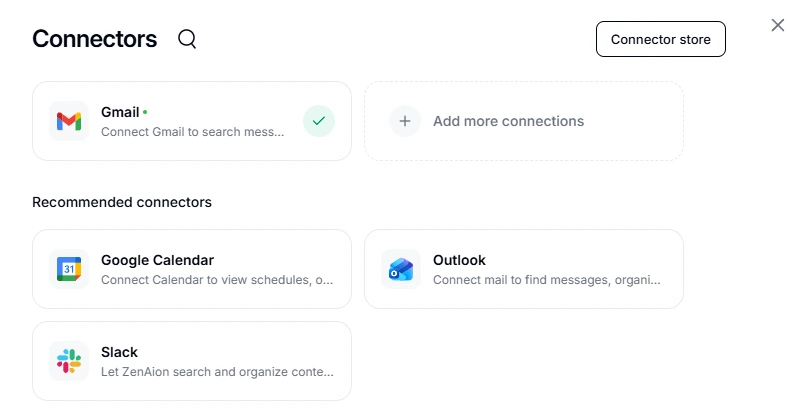
Open Powers → Routines → Auto Inbox → Settings. Under Monitored mailboxes, review the selected accounts and use Add mailbox for any additional connected mailbox you intend to include. The interface states that only selected mailboxes are monitored after saving. Removing one here does not disconnect it from Connectors.
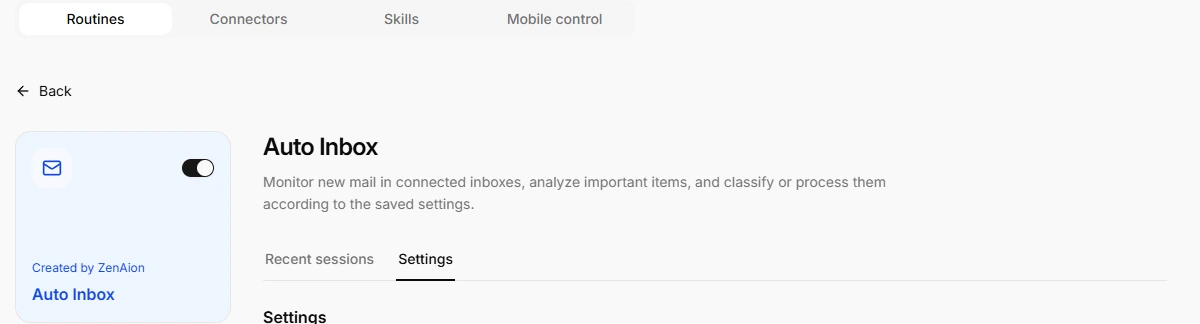
Begin with one account so you can check the results without mixing work and personal queues. The documented test used one Gmail account. The interface offers mailbox selection, but simultaneous processing across several accounts and Outlook behavior were not verified in that test. The settings also state that auto-archive applies to Gmail only.
Keep the source account attached to every reply
- Open Recent sessions and identify the source mailbox as well as the subject. Similar subjects can exist in different accounts.
- Click Chat beside the intended message. Describe the reply you want and the identity that should be used, in your own words. For example: “Prepare a reply draft for this email in the source mailbox. Ask me to confirm the recipient and sending account first; do not send it.” Adapt the request to the account and action you need. If the thread was forwarded, clarify whether you mean to answer the forwarding sender or the original requester.
- Open the resulting draft in the source mailbox. Check From, To, the signature and the quoted conversation before sending.
This matters even within one account. In the Gmail test, the underlying request was signed by Maya, but Sam forwarded it. After the user asked Chat to label the email and write a reply draft, the draft addressed Sam. That may be appropriate for a reply to the forward, but it is not automatically the intended recipient of the original request.

If you need more detail, adapt the following example to your accounts. It is an optional template, not required wording or a separately tested multi-account result:
For this selected email, identify the source mailbox,
the forwarding sender, and the original requester.
Ask me to confirm the intended recipient before creating a draft.
Use only the sending identity I confirm. Do not send the email.
Keep aliases and forwarding rules in your email provider
Auto Inbox does not make an alias an independent account, and a forwarded message does not establish permission to send from the original address. Configure aliases and outgoing identities in your email provider or client, then verify the From field on the saved draft.
The practical goal is a shorter review queue with clear ownership: know which mailbox received the request, which account will reply, and where the draft lives. If those details are unclear, resolve them before adding another mailbox to the routine.
When should you keep accounts separate?
Keep a separate account when the identity needs its own access, ownership, or long-term future. Your employer's mailbox and your personal mailbox are the clearest example: you should be able to leave a job without losing the address used for personal services.
A freelance business can also justify its own mailbox, especially if it has a domain and may eventually be handed over to someone else. Creating a new account for every shopping category, however, can turn a sorting problem into five neglected login and recovery problems.
Use this decision test before opening another mailbox:
- Different owner or organization? Keep the accounts separate and follow the organization's access rules.
- Different person needs access? Use a properly provisioned account, shared mailbox, or delegation arrangement—not a shared personal password.
- Same person, same ownership, different category of mail? Try an alias and a label or folder first.
- Need to turn work off after hours? Separate accounts help; separate apps or browser profiles can make that boundary easier to maintain.
A separate browser profile is a useful visual boundary, not a substitute for account security. Likewise, keeping accounts separate at the provider does not prevent a connected email app from being able to access all of them. Decide which accounts should be connected to that app in the first place.
When is an alias enough?
An alias is useful when you want another address without another inbox to check. For example, a sole operator might receive messages for two business roles in the same mailbox, then sort them by recipient address. The role names stay clear to customers while one person handles the work.
The details depend on the provider. Google Workspace administrators can assign up to 30 aliases to a user without an additional alias fee; the underlying Workspace service is still a paid service. Those aliases are not separate Google Accounts and cannot be used for independent sign-in. Google Workspace alias documentation
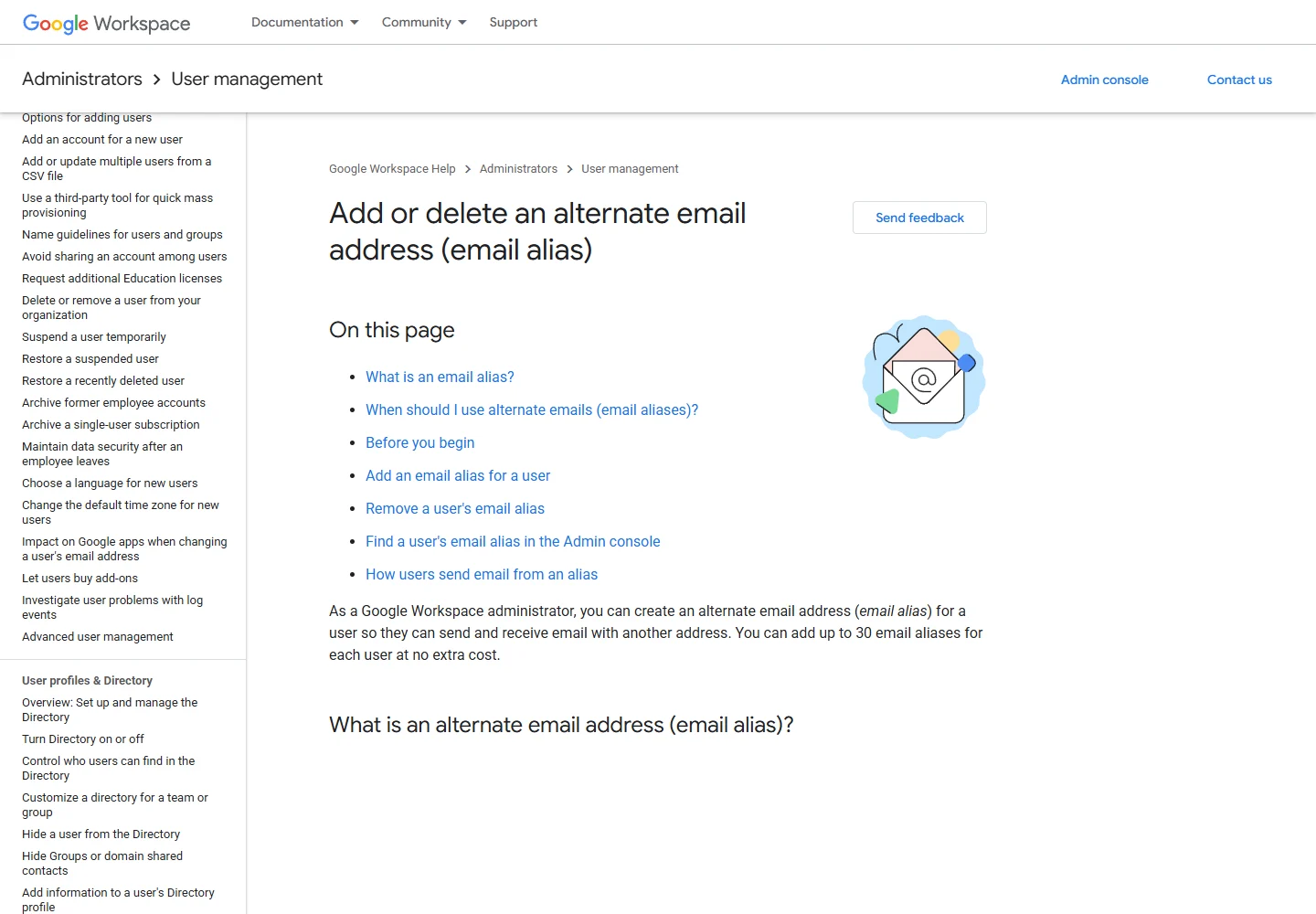
Microsoft account aliases behave differently: Microsoft documents additional usernames attached to the existing account, rather than new independent accounts. Do not assume that a rule about alias sign-in in one service applies to another. Microsoft's guide to adding an alias
For Gmail, a plus-address variation such as yourname+shopping@gmail.com can help identify and filter incoming mail. Replace yourname with your actual username; this example is a pattern, not an address to send messages to. Google describes using plus-addresses with labels and filters in its Gmail organization tips.
There are two limits worth understanding. A visible +shopping suffix does not conceal the base address, so it is not an anonymity tool. And acceptance varies between website forms: test a sign-up before relying on it for an important account. Receiving through an alternate address also does not automatically prove that outgoing messages will use that address.
Which app should you use for multiple accounts?
Choose by where you work and which account types you need, rather than by the longest feature list. The following are four practical starting points; the screenshots show official documentation or product pages, not a private mailbox.
Gmail app: a straightforward combined inbox on mobile
The Gmail mobile app can connect additional Gmail and supported third-party accounts. On Android, open the profile menu, choose Add another account, select the provider, and complete its sign-in. Then use Menu → All inboxes to see connected inboxes together. Google's instructions also cover iPhone and iPad through the platform selector. Official setup instructions
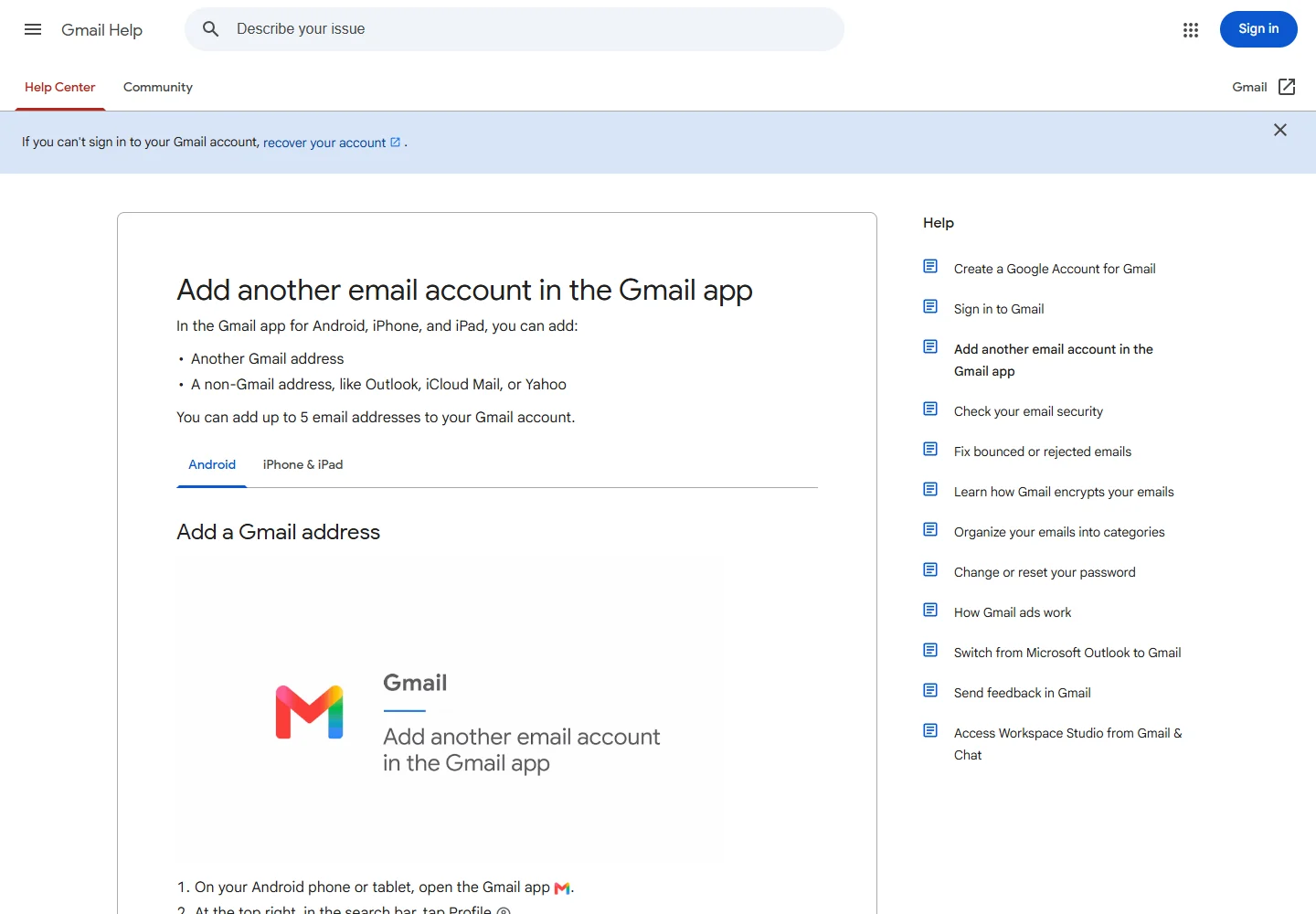
This is a sensible first option if your main irritation is switching accounts on your phone. It does not merge the underlying accounts, and the mobile combined view should not be confused with Gmail's web-based mail-import features. After adding an account, check the From address in a new message and review notifications for each account. Start with the app you already use before paying for another client.
Thunderbird: a free desktop option with unified folders
Thunderbird is a free desktop email client for Windows, macOS, and Linux. It can keep accounts visible separately or display a unified inbox, making it a useful option when you want several providers in one desktop workspace without buying a client subscription.
Add your existing accounts using Thunderbird's account setup, then select View → Folders → Unified. The unified folders group corresponding folders from connected accounts. You can still expand the view to work with an individual account. Mozilla's folder-view guide
Prefer an IMAP setup where supported if you want changes reflected across devices, and verify what happens to sent, archived, and deleted messages with your provider. A combined view is not a migration of every message into one provider. Managed work accounts may also require an approved client or authentication method, so confirm compatibility before moving your daily routine.
Outlook: useful when your work already lives in Microsoft 365
Outlook can be a practical home for several accounts when it is already part of your working day. Microsoft's Windows setup documentation covers multiple providers, but distinguishes new Outlook from classic Outlook. Follow the instructions for the version you actually have; supported account behavior and interface details can differ. Official Outlook account setup
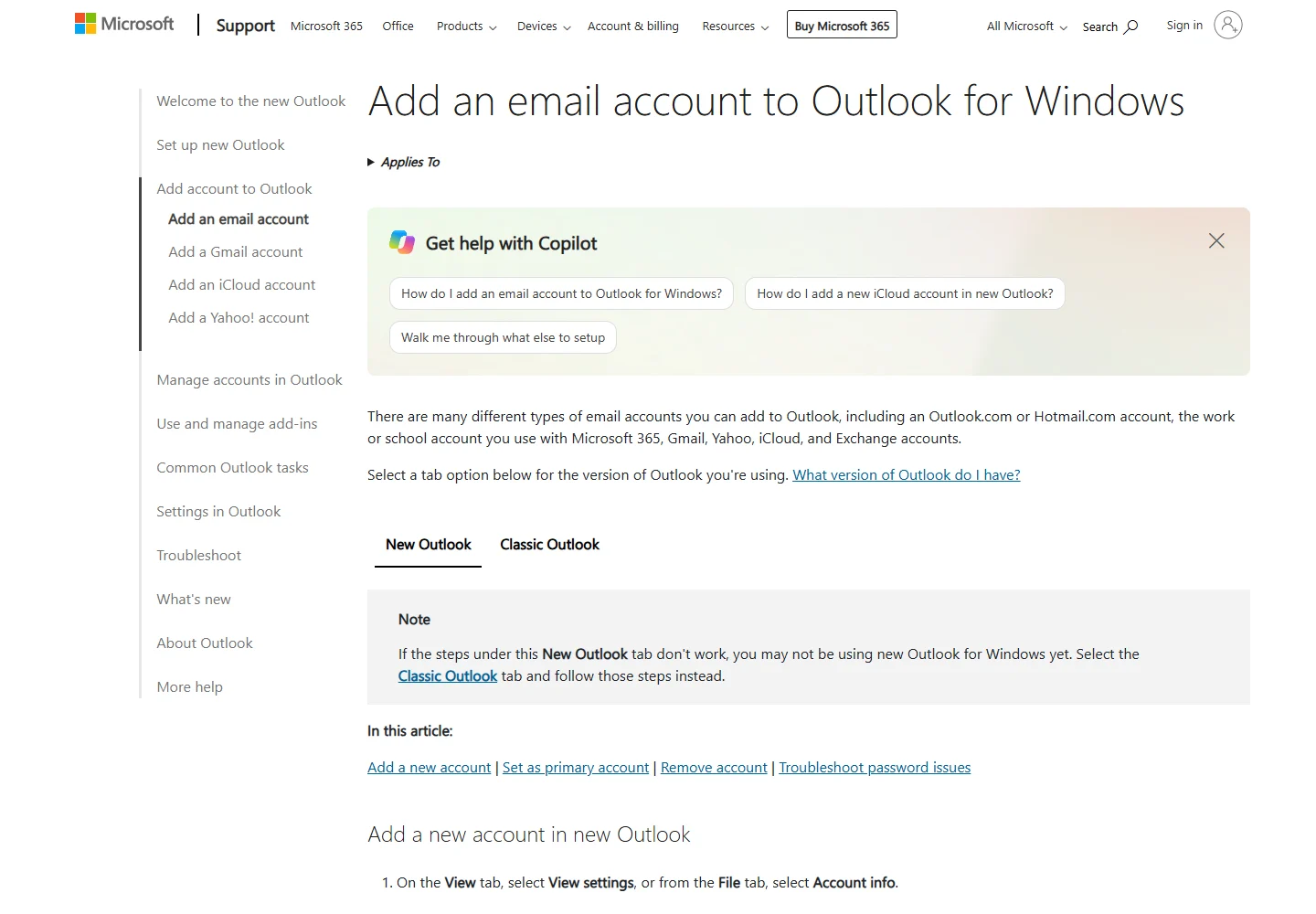
In new Outlook for Windows, open View → View settings (or File → Account info), then Accounts → Your accounts. Under Email accounts, choose Add Account. In classic Outlook, the usual starting point is File → Add Account. Complete the provider's authentication and confirm the mailbox appears. Adding accounts does not, by itself, establish that your particular Outlook version offers the combined inbox layout you want.
Choose it when the work environment and calendar integration fit your needs, and check what your organization already licenses before paying separately. For a personal-only setup, compare the actual account support and interface with the free alternatives first. An employer's mailbox should remain under its approved access policy even if adding it elsewhere is technically possible.
Apple Mail: start here if you primarily use a Mac
Apple Mail provides a built-in place to read multiple accounts on a Mac. Choose Mail → Add Account, select your provider, and sign in. Apple's documentation includes common account types and an option for other mail accounts. Add accounts in Mail on Mac
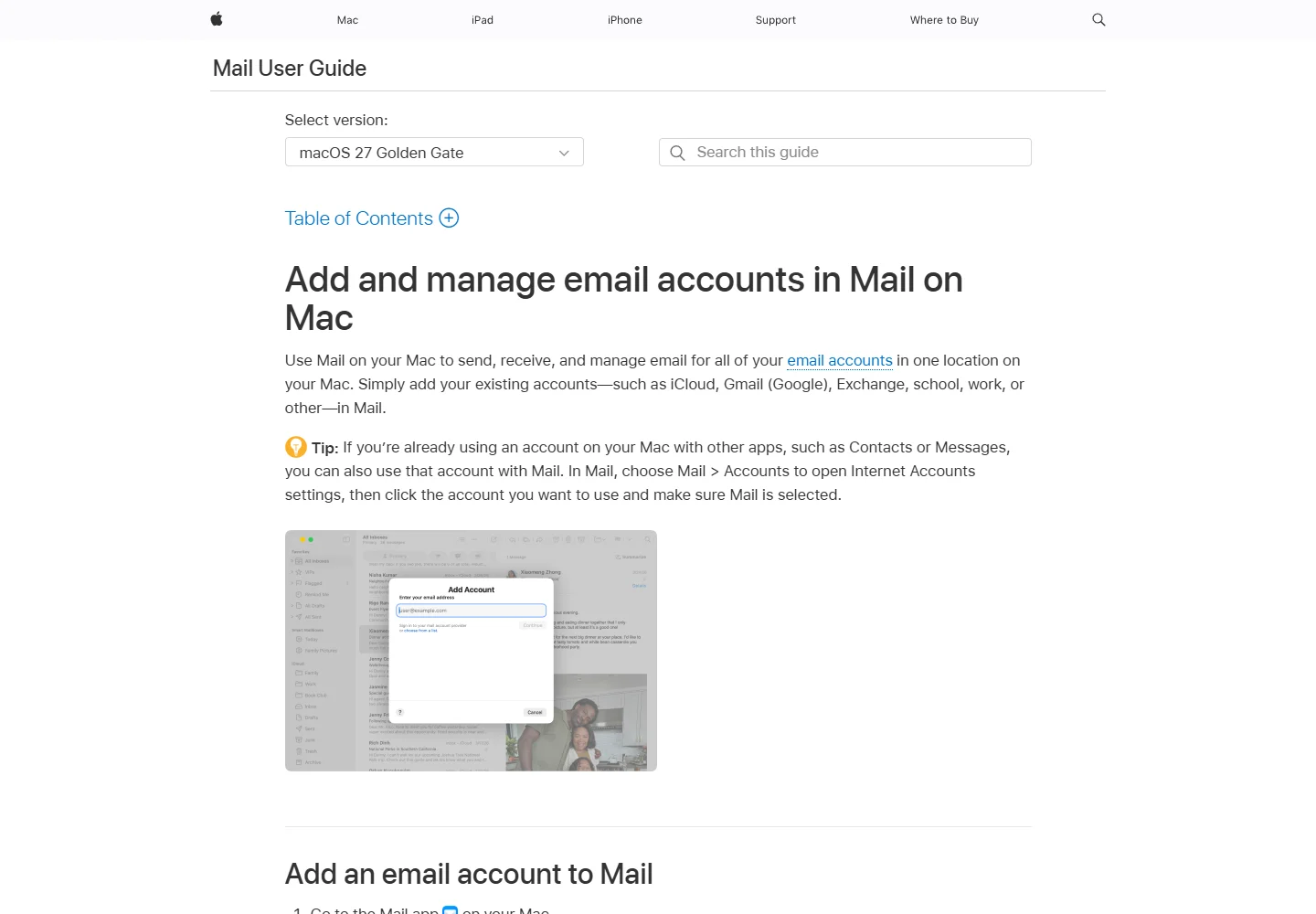
To view the inboxes together, add All Inboxes to Favorites in the sidebar using its add-mailbox control. Apple's Mail introduction explains that view. This is a good starting point if you want fewer browser tabs without adding another paid client. Provider storage, custom domains, and optional services are separate from the basic app choice.
Avoid building a new system around Gmail's old POP importer
Some older tutorials recommend Gmail's desktop Check mail from other accounts feature as the universal answer. Google's current notice says new users are no longer supported after the first quarter of 2026, while existing users can continue until January 2027. Gmailify is also being retired. Google's current transition notice
For a new setup, connect the account in a supported email app or examine forwarding at the original provider. Google distinguishes its mobile app's IMAP connections from the retiring web POP-fetching feature. Already imported messages remain in Gmail, but a one-time import is not ongoing synchronization.
Forwarding is useful during a move, but treat it as a mail-delivery arrangement—not a complete replacement for the old account. Check where replies are sent from and where sent messages are stored. Avoid having two accounts forward back to each other, and do not forward work email into a personal mailbox without permission.
A practical setup you can implement without moving all your mail
Consider a fictional example: Maya has a company account, a personal Gmail address, and an old personal address still attached to a few services. Her goal is fewer missed messages, not one giant mailbox.
| Mail stream | Suggested arrangement | Reason |
|---|---|---|
| Company email | Employer-approved app or work profile | Keeps work ownership and access clear |
| Personal correspondence and important personal services | Main personal account | A stable address Maya controls |
| Newsletters and shopping | Alias/address variation plus labels, or a separate account if the volume warrants it | Reduces distraction without automatically adding another daily inbox |
| Old personal address | Connect temporarily to the personal email app and update remaining services | Provides a transition without closing the account prematurely |
You can apply the same approach to your own accounts:
- Make an account inventory. Record each address, its purpose, recovery method, and any services that still rely on it. Do not put passwords in the inventory.
- Choose the boundary. Decide what belongs together and what should remain in a work app, separate profile, or separate device context.
- Add one secondary account first. Avoid changing forwarding, importing historical mail, and connecting several new clients simultaneously; that makes failures harder to trace.
- Check both directions. Send a non-sensitive test message to the account, reply from the app, and confirm the recipient sees the intended sender. Check the sent copy in the provider's webmail.
- Test a reversible mailbox action. Move a disposable test message to a folder and confirm the change where you expect it. Learn how this client maps archive and delete before processing a backlog.
- Reduce interruptions. Keep notifications for messages that need timely attention; schedule checks for low-priority accounts.
- Review after a week. Keep the arrangement if it reduces missed mail and wrong-account replies. Remove accounts from the app that do not benefit from being there.
Once the accounts are in the right places, organize the messages inside them. Our Gmail filters, labels, and Inbox Zero guide covers that next layer without requiring another email service.
Fix common problems before adding another tool
Replies go out from the wrong address. Give accounts distinct display names and signatures, inspect the From field, and check the default account for new messages. Test replies and brand-new messages separately; they may follow different defaults.
Messages appear twice. Look for overlapping routes: the original account may be connected while a forwarded copy arrives in another connected account. Identify the source of both copies before removing either route. Deleting duplicates blindly can remove the only copy of some messages.
Read or deleted status differs between devices. Check whether the account is connected using IMAP, POP, or forwarding, and confirm the folder mapping. A forwarded copy is not necessarily linked to the original message's state.
Adding an account fails. Use the provider's offered sign-in flow and review administrator restrictions. If an app password is required, follow that provider's instructions; do not turn off account protection simply to make an older client connect.
The app is organized, but you still miss commitments. A unified list is not a task tracker. Give each actionable message a next step and a place you actually review. Keep storage decisions separate from deciding when to do the work.
Do AI email features help with multiple accounts?
The Review connected mail without mixing identities is one way to add AI drafting after the account structure is settled. AI features do not decide which identity should own a mailbox, make an alias independent, or guarantee that a reply comes from the right address.
Before enabling mailbox-wide AI access, check which accounts and messages it can read, what processing it performs, and whether your organization permits it. Review generated replies, especially recipients, commitments, and attachments. If drafting is the real bottleneck, our AI email writer guide explores that separate use case. You do not need an AI subscription simply to manage several accounts.
Frequently asked questions
How many email accounts should I have?
Use as many as you need for distinct ownership and access, not as many as you have categories of mail. One work account and one personal account are a useful starting point for many employed people. Add another only when you can explain its purpose and how you will maintain it; labels or aliases may handle the rest.
Is an email alias a separate account?
Usually it is an additional address associated with an existing account, not a separate mailbox with independent permissions. Provider details differ, including whether an alias can be used as a sign-in name. If another person needs their own access, choose a proper account or shared-mailbox arrangement instead.
Can I keep separate accounts in a unified inbox?
Yes. A unified inbox can display messages from several connected accounts while those accounts remain separate at their providers. It changes your view, not their ownership. The client can still have access to multiple mailboxes, so choose carefully which accounts you connect.
Does forwarding let me reply from my old address?
Forwarding incoming mail alone does not establish outgoing sending permissions. Before using it as a transition plan, check the From field, test a reply, and verify where sent messages are stored. Keeping the old account connected in a compatible app may make that transition easier.
Do I need a paid app?
Not necessarily. Thunderbird is free, and the Gmail mobile app or Apple Mail may already cover your needs. Paid features can be worthwhile when they solve a specific problem, but compare the client fee separately from mailbox hosting, domain, storage, or organizational licensing costs.
Can I close an old account after adding it to another app?
No: connecting a client does not replace the underlying account. Before closing an account, update services that use it for sign-in or recovery, move any records you need, and confirm that new messages will reach the intended address. During a transition, periodically check the old mailbox rather than assuming every sender has updated its records.
Choose the smallest system you can maintain
Start with separate accounts where ownership matters. Use aliases when you mainly need another receiving address. Then put compatible accounts in one app if that genuinely makes them easier to check—while keeping work boundaries intact.
Make one change at a time and verify delivery, sending identity, and synchronization with test messages. A successful setup is one in which you know where important mail arrives and which address you are using, without needing to monitor a growing collection of unnecessary inboxes.
Updated September 22, 2026. Product setup details and the Gmail transition timeline were checked against the linked official documentation. Interface labels can vary by platform and app version.
Related Reviews
Best 5 SEO Tools in 2026: Detailed Features, Use Cases, Pros and Cons

Best 6 Free Cloud Storage Services in 2026

8 Best AI Presentation Makers in 2026
From PDF to Editable Documents: A Practical Guide to Modern PDF Workflows
Best 5 PDF Editors in 2026: The Right Tool for Editing, Signing, and Managing PDFs
5 Best Project Tracking Software Tools in 2026