Best 5 PDF Editors in 2026: The Right Tool for Editing, Signing, and Managing PDFs
Compare the best PDF editors in 2026 for text editing, OCR, forms, signatures, redaction, conversion, and everyday document workflows.
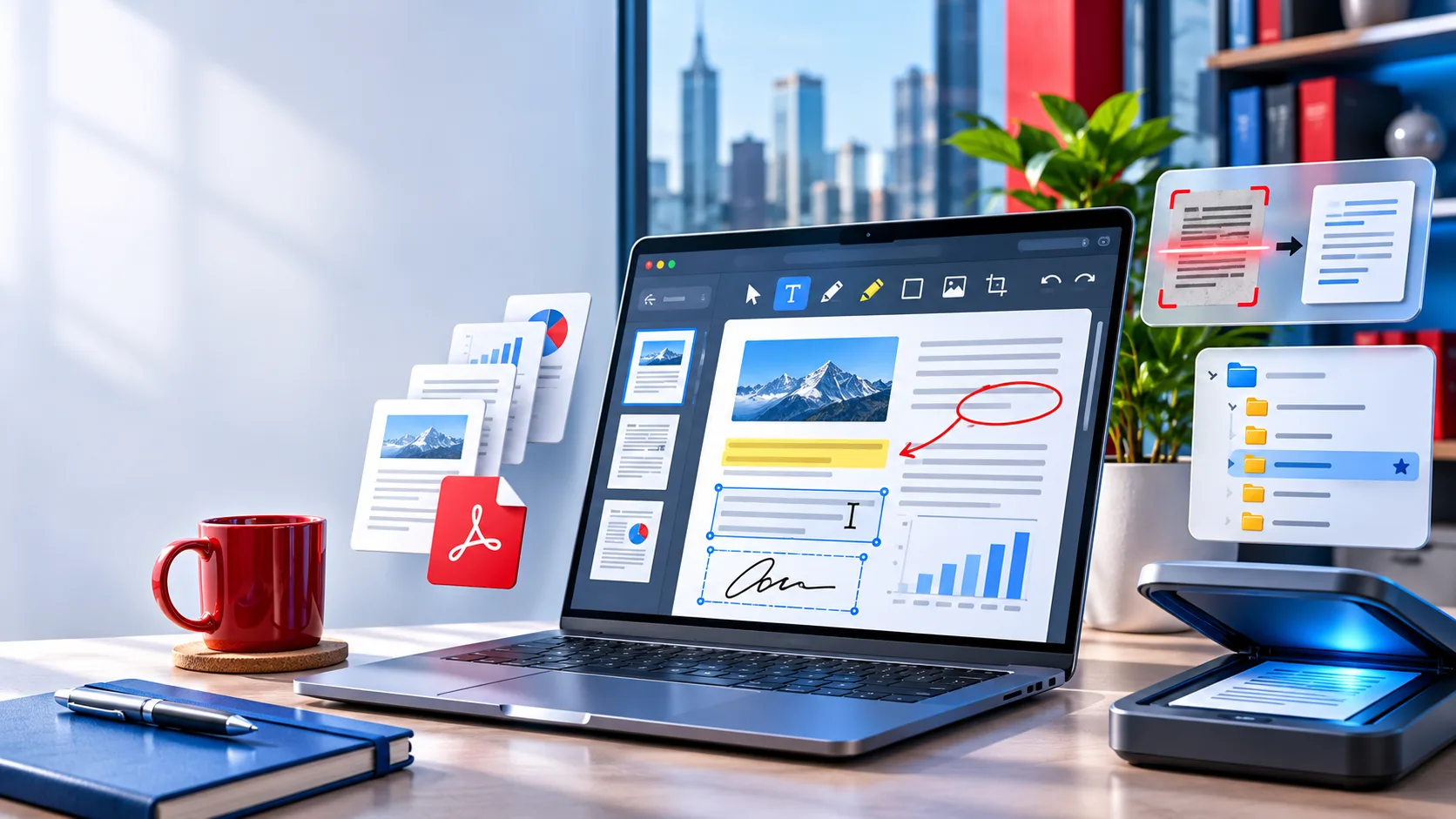

PDFs preserve a document’s layout, but editing one can still be surprisingly difficult. A typo, missing signature, scanned form, or outdated page can turn a quick fix into a long manual task.
The best PDF editors in 2026 do more than add comments. They can edit text, replace images, recognize scanned pages, convert files, fill forms, sign documents, redact sensitive information, and organize large files. This guide compares five strong options and explains which type of user each one suits best.
Best PDF Editors at a Glance
| PDF Editor | Best For | Main Strength | Main Limitation |
|---|---|---|---|
| Adobe Acrobat Pro | Advanced professional work | Broadest feature set | Expensive subscription |
| Foxit PDF Editor | Businesses and IT teams | Acrobat-style tools with efficient performance | Busy interface |
| Nitro PDF Pro | Office-based teams | Microsoft Office integration and e-signatures | Platform differences |
| PDFgear | Free everyday editing | Many full editing tools at no cost | Fewer enterprise controls |
| UPDF | Students and prosumers | Modern interface and AI-assisted reading | Some AI features are add-ons |
How We Evaluated These PDF Editors
We compared the tools across the tasks people perform most often: editing existing text, changing fonts and spacing, inserting images, OCR for scans, annotations, forms, signatures, redaction, conversion, page organization, device support, pricing flexibility, and privacy.
A capable editor should preserve the original layout while making routine tasks easy. It should also make clear which features work offline and which require cloud processing.
1. Adobe Acrobat Pro
Best for advanced PDF workflows
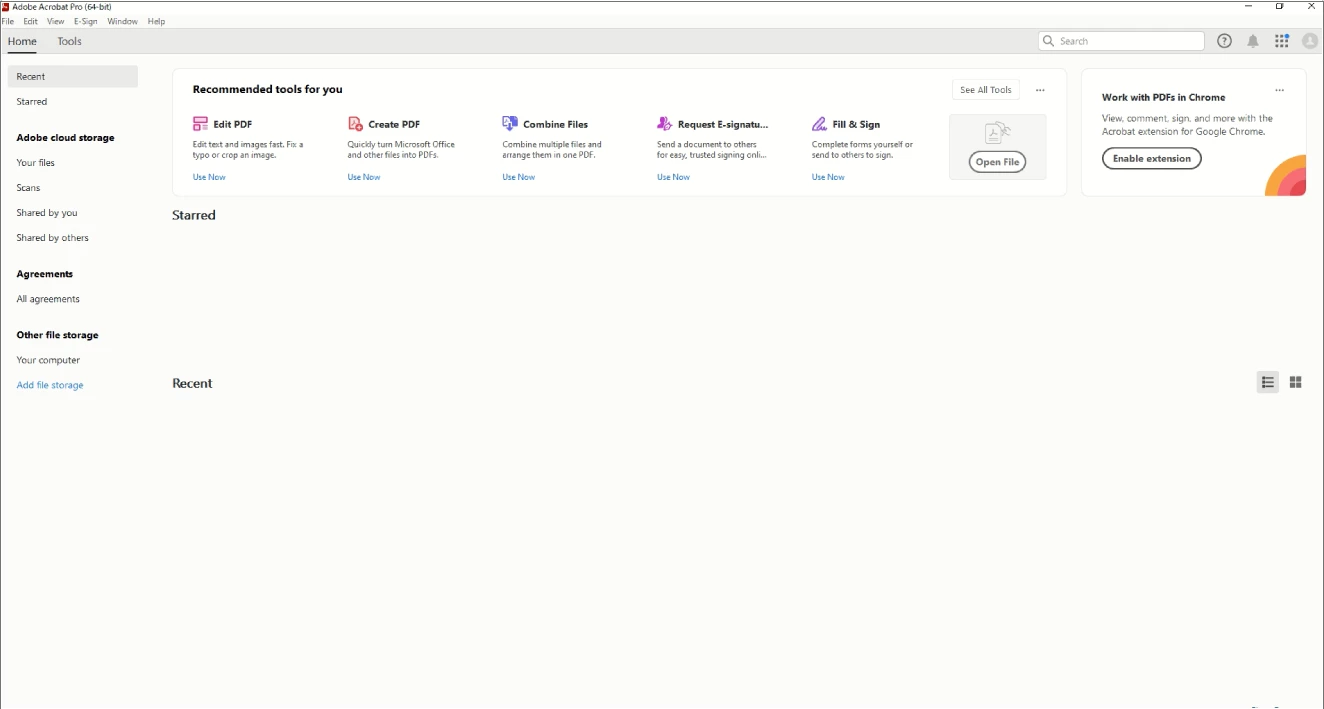
Adobe Acrobat Pro remains the benchmark for professional PDF editing. It supports detailed text and image editing, OCR, forms, redaction, document comparison, electronic signatures, and PDF standards used in publishing and legal workflows.
Acrobat is particularly strong when a document contains complex layouts, embedded fonts, vector graphics, or interactive form fields. Its redaction tools can permanently remove sensitive content instead of merely covering it visually.
The software also integrates with Adobe Document Cloud and other Adobe products. That makes it useful for companies already using Creative Cloud, Acrobat Sign, or enterprise document-management systems.
Key features: text and image editing, OCR, document comparison, interactive forms, permanent redaction, certified signatures, page organization, and professional PDF standards.
Pros: the most complete professional feature set; excellent layout preservation; strong legal and form tools.
Cons: expensive subscription; more than occasional users need; some advanced features have a learning curve.
2. Foxit PDF Editor
Best Acrobat alternative for businesses
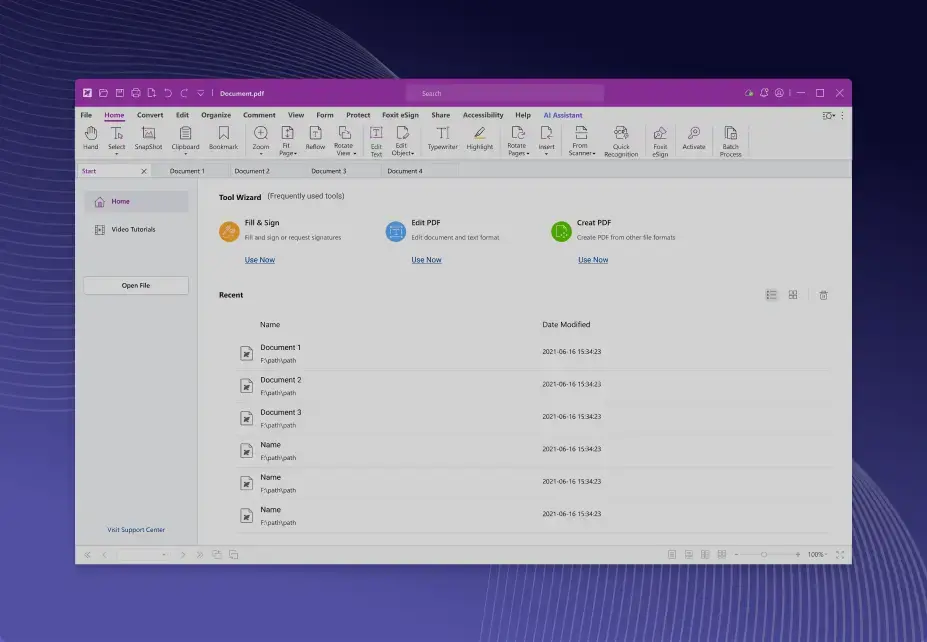
Foxit PDF Editor offers many tools associated with Acrobat while generally using fewer system resources. Its ribbon interface will feel familiar to Office users, and it provides desktop, cloud, and mobile options for business teams.
Foxit handles text editing, OCR, forms, comments, document comparison, and redaction. It also includes templates and electronic-signature workflows for organizations processing documents at volume.
Business deployment is one of Foxit’s strongest points. IT teams can use centralized deployment tools, policy controls, and volume licensing options, making company-wide rollouts easier than with many consumer-focused applications.
Key features: text and image editing, OCR, form creation, collaboration, redaction, password protection, e-signatures, and enterprise deployment.
Pros: broad feature coverage; fast performance; strong business administration; flexible licensing in some editions.
Cons: interface can overwhelm beginners; some cloud features require separate plans; upgrade prompts can be distracting.
3. Nitro PDF Pro
Best for Microsoft Office users
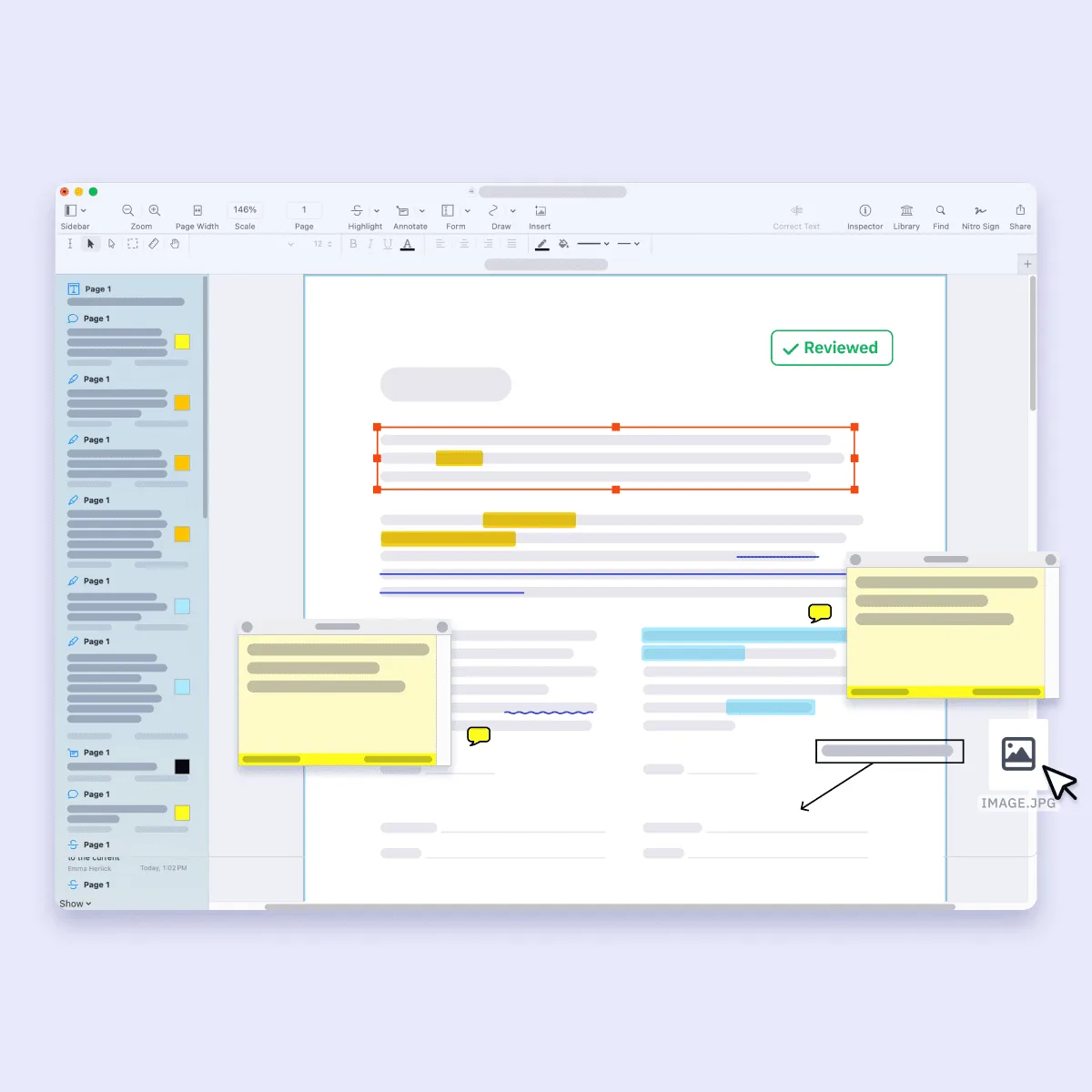
Nitro PDF Pro is designed for teams that spend much of the day working with Word, Excel, PowerPoint, and Outlook. Its Office-style interface reduces the learning curve during company-wide adoption.
The software supports PDF creation, editing, conversion, annotation, form filling, and electronic signatures. Its Office conversion tools are especially useful when information must move between PDFs and editable Word or Excel files.
Nitro also emphasizes collaboration. Team members can review documents, add comments, request signatures, and track changes without relying on several unrelated applications.
Key features: text and image editing, Office conversion, review comments, form creation, signatures, page management, and team collaboration.
Pros: familiar interface; good Word and Excel conversion; useful signing tools; subscription and perpetual-license options may be available.
Cons: feature parity varies by platform; enterprise pricing may not suit very small teams; fewer specialized publishing tools than Acrobat.
4. PDFgear
Best free PDF editor
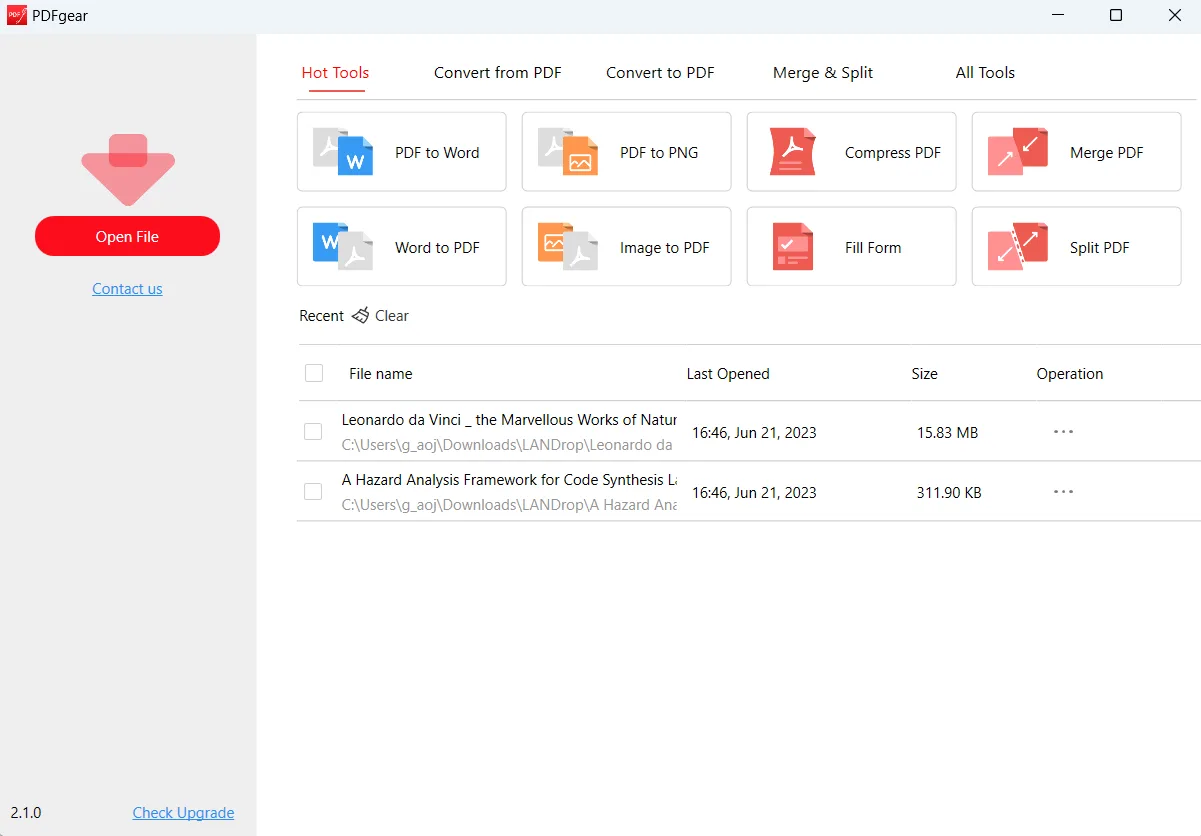
PDFgear stands out by offering a broad set of PDF tools without requiring a paid subscription for basic editing. It supports text changes, annotations, page management, conversion, form filling, and signing across supported desktop and mobile platforms.
Its interface is simpler than Acrobat or Foxit, making it easy for students, freelancers, and home-office users to start editing immediately. PDFgear also includes AI-assisted document features for summarizing or explaining longer PDFs.
For users who only need to fix text, reorder pages, sign a form, or convert a file occasionally, PDFgear removes much of the friction associated with paid PDF software.
Key features: text editing, image insertion, annotations, page extraction, form filling, signatures, conversion, OCR, and AI-assisted document reading.
Pros: free for many everyday tasks; simple interface; no mandatory subscription for basic use; useful AI reading tools.
Cons: fewer enterprise administration features; not designed for advanced prepress work; more limited business integrations.
5. UPDF
Best modern PDF editor for students and prosumers
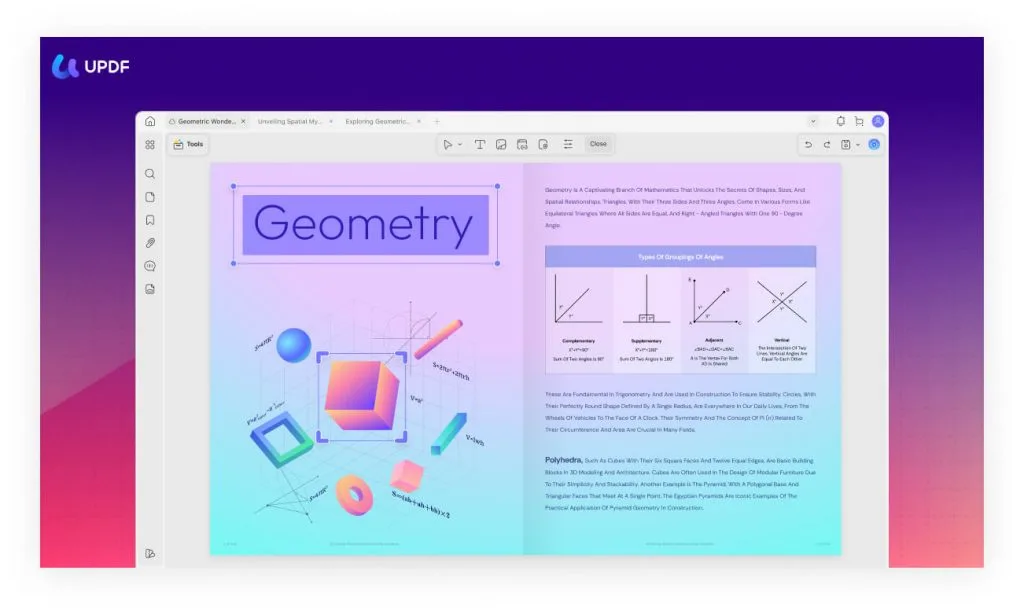
UPDF takes a modern approach to PDF editing. Its interface is clean and easy to navigate, and it supports Windows, macOS, iOS, and Android so users can move between devices with a consistent workflow.
Alongside editing and annotation, UPDF includes AI-assisted tools for summarizing, translating, explaining, and querying documents. These features are useful for academic papers, contracts, manuals, and long reports.
UPDF also offers flexible licensing, including annual and lifetime options. That makes it attractive to users who want more capabilities than a free editor without committing to a long-term Acrobat subscription.
Key features: text and image editing, OCR, annotations, AI summaries, translation, document queries, file conversion, and multi-platform support.
Pros: modern interface; strong cross-platform support; useful AI reading features; flexible licensing.
Cons: some AI functions require an additional plan; no advanced prepress tools; fewer enterprise controls than Acrobat or Foxit.
Which PDF Editor Should You Choose?
- For advanced professional workflows: Adobe Acrobat Pro
- For enterprise deployment: Foxit PDF Editor
- For Microsoft Office-heavy teams: Nitro PDF Pro
- For free everyday editing: PDFgear
- For a modern interface and AI reading: UPDF
- For complex redaction and legal documents: Acrobat Pro or Foxit
- For occasional home-office tasks: PDFgear or UPDF
How to Choose a PDF Editor
Decide whether you need editing or annotation
Some applications only let you highlight, comment, or draw on a PDF. If you need to change original wording, replace images, or adjust formatting, choose a full PDF editor.
Check OCR quality
If you work with scanned contracts, receipts, or forms, OCR is essential. Look for tools that preserve columns, tables, and page structure instead of returning plain text only.
Consider privacy requirements
Cloud editors are convenient, but they require files to be uploaded for processing. For confidential documents, consider an offline editor or review the provider’s data-retention and security policies.
Look beyond the monthly price
Check whether the plan includes OCR, e-signatures, AI tools, mobile apps, cloud storage, and document comparison. A cheaper plan may become expensive when essential features are sold separately.
Test your real documents
Before choosing a tool, test it with a scanned page, a complex table, a form, and a PDF with images. A tool that works well on simple pages may struggle with the documents you use most.
FAQ
What is the best PDF editor in 2026?
Adobe Acrobat Pro remains the most complete option for advanced professional work. Foxit, Nitro, PDFgear, and UPDF may offer better value depending on your workflow.
Can I edit a PDF for free?
Yes. PDFgear provides many common editing tools at no cost. Some online editors also offer limited free plans with restrictions on file size, daily tasks, or advanced features.
Can PDF editors change existing text?
Full PDF editors can change existing text, but the result depends on how the original PDF was created. Text-based PDFs are usually easier to edit than scans or documents with unusual fonts.
What is OCR in a PDF editor?
OCR converts text inside scanned images into selectable and editable content. It is useful for scanned forms, receipts, and printed documents.
Are online PDF editors safe?
They can be safe for ordinary documents, but sensitive files require more caution. Review privacy, retention, encryption, and model-training policies before uploading confidential data.
Is UPDF better than Adobe Acrobat?
UPDF is simpler and usually more affordable, while Acrobat offers deeper professional, legal, publishing, and enterprise features. The better choice depends on whether you value ease of use or specialized functionality.
Final Verdict
The best PDF editor depends on the work you do. Adobe Acrobat Pro is the strongest all-round choice for advanced workflows. Foxit is a capable business alternative, Nitro fits Microsoft-centered offices, PDFgear is the best free option for everyday tasks, and UPDF offers a modern experience with AI assistance.
Before committing to a plan, test each shortlisted tool with your own documents. The right PDF editor should make routine work faster without damaging layout, privacy, or usability.
Latest Reviews
MOSS-Image LoRA Training: KohakuMoss, AI Toolkit and Practical Workflows

8 AI Writing Platforms for Journal Manuscript Preparation

Strata Review: Local AI Models, Setup, Performance and Privacy
Top 6 Vendors for Zero-Day Protection in End-of-Life Open Source
GPU Unlock Review: NVIDIA Tensor Gains, Tools and Real Limits
5 Best AI Wallpaper Generators in 2026