MOSS-Image LoRA Training: KohakuMoss, AI Toolkit and Practical Workflows
Compare KohakuMossTrainer, AI Toolkit, sd-scripts and Fizgig, with installation steps, training configs, community evidence, VRAM limits and ComfyUI checks.


For a first MOSS-Image LoRA, start with Base, keep Qwen3.5-9B frozen, and decide which training workflow you want to maintain. KohakuMossTrainer offers generated configurations and aggressive offloading; AI Toolkit provides a job UI and portable YAML. sd-scripts suits explicit command-line control, while Fizgig combines training with checkpoint comparison.
All four have public MOSS-Image training evidence, but successful export is not a guarantee of good character likeness. The useful workflow ends with testing the adapter in ComfyUI on unfamiliar poses, backgrounds and prompts. An 8 GB training-loop figure also says little about whether text caching and previews fit.
On this page
- Choose by workflow and evidence
- Prepare images, captions and model files
- KohakuMossTrainer: configure, cache, train and export
- AI Toolkit: UI jobs and a reproducible YAML
- sd-scripts: a controlled command-line recipe
- Fizgig: guided training and epoch comparison
- VRAM and RAM: plan the whole run
- Load and evaluate the LoRA in ComfyUI
- Fix the failure before adding more steps
- Which route should you use first?
Choose by workflow and evidence
| Tool | Best fit | Important limit |
|---|---|---|
| KohakuMossTrainer | MOSS-specific CLI, automatic GPU profiles, LyCORIS and ComfyUI export | Host RAM, cache passes and token budgets remain important |
| AI Toolkit | Dataset/job UI, YAML and LoRA/LoKr experiments | Local and cloud setup differ; LoKr results are not ordinary LoRA benchmarks |
| sd-scripts | Readable TOML, explicit layers and repeatable CLI runs | Text-cache startup prevents a blanket 8 GB recommendation |
| Fizgig | A guided app, previews and visual epoch selection | MOSS remains experimental; preview settings affect perceived likeness |
Checked November 3, 2026. This is a documentary workflow review of official code/docs, public training logs and model cards. AirMore did not train these adapters or benchmark the GPUs. Example paths and pilot settings must be adapted; configuration syntax/option checks do not establish image quality. AI assisted research, drafting and localization; the cover is an editorial illustration.
Prepare images, captions and model files
Use a small, varied pilot set before committing a large run. For a subject, include different angles, distances, expressions or arrangements; for a style, vary subject matter so the adapter does not confuse the style with one face or object. Keep some images and prompts for evaluation. Use material you have permission to train on.
Store each image beside a UTF-8 caption with the same stem, such as 001.png and 001.txt. Describe visible content, composition and changing details, and transcribe readable on-image text exactly. OpenMOSS recommends detailed natural-language captions; its long/medium/short JSON is a caption-generation schema, not a file to paste blindly into every trainer. Here is an illustrative caption, not an actual training result:
mossbird, a small teal ceramic bird in a three-quarter view on a wooden table. Its beak points left. Soft daylight enters from the right, with a plain cream wall behind it.The English example is a conservative shared starting point, not a requirement to translate visible Japanese, Chinese or accented text. Do not invent details the captioner cannot see. For identity work, a consistent trigger and sensible caption boundaries matter; copying hair, clothing and background into every caption can create unwanted associations.
The Comfy-Org MOSS-Image download contains diffusion_models, text_encoders and vae folders. For the low-memory CLI examples, use moss_image_base_int8_convrot.safetensors, qwen3.5_9b_int8_convrot.safetensors and the appropriate FLUX.2 VAE. Kohaku’s quick start uses flux2-vae_small.safetensors; the sd-scripts example below uses flux2-vae.safetensors. Keep trainer environments separate from ComfyUI.
Comfy-Org MOSS-Image model files
KohakuMossTrainer: configure, cache, train and export
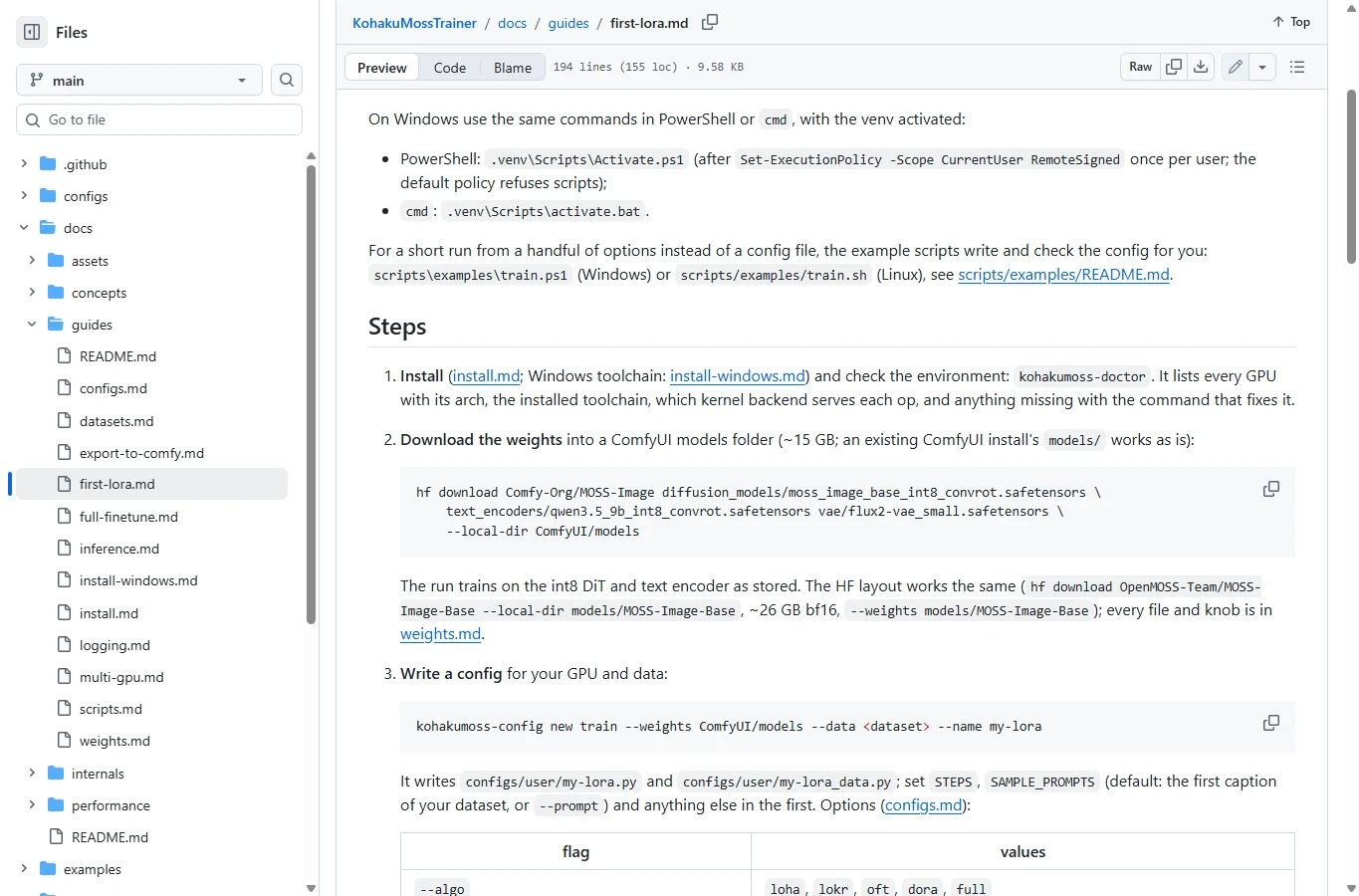
KohakuMossTrainer — Official tool guide
KohakuMossTrainer is a standalone MOSS framework, not a ComfyUI custom node. Its strength is composing a GPU memory profile, dataset source and LyCORIS algorithm into checked Python configurations. OpenMOSS lists the project; it supports Base/SFT and exports a ComfyUI-keyed adapter. LoRA, LoKr and full fine-tuning are separate modes.
There is public user evidence beyond the feature list. yoru published a 13-image, 50-step style experiment with logs and both ComfyUI/LyCORIS exports; the effect was weak enough to require high strength. That establishes an actual training/export path, not that 50 steps delivers a finished style. Their private GUI was not distributed.
Published training evidence: yoru
1. Install in its own environment
Clone the checked source revision. Windows needs the documented C++ Build Tools; the helper detects the GPU/driver and installs compatible dependencies. Run the Windows installer shown below or bash scripts/install/install.sh on Linux. Then activate .venv: use .venv\Scripts\activate.bat in cmd, or source .venv/bin/activate on Linux. There is no need to change your system-wide script policy.
git clone https://github.com/KohakuBlueleaf/KohakuMossTrainer.git
cd KohakuMossTrainer
git checkout b06ac60e54321955c24e818add5d32b2fad23ed6
Windows
powershell -ExecutionPolicy Bypass -File scripts\install\install.ps1Linux
bash scripts/install/install.sh2. Check and download
Run kohakumoss-doctor and resolve its missing components. The following one-line download preserves the folder structure; an existing compatible ComfyUI models folder can be reused. First download and cache passes require disk space in addition to the adapter output.
hf download Comfy-Org/MOSS-Image diffusion_models/moss_image_base_int8_convrot.safetensors text_encoders/qwen3.5_9b_int8_convrot.safetensors vae/flux2-vae_small.safetensors --local-dir ComfyUI/models3. Generate the data plan
Replace the absolute data path. –source folder_nl explicitly selects natural-language image-plus-caption folders. Inspect the resulting plan before caching text and latents. The commands run from the repository root with the environment active.
kohakumoss-doctor
kohakumoss-config new train --weights ComfyUI/models --data /absolute/path/to/moss-data --source folder_nl --name moss_subject
kogine run scripts/data/inspect_data.py --config configs/user/moss_subject_data.py
kogine run scripts/data/cache_text.py --config configs/user/moss_subject_data.py
kogine run scripts/data/cache_latents.py --config configs/user/moss_subject_data.py
4. Set a pilot configuration
Keep the generated use_config layers. Adjust the following knobs in configs/user/moss_subject.py as an initial experiment, not a universal optimum. Check how many samples/tokens the plan batches; one packed optimizer step is not necessarily one image. Lower image area before caching if long captions exceed the small-GPU token budget.
STEPS = 1200
DIM = 16
ALPHA = 16.0
LR = 0.0001
SAVE_EVERY = 200
SAMPLE_EVERY = 0
5. Smoke-test, then train
Use a separate smoke-run name for a 100-step validation. Check logs for nonfinite values and a real export. A successful short run validates the pipeline, not likeness. Then start the intended run; the first kernel tuning can be slower. –set RESUME=latest resumes state, whereas INIT_FROM starts from weights with fresh optimizer/schedule.
kogine run scripts/train/moss.py --config configs/user/moss_subject.py --set RUN_NAME=moss_smoke --set STEPS=100 --set SAMPLE_EVERY=0kogine run scripts/train/moss.py --config configs/user/moss_subject.py6. Find the correct export
Inspect runs/moss/moss_subject/export/ and checkpoint export folders. Use the -comfy.safetensors adapter for ComfyUI; the LyCORIS file and a merged transformer are different artifacts. Retain config.json, logs and the base revision so a later comparison is meaningful.
AI Toolkit: UI jobs and a reproducible YAML
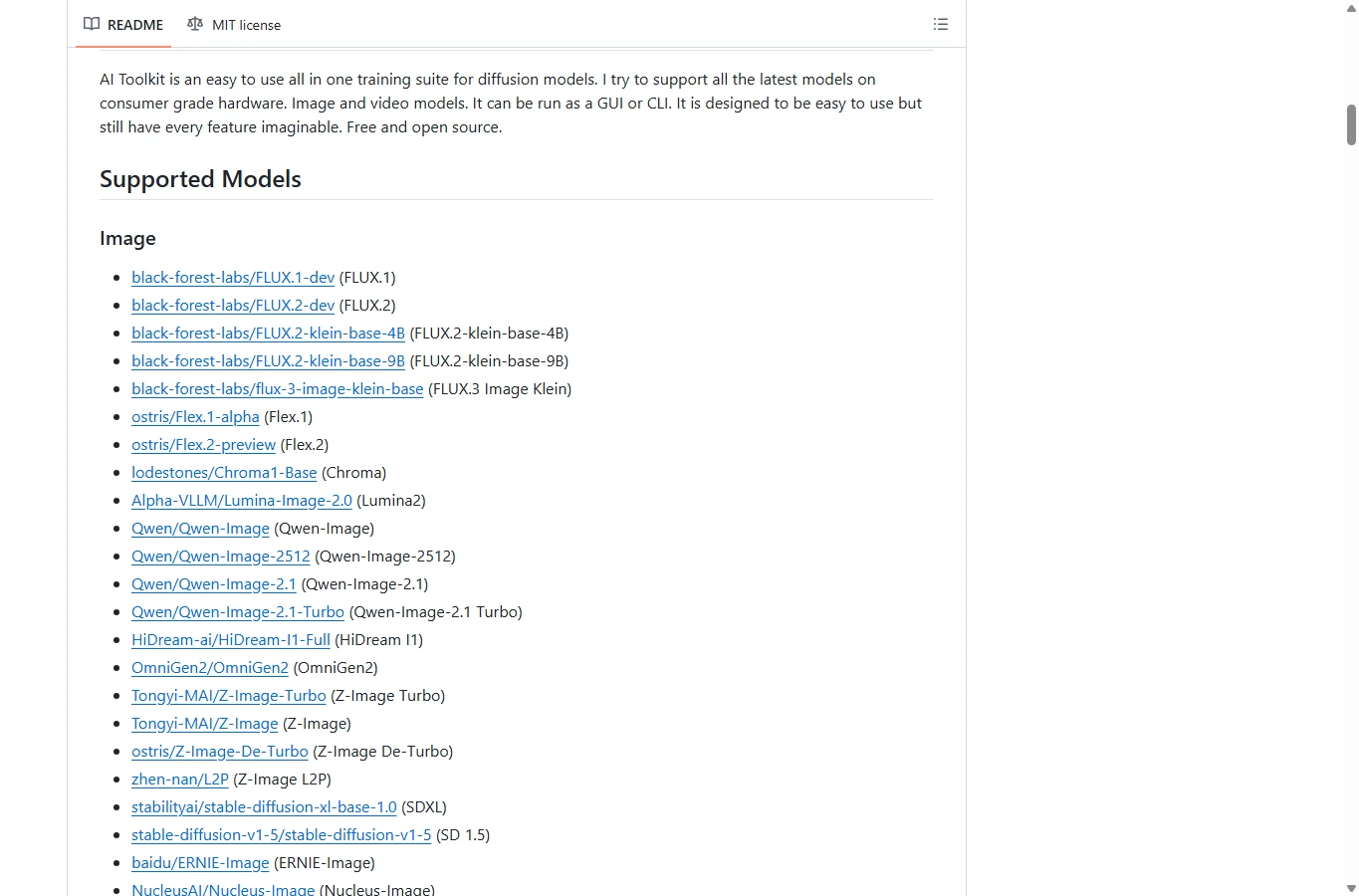
AI Toolkit — Official tool guide
AI Toolkit supports MOSS-Image Base and SFT as distinct architectures, with UI jobs and configuration files. For ordinary text-to-image adapter training select moss_image:base and OpenMOSS-Team/MOSS-Image-Base; an edit-conditioning variant is a different task. Keep train_text_encoder false.
A Japanese owner reported a Windows 11/RTX 4070 12 GB run with 48 GB RAM, 30 anime images, 1024-pixel buckets and 2,000 steps. The configuration used rank/alpha 16/16, LR 1e-4, AdamW8bit, ConvRot8 for model and text encoder, 50% transformer offload, full encoder offload, caches and disabled previews. Their real-photo run used an A100, so it should not be presented as another 4070 timing.
Published training evidence: かみもと · u/FitEgg603
1. Install and open the UI
Clone the repository. The current built-in Manager is experimental: run run_windows.bat on Windows or run_linux.sh on Linux; it sets up the environment and opens localhost:8675. Alternatively use the Manager CLI below. Launchers may update the checkout, so record the final commit and export the job config.
git clone https://github.com/ostris/ai-toolkit.git
cd ai-toolkit
python3 -m manager install
python3 -m manager doctor
python3 -m manager launch2. Create the dataset and job
Use your captioned folder, give the job a new name, choose MOSS-Image Base, and verify architecture moss_image:base. Start with ordinary LoRA, rank/alpha 16/16. Set the model and encoder quantization to convrot8, computation to bf16, and keep the text encoder frozen.
3. Apply the low-memory recipe
Use batch 1, accumulation 1, 1024 buckets, LR 1e-4, AdamW8bit, gradient checkpointing, latent/text caches, text-encoder offload 1.0 and transformer offload 0.5. Keep previews off for the first run. These are a documented community starting point, not a 12 GB guarantee on every machine.
4. Save and run the YAML
Save the complete example below as config/moss_subject.yaml, replace the folder path and review output retention. First copy it to a separate smoke job with steps: 1 and a different name. Then run the full config from the AI Toolkit environment, or create equivalent UI fields and export its YAML.
AI Toolkit YAML example
job: extension
config:
  name: moss_subject
  process:
    - type: diffusion_trainer
      training_folder: output
      device: cuda
      trigger_word: mossbird
      network:
        type: lora
        linear: 16
        linear_alpha: 16
      save:
        dtype: bf16
        save_every: 250
        max_step_saves_to_keep: 8
        save_format: diffusers
        push_to_hub: false
      datasets:
        - folder_path: /absolute/path/to/moss-data
          caption_ext: txt
          resolution: [1024]
          cache_latents_to_disk: true
          num_repeats: 1
      train:
        batch_size: 1
        steps: 2000
        gradient_accumulation: 1
        train_unet: true
        train_text_encoder: false
        gradient_checkpointing: true
        noise_scheduler: flowmatch
        optimizer: adamw8bit
        lr: 0.0001
        timestep_type: shift
        dtype: bf16
        cache_text_embeddings: true
        disable_sampling: true
      model:
        name_or_path: OpenMOSS-Team/MOSS-Image-Base
        arch: moss_image:base
        quantize: true
        qtype: convrot8
        quantize_te: true
        qtype_te: convrot8
        low_vram: true
        layer_offloading: true
        layer_offloading_text_encoder_percent: 1.0
        layer_offloading_transformer_percent: 0.5
      sample:
        sampler: flowmatch
        sample_every: 250
        width: 1024
        height: 1024
        samples:
          - prompt: mossbird, a teal ceramic bird on a windowsill
        seed: 42
        guidance_scale: 3
        sample_steps: 30
python run.py config/moss_subject.yaml5. Compare checkpoints rather than only the last file
The example saves every 250 updates and retains eight saves. Check the named output folder. A community LoKr report used a different factor, 6,600 steps and additional guidance; its “90% likeness” was the author’s visual estimate. Do not import that percentage or schedule into ordinary LoRA as a validated benchmark.
sd-scripts: a controlled command-line recipe
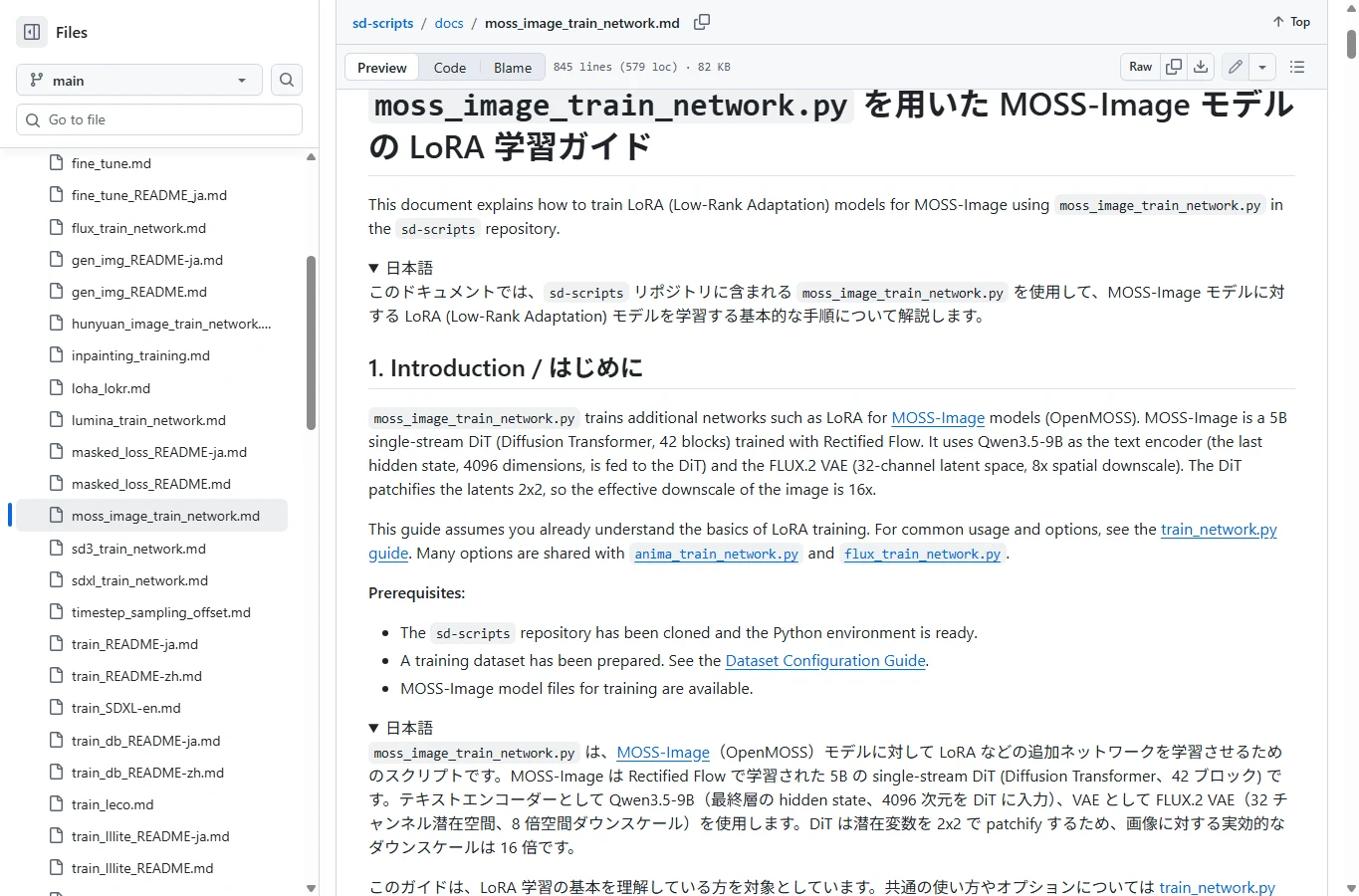
sd-scripts — Official tool guide
sd-scripts has a dedicated moss_image_train_network.py and a bilingual MOSS guide. The checked revision includes v0.12.3 changes: truncated_logit_normal sampling and improved INT8/compile handling. This is the training backend, not proof that every old kohya_ss GUI exposes the same controls.
Community user エマノン documented style training with 500 generated images and also reported unwanted accessories when restricting training to FFN layers. The downloadable FFF_MOSS-Alba-style card separately identifies sd-scripts, Base, a frozen encoder and dim 16/alpha 1. These establish actual workflows; neither makes a particular layer subset the best default.
Published training evidence: エマノン · FFF_MOSS-Alba-style
1. Prepare Python and CUDA PyTorch
Clone the pinned source and make a separate venv. Activate venv\Scripts\activate.bat in Windows cmd or source venv/bin/activate on Linux. Install a CUDA PyTorch build compatible with your GPU first; the README’s torch 2.6/CUDA 12.4 example is not an RTX 50 recipe. Install requirements, confirm CUDA is available and configure Accelerate for one local GPU with bf16.
git clone https://github.com/kohya-ss/sd-scripts.git
cd sd-scripts
git checkout cb70b96858477e716a2096292ab8aab433277f38
python -m venv venv
python -m pip install --upgrade -r requirements.txt
python -c "import torch; print(torch.__version__, torch.cuda.is_available())"
accelerate config2. Write dataset.toml
Replace image_dir with an absolute path (C:/… is valid on Windows). The dataset uses batch 1, 1024-pixel buckets, no caption shuffling and repeats 1. Bucket dimensions must be multiples of 16. Cache-based training is a deliberate choice; do not add random caption rewriting or image augmentation without checking cache compatibility.
dataset.toml
[general]
caption_extension = ".txt"
shuffle_caption = false
enable_multiline_caption = true

[[datasets]]
resolution = 1024
batch_size = 1
enable_bucket = true
bucket_reso_steps = 64

  [[datasets.subsets]]
  image_dir = "/absolute/path/to/moss-data"
  num_repeats = 1
3. Write train_moss.toml
Use the two pre-quantized ConvRot INT8 files and the FLUX.2 VAE paths. They are detected automatically, so quantization flags are unnecessary here. The example freezes the text encoder and trains the DiT. Rank 16 with alpha 1 follows the scaling of the official example; changing alpha to 16 while keeping everything else is not an equivalent experiment.
train_moss.toml
pretrained_model_name_or_path = "/absolute/path/to/moss_image_base_int8_convrot.safetensors"
text_encoder = "/absolute/path/to/qwen3.5_9b_int8_convrot.safetensors"
vae = "/absolute/path/to/flux2-vae.safetensors"
dataset_config = "dataset.toml"
output_dir = "/absolute/path/to/moss-output"
output_name = "moss_subject"
save_model_as = "safetensors"
save_precision = "bf16"
network_module = "networks.lora_generic"
network_dim = 16
network_alpha = 1
network_train_unet_only = true
learning_rate = 0.0001
optimizer_type = "AdamW"
lr_scheduler = "constant"
timestep_sampling = "truncated_logit_normal"
logit_mean = -1.09
logit_std = 0.95
discrete_flow_shift = 1.0
max_train_epochs = 10
save_every_n_epochs = 1
gradient_accumulation_steps = 1
mixed_precision = "bf16"
gradient_checkpointing = true
cache_latents = true
cache_latents_to_disk = true
cache_text_encoder_outputs = true
cache_text_encoder_outputs_to_disk = true
blocks_to_swap = 20
max_data_loader_n_workers = 2
persistent_data_loader_workers = true
seed = 42
4. Launch and inspect
Run the one-line Accelerate command. With 30 images, repeats 1, batch 1, accumulation 1 and one GPU, ten epochs mean about 300 optimizer updates: this is a pilot, not a promised finished model. Cached data and exported checkpoints go to different locations; keep sufficient disk space.
accelerate launch --num_cpu_threads_per_process 1 moss_image_train_network.py --config_file train_moss.toml5. Adjust memory one variable at a time
The example swaps 20 blocks. Increasing to 36 saves more VRAM at a transfer cost; H2D-only swap requires gradient checkpointing. Do not combine block swap with unsloth/CPU offload checkpointing. FP8 base options and the W4A8 GPTQ text-encoder file are unsupported in this path. On Windows, a small persistent worker pool avoids repeated worker startup.
Fizgig: guided training and epoch comparison
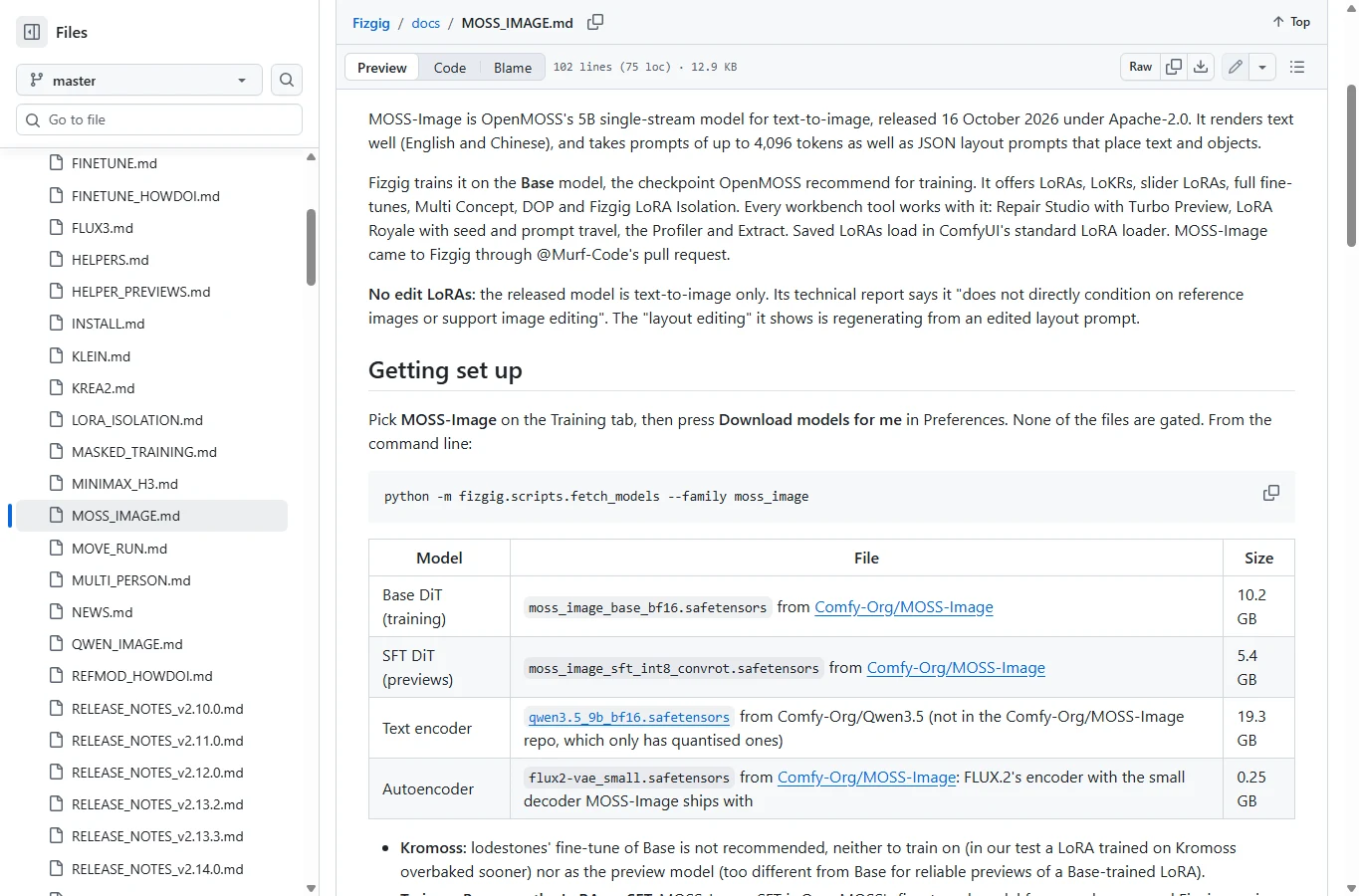
Fizgig 9.x is useful if you want a training app plus visual checkpoint selection. Its MOSS support remains experimental. It trains on Base, normally previews the LoRA on SFT, and offers separate Fast, Standard and Style presets. Comparing these previews to plain Base without matching settings can look like a training failure.
Public feedback is mixed: the developer’s clean-end-share experiments showed earlier likeness on their datasets, while other users reported disappointing results; one user described a successful tiny three-image trial. Those are dataset-specific observations, not a universal likeness score or a three-image minimum.
Published training evidence: u/shootthesound · r/StableDiffusion
1. Install and fetch models
Clone the checked revision. On Windows run install_fizgig.bat, then Launch Fizgig.bat or Launch Fizgig in browser.bat. On Linux run python install_fizgig.py, then ./launch_fizgig.sh. In Training select MOSS-Image, then Preferences → Download models for me. Plan on substantial disk use and preferably 32 GB system RAM.
git clone https://github.com/shootthesound/Fizgig.git
cd Fizgig
git checkout 11ce867242b3cba3f8d72cf4dab6810de8eee14a
2. Prepare through the tabs
Start selects the image folder; Image Prep can crop/resize; Captions stores your descriptions; Samples defines fixed evaluation prompts. Include one pose or scene absent from the dataset to reveal memorization. Inspect captions instead of accepting every automatic description.
3. Choose a suitable preset
Fast is rank 16, LR 1e-4, 70 epochs at 0.25 MP; Standard is rank 32, LR 1e-4, 70 epochs at 1 MP; Style is rank 16, LR 5e-5, 50 epochs at 1 MP. These are current presets, not claims that all 70 epochs are necessary. Avoid confusing the Slider or full fine-tune modes with an ordinary subject LoRA.
4. Record the schedule and preview model
Leave the current Clean-end share preset for the first experiment and record its value. Older posts moved from 60 to 30, while the current guide uses Slide; do not combine settings from different releases. Keep Turbo preview adapters off while establishing a quality baseline.
5. Train, select and export
Start Training, inspect saved epochs in Runs & outputs or LoRA Royale, and compare fixed seeds and prompts. The output folder is configurable on Training; the default is output_loras. Export the chosen .safetensors and check it in ComfyUI. ArcFace/DINOv2 scores can help browse results but are not calibrated identity-accuracy percentages.
VRAM and RAM: plan the whole run
| Path / published conditions | Training / startup | What it means |
|---|---|---|
| KohakuMoss 6–8 GB profiles | Offloaded weights/states; 6 GB requires offline caches | Host RAM may be ~19 GiB during steps and ~32 GiB at build with previews; not a full-pipeline 6 GB guarantee |
| AI Toolkit community RTX 4070 | 12 GB VRAM, 48 GB RAM; caches/offload, no previews | A specific reported configuration, not a minimum for every job |
| sd-scripts bf16 | 13.2 GB training / 15.3 GB startup | Developer measurement: 1024², batch 1, dim 16, AdamW, checkpointing |
| sd-scripts INT8 + swap 20 | 6.9 GB training / 7.9 GB startup | Standalone encoder cache tool may need ~8.3 GB; do not promise 8 GB end-to-end |
| Fizgig current MOSS guide | Developer says 12 GB cards can stay below ~10.5 GB with SFT previews | Its encoder streaming is different; this is not AirMore’s measurement |
These are different experiments and memory metrics, not a speed ranking. Prewarm, caching, training and preview peaks must all fit; file size on disk is not resident VRAM. Kohaku’s packed token budget also combines image and text tokens, so extremely long captions can reduce the image tokens retained on small profiles.
Both GUI applications and CLI trainers can use rented GPUs, but source software being free does not make GPU time, storage or API captioning free. Keep private datasets local when that is required; cloud jobs and external caption services create separate uploads.
Load and evaluate the LoRA in ComfyUI
- Update ComfyUI and load its native MOSS-Image workflow. First generate once without the new adapter, using matching MOSS weights, Qwen3.5-9B and FLUX.2 VAE. A working baseline separates a loader problem from a bad training run.
- Copy the chosen ComfyUI-format .safetensors into ComfyUI/models/loras and refresh the model list. For DiT-only LoRA on bf16 weights, insert LoraLoaderModelOnly between the diffusion-model loader and the model path toward the sampler; keep the text-encoder branch unchanged.
- For an INT8 SFT base, Fizgig recommends the core LoraLoaderBypassModelOnly node to apply the adapter beside the quantized weights. Its displayed name includes “for debugging” and it is experimental. If missing, update/check the node registration; do not treat a merged quantized file as the same operation.
- Use the same seed, prompt, size, checkpoint, VAE, text encoder and sampler for each comparison. Test adapter strength 0, 0.5 and 1.0, then multiple checkpoints and held-out prompts. These strengths are evaluation points, not guaranteed optimum values. Do not type <lora:…> in a ComfyUI text prompt as a substitute for wiring the node.
- To match Fizgig’s documented preview, use SFT, res_multistep/simple, 30 steps, CFG 4, shift 5 and SkipLayerGuidanceDiTSimple on layer 22, start 0/end 0.5. Plain Base has a different official baseline: Euler, at least 50 steps, CFG 3 and shift 5. Do not silently switch between these recipes while judging an epoch.
- Keep acceleration/distillation adapters off for the first comparison. Then test the exact Base- or SFT-compatible acceleration adapter separately. A character LoRA and a DMD speed adapter have different jobs and their schedules are not interchangeable.
mossbird, a teal ceramic bird on a rainy windowsill, side view, soft watercolor illustrationFix the failure before adding more steps
Out of memory before step 1
Locate the phase first: encoder cache, latent cache, kernel warmup, training or preview. Lower training resolution does not necessarily solve encoder loading. Disable previews, reduce token/batch budgets or choose the trainer’s documented offload/cache route; do not mix memory flags from another trainer.
LoRA keys not loaded or no visible effect
Confirm MOSS architecture, the actual exported format and a recent ComfyUI. Kohaku’s checkpoint state, LyCORIS adapter, -comfy adapter and merged model are different files. Use a known strength and verify node wiring before retraining.
Likeness is good in the trainer but poor in ComfyUI
Match Base versus SFT, quantization, VAE, SLG, CFG, schedule and any preview-only look adapter. Loss alone cannot diagnose this mismatch. Compare held-out poses as well as familiar portrait crops.
Loss fluctuates or more steps make it worse
Diffusion loss samples different noise levels; a smooth decline is not a requirement. Keep intermediate checkpoints and judge prompt following, identity/style and unwanted memorization. Change one parameter group at a time; long captions, more rank and more steps are not automatic fixes.
Which route should you use first?
For the most MOSS-specific route, start with KohakuMossTrainer’s generated configuration and explicit cache plan. Choose AI Toolkit if you want a reusable job UI/YAML workflow. Choose sd-scripts for tight CLI control, and Fizgig when visual epoch comparison matters most. A short pipeline test followed by an external evaluation grid is more useful than immediately committing thousands of updates.
The licensing differs: KohakuMoss License 1.0 adds a “Kohaku” naming condition for derivative software/products/services, while its text exempts trained models, adapters and images. AI Toolkit is MIT; Fizgig is Apache-2.0; sd-scripts is largely Apache-2.0 with component-specific terms. Model and dataset rights remain separate. These facts are not a blanket commercial-use clearance.
Related Reviews
Best 8 Knowledge Base Software in 2026

How to Turn Emails into Tasks with AI: A Practical Follow-Up Workflow
MiniMax M3.1 Flash Review: Coding, API Cost, Open Weights and Limits
6 Best AI Image Upscalers in 2026: Sharpen and Enlarge Photos
The 5 Best Image Watermark Remover AI Tools in 2026

How to Manage Multiple Email Accounts: Separate Inboxes, Aliases, or One App?