How to Organize Gmail: Filters, Labels, and a Practical Inbox Zero Workflow
Learn how to organize Gmail with labels, filters and a practical Inbox Zero workflow. Clear your backlog, track replies and turn emails into tasks.

Opening Gmail should help you figure out what needs your attention. But when client requests, receipts, newsletters, and unfinished conversations all sit together, checking email can turn into repeatedly scanning the same messages.
A manageable inbox needs three things: labels that give messages a clear purpose, filters that handle predictable email, and a routine for deciding what happens next. You can build this with Gmail’s built-in features, without adding a paid email app.
This guide walks through the initial setup, a sensible way to tackle an existing backlog, and a daily workflow you can adapt to your schedule. The setup instructions use Gmail in a desktop browser.
Quick answer: Start with three labels—Action, Waiting, and Read Later. Create narrow filters for low-priority recurring messages. During each email session, decide whether to reply, create a task, snooze, archive, or delete. Review your outstanding actions before finishing.
If messages need more judgment than a sender-based filter can provide, use ZenAion to classify incoming Gmail and review actionable requests. Keep your labels and daily review routine simple.
1. Give Inbox Zero a Practical Meaning
For this workflow, Inbox Zero means every message you have processed has a clear next step. You may still have work to do, but you should know where that work is tracked.
An empty inbox is not especially useful if you have hidden an unanswered request in a folder you never check. Likewise, a few messages remaining in your inbox do not make your system a failure.
Use these questions to judge whether your setup works:
- Can you identify the messages that need a response?
- Can you find information after removing it from your inbox?
- Will you remember to follow up when someone owes you an answer?
- Can you finish checking email without rereading everything?
The aim is to reduce the decisions you have to make each time you open Gmail.
Use ZenAion to sort incoming Gmail without losing actionable mail
Gmail filters work well when you know the sender or subject in advance. For messages whose purpose depends on their content, ZenAion’s Auto Inbox adds an AI review layer: classify incoming mail, inspect requests that need attention, and prepare replies. Keep the narrow Gmail filters below for predictable newsletters and receipts.
Connect Gmail and choose how much help you want
- Open Powers → Routines → Auto Inbox → Add. Select Open connector settings, choose Gmail, and authorize the account you want to organize. After Gmail authorization complete, click Open ZenAI to return.
- Return to Auto Inbox and choose Add with Assistant. It opens a chat with a prepared setup request. Read it and submit it with the paper-plane icon.
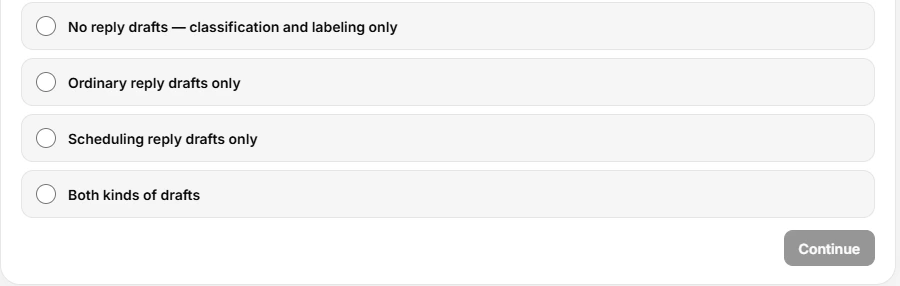
- In Routine setup, choose your draft behavior and click Continue. For an initial sorting-only trial, choose No reply drafts — classification and labeling only. The other options allow ordinary drafts, scheduling-related drafts, or both.
- When creation finishes, review the settings and select Enable as-is, or Adjust a setting first. Confirm the enable toggle and the Gmail account under Settings → Monitored mailboxes.
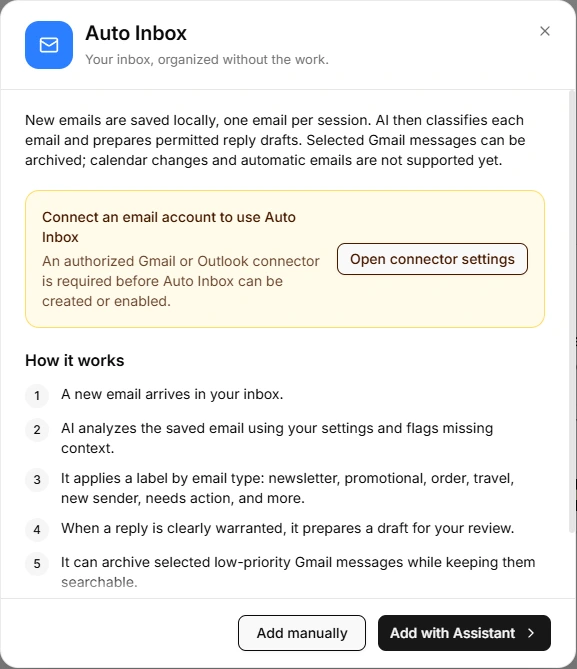
Open Label new mail and Filtering labels to review the rules. Labels are editable. Turning labeling off leaves analysis active but stops labels being applied. Drafts remain in the mailbox for review; the routine does not automatically send them or modify your calendar.
Use categories to decide what deserves attention
In the connected Gmail test, a product-image update received updates and a weekly digest received newsletters. Those labels describe the kind of email. Your Action, Waiting and Read Later labels describe what you intend to do with it. You do not need to maintain both systems for every message; keep the categories you actually review.

The quote request initially had no applied label. In Recent sessions, it showed Needs attention and Label/category: Not performed. Review this queue before clearing the inbox: recognizing a request does not finish it.
Handle the exception, then clear the message
- In Recent sessions, open the request, read the details, and click Chat beside the selected message.
- Describe the action you need in your own words. For example: “Apply the Action label to this email and prepare a reply draft for my review. Do not send it.” Change the label and requested action to match your workflow; no fixed wording is required. In the recorded test, a shorter request resulted in the Quote – Action Needed label and a saved draft.
- Return to the Gmail thread and check the actual label and draft. Confirm the recipient and remove any unaccepted promise before sending yourself.
- For work that takes longer than a reply, save the next action in your task list. Archive only when the commitment is tracked elsewhere or the conversation is finished.

A useful daily loop: skim low-priority categories, review attention items, deal with drafts, then archive completed conversations. Check results before enabling broad archive rules. Auto Inbox can archive selected Gmail messages, but new-mail processing should not be assumed to clear your entire historical backlog.
2. Start with Three Useful Labels
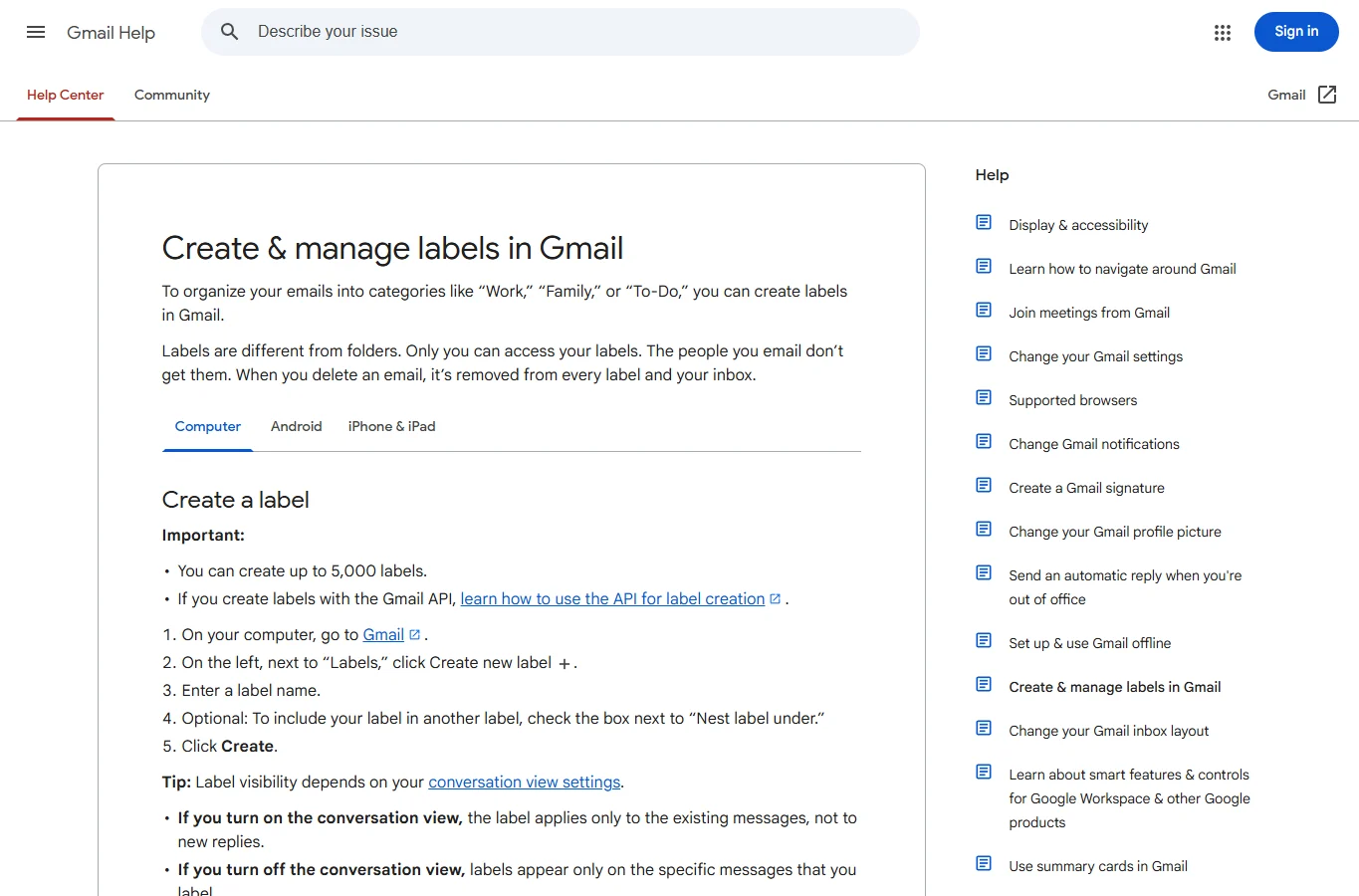
Gmail uses labels rather than traditional folders. A message can have multiple labels, so a client email might belong to both a project and an action category. Applying a label alone does not remove it from your inbox. Google’s guide to organizing email
Start with these three:
| Label | What belongs here | When to review it |
|---|---|---|
| Action | Messages that require a reply or another small action | Every email session |
| Waiting | Conversations where someone else needs to respond | Daily or when a follow-up is due |
| Read Later | Optional newsletters and other nonurgent reading | At a scheduled reading time |
Add reference labels such as Receipts or a project name only when they help you retrieve something regularly. You do not need a label for every sender.
How to create a label
- Open Gmail on your computer.
- In the left sidebar, find Labels and click the + icon.
- Enter the label name.
- Click Create.
To use it, select a message, click the Labels button, and choose the appropriate label. Google’s label instructions
Choose one place to track your work. If you already use a task manager, put actionable commitments there. Maintaining identical Action lists in Gmail and a task app creates another list to reconcile.
3. Create Filters for Predictable Email
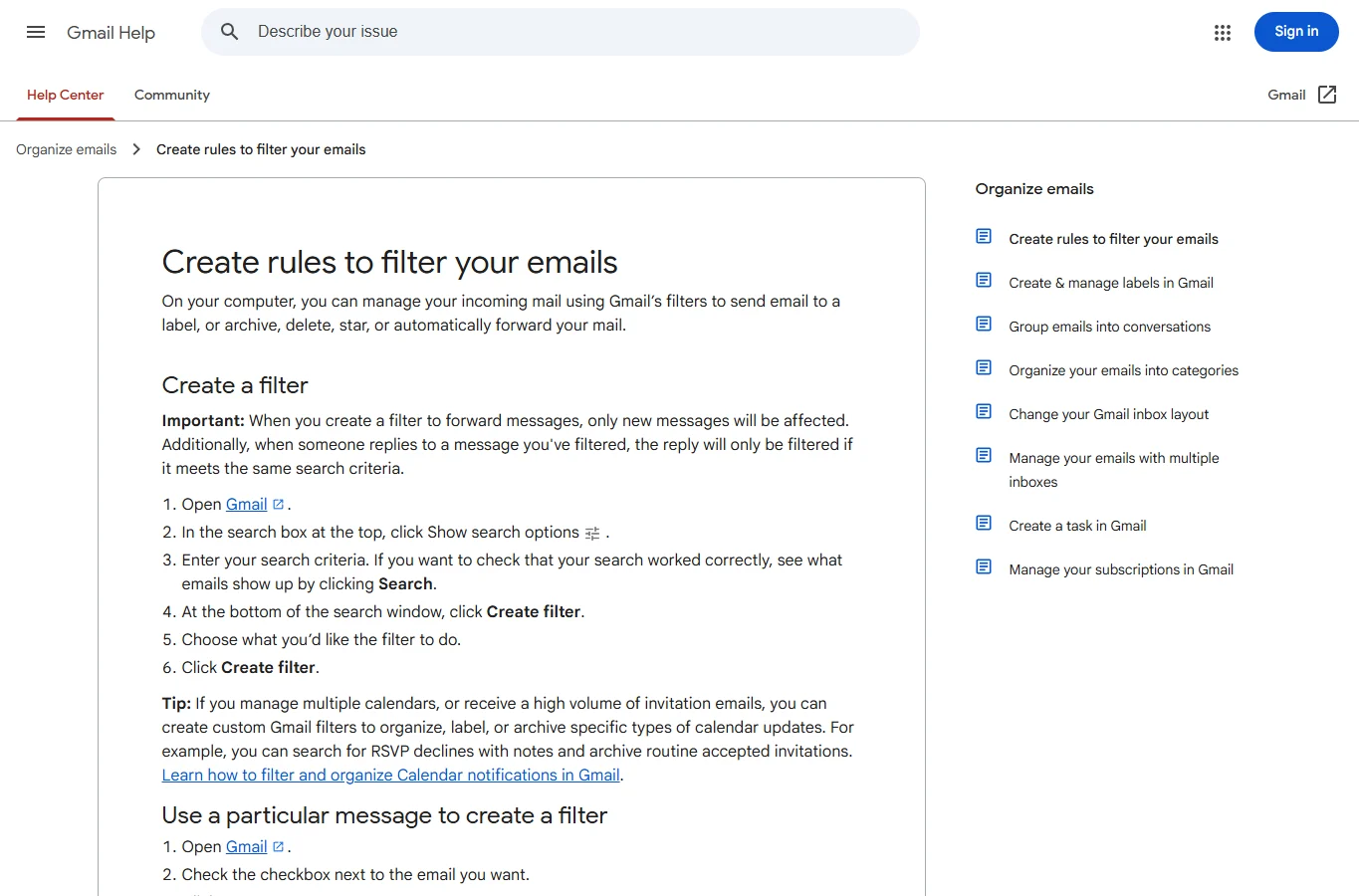
A filter applies an action when an incoming message matches criteria you choose. Gmail filters can label, archive, star, delete, or forward matching mail. You can manage them under Settings → See all settings → Filters and Blocked Addresses. Google’s filter guide
Begin with a few recurring senders whose messages you understand. Broad rules such as “archive everything containing ‘update’” can hide messages you wanted to see.
Example: Send a newsletter to Read Later
- Open a recent issue of a newsletter you want to keep.
- Open the More menu and choose Filter messages like these.
- Check the sender address and refine the criteria if necessary.
- Run the search and inspect the results.
- Return to the search options and click Create filter.
- Select Apply the label → Read Later.
- If these messages never need immediate attention, also select Skip the Inbox (Archive it).
- Save the filter.
Gmail also offers an option to apply the filter to existing matching conversations. Inspect those matches before choosing it. Google’s filter options
Three filters worth considering
| Email type | Suggested starting rule | Suggested action |
|---|---|---|
| A newsletter you still enjoy | Its specific sending address | Apply Read Later; optionally skip the inbox |
| Receipts from a known service | Receipt sender plus a distinctive subject phrase | Apply Receipts; initially keep in inbox |
| Routine project notifications | A specific notification sender and project identifier | Apply the project label; review before enabling auto-archive |
Treat these as starting points. A retailer may send both promotions and order problems from the same address. An automated service may send both routine updates and urgent alerts.
For your first week, consider using labels without auto-archiving. You can see whether a rule catches the right messages before letting it remove them from your inbox.
4. Clear Your Existing Backlog in Small Batches
If you already have thousands of messages, do not start by opening each one chronologically. Separate obvious, repetitive email from conversations that need judgment.
Start with one recurring sender
Search for a newsletter or notification sender:
from:newsletter@example.com
The address above is a placeholder—replace it with the actual sender. Review the results, then label, archive, or delete the messages you no longer need to keep in your inbox.
Narrow the next batch
These searches can help you investigate the backlog:
| Search | What it helps you find |
|---|---|
is:unread older_than:30d | Older unread messages |
category:promotions older_than:90d | Older messages categorized as promotions |
from:person@example.com | Messages from a particular sender |
has:attachment larger:10M | Messages with attachments larger than 10 MB |
label:Action | Messages carrying your Action label |
Gmail supports combining search operators to narrow results. A search result is a review queue—not evidence that every matching message is safe to delete. Google’s search operator reference
Stop when the batch is finished
Set aside a short cleanup session and choose one category to handle. For example: old newsletters today, completed purchase notifications tomorrow.
This approach lets you improve the inbox while continuing to handle current messages. Before archiving unresolved conversations, give each one an action label, task, or follow-up date.
5. Decide What Happens Next to Each Email
Once the obvious noise is reduced, use a consistent decision process.
| What the message needs | What to do |
|---|---|
| A brief reply you can send now | Reply, then archive |
| Work that needs time or several steps | Create a task with a clear next action |
| Attention at a specific later time | Snooze it |
| A response from someone else | Label Waiting and set a follow-up if necessary |
| No action, but useful information | Archive it; add a reference label if helpful |
| Nothing you need to retain | Delete it |
Archive completed conversations
Archiving removes a message from the inbox while keeping it available in All Mail and search. A reply to an archived conversation normally brings it back to the inbox; a matching filter may affect where the new message goes. Google’s archive guidance
Snooze when timing is the issue
For example, snooze a message until Tuesday morning if you cannot act until then. Choose a time when you can realistically deal with it.
Avoid repeatedly snoozing a large task simply because it feels difficult to start. Write down the first action instead.
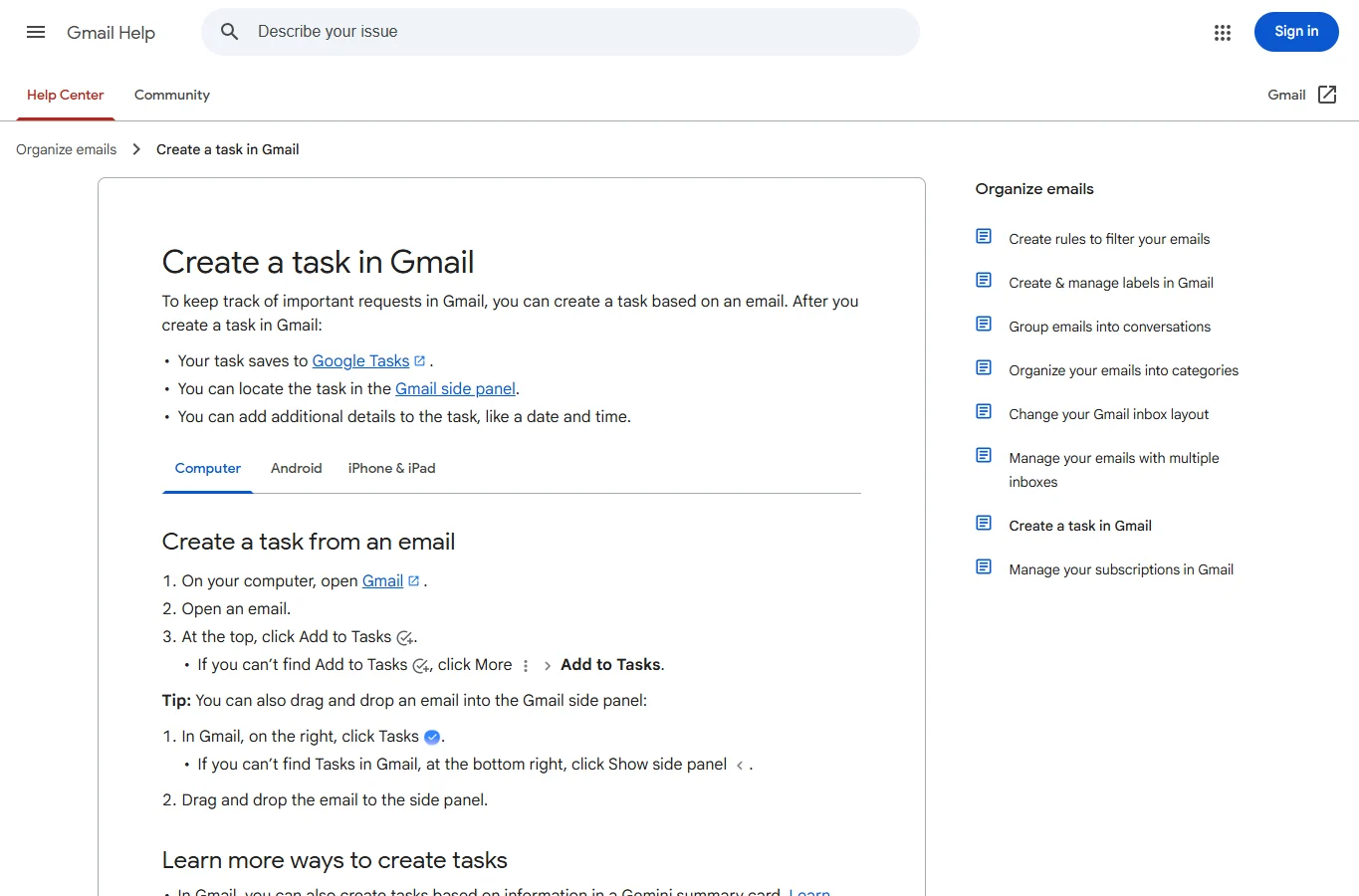
Turn larger requests into tasks
On desktop Gmail:
- Open the email.
- Click Add to Tasks in the toolbar, or find it under More.
- Open the task in the Tasks side panel.
- Give it an actionable name and add a date or time if needed.
Gmail saves these items in Google Tasks. Google’s email-to-task instructions
For example, change “Website proposal” to “Review the website proposal and send three questions to Maya.” The second version tells you what to do when you return to it.
6. Use a Daily Routine You Can Maintain
Choose email-checking times that suit your responsibilities. Someone handling urgent customer requests needs a different schedule from someone doing uninterrupted project work.
At each planned session:
- Check for time-sensitive messages. Look for deadlines, problems, and people depending on your answer.
- Process new email. Give each message a next step using the decision table above.
- Review Action or your task manager. Complete the replies and work you have committed to.
- Check Waiting. Follow up where appropriate.
- Finish with a clear list. Know what remains and when you will return to it.
Keep optional reading separate. A newsletter can be worthwhile without becoming the first thing you spend time on each morning.
Once a week, review Read Later and your filters. Remove subscriptions you consistently ignore, simplify labels you never use, and check whether any automatic rules are hiding useful messages.
7. Fix the Problems That Make Inbox Zero Hard to Maintain
“I label messages, but my inbox is still full.”
Labels categorize email. To remove a processed message from the inbox, archive it as a separate action.
“I archive requests and then forget about them.”
Archive after you have decided where the commitment lives. Use an Action label you check regularly, or create a task. A storage location alone is not a reminder.
“My filters work on some messages but miss replies.”
A reply is filtered only if it matches the filter’s criteria. Check the new message’s sender and other fields instead of assuming the original rule covers the whole conversation. Google’s explanation of filter behavior
“I have too many labels.”
Keep labels that support a real decision or a repeated lookup. If you never open a label and search already finds the messages easily, it may not be earning its place.
“I keep moving the same email between lists.”
Decide on one tracking method for each kind of work. For instance, keep short replies in Gmail’s Action label and larger assignments in Tasks. Avoid recording the same commitment in both unless you have a specific reason.
Do You Need AI to Organize Gmail?
You can implement this entire workflow with Gmail’s built-in features. Start there so you can see which part of email management actually consumes your time.
If writing replies is the bottleneck, use the Sort incoming Gmail with ZenAion for selected Action messages. AirMore’s guide to AI email writers covers that separate part of the process.
Whatever tools you choose, keep the daily routine simple enough to repeat: identify what matters, record the next action, and clear completed messages from view.
Related Reviews
5 Best AI PDF Editors in 2026: Edit, OCR & Rewrite PDFs

Best 5 Free PDF Editors in 2026

6 Best AI App Builders in 2026: From Prompt to Product
Best 6 Free Cloud Storage Services in 2026
Step 5 Preview Review: Pricing, API Access, Open Weights and NSFW Limits
Best 8 Online Course Platforms in 2026