5 Best AI PDF Editors in 2026: Edit, OCR & Rewrite PDFs
Compare the best AI PDF editors for editing, OCR, rewriting, translating, and managing PDFs. Find the right tool for professional work, research, and free everyday editing.


PDFs are excellent at preserving a finished layout, but they have never been especially friendly to change. Updating a date, rewriting a paragraph, extracting details from a scan, or moving a section can quickly become a slow, manual job.
The best AI PDF editors in 2026 make that work more manageable. Alongside familiar tools for editing text, pages, forms, OCR, conversion, and security, they can summarize long files, answer questions, translate content, improve writing, and—in selected cases—carry out document actions from a plain-language prompt.
One important distinction: a PDF chatbot can help you understand a document, but it may not be able to change the file. The tools below combine useful AI assistance with real PDF editing controls.
What Is an AI PDF Editor?
An AI PDF editor combines standard PDF controls with AI features that help you understand, revise, or manage a document more efficiently. Depending on the product, the AI can summarize a report, answer questions about a contract, translate a page, explain a difficult passage, or rewrite selected text for clarity and tone.
The stronger options go further by pairing those abilities with serious PDF tools: editing existing text and images, recognizing text in a scan, organizing pages, filling forms, converting files, applying redactions, and protecting sensitive documents.
How We Evaluated the Best AI PDF Editors
A useful AI PDF editor should reduce routine work without creating new document errors. We compared these tools on the areas that matter most in everyday use:
- Real editing: Can the product change existing text, images, and pages, rather than only place a text box over the file?
- AI usefulness: Does AI provide more than summaries, such as translation, rewriting, document actions, or context-aware answers?
- OCR and accuracy: Can a scan become searchable and editable, with a clear review step?
- Document control: Are forms, conversion, page tools, signatures, redaction, and security available?
- Layout preservation: Does the file stay readable after edits?
- Value and accessibility: Is the capability appropriate for the price and the intended user?
Best AI PDF Editors at a Glance
| Tool | Best for | AI strengths | Core PDF editing | Main limitation |
|---|---|---|---|---|
| Adobe Acrobat | Professional all-around PDF work | Chat-based actions, summaries, document Q&A | Excellent | Premium pricing can be difficult to justify for casual use |
| Foxit PDF Editor | Business and document-heavy workflows | Natural-language actions, document intelligence, local AI options | Excellent | Some AI editing features are platform-specific |
| UPDF | Value and multi-device use | Rewrite, translate, summarize, explain, document chat | Very good | AI and editing plans may be packaged separately |
| Wondershare PDFelement | Research and contract work | AI writing, translation, analysis, document knowledge tools | Very good | Advanced AI features can vary by platform |
| PDFgear | Free everyday PDF work | Copilot, summaries, translation, basic AI-assisted commands | Good | Less suitable for complex enterprise compliance workflows |
1. Adobe Acrobat — Best Overall AI PDF Editor
Best for: Professionals and teams that need accurate editing, document security, forms, and AI assistance in one mature PDF platform.
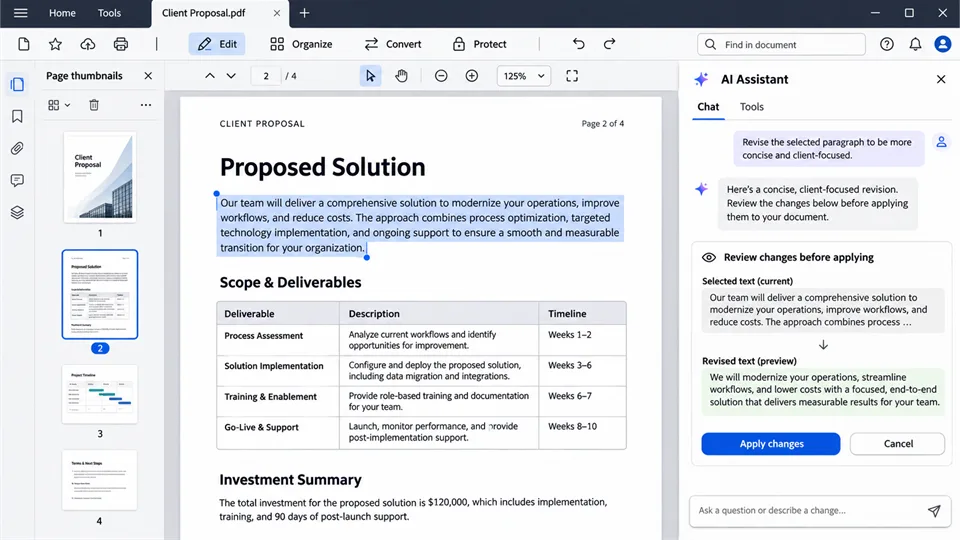
Adobe Acrobat remains the strongest all-around choice when a PDF needs to be truly edited, not merely discussed in a chat window. It handles text and image changes, OCR, conversions, page organization, forms, signatures, redactions, and protection. Its AI Assistant adds a faster way to summarize content, ask questions, and complete selected actions through natural-language requests.
That combination matters with high-stakes PDFs. You can use AI to identify relevant content or prepare a revision, then rely on established editing tools to inspect the result before sharing it. Acrobat is not the cheapest option, but it remains difficult to beat for complex layouts, regulated workflows, and business documents that need precise control.
Key Features
- AI Assistant for summaries, document Q&A, and chat-guided actions
- Direct text, image, link, header, footer, and page editing
- OCR for scanned documents
- Advanced conversion, compression, protection, redaction, and forms
- Desktop, web, and mobile access
Pros
- Deepest professional PDF toolkit in this comparison
- Excellent compatibility with complicated document layouts
- Strong security, compliance, and e-signature capabilities
- AI supports an already capable editing foundation
Cons
- Costs more than most alternatives
- Advanced controls can feel overwhelming for light users
- Some AI capabilities depend on the plan and availability
2. Foxit PDF Editor — Best for Professional Workflows
Best for: Businesses that want serious editing and collaboration tools with flexible AI options.
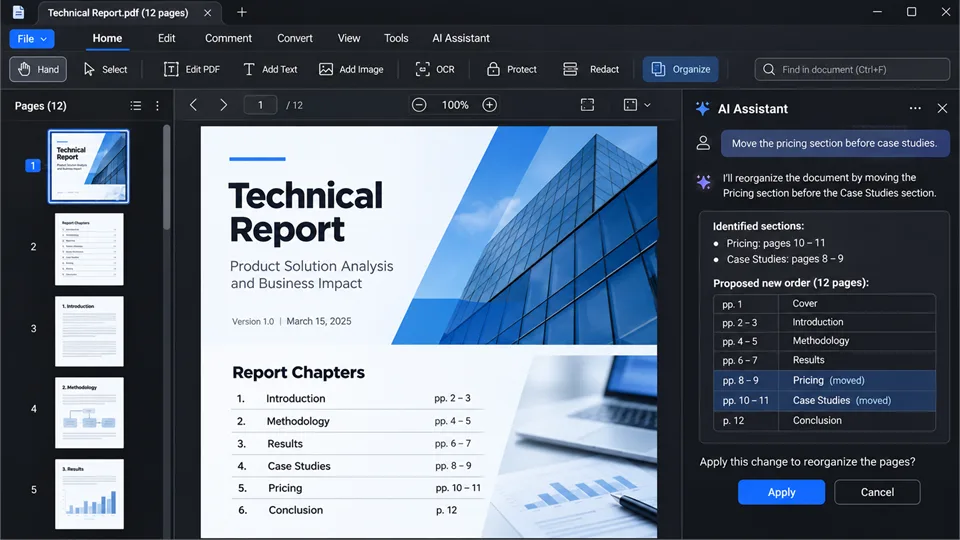
Foxit PDF Editor is a credible alternative for organizations that need business-ready document tools without centering their workflow on Adobe. Its conventional editor covers text and image editing, OCR, conversion, forms, page organization, collaboration, signatures, and security. The AI Assistant adds summaries, translation, questions and answers, and selected natural-language operations.
Its approach is especially useful when repetitive page work gets in the way. Rather than hunting through menus, users can ask the assistant to locate repeated language, reorder pages, extract sections, add watermarks, optimize a document, or protect a file. Foxit is also building both cloud and local AI options, a relevant consideration for teams that need to think carefully about sensitive files.
Key Features
- AI chat for document understanding, translation, and selected editing actions
- Text and image editing, OCR, forms, conversion, and collaboration
- Tools for page management, redaction, watermarks, and document protection
- Multi-document workspace and privacy-conscious AI options
Pros
- Professional editing without the Adobe ecosystem
- Useful AI support for recurring document tasks
- Strong balance of desktop, cloud, and security features
- Well suited to high-volume team workflows
Cons
- Chat-based editing availability can differ by device and operating system
- Plan choices can take some time to compare
- Advanced features still have a learning curve
3. UPDF — Best Value Across Devices
Best for: Individuals and smaller teams that want capable editing, multilingual tools, and access across several devices.
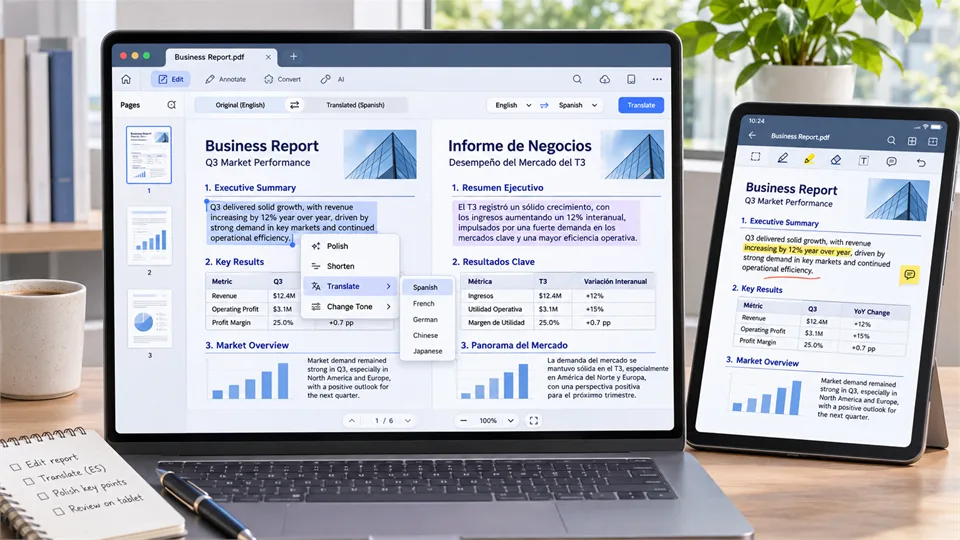
UPDF is a practical choice for users who want a modern, accessible editor rather than a heavy enterprise suite. It offers the expected PDF essentials—editing text and images, annotations, page tools, conversion, OCR, forms, and signatures—then adds AI for summary, explanation, translation, document chat, and writing refinement.
The writing assistance is its most useful differentiator. You can select a sentence or paragraph and ask for a cleaner version, a shorter explanation, a tone adjustment, or a translation. It is also a strong fit for people whose PDFs move between a desktop, tablet, and phone, particularly when working with multilingual reports or study materials.
Key Features
- AI summaries, explanations, translations, and PDF chat
- In-place polishing, proofreading, expansion, shortening, and tone changes
- Direct editing of text, images, links, backgrounds, and watermarks
- OCR, forms, signatures, annotations, and file conversion
- Availability across Windows, Mac, iOS, Android, and the web
Pros
- Clean interface with a low learning curve
- Strong balance of AI reading tools and real editing
- Useful for multilingual document work
- Flexible across devices
Cons
- AI and PDF-editing features may use separate subscriptions
- Business administration is less extensive than Acrobat’s
- Complex layouts should still be reviewed carefully after edits
4. Wondershare PDFelement — Best for Research and Contracts
Best for: Students, researchers, consultants, and teams that need to understand and revise dense documents.
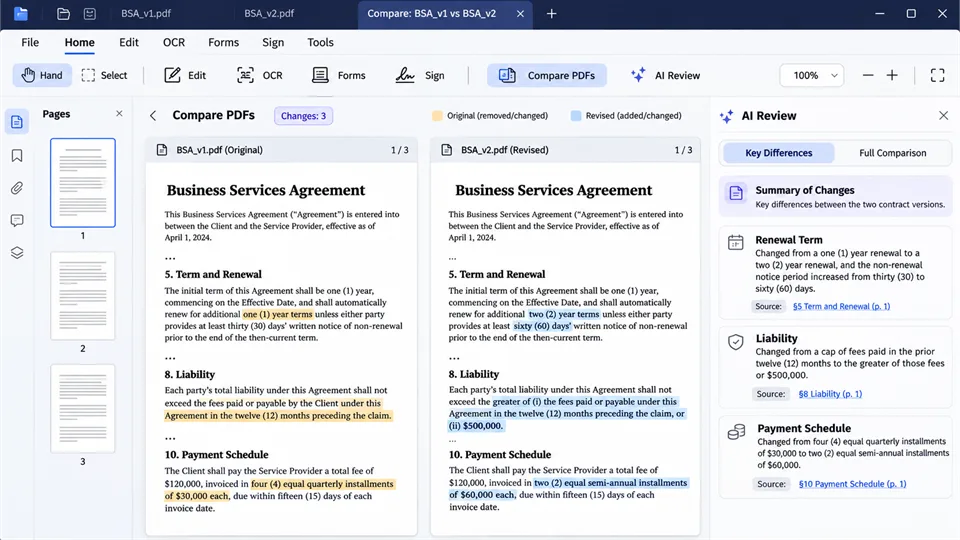
PDFelement blends a traditional PDF editor with AI tools designed for document-heavy work. Alongside text editing, OCR, conversion, page organization, annotation, forms, signatures, and protection, it offers AI summaries, translations, writing help, document chat, and analysis features for contracts and multi-file knowledge work.
It is a good match when the job is not just changing a line of text but understanding what changed between documents. Contract comparison and AI-assisted review can make it easier to spot clauses that deserve attention. That does not replace professional legal review, but it can make the first pass more organized and easier to verify.
Key Features
- AI summaries, translation, writing assistance, and PDF chat
- Contract comparison and contract-oriented analysis tools
- OCR for scanned pages and images
- Text, image, form, page, annotation, and conversion tools
- Desktop and mobile availability
Pros
- Strong for research-heavy and document-heavy workflows
- Useful combination of AI analysis and hands-on editing
- Good choice for comparing reports, proposals, and agreements
- Generally approachable for non-specialist users
Cons
- AI feature availability may differ across platforms
- Interface can feel feature-dense for small, quick edits
- You still need to manually verify sensitive clauses and figures
5. PDFgear — Best Free AI PDF Editor
Best for: Students, home users, and light business users who need capable PDF tools without another subscription.
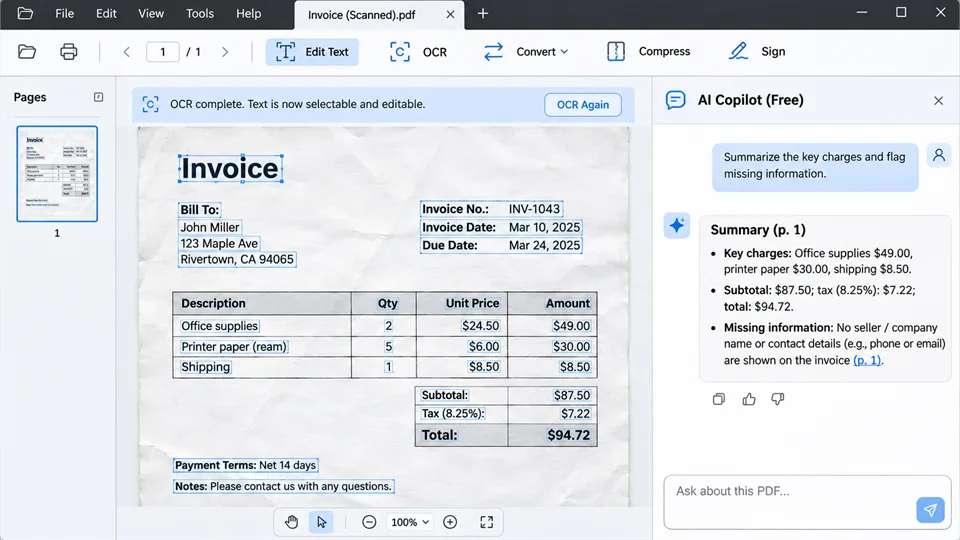
PDFgear is the strongest free option in this list for everyday PDF work. Its desktop editor can handle common tasks such as editing text, adding annotations, organizing pages, filling forms, using OCR, converting files, and adding signatures. Its AI Copilot helps with summaries, explanations, translations, and selected commands through a chat-style interface.
It is not intended to replace a compliance-focused enterprise workflow, but it is an excellent starting point for scanned receipts, class materials, occasional forms, and personal documents. The key is to use the desktop editor when you need to edit existing PDF text; browser-based editors are often better for annotations and additions than for deep changes to the original layout.
Key Features
- Free desktop PDF editing and AI Copilot
- OCR for searchable, editable scans
- AI summaries, explanations, translation, and document Q&A
- Text editing, form filling, annotations, conversion, and page tools
- Browser tools for quick online tasks
Pros
- Very capable free option
- AI features are useful for everyday reading and document management
- Simple editing tools for routine PDFs
- No conventional premium paywall for the core experience
Cons
- Not designed for advanced enterprise administration or compliance
- AI workflows are less sophisticated than some paid platforms
- Complex designs still need manual review after editing
Which AI PDF Editor Should You Choose?
| If you need to… | Best choice |
|---|---|
| Edit complex contracts, reports, forms, and regulated documents | Adobe Acrobat |
| Use AI-assisted workflows with professional PDF controls | Foxit PDF Editor |
| Work across desktop, mobile, and multiple languages | UPDF |
| Analyze research papers, reports, or contract versions | Wondershare PDFelement |
| Edit and understand PDFs without paying for another subscription | PDFgear |
Our recommendation: Adobe Acrobat is the best overall pick when dependable editing, compliance features, and AI assistance are all important. UPDF offers excellent value for multi-device and multilingual work, while PDFgear is the most compelling free choice for everyday needs.
How to Edit a PDF with AI Without Creating New Errors
AI can make PDF work faster, but it should not be the final reviewer—especially with financial, legal, customer, or client-facing documents. Use this straightforward workflow:
- Keep the original. Create a copy before running OCR, rewriting content, or making broad replacements.
- Use one clear instruction at a time. Ask for a defined change, such as rewriting one selected section in a concise tone.
- Run OCR before editing a scan. A scanned page is an image until its text is recognized.
- Review each changed page. Check line breaks, tables, fonts, headings, dates, totals, and page numbers.
- Verify names and figures manually. AI can produce a plausible revision that is still wrong.
- Export and reopen the final PDF. This catches missing fonts, broken layout, and unrendered elements.
FAQ
Can AI really edit existing PDF text?
Yes, but it depends on the file. A true PDF editor can modify embedded text directly. If a document is scanned or flattened, OCR may be required first. Some online tools only add a new text box over existing content, which is not the same as editing the original text.
What is the difference between an AI PDF editor and a PDF chatbot?
A PDF chatbot mainly reads a file, answers questions, summarizes content, or explains passages. An AI PDF editor also provides tools to change the file itself, such as editing text, organizing pages, converting documents, filling forms, or applying OCR.
Can AI make a scanned PDF editable?
Usually. The tool first uses OCR to recognize the text in the scan. You can then search, copy, and often edit the recognized text. Always check the result closely when the original includes handwriting, unusual fonts, tables, or low-quality scans.
Can AI preserve the original PDF layout?
It can help, but no editor can guarantee a perfect outcome for every file. Text-heavy PDFs are usually easier to preserve than highly designed documents, multi-column pages, complex tables, embedded fonts, and scanned forms.
Is it safe to upload sensitive PDFs to an AI tool?
That depends on the provider, your plan, and your organization’s policy. Before uploading contracts, identification documents, medical records, or confidential business files, review the provider’s privacy and data-processing terms. For sensitive work, consider a product with local processing or enterprise controls.
Is there a free AI PDF editor?
Yes. PDFgear provides free editing and AI-assisted features that are useful for personal documents, school files, simple forms, and occasional office work. For high-volume, compliance-heavy, or collaborative workflows, a paid platform may be more appropriate.
Final Verdict
The best AI PDF editor is not simply the one with the flashiest chatbot. It is the one that combines helpful AI with dependable editing, OCR, layout control, and security.
- Choose Adobe Acrobat for the most complete professional toolkit.
- Choose Foxit PDF Editor for robust business workflows and flexible AI options.
- Choose UPDF for strong value and multi-device work.
- Choose Wondershare PDFelement for research, writing, and contract-oriented tasks.
- Choose PDFgear when you need capable AI PDF tools for free.
Whichever option you choose, treat AI as a fast first pass—not the final reviewer. For an important PDF, the last step should always be a human check.
Related Reviews
Best 6 Free Cloud Storage Services in 2026

Best 5 PDF Editors in 2026: The Right Tool for Editing, Signing, and Managing PDFs
How to Turn Emails into Tasks with AI: A Practical Follow-Up Workflow
Best 5 Password Managers in 2026

Best 5 Free PDF Editors in 2026
Krea 2 Review: Is Krea's AI Image Model Worth Trying?