Best 5 Free PDF Editors in 2026
Compare the best free PDF editors for editing text, adding signatures, annotating PDFs, organizing pages, converting files, and offline work.
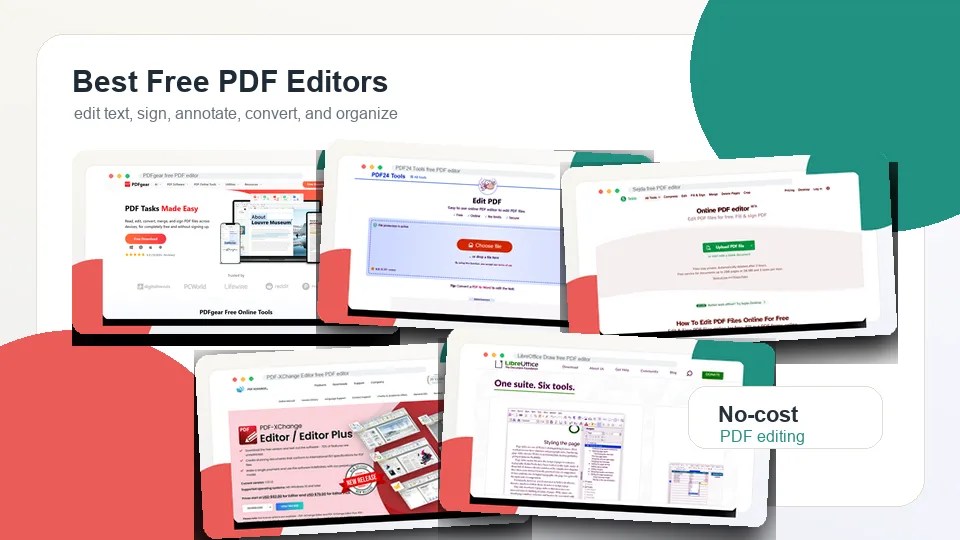

Finding the best free PDF editor is harder than it sounds. Many PDF tools advertise a free editor, but the free version may only let you view files, add comments, or try one edit before asking for payment. Others let you edit freely but add watermarks, restrict file size, limit daily tasks, or require every document to be uploaded to the cloud.
A good free PDF editor should be honest about its limits. For simple jobs, you may only need to add text, sign a form, highlight a paragraph, rotate a page, or combine a few PDFs. For deeper work, you may need to edit existing text, replace images, convert a PDF to Word, run OCR, fill forms, or reorganize long documents. No free tool is perfect for every situation, but some are genuinely useful if you choose the right one.
This guide compares five of the best free PDF editor options for different needs: desktop editing, browser-based editing, Windows power tools, open-source workflows, and quick online PDF tasks.
Table of Contents
- How I Chose the Best Free PDF Editors
- Free PDF Editors at a Glance
- 1. PDFgear
- 2. PDF24 Tools
- 3. Sejda
- 4. PDF-XChange Editor
- 5. LibreOffice Draw
- Which Free PDF Editor Should You Choose?
- Tips for Choosing a Free PDF Editor
- FAQ
How I Chose the Best Free PDF Editors
For this list, I focused on tools that are useful without immediately forcing users into a paid plan. I also separated true editing from lighter PDF markup. Adding a sticky note is not the same as editing existing PDF text. Drawing a signature is not the same as creating a full e-signature workflow. A good comparison needs to make those differences clear.
I evaluated each free PDF editor using these criteria:
1. Actual free value: Can you complete useful PDF tasks without paying?
2. Editing depth: Does the tool support existing text edits, new text, images, shapes, links, annotations, forms, or page organization?
3. Watermark policy: Does the free version add watermarks to edited PDFs?
4. Platform support: Is it web-based, desktop-only, mobile-friendly, or cross-platform?
5. Privacy: Can you work offline, or do you need to upload files?
6. Ease of use: Can a casual user complete common PDF jobs without reading a manual?
7. Limitations: Are file size, daily tasks, advanced features, OCR, or commercial use restricted?
The best free PDF editor for you depends on the kind of editing you do. If you need a free offline editor, PDFgear or LibreOffice Draw may be better than a web tool. If you only need to add text and signatures quickly, PDF24 or Sejda may be faster. If you are a Windows user who wants advanced PDF features and does not mind learning a denser interface, PDF-XChange Editor deserves a look.
Free PDF Editors at a Glance
| Free PDF editor | Best for | Standout strengths | Main limitation |
|---|---|---|---|
| PDFgear | Best overall free PDF editor for most users | Free desktop and online tools, editing, signing, conversion, OCR, AI features | Not as advanced as paid enterprise PDF suites |
| PDF24 Tools | Best free online PDF editor for quick browser edits | Free online editor, no registration, page tools, signing, compression, conversion | Existing text editing is limited; often better for overlays and page tasks |
| Sejda | Best browser-based PDF editor for occasional text edits | Clean interface, edit text, add images, sign, annotate, desktop option | Free plan has file, page, and hourly usage limits |
| PDF-XChange Editor | Best free PDF editor for Windows power users | Rich annotation, OCR, forms, measurement tools, many advanced features | Some premium features add watermarks in the free version |
| LibreOffice Draw | Best open-source PDF editor for offline layout changes | Free and open-source, offline, imports PDFs as editable page objects | Complex PDFs may not preserve layout perfectly |
1. PDFgear
Best free PDF editor for most users
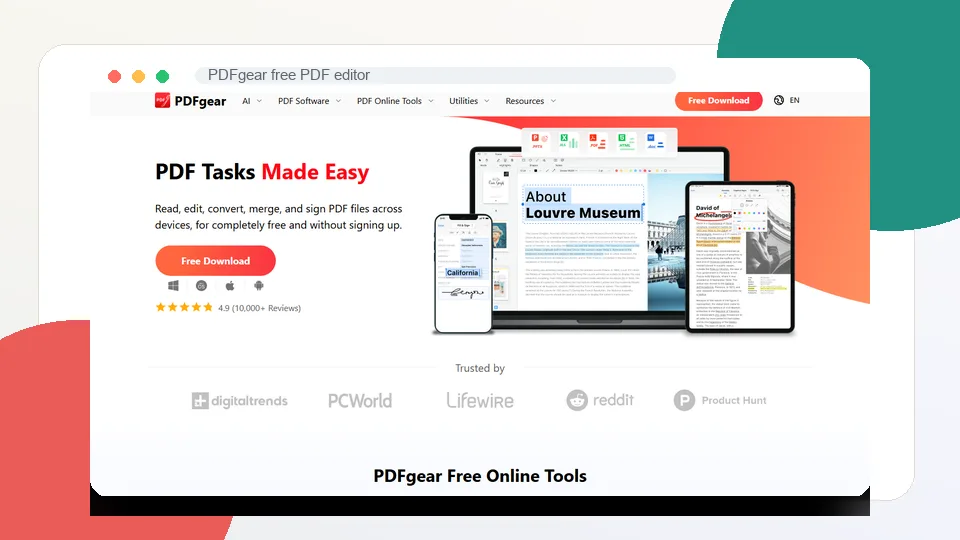
PDFgear is the strongest overall recommendation if you want a free PDF editor that feels close to a full desktop product. It supports reading, editing, converting, merging, signing, annotating, organizing pages, OCR, and AI-assisted PDF work. The official site describes PDFgear as a free tool for editing, converting, merging, and signing PDF files across devices without requiring sign-up.
The biggest advantage is that PDFgear works both as downloadable software and through online tools. If you are editing sensitive work documents, contracts, school files, or financial PDFs, the desktop app is more comfortable than uploading everything to a web editor. If you only need a quick conversion or page task, the browser tools are convenient.
PDFgear is also unusually generous for a free tool. You can add and edit text, insert images, work with annotations, sign PDFs, convert files, and use OCR tools. Its AI features can help summarize or chat with a document, which makes it useful for students and knowledge workers who need more than basic markup.
It is not a perfect Acrobat replacement. Advanced redaction, prepress controls, enterprise collaboration, compliance workflows, and fine-grained document automation are still better handled by professional paid tools. But for everyday editing, PDFgear covers far more than most free PDF editors.
Key functions
- Edit PDF text, images, shapes, links, and form fields
- Annotate with highlights, underlines, notes, stamps, and shapes
- Sign PDFs
- Convert PDF to Word, Excel, PowerPoint, images, and other formats
- Merge, split, compress, and organize PDFs
- OCR scanned PDFs
- AI PDF summarization and chat features
- Desktop, web, iOS, iPadOS, and Android options
Pros
- Strong free feature set
- Desktop app is good for offline PDF work
- Useful editing, signing, conversion, and OCR tools
- No need to rely only on browser uploads
- AI features add value for long documents
- Friendly enough for non-technical users
Cons
- Not as powerful as paid enterprise PDF software
- Some advanced editing workflows can still feel less precise than Acrobat
- Cloud integration and team features are lighter than business-focused tools
Verdict
PDFgear is the best free PDF editor for most users because it combines broad editing features, offline software, online tools, conversion, signing, OCR, and AI document help without feeling like a tiny trial version.
2. PDF24 Tools
Best free online PDF editor for quick browser edits
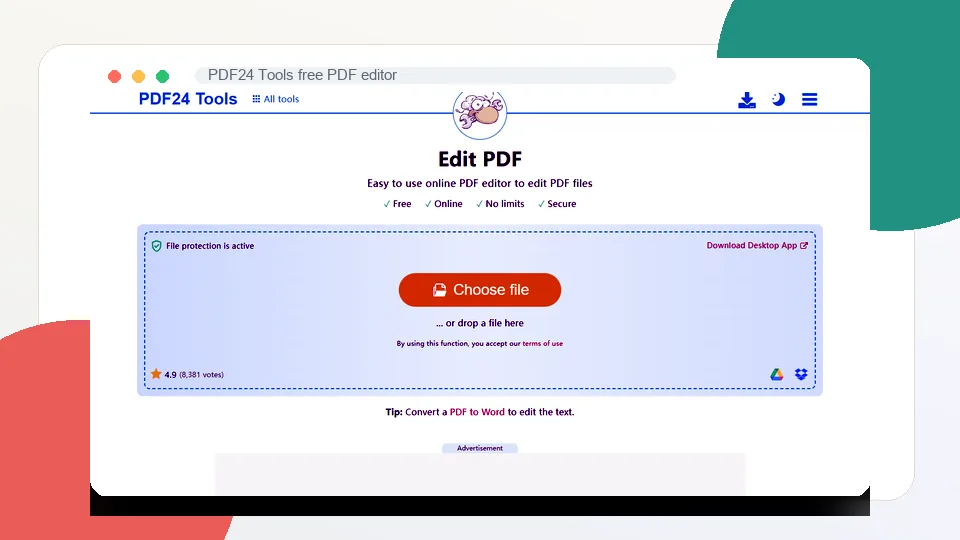
PDF24 Tools is the best choice if you want a free online PDF editor that is simple, practical, and not hiding every useful feature behind a paywall. Its online PDF editor lets you upload a file, add text, images, shapes, drawings, and other elements, then save the edited PDF. The official PDF24 page emphasizes that the tool is free, requires no registration, has no forced premium version, and can be used directly in the browser.
PDF24 is especially good for quick PDF tasks. Need to add a note to a file? Sign a PDF? Insert a box over a section? Merge documents? Compress a PDF before sending it? Rearrange pages? Convert files? PDF24’s broader toolbox makes those jobs easy.
The tradeoff is that PDF24 is not the best tool for editing existing PDF text like a Word document. Its own help text notes that editing existing PDF text is difficult because PDF is not built for easy page-content editing. In many cases, PDF24 suggests converting the PDF to Word first, making changes there, and converting it back.
That means PDF24 is excellent for overlays, annotations, form-style edits, signatures, and page operations, but less ideal if you need to rewrite paragraphs inside an existing PDF. For that, PDFgear, Sejda, PDF-XChange Editor, or LibreOffice Draw may be better.
Key functions
- Online PDF editing
- Add text, images, shapes, and drawings
- Sign PDFs
- Merge, split, compress, rotate, protect, unlock, and convert PDFs
- Rearrange, remove, and extract pages
- OCR and scan-related tools
- Desktop PDF24 Creator option for Windows
- Browser-based workflow with no installation required
Pros
- Free and easy to access
- No registration required for basic use
- Broad PDF toolbox beyond editing
- Good for quick browser tasks
- Useful for signatures, page operations, compression, and conversion
- Clear file protection and deletion messaging
Cons
- Existing text editing is limited
- Interface is more functional than polished
- Online upload may not be ideal for sensitive documents
- Advertisements are part of the free model
Verdict
PDF24 Tools is one of the best free PDF editor options for browser-based work. It is strongest for adding elements, signing, organizing pages, and running common PDF utilities without creating an account.
3. Sejda
Best free PDF editor for occasional browser-based text edits
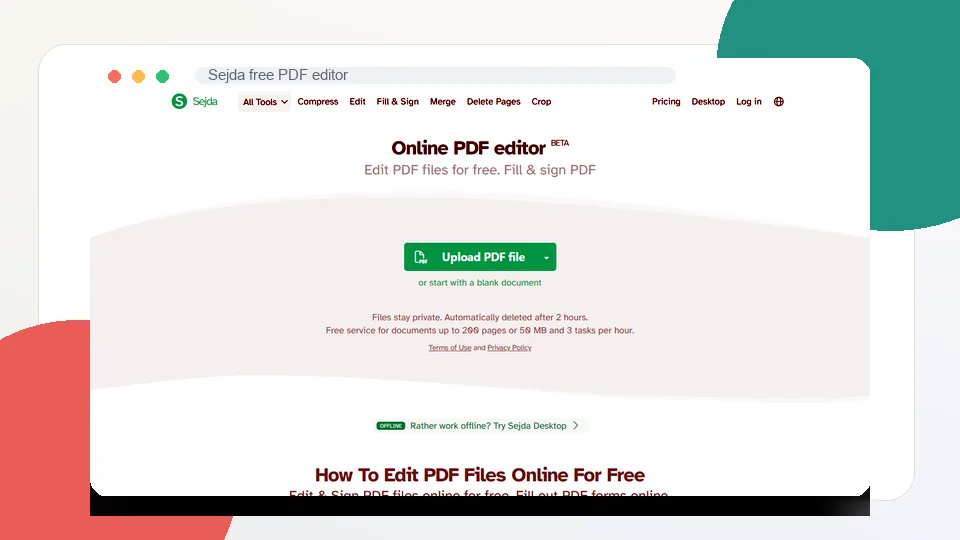
Sejda is a clean and capable online PDF editor that works well when you need to make a small number of real edits without installing software. Its PDF editor supports adding text, links, images, shapes, signatures, annotations, and editing existing PDF text in many files. The interface is straightforward, and the tool feels less cluttered than many all-in-one PDF websites.
This makes Sejda useful for forms, letters, resumes, invoices, contracts, and short documents where you need to fix a typo, add missing information, sign a page, or remove a small mistake. It also offers related tools for fill and sign, merging, deleting pages, cropping, compression, protection, conversion, repair, and deskewing scanned PDFs.
Sejda’s biggest limitation is its free usage cap. The free online version is good for occasional jobs, but it is not meant for heavy daily editing or large batch processing. Depending on the task, you may hit limits around pages, file size, number of tasks, or hourly usage. For sensitive files, Sejda also offers a desktop version, which may be preferable to browser uploads.
For casual users, those limits may not matter. If you only edit a few PDFs a month, Sejda can be one of the easiest tools on this list. If you edit PDFs all day, PDFgear, PDF24, PDF-XChange Editor, or a paid plan will make more sense.
Key functions
- Edit existing PDF text in supported files
- Add new text, links, images, shapes, and annotations
- Fill and sign PDFs
- Delete, crop, merge, split, and rotate pages
- Compress and convert PDFs
- Protect and unlock PDFs
- Repair PDFs
- Web and desktop versions
Pros
- Clean and beginner-friendly interface
- Good for quick real text edits
- Useful signing and annotation tools
- Broad PDF utility set
- Desktop option is helpful for private files
- Less overwhelming than many PDF tool sites
Cons
- Free version has usage limits
- Not ideal for large documents or frequent editing
- Complex layouts can still be hard to edit cleanly
- Some tasks are better handled by desktop software
Verdict
Sejda is the best free PDF editor for occasional browser-based text edits. It is not the most unlimited option, but it is polished, practical, and easy to understand.
4. PDF-XChange Editor
Best free PDF editor for Windows power users
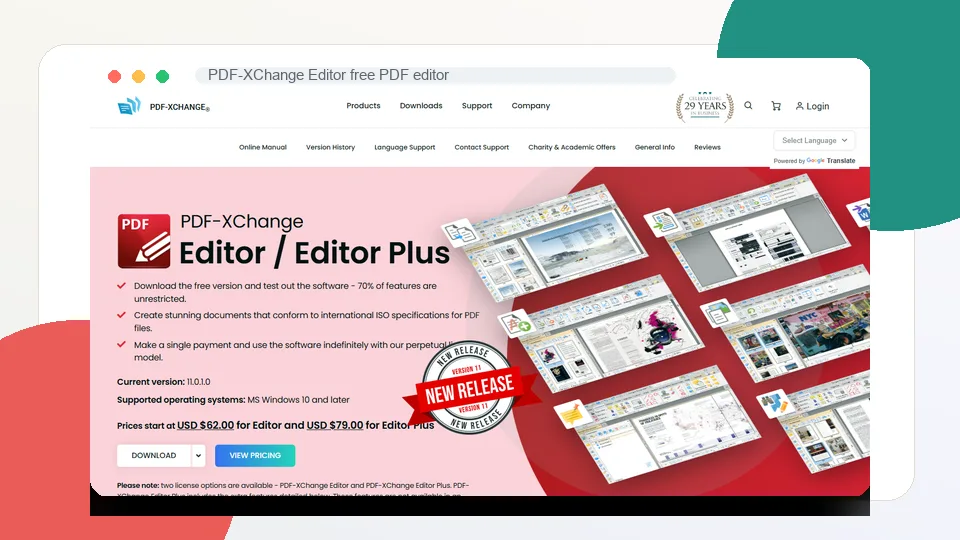
PDF-XChange Editor is a strong Windows PDF editor for users who want more control than a basic web tool provides. It is often described as a free PDF editor, but the important detail is that it uses a freemium model. Many features are free, while some licensed features can add watermarks if used without a paid license.
That said, the free feature set is still powerful. PDF-XChange Editor is particularly good for viewing, annotating, marking up, filling forms, using OCR-related tools, measuring, commenting, and working with PDF pages. The interface is denser than PDFgear or Sejda, but it also gives experienced users more tools.
This is a good pick for people who work mostly on Windows and need a serious PDF utility. Engineers, teachers, researchers, reviewers, and office users may appreciate the annotation depth, stamps, measurement tools, commenting features, and customization. If your workflow involves reviewing documents rather than redesigning them, PDF-XChange Editor can be excellent.
The main caution is watermarks. Before saving a final document, pay attention to which tools are marked as licensed or paid features. If you accidentally use a premium-only feature in the free version, the output may include a demo watermark. For users who want a simple “everything free” experience, PDFgear or PDF24 will feel safer.
Key functions
- PDF viewing and editing
- Rich annotations and comments
- Form filling
- OCR-related tools
- Stamps, shapes, notes, measurements, and markups
- Page organization
- Document comparison and advanced PDF utilities
- Windows desktop workflow
Pros
- Very capable for a free/freemium Windows tool
- Strong annotation and review features
- Good for power users
- Useful for technical and document-heavy workflows
- Fast desktop performance
- More precise than many browser editors
Cons
- Windows-focused
- Interface can feel busy
- Some features require a paid license
- Using premium features may add watermarks
- Less beginner-friendly than PDFgear or Sejda
Verdict
PDF-XChange Editor is the best free PDF editor for Windows users who want depth and do not mind a busier interface. It is powerful, but users should watch for licensed features that may watermark output.
5. LibreOffice Draw
Best open-source free PDF editor for offline layout changes
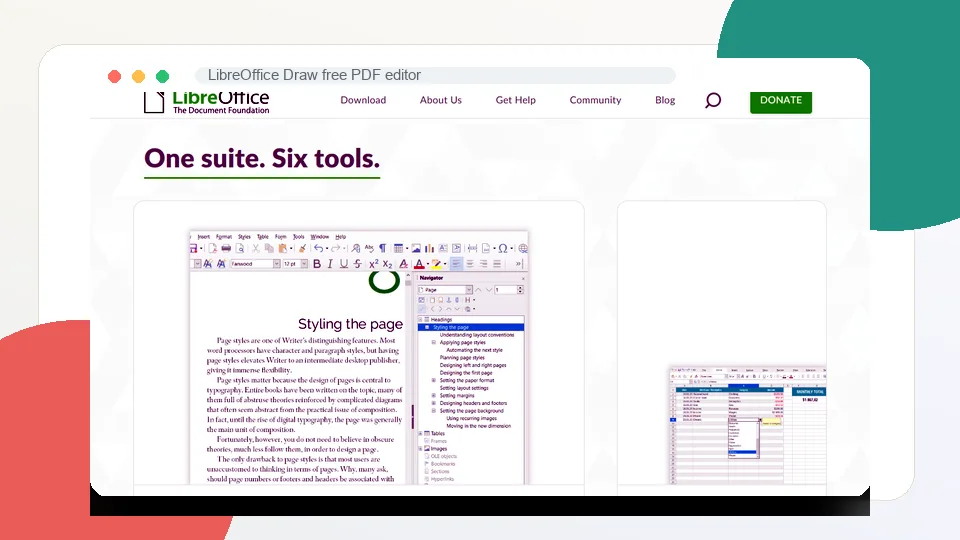
LibreOffice Draw is not marketed like a modern online PDF editor, but it can be extremely useful for certain PDF editing tasks. LibreOffice is a free and open-source office suite, and Draw can open many PDFs as editable page layouts. Once imported, text boxes, images, shapes, and page objects can often be adjusted before exporting the file back to PDF.
This makes LibreOffice Draw a good option when you need an offline, open-source tool and do not want to upload documents to a website. It can be useful for fixing simple layout issues, changing visible text in basic PDFs, moving objects, replacing images, editing forms that were exported from office documents, or making quick design adjustments.
The catch is layout preservation. PDFs are final-format documents, not normal word-processing files. When LibreOffice Draw imports a PDF, it tries to reconstruct the page as editable objects. For simple PDFs, that can work surprisingly well. For complex documents with unusual fonts, layered graphics, scanned images, tables, or precise spacing, the layout may shift.
LibreOffice Draw is therefore best for users who understand the tradeoff. It is not the easiest PDF editor, and it is not the best tool for scanned documents unless you combine it with OCR elsewhere. But if you want a free, open-source, offline option, it belongs on the list.
Key functions
- Open PDFs as editable drawing pages
- Edit text boxes, images, shapes, and layout objects
- Add drawings, annotations, and visual elements
- Export back to PDF
- Work completely offline
- Free and open-source software
- Available for Windows, macOS, and Linux
- Useful alongside LibreOffice Writer, Calc, and Impress
Pros
- Completely free and open-source
- Offline editing is good for private files
- Can edit page objects in many simple PDFs
- Works on Windows, macOS, and Linux
- No web upload required
- Good for layout and visual changes
Cons
- Not designed only for PDF editing
- Complex PDFs may import imperfectly
- Scanned PDFs require separate OCR first
- Less intuitive for casual users
- Not ideal for batch editing or advanced PDF workflows
Verdict
LibreOffice Draw is the best free PDF editor for open-source users who need offline layout edits. It is not the smoothest option, but it is powerful when the PDF structure imports cleanly.
Which Free PDF Editor Should You Choose?
Choose PDFgear if you want the best free PDF editor overall, especially for desktop editing, signing, conversion, OCR, and AI-assisted PDF work.
Choose PDF24 Tools if you want a free online PDF editor for quick browser tasks such as adding text, signing, compressing, merging, and organizing pages.
Choose Sejda if you need occasional online text edits and prefer a clean, simple interface.
Choose PDF-XChange Editor if you are a Windows power user who wants strong annotation, review, OCR, and document tools and can manage freemium limitations.
Choose LibreOffice Draw if you want a free, open-source, offline tool for editing PDF layouts and visible page objects.
For most people, PDFgear is the easiest first recommendation. For quick no-account browser edits, PDF24 is excellent. For one-off text fixes online, Sejda is more polished. For Windows users who want deeper tools, PDF-XChange Editor is powerful. For open-source offline editing, LibreOffice Draw is the practical choice.
Tips for Choosing a Free PDF Editor
Check whether the tool edits existing text or only adds new text on top. Many free editors let you place new text boxes but cannot truly rewrite PDF content.
Watch for watermarks. Some freemium PDF editors let you use premium tools but mark the output unless you pay.
Consider privacy before uploading files. If the document includes legal, financial, medical, HR, or client information, use an offline editor when possible.
Keep the original PDF. Editing can change fonts, spacing, image quality, page structure, or form behavior.
Use OCR before editing scanned PDFs. If a PDF is just a scanned image, a normal editor may not be able to select or edit the text.
Do not over-compress important files. Heavy compression can make text harder to read and can reduce image quality.
Test the final PDF in another viewer. A file that looks right in one editor may display slightly differently in another app.
Use paid software when accuracy matters. Free editors are fine for light work, but contracts, redaction, compliance documents, and complex business files may need professional tools.
FAQ
What is the best free PDF editor overall?
PDFgear is the best free PDF editor overall for most users because it offers desktop and online tools for editing, signing, converting, organizing, OCR, and AI-assisted document work without feeling like a short trial.
Can I edit PDF text for free?
Yes, but results vary. PDFgear, Sejda, PDF-XChange Editor, and LibreOffice Draw can edit text in many PDFs. However, complex layouts and scanned documents may require OCR or conversion first.
What is the best free online PDF editor?
PDF24 Tools is the best free online PDF editor for quick browser tasks because it is free, easy to access, and includes many tools. Sejda is better if you specifically need occasional existing-text edits in a cleaner interface.
Which free PDF editor does not add watermarks?
PDFgear and PDF24 are good starting points if you want to avoid watermarks for common tasks. PDF-XChange Editor can add watermarks if you use licensed features in the free version, so check carefully before saving.
Is there a free PDF editor for Windows?
Yes. PDFgear, PDF24 Creator, PDF-XChange Editor, and LibreOffice Draw all work on Windows. PDFgear is best for most users, while PDF-XChange Editor is better for power users who want advanced tools.
Is there a free PDF editor for Mac?
Yes. PDFgear and LibreOffice Draw are good free Mac options. Mac users can also use built-in Preview for annotations, signatures, page rearranging, and simple form work, though it is not a full PDF editor.
Are free online PDF editors safe?
Reputable online PDF editors can be safe for ordinary documents, but uploading sensitive files always carries some risk. For private documents, choose an offline tool such as PDFgear, PDF-XChange Editor, or LibreOffice Draw.
Can a free PDF editor handle scanned PDFs?
Only if it includes OCR or works with an OCR tool. PDFgear and PDF-XChange Editor include OCR-related capabilities, while PDF24 and Sejda also offer OCR tools separately. LibreOffice Draw is not ideal for scanned PDFs unless OCR is done first.
Why is editing a PDF harder than editing a Word document?
PDFs are designed to preserve final layout, not to behave like normal editable documents. Text may be stored in separate fragments, fonts may be embedded, and page elements may not have a simple reading order. That is why some PDF edits are easy while others require conversion or professional software.
Should I use a free PDF editor for contracts?
For simple annotations or signatures, a free PDF editor may be enough. For important contracts, redaction, audit trails, legally binding e-signatures, or compliance-sensitive documents, use a trusted professional PDF or e-signature platform.
Related Reviews
5 Best AI Flyer Generators in 2026: Features, Pros & Cons

Best 6 Free Cloud Storage Services in 2026

From PDF to Editable Documents: A Practical Guide to Modern PDF Workflows
8 Best AI Presentation Makers in 2026
5 Best PDF Enhancer Tools to Improve PDF Quality in 2026
Step 5 Preview Review: Pricing, API Access, Open Weights and NSFW Limits