5 Best PDF Enhancer Tools to Improve PDF Quality in 2026
Compare the five best PDF enhancer tools of 2026 for sharpening blurry scans, cleaning backgrounds, correcting skew, and improving OCR results.

A PDF can look blurry even when the file itself opens correctly. The problem usually begins before the PDF is created: a document may be scanned at a low resolution, photographed in poor light, compressed too aggressively, copied several times, or saved with a gray and uneven background. Old paper, faded ink, camera shadows, tilted pages, and motion blur can make the result even harder to read.
A PDF enhancer improves the visible page image. Depending on the tool, it may sharpen soft text, remove speckles, increase contrast, whiten a yellow or gray background, straighten tilted pages, correct camera distortion, or prepare the document for more accurate optical character recognition. It cannot recreate information that was never captured, but it can make a weak scan noticeably cleaner and easier to read.
For this guide, we compared five PDF enhancement tools using blurry scans, faded documents, and phone-scanned pages. The tools serve different needs: LightPDF is the easiest online option, Adobe Acrobat Pro provides the most complete professional workflow, ABBYY FineReader PDF excels at OCR, PDFcrest offers unusually detailed free controls, and PDFMox keeps processing inside the browser.
Table of Contents
- What Is a PDF Enhancer?
- How We Tested the Best PDF Enhancers
- Best PDF Enhancer Tools at a Glance
- 1. LightPDF
- 2. Adobe Acrobat Pro
- 3. ABBYY FineReader PDF
- 4. PDFcrest
- 5. PDFMox
- Which PDF Enhancer Should You Choose?
- How to Enhance PDF Quality
- FAQ
What Is a PDF Enhancer?
A PDF enhancer is software that improves the visual quality of image-based PDF pages. It analyzes the scanned page and applies corrections such as sharpening, contrast adjustment, noise removal, background whitening, deskewing, orientation correction, or resolution optimization.
PDF enhancement is often confused with OCR and PDF editing, but the three processes solve different problems:
- PDF enhancement improves how the page looks. It can make faint text darker, reduce grain, clean a discolored background, and straighten a crooked scan.
- OCR recognizes the characters shown in a page image and adds searchable or selectable text. OCR can make a scan searchable without improving its visible pixels.
- PDF editing changes document content, such as correcting a sentence, replacing an image, deleting a page, or adding annotations. It does not automatically repair a blurry scan.
The best workflow for a difficult scanned document is normally: enhance the page image first, run OCR second, and edit the recognized text only after checking it for errors.
How We Tested the Best PDF Enhancers
We built a repeatable test set around three common PDF problems rather than using a clean digital document that did not need enhancement:
- Blurry scanned PDF: a text-heavy page with softened letter edges, compression artifacts, and small print.
- Faded old document: an archival-style page with weak ink, paper discoloration, dust, and uneven contrast.
- Phone-scanned PDF: a page photographed at a slight angle with shadows, uneven lighting, and mild perspective distortion.
Each tool was reviewed using the same criteria:
- Text clarity: whether small letters became easier to distinguish without looking unnaturally thick.
- Noise removal: whether dust, grain, and compression speckles were reduced.
- Background cleanup: whether gray, yellow, or shadowed paper became more even.
- Deskew: whether tilted text lines were straightened correctly.
- OCR: whether searchable text was available and how well the workflow handled difficult scans.
- Layout preservation: whether margins, images, page size, and content placement remained stable.
- Speed: the amount of time and manual work required to process a short document.
- Ease of use: whether a new user could find the correct settings and export the result.
- Price: whether the tool offered a usable free option, trial, or reasonably priced plan.
The result notes below are qualitative rather than laboratory resolution measurements. Output can change with the source DPI, language, font size, paper texture, and the amount of blur. When a desktop license was required, we also checked the available processing controls and official output examples so that unavailable features were not presented as free online functions.
Best PDF Enhancer Tools at a Glance
| PDF Enhancer | Best For | Strongest Enhancement | OCR | Platform | Price | Main Limitation |
|---|---|---|---|---|---|---|
| LightPDF | Best overall online enhancement | Automatic sharpening and scan cleanup | Available as a separate tool | Web | Limited free use; paid plans available | Fewer manual restoration controls |
| Adobe Acrobat Pro | Professional scanned-PDF workflows | Filters, deskew, cleanup, and integrated OCR | Yes | Windows, macOS, web, mobile | From $19.99/month with an annual commitment | Subscription required for full features |
| ABBYY FineReader PDF | OCR and old documents | Image preprocessing and character smoothing | Yes, advanced | Windows and macOS | Standard from $99/year or $16/month | Desktop workflow is less convenient for one quick file |
| PDFcrest | Free online scan restoration | Background cleaning, noise reduction, and deskew | Separate OCR workflow | Web, local browser processing | Free | Aggressive settings can remove faint marks |
| PDFMox | Private browser-based enhancement | Live proof, whitening, sharpening, and light deskew | No; use OCR afterward | Web, local browser processing | Free preview; paid account required to download | Exports a flattened visual PDF |
Prices and free-use limits can vary by region and may change. Check the current checkout page before purchasing.
1. LightPDF — Best Overall PDF Enhancer
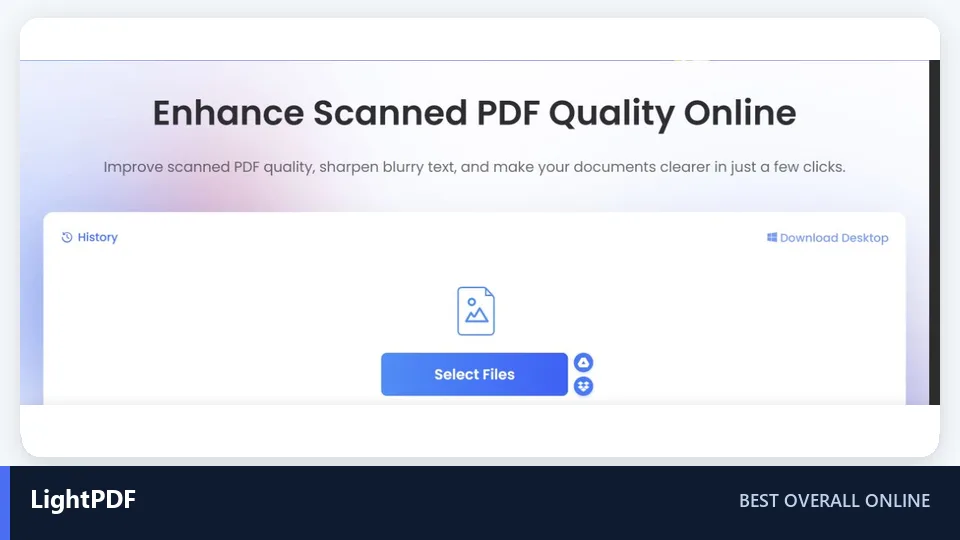
LightPDF is the best starting point for most people because it turns PDF enhancement into a simple online workflow. You upload a scanned PDF or document image, let the service optimize it automatically, and download the clearer result. There is no need to understand contrast curves, threshold values, or image filters.
Test Result
In our qualitative evaluation, LightPDF offered the most balanced automatic workflow across the three test-file types. Its enhancement is designed to define soft letter edges, improve the contrast of faded pages, and make photographed documents easier to read without requiring manual filter settings. A dedicated tool with stronger deskew and perspective controls remains better for severely crooked photos.
Before and After
- Before: soft text, gray background, mild camera shadow, and weak contrast.
- After: cleaner white space, more defined text, reduced visual haze, and a page that was easier to read and print.
The enhancement remained conservative, which helped preserve the original content and layout. It did not invent missing letters or transform the page into an editable document. If searchable text is required, the enhanced result should be passed through LightPDF’s separate OCR tool.
Key Features
- Enhances scanned PDFs and document images online
- Automatic sharpening and clarity improvement
- Works with blurry scans, photographed pages, receipts, forms, and study materials
- Optimizes document images for reading, printing, sharing, or later OCR
- Simple upload, process, and download workflow
- Related OCR, conversion, editing, and compression tools
Pros
- Very easy for first-time users
- No desktop installation required
- Good automatic balance between sharpening and background cleanup
- Suitable for both PDFs and individual document images
- Fast workflow for occasional enhancement
Cons
- Limited manual control compared with specialist restoration software
- OCR is a separate step rather than part of the enhancement action
- Free use and file limits may apply
- Cannot recover text that is completely unreadable in the source
Price
LightPDF offers limited free access, while higher usage limits and additional tools require a paid plan. The exact price can vary by plan, promotion, and region, so check the current pricing page before subscribing.
2. Adobe Acrobat Pro — Best for Professional Scan Cleanup
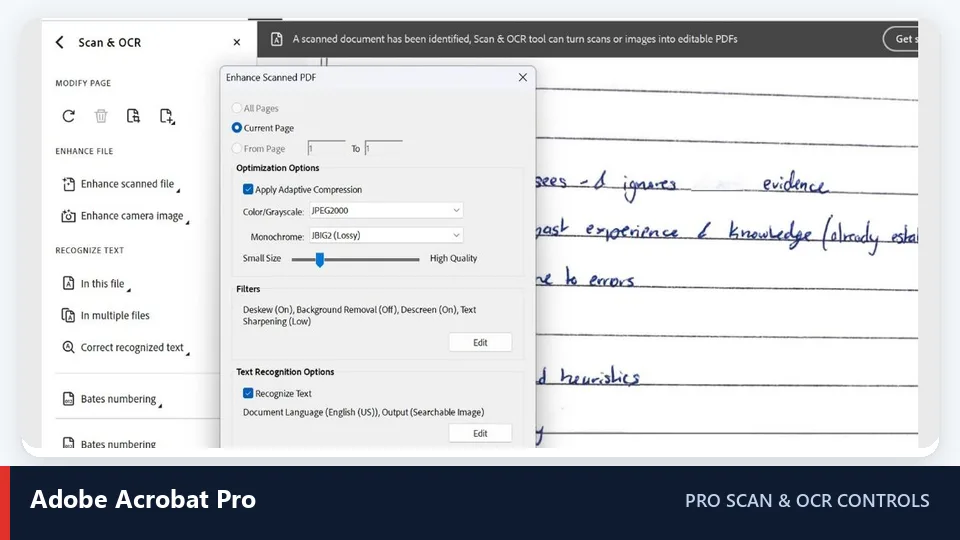
Adobe Acrobat Pro provides a more complete scanned-document workflow than a one-click online enhancer. Its Scan & OCR tools can enhance a scanned file, apply image filters, adjust compression and quality, correct page alignment, recognize text, and prepare the result for editing or searching.
Test Result
Acrobat offered the most controlled workflow for the phone-scanned PDF scenario. Deskew and scan filters are particularly useful when a page needs geometric correction as well as better contrast. Enabling text recognition in the same workflow also makes the result searchable. The extra settings take longer to configure than LightPDF, but they make it easier to avoid over-sharpening photographs, seals, or signatures.
Before and After
- Before: tilted page, uneven background, dark edge shadow, and image-only text.
- After: straighter text lines, cleaner margins, stronger readability, and a searchable text layer when OCR was enabled.
The searchable-image output is useful when visual fidelity matters because Acrobat can retain the page image while placing recognized text behind it. As with any OCR tool, names, small numbers, and damaged characters still need proofreading.
Key Features
- Enhance Scanned PDF and Enhance Camera Image workflows
- Deskew, background cleanup, despeckling, and edge-shadow correction
- Adjustable image quality and compression
- Integrated OCR for searchable and editable PDFs
- Page-range controls for selective processing
- Additional editing, conversion, redaction, organization, and signing tools
Pros
- Strong combination of visual cleanup and OCR
- More control than a one-click online enhancer
- Good layout preservation options
- Suitable for recurring business and archival workflows
- Available across desktop, web, and mobile ecosystems
Cons
- Full enhancement features require a paid Acrobat plan
- More settings and menus than casual users may need
- Processing a large scan with OCR can take longer
- Aggressive cleanup can weaken light handwriting or stamps
Price
Adobe Acrobat Pro costs $19.99 per month on an annual plan billed monthly in the United States, or $29.99 per month on a cancel-anytime monthly plan. A seven-day free trial is normally available. Regional prices and taxes differ.
3. ABBYY FineReader PDF — Best for OCR and Old Documents
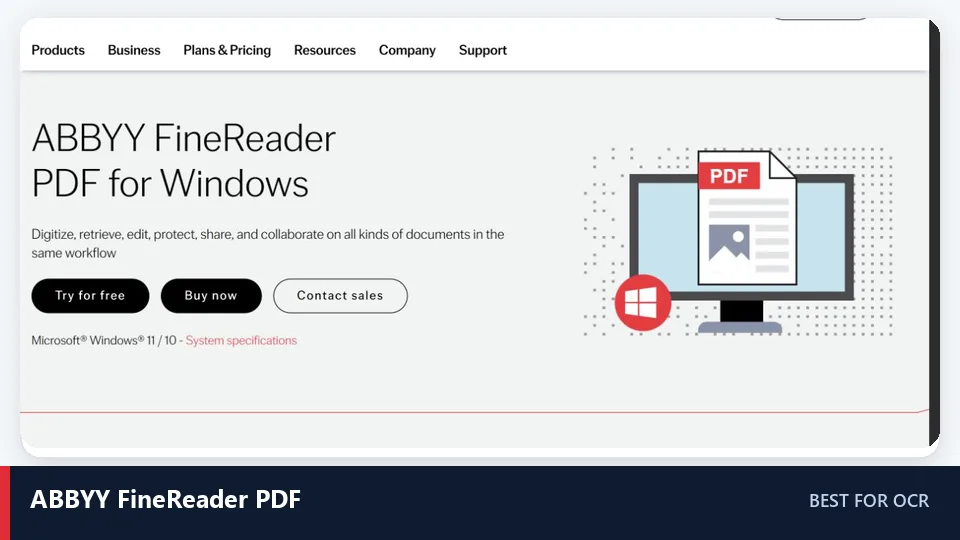
ABBYY FineReader PDF is designed for documents in which recognition accuracy matters as much as appearance. Its enhancement system can correct page orientation, skew, distorted text lines, trapezoid distortion, and image resolution. ABBYY PreciseScan can also smooth pixelated characters when a page is enlarged.
Test Result
FineReader was the strongest choice for the faded old-document scenario, particularly when the goal was to create a searchable or editable archive. Its automatic preprocessing is built to reduce noise and correct alignment before OCR, while character smoothing improves pixelated letters at higher zoom levels. The recognized result still requires more review than a clean modern scan because stains and broken letterforms can be mistaken for characters.
Before and After
- Before: yellow paper, faded ink, small broken characters, dust, and no searchable text.
- After: more even page contrast, smoother character shapes, corrected orientation and skew, plus searchable text ready for proofreading.
FineReader is especially useful when the enhanced PDF must later be converted to Word or Excel. It is less attractive for a user who only wants to clean one short PDF in a browser.
Key Features
- Automatic document-image preprocessing
- Orientation, skew, text-line, and perspective correction
- Resolution adjustment for scanned pages
- ABBYY PreciseScan character smoothing
- Advanced multilingual OCR
- Conversion to editable Word, Excel, and other formats
- Tools for editing and comparing scanned documents
Pros
- Excellent OCR-focused enhancement workflow
- Well suited to archives, books, reports, and old office documents
- Good handling of page orientation and distorted text lines
- Useful export options for editable documents
- Manual review tools support accuracy checking
Cons
- Requires desktop software
- More expensive than a simple online enhancer
- Windows and macOS editions do not have identical feature sets
- Preprocessing and OCR can take time on large files
Price
ABBYY FineReader PDF Standard for Windows starts at $99 per year or $16 per month. The Corporate edition starts at $165 per year, while the macOS edition starts at $69 per year. Promotions and regional pricing can change these amounts.
4. PDFcrest — Best Free Online PDF Enhancer
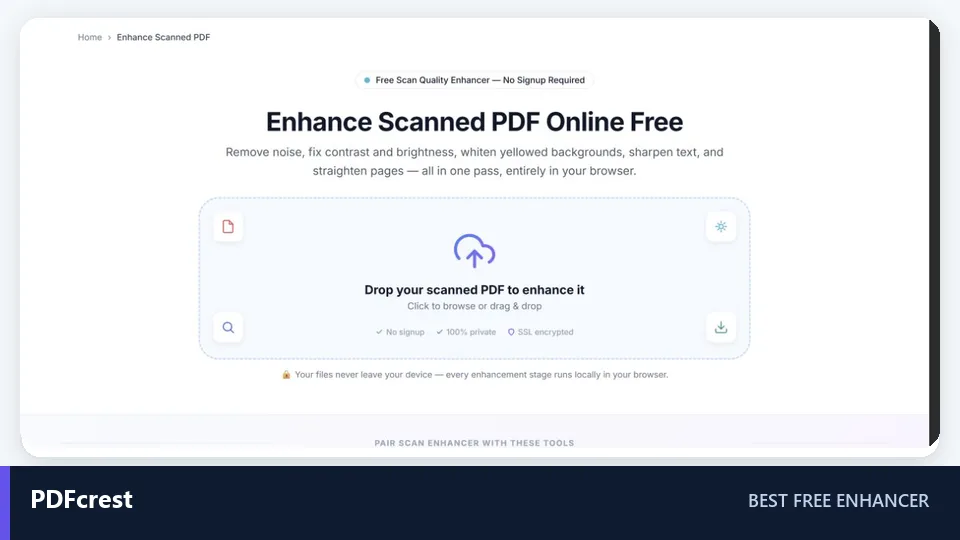
PDFcrest offers one of the most configurable free browser-based enhancement workflows. It processes files locally and includes presets for automatic cleanup, OCR preparation, high contrast, old-document restoration, black-and-white output, and custom adjustment.
Test Result
PDFcrest provided the strongest free workflow for the faded and noisy test scenarios. Its Old Document preset combines paper whitening with local contrast adjustment, while the integrated deskew stage targets tilted phone scans. The before-and-after preview is especially useful for reducing the intensity if light pencil marks or a pale stamp begin to disappear.
Before and After
- Before: yellow-gray paper, scattered speckles, uneven lighting, and a slight tilt.
- After: whiter background, darker printed text, fewer speckles, and straighter lines.
The tool is rule-based rather than generative AI, which is an advantage when preserving exact document content. It cannot recreate letters destroyed by blur, and extreme black-and-white settings may remove faint annotations. OCR is handled through a related tool rather than being the main enhancement output.
Key Features
- Seven enhancement presets
- Background flattening and whitening
- Brightness, contrast, gamma, and black-level controls
- Noise reduction, sharpening, and text enhancement
- Automatic deskew
- Live split before-and-after preview with zoom
- Local browser processing with no server upload
- No signup or watermark
Pros
- Completely free to use
- More manual controls than most online enhancers
- Useful presets for old documents and OCR preparation
- Files remain in the browser
- Clear before-and-after preview
Cons
- Manual sliders may be confusing for beginners
- Heavy cleanup can remove faint handwriting, stamps, or fine lines
- Very large documents depend on available browser memory
- OCR requires an additional step
Price
PDFcrest’s scanned-PDF enhancer is free, requires no account, and does not add a watermark.
5. PDFMox — Best for Private Local Enhancement
PDFMox is a privacy-focused scan enhancer that renders and processes PDF pages inside the browser. It provides automatic, black-and-white, grayscale, and color restoration modes, along with a draggable proof for comparing original and enhanced pixels.
Test Result
PDFMox was the best option for inspecting changes before committing to them. Moderate sharpening targets soft letter edges without requiring an aggressive filter, while its cleanup modes address faded backgrounds and its conservative deskew corrects small tilts. It is less suitable for a heavily distorted phone scan because its deskew range is intended for slight alignment problems rather than major perspective repair.
Before and After
- Before: low contrast, warm paper tone, slightly soft text, and minor page tilt.
- After: cleaner paper tone, stronger contrast, sharper text edges, and improved alignment.
PDFMox rebuilds the document as a flattened visual PDF. Existing links, forms, selectable text, layers, and digital signatures are not retained. This makes it appropriate for visual restoration, but not for preserving interactive PDF features.
Key Features
- Local in-browser rendering and processing
- Automatic, black-and-white, grayscale, and color modes
- Background whitening and contrast cleanup
- Adjustable sharpening
- Conservative deskew for slight page tilt
- Draggable before-and-after proof
- Preserves original page dimensions in the rebuilt PDF
Pros
- Source document does not need to be uploaded to a processing server
- Good visual comparison before export
- Simple restoration modes for different scan types
- Conservative settings help protect fine detail
- Useful for documents that only need visual cleanup
Cons
- Paid account required to download the enhanced file
- No integrated OCR
- Output is flattened
- Forms, links, text layers, and signatures are not preserved
- Limited correction for severe camera perspective
Price
You can open a file and inspect the enhancement preview for free. An account and paid plan are required to download the finished document. Check the purchase screen for the current price.
Which PDF Enhancer Should You Choose?
The right choice depends on what is wrong with the document and what you need to do after enhancement:
For a blurry PDF → LightPDF
Its automatic workflow is the easiest way to sharpen a typical low-quality scan without configuring multiple filters.For a scanned PDF → Adobe Acrobat Pro
Choose Acrobat when you need scan cleanup, deskew, compression control, OCR, editing, and layout preservation in one professional workflow.For old documents → ABBYY FineReader PDF
Its image preprocessing, character smoothing, orientation correction, and OCR tools are well suited to faded archives.For OCR → ABBYY FineReader PDF
FineReader is the strongest option when searchable text and accurate conversion matter more than one-click convenience.For free online enhancement → PDFcrest
It offers free presets, manual controls, deskew, a before-and-after preview, and local browser processing.
Choose PDFMox instead when local processing and visual proofing are more important than OCR or preserving interactive PDF elements.
How to Enhance PDF Quality
The simplest method is to use an automatic online PDF enhancer such as LightPDF:
- Open the scanned PDF enhancer. Use a modern browser and close unnecessary tabs if the PDF is large.
- Upload the blurry or scanned PDF. Start with a copy rather than the only version of an important document.
- Run the enhancement. Let the tool sharpen text, improve contrast, and clean the page image.
- Inspect several pages. Zoom in on small text, signatures, stamps, diagrams, and numbers. Check that faint details have not disappeared.
- Download the enhanced PDF. Keep the original file in case you need to try different settings.
- Run OCR if necessary. Use OCR after enhancement when you need to search, select, copy, or edit the text.
For better results, avoid applying maximum sharpening automatically. Excessive sharpening can create halos around letters, while strong noise removal may erase punctuation or thin handwriting. A moderate, readable result is usually better than a page that looks artificially processed.
FAQ
How can I enhance a blurry PDF?
Upload the file to a PDF enhancer that supports sharpening, contrast adjustment, and background cleanup. Start with an automatic or moderate preset, compare the result at 100% and 200% zoom, and then apply OCR if you need searchable text. If the original characters are completely out of focus, no enhancer can reconstruct them reliably.
Can AI improve PDF quality?
Yes. AI and image-processing algorithms can identify text regions, reduce noise, balance uneven lighting, sharpen edges, correct page orientation, and prepare scans for OCR. However, AI cannot guarantee recovery of details that were never captured, and generative reconstruction should be avoided when the exact wording of a legal or historical document must remain unchanged.
How can I make PDF text clearer?
Increase local contrast, clean the background, reduce speckles, and apply light sharpening. If the page is tilted, deskew it before sharpening or OCR. For digital PDFs with selectable text, try changing the viewer’s zoom or display settings first, because the source content may already be sharp.
Can I enhance a scanned PDF online?
Yes. LightPDF provides a simple automatic online workflow, while PDFcrest offers more detailed free controls and processes the file locally in the browser. Avoid uploading confidential documents to an unfamiliar service; use local browser processing or trusted desktop software when privacy is critical.
Can a PDF enhancer increase resolution?
Some tools can resample or upscale scanned pages, which increases the pixel dimensions and may smooth or sharpen letter edges. Upscaling does not restore genuine detail that is absent from the original scan. It is most useful when combined with deskew, contrast correction, and OCR preparation.
What is the difference between PDF enhancement and OCR?
PDF enhancement changes the visible page image to improve readability. OCR analyzes that image and creates machine-readable text. A PDF may look cleaner without becoming searchable, and it may become searchable through OCR without looking any better. For poor scans, enhancement should normally come before OCR.
Can I enhance a PDF without losing quality?
You can minimize quality loss by keeping the original file, using moderate settings, avoiding unnecessary recompression, and exporting at an appropriate resolution. Always check fine print, thin lines, handwriting, stamps, and images after processing. Tools that flatten or rebuild pages may remove forms, links, layers, selectable text, or digital signatures even when the page looks sharper.
Will a PDF enhancer preserve the original layout?
Most enhancers preserve page dimensions and the visible placement of content, but their internal output can differ. Some retain the original image and add OCR, while others rasterize and rebuild every page. If the document contains forms, links, layers, annotations, or signatures, confirm that the selected output mode preserves them before processing the full file.
Is it better to enhance a PDF before or after OCR?
Enhance first. Straightening the page, cleaning the background, and improving text contrast gives the OCR engine a clearer input. After OCR, proofread names, dates, amounts, page numbers, and small text against the visible scan.
Final Verdict
LightPDF is the best overall PDF enhancer for users who want a fast online method with minimal setup. Adobe Acrobat Pro is the most complete choice for professional scan cleanup and document editing, while ABBYY FineReader PDF is the better option for OCR-heavy work and old documents.
If budget matters most, PDFcrest provides an impressive set of free restoration controls. If privacy and local processing are the priority, PDFMox offers a useful visual proofing workflow, provided that flattened output and a paid download are acceptable.
Whichever tool you choose, keep the original PDF and inspect the enhanced result carefully. A good PDF enhancer should make the document easier to read without changing what the document actually says.
Related Reviews
Krea 2 Review: Is Krea's AI Image Model Worth Trying?

Best 6 Free Cloud Storage Services in 2026

How to Turn Emails into Tasks with AI: A Practical Follow-Up Workflow
Best 5 Free PDF Editors in 2026
5 Best Project Tracking Software Tools in 2026
Best 8 Online Course Platforms in 2026