7 Best OCR Text Recognition Tools in 2026
Compare the best OCR text recognition tools in 2026 for scanned PDFs, tables, forms, invoices, handwriting, and automated data extraction.
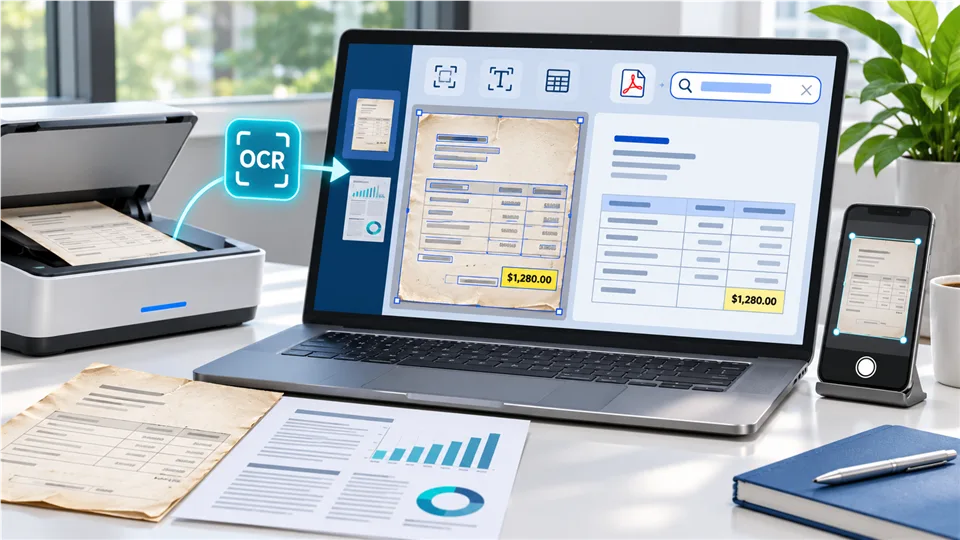

An OCR text recognition tool turns text in images, scanned PDFs, receipts, forms, and screenshots into searchable, selectable, or structured digital data. The best choice depends on what you need after recognition: a searchable PDF, an editable Word file, a spreadsheet-ready table, or an automated workflow that sends extracted data to another system.
This guide compares the seven best OCR text recognition tools in 2026 for personal documents, enterprise automation, developers, and teams that need reliable data extraction.
Table of Contents
What Is an OCR Text Recognition Tool?
OCR stands for optical character recognition. It identifies printed or handwritten characters inside an image or scanned document and converts them into machine-readable text. A basic OCR tool may simply extract plain text. More advanced platforms can also identify paragraphs, reading order, tables, forms, checkboxes, signatures, invoice fields, and confidence scores.
The best OCR text recognition tool should match your document type and workflow. A student digitizing notes needs something different from a finance team processing thousands of invoices every month.
Best OCR Text Recognition Tools at a Glance
| Tool | Best for | Key strengths | Output | Main limitation |
|---|---|---|---|---|
| Adobe Acrobat Pro | Scanned PDFs | Searchable and editable PDFs, batch OCR | Searchable PDF, editable text | Subscription-based |
| ABBYY FineReader PDF | Document conversion | Layout retention and PDF editing | PDF, Word, Excel, searchable PDF | Desktop-oriented workflow |
| Amazon Textract | Forms and tables | Key-value pairs, tables, signatures, APIs | JSON, CSV, structured data | Requires AWS setup |
| Azure AI Vision and Document Intelligence | Microsoft document apps | Image OCR, document OCR, handwriting | Text, coordinates, confidence data | Best suited to developers |
| Google Cloud Vision API | Cloud OCR integration | Dense text, handwriting, structure | Text annotations and API responses | Requires engineering integration |
| Nanonets | Business workflow automation | Invoices, receipts, tables, approvals | Structured fields, exports, integrations | More than basic OCR |
| Tesseract OCR | Free open-source OCR | Self-hosting, language data, full control | Text, searchable PDF output, hOCR | Requires technical setup |
1. Adobe Acrobat Pro — Best OCR Tool for Scanned PDFs
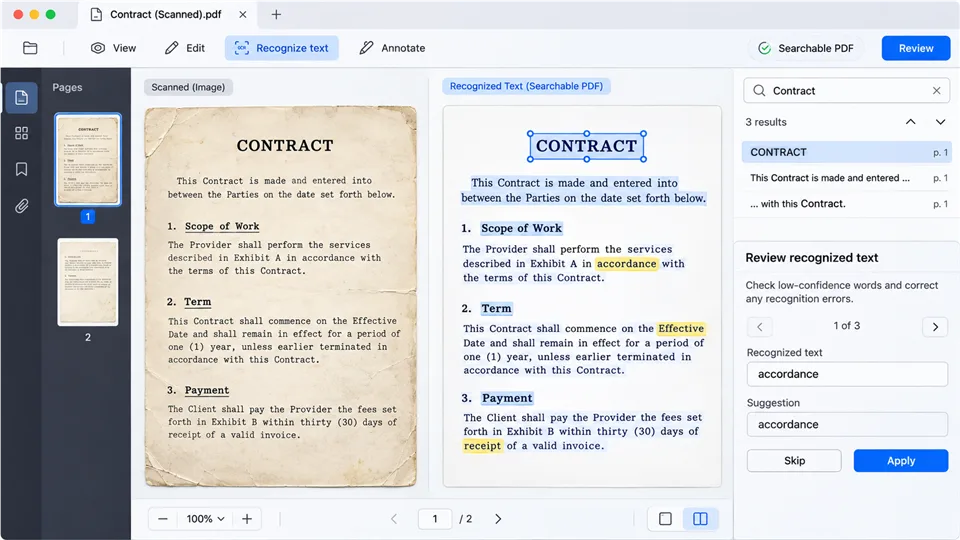
Best for: Professionals who need to make scanned PDFs searchable, selectable, editable, and easier to archive.
Adobe Acrobat Pro is one of the most practical OCR choices for people already working with PDFs. Open a scanned file, select the document language and page range, and Acrobat creates a searchable text layer beneath the scanned page image. That makes it useful for contracts, historical records, reports, manuals, and any document that must stay visually close to the original while becoming searchable.
Acrobat can also enhance scans before recognition, which helps on skewed, low-contrast, or imperfect pages. If a recognized word is uncertain, you can inspect and correct it rather than accepting a flawed conversion.
Key Features
- OCR for scanned PDFs and image-based documents
- Searchable and selectable text layers
- Scan enhancement and page cleanup tools
- Language and page-range selection
- Batch recognition for multiple files
- OCR review tools for uncertain words
Pros: Excellent all-in-one workflow for scanned PDFs; easy for non-technical users; useful editing and review tools.
Cons: Best features require a paid plan; less suitable than APIs for large-scale automated extraction.
2. ABBYY FineReader PDF — Best for Document Conversion and Layout Retention
Best for: Converting complex scanned documents into editable, searchable files while preserving their original structure.
ABBYY FineReader PDF is a strong choice when preserving a document’s look and structure matters. It is built for document conversion, OCR review, PDF editing, and comparison, which makes it particularly helpful for legal files, research papers, reports, manuals, and multi-column documents where a plain-text export would lose too much context.
FineReader can create searchable PDFs from image-only files and convert scans into editable formats. Its document-comparison tools are also valuable when teams need to identify meaningful changes between versions of a contract, policy, or report.
Key Features
- OCR for scans, PDFs, and image files
- Searchable PDF creation
- Conversion to editable document formats
- OCR result checking and correction
- PDF editing and page organization
- Document comparison across files and formats
Pros: Strong layout retention; detailed conversion controls; useful for document-heavy professional workflows.
Cons: More expensive and involved than simple browser OCR; primarily desktop-oriented.
3. Amazon Textract — Best OCR Tool for Forms, Tables, and Business Documents
Best for: Developers and operations teams extracting structured data from forms, invoices, tables, receipts, and multi-page business documents.
Amazon Textract is not just a text recognizer. It is designed to understand how a business document is organized. Along with printed text, it can identify tables, form fields, key-value pairs, selection elements such as checkboxes, signatures, and document layout.
That makes it especially useful for accounts payable, insurance claims, onboarding forms, shipping documents, tax records, and compliance workflows. Instead of returning one large block of text, Textract can return structured information that an application can use programmatically.
Key Features
- Printed and handwritten text extraction
- Table recognition with rows, columns, and cells
- Form extraction with key-value pairs
- Checkbox and selection-element detection
- Signature detection and layout analysis
- API-based scaling for automated workflows
Pros: Excellent for structured business documents; handles forms and tables; fits AWS-based applications.
Cons: Requires AWS setup and engineering resources; usage costs need monitoring at scale.
4. Microsoft Azure AI Vision and Document Intelligence — Best for Microsoft-Centered Workflows
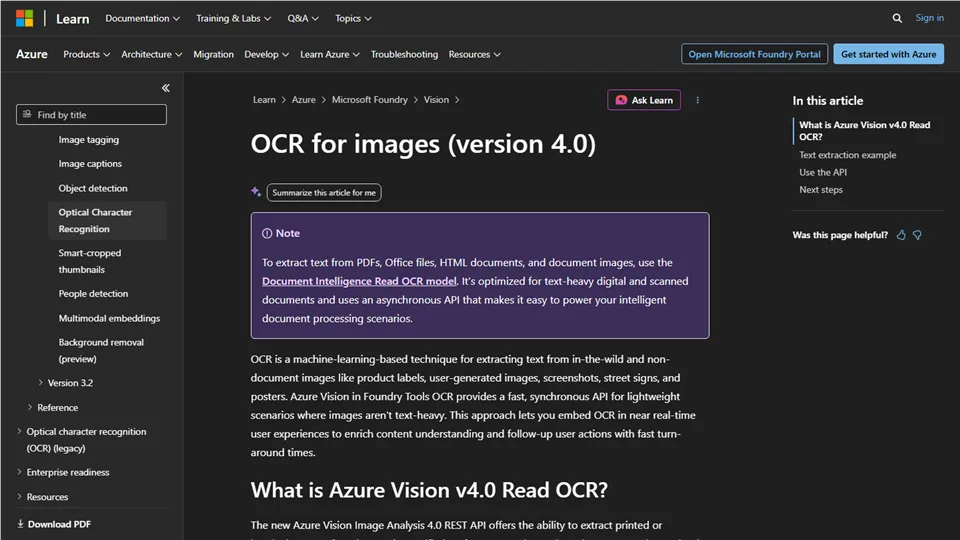
Best for: Developers building OCR into Microsoft Azure applications, internal tools, and intelligent document-processing systems.
Microsoft offers OCR through two related services. Azure AI Vision is optimized for general images such as labels, screenshots, posters, signs, and user-generated images. Azure Document Intelligence is better for text-heavy files such as reports, books, scanned PDFs, and forms.
This split gives developers flexibility. A product team can use fast image OCR for an app feature, while an operations team can use the document-focused model for larger files and more structured workflows. The services can return words, lines, paragraphs, location coordinates, and confidence information for use in search, automation, and review pipelines.
Key Features
- OCR for images, screenshots, posters, and labels
- Document OCR for scanned and digital PDFs
- Printed and handwritten text recognition
- Text coordinates and confidence scores
- Mixed-language support
- API and selected container deployment options
Pros: Broad OCR coverage; useful for handwriting and multilingual content; good fit for enterprise Microsoft environments.
Cons: Requires API integration and cloud configuration; service selection can be confusing for new users.
5. Google Cloud Vision API — Best for Developer-Friendly Image OCR
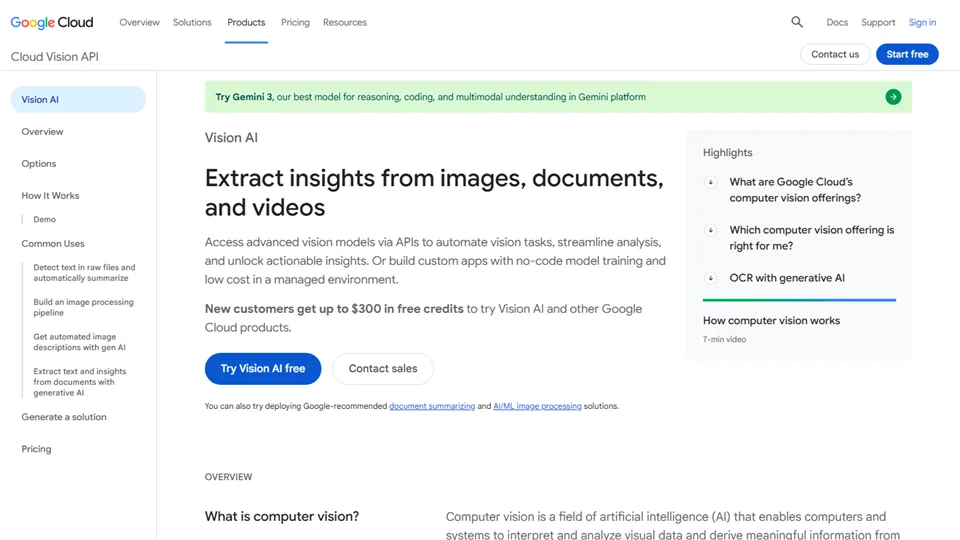
Best for: Developers who need OCR for screenshots, labels, signs, dense documents, handwriting, or cloud-based applications.
Google Cloud Vision API offers two useful OCR approaches. Text detection is designed for shorter text in everyday images, while document text detection is intended for dense text, document scans, PDFs, TIFF files, and handwriting.
The document-focused option returns more than a text string. It can provide a hierarchy from pages to blocks, paragraphs, words, and symbols, along with language and formatting signals. This is useful when you need to preserve reading order, identify document sections, or connect recognized text to locations in the original image.
Key Features
- OCR for general images and dense documents
- Document text detection for PDF and TIFF workflows
- Handwriting support for document-focused OCR
- Structural hierarchy for pages, blocks, paragraphs, and words
- Language detection and formatting signals
- Cloud API integration for scalable applications
Pros: Flexible OCR for many image and document use cases; helpful structural output for custom workflows.
Cons: Requires development work and does not provide a finished document-editing interface.
6. Nanonets — Best OCR Tool for Business Workflow Automation
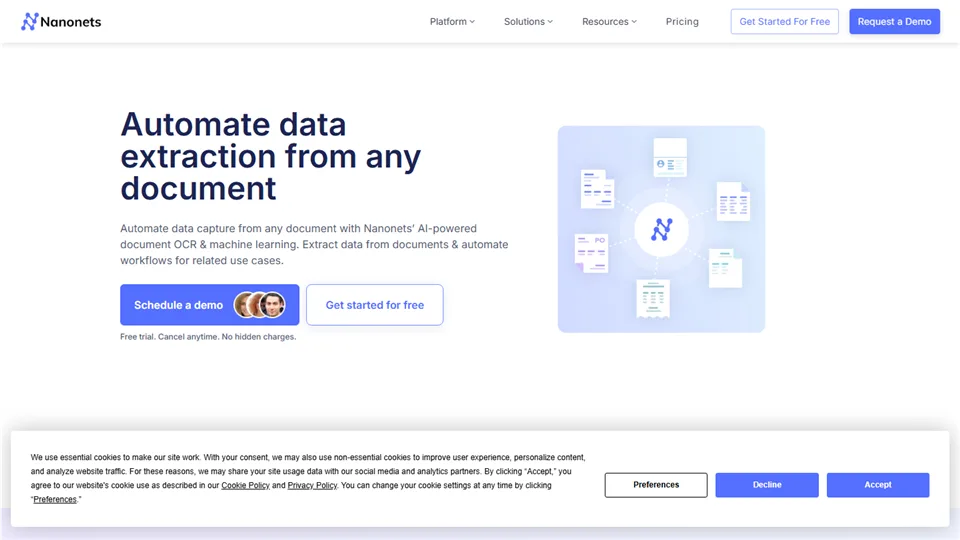
Best for: Finance, operations, logistics, and business teams that need OCR to trigger real workflows rather than simply extract text.
Nanonets combines OCR with data extraction, validation, routing, and automation. Instead of asking only what text is on a page, it helps teams identify information such as invoice totals, suppliers, purchase-order fields, and table line items.
The platform includes preconfigured workflows for common documents such as invoices, receipts, purchase orders, passports, bills of lading, and tables. Low-confidence results can be routed to a reviewer, which is essential for finance and compliance work where an incorrect number can have real consequences.
Key Features
- OCR for invoices, receipts, forms, tables, and business documents
- Preconfigured workflows for common document types
- Custom field extraction
- Table and line-item capture
- Structured outputs for business systems
- Review routing for uncertain results
Pros: Strong for invoice automation and recurring document operations; useful review and validation workflows.
Cons: More complex than a simple OCR converter; best evaluated against your document volume and processes.
7. Tesseract OCR — Best Free and Open-Source OCR Engine
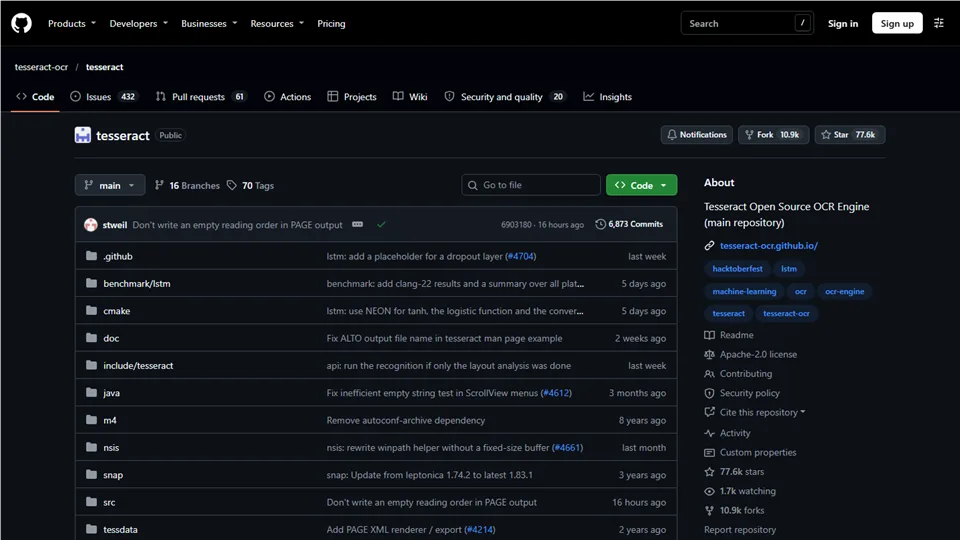
Best for: Developers, researchers, and technical teams that want a free, self-hosted OCR engine.
Tesseract is one of the best-known open-source OCR engines. It is a practical choice when you need control over deployment, language data, preprocessing, and output format. There is no per-page cloud charge, although you take responsibility for setup, image cleanup, and quality assurance.
Tesseract works with common image formats including PNG, JPEG, TIFF, WebP, and BMP. It can produce plain text and formats such as searchable PDF and hOCR. It is often used as part of a wider pipeline that handles page rotation, PDF conversion, table logic, or human review.
Key Features
- Free, open-source OCR engine
- Local or self-hosted deployment
- Extensive language data and model options
- Common image-format support
- Plain text, hOCR, and searchable PDF output
- Useful in custom OCR pipelines
Pros: No per-document licensing cost; strong deployment control; flexible for developers and researchers.
Cons: Requires technical setup and tuning; does not directly read PDF input files; no built-in business workflow.
How to Choose an OCR Text Recognition Tool
- For scanned PDFs you need to search or edit: Adobe Acrobat Pro.
- For preserving a document’s layout during conversion: ABBYY FineReader PDF.
- For tables, forms, checkboxes, and signatures: Amazon Textract.
- For OCR inside Azure applications: Microsoft Azure AI Vision and Document Intelligence.
- For custom cloud image OCR: Google Cloud Vision API.
- For invoices, receipts, and document-driven operations: Nanonets.
- For a free, self-hosted OCR engine: Tesseract OCR.
Before choosing, test the tool on real samples from your workflow. Include scans with small text, skewed pages, low contrast, stamps, tables, handwriting, multiple columns, and the languages you actually process.
How to Improve OCR Accuracy
- Scan documents at approximately 300 DPI when possible.
- Use a clean, well-lit source image.
- Straighten tilted pages before recognition.
- Improve contrast and remove shadows or background noise.
- Select the correct recognition language.
- Crop out irrelevant borders or empty page areas.
- Review names, dates, totals, and legal text manually.
- Keep a copy of the original document before editing or converting it.
FAQ
What is the best OCR text recognition tool?
Adobe Acrobat Pro is an excellent everyday choice for scanned PDFs, while Amazon Textract and Nanonets are stronger for structured business data. Tesseract is a compelling option for users who need a free, self-hosted OCR engine.
Can OCR recognize handwriting?
Some OCR platforms can recognize handwriting, but accuracy varies by language, writing quality, scan resolution, and page layout. Microsoft Azure, Google Cloud Vision, Amazon Textract, and document-intelligence platforms support handwriting in selected scenarios.
Can OCR extract tables from a PDF?
Yes. Amazon Textract, Nanonets, and document-focused cloud platforms can extract table structures. Standard PDF OCR tools can make the text searchable, but may not return tables as clean rows and columns for automation.
Is OCR accurate enough for invoices?
OCR can save substantial manual work on invoices, but key fields should still be validated. Dates, invoice numbers, supplier names, currencies, tax amounts, and line items need review, especially when the source image is low quality.
Is there a free OCR text recognition tool?
Tesseract is free and open source. Cloud services may offer introductory or limited free usage, but current limits and prices should be checked before production use.
Can OCR make a scanned PDF searchable?
Yes. Adobe Acrobat Pro and ABBYY FineReader PDF can add a searchable text layer to image-only PDFs so you can search, select, copy, and sometimes edit the text while keeping the scanned page image visible.
Final Thoughts
The best OCR text recognition tool is not necessarily the one with the longest feature list. Choose Adobe Acrobat Pro or ABBYY FineReader PDF when document usability and editing matter most. Choose Amazon Textract, Azure, Google Cloud Vision, or Nanonets when OCR needs to power a product or business workflow. Choose Tesseract when open-source control and self-hosting are your priorities. For any high-stakes use case, evaluate the tool with your own real documents before depending on its output at scale.
Latest Reviews
Microsoft Copilot Review: Office, Pricing, How to Use It and NSFW Limits

Gemini 4 Hydrogen Review: Coding, 1M Context, API Pricing and NSFW Limits
6 Best Image Translators in 2026: Translate Photos and Designs

8 Best AI Models in 2026: Top Models Compared
Best Free Antivirus Software in 2026: 5 Reliable Options for Safer Devices
MAI Image 2.7 and Flash Review: Editing, Canvas, Pricing and NSFW Limits