6 Best Image Translators in 2026: Translate Photos and Designs
Compare the best image translator tools in 2026 for photos, screenshots, menus, designs, and layout-preserving translation.
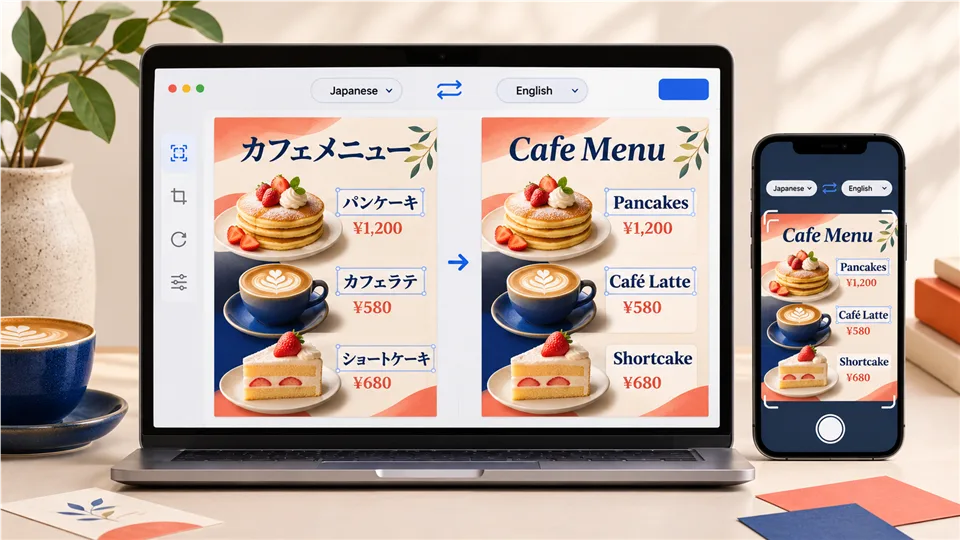

Need to translate a menu, product label, screenshot, infographic, or social graphic without rebuilding it from scratch? A good image translator does more than convert words. It detects text with OCR, translates it naturally, and—ideally—puts the new text back in the right place without damaging the original design.
The right tool depends on your goal. Travelers usually need a fast camera translator. Marketers need to preserve layouts and brand styling. Teams handling customer-facing materials may need an editor, review steps, and collaboration controls.
In this guide, we compare the six best image translator tools in 2026 for everyday photos, screenshots, designs, and professional localization workflows.
Table of Contents
What Is an Image Translator?
An image translator reads text inside an image, converts it into another language, and shows the result either as translated text or as a rebuilt image. Most tools combine three steps: OCR to detect the text, machine translation to convert it, and visual replacement to overlay or redraw the translated text.
Not every tool completes all three steps equally well. Google Translate is excellent for understanding text quickly. Design-focused tools such as Canva and Adobe Express are better when you need an editable, polished asset. Dedicated AI image translators are often the most useful when layout preservation is the priority.
Best Image Translators at a Glance
| Tool | Best for | Output | Layout preservation | Main limitation |
|---|---|---|---|---|
| Google Translate | Free everyday translation and travel | Translated text or downloadable image | Basic | Less control over styling |
| DeepL | Natural-sounding business translations | Translated image or extracted text | Good | Some whole-image features require an account or plan |
| TranslateImage AI | Posters, screenshots, menus, and graphics | Rebuilt translated image | Strong | Important details still need review |
| Smartcat | Professional localization teams | Editable translated image with review workflow | Strong | More than most casual users need |
| Canva Translate | Editable marketing designs | Duplicated, translated design | Excellent for native Canva designs | Not a one-click answer for flattened images |
| Adobe Express Translate | Branded creative assets and files | Editable translated design or file | Strong | Best results depend on editable source content |
1. Google Translate — Best Free Image Translator for Everyday Use
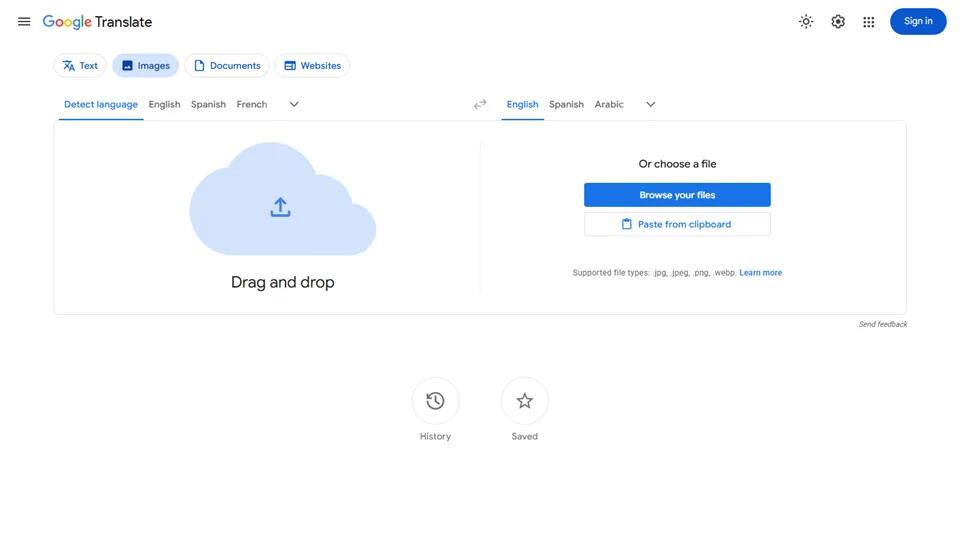
Best for: Travelers, students, and anyone who needs a quick translation from a phone camera or saved photo.
Google Translate is the easiest starting point for image translation. On mobile, you can point a camera at signs, menus, labels, packaging, and printed instructions to see translated text over the image. On desktop, upload a screenshot or photo, select the languages, then copy the detected text or download the translated image.
It works best when speed matters more than visual perfection. Use it to understand a foreign-language screenshot, read a menu abroad, or check a product label. For a finished marketing graphic, however, it gives you much less control over typography and spacing than a layout-aware tool.
Key Features
- Camera translation for signs, menus, labels, and printed text
- Translation from saved photos and uploaded images
- Automatic source-language detection
- Selectable text for copying or searching
- Downloadable translated image on the web
Pros: Free, fast, easy to use, and available across desktop and mobile devices.
Cons: Decorative, blurred, tiny, or handwritten text can be unreliable; styling control is limited.
2. DeepL — Best for Natural-Sounding Image Translation
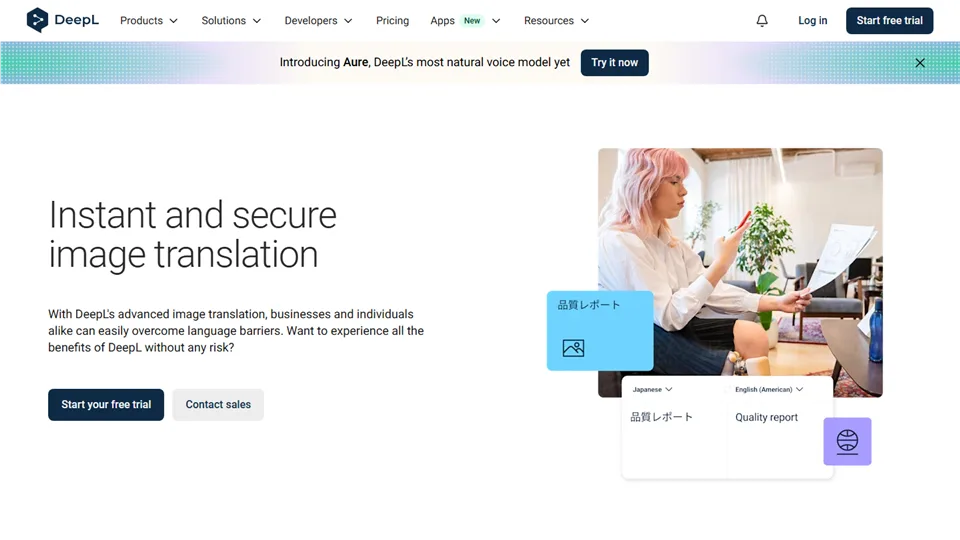
Best for: Business documents, product screenshots, and professional content where natural wording matters.
DeepL is a strong fit when you need more than a rough literal translation. Depending on the platform, you can upload an image, extract its text for translation, use screen capture, or translate a single image file and download a translated version. That makes it useful for website screenshots, product materials, and customer-facing documents.
Its glossary tools are especially helpful for teams that need consistent wording for product names, technical terms, or approved brand language. As with every image translator, double-check numbers, names, legal copy, and text rendered over complex visuals.
Key Features
- Image upload and image-file translation
- Text extraction from screenshots and images
- Screen-capture translation in desktop apps
- Automatic language detection
- Glossaries for consistent terminology
Pros: Natural-sounding translations, professional workflow, and helpful terminology controls.
Cons: Whole-image features may require an eligible account or plan; handwriting remains difficult.
3. TranslateImage AI — Best for Preserving the Original Layout
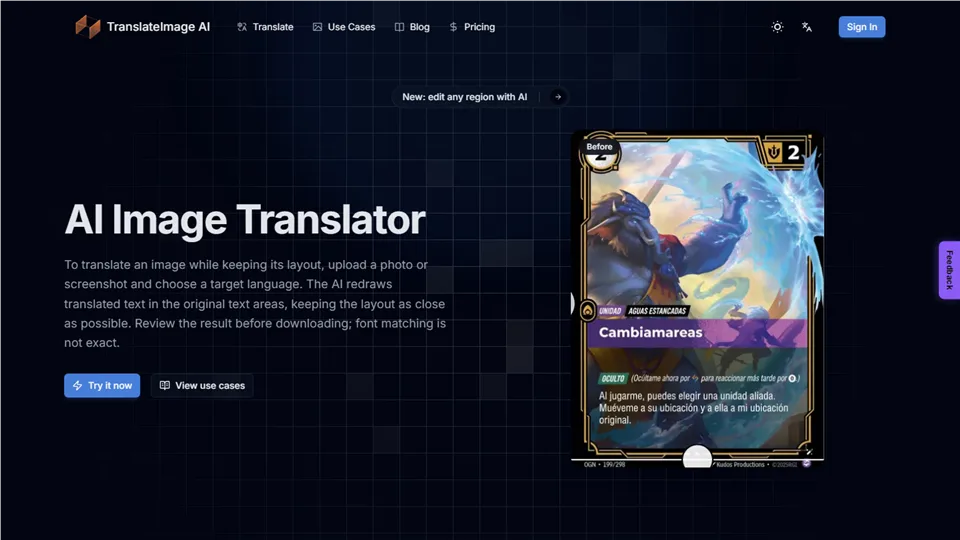
Best for: Posters, social graphics, menus, product images, screenshots, and other finished visuals.
TranslateImage AI is designed for the problem that text-only translators do not solve well: changing the language inside a finished image while keeping the overall visual layout recognizable. Upload an image, select a target language, and the service attempts to identify text regions, translate them, remove the original words, and redraw the replacement text in place.
It is a practical choice for ecommerce banners, menus, infographics, and screenshots that cannot be edited in their original software. Different languages take different amounts of space, so use the editor to inspect line breaks and confirm that names, prices, and short labels survived correctly.
Key Features
- AI image translation with layout-aware text replacement
- Support for photos, screenshots, posters, menus, and product images
- Translation into more than 70 languages
- JPG, PNG, and WebP support
- Image translation editor for review and adjustments
Pros: Built for flattened images, helpful layout retention, and a simple upload-to-download workflow.
Cons: Complex backgrounds and decorative fonts may still need cleanup.
4. Smartcat — Best Image Translator for Teams and Review Workflows
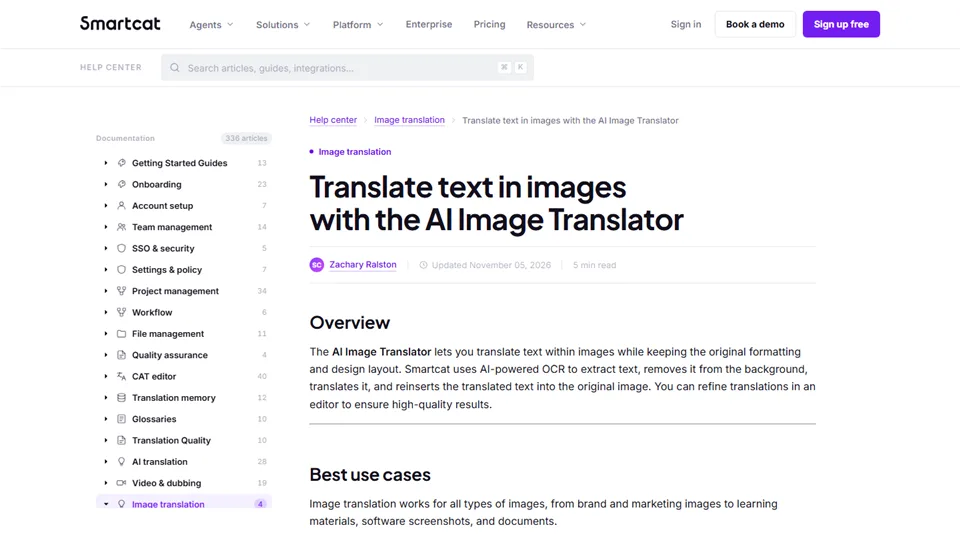
Best for: Localization teams, agencies, and businesses translating visual assets at scale.
Smartcat takes image translation beyond a quick consumer tool. It combines OCR, AI translation, layout-aware text replacement, and an editing environment where users can review and refine the result. The approach is particularly useful when an automatic output cannot go live without a human check.
After translation, reviewers can adjust text position, size, font, and color before final delivery. That makes Smartcat well suited to marketing material, training content, product screenshots, and support assets. It is more involved than a one-off web translator, but the tradeoff is much better control for teams.
Key Features
- AI OCR and image text recognition
- Translation with visual layout preservation
- Built-in image translation editor
- Manual text, placement, font, and color adjustments
- Team review and collaboration workflow
Pros: Strong quality-control workflow, editable output, and useful collaboration features.
Cons: More setup and process than most personal translation tasks require.
5. Canva Translate — Best for Editable Marketing Designs
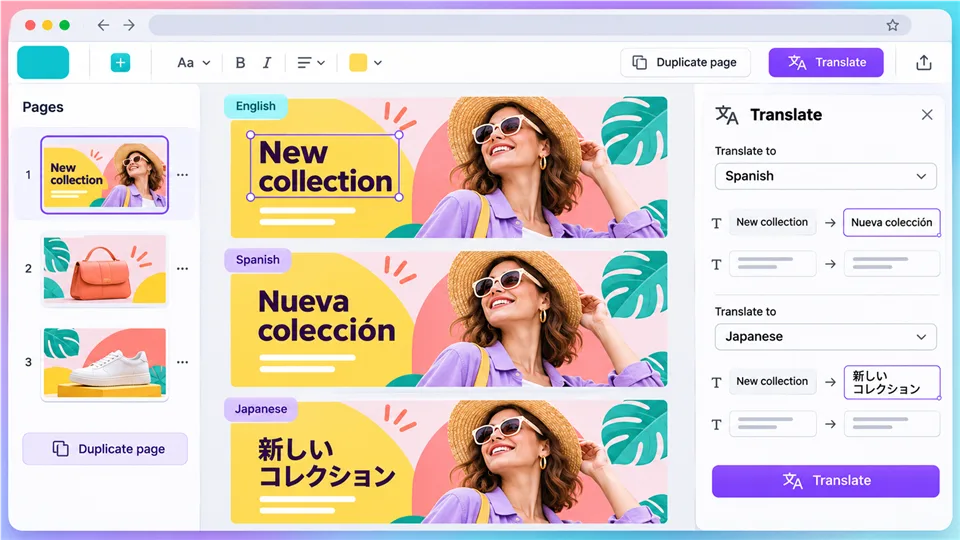
Best for: Social posts, presentations, flyers, ecommerce graphics, and branded content created in Canva.
Canva Translate is a design-localization tool rather than a general photo translator. If the artwork was created in Canva—or can be rebuilt there with editable text layers—it offers a cleaner way to create multilingual versions without starting over. You can translate selected text or full design pages, choose a target language, and preserve the original page as a separate version.
It is particularly useful for marketing teams because fonts, colors, logos, templates, and layout controls remain in the same workspace. When text expands after translation, resize and layout options can help reduce overflow. This is a better approach than translating a flattened export whenever you still have access to the original design.
Key Features
- Translate selected text or complete design pages
- Support for more than 100 languages
- Duplicate-page option to preserve the original design
- Text resizing to reduce overflow
- Tone options for selected language pairs
- Right-to-left layout support
Pros: Excellent for editable branded designs and easy to create multiple language versions.
Cons: Works best with editable text rather than flattened image files; some fonts may not support every script.
6. Adobe Express Translate — Best for Adobe-Based Creative Work
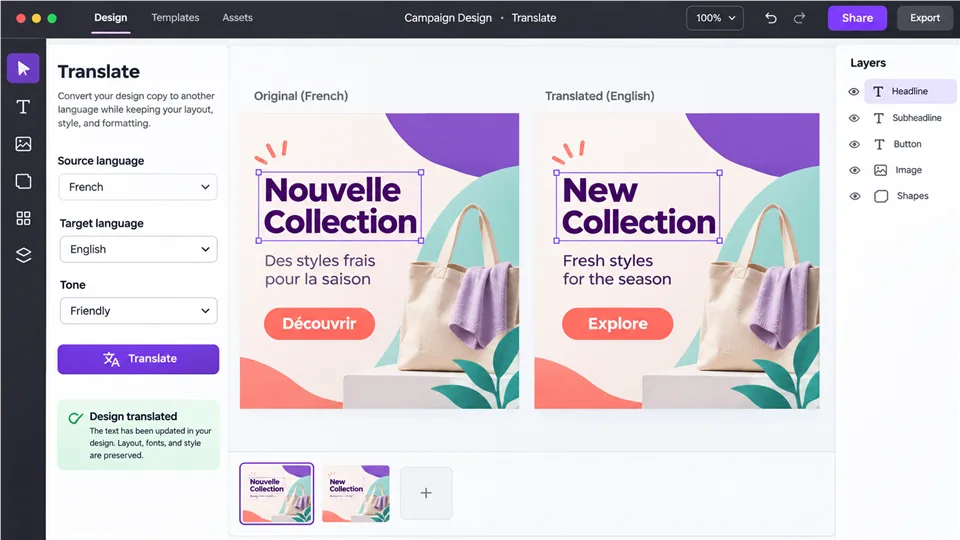
Best for: Creators and businesses translating branded artwork, files, templates, and PDFs.
Adobe Express Translate is a good choice for teams already working in Adobe’s creative ecosystem. It is designed to translate creative content without forcing you to rebuild every layout manually. The feature can work with designs, files, templates, and PDFs while allowing a follow-up review of copy, fonts, and layout.
That creative control matters because translation changes more than words. Longer phrases can overflow, a brand font may not support the target script, and regional conventions may need adjustment. Adobe Express keeps the content editable so you can make those final visual decisions before publishing.
Key Features
- Translation for designs, templates, files, and PDFs
- Support for many languages and regional variants
- Multiple-language output for a translation job
- Tone-aware translation options
- Editable post-translation design workflow
- Font and layout guidance for translated content
Pros: Useful for polished marketing assets, branded creative work, and editable design files.
Cons: Best for Adobe Express users and editable source material; all final layouts should still be reviewed.
How to Choose an Image Translator
- For a menu, sign, or label while traveling: Google Translate.
- For natural business wording in screenshots or images: DeepL.
- For a finished image that should retain its layout: TranslateImage AI.
- For a reviewable localization workflow: Smartcat.
- For social posts and presentations made in Canva: Canva Translate.
- For branded Adobe files, creative assets, and PDFs: Adobe Express Translate.
Before choosing, ask whether you need only extracted text or a ready-to-use translated image. Also consider whether the source is clear enough for OCR, whether the output must preserve its layout, and who will review names, numbers, prices, and important terminology.
How to Translate an Image
- Upload a clear JPG, PNG, or WebP image.
- Choose the original language or use automatic detection.
- Select the target language.
- Start the translation.
- Compare the output with the source.
- Correct names, numbers, prices, labels, and critical terminology.
- Download the translated image or export the editable design.
For the best result, use a sharp source image with high-contrast text. OCR performs poorly on tiny text, strong glare, handwriting, curved labels, and busy patterned backgrounds.
FAQ
What is the best free image translator?
Google Translate is the best free image translator for most everyday needs. It can translate photos, screenshots, and camera views quickly on desktop and mobile, although it offers less design control than dedicated image translation tools.
Can an image translator preserve the original layout?
Yes. Tools such as TranslateImage AI and Smartcat are designed to translate text while preserving structure, colors, and placement as closely as possible. Review the result because translated text can be longer or shorter than the source.
Can I translate text in a screenshot?
Yes. Google Translate, DeepL, TranslateImage AI, and Smartcat can work with screenshots. Use a layout-aware tool if you need a downloadable screenshot with translated text in place.
Can AI translate handwriting in images?
Sometimes, but results vary. Clear printed text produces the most reliable OCR and translation. Handwriting, reflections, low-resolution images, and unusual fonts can reduce accuracy.
How can I translate an image without losing quality?
Start with the highest-resolution original file. Use a layout-aware image translator, then download the result at the highest available quality. If the image is a design asset, translating the editable source in Canva or Adobe Express is usually better than translating a flattened export.
Final Thoughts
The best image translator is the one that matches your workflow. Google Translate is the fastest free choice for everyday understanding. DeepL is a strong option when natural wording matters. TranslateImage AI and Smartcat are better for translated visuals that need to retain their original structure. Canva and Adobe Express are the practical choices when your priority is producing polished, editable, brand-ready designs in multiple languages.
Latest Reviews
Gemini 4 Hydrogen Review: Coding, 1M Context, API Pricing and NSFW Limits

8 Best AI Models in 2026: Top Models Compared

Best Free Antivirus Software in 2026: 5 Reliable Options for Safer Devices
Best Free Antivirus Software in 2026: 5 Reliable Options for Safer Devices
MAI Image 2.7 and Flash Review: Editing, Canvas, Pricing and NSFW Limits
Hy4 Flash Review: Local Setup, 1M Context, Hardware, API Costs and NSFW Limits