
Saved a Threads post but cannot find the video in your camera roll? Saving a post for later and downloading a video file are different actions. A bookmark keeps a route back to the post; an MP4 is a file you can open outside Threads.
To try downloading a public Threads video, copy the individual post link, open a browser-based downloader, and check the returned preview before saving the video file. On iPhone, look in Files first; on Android and a computer, check your browser's Downloads list. Use your own clips or videos you have permission to save and reuse.
Can Threads save a video directly?
Meta's official web update describes access to saved posts and the move from Threads.net to Threads.com. It also describes copying a post as an image. None of those actions, by itself, is the same as exporting the video as an MP4.
If your version of Threads offers a video download action for a particular post, use that first and confirm that it produces a playable file. If it does not, the browser route below is an option for accessible public posts. Do not assume that a downloader can retrieve private, deleted, or restricted content.
| Your goal | Best starting point | What to check |
|---|---|---|
| Watch the post again online | Save the post in Threads | It may disappear if the author removes it |
| Keep your own original clip | Use your original camera or editing file | It avoids a potentially compressed social-media copy |
| Save an authorized public clip | Copy its post link to a downloader | Preview, file type, audio and destination folder |
| Obtain a private or unavailable clip | Ask the creator for a file | A public URL tool cannot grant access |
Copy the right Threads link
Open the post containing the actual video. Use its share menu or three-dot menu and choose Copy link where available. On a computer, open the individual post and copy its address from the browser. Menu wording can vary by app version.
Use a post link, not a profile, search result or screenshot. If the video belongs to a quoted post or a reply, open that original item first. A post that merely links to YouTube is not necessarily hosting a Threads video. Older threads.net links may redirect; when a tool rejects one, open it in the browser and copy the resolved threads.com address.
Before pasting, play the source. A photograph, thumbnail or animated preview can look like a video at a glance. Confirm the returned preview matches the creator and clip you intended to save.
Three browser tools for downloading Threads videos
Start with AirMore, then consider Thredra or SnapSave as alternatives. These tools are separate from Meta. Use a public post link and check the formats actually returned for that post.
1. AirMore: download public Threads videos in your browser
AirMore Online Threads Video Downloader
AirMore offers a free web tool for public Threads videos that can be viewed without logging in. It works in a modern mobile or desktop browser without installing software. The page lists the usable formats and qualities supplied by the source, making it a convenient first option when you want to choose from the available files.
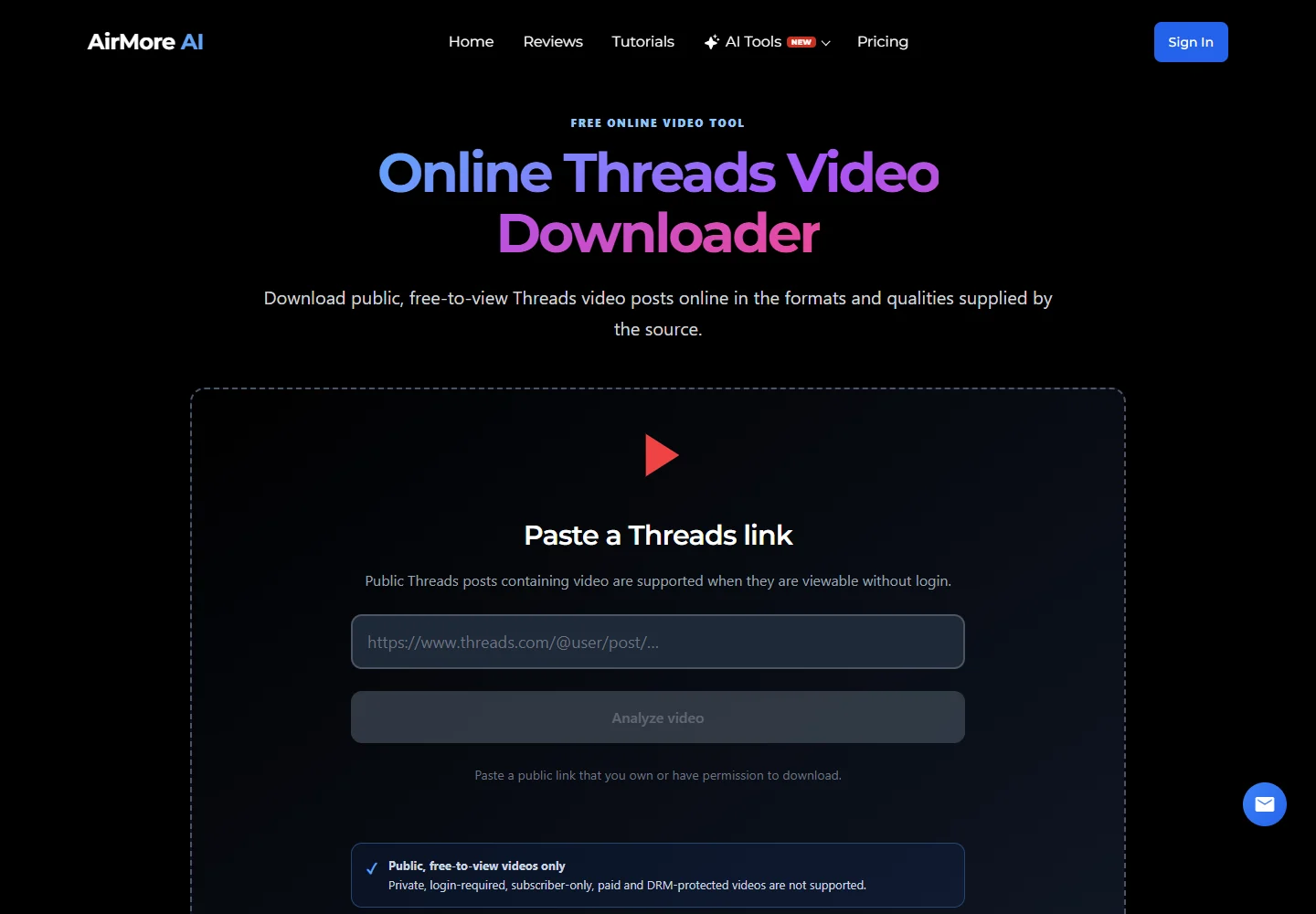
- Open the public Threads video post and copy its full link.
- Open AirMore, paste the link into the Threads video URL field, and select Analyze video.
- If formats are returned, choose an available quality or format and use its download option before the temporary link expires. Then check your browser’s Downloads list and play the file.
Available quality depends on the original source; the tool does not promise a higher-resolution original for every post. AirMore states that media travels directly from the platform CDN to your browser. Private, login-required, subscriber-only, paid and DRM-protected videos are not supported.
2. Thredra: preview the media type before downloading
Open Thredra. It presents a preview page with format and resolution choices, which is useful for distinguishing video from images in a post. It also has several interface languages, including Japanese.
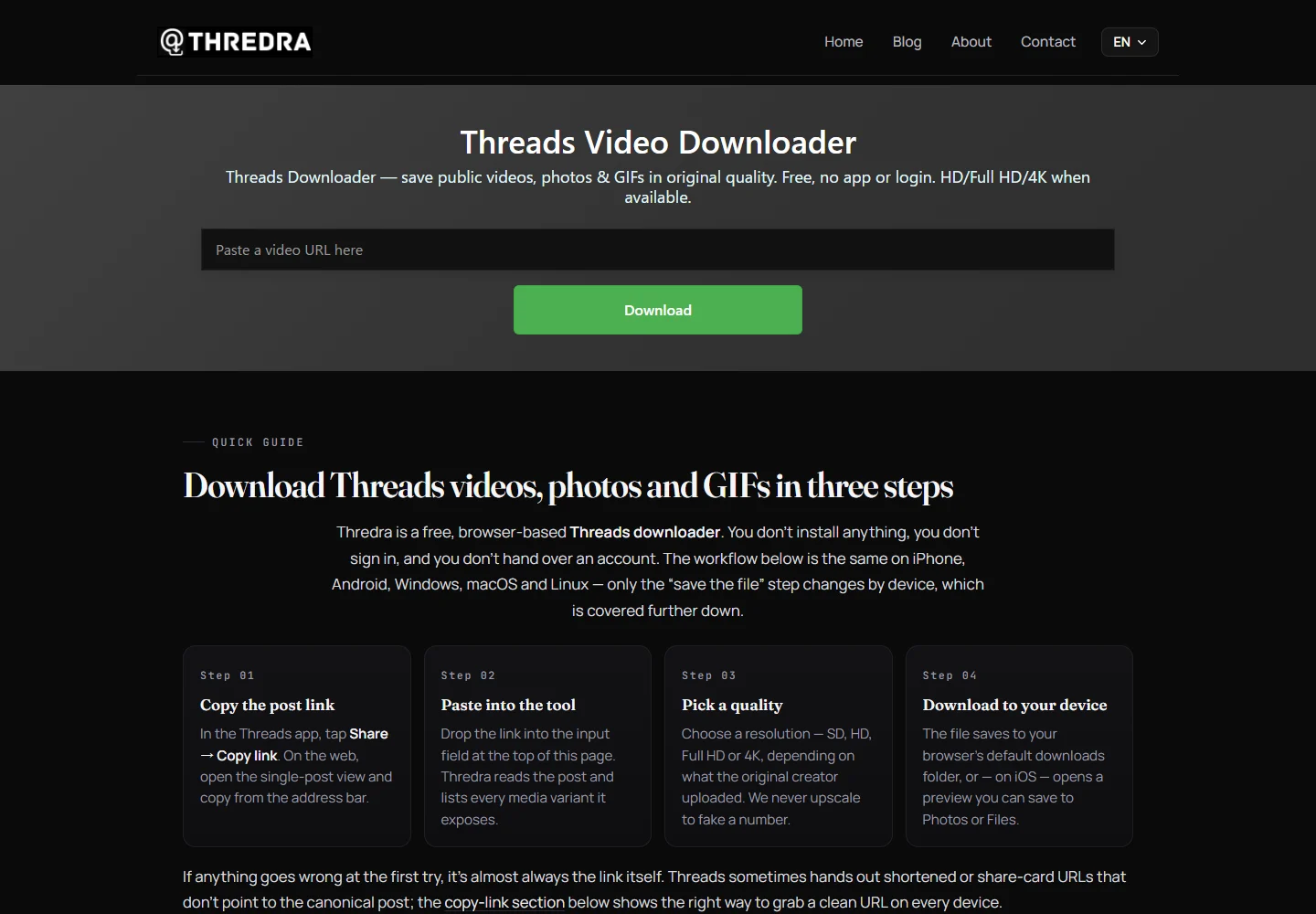
Paste the post URL, choose Download, then inspect the media entry. Choose an entry identified as video/MP4 rather than JPG. Follow the site's download action to the file-saving step. An intermediate web page is not the video itself: if you save an HTML page, return to the video entry rather than renaming that page to .mp4.
Test result (September 22, 2026): Thredra downloaded a public NASA video. The file contained H.264 video and AAC audio, measured 720×1280 and lasted about 5 minutes 39 seconds. Its preview advertised 1080×1920, so the actual file—not the label—is the reliable resolution check. A decoded frame matched the subject of the original post. This is one desktop test, not a guarantee for every device or post.
3. SnapSave's Threads page: a simple alternative link field
Open SnapSave for Threads. This dedicated page uses a paste-and-download workflow and offers localized interfaces. It is a separate service from similarly named “Snap Threads” sites; check the domain so that you return to the intended tool.
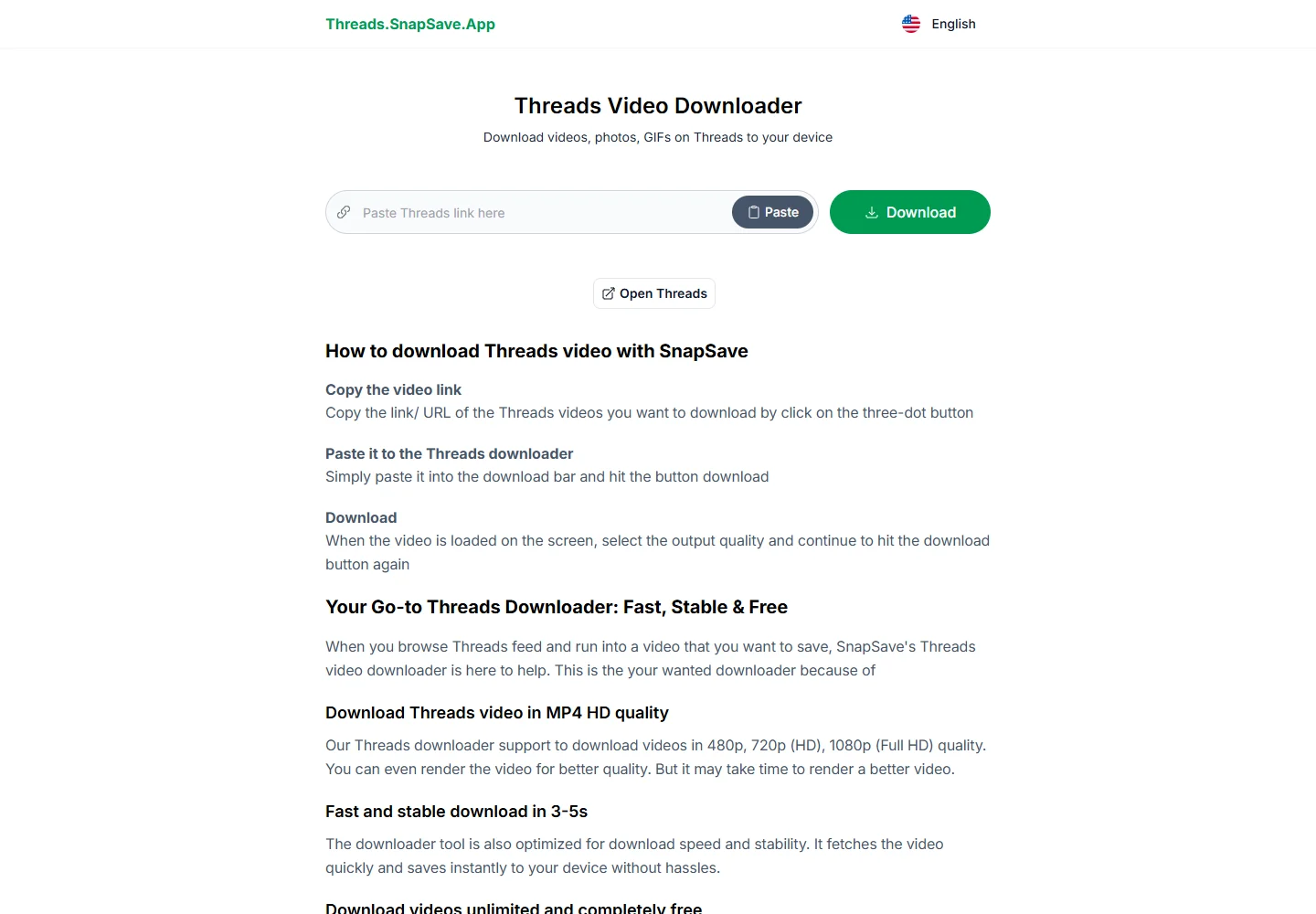
Paste the individual post URL into the field, press Download, and choose the desired video entry if results appear. The provider advertises several quality levels, but only choose from what your post actually returns. A larger resolution label does not prove that extra detail has been recovered from a low-quality original.
If the page does not return media, do not repeatedly submit the same link or install an unrelated “required player.” Check the original post and try again later, use another service, or request the original from the creator. This guide does not claim a completed SnapSave video download from our spot check.
Download a Threads video on iPhone or iPad
- Copy the Threads post link and open the chosen downloader in Safari.
- Paste the link, inspect the result, and use its actual video download action.
- If Safari asks to download a file, confirm. A page that only starts playback may have a separate download or share control.
- Open Safari's Downloads list or Files → Browse → Downloads in the configured storage location. Apple commonly points to iCloud Drive → Downloads; check On My iPhone if that is where you configured downloads.
- Open the file and confirm that it plays. To add a compatible video to Photos, use the share sheet's Save Video action if available.
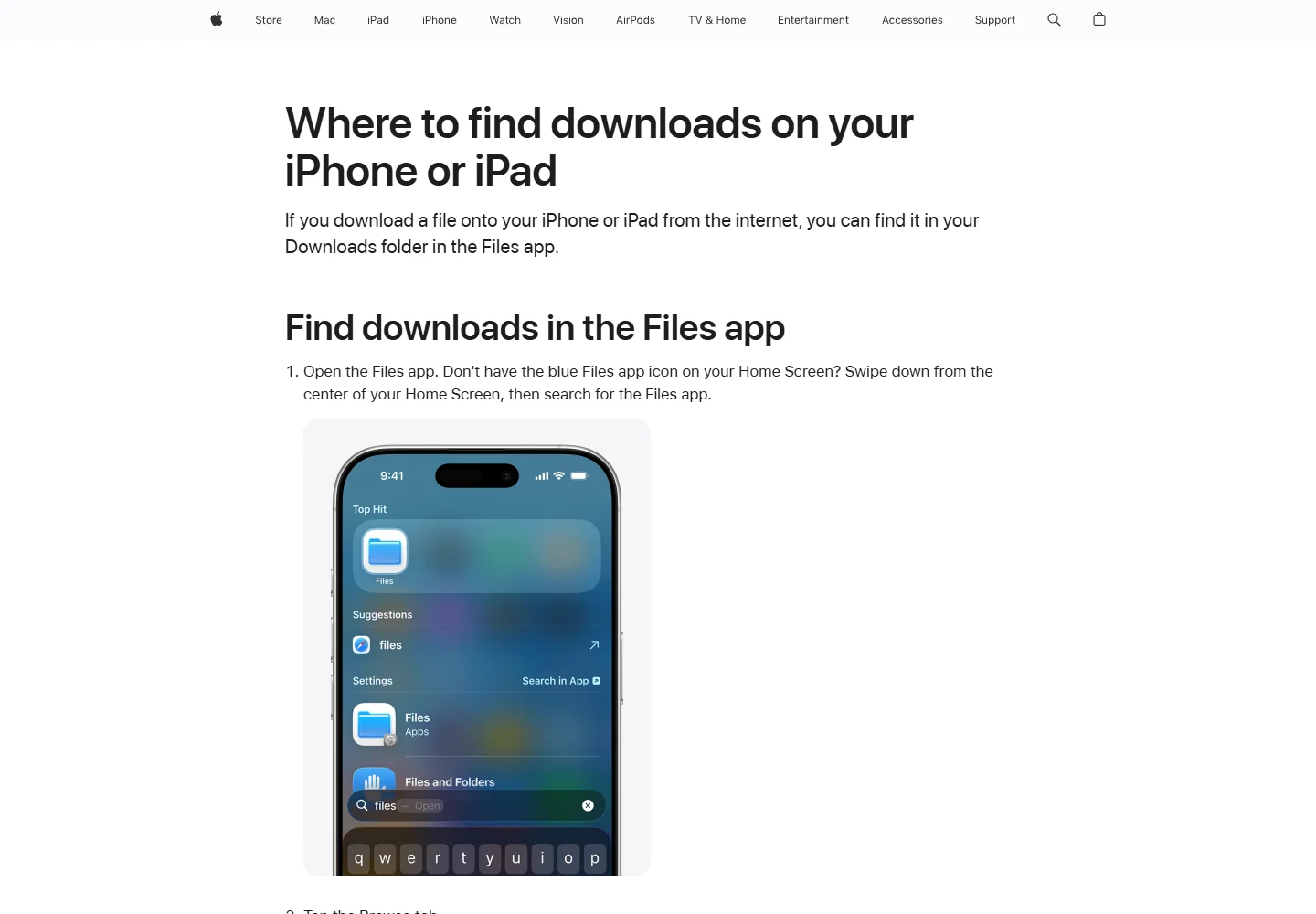
Apple explains where browser downloads are stored in its official download-location guide. A successful download may be in Files without appearing automatically in Photos. If Save Video is missing, first check that the item is an actual supported video rather than a web page or link.
Download on Android, Windows or Mac
On Android, copy the post URL, open Chrome, and follow the same paste, preview and download sequence. Open Chrome → menu → Downloads, or your device's file manager. A file can exist in Downloads before the gallery indexes it. Google's Android download instructions explain these controls.
On a computer, use your browser's download list to locate the file and reveal its folder. Play it before closing the original post. Keep a simple name and, when useful, record the creator and source URL alongside it so that you do not lose track of where it came from.
For another platform, see our X/Twitter video download guide. Threads and X have different features; do not assume that an X-specific button or tool also supports Threads.
Why a Threads video download fails
| Problem | What to try |
|---|---|
| Invalid URL or no result | Open the individual post, confirm it is accessible, and copy its current URL |
| Only a JPG appears | Check whether the post is a photo or whether you selected the wrong item in a carousel |
| An unrelated video appears | Compare creator and preview; reject a mismatched result |
| A file downloads but does not play | Check its type and size; an HTML page is not an MP4 |
| No sound | Check the source's audio and your player; verify the downloaded file has an audio track |
| MP4 is not in Photos/Gallery | Look in the browser download list or file manager first |
| A previously working link stops | The post or temporary media link may have changed; return to the original post |
Stop if a site asks for login cookies, an Instagram password, payment-card details for a supposed free download, or an unrelated installer. Close advertising tabs and return to the intended page. Downloading a copy does not give you permission to remove attribution or repost someone else's work.
Frequently asked questions
Can I download a private Threads video?
This guide covers public posts only. If a clip is not publicly accessible, ask its creator for a copy or an authorized sharing method. Do not use services claiming to unlock private accounts.
Does “Save” put the video in my phone's gallery?
Saving a post is generally a bookmark action. For an offline file, confirm that your browser actually downloaded video media, then check Files or Downloads before looking in Photos or Gallery.
Can I get 4K or the original upload quality?
Only if that version is actually available. A downloader cannot promise the creator's original master file just because its page says HD or 4K. Check the returned file's dimensions and picture quality.
Will the creator receive a download notification?
We have not verified a universal notification rule across apps and third-party services. Do not use “anonymous download” marketing as a privacy guarantee. Permission and respectful use still matter.
Why do I get an image when I expected a video?
The linked post may contain an image, a mixed carousel or a link preview. Open the exact item and choose the correct media entry. A button labeled “Download Video” can still lead to an image result; inspect the format.
Is there a reliable fallback when websites fail?
For your own work, use the original recording or editing export. For someone else's clip, ask them to share the file. A bookmark is enough if your goal is only to revisit the post online.
Save the file, then verify it
Copy the exact public post link, check the preview, and confirm a real video file reaches your device. Test playback and sound before assuming the job is finished. Start with the original file whenever you own it, and keep the creator's permission separate from the technical ability to download.
Checked September 22, 2026. Third-party availability can change; a successful result for one post does not guarantee support for every post or device.
Related
How to Save YouTube Videos on iPhone and Android

7 Free Music Websites in 2026: Ads, On-Demand & Offline Limits
How to Save Twitch VODs and Clips on PC, iPhone and Android
5 Best Free Sound Effects Websites for Videos, Games and Podcasts
8 Best Free Movie and TV Show Websites in 2026: Where to Watch Online

How to Download Netflix for Offline Viewing: Steps, Limits and Fixes