5 Best AI PPT Generators in 2026
Compare the best AI PPT generators in 2026, including Gamma, Canva, Beautiful.ai, Plus AI, and Microsoft Copilot, to create stronger presentations faster.


Creating a solid presentation used to mean starting with a blank slide, shaping an outline, finding visuals, and then spending far too long nudging layouts into place. An AI PPT generator changes that workflow: give it a topic, a short brief, or an existing document, and it can turn the raw material into a presentable first draft in minutes.
The key phrase is first draft. The best tools save time on structure and design without removing the need for your expertise. You should still check facts, adjust the narrative for your audience, and make the final deck sound like you. We compared five strong options for different workflows, from prompt-first web apps to AI built directly into PowerPoint.
Table of Contents
- How we chose the best AI PPT generators
- AI PPT generators at a glance
- 1. Gamma
- 2. Canva Magic Design
- 3. Beautiful.ai
- 4. Plus AI
- 5. Microsoft Copilot in PowerPoint
- Which AI PPT generator should you choose?
- How to get better AI-generated slides
- FAQ
How We Chose the Best AI PPT Generators
We focused on the parts of presentation creation that matter after the initial novelty wears off: how quickly a tool can turn a brief into a usable outline, the quality and consistency of its layouts, how easily you can revise individual slides, and whether the finished work fits the format your team actually uses. We also considered support for brand assets, collaboration, export, and document-based creation.
No AI tool can verify your argument, select the right evidence, or understand internal context without your help. The tools below are best viewed as presentation co-pilots: they reduce production work so you can spend more time on the message.
Best AI PPT Generators at a Glance
| Tool | Best for | What it does well | Free option | Main limitation |
|---|---|---|---|---|
| Gamma | Fast, narrative-first decks | Builds an editable, modern presentation from a prompt or outline | Available | Its web-first format may need export cleanup for strict PPT workflows |
| Canva Magic Design | Brand-led visual presentations | Pairs AI design ideas with templates, media, and a familiar editor | Available | Polishing a long deck can still take manual design work |
| Beautiful.ai | Consistent business decks | Uses Smart Slides to keep layouts tidy as content changes | Limited | Less free-form than a traditional canvas editor |
| Plus AI | Google Slides users | Creates and revises slides inside an existing Slides workflow | Trial / limited access | Best experience depends on working in Google Slides |
| Microsoft Copilot in PowerPoint | Microsoft 365 teams | Helps create, summarize, and refine work in PowerPoint | Depends on plan | Relevant Copilot features require eligible licensing and setup |
1. Gamma — Best Overall for Fast, Modern AI Presentations
Best for: People who want to move from an idea to a polished, web-friendly deck quickly.
Gamma is built around a prompt-first workflow. Start with a topic, paste an outline, or bring in existing material, and Gamma produces a structured presentation with visual direction already in place. Its card-based editor is particularly comfortable for turning a rough narrative into something that reads cleanly on screen.
It stands out when speed and visual momentum matter more than recreating every convention of a traditional PowerPoint file. You can keep editing the generated structure, adjust layouts, add media, and export when you need a more conventional format.

Key features
- Prompt- and outline-based presentation generation
- AI-assisted writing, design, and image suggestions
- Flexible card-based editing
- Import and export options for common presentation workflows
- Sharing and collaborative review controls
Pros
- Very quick route from brief to a visually coherent deck
- Strong starting point for story-led presentations
- Easy to revise without rebuilding every slide
Cons
- Some teams may prefer the deeper slide-level control of PowerPoint or Google Slides
- Exported decks should be reviewed before an important presentation
2. Canva Magic Design — Best for Brand-Ready Visual Presentations
Best for: Marketing, education, and small teams that already create visual content in Canva.
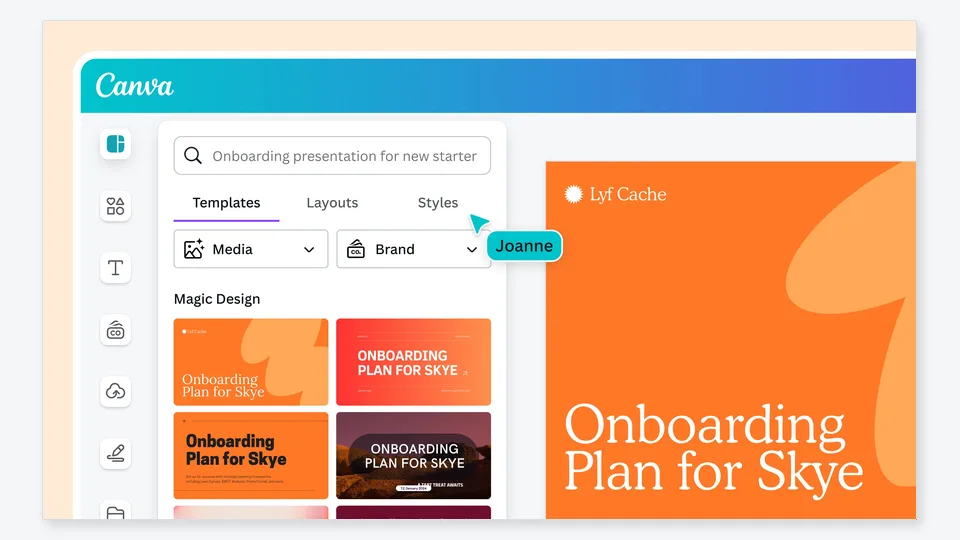
Canva Magic Design brings AI suggestions into a broad design environment rather than treating presentation creation as a separate task. You can start from a presentation prompt, select a template direction, and then use Canva’s media library, brand controls, and familiar drag-and-drop tools to shape the deck.
That makes Canva especially practical for presentations that need to feel visually connected to social content, campaign assets, or an existing brand kit. It is less about generating a finished deck with no input and more about accelerating the design choices around your content.
Key features
- AI-assisted presentation concepts and layouts
- Large template and media library
- Brand kit support for colors, fonts, and assets
- Simple collaborative editing and commenting
- Presentation export and sharing options
Pros
- Excellent visual flexibility after generation
- Approachable for non-designers
- Useful when presentation assets already live in Canva
Cons
- Long, information-heavy decks still require editorial discipline
- Some premium assets and AI features are plan-dependent
3. Beautiful.ai — Best for Consistent Business Presentation Design
Best for: Teams that want polished business slides without spending time manually fixing alignment.
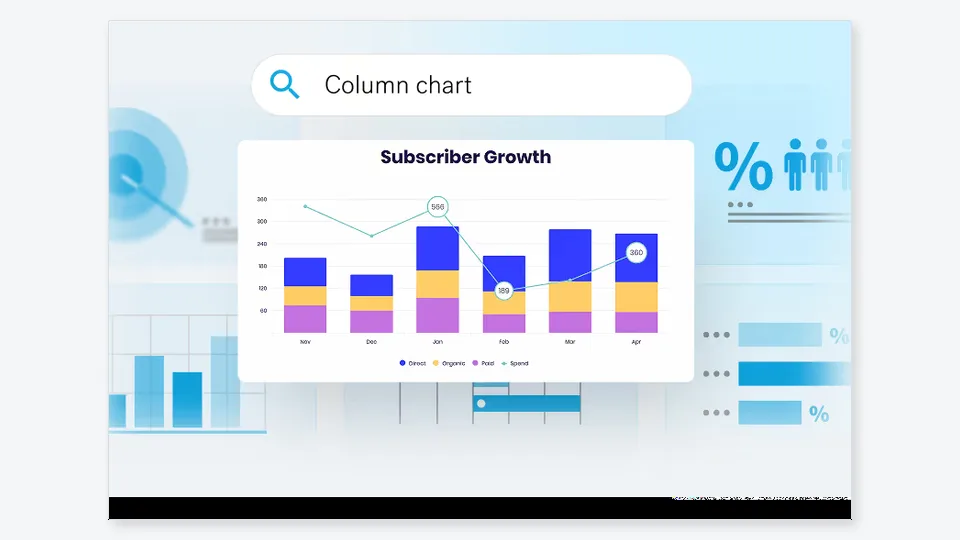
Beautiful.ai approaches slide creation through Smart Slides, which adapt layouts as you add or change content. Instead of leaving every design decision to the user, it imposes sensible structure on charts, lists, timelines, and other common business-slide patterns.
Its AI capabilities help you develop a draft more quickly, but the larger value is design consistency. If your regular work includes client updates, strategy decks, or recurring reports, the guardrails can prevent the familiar slide-by-slide drift that makes a deck feel uneven.
Key features
- AI-assisted deck and content generation
- Smart Slides that adjust layouts automatically
- Business-focused templates and chart formats
- Team collaboration and shared brand controls
- Presentation sharing and export options
Pros
- Keeps business decks visually consistent
- Useful layout automation for charts and structured content
- Good fit for repeatable internal and client-facing presentations
Cons
- Design rules can feel restrictive for highly custom creative work
- Less suited to users who want to place every element freely
4. Plus AI — Best for Creating Slides Inside Google Slides
Best for: Teams that live in Google Workspace and want AI help without moving to a separate presentation app.
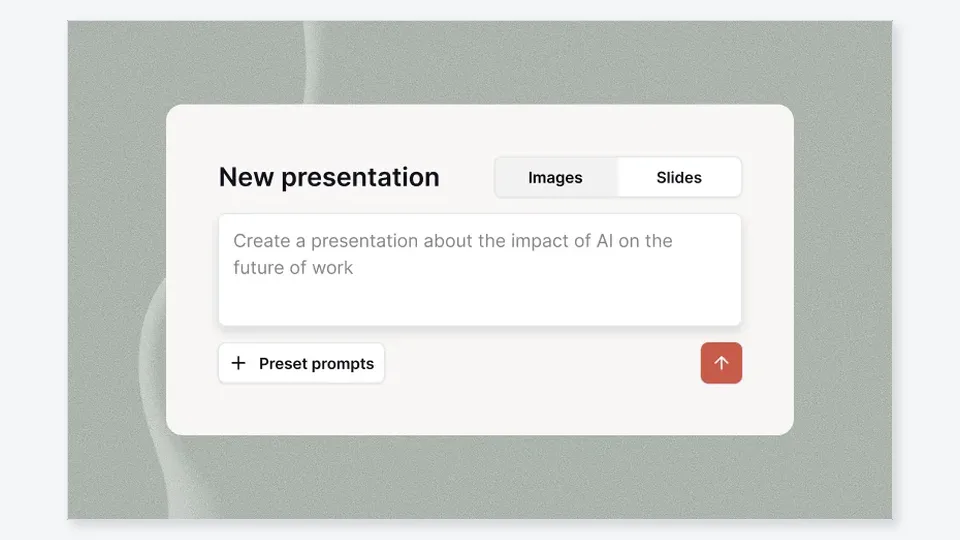
Plus AI works in the Google Slides ecosystem, helping you create a deck from a prompt or source material and revise it where your team already collaborates. That familiar setting is its main advantage: the AI draft appears in a standard Slides workflow, where comments, sharing, speaker notes, and final edits are already part of the process.
It is a strong choice when AI should support—not replace—an existing Google Slides habit. You can use it to get past the blank page, then refine wording, structure, and design with the regular tools your colleagues know.
Key features
- Prompt-based presentation generation for Google Slides
- Tools to create, rewrite, and remix slides
- Workflow designed around existing Slides files
- Presentation templates and layout support
- Collaborative editing through Google Workspace
Pros
- Minimal workflow disruption for Google Slides teams
- Good for iterative drafting and revising in a shared deck
- Lets you keep standard Google sharing and collaboration practices
Cons
- Not the natural choice for teams committed to PowerPoint
- Generated work still needs a content and design review
5. Microsoft Copilot in PowerPoint — Best for Microsoft 365 Workflows
Best for: Organizations that create and present primarily in PowerPoint.
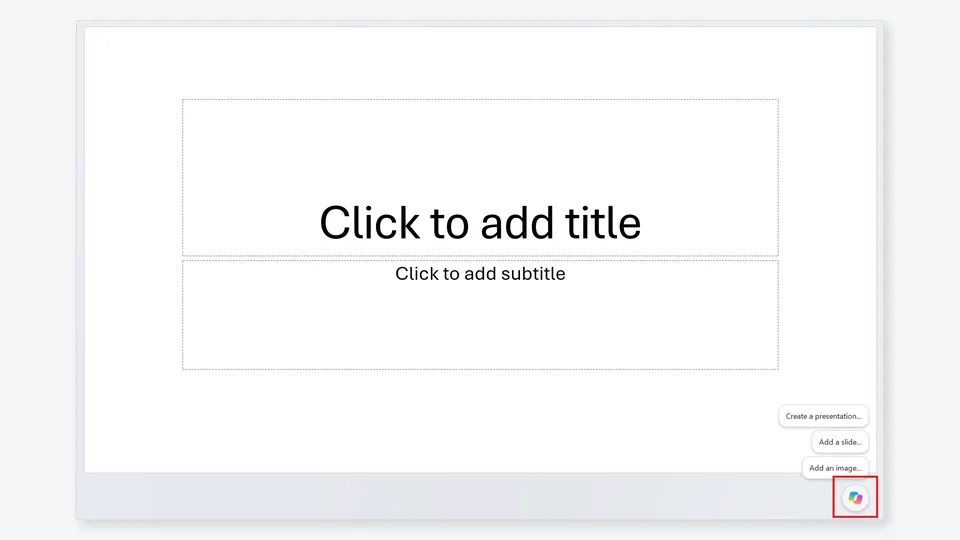
Microsoft Copilot brings AI assistance into the presentation software many business teams already use. Depending on your Microsoft 365 and Copilot setup, it can help draft a presentation from a prompt or supported source file, add slides, summarize an existing deck, and refine slide text.
The major appeal is context and continuity. Instead of generating a deck elsewhere and exporting it, you can begin and continue inside PowerPoint, where your templates, review process, and audience-ready formatting already live. It makes the most sense for teams with the right licenses and a clearly established Microsoft workflow.
Key features
- Presentation drafting from prompts and supported files
- AI help for adding slides, summaries, and rewrites
- Works in the familiar PowerPoint editing environment
- Can use existing presentation content and organization context where available
- Designed for Microsoft 365 collaboration workflows
Pros
- Strong fit for teams standardized on PowerPoint
- No separate editor to learn for core presentation work
- Helpful for revising an existing deck as well as starting one
Cons
- Availability and capabilities vary by Microsoft plan and organization settings
- Generated slides still need a careful human review
Which AI PPT Generator Should You Choose?
- For the fastest polished first draft: Choose Gamma.
- For visual brand work and flexible editing: Choose Canva Magic Design.
- For consistent business-slide layouts: Choose Beautiful.ai.
- For a Google Slides workflow: Choose Plus AI.
- For a PowerPoint-first organization: Choose Microsoft Copilot in PowerPoint.
How to Get Better Results From an AI PPT Generator
- Give the tool a real brief. Include the audience, goal, presentation length, tone, and decision you want the deck to support.
- Start with your outline when possible. AI can improve a rough structure, but it cannot infer all the knowledge you did not provide.
- Ask for a slide plan before a finished deck. It is faster to correct a weak narrative at the outline stage than after visuals are added.
- Replace generic examples with your evidence. Add your current figures, screenshots, customer language, and company context.
- Rehearse the story. Check that every slide earns its place and that the deck supports what you will actually say aloud.
FAQ
What is an AI PPT generator?
An AI PPT generator is a tool that helps create a presentation from a topic, prompt, outline, or document. It can suggest an outline, write draft copy, choose layouts, and create a starting set of slides for you to edit.
Can AI create a PowerPoint presentation from a document?
Some tools can turn supplied material into a draft deck. Results depend heavily on how clearly the source document is structured, so review the presentation for omissions, inaccurate emphasis, and unsupported claims before sharing it.
What is the best free AI PPT generator?
Gamma and Canva offer accessible ways to try AI-assisted presentation creation without immediately committing to a paid plan. The best choice depends on whether you value a fast generated draft or a flexible visual editor.
Can I edit an AI-generated presentation afterward?
Yes. Editing is an essential part of the workflow. The best tools let you revise the outline, rewrite individual slides, change imagery, and adjust the design before you present.
Will an AI presentation be ready to deliver without changes?
Usually not. AI can give you a useful starting point, but you should verify the facts, replace generic content, adapt the language to your audience, and check the final export before a meeting or event.
Final Thoughts
The best AI PPT generator is the one that fits the way you already create, review, and present work. Gamma is excellent for speed, Canva for visual control, Beautiful.ai for consistent business design, Plus AI for Google Slides teams, and Copilot for PowerPoint-centered organizations. Whichever you choose, treat the AI output as a capable draft—not as a substitute for your point of view.
Latest Reviews
Best 5 AI Background Removers in 2026

MiniMax H3 Image Review: 4K Editing, VRAM, Pricing and NSFW Limits

5 Best AI Headshot Generators in 2026

8 Platforms Leading Agentic AI for Software Development Teams
Best 4 AI Influencer Generators in 2026
P-H3-Image Review: Editing, NSFW Support, VRAM and LoRA