Best 5 AI Background Removers in 2026
Compare the 5 best AI background removers in 2026 for transparent cutouts, product photos, social media designs, batch editing, and browser-based refinement.
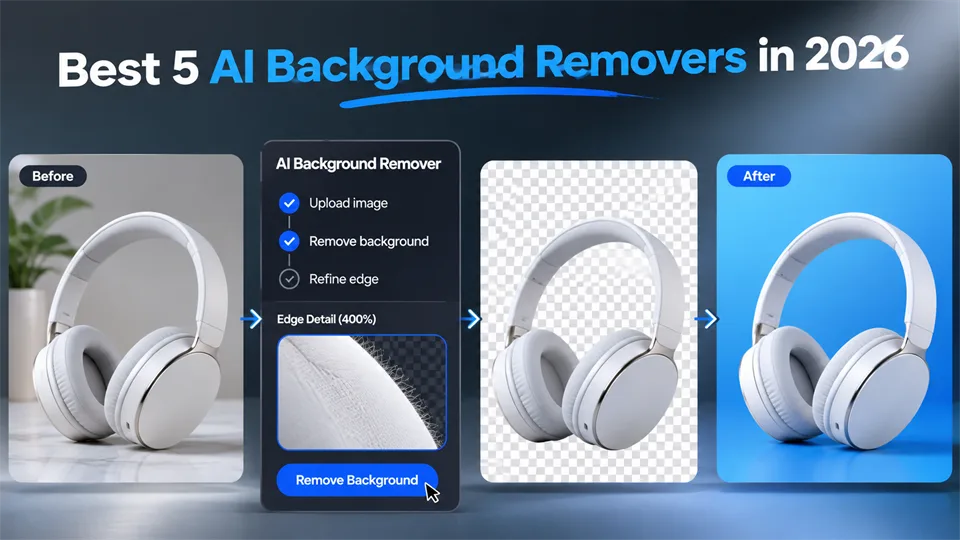

Removing a background used to require careful masking, patience, and a professional image editor. Today, an AI background remover can identify the main subject and separate it from the background in seconds.
The best tools do more than create transparent PNGs. They can replace backgrounds, add shadows, resize images, process batches, and prepare product photos for online stores or social media. This guide compares five leading AI background removers based on output quality, editing control, ease of use, batch support, export options, and suitability for different workflows.
Table of Contents
- Best AI Background Removers at a Glance
- remove.bg — Best for Fast, Automatic Cutouts
- Adobe Express — Best for Background Removal and Design
- Photoroom — Best for Product Photos and Batch Editing
- Canva — Best for Branded Social Content
- Pixlr — Best for Flexible Browser-Based Editing
- How to Choose an AI Background Remover
- How to Remove a Background with AI
- FAQ
Best AI Background Removers at a Glance
| Tool | Best for | Transparent PNG | Background replacement | Batch workflow | Main limitation |
|---|---|---|---|---|---|
| remove.bg | Fast automatic cutouts | Yes | Basic | API and supported plans | Limited editing controls |
| Adobe Express | Removal plus design | Yes | Yes | Limited | Some features are paid |
| Photoroom | Product photos | Yes | Yes | Strong | Best within its workflow |
| Canva | Branded social content | Yes | Yes | Moderate | Plan-dependent access |
| Pixlr | Browser editing and refinement | Yes | Yes | Selected tools | More complex interface |
1. remove.bg — Best for Fast, Automatic Cutouts
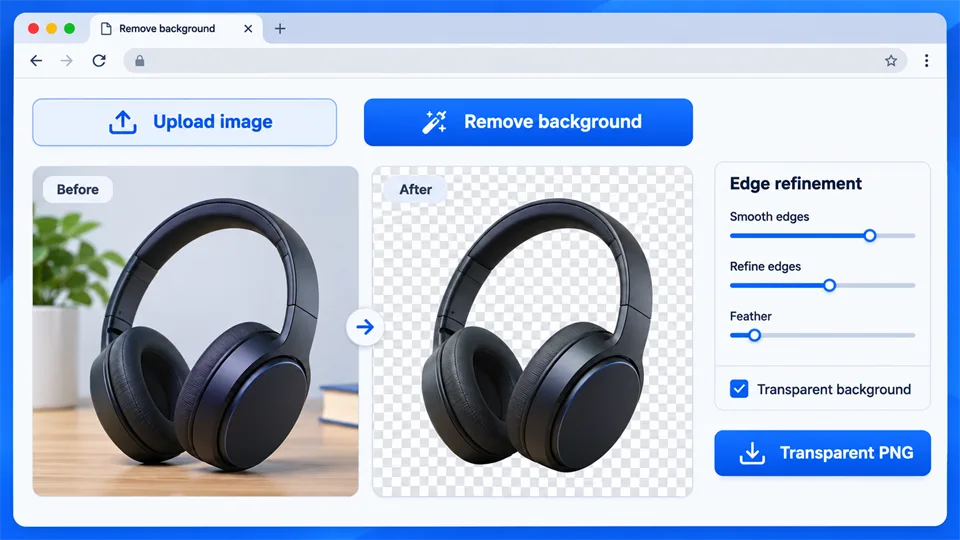
remove.bg is one of the most focused options in this category. Upload an image, and the service automatically detects the foreground and removes the background. It is useful when you need a transparent cutout quickly rather than a complete design workspace.
The tool works well for portraits, products, vehicles, animals, and other images with a reasonably clear subject. It can also be used through an API, making it practical for websites, marketplaces, and internal systems that need automated background removal at scale.
Key Features
- Automatic foreground detection
- Transparent PNG export
- Background color and image replacement
- Basic edge and cutout adjustments
- API access for automated workflows
Pros
- Extremely simple upload-and-download workflow
- Fast results for common portrait and product images
- Strong choice for developers and online stores
- Transparent output is easy to use in other editors
Cons
- Fewer layout and design tools than all-in-one editors
- Difficult edges may need manual correction
- High-resolution downloads and larger volumes may require payment
Best for: users who want the fastest way to create a clean cutout or integrate background removal into an automated workflow.
2. Adobe Express — Best for Background Removal and Design
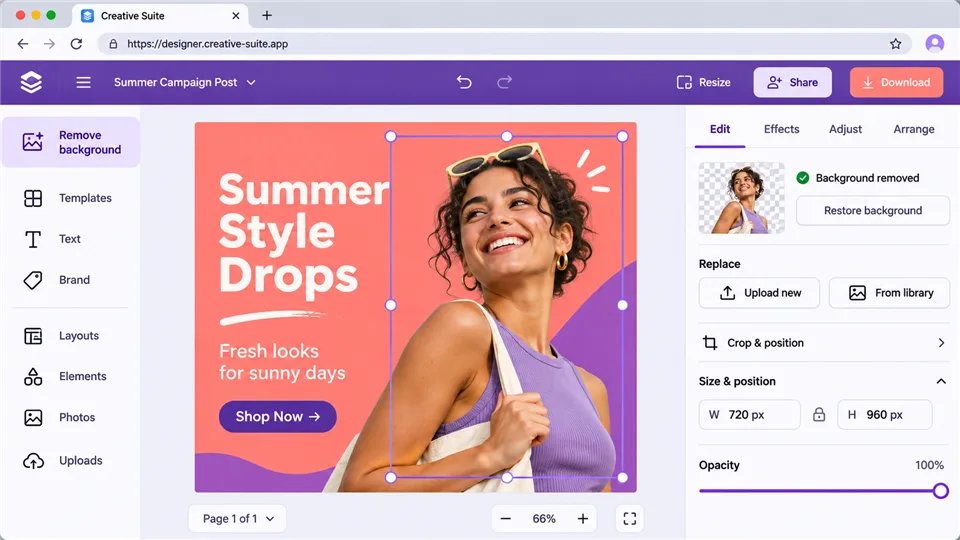
Adobe Express combines background removal with a broader set of design features. After removing a background, you can place the subject into a social post, flyer, presentation, advertisement, or promotional graphic without switching applications.
Its workflow is useful for people who want to do more than download a transparent image. You can add a new background, apply text and branding, resize the canvas, and export a finished design.
Key Features
- One-click background removal
- Transparent PNG export
- Background replacement with colors, photos, or graphics
- Text, shapes, templates, and brand assets
- Resize tools for social and marketing formats
Pros
- Good balance between automatic removal and design control
- Convenient for marketing materials and social content
- Strong template library
- Easy to continue editing after the cutout is created
Cons
- Some premium assets and features require a subscription
- More steps than remove.bg for a simple cutout
- Advanced retouching is not as specialized as a dedicated photo editor
Best for: marketers, freelancers, and small businesses that want to remove a background and immediately build a finished design.
3. Photoroom — Best for Product Photos and Batch Editing
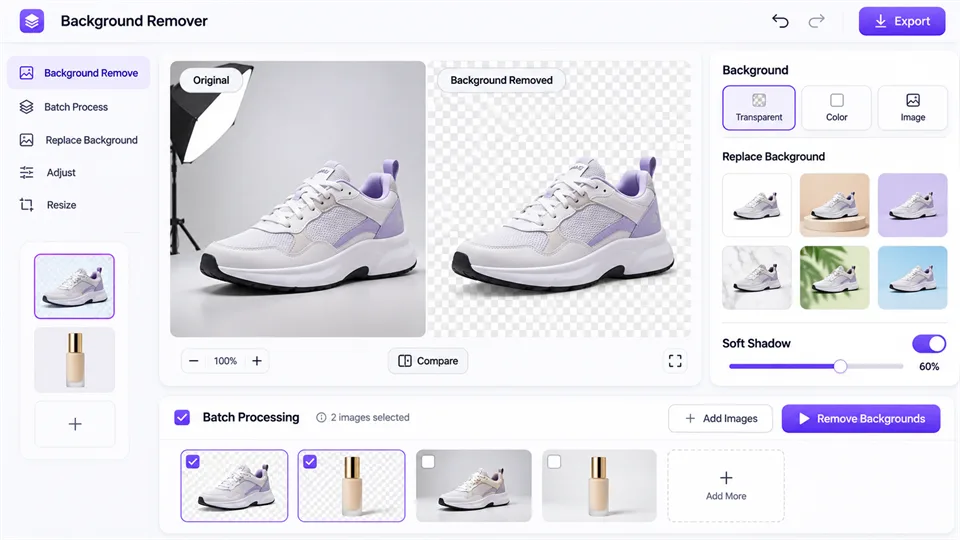
Photoroom is designed around commercial imagery, especially product photos. Its background remover separates the subject, then lets you place it on a clean color, lifestyle scene, or generated background. This makes it useful for online sellers who need consistent product images across a catalog.
The tool is also built for mobile-first editing, so sellers can photograph an item, remove the background, add a shadow, and prepare the image for a marketplace or social post.
Key Features
- Automatic background removal
- Product-focused background replacement
- Shadows and lighting adjustments
- Templates for marketplaces and social media
- Batch editing on supported plans
Pros
- Excellent for product photography and online stores
- Makes isolated products look more polished
- Useful background and shadow presets
- Efficient for sellers processing many similar images
Cons
- Some export and batch features are plan-dependent
- Best suited to product and marketing workflows
- Generated backgrounds may need review for realism
Best for: e-commerce sellers, marketplace vendors, and small brands that need consistent product images.
4. Canva — Best for Branded Social Content
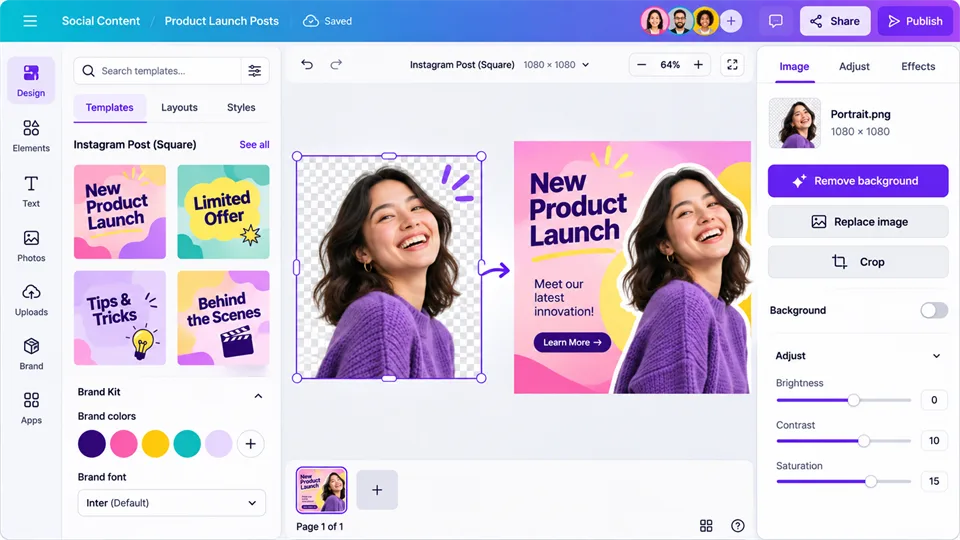
Canva is a practical choice when background removal is only one step in a larger design project. After isolating a person or object, you can place it into a post, presentation, thumbnail, poster, or advertisement using templates and design elements.
Its background remover appears in the editor when an image is selected. Access can depend on the account plan, so check the current plan details before building a workflow around it.
Key Features
- One-click background removal
- Transparent image export
- Background replacement
- Templates for social media, presentations, and marketing
- Brand kits, fonts, colors, and graphics
Pros
- Very easy for non-designers
- Excellent for creating complete branded content
- Strong template and asset ecosystem
- Useful collaboration and sharing features
Cons
- Background removal may be restricted by plan
- Less specialized than remove.bg or Photoroom
- Fine edge correction can be limited
Best for: creators, social media managers, and teams that want to turn cutouts into finished branded graphics.
5. Pixlr — Best for Flexible Browser-Based Editing
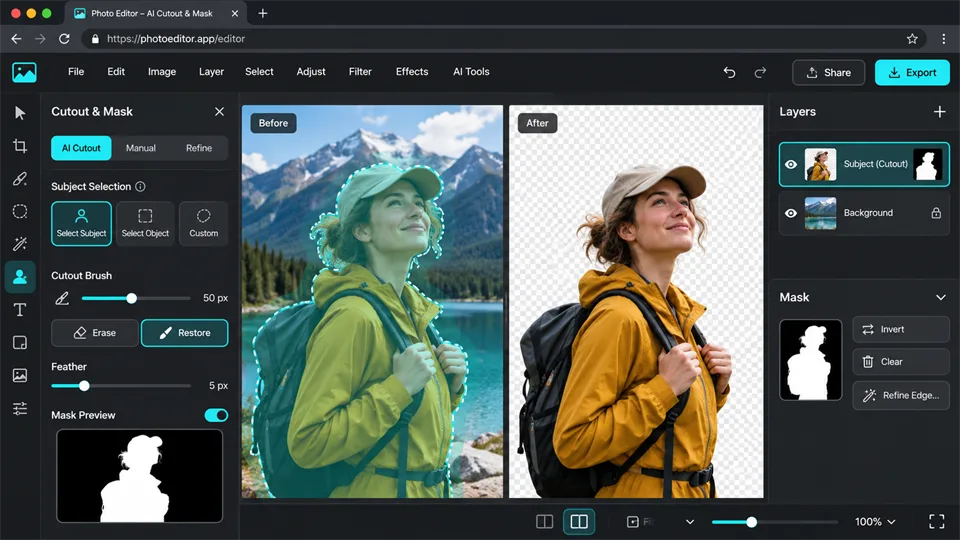
Pixlr offers a broader browser-based editing environment than a simple background-removal service. Its tools include automatic removal, cutout and masking controls, layers, retouching, and other image adjustments.
This makes Pixlr useful when an automatic cutout is close but not perfect. You can continue refining the result manually instead of exporting the image to another editor.
Key Features
- AI background removal
- Cutout, masking, and eraser tools
- Layer-based editing
- Object removal and retouching
- Background replacement
Pros
- More manual control than a one-click remover
- Useful combination of AI and traditional editing tools
- Good for refining difficult edges
- Works in a browser
Cons
- More complex than specialist background removers
- Beginners may need time to understand the interface
- Some advanced tools may be limited by plan
Best for: users who want automatic removal plus manual mask refinement in the same browser.
How to Choose an AI Background Remover
- Fastest automatic cutout: remove.bg
- Marketing designs: Adobe Express
- Product photos and online stores: Photoroom
- Social media and brand templates: Canva
- Manual browser-based refinement: Pixlr
Test each tool with representative images. Hair, fur, transparent objects, shadows, and low-contrast subjects reveal more about real-world quality than simple studio photos.
How to Remove a Background with AI
- Upload a JPG, PNG, or supported image.
- Let the AI detect the main subject.
- Inspect edges around hair, fur, fingers, and transparent objects.
- Use erase or restore tools to correct mistakes.
- Choose a transparent or replacement background.
- Export as PNG when you need transparency.
FAQ
What is an AI background remover?
It uses computer vision to identify the main subject and separate it from the surrounding background. The result can be exported as a transparent image or placed on a new background.
Which AI background remover is best overall?
There is no single winner. remove.bg is excellent for quick cutouts, Photoroom is stronger for product photos, and Adobe Express or Canva are better when you also need design tools.
Can AI background removers handle hair and fur?
They can often handle hair and fur reasonably well, but fine strands remain challenging. Inspect the edges and use manual refinement when needed.
What file format should I use?
Use PNG when you need transparency. Use JPG when transparency is not required and you want a smaller file.
Can I remove backgrounds in batches?
Several tools support batch workflows, but limits vary by plan. Check the current batch allowance before processing a large catalog.
Can an AI background remover increase resolution?
Background removal and upscaling are different functions. Removing a background does not automatically increase the original image’s resolution.
Final Verdict
The best AI background remover depends on what happens after the background is removed. remove.bg is the most focused option for quick cutouts, Adobe Express works well for marketing designs, Photoroom is ideal for product photography, Canva suits social content, and Pixlr offers the most flexibility for manual refinement.
Latest Reviews
5 Best AI PPT Generators in 2026

MiniMax H3 Image Review: 4K Editing, VRAM, Pricing and NSFW Limits

5 Best AI Headshot Generators in 2026

8 Platforms Leading Agentic AI for Software Development Teams
Best 4 AI Influencer Generators in 2026
P-H3-Image Review: Editing, NSFW Support, VRAM and LoRA