
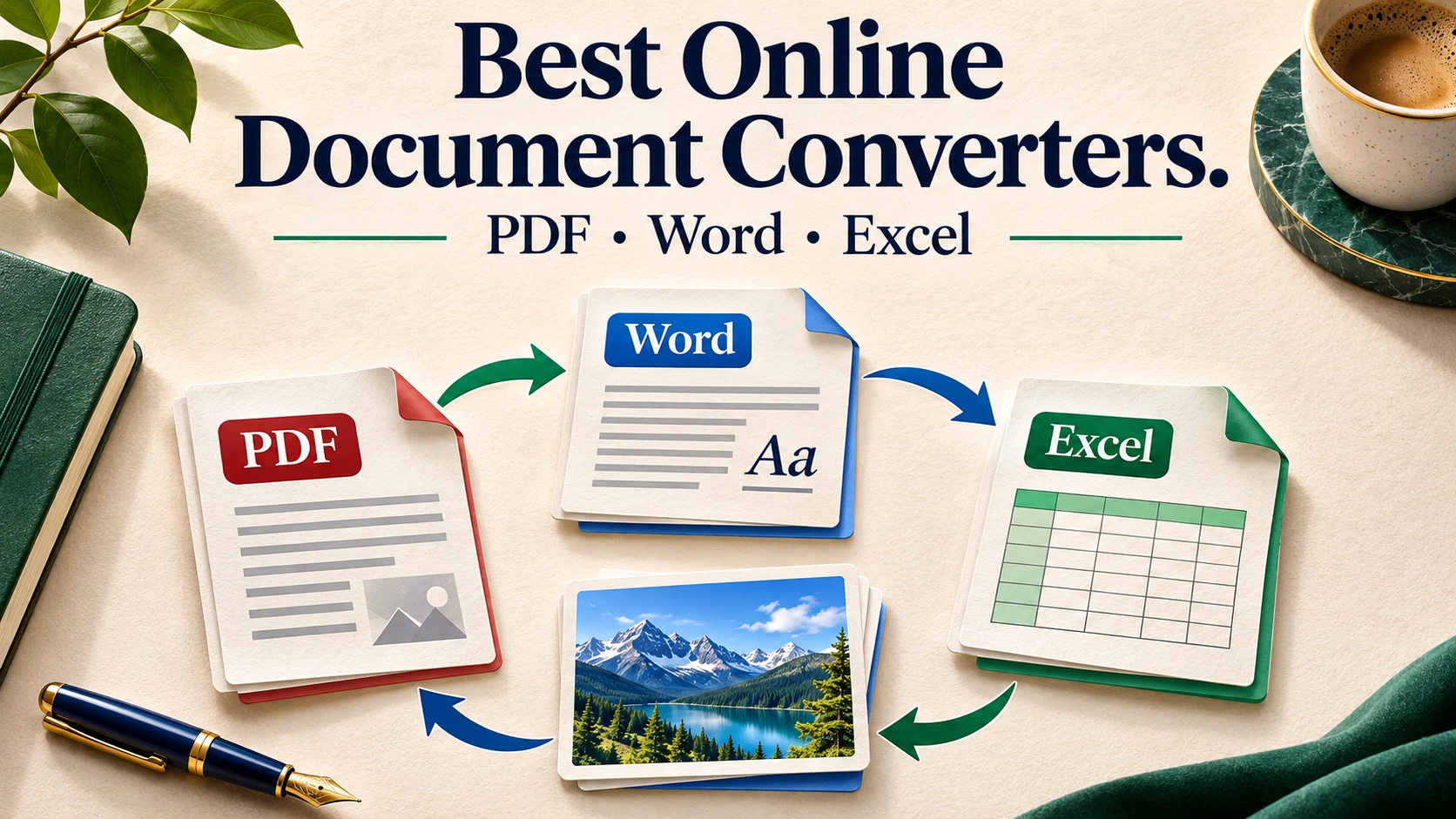
The right converter depends on whether you need an editable document, usable spreadsheet data or simply pages that look the same. For an occasional file, AirMore is a straightforward option; CloudConvert fits wider format workflows, while iLovePDF, Smallpdf and Adobe Acrobat focus on PDF-to-Office tasks. No conversion button guarantees that a complex table or scanned invoice becomes accurate editable data.
AirMore is the publisher’s own tool and is featured first. This is a comparison of documented workflows and limits, not a controlled output-quality ranking.
Choose by the result you need
Word or Excel to PDF is primarily a presentation task: inspect page breaks, missing fonts, clipped columns and charts. PDF to Word reconstructs paragraphs and can introduce text boxes or broken reading order. PDF to Excel tries to recover cells, not the original workbook formulas. A PDF containing page images needs OCR for editable text; merely changing the extension or wrapping images in PDF does not recognize letters.
Five converters worth considering
AirMore Document Converter — occasional files and clear per-task pricing
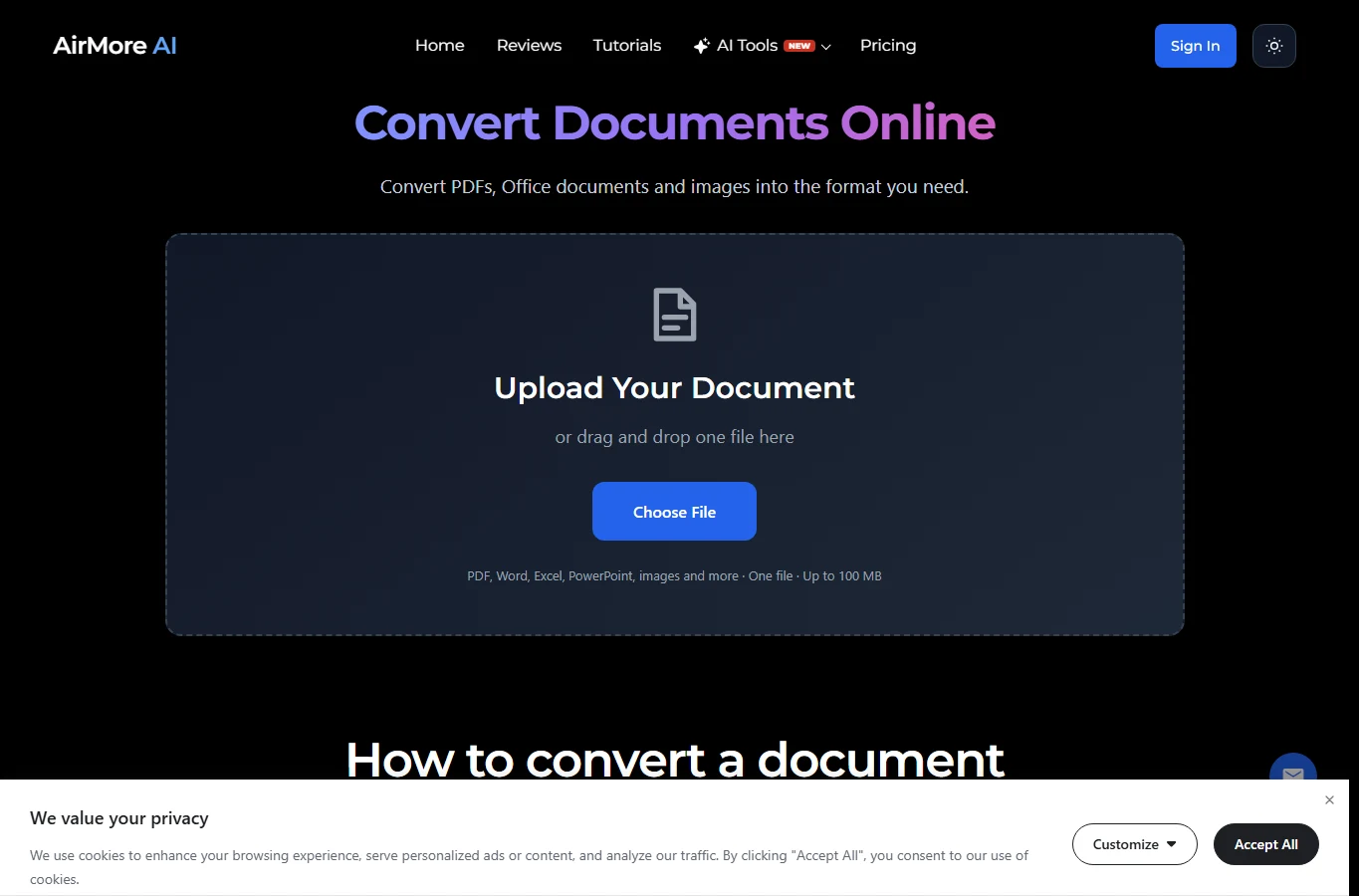
Upload one file up to 100MB, choose an available destination, and download the result. PDF can export to DOCX, XLSX, PPTX, JPG, PNG, TXT or HTML; supported Office files and images can become PDF. HTML/Markdown and specialist CAD, OFD and CAJ routes broaden its scope, but the actual output menu depends on your input. It is useful when one document needs a new working format rather than a batch pipeline.
Sign-in is required. A successful file costs 2 credits; failed or empty results are not charged. For 10 successful files, budget 20 credits, not a universal cash price: the purchase cost depends on your credit plan. The interface handles one file at a time, so it is not the right choice for hundreds of files. Processing is in the cloud, and no fixed deletion period is promised. Scans can be submitted, but editable text and table accuracy are not guaranteed.
CloudConvert — broader formats and repeatable workflows
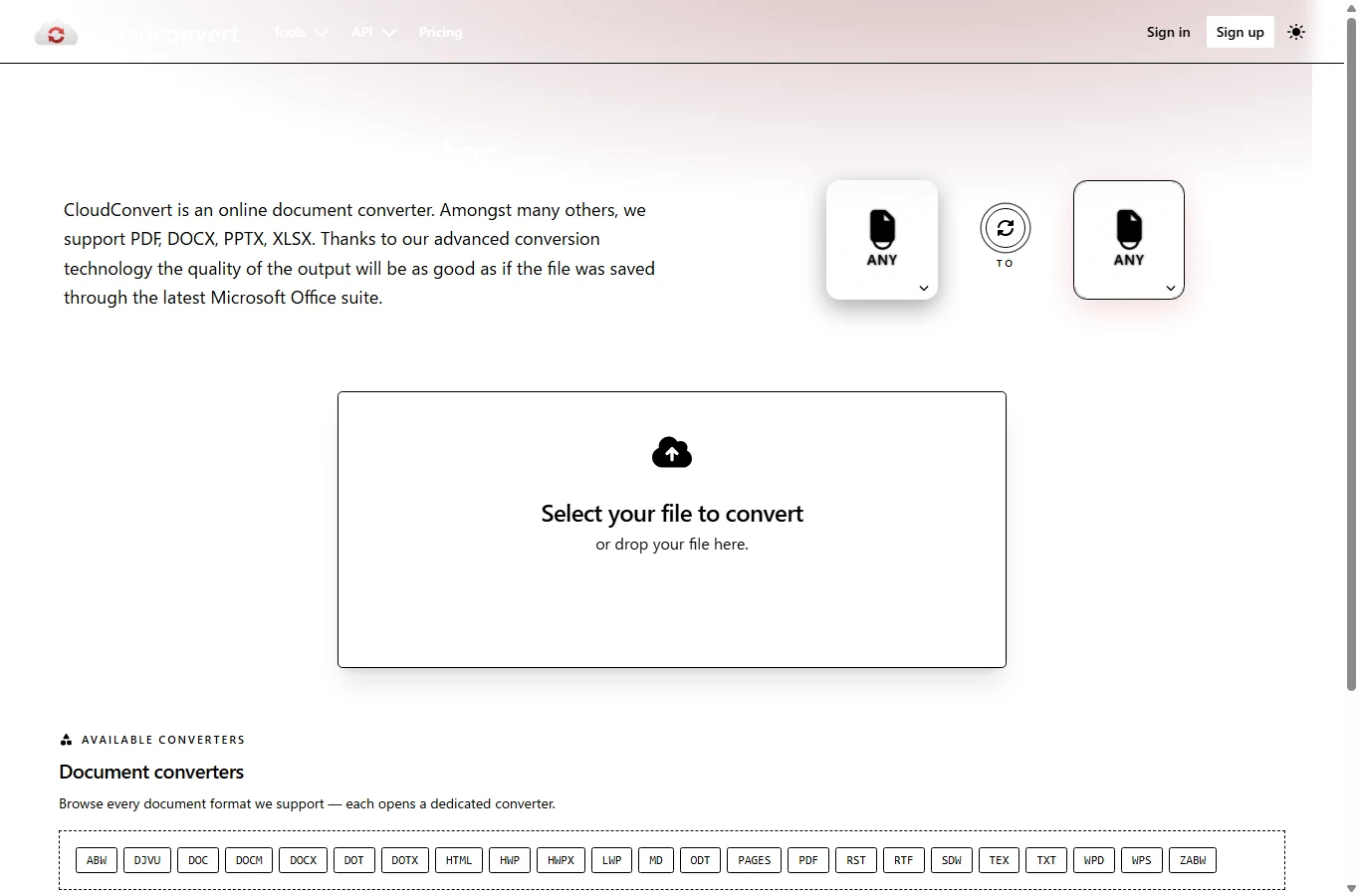
CloudConvert is worth considering when your work goes beyond PDF: its document catalog includes DOCX, ODT, RTF and other formats, alongside spreadsheet and presentation conversion routes. Choose the exact input/output pair before uploading; broad format support is not a promise that every pair is available. Its workflow and API orientation can suit recurring jobs better than repeatedly opening separate single-purpose pages.
The checked pricing page lists 10 free conversion credits per day, a 1GB free-tier file limit, a five-minute processing ceiling and five concurrent tasks. Credits are not necessarily equivalent to files: a multi-step job or a different operation can consume a different allowance. Paid packages do not expire, while subscription credits reset monthly. Treat the vendor’s layout-quality claim as a claim, and do not assume that ordinary format conversion includes OCR.
iLovePDF — PDF-to-Office with an explicit OCR choice
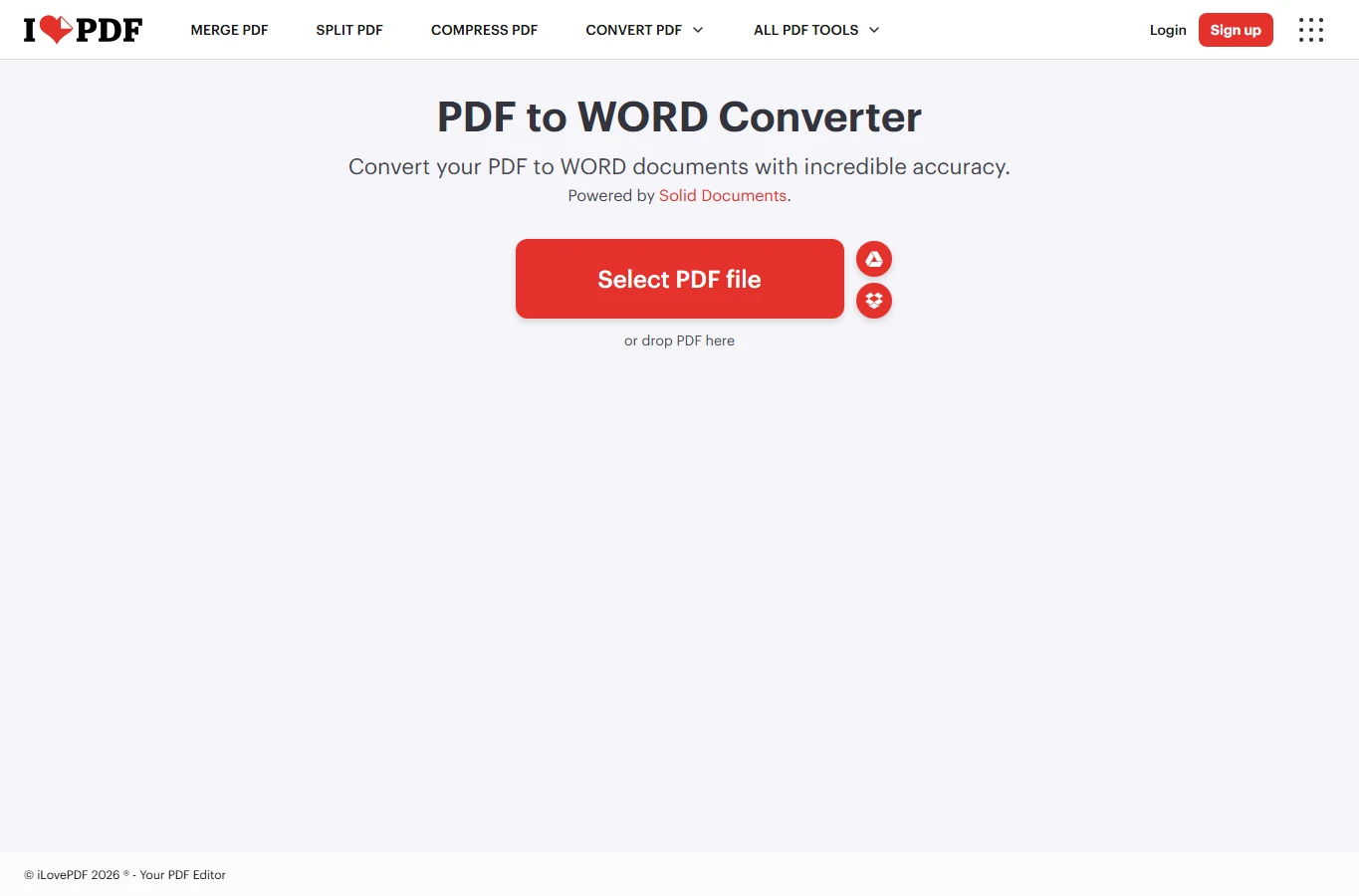
For a selectable-text PDF, choose the no-OCR PDF-to-Word route. For a scan, the same tool explicitly offers Premium OCR; its documented language list includes English, Japanese, Traditional Chinese, Spanish, Portuguese, French and German. That makes it easier to distinguish a paid recognition operation from ordinary extraction. The suite also offers PDF/Excel and image/PDF routes, useful if the next step is organizing the converted document.
Basic access has processing limits; Premium expands access and workflows. Do not infer that the same batch count or maximum size applies to Word, Excel and OCR: these are tool-specific limits. A scan with skewed columns, faint characters or multiple languages still needs checking after recognition. Choose this for a PDF-centered workflow, especially when the OCR decision is central, rather than for arbitrary document-to-document formats.
Smallpdf — PDF conversion with follow-up document tools
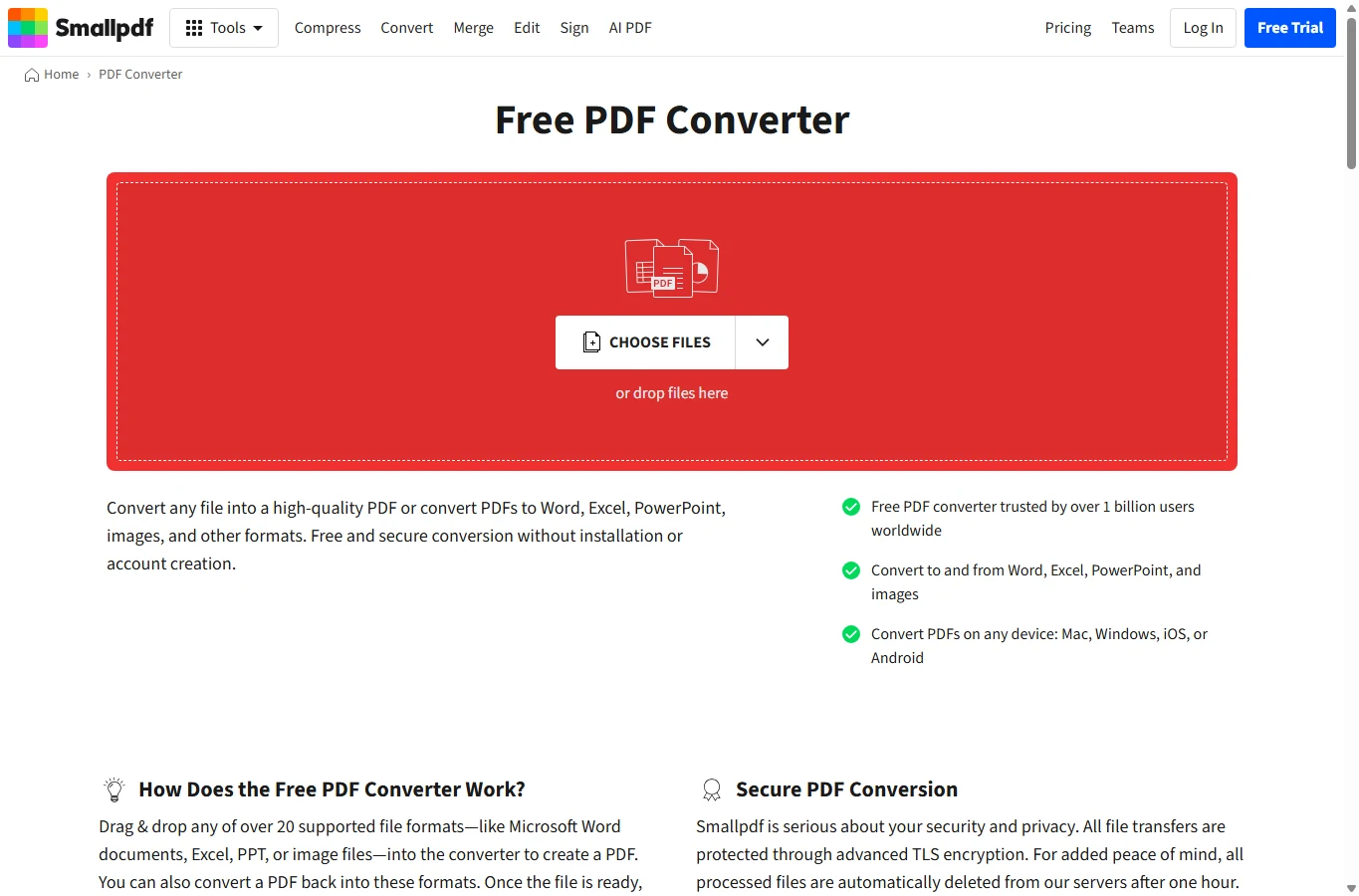
Smallpdf accepts common Office and image inputs and converts PDF back to Word, Excel, PowerPoint or image formats. It suits a short browser workflow that continues into other PDF tools. Pick the destination that matches the task: a page image preserves appearance but cannot replace editable cells. Check whether the selected conversion includes OCR before relying on scanned text.
The free plan has download limits; Pro adds broader access, OCR and batch conversion features. Those allowances should not be confused with limits for unrelated AI tools in the same subscription. Smallpdf states that processed conversion files are removed from its servers after one hour, but downloaded files, shared copies and your browser/device remain your responsibility. It is convenient for occasional work; repeated batch jobs justify comparing paid allowances and cancellation terms first.
Adobe Acrobat online — PDF work in an existing Acrobat workflow
Acrobat provides online Office/image-to-PDF and PDF-to-Word, Excel, PowerPoint and image routes. It is a practical shortlist option if your team already uses Acrobat to review and deliver PDFs. Exporting a PDF to XLSX can make tables editable, but does not recreate the source spreadsheet’s formulas, validation rules or linked sheets.
Free online use is limited and may require an Adobe account; advanced export and sustained use can require a paid plan. Be careful with batch claims: Adobe describes the Action Wizard for paid Acrobat batch workflows, which is not evidence that the same automation runs inside the free browser converter. For scanned material, establish the OCR feature and plan before paying, and test a representative page instead of assuming the brand guarantees your layout.
Check layout, tables and numbers before accepting the file
Before accepting a result, compare a page with two columns, a table spanning pages and a chart against the original. In spreadsheets, verify row/column alignment, totals, negative signs, decimal separators, percentages, dates and leading-zero IDs such as 001234. A value like 1,234.56 can be interpreted differently from 1.234,56; changing display format cannot recover a digit that OCR read incorrectly. Spot-check totals independently and retain the original. For multilingual scans, choose the document language rather than the website language; vertical Japanese, accents and mixed Chinese/Latin text need their own sample check.
A practical conversion workflow
- Keep the original and identify whether text is selectable.
- Choose PDF for fixed appearance, DOCX for editing or XLSX for table work; use an OCR-capable route for scans.
- Start with a non-sensitive representative file or page, checking the upload limit and paid feature before conversion.
- Download, compare layout and verify important numbers in the destination editor.
- Only then repeat the job or buy a batch plan. Estimate total cost as conversions plus OCR, batch access and correction time—not the advertised entry price alone. For confidential records, use an approved offline or contracted workflow instead of assuming browser access means local processing.
Checked November 13, 2026 against official product and pricing pages. No controlled conversion-quality test was performed. Recommendations are by workflow; prices and allowances can vary by region and plan. Product images are real page captures; the cover is AI-generated editorial artwork.
Related
AI Minutes Generator: Best Tools for Meeting Minutes and Action Items

How to Use Hairstyle AI to Visualize Your Look Before Making Changes
5 Best-Value LLM APIs: Fees, Subscriptions and Spending Limits
AI Answer Engine Optimization: How to Improve Visibility in AI Search
Best 10 Chrome Extensions in 2026: Practical Add-ons Worth Installing
5 Best Online Markdown Viewers for MD Files, READMEs and Notes