
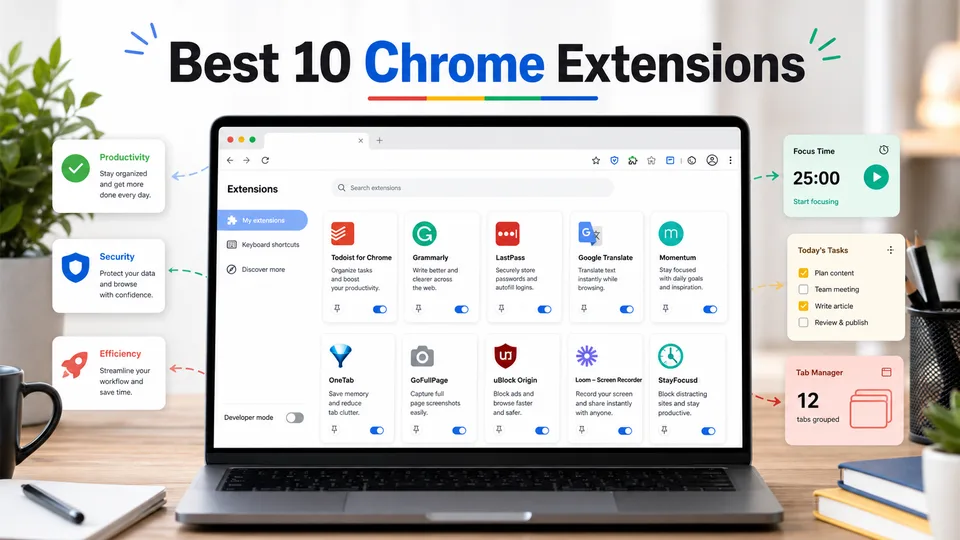
Chrome is already fast and flexible, but the right extensions can turn it into a focused workspace. A good add-on should solve a real problem without slowing the browser down or demanding constant attention. That is why this list of the best Chrome extensions focuses on practical tools: reminders, writing, passwords, privacy, tasks, translation, saving research, tab cleanup, reading comfort, and quick screen recording.
Table of Contents
- How I Chose the Best Chrome Extensions
- At a Glance
- 1. Online Alarm Kur Alarm Clock
- 2. Grammarly
- 3. Bitwarden
- 4. uBlock Origin Lite
- 5. Todoist
- 6. Google Translate
- 7. Notion Web Clipper
- 8. OneTab
- 9. Dark Reader
- 10. Loom
- Which Chrome Extension Should You Install First?
- FAQ
How I Chose the Best Chrome Extensions
The main test was simple: does the extension save time often enough to justify living in the toolbar? Chrome extensions are easy to install, but too many of them can create clutter, overlap, and unnecessary permissions. A useful extension should have a clear job, a short learning curve, and a workflow that feels natural after a day or two.
I looked for extensions that fit common browser habits. Some help you write better emails and documents. Some protect accounts and reduce distractions. Others handle small but frequent tasks, like setting an alarm, translating a page, saving a useful article, or cleaning up a chaotic tab bar.
At a Glance
| Extension | Best for | Why it is useful | Free plan |
|---|---|---|---|
| Online Alarm Kur Alarm Clock | Browser-based alarms and timers | Set quick reminders without opening another app | Yes |
| Grammarly | Writing help | Fix grammar, tone, clarity, and spelling across websites | Yes |
| Bitwarden | Password management | Save, autofill, and sync secure passwords | Yes |
| uBlock Origin Lite | Lightweight ad and tracker blocking | MV3-friendly content blocking for Chrome | Yes |
| Todoist | Task capture | Turn web pages and ideas into tasks quickly | Yes |
| Google Translate | Translation | Translate selected text or full pages | Yes |
| Notion Web Clipper | Research saving | Save pages directly into Notion | Yes |
| OneTab | Tab cleanup | Convert open tabs into a simple list | Yes |
| Dark Reader | Reading comfort | Add dark mode to websites that do not support it well | Yes |
| Loom | Screen recording | Record quick walkthroughs, feedback, and tutorials | Yes |
1. Online Alarm Kur Alarm Clock
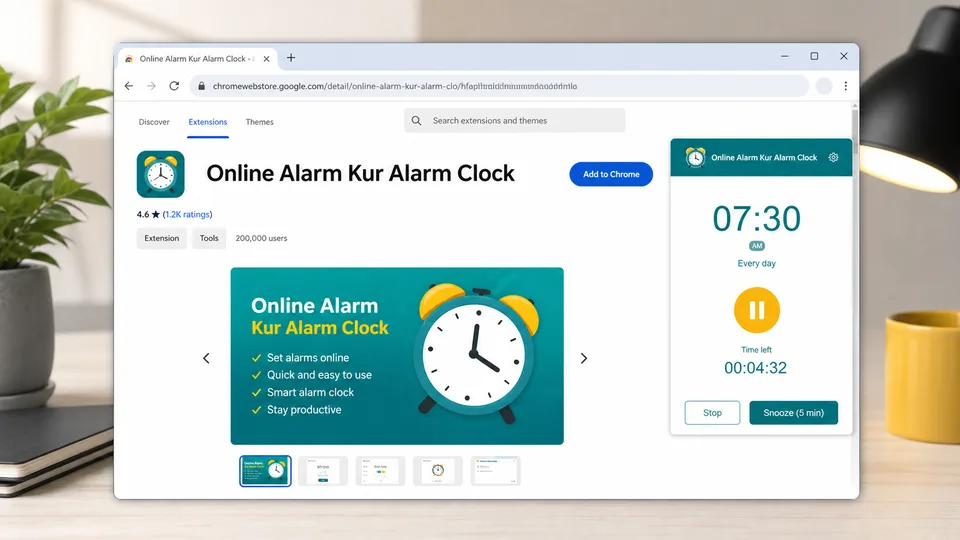
Online Alarm Kur Alarm Clock is a simple but surprisingly useful Chrome extension for people who need quick browser-based reminders. Instead of reaching for a phone, opening a separate timer app, or relying on a calendar notification for every small task, you can set an alarm directly from Chrome.
That makes it especially handy for focused work sessions. You can use it to remind yourself to join a meeting, check the oven, end a study block, take a break, follow up with a client, or stop working on a task that is eating more time than planned. It is not trying to be a full productivity suite, and that is the point. It does one job clearly.
Key functions
- Set alarms from inside the browser.
- Use it for quick reminders, breaks, study sessions, and time-sensitive tasks.
- Keep time alerts close to the workspace where you are already working.
- Avoid switching between Chrome, phone alarms, and desktop timer apps.
Pros
- Very easy to understand.
- Useful for work, study, cooking, meetings, and personal reminders.
- Lightweight compared with larger productivity systems.
- Good first pick if you want a practical extension with almost no learning curve.
Cons
- It is mainly for alarms, not advanced task management.
- Users who already live inside a calendar app may not need it.
- Like any browser-based alert, it works best when Chrome is open and active.
Best for: anyone who wants a quick alarm clock extension for daily reminders, study blocks, and focused work sessions.
2. Grammarly
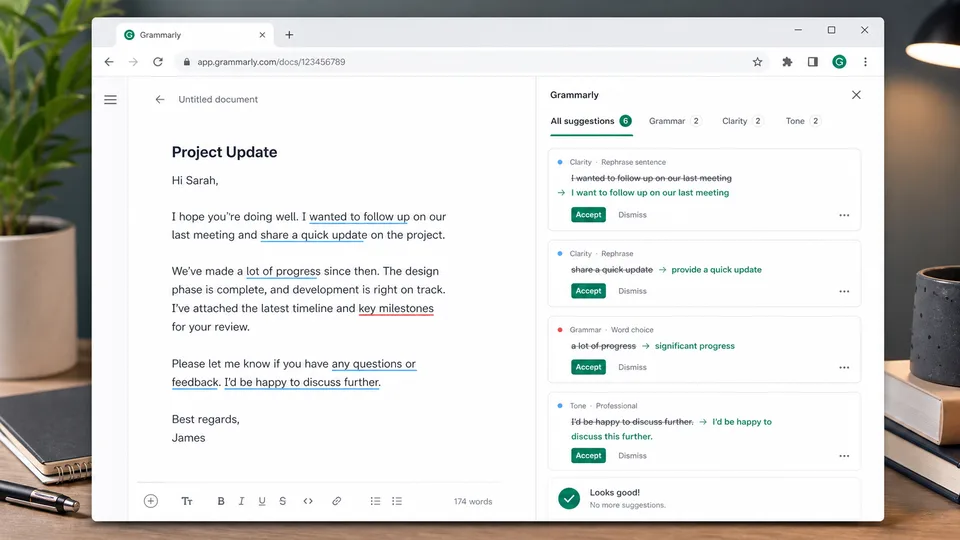
Grammarly is one of the most useful Chrome extensions for writing. It checks spelling, grammar, punctuation, clarity, and tone while you type in emails, documents, forms, social posts, and many web-based editors.
The biggest benefit is not just catching typos. Grammarly helps you notice when a sentence is too wordy, too stiff, or unclear. That is useful when you write client emails, job applications, blog drafts, support replies, school assignments, or quick messages that still need to sound professional.
Key functions
- Grammar, spelling, and punctuation suggestions.
- Tone and clarity improvements.
- Works across many writing fields and web apps.
Pros
- Strong everyday writing assistant for emails and documents.
- Helpful for non-native English writers.
- Free version covers many common corrections.
Cons
- Premium suggestions can feel unnecessary for simple writing.
- It may occasionally push a sentence toward a generic tone.
- Writers still need to review suggestions instead of accepting everything.
Best for: students, marketers, support teams, job seekers, bloggers, and anyone who writes in Chrome every day.
3. Bitwarden
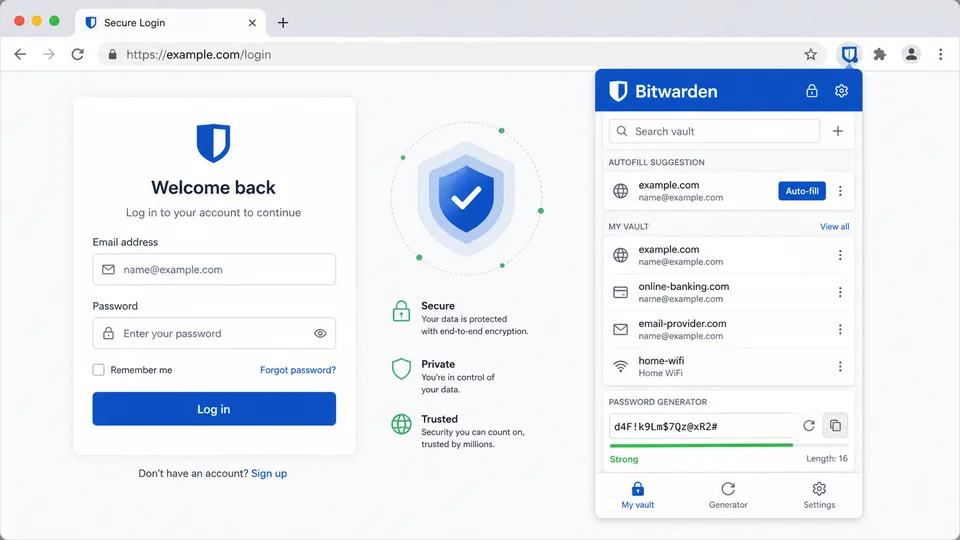
Bitwarden is a password manager with a reliable Chrome extension. It stores passwords in an encrypted vault, helps generate stronger passwords, and autofills logins when you visit a saved website.
This is one of the best Google Chrome extensions to install early because weak or reused passwords create a real security risk. A password manager makes it much easier to use unique passwords without trying to remember all of them. Bitwarden is also popular because its free plan is generous compared with many password tools.
Key functions
- Save and autofill passwords.
- Generate strong passwords.
- Sync logins across devices.
- Store secure notes and other sensitive items.
Pros
- Strong free plan.
- Works across browsers and devices.
- Helps reduce password reuse.
Cons
- New users need to understand the idea of a master password.
- Autofill behavior sometimes needs manual adjustment on unusual login pages.
- Security depends on keeping the master password safe.
Best for: anyone who still reuses passwords or keeps logins in notes, spreadsheets, or memory.
4. uBlock Origin Lite
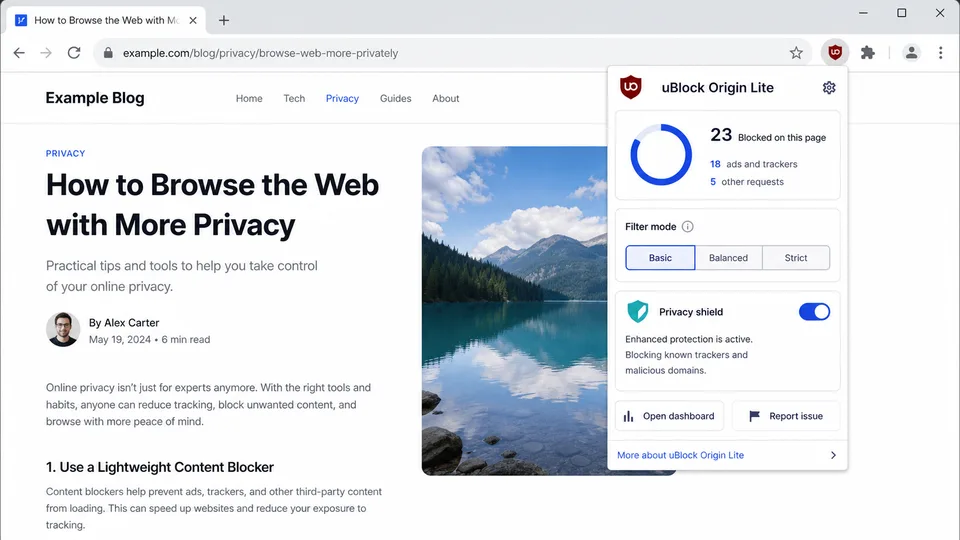
uBlock Origin Lite is a lighter Chrome extension for content blocking. It is designed around Chrome’s newer extension rules and can help reduce ads, trackers, and clutter on many websites.
It is a practical choice for users who want cleaner browsing without installing a heavy privacy suite. Pages often feel less distracting when noisy ad placements and tracking scripts are reduced. It can also make research sessions less tiring because the page is easier to scan.
Key functions
- Blocks many ads and tracking requests.
- Uses filter lists to reduce unwanted content.
- Works with Chrome’s Manifest V3 extension model.
Pros
- Helps reduce visual clutter.
- Useful for research, reading, and daily browsing.
- Free and easy to install.
Cons
- Some websites may ask users to disable blockers.
- Advanced users may miss deeper controls from older blocker workflows.
- No blocker catches everything perfectly.
Best for: users who want a cleaner, quieter Chrome browsing experience.
5. Todoist
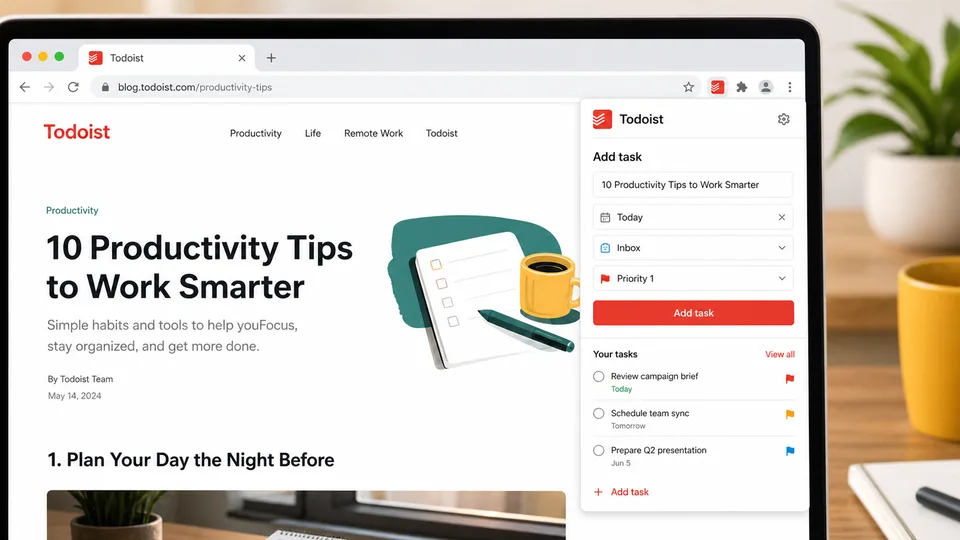
Todoist is a task manager with a Chrome extension that makes it easy to capture web pages, ideas, and to-dos while browsing. Instead of leaving ten tabs open as reminders, you can turn a page into a task and give it a due date.
This matters because browser work creates tiny obligations all day: read this later, reply to that person, compare these products, send this link, finish that form. Todoist gives those loose ends somewhere to go.
Key functions
- Create tasks from the extension button.
- Add due dates, priorities, and projects.
- Keep browsing-related tasks out of your tab bar.
Pros
- Fast capture workflow.
- Works well for both personal and work tasks.
- Useful even if you only need simple task lists.
Cons
- Best results require building a task habit.
- Advanced filters and team workflows may require paid features.
- Users who already use another task app may not need it.
Best for: people who use tabs as reminders and want a cleaner way to track follow-ups.
6. Google Translate
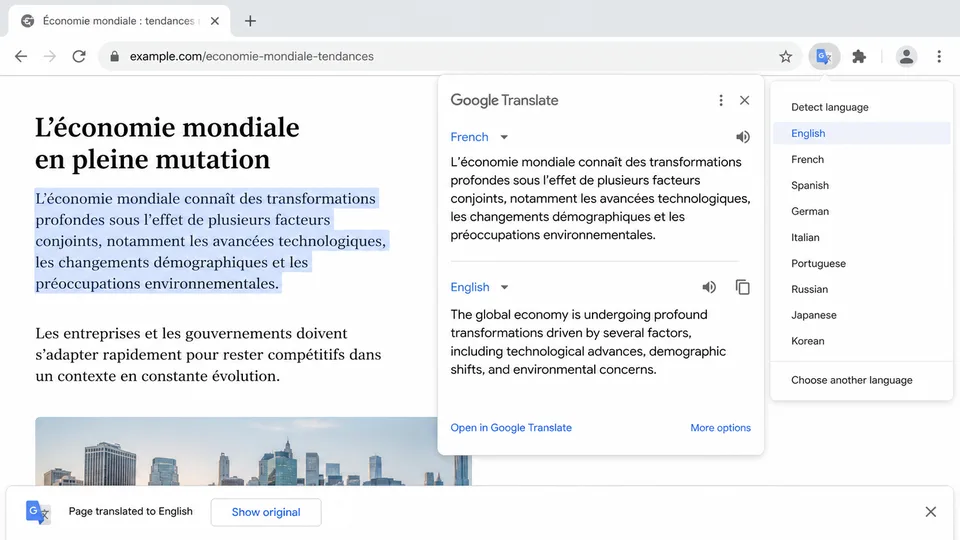
Google Translate is one of the simplest Chrome extensions to recommend because it solves a universal problem: understanding text in another language. You can translate selected text, phrases, or full pages while browsing.
It is especially useful for research, travel planning, international shopping, language learning, reading foreign news, and checking product documentation. Chrome already has built-in translation in some cases, but the extension gives you quicker control when you only need a word, phrase, or paragraph.
Key functions
- Translate selected text.
- Translate full web pages.
- Access quick language lookup from Chrome.
- Support multilingual browsing and research.
Pros
- Fast and familiar.
- Useful for both casual browsing and work.
- Great for reading foreign-language pages.
- Free.
Cons
- Machine translation can miss nuance.
- Not ideal for legal, medical, or highly technical translation without human review.
- Some page layouts can translate imperfectly.
Best for: readers, researchers, travelers, shoppers, and multilingual teams.
7. Notion Web Clipper
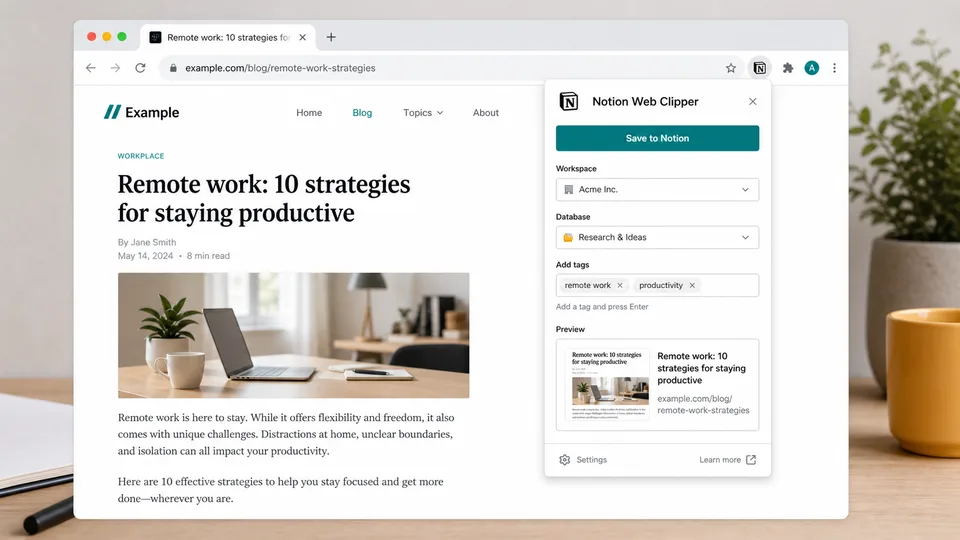
Notion Web Clipper is a convenient extension for saving web pages into Notion. If you use Notion for notes, research, project planning, or content calendars, the clipper helps you collect useful pages without copying links manually.
It works best as part of a research system. You can save articles, competitors, examples, documentation, recipes, design references, or reading lists into the right Notion database. Later, you can tag, summarize, sort, and connect those pages with your notes.
Key functions
- Save web pages to Notion.
- Choose a workspace and destination page or database.
- Collect research links quickly.
- Build reading lists, swipe files, and project references.
Pros
- Very useful for Notion users.
- Simple clipping workflow.
- Good for research-heavy work.
- Keeps useful links out of random bookmarks.
Cons
- Only valuable if you use Notion regularly.
- Clipped pages still need organization.
- It is not a full read-later app by itself.
Best for: Notion users who collect research, references, content ideas, or project material from the web.
8. OneTab
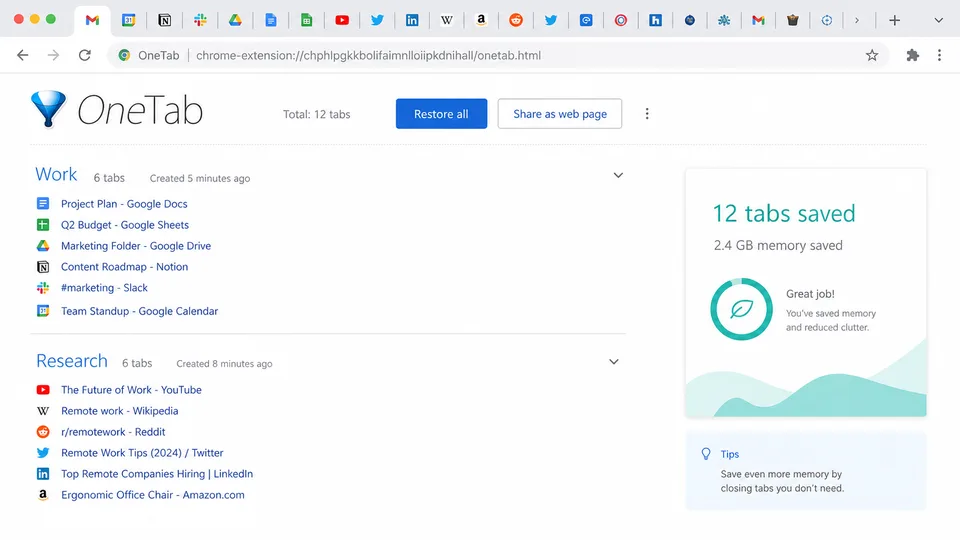
OneTab is a classic tab management extension. When your browser starts drowning in open tabs, OneTab converts them into a simple list. You can restore individual tabs later or bring everything back at once.
This is useful because tab overload is one of the most common Chrome problems. Too many tabs make it harder to find what matters, increase mental clutter, and can affect performance. OneTab gives you a quick reset button without losing everything.
Key functions
- Convert open tabs into a list.
- Restore tabs individually or as a group.
- Organize saved tab sessions.
- Reduce tab clutter during research.
Pros
- Very simple.
- Helpful during research and shopping comparisons.
- Can make Chrome feel less chaotic.
- Better than bookmarking every temporary page.
Cons
- Saved tab lists can become messy if you never clean them.
- It is not a full bookmark manager.
- Users should still review and delete old sessions.
Best for: researchers, students, shoppers, writers, and anyone who regularly has too many tabs open.
9. Dark Reader
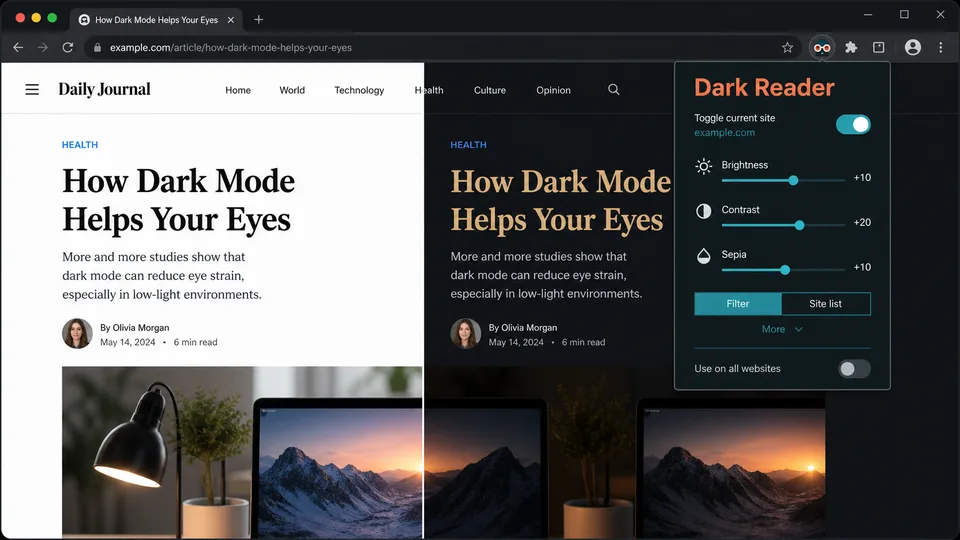
Dark Reader adds dark mode to websites, including sites that do not provide a good dark theme themselves. It can adjust brightness, contrast, sepia, grayscale, and other display settings.
This is one of the best Chrome extensions for people who read at night, work in low-light rooms, or feel eye strain from bright pages. It is not only about aesthetics. A comfortable reading environment can make long browser sessions less tiring.
Key functions
- Apply dark mode across websites.
- Adjust brightness, contrast, and filter settings.
- Enable or disable dark mode by site.
- Improve nighttime reading comfort.
Pros
- Works on many websites.
- More customizable than a basic browser theme.
- Helpful for long reading sessions.
- Free and open source.
Cons
- Some websites may render awkwardly.
- Design-heavy pages can look different than intended.
- Users may need to whitelist specific sites.
Best for: night readers, developers, students, and anyone who spends hours reading in Chrome.
10. Loom
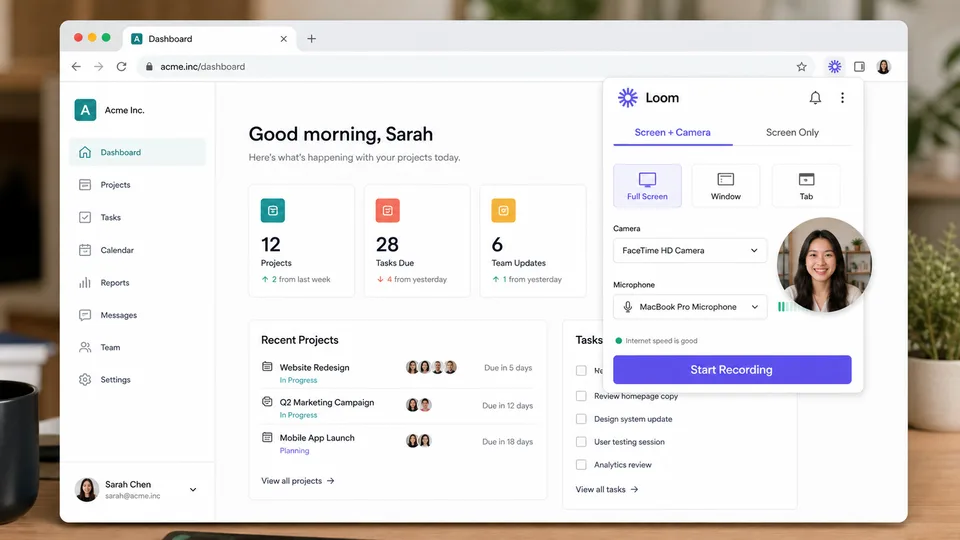
Loom is a screen recording tool with a Chrome extension for quick video messages. You can record your screen, camera, or both, then share the result with a link. It is especially useful for explaining something that would take too long to write.
For remote work, support, sales, teaching, and design feedback, Loom can save a lot of back-and-forth. Instead of writing a long message about a bug, process, or layout change, you can show it in under two minutes.
Key functions
- Record screen, camera, or both.
- Share videos with a link.
- Create quick walkthroughs, tutorials, and feedback clips.
- Useful for async communication.
Pros
- Faster than writing long explanations.
- Great for remote teams and client feedback.
- Easy to learn.
- Helpful for tutorials and onboarding.
Cons
- Free plan may have limits.
- Not a replacement for full video editing software.
- Video messages should still be concise.
Best for: remote workers, teachers, support teams, sales teams, product teams, and creators.
Which Chrome Extension Should You Install First?
If you want the fastest everyday benefit, start with Online Alarm Kur Alarm Clock, Grammarly, Bitwarden, and Google Translate. Those four cover reminders, writing, security, and understanding web content.
If your browser feels messy, add OneTab and Todoist. OneTab cleans up open tabs, while Todoist turns loose browsing tasks into trackable follow-ups. If you read late or work long hours, Dark Reader is a quality-of-life upgrade. If you often explain things to coworkers, students, clients, or customers, Loom can replace many long emails.
The best approach is to install only what you will actually use. Even the best Chrome extensions become clutter if they sit unused in the toolbar. Start with two or three, build the habit, then add more when a real need appears.
FAQ
What are the best Chrome extensions for everyday use?
For general use, Online Alarm Kur Alarm Clock, Grammarly, Bitwarden, Google Translate, Todoist, OneTab, and Dark Reader are strong choices. They solve common problems without requiring a complicated workflow.
Are Chrome extensions safe to install?
Most well-known extensions are safe when installed from trusted sources, but you should still review permissions, check the publisher, read recent reviews, and remove extensions you no longer use.
Do Chrome extensions slow down the browser?
Some can. Extensions that run on every page, block content, analyze text, or sync data may use resources. Keep your extension list lean and disable tools you only need occasionally.
What is the difference between Chrome extensions and Chrome apps?
Chrome extensions add features to the browser or modify web pages. Chrome apps were a different type of installable app experience and are no longer the main way most users extend Chrome.
Should I install all 10 extensions?
Not necessarily. Install the ones that match your habits. A writer may need Grammarly, Notion Web Clipper, and Dark Reader. A remote worker may prefer Loom, Todoist, and Bitwarden. A student may get the most from Online Alarm, Google Translate, OneTab, and Dark Reader.
Related
Best AI Chatbot Builders for Websites and Businesses

Best AI Music Generators to Create Songs, Beats, and Background Tracks
Best AI Image Model and LoRA Download Sites: Checkpoints, LoRA and NSFW Safety

Best AI Hashtag Generators to Find Tags for Instagram, TikTok, and More
Best AI Poster Generators for Events, Marketing, and Creative Design
Best 6 AI Video Editors in 2026