

Sending two pages from a 60-page report should not require buying a full PDF editor. The right splitter lets you keep specific pages, create one file per chapter, or divide a document into equal-sized page groups. Start with AirMore for a PDF up to 30 MB that you want to process on your device; consider PDF24 for free cloud-based splitting, iLovePDF for extraction and range controls, Sejda for more specialized splitting workflows, and Smallpdf for visual page organization.
The important differences are what gets uploaded, what counts as a batch, and whether you get one combined extract or several separate PDFs. AirMore is this website’s own tool and receives featured placement here. The five choices are organized by use case, not by an independently measured speed or quality ranking. Ordinary page splitting does not require generative AI.
On this page
Quick comparison: inputs, outputs and privacy
| Tool / best fit | Splitting workflow | Batch distinction | Processing and limits |
|---|---|---|---|
| AirMore · small local files | Custom ranges or every N pages | One input; up to 100 local outputs / 20 online outputs | ≤30 MB local/free; >30–100 MB online, sign-in, 2 credits/task; ≤1,000 pages |
| PDF24 · free cloud splitting | Fixed page count, odd/even pages, visual cuts | Multiple files can be selected; inspect each result | Cloud; advertising-funded; stated deletion after 1 hour |
| iLovePDF · extraction controls | Custom/fixed ranges; keep selected pages together or separate | Several outputs from a document is not a multi-input batch | Cloud; basic free access; size-based mode marked Premium; deletion within 2 hours |
| Sejda · specialized document workflows | Every page, every N pages, visual split points | Free tier: one input per task, up to 3 tasks/hour | Cloud; free allowance stated as 200 pages or 50 MB; deletion after 2 hours |
| Smallpdf · visual organization | Select, rearrange and extract pages | Official page advertises multiple inputs; plan limits apply | Cloud; free basic access with usage limits; stated deletion after 1 hour |
Five PDF splitters and when to choose each
1. AirMore — straightforward ranges with a local option
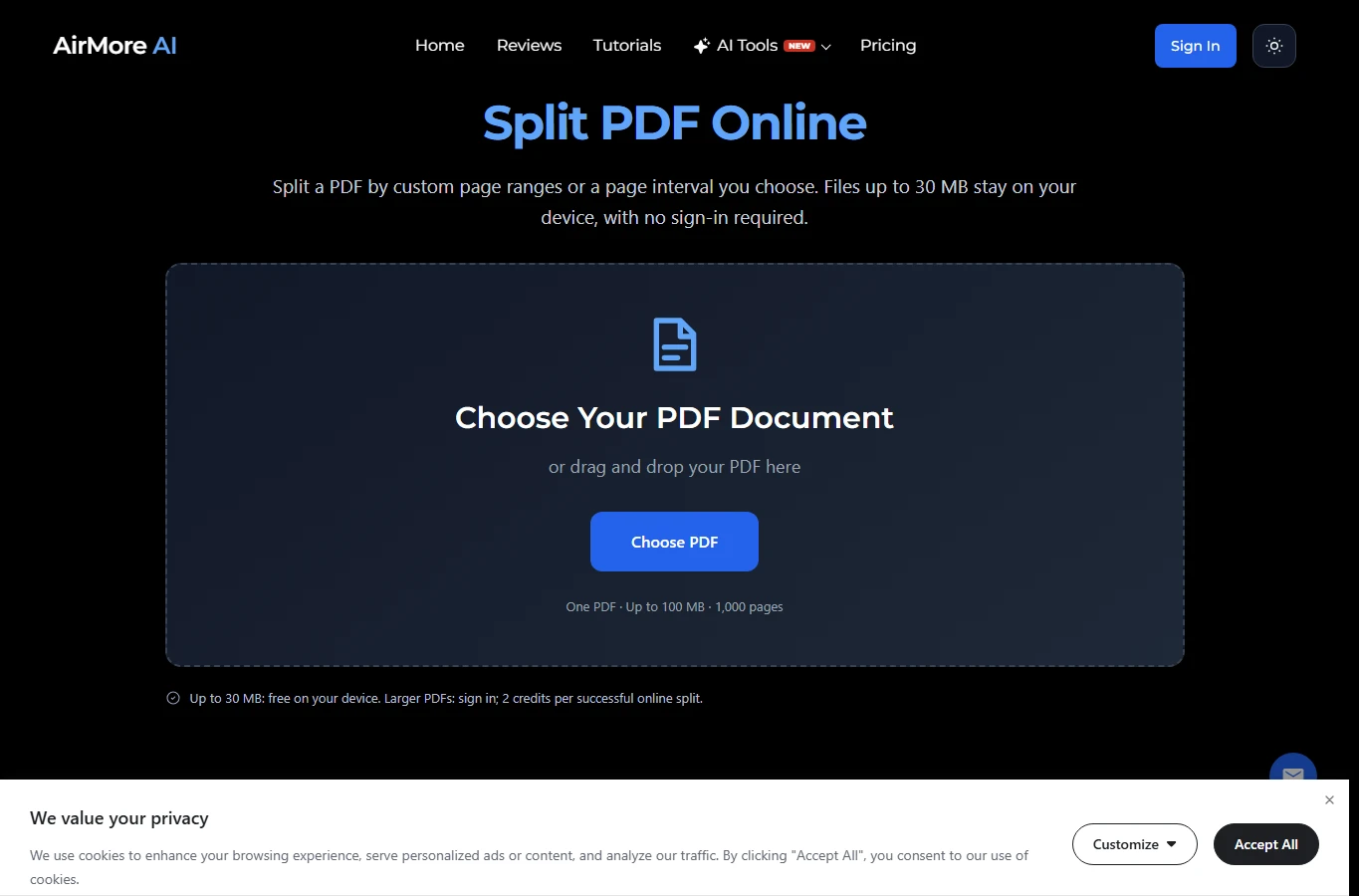
AirMore suits a one-off extract when you know the page numbers and want to avoid uploading a small document. Choose one PDF, select custom ranges or a fixed page interval, then save the resulting files. For example, 1-2,7-9 creates two PDFs containing two and three pages respectively; each comma-separated range becomes its own file. A single number extracts that page. Keep ranges non-overlapping.
The privacy boundary is specific: PDFs up to 30 MB are processed locally in the browser for free, without sign-in. PDFs over 30 MB and up to 100 MB are uploaded for online splitting after sign-in. A successful online task costs 2 credits in total, regardless of its output count; failed tasks are not charged. The page allows up to 1,000 pages, with up to 100 output files locally or 20 online. It is not a multi-input batch queue.
Download everything before leaving or refreshing: the page cannot restore the selected document or download list. Online task access expires after 24 hours, but expiry or refresh is not confirmation that uploaded files have been deleted. For a large confidential PDF, do not assume the local-processing promise still applies. The local option concerns document processing, not every network request made by the website.
2. PDF24 — free fixed-page and visual splitting
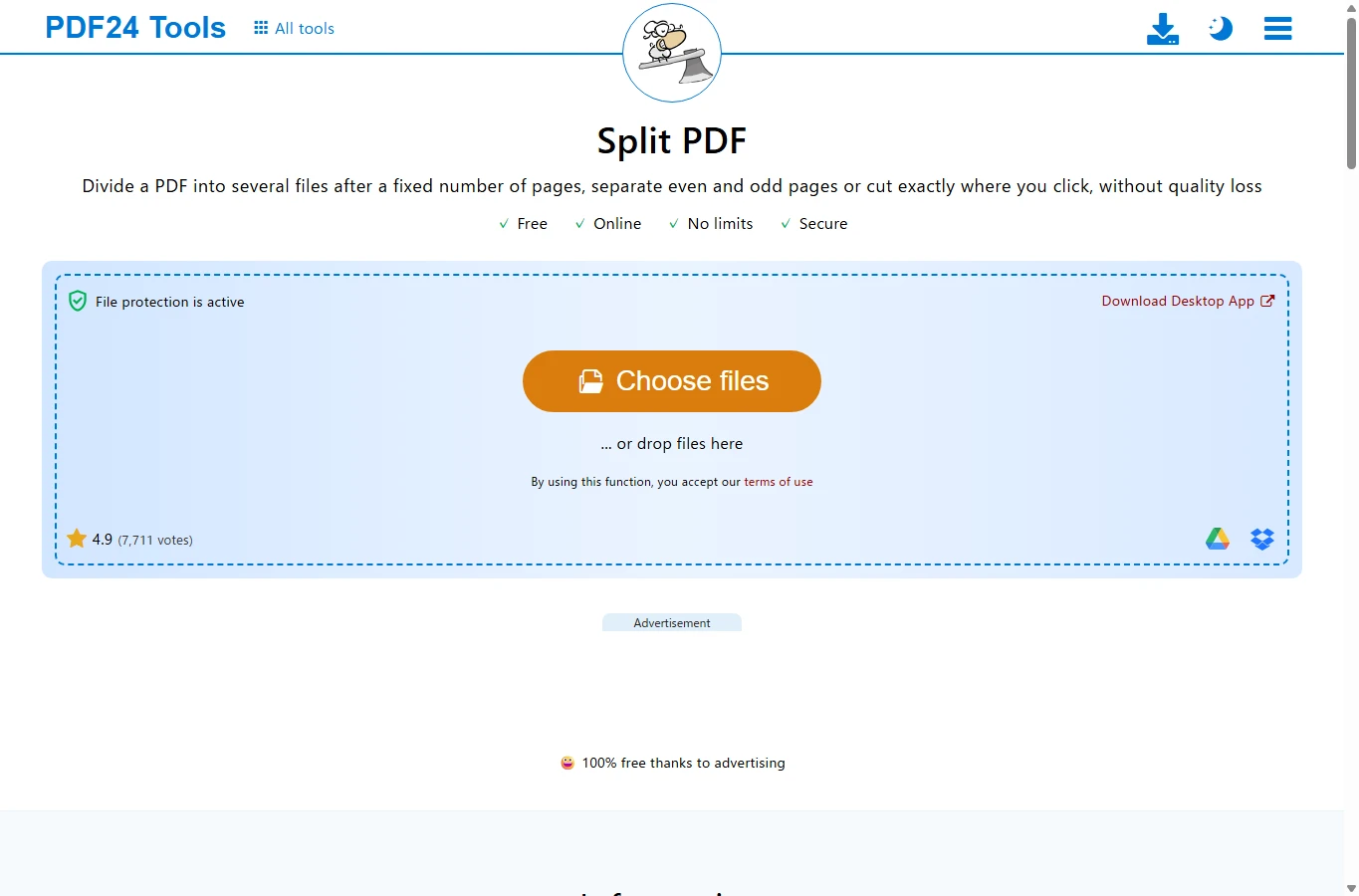
PDF24 is useful when you want to divide a long document every few pages, separate odd and even pages, or choose cuts visually rather than type a long list of ranges. Add the PDF files, choose the splitting method, review the displayed pages and cuts, then create and download the outputs. Multiple-file selection is available, but check the output grouping for each original; it is different from merely generating many pieces from one file.
Its online tools are funded by advertising and do not require a paid subscription for basic splitting. This makes it a sensible cloud option for routine, non-sensitive paperwork. The files are processed on PDF24’s servers, which the provider says are in Germany, and are automatically deleted after one hour. A free browser tool is therefore not automatically a local tool. If uploading is unacceptable, the separate Windows application PDF24 Creator is an offline alternative, rather than the online service reviewed here.
3. iLovePDF — control whether extracted pages stay together
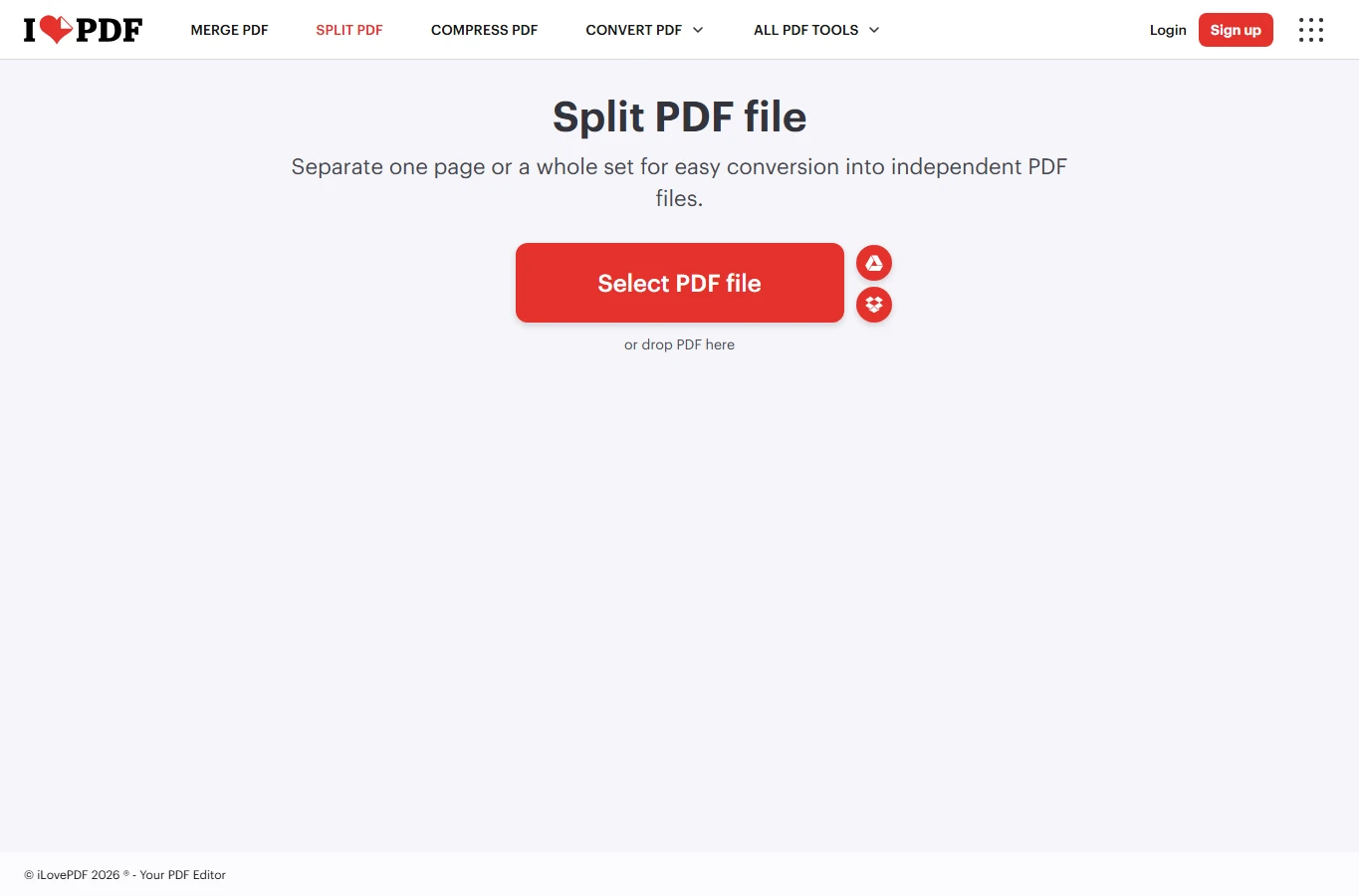
iLovePDF is particularly useful when the question is not just which pages to keep, but how to package them. Its range controls offer custom and fixed ranges. In page-extraction mode you can select all pages or particular pages, and choose whether extracted pages are merged into one PDF. For a five-page extract from two different places, explicitly enable the merge option; otherwise you may get separate files when you wanted a single attachment.
The published plan comparison lists one PDF input per split task across its plans, with a 100 MB basic file-size limit versus 4 GB on Premium. Its separate Smart split mode uses AI credits; ordinary range splitting does not require that mode.
The interface also offers splitting by target file size, marked Premium, with an option to allow compression. That matters for upload portals with an MB limit: equal page counts alone cannot guarantee equal file sizes. Basic splitting has free access, while paid modes and upload allowances depend on the plan; do not treat the whole interface as unlimited free batch processing. Documents are uploaded to the cloud. iLovePDF states that processed files are deleted within two hours and offers manual deletion from the download screen. Download first, then delete the processing copy if appropriate.
4. Sejda — page intervals now, chapter-based workflows when needed
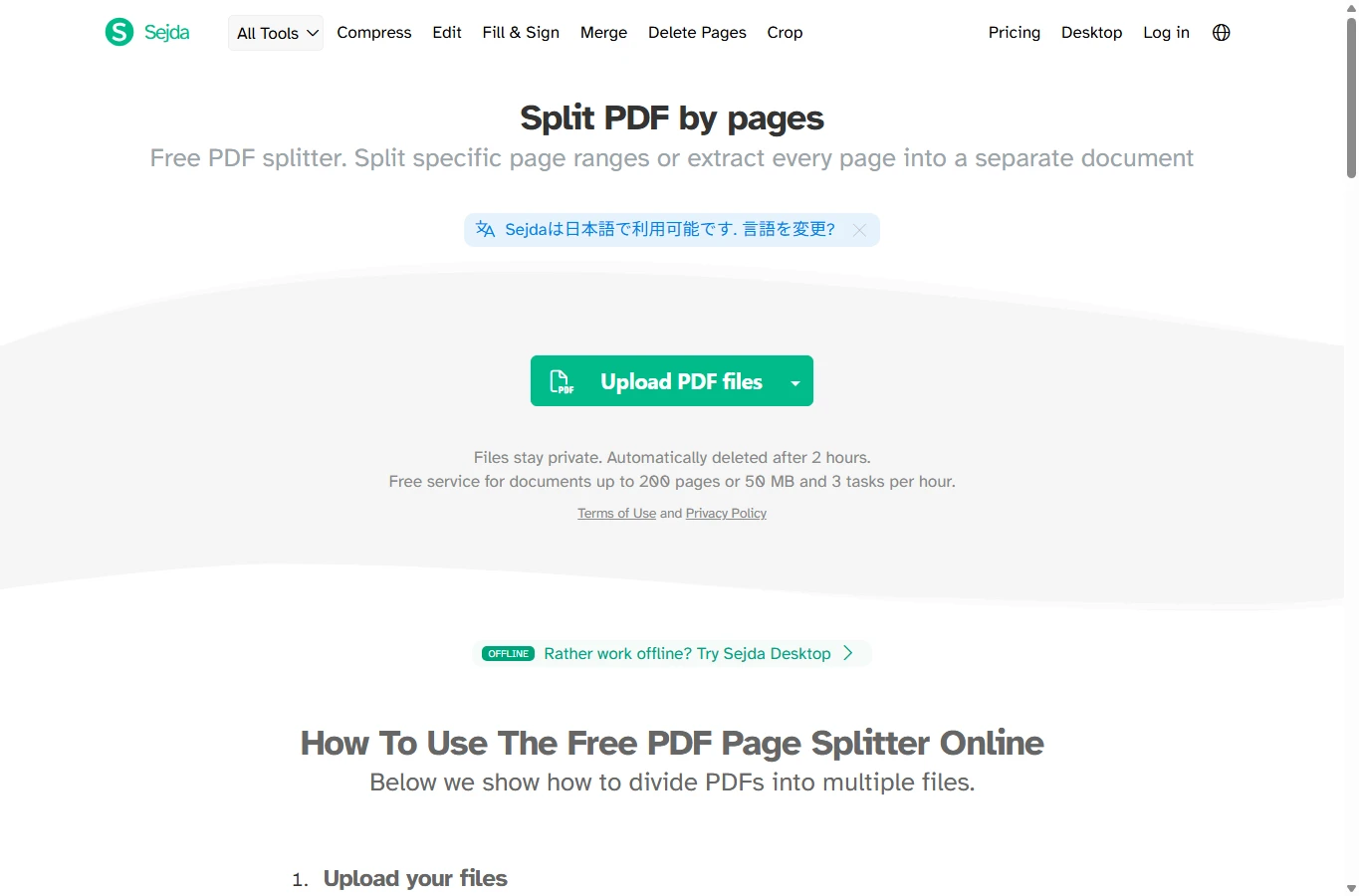
Sejda’s page splitter can extract every page separately, split every N pages, or let you select split points in a page preview. For a 12-page document split every two pages, the intended result is six two-page PDFs. Choose the matching mode before selecting pages, because selecting pages to extract and selecting boundaries for a split are different operations. Result-name customization is helpful when several outputs would otherwise be hard to distinguish.
Sejda also has separate tools for splitting by bookmarks, changing text, file size or the halves of scanned spreads. Bookmarks are useful for chapter-based documents that already have a usable outline; a scanned image without searchable text should not be assumed to work with text-based splitting. The free page-splitting allowance is stated as documents up to 200 pages or 50 MB and three tasks per hour; the free tier restricts a task to one input file. Exceeding either the displayed page or size restriction can require an upgrade. Online processing uploads the file; Sejda states automatic deletion after two hours.
5. Smallpdf — visual selection and a broader PDF workspace
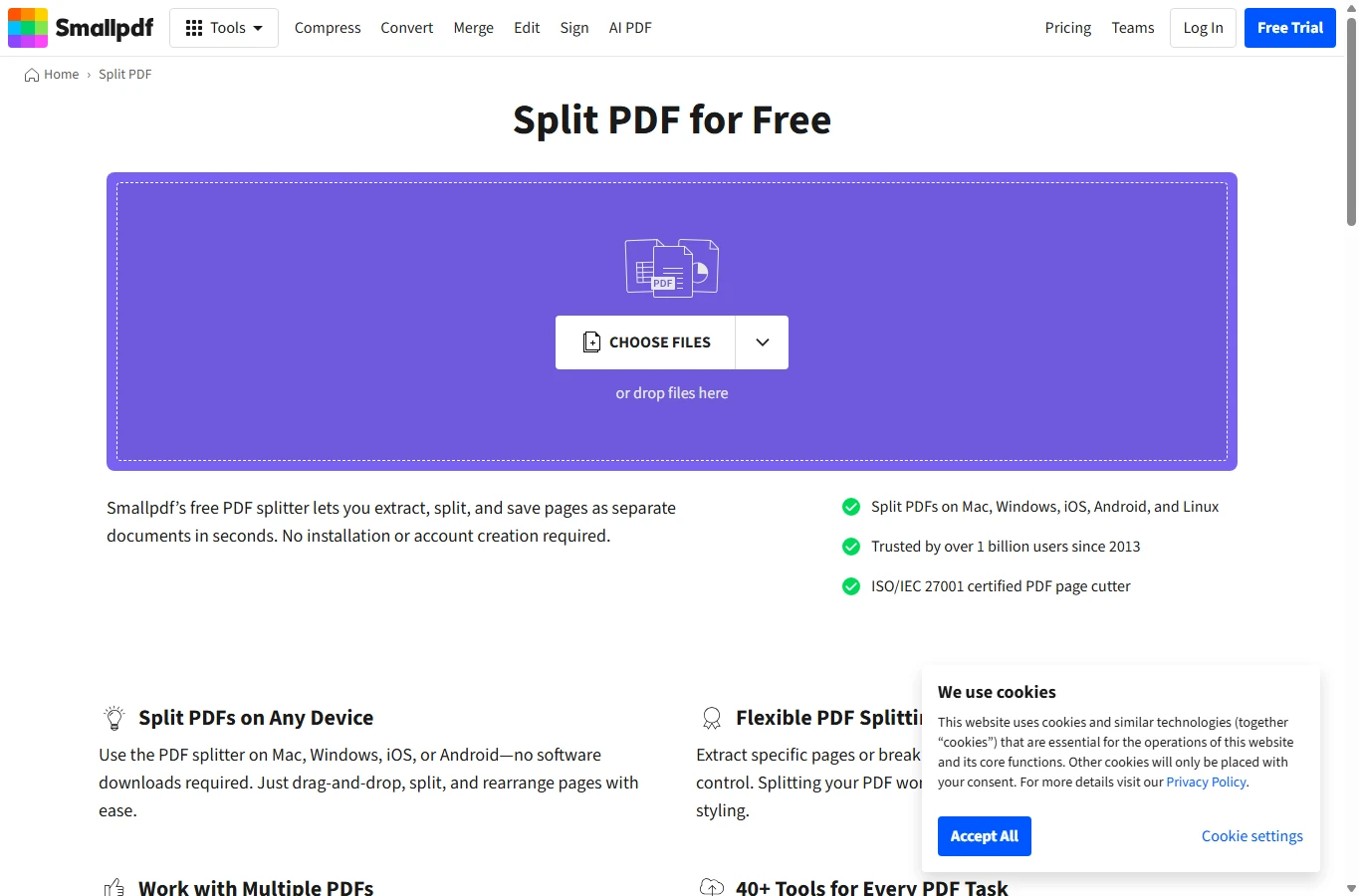
Smallpdf is a good fit when you want to recognize the pages visually, rearrange or delete pages, then save selected pages as another document. Its official splitter page also advertises uploading several PDFs together. That can be useful for a multi-document job, but it does not establish that every batch size or repeat job is included in the free allowance. Basic splitting is offered without creating an account; broader usage and feature access depend on the plan.
Use the preview to verify page order before downloading, especially when combining a cover sheet and pages from another part of a file. Smallpdf says documents are protected with TLS and automatically deleted after one hour. These are cloud-processing safeguards, not proof that the PDF stayed on your computer. Its wider editing and conversion workspace can be convenient if splitting is only one stage of the job, but occasional users should check the displayed usage allowance before starting a long series of files.
How to split by page range or fixed interval
- Keep the original PDF. Confirm its actual page count and size; the printed page number can differ from its position in the file because of covers or Roman-numbered introductions.
- Decide the output structure first. Pages 1–2 and 7–9 can mean two separate files of 2 and 3 pages, or one combined 5-page extract. Choose ranges for the former and a merge-extracted-pages option for the latter.
- For repeat-sized groups, choose every N pages. A 10-page PDF split every 3 pages should produce groups of 3, 3, 3 and 1 page. This is an arithmetic example, not a performance test.
- Check the upload/local boundary and the output-count limit, then run the task. If the goal is an email or portal size cap, measure the output bytes; a photo-heavy page can be much larger than several text pages.
- Download all results, unzip them if needed, and open each file before closing the tool. Use meaningful names such as report-pages-01-02.pdf rather than relying only on a download sequence.
Privacy: local processing versus cloud deletion
Local processing and cloud deletion answer different questions. AirMore’s ≤30 MB path keeps document processing on the device; its larger-file path uploads the PDF. PDF24, iLovePDF, Sejda and Smallpdf describe server-based workflows. HTTPS/TLS protects transport, while a stated deletion window addresses retention. Neither means that no server received the document, and these provider statements are not an independent security audit.
For confidential material, use the processing route approved for that document. An organization may require a local desktop tool even if an online service promises automatic deletion. Splitting is not redaction: metadata, annotations, attachments or information on retained pages may still need separate review. Closing a tab or letting a download link expire is not a verified deletion action.
Checks before sharing the results
- Pages and order: check the first and last page of every output, blank pages and any discrepancy between printed and file page numbers.
- Usability: try text selection/search, bookmarks, internal links and form fields that matter to the recipient. Splitting does not OCR a scanned PDF.
- Signatures and permissions: editing a signed document can affect signature validity. Keep the signed original and verify the result in a PDF viewer; do not bypass document restrictions without authorization.
- File size and delivery: measure each file, verify filenames and inspect the downloaded ZIP. Fewer pages does not guarantee a sufficiently small attachment; compression is a separate choice that can affect images.
Which PDF splitter should you choose?
For a small PDF and a clear page-range task, AirMore’s local mode is a practical first stop. Choose PDF24 for free cloud-based cuts and fixed groups, iLovePDF when extraction packaging or size-based splitting matters, Sejda for page intervals and related chapter/text workflows, or Smallpdf for visual organization in a broader PDF workspace. If many original PDFs must be handled together, confirm multi-input access and limits before choosing: a tool that creates 100 outputs from one PDF has not necessarily processed 100 input PDFs.
Review scope: official tool interfaces, help and security information checked on November 11, 2026. This is a documented feature and workflow comparison, not a speed benchmark or an independent deletion/security test. Numerical page examples illustrate expected grouping. Text and localized cover illustrations were prepared with AI assistance; screenshots show the actual official pages. Plans and limits can change.
Related
Best AI Customer Service Tools for Faster Support

Best AI Hashtag Generators to Find Tags for Instagram, TikTok, and More
AI Slide Generator: Best Tools to Create Presentations Faster
Best AI Tattoo Generators to Create Custom Tattoo Design Ideas
6 Best AI Rewriter Tools in 2026 for Clearer, More Natural Content
Best AI Infographic Generators to Turn Ideas into Visual Content