
Table of Contents
- What Is an AI PDF Translator?
- Why Use an AI PDF Translator?
- Best AI PDF Translator Tools
- 1. DeepL
- 2. Google Translate
- 3. Canva PDF Translator
- 4. UPDF AI
- 5. PDFgear
- 6. Sider
- 7. Smartcat
- 8. ChatGPT or Microsoft Copilot
- How to Choose the Right PDF Translator
- How to Translate a PDF Without Losing Formatting
- AI PDF Translation Prompt Examples
- Mistakes to Avoid
- FAQ
What Is an AI PDF Translator?
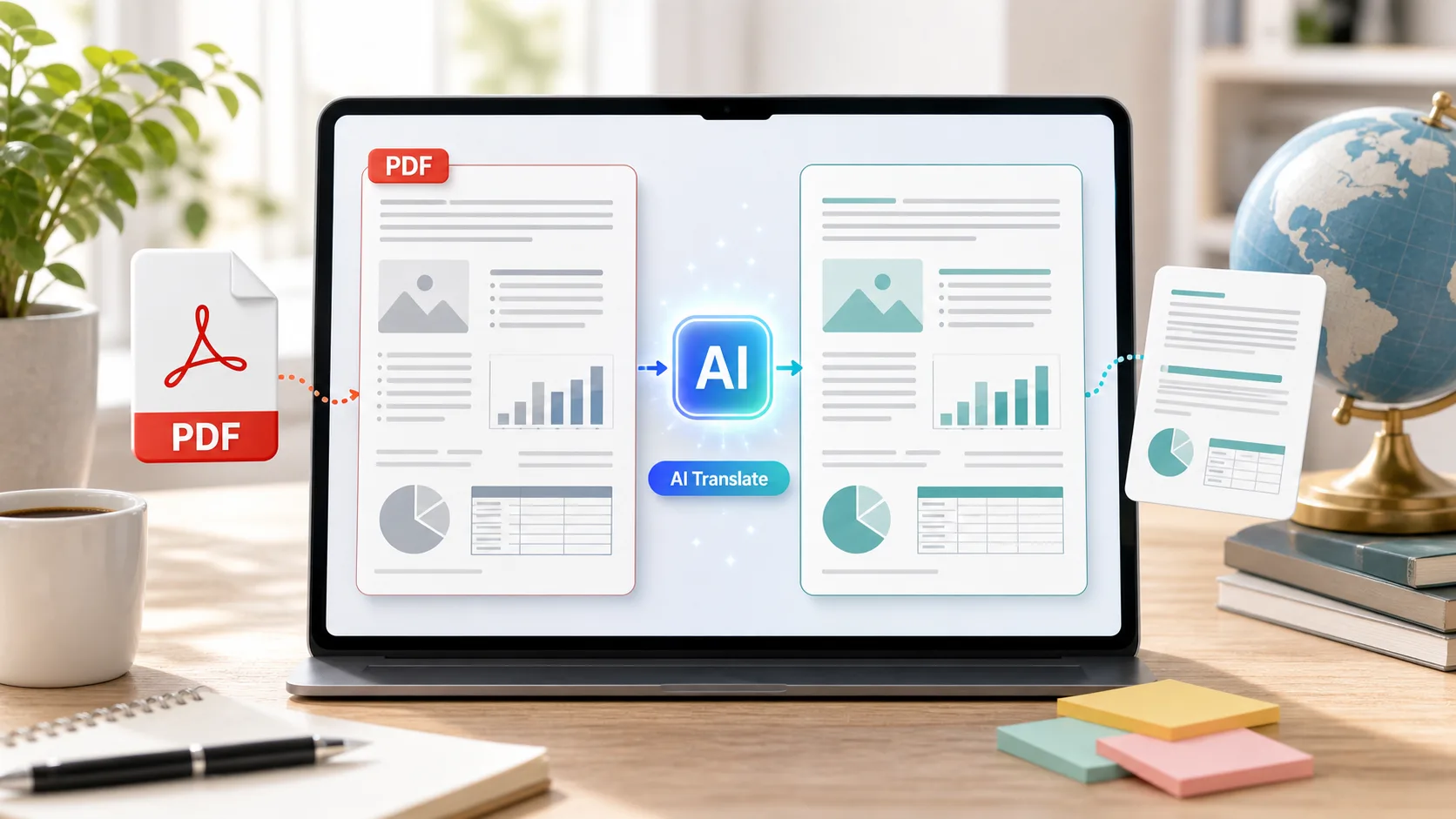
An AI PDF translator is a tool that helps you translate PDF files from one language to another while making the process faster, cleaner, and easier to review. Instead of copying paragraphs into a basic translator one by one, you can upload a document, translate a page or section, and in some cases keep the original layout, tables, headings, and images close to the source file.
The best PDF translator tools are especially useful for students, researchers, marketers, remote teams, legal assistants, product managers, and anyone who works with multilingual documents. You may need to translate a PDF report, an academic paper, a user manual, a business proposal, an invoice, a product brochure, or a scanned file. A good AI PDF translator can save hours of manual work.
That said, PDF translation is not only about changing words from one language to another. A useful PDF translation tool should also help with structure. It should understand headings, bullet points, tables, page breaks, and sometimes OCR text from scanned documents. The stronger the layout support, the less time you spend fixing the translated file afterward.
Why Use an AI PDF Translator?
A regular translator is fine for a short sentence. A PDF translator is better when the document itself matters. PDFs are often designed to preserve layout, which means the text may be locked inside columns, images, forms, charts, or scanned pages. If you simply copy and paste, the result can become messy very quickly.
An AI PDF translator helps in a few important ways:
- It can translate longer PDF files faster than manual copy and paste.
- It can keep headings, lists, and sections easier to follow.
- It can help translate technical, academic, or business documents with better context.
- It can make scanned PDF translation possible when OCR is included.
- It can reduce formatting cleanup when the tool supports document layout.
- It can help users understand documents in another language before doing a deeper human review.
For casual reading, an AI PDF translator may be enough on its own. For contracts, medical records, compliance documents, or high-stakes business files, it should be treated as a first draft. Always review the final translation carefully, especially names, dates, numbers, legal terms, citations, and technical measurements.
Best AI PDF Translator Tools
Below are some of the best AI PDF translator tools to consider. Each one fits a slightly different workflow, so the right choice depends on whether you care most about translation quality, formatting, scanned PDF support, design editing, team review, or speed.
1. DeepL
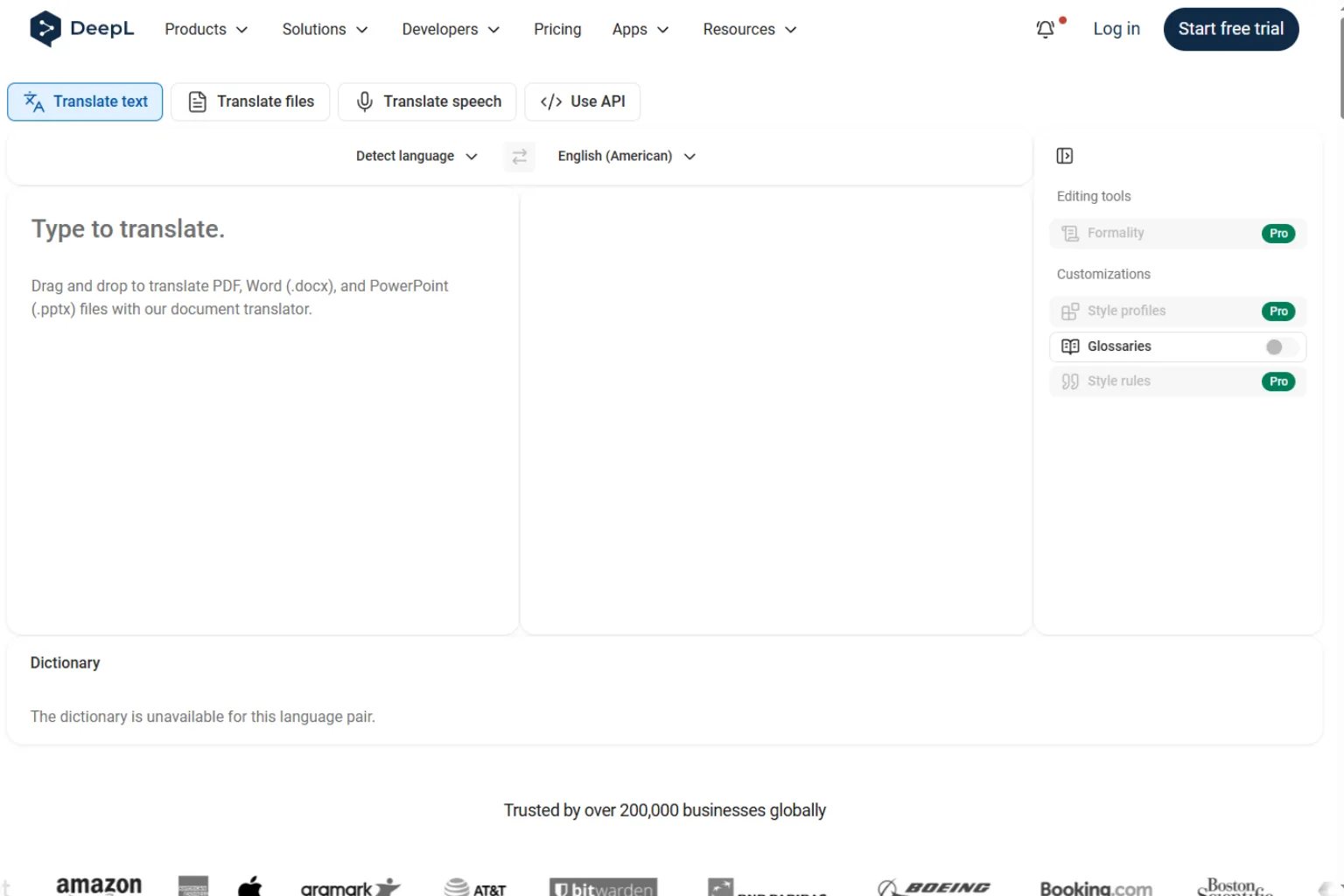
DeepL is one of the strongest choices for users who care about natural, polished translation quality. It is popular for business documents, academic writing, reports, and professional communication because the translated text often reads more smoothly than basic machine translation.
For PDF translation, DeepL is a good option when you want a clean result from a document rather than only a rough understanding of the content. It can be useful for translating research papers, white papers, product documents, internal reports, and multilingual marketing drafts. If your file contains clear selectable text, the workflow is usually straightforward.
DeepL is best for:
- Business reports and professional documents
- Academic papers and research material
- Users who care about natural wording
- Translating longer documents with consistent tone
The main thing to watch is formatting. Like most PDF translator tools, the result can vary depending on how the original file was built. A clean digital PDF is easier to translate than a scanned file, a complex brochure, or a document with many overlapping design elements.
2. Google Translate
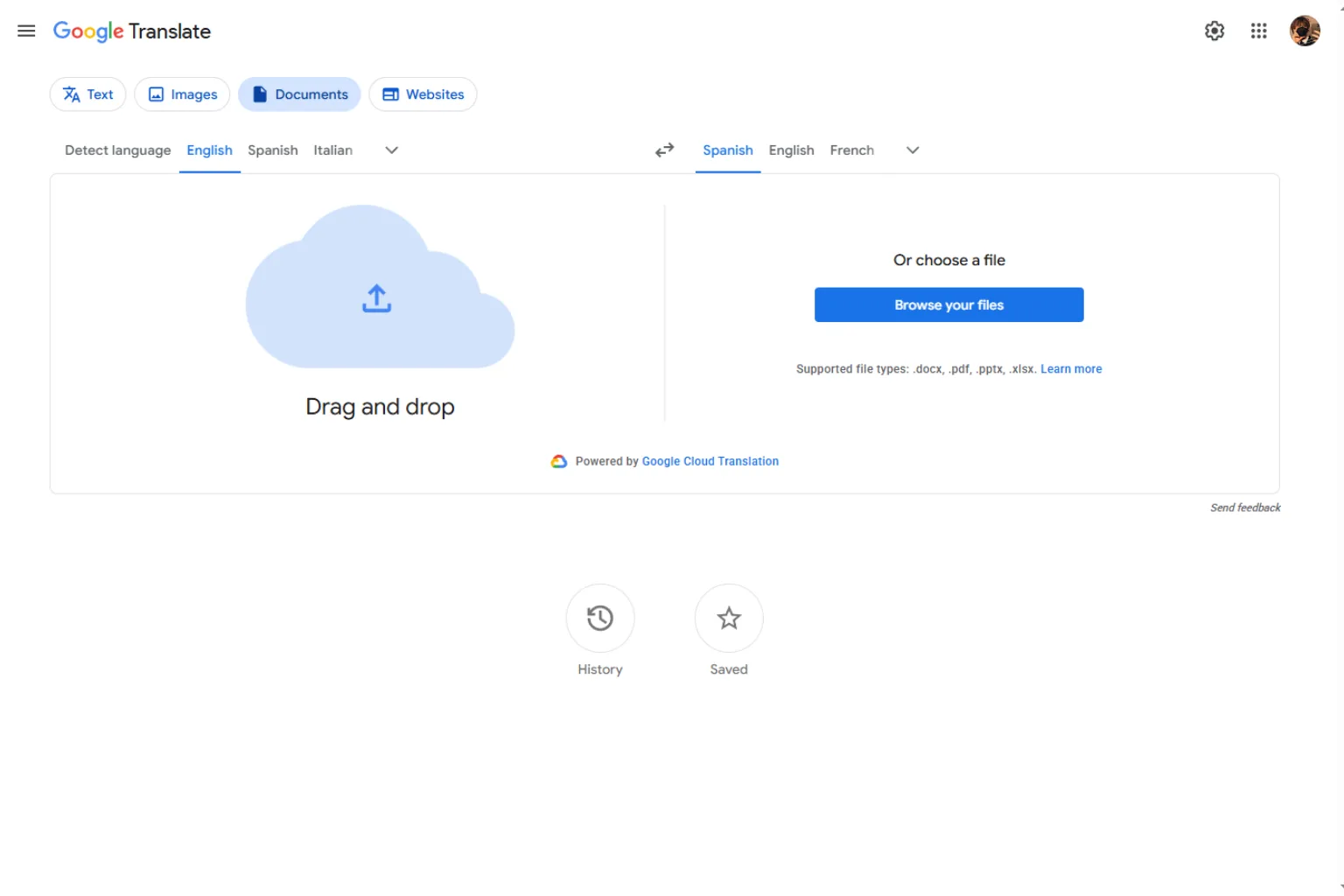
Google Translate is a practical PDF translator for quick, everyday use. It is easy to access, supports many languages, and works well when you need to translate PDF content fast. If you are reading a document for general understanding, it can be one of the simplest options.
This tool is especially useful for students, travelers, casual readers, and anyone who needs a fast translation without setting up a complex workflow. It can help you understand articles, instructions, school material, and general documents in another language.
Google Translate is best for:
- Quick PDF translation
- Simple documents
- Many language pairs
- Users who want a fast free option
However, it may not always produce the most polished wording for formal content. It can also struggle with layout-heavy PDFs. If you need to publish, submit, or share the translated PDF professionally, review the output and adjust wording before using it.
3. Canva PDF Translator

Canva PDF Translator is a useful option when the PDF is not just text, but a visual document. If you are translating a flyer, presentation-style PDF, brochure, poster, social media PDF, or branded document, the ability to edit the design after translation can be a real advantage.
Instead of treating translation and design as separate tasks, Canva can help users keep working in a visual editor. This is helpful when translated text becomes longer or shorter than the original. You can adjust text boxes, resize elements, edit colors, and make the translated file look more presentable.
Canva PDF Translator is best for:
- Marketing PDFs and visual documents
- Flyers, posters, and brochures
- Presentation-style PDF files
- Users who need design editing after translation
It may not be the first choice for dense academic papers or highly technical documents. But for creative and business materials where appearance matters, it can save a lot of cleanup time.
4. UPDF AI
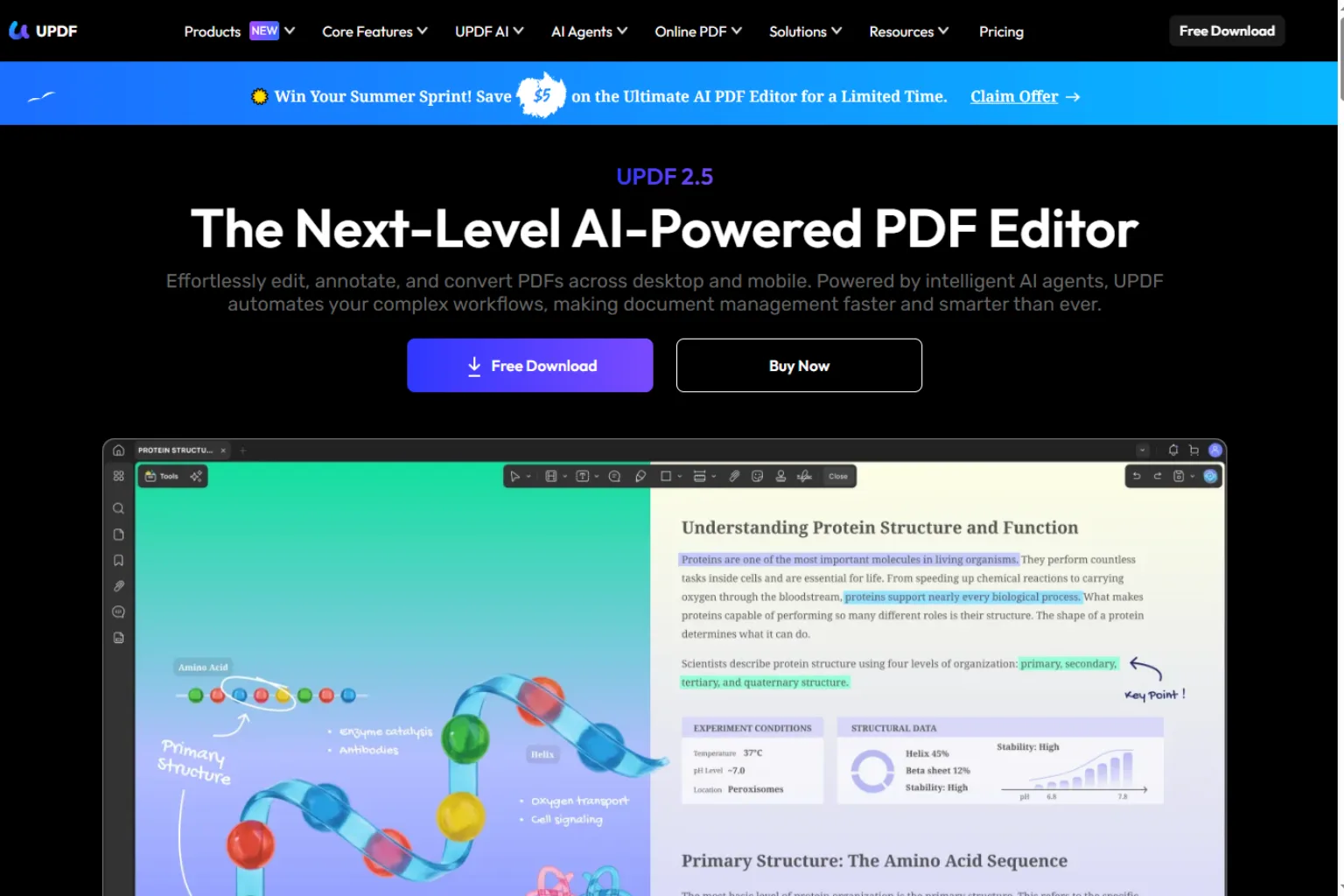
UPDF AI is useful for people who want a PDF reader, editor, and AI assistant in one workspace. Instead of only translating a full document, you can interact with the PDF, ask questions, summarize sections, and translate selected content.
This kind of workflow is helpful when you do not need to translate every page. For example, you may only need to understand a few paragraphs, check the meaning of a table, or translate a section of a manual. With an AI document assistant, you can move through the file more flexibly.
UPDF AI is best for:
- Reading and translating selected PDF sections
- Summarizing long PDF files
- Asking questions about PDF content
- Users who also need PDF editing features
If your goal is to produce a fully translated PDF with perfect layout, you may still need extra formatting work. But for reading, understanding, and reviewing documents, it is a strong AI PDF translator workflow.
5. PDFgear
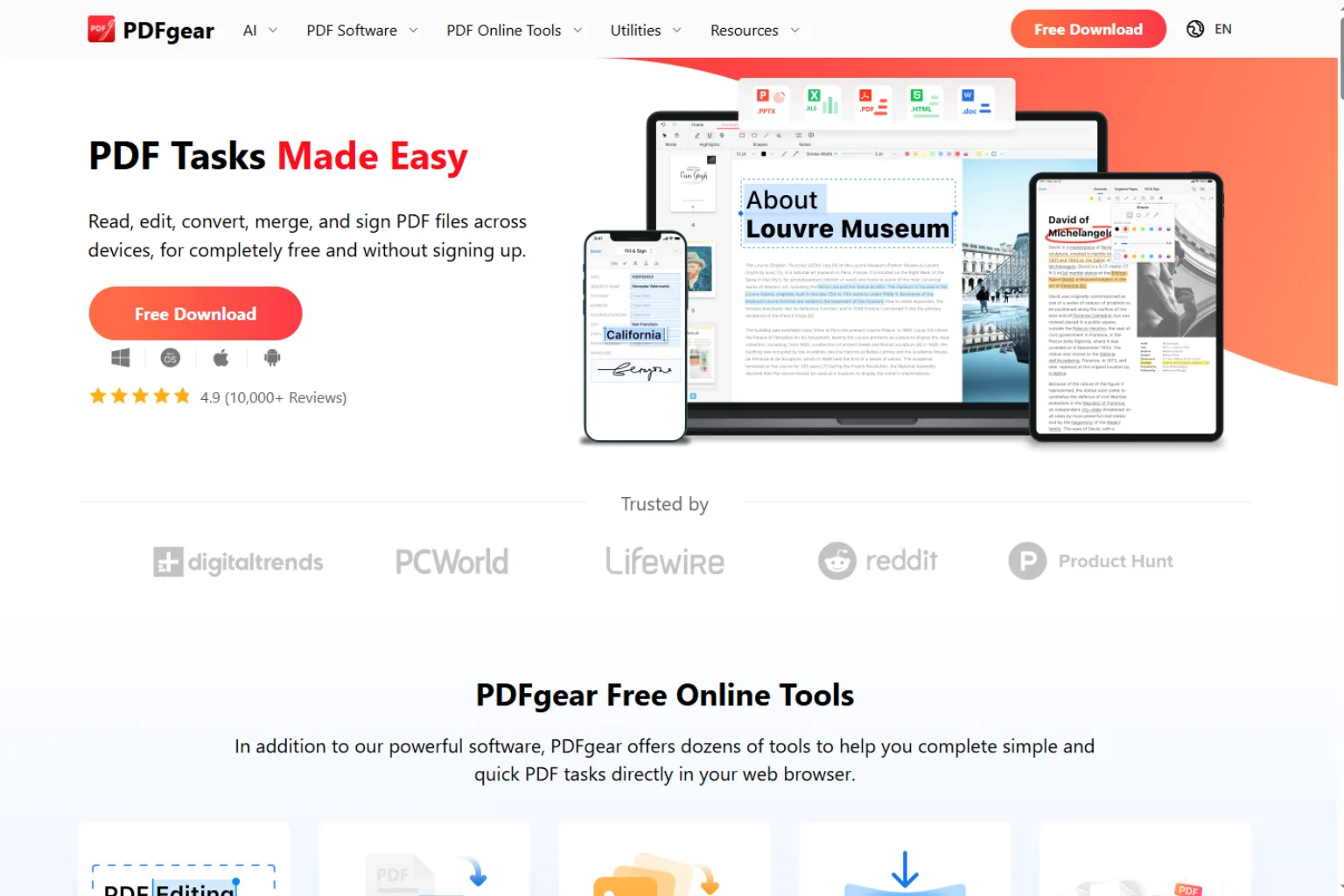
PDFgear is a good option for users who want PDF editing features along with AI-powered document help. It can support common PDF tasks such as reading, editing, converting, and working with document content. For translation-related workflows, it can be useful when you need to extract meaning, summarize pages, or translate selected text with AI assistance.
PDFgear is best for:
- Users who want an all-in-one PDF toolkit
- Translating or understanding selected PDF content
- Editing and managing PDFs after translation
- Students and office users who handle PDFs often
The main advantage is convenience. If you already need a PDF editor, having AI features inside the same workflow can feel smoother than jumping between separate tools. For more complex multilingual publishing, though, you may still want a dedicated translation platform.
6. Sider
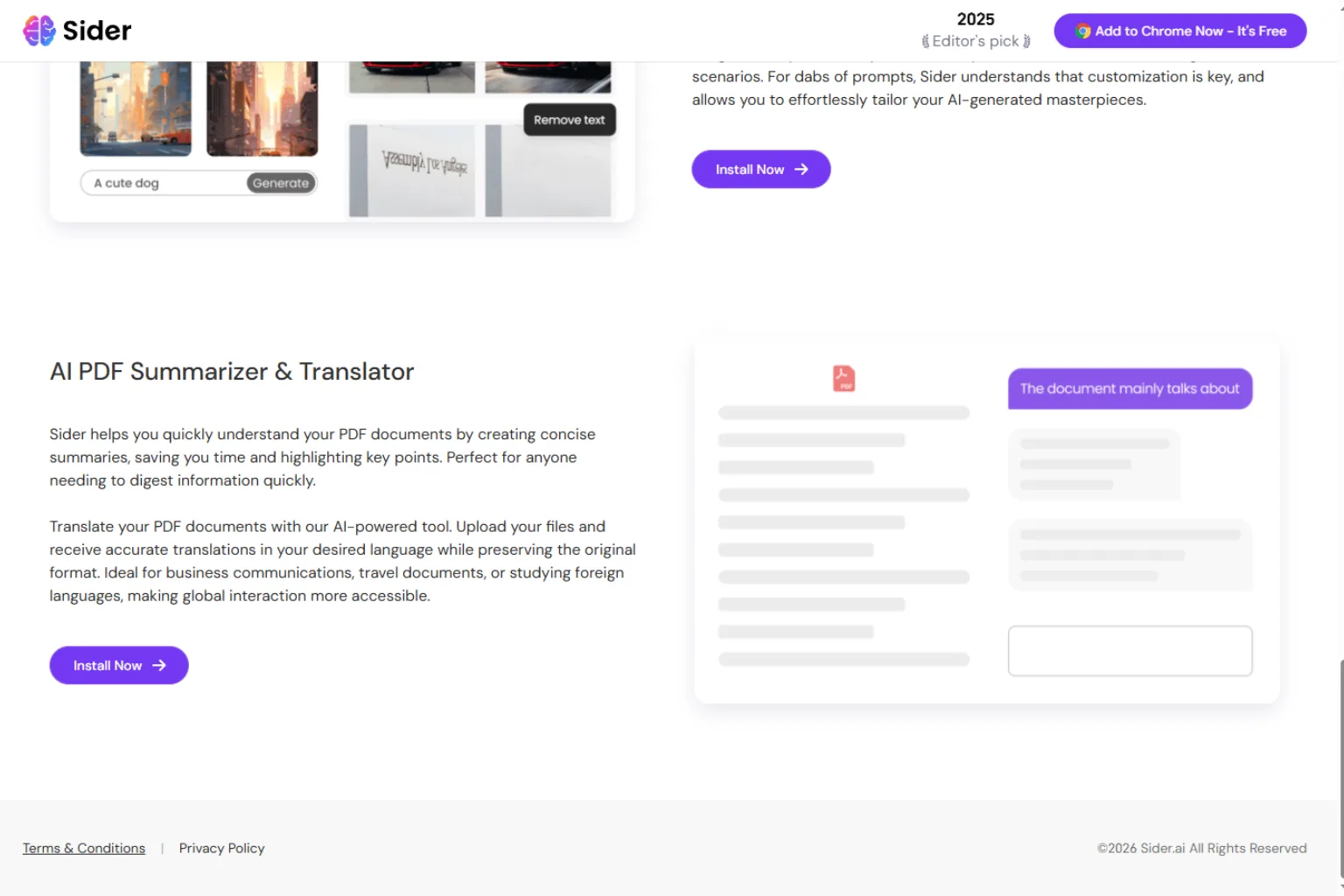
Sider is an AI assistant that can help with reading, summarizing, and translating content across the web and documents. It is useful for users who want quick help while browsing, studying, or reviewing PDF files.
For PDF translation, Sider works best when you need a flexible reading assistant rather than a traditional file converter. You can use it to translate selected text, explain difficult sections, summarize a document, or rewrite translated content in a clearer tone.
Sider is best for:
- Students reading foreign-language materials
- Quick section-by-section translation
- Summaries and explanations
- Users who want AI help while browsing and reading
It is not always the best choice for preserving a complex PDF layout. Think of it more as an AI reading and translation companion, especially useful when you are trying to understand the content quickly.
7. Smartcat
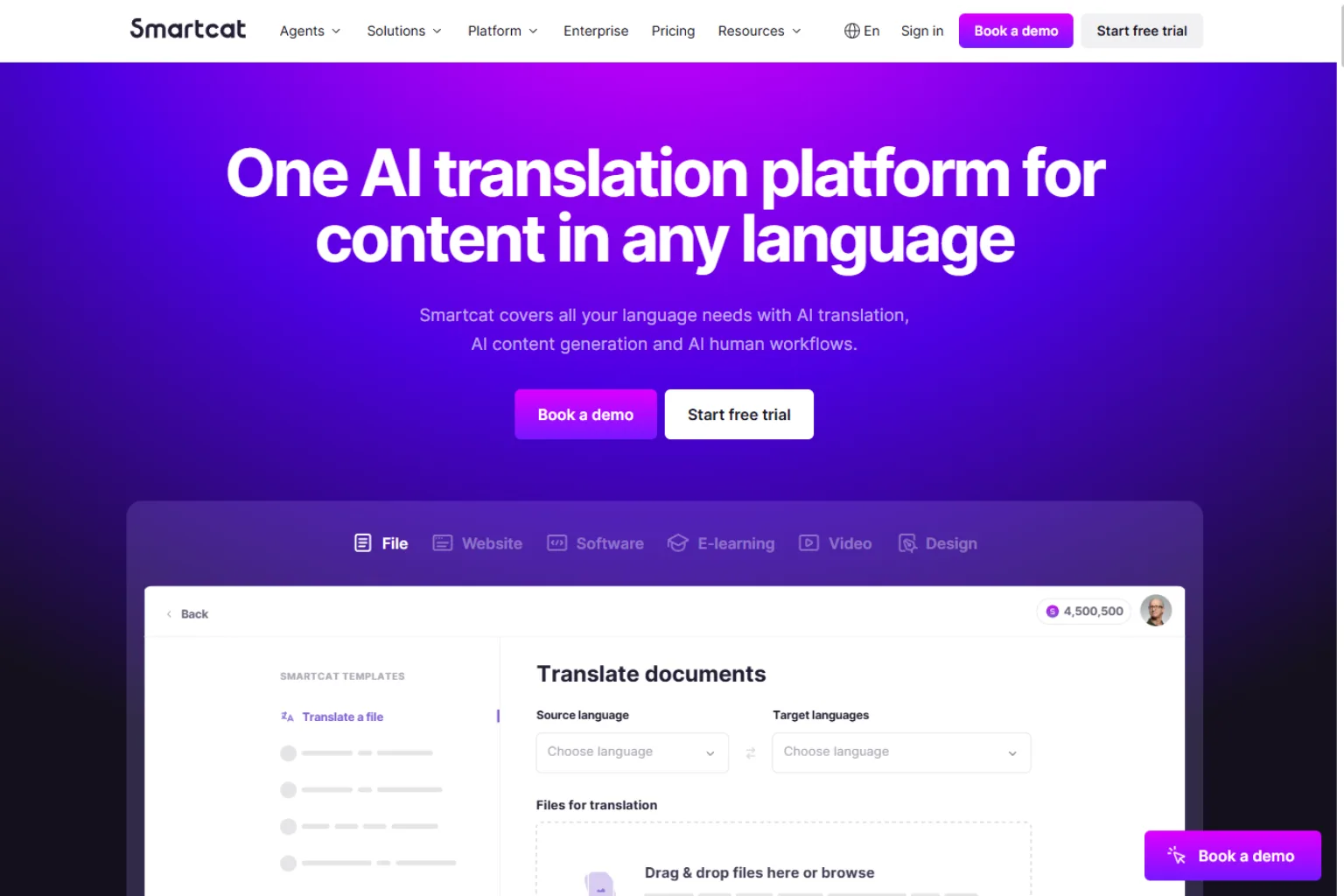
Smartcat is a better fit for teams, businesses, and localization workflows. If your company needs to translate documents regularly, manage terminology, work with reviewers, or prepare content for multiple markets, a professional translation platform can be more reliable than a simple upload-and-translate tool.
Smartcat can be useful for marketing teams, product teams, agencies, and businesses that need consistent translations over time. The ability to manage translation memory, terminology, and collaboration makes it more suitable for serious localization work.
Smartcat is best for:
- Business translation workflows
- Teams and agencies
- Localization projects
- Documents that need review and quality control
It may be more than a casual user needs. But if you translate PDF files for customers, product launches, training, or global content, the extra workflow features can matter.
8. ChatGPT or Microsoft Copilot
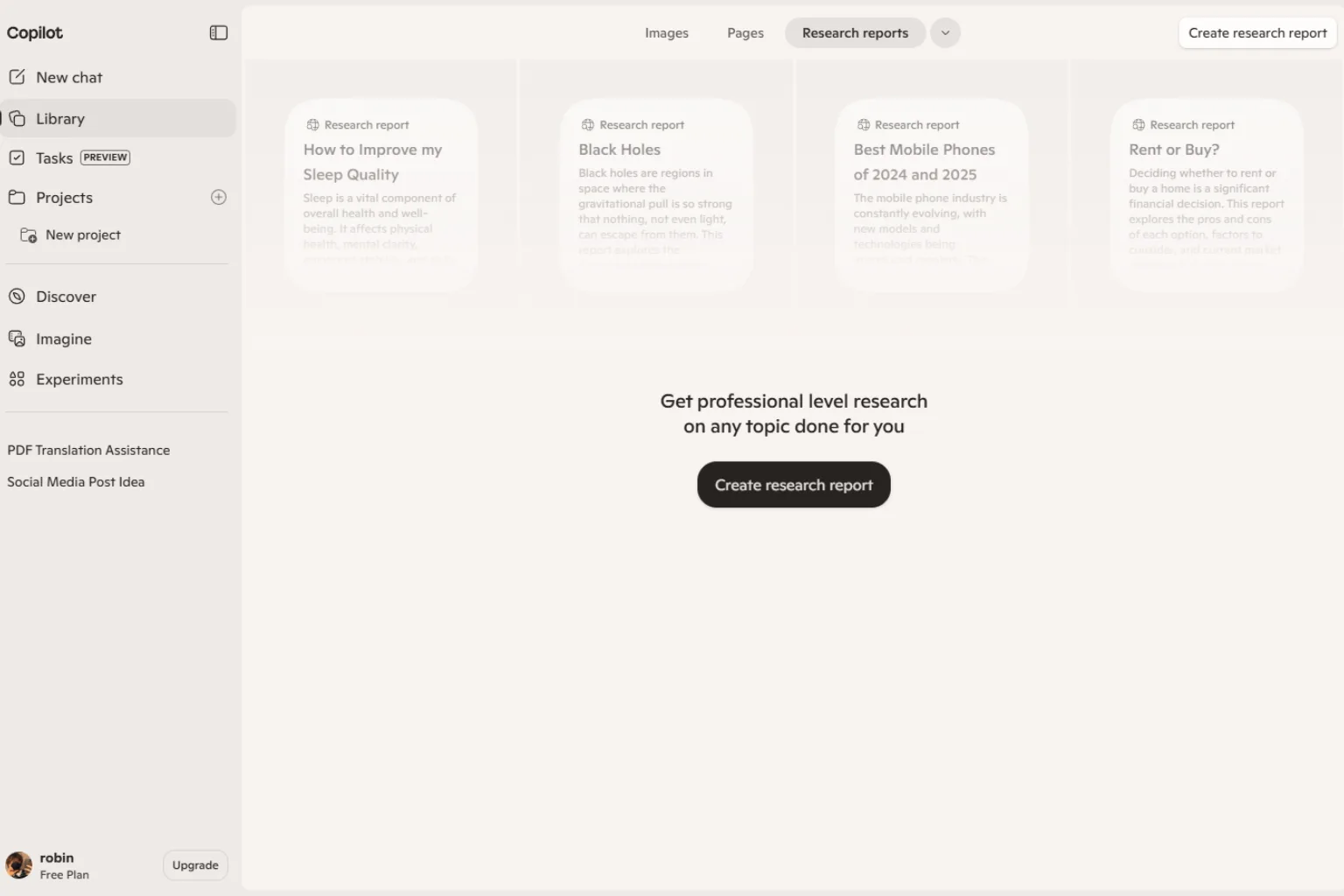
ChatGPT and Microsoft Copilot can be useful for PDF translation when you want flexibility. Instead of only converting a file, you can ask the AI to translate, summarize, explain, rewrite, or adapt content for a specific audience.
This can work well for section-by-section translation. For example, you can translate an abstract, a contract clause, a product manual section, or a table explanation. You can also ask the AI to keep terms consistent, preserve numbers, or make the translation more natural for business readers.
ChatGPT or Copilot is best for:
- Translating selected sections
- Rewriting rough translations
- Explaining technical text
- Creating summaries before translating the full PDF
The main limitation is layout. If you need a finished translated PDF that looks exactly like the original, you may need another tool for formatting. Also, be careful with confidential documents. Do not upload sensitive files unless your privacy requirements are clear.
How to Choose the Right PDF Translator
The best PDF translator depends on what you plan to do with the translated file. A student reading a paper has different needs from a marketing team translating a brochure or a company localizing a training manual.
Use these questions to narrow your choice:
- Do you need to translate the whole PDF or only selected sections?
- Is the PDF digital text or a scanned image?
- Do you need the translated file to keep the original layout?
- Is the content casual, academic, legal, medical, technical, or marketing-related?
- Do you need team review, terminology control, or collaboration?
- Are there privacy or confidentiality concerns?
- Will the translated PDF be published, shared, submitted, or only read privately?
If you only need to understand a PDF, choose a fast AI PDF translator or AI reading assistant. If you need a polished document, choose a tool with better layout handling and then review the file manually. If you need repeatable professional translation, use a platform built for localization and team review.
How to Translate a PDF Without Losing Formatting
Formatting is the hardest part of PDF translation. Even a strong translation engine can produce a messy result if the original PDF has columns, text boxes, scanned images, tables, or decorative layouts. To get a cleaner translated PDF, start with the file quality.
Here is a simple workflow:
- Use the cleanest version of the PDF you have. A digital PDF is better than a scanned copy.
- If the file is scanned, run OCR first so the text can be recognized.
- Translate a small section first to test layout quality.
- Check headings, tables, footnotes, page numbers, and captions.
- Review names, numbers, dates, units, and technical terms.
- Export the translated file and open it on another device to check spacing.
- If the layout breaks, translate the text first and rebuild the design in a PDF editor or design tool.
For simple reports, an AI PDF translator may preserve enough formatting. For brochures, manuals, and design-heavy files, expect some editing after translation. This is normal because translated text often takes more or less space than the original language.
AI PDF Translation Prompt Examples
If you use an AI assistant to translate PDF content, prompts can make the output much better. The goal is to give the tool clear instructions about tone, formatting, and what should stay unchanged.
Try these prompts:
Translate this PDF section into natural English. Keep headings, bullet points, product names, numbers, and dates unchanged.Translate the following PDF text into Spanish for a business audience. Keep the meaning accurate, but make the wording smooth and professional.Translate this scanned PDF text into French. Preserve table labels, measurements, names, and references exactly.Translate this academic PDF abstract into simple English. Keep technical terms accurate and do not remove citations.Review this AI-translated PDF section. Fix awkward wording, keep the original meaning, and list any terms that may need human review.For sensitive content, avoid pasting confidential information into tools without checking privacy settings. For public or low-risk documents, prompts like these can help you produce a cleaner first draft.
Mistakes to Avoid
The biggest mistake is assuming that a translated PDF is ready without review. AI translation can be impressive, but PDF files often contain details that need human checking.
Avoid these common issues:
- Uploading confidential files to unknown PDF translator tools
- Translating a scanned PDF without OCR
- Ignoring broken tables or misplaced captions
- Forgetting to check numbers, names, dates, and units
- Using casual translation for formal business or academic documents
- Letting the tool translate brand names, product names, or technical terms incorrectly
- Publishing translated content without a final proofread
A good AI PDF translator can handle the heavy lifting, but the final quality still depends on your review. This is especially true for documents that will be submitted, signed, printed, or shared with clients.
FAQ
What is the best AI PDF translator?
The best AI PDF translator depends on your document. DeepL is strong for natural translation quality, Google Translate is convenient for quick use, Canva is useful for visual PDFs, UPDF AI and PDFgear are helpful for PDF reading and editing workflows, and Smartcat is better for business localization.
Can AI translate scanned PDFs?
Yes, but the tool needs OCR support or you need to run OCR before translation. A scanned PDF is basically an image, so the text must be recognized before an AI PDF translator can translate it accurately.
How do I translate a PDF and keep the same layout?
Start with a clean digital PDF, choose a PDF translator with layout support, translate a small sample first, and review the final file. For complex brochures or forms, you may need to edit the translated PDF afterward because translated text can change line length and spacing.
Is it safe to use an online PDF translator?
It depends on the tool and the document. For public files or general reading, online PDF translator tools can be convenient. For contracts, financial files, medical records, legal documents, or private company data, check privacy rules carefully before uploading.
Can AI translate technical or legal PDFs?
AI can help translate technical or legal PDFs, but the output should be reviewed by someone qualified. Technical terms, obligations, measurements, and legal wording can change meaning if translated incorrectly.
What is the best free PDF translator?
For quick free translation, Google Translate is often the easiest place to start. For better quality or more advanced PDF workflows, you may need a dedicated AI PDF translator, PDF editor, or paid document translation tool.
Can I translate only part of a PDF?
Yes. Many AI tools let you translate selected text or specific sections. This is useful when you only need a chapter, abstract, table, contract clause, or report summary instead of the whole PDF.
Do AI PDF translators work for academic papers?
Yes, they can help students and researchers understand papers faster. However, citations, formulas, terminology, and methodology details should be checked carefully. For academic use, AI translation is best treated as a reading aid and first draft, not a final authority.
Final Thoughts
An AI PDF translator can make multilingual document work much faster, especially when you need to translate PDF files for reading, research, business, or content review. The best tool depends on your file type and final goal. Use a quick translator for simple reading, a PDF editor with AI for interactive document work, a design tool for visual PDFs, and a localization platform for business translation projects.
For the best results, choose the right tool, test a small section first, check formatting, and review important details before sharing the translated file. That small review step is what turns a fast AI translation into a usable document.
Related
Deepseek vs ChatGPT: The Ultimate LLM Comparison (2025)

Best AI Excel Formula Generators to Work Faster
Best AEO Tools for AI Search Visibility
Best AI Customer Service Tools for Faster Support
Best Tools to Convert Video to MP3 Online and Offline
Virtual Try-On in 2025: The AI Tools Changing How We Shop