
Table of Contents
- Who This Guide Is For
- Chapter 1: What Is Claude Code?
- Chapter 2: Install Claude Code
- Chapter 3: Start Your First Session
- Chapter 4: Ask Better Questions
- Chapter 5: Make Your First Code Change
- Chapter 6: Use CLAUDE.md as Project Memory
- Chapter 7: Use Plan Mode Before Big Changes
- Chapter 8: Manage Context, Commands, and Permissions
- Chapter 9: Extend Claude Code with Skills, Hooks, and MCP
- Chapter 10: A Safe Beginner Workflow
- Common Mistakes Beginners Should Avoid
- FAQ
Who This Guide Is For
Claude Code can feel intimidating the first time you open it. It does not behave like a normal autocomplete tool. It can inspect a project, search files, edit code, run commands, summarize errors, and help verify whether a change works. That is powerful, but it also means beginners need a clear mental model before letting it loose in a real repository.
This guide is for you if:
- You have heard of Claude Code but have not tried it yet.
- You installed it but are unsure what to type first.
- You use tools like GitHub Copilot and want to understand how Claude Code is different.
- You want a safe workflow for asking Claude Code to edit files.
- You want to understand beginner-friendly concepts like
CLAUDE.md, plan mode, skills, hooks, and MCP.
The goal is not to turn you into an automation expert in one sitting. The goal is to help you use Claude Code confidently on day one, then show you where to go next.
Chapter 1: What Is Claude Code?
Claude Code is an agentic coding assistant from Anthropic. Instead of only suggesting the next few lines of code, it can work through a task with multiple steps: read files, understand project structure, propose changes, edit code, run tests, and explain what happened.
That makes it different from a normal code completion tool.
| Tool type | What it usually does | How you interact with it |
|---|---|---|
| Code completion | Suggests code near your cursor | You keep writing code manually |
| Chat assistant | Answers questions or drafts code snippets | You copy, paste, and adapt the answer |
| Claude Code | Performs development tasks inside your project | You describe the goal and review its actions |
For example, instead of asking:
Write a React component for a login form.you might ask:
Find the existing auth UI pattern in this repo and add a login form that matches it. Run the relevant tests afterward.Claude Code can inspect the project before deciding where and how to make the change. That is the main shift: you are not only asking for code; you are asking for a workflow.
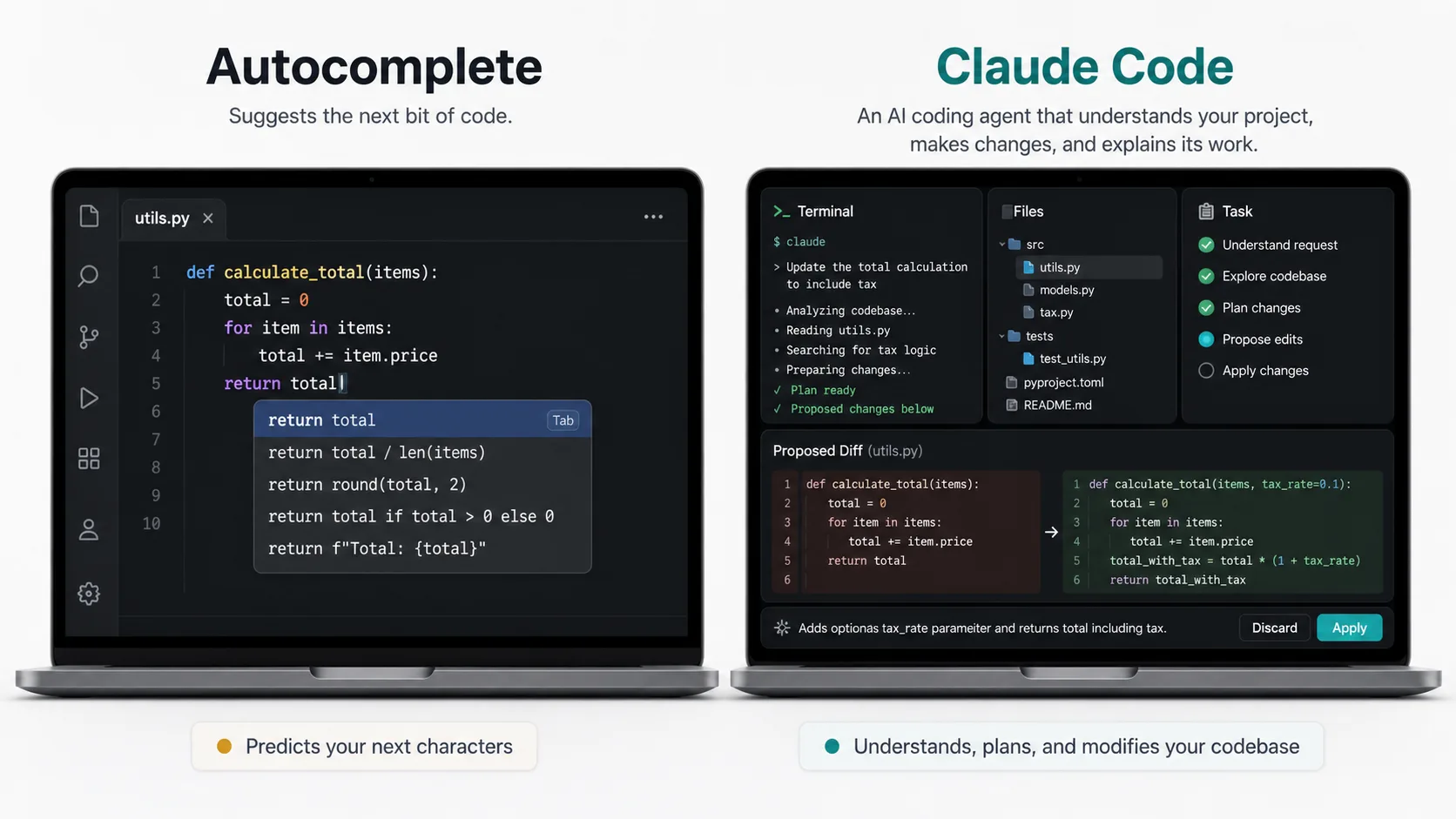
Claude Code is closer to a coding partner that can operate across a project than a simple autocomplete tool.
Chapter 2: Install Claude Code
Before installing, make sure you have:
- A terminal or command prompt.
- A code project you can safely test with.
- Access through a Claude subscription, Claude Console account, or a supported provider.
- Git installed if you want Claude Code to inspect diffs and work smoothly with repositories.
Recommended Native Install
For macOS, Linux, or WSL, run:
curl -fsSL https://claude.ai/install.sh | bashFor Windows PowerShell, run:
irm https://claude.ai/install.ps1 | iexFor Windows CMD, use the CMD-specific command from the official quickstart:
curl -fsSL https://claude.ai/install.cmd -o install.cmd && install.cmd && del install.cmdAfter installation, verify it:
claude --versionIf claude is not found, your system may not have the install directory on PATH. On macOS or Linux, the binary may be under ~/.local/bin. On Windows, it may be under %USERPROFILE%\.local\bin.
Other Install Options
Claude Code also supports package-manager options such as Homebrew and WinGet:
brew install --cask claude-codewinget install Anthropic.ClaudeCodeNative install is usually the easiest recommendation for beginners because it can keep itself updated in the background. Package-manager installs may require manual updates.
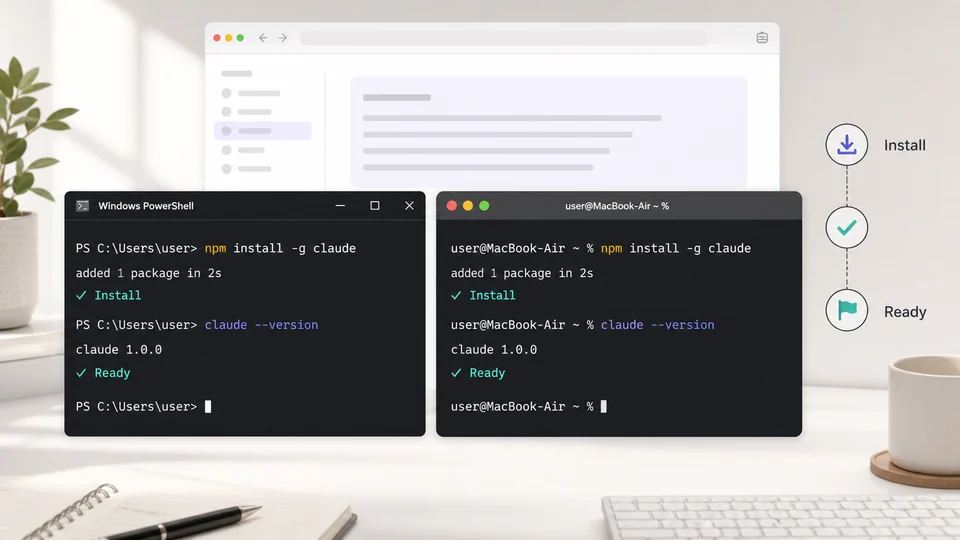
A simple terminal install flow: install, verify with claude --version, then open a project folder.
Chapter 3: Start Your First Session
Open a terminal inside a project folder:
cd /path/to/your/project claudeOn first use, Claude Code will ask you to sign in. Follow the browser login flow, then return to the terminal.
Once you are inside Claude Code, begin with a read-only question:
What does this project do?Then try:
Explain the folder structure.What commands should I run to test this project?These prompts are good for beginners because they let Claude Code inspect the project without immediately editing files.
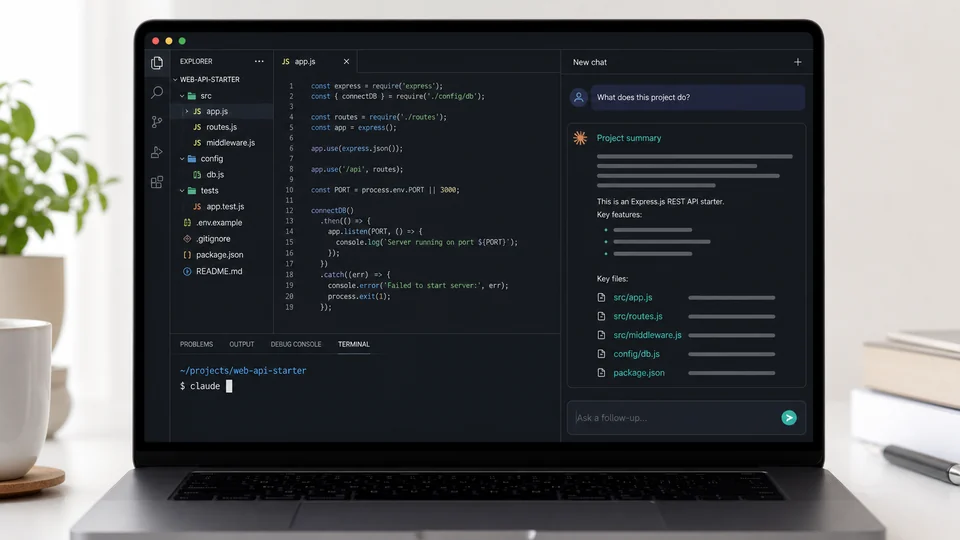
A safe first session starts with project understanding, not immediate code changes.
Chapter 4: Ask Better Questions
Claude Code works best when you describe the goal, the relevant context, and the success criteria. A vague prompt may still work, but a precise prompt gives Claude a better target.
| Vague prompt | Better beginner prompt |
|---|---|
| Fix the bug. | The login page crashes when the email field is empty. Find the cause, fix it, and run the relevant tests. |
| Add tests. | Add tests for the logout flow, especially the case where the user session has expired. |
| Update the docs. | Update the README so a new developer can install dependencies, run the app, and run tests. |
| Make the UI better. | Improve the settings page spacing to match the existing dashboard layout. Show me the diff before editing. |
Use this simple prompt formula:
Goal: What you want changed. Context: Files, errors, or behavior that matter. Constraints: What Claude should avoid. Verification: How Claude should check the work.Example:
Goal: Fix the failing checkout test. Context: The failure happens in tests/checkout.test.ts when discount codes are applied. Constraints: Do not change public API names. Verification: Run the checkout test file after the fix.The verification line is especially important. Claude Code is much more useful when it can check its own work.
Chapter 5: Make Your First Code Change
For your first edit, choose something low-risk:
- Add a small README section.
- Fix a typo.
- Add one simple unit test.
- Explain and refactor a tiny helper function.
Example prompt:
Update the README with a short "Running tests" section. First inspect package.json to find the right test command. Show me the proposed change before editing.Claude Code will usually:
1. Read relevant files. 2. Decide what needs to change. 3. Show a proposed edit. 4. Ask for approval. 5. Apply the change if you approve. 6. Run a command if the task calls for verification.
Do not approve blindly. Review the diff. If something looks off, ask it to revise:
This is too long for the README. Make it shorter and keep only the commands.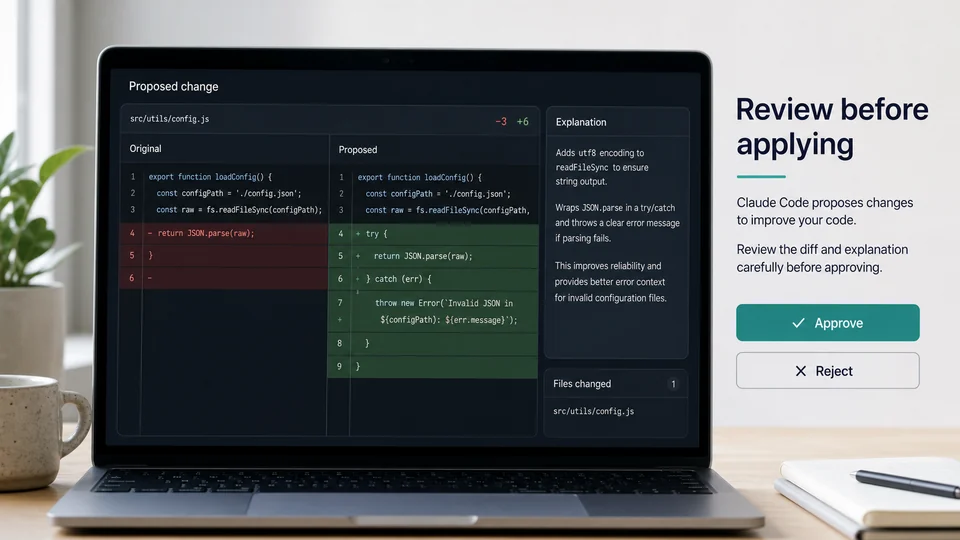
Beginners should treat Claude Code diffs like pull requests: read them, question them, then approve.
Chapter 6: Use CLAUDE.md as Project Memory
CLAUDE.md is a markdown file that gives Claude Code persistent project context. If the file exists in your repository, Claude Code reads it at the start of a session. Think of it as an onboarding note for a capable teammate.
Create one manually or ask Claude Code to initialize it:
/initA useful beginner CLAUDE.md might look like this:
# Project Guide ## Stack - Next.js - TypeScript - pnpm - Vitest ## Common Commands - Install dependencies: pnpm install - Run dev server: pnpm dev - Run tests: pnpm test - Run lint: pnpm lint ## Rules - Use pnpm, not npm. - Do not edit files in src/legacy unless explicitly asked. - Prefer existing components in src/components/ui. - Run tests for changed areas before saying the task is complete.Keep it short. A huge CLAUDE.md can become noise. Include things Claude cannot reliably infer from the code:
- The correct package manager.
- Commands that differ from conventions.
- Important directories to avoid.
- Project-specific architecture rules.
- Testing expectations.
Avoid filling it with generic advice like “write clean code.” Claude already knows that. Use CLAUDE.md for facts and rules that matter in your project.
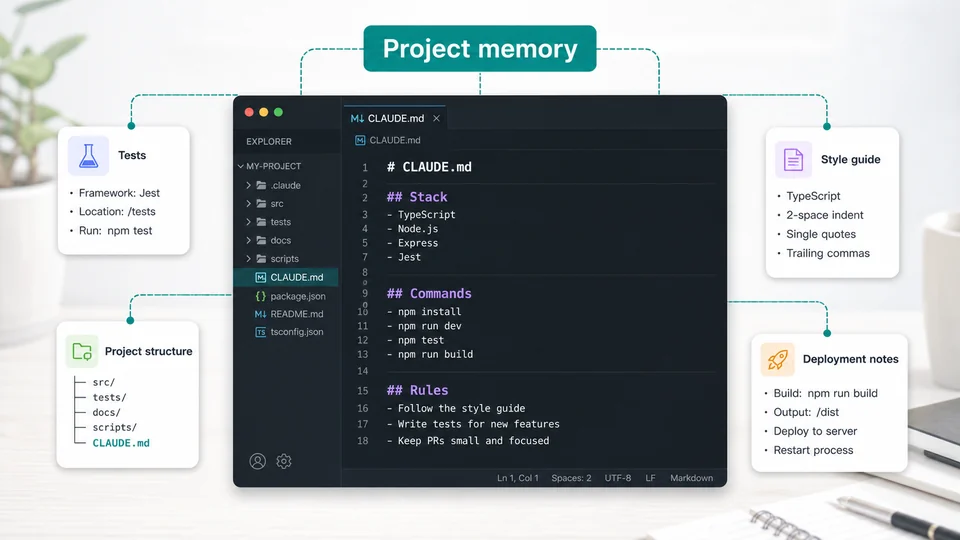
CLAUDE.md gives Claude Code stable project instructions so you do not repeat them every session.
Chapter 7: Use Plan Mode Before Big Changes
Plan mode tells Claude Code to research and propose a plan without editing files. This is extremely useful for beginners because it slows the workflow down before risky changes.
Use plan mode when:
- The task affects multiple files.
- You are unsure about the best approach.
- You are working in unfamiliar code.
- You want to compare options before editing.
- The change could affect production behavior.
You can enter plan mode from the CLI:
claude --permission-mode planInside a session, you can also use:
/plan Investigate why image upload fails and propose a fix. Do not edit files yet.Or cycle permission modes with Shift+Tab if your Claude Code interface supports it.
A good planning prompt:
Use plan mode. Inspect the authentication flow and propose how to add password reset. Do not edit files yet. Include the files you expect to modify and the tests you would run.After Claude proposes a plan, you can approve it, ask for changes, or keep planning. If the plan is vague, do not proceed. Ask for a sharper plan:
Make the plan more specific. Name the likely files, risks, and verification steps.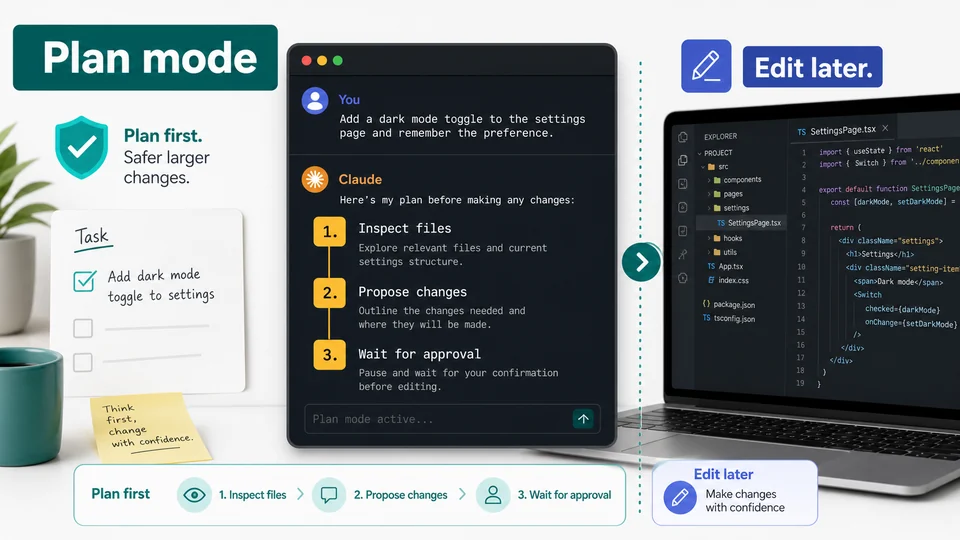
Plan mode is the beginner-friendly way to make Claude Code think before it edits.
Chapter 8: Manage Context, Commands, and Permissions
Claude Code sessions have a context window. As the session gets longer, Claude has more history to track: messages, file contents, command outputs, diffs, and explanations. Long sessions can become less focused.
Use these commands early:
| Command | What it does | Beginner use case |
|---|---|---|
/help | Shows available commands | Learn what your session supports |
/clear | Clears conversation history | Start fresh when switching tasks |
/compact | Summarizes the current session | Preserve key info while reducing context |
/init | Creates a starter CLAUDE.md | Give Claude project memory |
/login | Signs in or switches account | Fix authentication issues |
/permissions | Manages allowed actions | Tune what Claude can do automatically |
Permission Modes in Plain English
Claude Code may ask before editing files or running commands. This is a good safety feature for beginners.
You may see modes such as:
- Default review mode: review actions as they happen.
- Accept edits mode: allow edits, then review afterward.
- Plan mode: inspect and plan without editing.
- Auto mode: allow more automatic actions under safety controls, depending on your plan and account.
Beginners should start conservative. Use plan mode for larger tasks and review diffs carefully until you trust the workflow.
Chapter 9: Extend Claude Code with Skills, Hooks, and MCP
Once you are comfortable with basic usage, Claude Code can be extended. You do not need these features on day one, but you should understand what they are.
CLAUDE.md vs Skills
Use CLAUDE.md for always-on project context. Use skills for reusable workflows or detailed instructions that should load only when needed.
| Feature | Best for | Example |
|---|---|---|
CLAUDE.md | Project rules Claude should always know | “Use pnpm. Run Vitest. Avoid src/legacy.” |
| Skill | Repeatable procedure or specialized knowledge | /release-checklist, /review-api, /write-docs |
A minimal skill might live at:
.claude/skills/review-pr/SKILL.mdExample:
--- description: Review a pull request for bugs, missing tests, and risky changes. --- Review the current diff. Focus on: - Behavior changes - Missing tests - Error handling - Security or data-loss risk Return findings first, then a short summary.Then you can invoke it with:
/review-prHooks
Hooks run when specific Claude Code events happen. A simple hook might send a desktop notification when Claude is waiting for input, or run a validation script before certain shell commands.
Beginners should treat hooks carefully. A bad hook can create confusing side effects. Start with harmless notifications or read-only checks.
MCP
MCP stands for Model Context Protocol. It lets Claude Code connect to external tools and services. For example, an MCP server might connect Claude to:
- A database.
- A browser.
- Sentry.
- Slack.
- GitHub.
- Internal company tools.
Inside Claude Code, /mcp helps manage connected MCP servers and authentication. Use MCP when Claude needs data or actions outside the local repository.
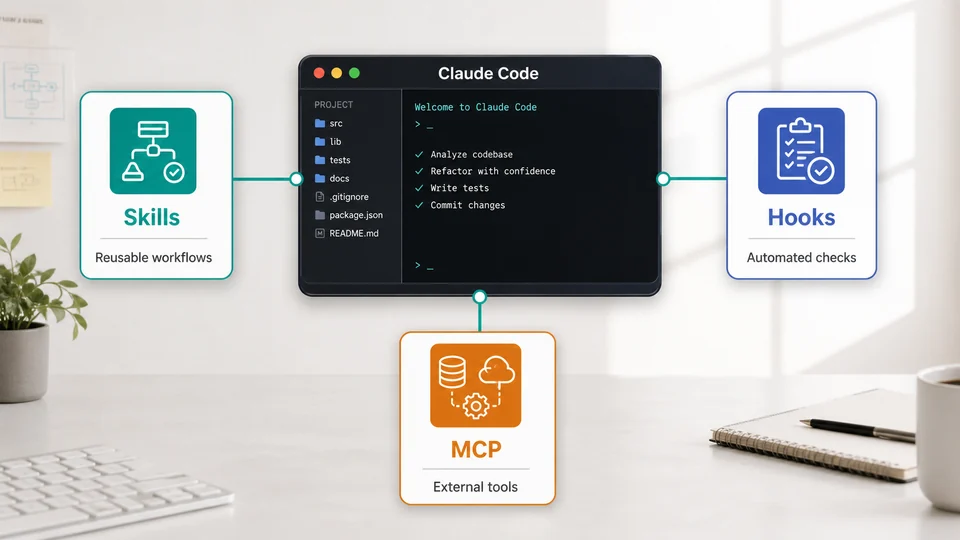
CLAUDE.md, skills, hooks, and MCP solve different extension problems. Start simple, then add only what you need.
Chapter 10: A Safe Beginner Workflow
Here is a practical workflow you can use for your first week.
Step 1: Start with a clean Git state
Before asking Claude Code to edit anything:
git statusIf you already have important uncommitted work, commit it or stash it first. Claude Code is safer when you can clearly review what changed.
Step 2: Ask Claude to understand the project
What does this project do? Explain the main folders and the commands I should know.Step 3: Create or refine CLAUDE.md
/initThen review the generated file. Remove generic content. Add project-specific commands.
Step 4: Use plan mode for real changes
/plan Add a password reset page. Inspect the existing auth flow and propose a plan first.Step 5: Approve small, reviewable edits
Ask Claude Code to implement one part at a time:
Implement only the route and form component first. Do not wire email sending yet.Step 6: Run verification
Run the relevant tests and tell me exactly what passed or failed.If tests fail, ask Claude to diagnose:
The test failed. Explain the failure first, then propose the smallest fix.Step 7: Review the final diff
git diffThen ask:
Review the final diff for bugs, missing tests, and unnecessary changes.This workflow keeps you in control while still letting Claude Code do useful work.
Common Mistakes Beginners Should Avoid
Mistake 1: Asking for huge changes immediately
Do not start with:
Rewrite the whole app with a better architecture.Start smaller:
Inspect the app architecture and identify the top three refactor opportunities. Do not edit files.Mistake 2: Not giving a verification method
If Claude cannot test the work, it may stop too early. Always tell it how to verify:
After the change, run pnpm test -- checkout.Mistake 3: Approving diffs without reading them
Claude Code can make mistakes. Review changes like you would review a teammate’s pull request.
Mistake 4: Letting one session get too long
Use /clear when switching tasks. Use /compact when the session contains useful context but has become too long.
Mistake 5: Putting secrets into prompts or CLAUDE.md
Do not paste API keys, private tokens, database passwords, or production secrets into prompts or project memory files. Use environment variables and secret managers.
Mistake 6: Using advanced extensions too early
Skills, hooks, MCP, subagents, and plugins are powerful. Beginners should first master:
1. Starting sessions. 2. Asking clear prompts. 3. Reviewing diffs. 4. Running tests. 5. Using CLAUDE.md. 6. Using plan mode.
Then add extensions when you feel repeated friction.
FAQ
Is Claude Code only for experienced developers?
No, but it is most useful when you understand the basics of your project, Git, and the terminal. Beginners can use it safely by starting with read-only questions, small edits, and plan mode.
Can Claude Code replace learning to code?
No. It can accelerate tasks and explain code, but you still need to understand the result. Treat it as a coding partner, not a replacement for judgment.
Does Claude Code edit files automatically?
Claude Code can edit files, but it normally asks for permission before modifying them. You can choose permission modes depending on how much review you want.
What should I do if Claude Code makes a bad change?
Use Git. Review git diff, ask Claude to explain the change, or revert the file yourself. For bigger tasks, use plan mode before editing.
What is the first command I should run in a new project?
Start with:
claudeThen ask:
What does this project do, and what commands should I know?After that, run:
/initto create a starter CLAUDE.md.
When should I use MCP?
Use MCP when Claude Code needs access to an external service or tool, such as a database, Sentry, GitHub, Slack, or a browser. You do not need MCP for basic local code editing.
When should I create a skill?
Create a skill when you repeatedly paste the same instructions or checklist into Claude Code. For example, a release checklist, code review checklist, or documentation workflow can become a skill.
Related
Best AI Fashion Design Generators for Creative Clothing Ideas

Best AI Image Model and LoRA Download Sites: Checkpoints, LoRA and NSFW Safety

How to Transcribe and Translate TikTok Video to Text in 2026
AI Audio Enhancer: Best Tools to Improve Sound Quality
How to Use Perplexity: A Complete Beginner’s Guide to Pro Search, Files and Comet (2026)
Best AI PDF Readers to Summarize, Search, and Chat With Documents