
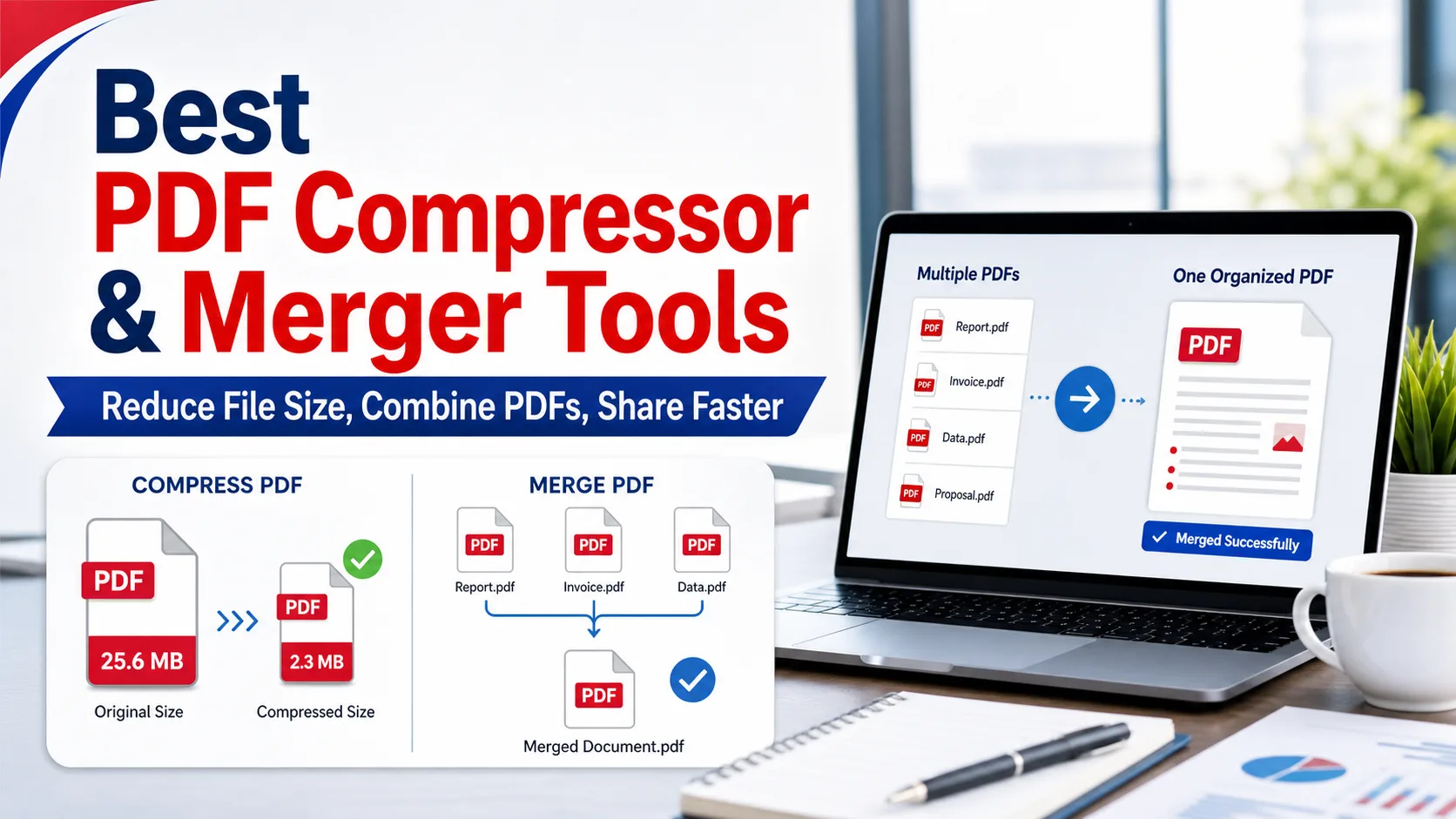
For everyday PDF compression and merging, iLovePDF, Smallpdf, PDF24 Tools, PDF Candy, and PDFgear cover most needs. They let you reduce file size, combine multiple PDFs, reorder pages, and prepare files for email, uploads, school, or office workflows.
The right choice depends on privacy, file size, and how often you work with documents. Browser tools are fast for simple jobs, while desktop tools are safer for large batches or sensitive files.
Table of Contents
Quick Answer
Use iLovePDF or PDF24 Tools for free quick tasks, Smallpdf for a polished interface, PDF Candy for a broad all-in-one toolkit, and PDFgear when you also want desktop PDF editing.
Comparison Table
| Tool | Compress PDF | Merge PDF | Best For |
|---|---|---|---|
| iLovePDF | Yes | Yes | Fast online workflows |
| Smallpdf | Yes | Yes | Clean interface |
| PDF24 Tools | Yes | Yes | Free browser tools |
| PDF Candy | Yes | Yes | Many conversion tools |
| PDFgear | Yes | Yes | Desktop and online PDF work |
Best PDF Compressor and PDF Merger Tools
1. iLovePDF
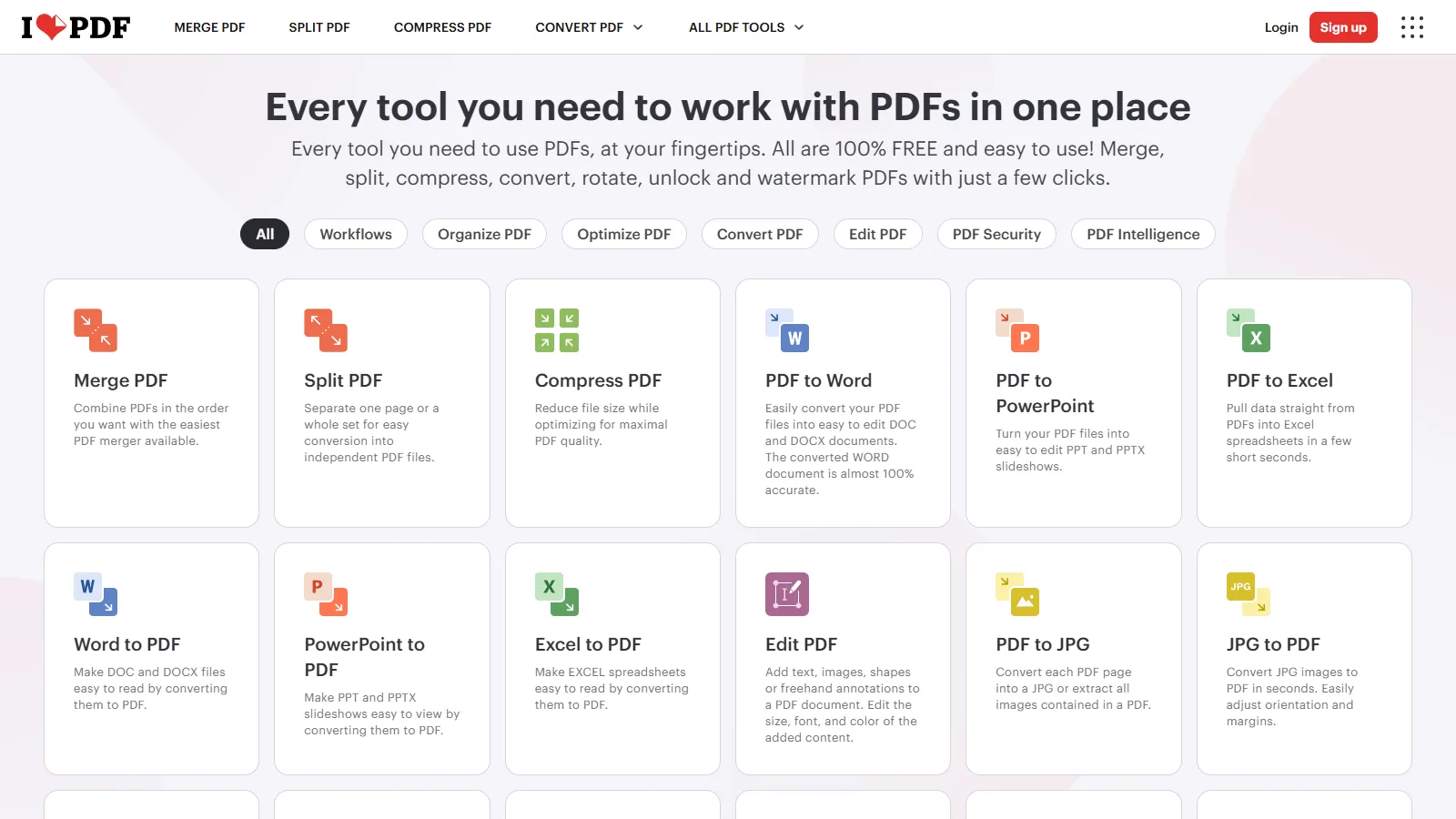
iLovePDF is one of the easiest PDF tools to recommend for everyday compression and merging. The interface is direct: choose Compress PDF or Merge PDF, upload your files, adjust the order if needed, and download the result.
It is useful for students, office workers, freelancers, and anyone who needs to make a file small enough for email or combine several documents into one submission. The tool also includes splitting, conversion, page organization, and editing features, so it can handle many common PDF tasks. For sensitive files, review the service’s file-handling policy before uploading.
2. Smallpdf
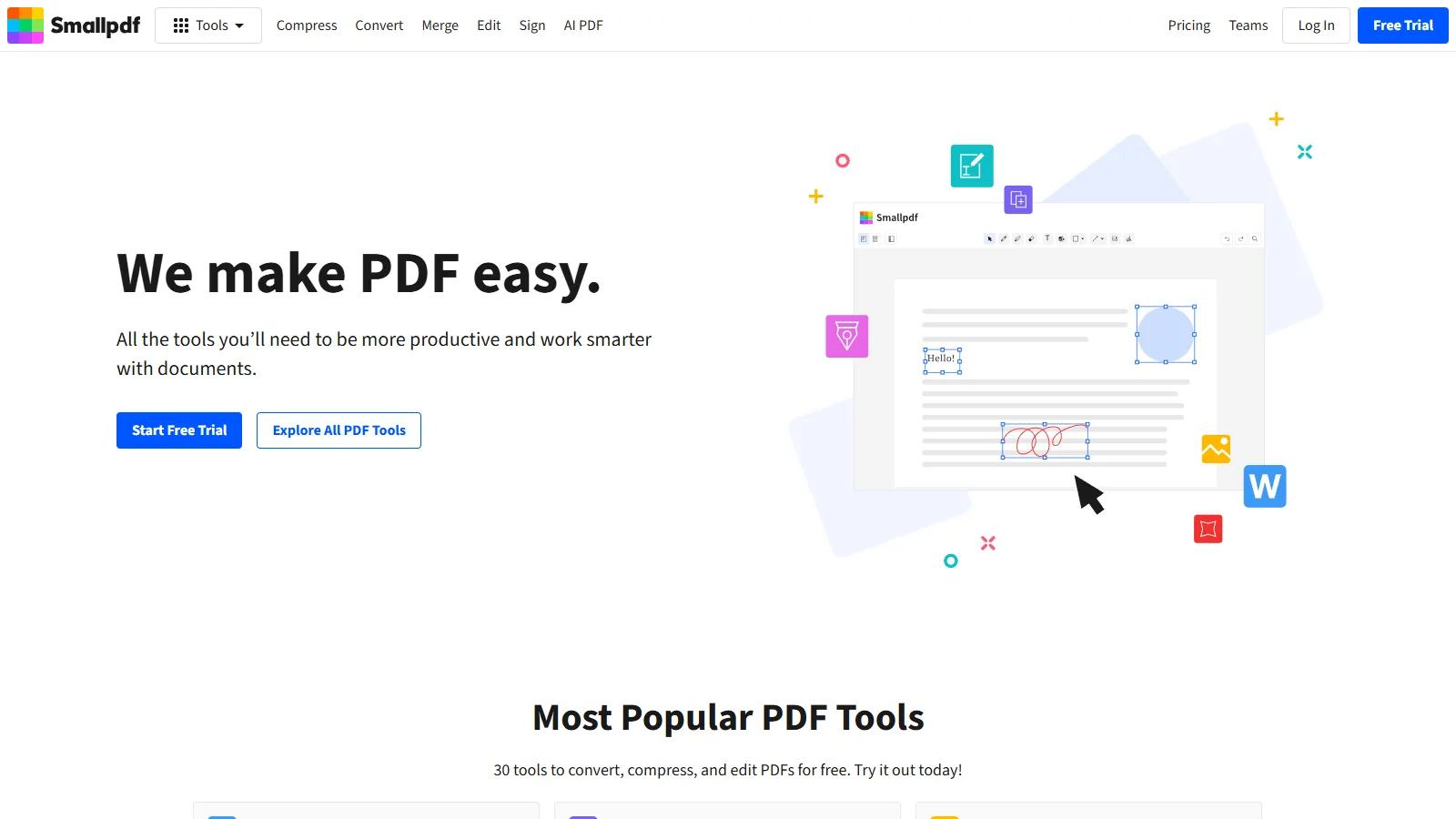
Smallpdf is a polished PDF platform with clear tools for compression, merging, conversion, editing, signing, and AI PDF workflows. It is a strong choice for users who want a clean interface and do not want to search through a cluttered tool list.
For compression, Smallpdf is useful when you need to quickly reduce a PDF before uploading it to a website or sending it by email. For merging, it makes it easy to combine reports, invoices, forms, or scanned pages into one file. The free tier may include limits, so frequent users should check plan details before relying on it for daily work.
3. PDF24 Tools
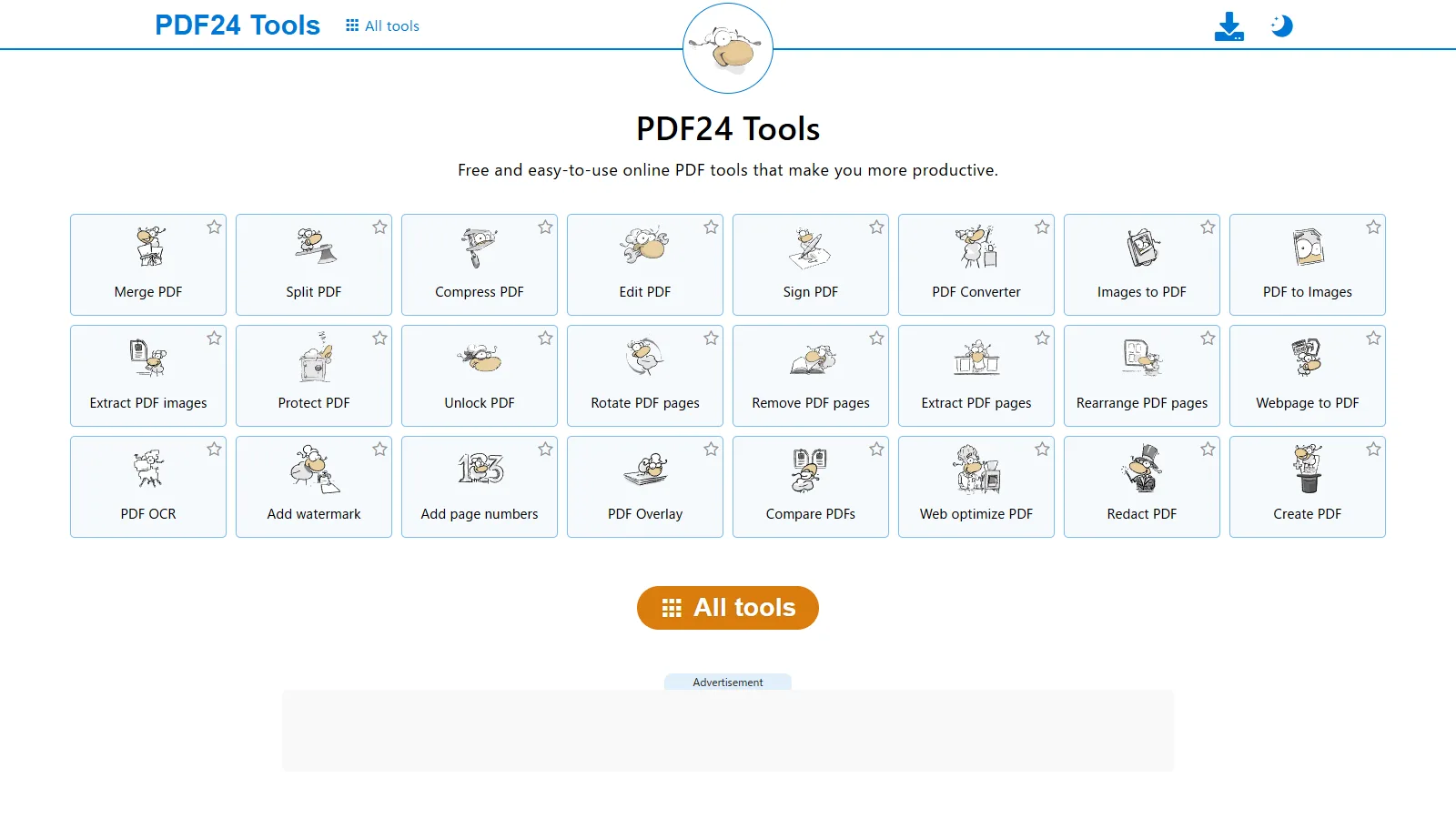
PDF24 Tools offers a large collection of free browser-based PDF utilities. Compression and merging are only part of the toolkit; you can also split, rotate, delete pages, convert files, protect PDFs, unlock PDFs, add page numbers, and more.
It is especially useful when you need to perform several small PDF operations in a row. For example, you can merge files, remove unnecessary pages, compress the result, and then convert it if needed. The interface is more functional than flashy, but that can be a strength if you simply want to get the job done without signing up for a complex platform.
4. PDF Candy
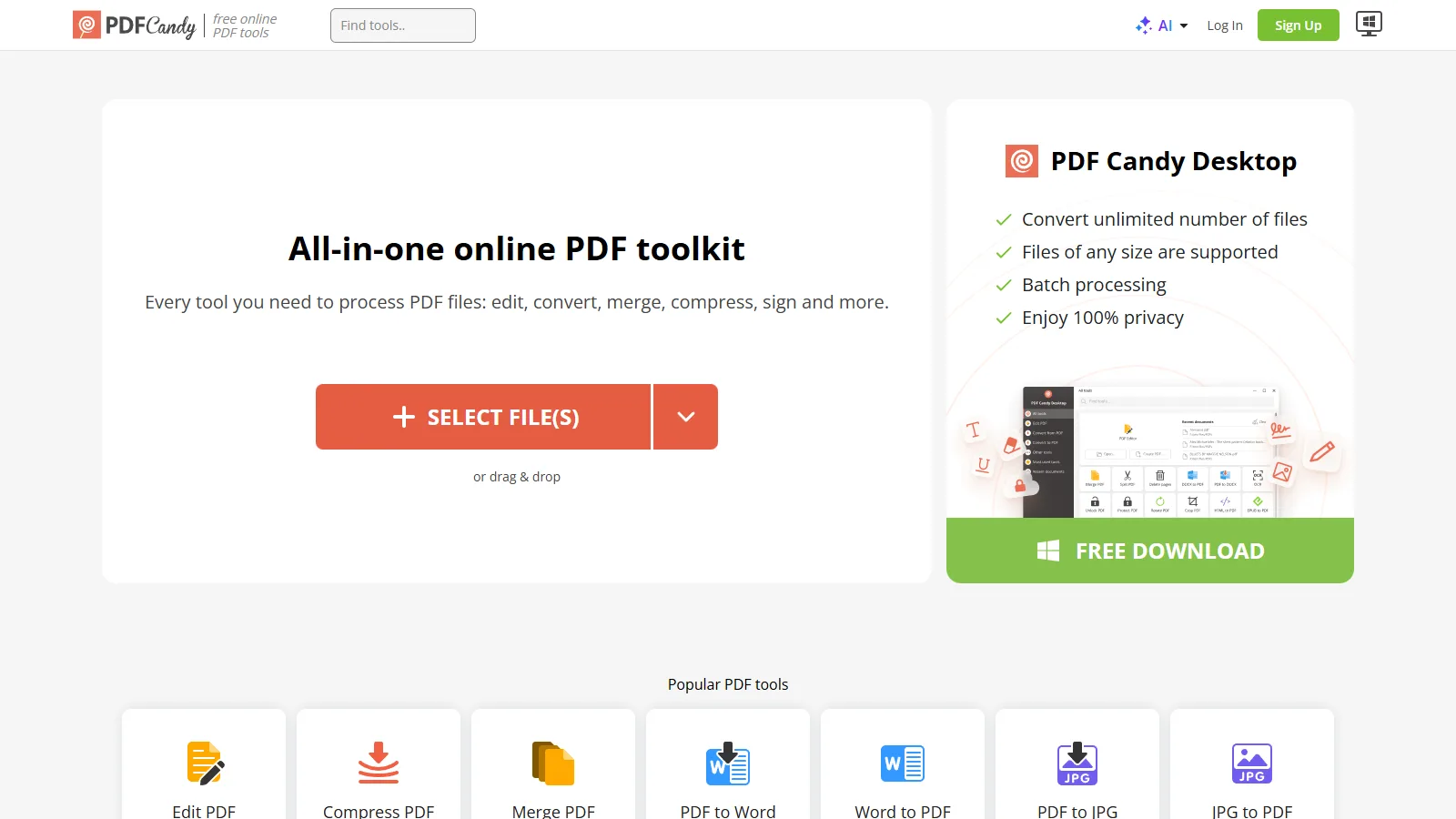
PDF Candy is an all-in-one PDF toolkit with compression, merging, conversion, editing, signing, and many other document features. It is helpful when your PDF task is not just one action, but a small workflow: compress, merge, convert, and organize.
The online version is convenient for quick work, while the desktop option can be useful for people who process many files or prefer not to depend on the browser. PDF Candy is a good fit for office users who frequently receive PDFs in different formats and need one place to clean them up. As with any online tool, check limits and privacy details for large or confidential documents.
5. PDFgear
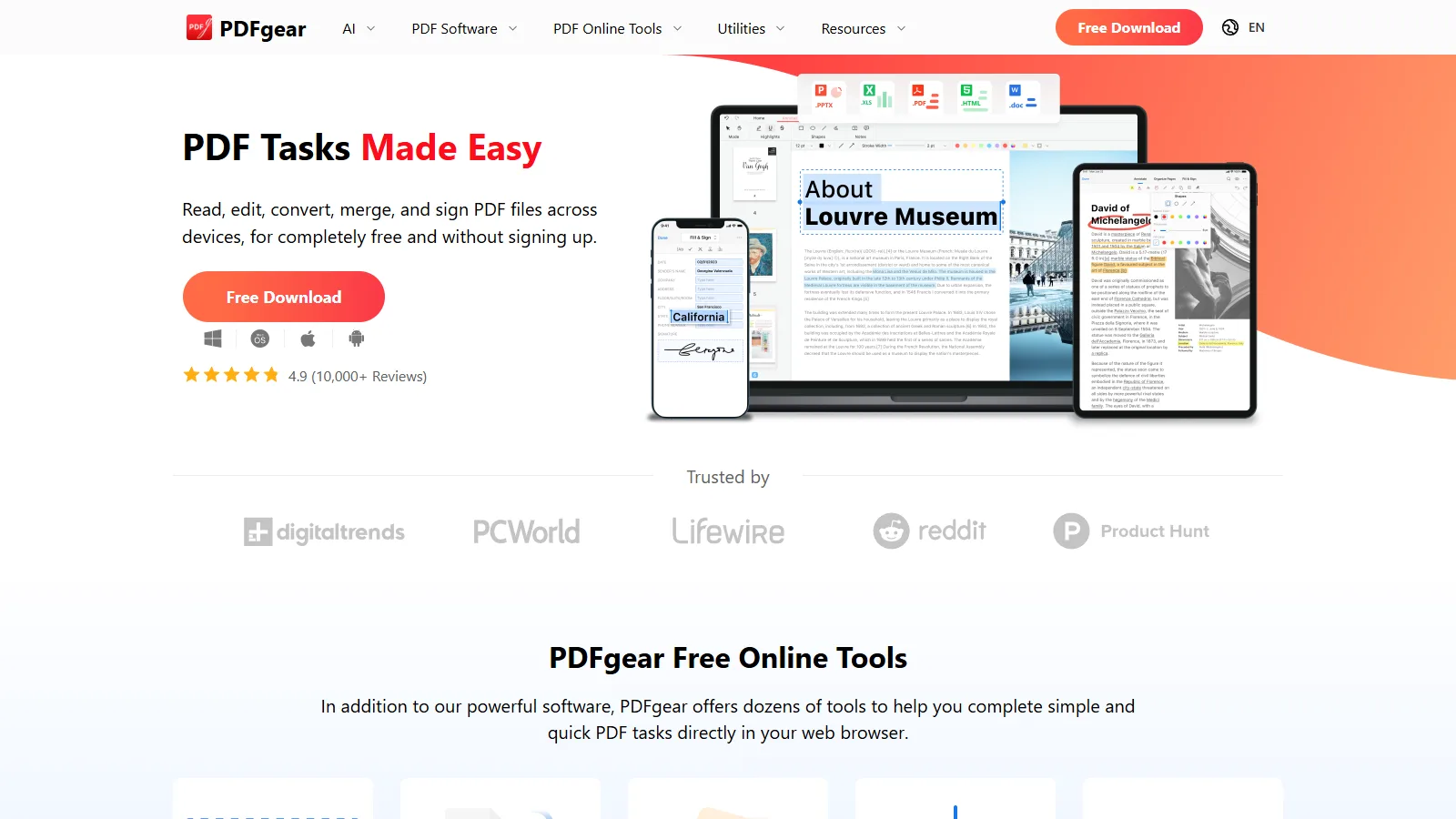
PDFgear is a practical choice when compression and merging are part of a broader PDF editing workflow. It includes online tools, desktop software, editing features, conversion, annotation, and AI-assisted PDF interaction.
If you only need to compress one file once, a simple browser tool may be faster. But if you regularly combine documents, edit pages, annotate PDFs, or work with larger files, PDFgear gives you more room to grow. It is also worth considering when privacy matters, because desktop workflows can reduce the need to upload every file to an online service.
Security Tips
Before uploading confidential PDFs, check whether the service deletes files automatically and whether you can work offline instead. For resumes, contracts, financial documents, and client files, a desktop workflow may be safer than a random online uploader.
FAQ
Does compressing a PDF reduce quality?
Usually, yes, but the difference can be small. PDF compressors reduce file size by optimizing images, removing unnecessary data, or lowering image resolution. For email sharing and online submission, medium compression is often enough. For print files, avoid aggressive compression unless you have checked the final output carefully.
Should I merge PDFs before or after compression?
For most everyday tasks, merging first and compressing afterward is easier because you can check the final file size once. If some files contain high-quality images that you want to preserve, you can compress only the large files first, then merge everything into one PDF.
Are online PDF compressors safe?
They are convenient for public documents, school files, manuals, and general paperwork. For contracts, IDs, financial records, medical files, or confidential business documents, use a trusted desktop tool or an approved company service. The right choice depends on how sensitive the file is.
Can I use these tools on mobile?
Yes. iLovePDF, Smallpdf, PDF24, and PDF Candy can work in a mobile browser, and some also provide mobile apps. For quick compression or merging one or two files, mobile is fine. For many pages or careful page ordering, desktop is more comfortable.
Which PDF tool is best for free use?
PDF24 is one of the strongest free options because it offers many PDF tools and desktop utilities. iLovePDF and Smallpdf are easier for beginners, but their free plans may have usage limits. PDFgear is useful if you want local editing and offline-friendly workflows.
What should I check after merging PDFs?
Check page order, orientation, duplicated pages, blank pages, bookmarks, and whether forms or clickable links still work. If the PDF will be submitted to a school, client, or government system, also confirm the file size limit and accepted format before uploading.
Summary
A good PDF compressor and merger can remove a surprising amount of friction from everyday document work. iLovePDF and Smallpdf are polished and beginner-friendly, PDF24 is excellent for free multi-tool workflows, PDF Candy is simple for browser-based tasks, and PDFgear is useful when you prefer desktop processing or more document control.
For casual files, online tools are usually the fastest path: upload, reorder, compress, and download. For confidential documents, local processing is often the better habit. The most practical setup is to keep one quick online tool for normal files and one desktop option for sensitive or repeated work.
Before sending or uploading the final PDF, check both quality and structure. Make sure the text is readable, images still look acceptable, pages are in the right order, and the file meets the size limit. That small review step prevents most problems with compressed or merged PDFs.
Related
Best AI Excel Formula Generators to Work Faster

ChatGPT Prompts for Students: Study Smarter Without Letting AI Do the Thinking
Top 7 Best AI Garden Design Free Tools to Create Stunning Outdoor Spaces
How to Manage Email Overload with AI: Prioritize, Delegate and Follow Up

Best AI Business Name Generators to Find Brandable Company Names
15 Best Free Ebook Sites to Download and Read Books Legally in 2026