Viggle Remake Review: Local Video Editing, Setup, VRAM and NSFW Limits
Learn Viggle Remake’s swap and edit modes, realistic GPU requirements, ComfyUI installation, keyframes, prompts, troubleshooting and NSFW restrictions.

Viggle Remake is useful when you already have the movement and camera shot you want, but need a different performer, costume, prop or setting. Its downloadable video-to-video system can run locally through ComfyUI; it is not a lightweight one-click video converter. The fastest route to a first local result is a short official example, a pre-merged int8 model and the matching workflow. Expect substantial downloads, system RAM use and careful review of faces and window boundaries.
Official weights, example workflows and documentation
What Remake changes—and what it keeps
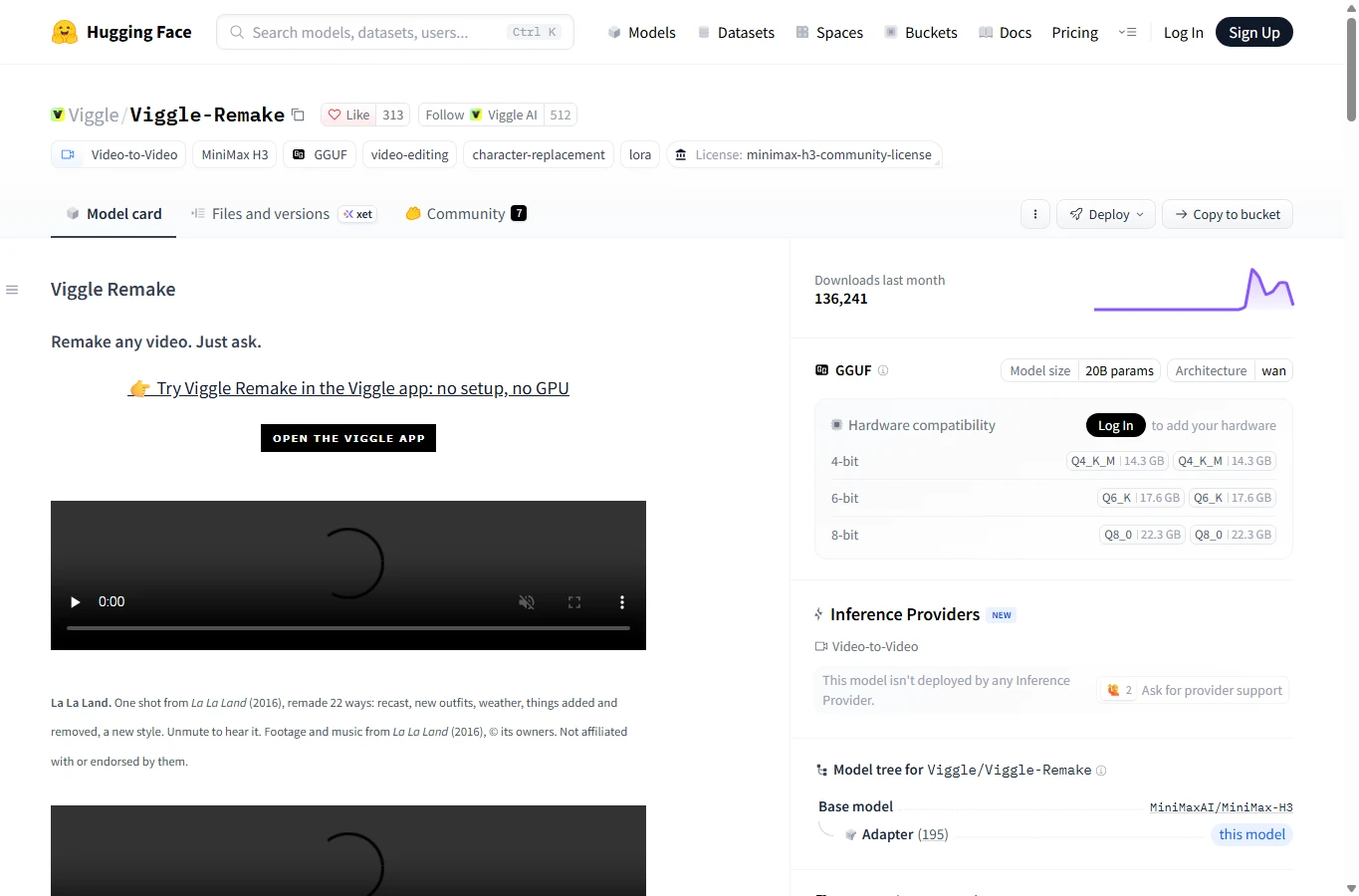
Remake has two modes built as LoRA adapters for the MiniMax-H3 base transformer. Swap replaces people or characters, including several in a shot. Edit handles objects, backgrounds, weather and lighting. The intended result preserves the source performance, camera, timing and soundtrack. Those are goals, not guarantees of pixel-perfect preservation. It edits existing footage rather than inventing an unrestricted new camera move from text.
One local render uses 90–345 frames at 24 fps, with frame count 17n+5. The official recommendation is up to 294 frames for routine work; 124 frames is about 5.17 seconds, 226 about 9.42 and 345 about 14.38. Longer films are split and assembled. The hosted Viggle app is a different interface: its product page advertises 5–60-second uploads and 720p output. Do not transfer the app’s input limit or chat controls to a single local render.
The output carries the source audio rather than generating a new voice or song. A silent source remains silent. Costume replacement therefore does not automatically make dialogue match a new character; dubbing, translation and subtitles are separate editing tasks.
Quality: official demonstrations versus actual user reports
Viggle’s selected film remakes show ambitious recasting and scene changes, but are not an independent success-rate test. Known failures in the official card include small-detail artifacts, non-humanoid characters during a long take, and time drift across cuts without pinned references. Glass, reflective surfaces, small lettering and rapid occlusion deserve close inspection.
KOBO Lab tested an RTX 5090 32GB with 128GB RAM, ComfyUI 0.44.0, CUDA 13 PyTorch and an NVFP4 text encoder. For 832×480, 226 frames, six steps, after model loading, it reports 152–156 seconds with the 21GB merged int8 file versus 198–201 seconds for Q4_K_M. It also reports a composition failure when a repainted person was enlarged: pinning that frame forced the wrong scale into the video. These are the site’s limited tests, not AirMore measurements or a guarantee for other cards.
A Reddit creator’s fighting-scene remake used an MCP agent and a custom ComfyUI worker; its new speech and subtitles came from separate audio and editing tools. It is evidence of an assembled production workflow, not proof that Remake itself translates or generates voices. A separate worker-author report identifies small-face errors and early-shot problems in a raw one-round render. That is developer feedback, not an independent benchmark or a community consensus.
KOBO Lab — RTX 5090 · Reddit — MCP / ComfyUI · Reddit — ComfyUI worker
Hardware, file sizes and the real cost of local use
For a first 832×480 manual workflow, the official guidance says to start with int8 on 16GB or more. At 12GB it lists Q4_K_M or Q8_0 with reserved VRAM and limits int8 to 124 frames. Many small-card results were emulated by restricting free memory on a B200, not measured on every named consumer GPU. Real low-VRAM defaults can behave differently. Do not buy a card solely from that table.
The merged files are approximately 21GB per int8 mode, 22.3GB for Q8_0, 17.6GB for Q6_K or 14.3GB for Q4_K_M. They already include the mode’s LoRA. The text encoder and both video/audio VAEs are additional. With the bf16 encoder, the installation below needs roughly 80GB or more of free disk including support files and download overhead; installing both int8 modes adds another 21GB. Select files rather than cloning the entire repository, which also contains alternative large packages.
Official B200 measurements report roughly 47–55GB resident system RAM at 832×480 and 55–80GB at 1280×736 with quantized files. These are observations, not universal minimums. The documented Linux RTX 5090 agent worker needs about 60GB RAM and 70GB disk for its own selected setup; it reports 3 minutes for 226 frames at 832×480 and 28 minutes for 345 frames at 1280×736. The worker’s chunked feed-forward/CUDA 13 configuration is not the same as a generic ComfyUI launch.
Local weights have no Viggle per-render credit fee, but electricity, hardware, storage, failed takes and any cloud agent or image painter still cost money. The app advertises paid access from US$7.99/month billed yearly, while its page also contains a Free-plan Remake listing that conflicts with its paid-only FAQ. Treat free hosted access as unconfirmed, inspect the actual account entitlement, and do not assume local weights include a hosted subscription.
Install the local ComfyUI workflow
Use a working, updated ComfyUI installation with compatible GPU PyTorch, Python dependencies and FFmpeg. The project documented ComfyUI 0.42.0; KOBO tested 0.44.0. The Windows PowerShell commands below are run from the ComfyUI directory in that installation’s Python environment. Portable users should use the bundled Python (usually ..\python_embeded\python.exe from the ComfyUI folder) instead of installing packages into an unrelated system Python. Verify python –version and ffmpeg -version first. This guide checks the documented process; AirMore did not install or render the model.
The first block downloads the native int8 swap model, base text encoder/VAEs, node pack, workflows and example inputs. It avoids downloading the bf16 diffusion model that the merged int8 file replaces. Restart ComfyUI after copying the node directory. On Linux the same hf commands work, but replace Copy-Item with cp and use the appropriate paths.
In the graph, choose qwen3vl_32b_minimax_h3_bf16.safetensors in Load CLIP, type minimax; choose the video fp16 VAE and audio fp32 VAE separately. The native int8 option does not need ComfyUI-GGUF. GGUF is an alternative for lower VRAM: install its node pack, select a matching quantized mode and use Unet Loader (GGUF). Do not download all precisions to try the first example.
Windows PowerShell: selected files and node pack
if (Test-Path ..\python_embeded\python.exe) { Set-Alias python (Resolve-Path ..\python_embeded\python.exe).Path }
python -m pip install -U "huggingface_hub>=1.0"
if (Test-Path ..\python_embeded\Scripts) { $env:Path = (Resolve-Path ..\python_embeded\Scripts).Path + ";" + $env:Path }
hf download Comfy-Org/MiniMax-H3 text_encoders/qwen3vl_32b_minimax_h3_bf16.safetensors vae/minimax_h3_video_vae_fp16.safetensors vae/minimax_h3_audio_vae_fp32.safetensors --local-dir models
hf download Viggle/Viggle-Remake --include "comfyui/*" --include "examples/inputs/*" --local-dir Viggle-Remake
Copy-Item -Recurse .\Viggle-Remake\comfyui\ComfyUI-Viggle-Remake .\custom_nodes\
hf download Viggle/Viggle-Remake int8/viggle_remake_swap_pruned_int8_convrot.safetensors --local-dir Viggle-Remake
New-Item -ItemType Directory -Force .\models\diffusion_models | Out-Null
Copy-Item .\Viggle-Remake\int8\viggle_remake_swap_pruned_int8_convrot.safetensors .\models\diffusion_models
Render the supplied example before using your own clip
Copy the bundled swap source and two references into ComfyUI/input with the exact names shown below. Drag Viggle-Remake/comfyui/workflows/remake_swap_ui.json into the canvas. The supplied example contains its prompt, two pins, 226 frames, 832×480 and seed 0. It should be your first check before replacing inputs.
For the merged int8 path, remove Load Diffusion Model and LoraLoaderBypassModelOnly from that original graph. Add a fresh Load Diffusion Model, select viggle_remake_swap_pruned_int8_convrot.safetensors, and connect its MODEL output to Viggle Remake Keyframe Until. Keep the rest of the graph and the swap sigmas. Do not apply a Remake LoRA again on top of the merged model.
Queue once and inspect output/viggle_remake/. Compare motion, camera, performer scale and audio, not just one attractive frame. If you instead use an unmerged bf16 fl2va base, load the separate matching LoRA through LoraLoaderBypassModelOnly—not the plain model-only merging loader. The base must be fl2va rather than ref2va. The two installation paths should not be mixed.
To use edit mode, download viggle_remake_edit_pruned_int8_convrot.safetensors, use remake_edit_ui.json, select the edit model and its own sigmas. Its bundled source/ref files have different names. Changing only the model while retaining swap’s sampling grid is not the documented edit workflow.
Place the official swap example inputs
Copy-Item .\Viggle-Remake\examples\inputs\swap-pineapple-mascot\source.mp4 .\input\remake_swap_source.mp4
Copy-Item .\Viggle-Remake\examples\inputs\swap-pineapple-mascot\ref1.png .\input\remake_swap_ref1.png
Copy-Item .\Viggle-Remake\examples\inputs\swap-pineapple-mascot\ref2.png .\input\remake_swap_ref2.png
hf download Viggle/Viggle-Remake int8/viggle_remake_edit_pruned_int8_convrot.safetensors --local-dir Viggle-Remake
Copy-Item .\Viggle-Remake\int8\viggle_remake_edit_pruned_int8_convrot.safetensors .\models\diffusion_modelsPrepare your own references and six-section prompt
Start with a single shot and a clearly visible consenting subject or an ordinary object. Convert the clip to 24 fps before giving frames to ComfyUI. The example command below makes a 124-frame test. Forcing 832×480 deliberately changes the framing; inspect the preview and use the source aspect when composition matters. The manual conditioning node otherwise scales and center-crops onto its canvas.
Extract a frame from that exact converted video, repaint only the intended change with an image editor you can use, and keep camera, pose, scale, aspect and background aligned. A painted frame is an edited source frame, not merely a portrait of the replacement character. Use one to four references. In pins, enter the corresponding output frame for each reference, in the same order, or leave pins completely blank. For example, a frame at two seconds in a 24fps clip is around index 48; confirm zero-based indexing in the actual preview.
Pinning locks the reference’s composition at that frame as well as its appearance. If your editor made the subject larger or shifted the camera, fix the reference before pinning it. One keyframe per shot is a useful starting point; add another for a turn or a new character. Leave the documented keyframe_until value at 0.9 for your first run.
Write all six sections, in this order: subject_definitions, summary, retention_analysis, detailed_description, overall_soundscape, non_diegetic_music. Use the target-video description rather than an imperative such as ‘replace him’. Identify <Video 1>, <Picture 1> and distinct <Subject N> labels. In retention_analysis, explicitly separate the changed object from what remains. Every timestamp must fit the chosen frame window. The compact example below assumes your painted reference removes a red bucket from a fixed-camera terrace; it is a writing template, not a verified render.
Keep the six-step euler setup and the mode-specific ManualSigmas supplied in the graph. For swap: 1.0, 0.990476, 0.965243, 0.923077, 0.8, 0.631579, 0.0. For edit: 1.0, 0.983607, 0.96, 0.923077, 0.857143, 0.705882, 0.0. An English example is provided because it matches the documented prompt style; the UI or a translated article does not establish equally reliable prompting in every language.
For the bucket-removal example, use the edit graph and edit model. Put source.mp4 and your repainted ref1.png in ComfyUI/input, choose them in Load Video and Load Image, and disconnect unused reference inputs if using only one. Set Conditioning frames to 124, short_edge to 480 and pins to 48 only if that image was painted from frame 48. Keep source audio connected. Paste the six sections into prompt, queue one take and inspect the saved video before increasing duration.
Prepare a short 24fps source and extract a frame
ffmpeg -i in.mp4 -vf "fps=24,scale=832:480" -frames:v 124 -t 5.166667 source.mp4
ffmpeg -i source.mp4 -vf "select=eq(n\,48)" -frames:v 1 frame48.png
Illustrative six-section edit prompt
subject_definitions:
<Subject 1> is the empty stone terrace shown in <Picture 1>, with pale rectangular paving, a low wall and a wooden chair. The red bucket from <Video 1> is absent.

summary:
A fixed-camera view of an empty terrace in soft daylight. The chair and wall remain in place while leaves move gently.

retention_analysis:
Remove only the red bucket. Preserve the camera, paving pattern, chair, wall, lighting, leaf movement and source soundtrack. Fill the bucket's former area with matching paving. <Picture 1> shows the target composition.

detailed_description:
[Shot 1] 00:00.000-00:05.000: A continuous fixed shot of <Subject 1>. No bucket appears. Only the existing leaves move as in <Video 1>.

overall_soundscape:
Keep the original ambient soundtrack from <Video 1> throughout.

non_diegetic_music:
N/A
Long videos, agents and troubleshooting
For long films, MCP lets an agent plan shots, paint keyframes, queue windows, inspect takes and assemble the soundtrack. The documented single-5090 ComfyUI worker is a Linux setup, with an NVIDIA driver supporting CUDA 13, uv, hf, FFmpeg 5.1+ and an MCP-capable agent. It is an advanced route after one manual clip works. Below 32GB, the agent path is not documented as tested; use the manual workflow first.
The MCP coordinator, video worker, image painter and language model are separate components. Calling a cloud painter or agent is not an all-local pipeline. You can prepare references locally for manual use; a compatible local paint endpoint for the agent is not automatically validated just because an OpenAI-style API field exists. Budget both money and image-call quotas before a long run.
Red missing nodes: confirm custom_nodes/ComfyUI-Viggle-Remake is installed and restart the correct ComfyUI instance. Unchanged subject: check swap/edit model and, for an unmerged base only, the correct LoRA loader. OOM or CUDA invalid argument: shorten to 124 frames, reduce to 480 short edge, close other GPU jobs, then consider GGUF and the documented reserve-vram setting. On 12GB the project lists –reserve-vram 8 for its 480p GGUF tests; it is a starting configuration, not an extra 8GB of VRAM.
A GPU that can hold the file can still run out of memory on reference tokens and activations. The CUDA 12.8 int8 fallback and the CUDA 13 worker behave differently, so ‘int8 failed at 736p’ is not a universal ban. Stretched subjects: repaint the reference at matching composition. Drift at a cut: split on the cut and pin the appropriate frame. Silence: reconnect source audio through Get Video Components and audio VAE; Remake will not invent the missing track. After an error, preserve the exact software versions, frame count, resolution and log instead of changing every setting at once.
NSFW, privacy and commercial licensing
Hosted Viggle rules explicitly prohibit adult sexual content, pornography and nudity, so the official app should not be recommended as an NSFW service. The downloadable model card says identity/consent safeguards from the upstream image editor are not built into Remake. That technical statement does not prove reliable adult-video generation or grant permission for it. No controlled, reproducible NSFW success rate was verified here, and AirMore did not run an NSFW test. Claims that ‘local means uncensored and allowed’ conflate technical filtering with rules.
Use authorized footage, adult likenesses with permission and music you can use; do not treat an edited keyframe as proof of consent. Label generated media. For privacy, local manual processing can keep frames on your machine, but cloud keyframe painters, agents or shared storage change that boundary. The audio soundtrack and extracted face frames can be sensitive even if the final video stays local.
The code is Apache 2.0, while weights inherit the MiniMax H3 Community License—not a permissive license for everything. Its ordinary territory excludes the EU, UK, South Korea and US unless separately authorized, and restricts outputs outside that territory. Commercial products must display MiniMax H3; yearly commercial product/service revenue over US$20 million requires prior written authorization. Redistribution duties and acceptable-use restrictions remain. The repository asks for visible Viggle Remake credit. Example footage and likenesses are not licensed by the model release, and the optional InsightFace-based agent check has separate noncommercial-research model terms.
Verdict: who should use Viggle Remake?
Choose Remake when the source performance is already right and you want to alter who or what appears in it. Its strong idea is painted-keyframe control plus reusable local rendering, not effortless editing on every laptop. Start with one mode, one official example and then one 124-frame original shot. Keep reference quality and preservation checks ahead of longer duration. If you need a new voice, exact product lettering, guaranteed facial identity or a fully automatic consumer-GPU film remake, plan additional tools and review time instead of assuming those are solved.
Checked November 12, 2026. Documentary review and documented-workflow guide using official files, KOBO Lab’s scoped measurements and attributed user/developer reports; AirMore did not install the model or run video/NSFW benchmarks. Commands and paths were checked against the release documentation. AI assisted text, localization and editorial covers; covers are not Remake outputs. Software versions, access and pricing may change.
Related Reviews
MiniMax M3.1 Flash Review: Coding, API Cost, Open Weights and Limits

Canva Craft Review: 2K Images, Wide Formats, Text and Editing Limits
MiniMax H3 Image Review: 4K Editing, VRAM, Pricing and NSFW Limits
MiniMax H3 Image Studio Review: ComfyUI Images, Reference Editing & Video Workflow
Krea 2 Edit Review: Downloads, ComfyUI Workflows and Prompt Examples
Top 10 AI Models in 2026: Arena Rankings, Prices and Best Uses