

Adding narration to a silent recording is different from putting quiet music beneath speech. For prepared files that should start together, AirMore replaces the soundtrack without re-encoding compatible tracks. For keeping dialogue and music together, use a mixer such as Clideo, Kapwing or VEED. Choose the audio operation before comparing “free” export buttons.
AirMore is this publisher’s own tool and receives featured placement. These choices are organized by documented workflow, not an independently measured quality ranking. Attaching a recorded voiceover does not itself generate speech, translate dialogue or lip-sync it.
First decide: replace the soundtrack or mix it
Replacement removes the old soundtrack and uses the new audio. Mixing combines audible sources and needs volume balancing; keeping two selectable audio tracks in a file is a third operation, not the same as hearing both together. For voice plus music, the practical choice is a multitrack editor or an already mixed audio file. A speech recording with backing music will lose that backing when its soundtrack is replaced.
Four tools and the jobs they fit
AirMore Video Audio Merger — prepared tracks and local processing
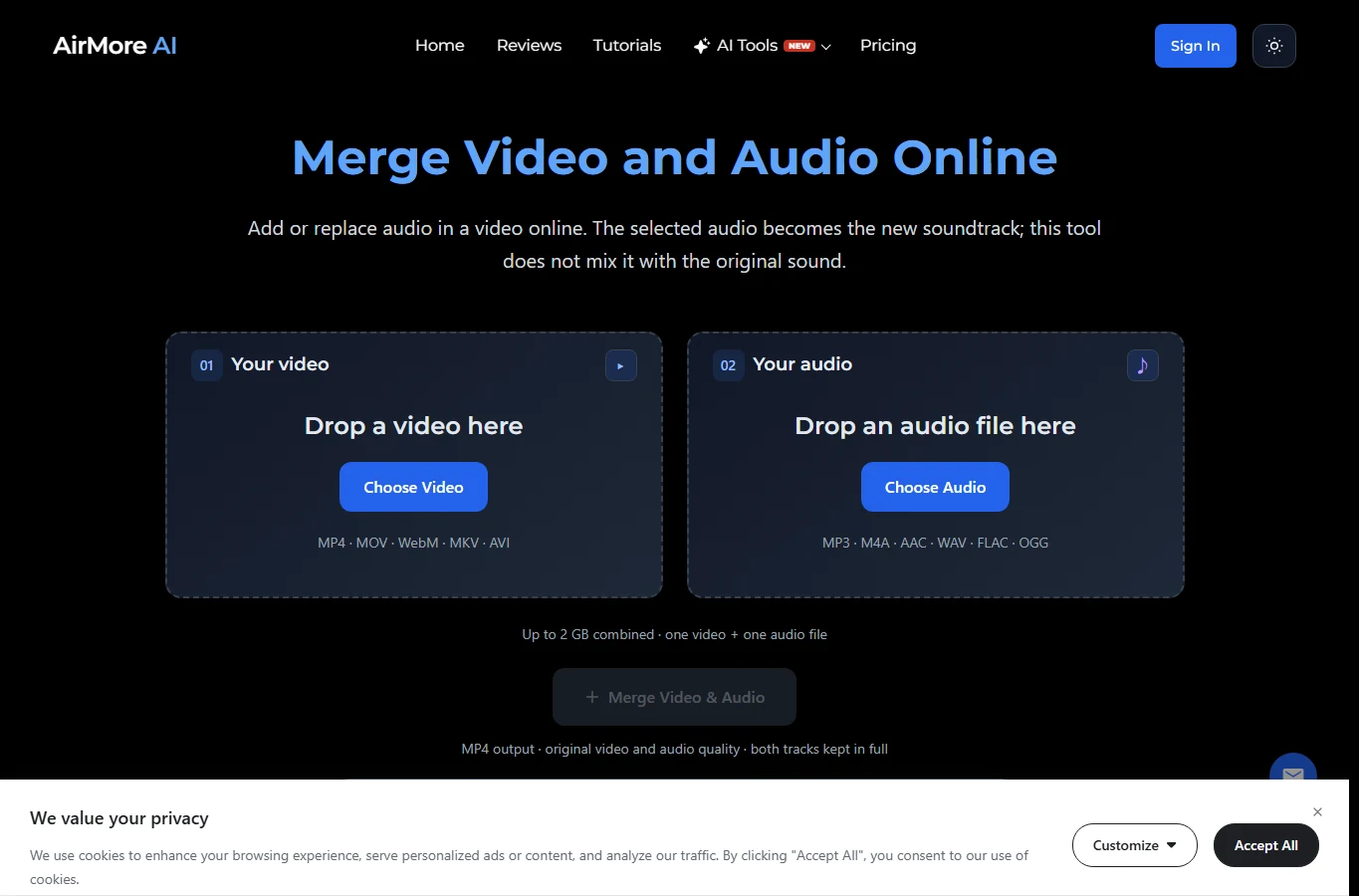
Choose one video and one audio file, up to 2GB combined. Compatible tracks are copied into MP4 without re-encoding; the selected file’s first audio track replaces original sound. Original subtitles and extra tracks are excluded. It is free without an account and processes media on the device, although the browser downloads its engine. This makes it a useful first choice for an already aligned narration or replacement song.
There is no mixing, trimming, looping, fade, volume control or automatic synchronization. Both sources start at zero and remain full-length: shorter audio leaves silence; audio longer than the picture can continue, with final-picture behavior depending on the player. Matching file extensions do not guarantee compatible codecs. Prepare timing beforehand; use a desktop browser for large files because a phone may run out of memory.
Clideo — adjust one added soundtrack against the original
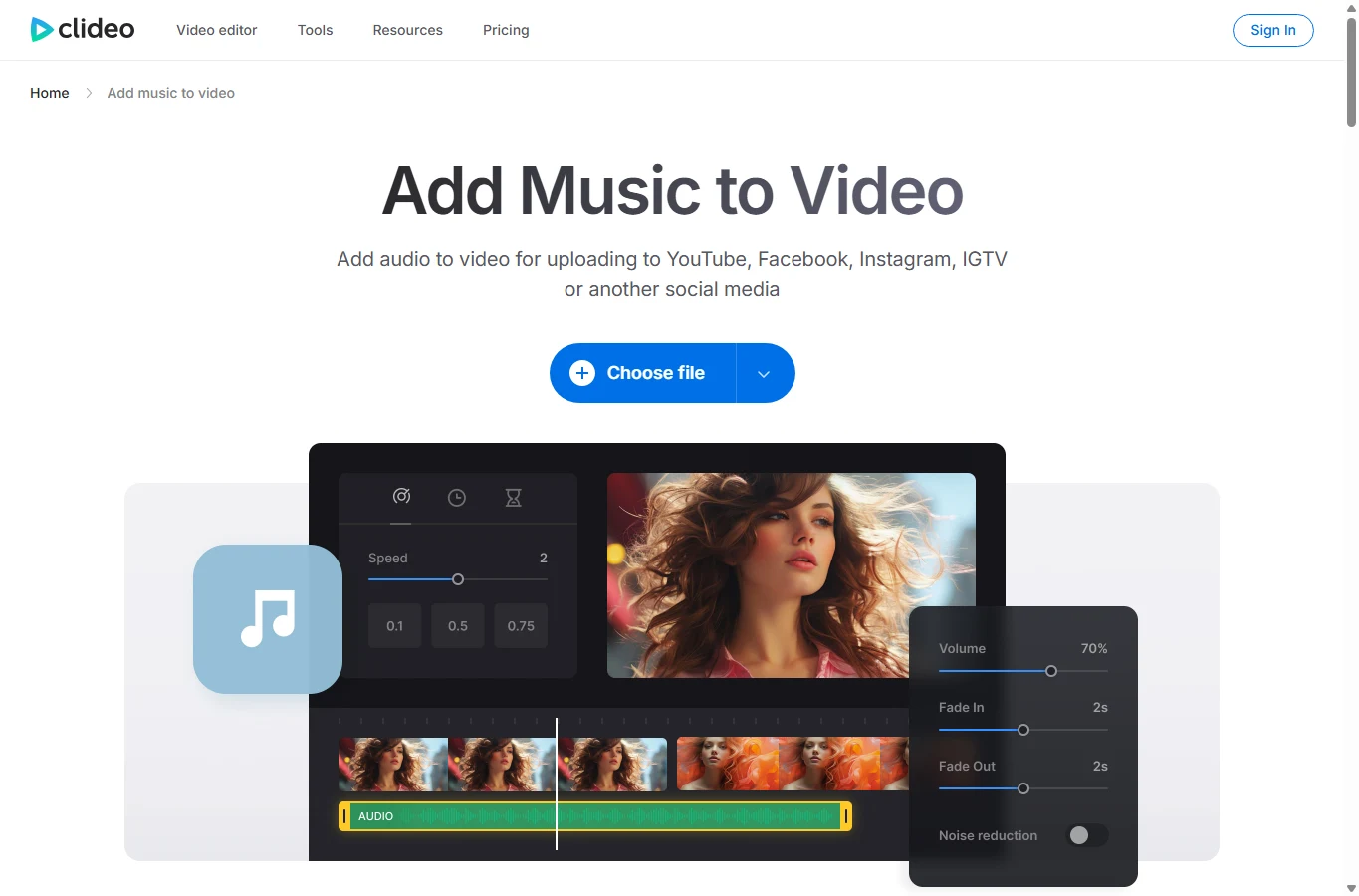
The add-audio tool lets you trim or loop the added track, set its start and independently adjust original-video and added-audio volume. Mute the original for replacement, or lower music while keeping dialogue for a simple mix. That distinction is more useful than the generic “merge” label.
This individual tool is not the same as Clideo’s all-in-one multitrack editor: the FAQ directs users there for several added tracks. Free visitor/registered use has a 500MB per-file limit and a Clideo watermark according to its help center. Paid subscriptions renew automatically. Media is uploaded, so account access controls are not equivalent to local-only processing. Export format options do not establish lossless stream copying.
Kapwing — layered narration, music and sound effects
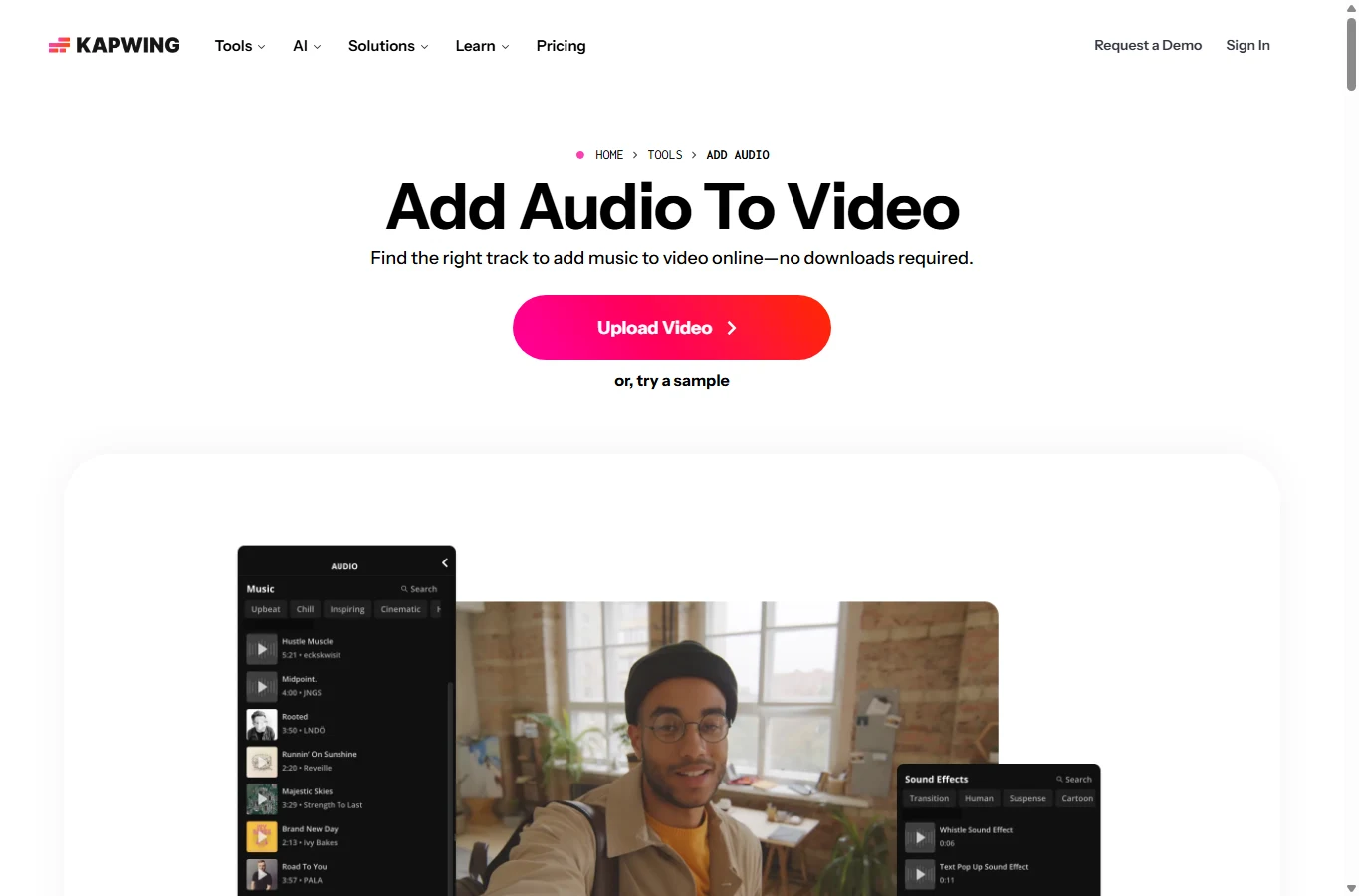
Kapwing supports removing, swapping and layering audio in a broader editor. It suits projects where several sounds must occur at different moments, rather than one ready-made soundtrack. Put dialogue and music on separate layers, adjust their levels, and preview the exact points where speech starts or a sound effect lands.
Its checked free plan exports at 720p, up to four minutes, with a watermark; higher-resolution and watermark-free delivery are paid features. A 1080p source exported at 720p has not retained its original picture dimensions. Cloud storage and workspace projects also mean uploading media. Compare export duration and resolution separately from AI credits, which fund different features; ordinary layering need not be an AI-generated task.
VEED — timeline mixing, fades and follow-up editing
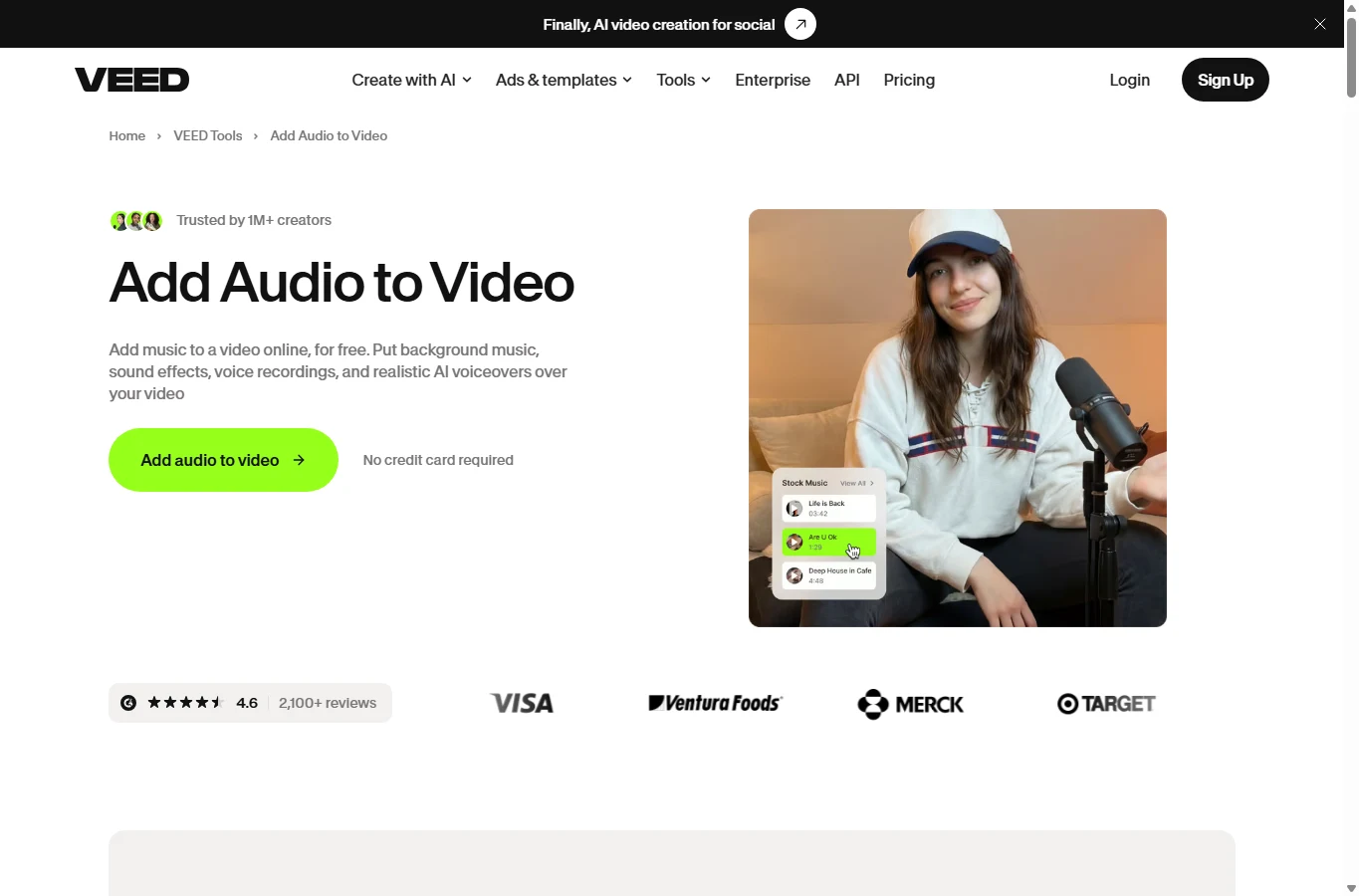
VEED documents separate audio layers, track start/stop positioning, volume adjustment and fades. It can keep original dialogue while adding music and effects; mute the original only when replacement is intended. This is useful when a narration, captions and visual edits need to be prepared in one project.
Its export help specifies 720p for the free plan, with watermarks on free-account exports. Paid terms and AI allowances vary; basic audio placement and generated voice/dubbing allowances should not be treated as one entitlement. Files are uploaded, and a shareable project is not proof of a local workflow. Do not infer automatic waveform or lip synchronization merely because clips can be moved on the timeline.
Sync and length: solve the actual timing problem
A fixed offset and growing drift need different fixes. If the whole voice track is 200ms late, move it earlier in an editor—about six frames at 30fps. If the start aligns but the end drifts, examine recording clocks, variable-frame-rate footage and timestamps; one shift will not fix the whole clip. Check a clap or visible mouth movement near both start and end, then check the downloaded file, not only the preview.
For example, with a 30-second video and 45-second audio, AirMore keeps both tracks; the soundtrack is not automatically cut at 30 seconds. With a 30-second video and 20-second audio, the remaining picture is silent. These are workflow examples, not AirMore test measurements. If the final deliverable must be exactly 30 seconds, trim or extend deliberately in an editor; looping music and stretching speech produce very different results.
Picture quality, export costs and privacy
Stream copying preserves encoded frames when compatible; it does not repair a blurry source. Timeline compositing normally renders a new export unless a specific stream-copy mode is documented. Keeping “1080p” or the same frame rate is not proof of identical encoded quality. For delivery, inspect text edges, gradients, frame rate, audio clipping, watermark and the last seconds. Choose one final export to reduce repeated encoding.
AirMore states local media processing, while Clideo, Kapwing and VEED use uploaded/project workflows. Local processing still downloads code and can leave a downloaded output on your device; it is not a promise of zero network activity. For confidential footage, confirm your organization’s permitted workflow. For cloud projects, consider storage, sharing permissions, deletion and collaborators rather than assuming that closing the tab removes files. Use recordings and music you are allowed to edit and publish.
A workflow that prevents the wrong soundtrack
- Keep originals. Decide whether original speech must remain, and whether the new audio is already aligned and correctly balanced.
- For AirMore, select the video and audio in their separate boxes, confirm combined size, run Merge and download the MP4. Keep the tab open; if preview is silent, test the downloaded file in a compatible player before diagnosing failure.
- For mixing, import both files in a timeline editor, retain or mute the original intentionally, place the added audio, adjust volume and trim/loop only where appropriate. Set the project’s final end point.
- Export a short representative sample before committing to a paid plan. Verify resolution, watermark, synchronization, peak levels and length in the actual output. Compare monthly/annual billing, renewal and cancellation as well as AI credits.
- Check the final beginning, a middle point and the end on the target playback device. Choose local replacement for prepared tracks, simple level control in Clideo, or layered editing in Kapwing/VEED.
Checked November 17, 2026 against official tool, pricing and help pages. Documentary workflow comparison; no controlled quality or privacy test was performed. Limits can change by plan/region. Text and editorial covers were prepared with AI assistance; tool images are real page captures.
Related
AI Phone Guide 2026: Best AI Assistant and AI Agent Tools

7 Vocal Remover Tools: Export Audio, Isolate Vocals and Make Instrumentals
YouTube Script Template: Copy-and-Use Structures for Better Videos

How to Transcribe and Translate TikTok Video to Text in 2026
Best Alternatives to OpenClaw
How to Manage Email Overload with AI: Prioritize, Delegate and Follow Up