
The best AI phone setup depends on what you want the phone to do. For everyday Android assistance, start with Gemini or Perplexity. For repeatable iPhone workflows, Apple Intelligence inside Shortcuts is the practical starting point. Natural AI Phone offers a purpose-built option in Japan, while Open-AutoGLM and Mobilerun suit people prepared to configure device automation.
An assistant that explains a screenshot is useful, but an agent that actually updates a calendar or navigates an app has different requirements. Check the exact action, supported device and country before paying for a subscription or replacing your phone. A powerful language model alone does not give an app permission to operate every other app.
Updated September 10, 2026. Availability and costs below are tied to specific features, not to the broad “AI phone” label.
What an AI phone agent actually does
A smartphone AI agent interprets a goal, chooses actions, interacts with apps or device controls, and checks what happened. For example, “find a café near tomorrow’s meeting and prepare a reminder” combines information retrieval, location context and an action. A chatbot may describe the steps; an agent needs a working connection to the relevant apps to carry them out.
| Category | How it works | What to expect |
|---|---|---|
| AI assistant | Answers questions, drafts text and invokes supported actions | Useful daily help; action coverage varies |
| App-connected agent | Calls functions exposed by connected services or apps | Defined integrations rather than unrestricted screen access |
| Screen-control agent | Reads the interface and taps, types or swipes | More flexible, but app redesigns and unexpected screens can cause mistakes |
| AI-enhanced automation | Adds model reasoning to a workflow you configure | Predictable task structure, with AI handling unstructured input |
Here, “phone agent” means an agent for a smartphone. Telephone receptionists and AI sales callers are a separate category. Also distinguish where you issue a request from where it runs: a cloud agent opened on a phone may operate a remote browser rather than your handset. If you want broader desktop or server automation, see our OpenClaw alternatives guide.
Six options compared
| Option | Best fit | Device / availability | Cost and key limit |
|---|---|---|---|
| Gemini | Android assistance and eligible screen automation | General app coverage is broader; screen automation has a restricted device/country rollout | Non-subscriber access exists on eligible devices; quotas apply |
| Apple Intelligence + Shortcuts | Reusable iPhone workflows | Compatible iPhone, supported iOS and language; Japanese supported | No separate Shortcuts fee; compatible hardware required |
| Perplexity Android Assistant | Research followed by supported phone actions | Android app and default-assistant setup | Free app with optional paid services; app actions vary |
| Natural AI Phone | Integrated AI phone experience in Japan | SoftBank device, released April 24, 2026 | ¥93,600 listed handset price including tax; line charges separate |
| Open-AutoGLM | Custom Android/HarmonyOS experiments | Computer, debugging connection and model endpoint | Open-source framework; inference or server costs separate |
| Mobilerun (formerly DroidRun) | Developer automation and app testing | Local framework; Android and separate iOS setup | MIT framework; model usage and managed cloud plans separate |
These are use-case recommendations, not a universal performance ranking. Consumer assistants, a dedicated handset and developer frameworks require different amounts of setup; comparing them only by a benchmark score would conceal the main buying decision.
Which AI assistant or agent should you use?
1. Gemini — the Android starting point, with a separate screen-automation beta
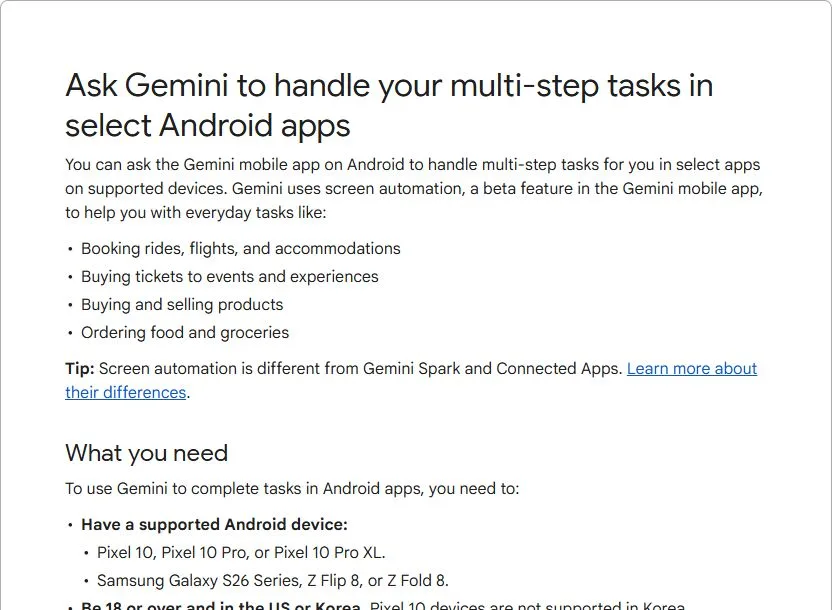
Gemini is a sensible first stop if your routine already depends on Google services. Its ordinary assistance and Connected Apps can reduce app switching, while screen automation goes further by interacting with supported Android apps. Treat these as separate capabilities: being able to use Gemini chat does not establish eligibility for screen control.
Google’s current screen-automation requirements list Pixel 10, 10 Pro and 10 Pro XL, plus Galaxy S26 series, Z Flip 8 and Z Fold 8. Users must be 18 or older, use a personal Google Account, and be in the US or Korea; Pixel 10 devices are excluded in Korea. The beta supports English and Korean, so it is not presently a Japanese-language screen-control recommendation.
Start with a bounded task such as preparing a grocery cart. Supported task types differ by handset, and some newer shopping or travel actions are limited to the foldables. Google also distinguishes stopping a task from taking control: Pixel 10 and Galaxy S26 currently support stopping rather than the full take-control flow. Check the account limits before relying on repeated daily automation.
2. Apple Intelligence + Shortcuts — best for a workflow you want to reuse
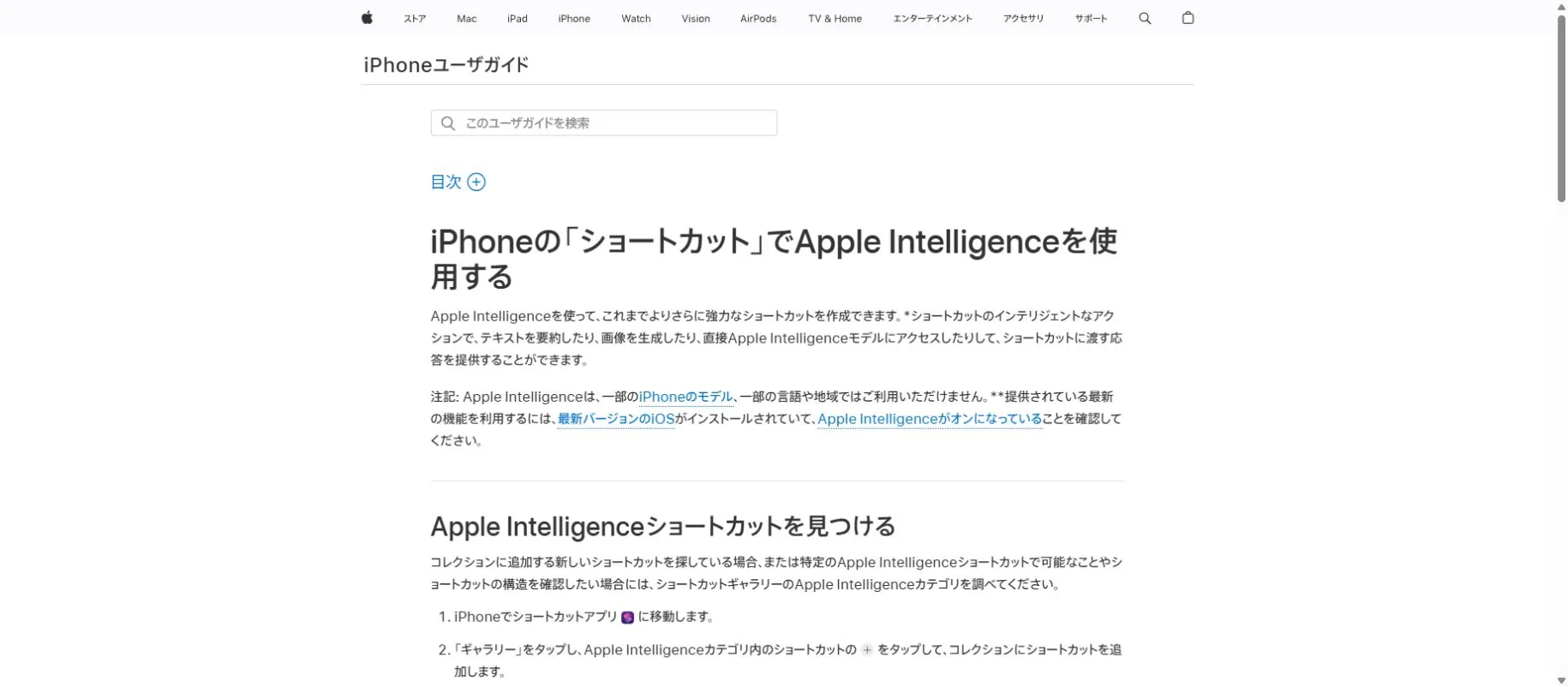
On an iPhone, Shortcuts offers a concrete way to put AI output to work. The Use Model action can pass an input to an on-device model, Private Cloud Compute or an extension model, then feed the response to the next action. That is useful for turning a shared article into a short note, extracting a shopping list from text, or formatting information before saving it.
The advantage is the visible workflow: you decide what receives the input and what happens afterward. It still depends on the actions available to Shortcuts, so it is not a promise that Siri can freely tap through every third-party app. A repeatable sequence is often a better fit than open-ended screen control when the same job comes up every day.
Apple lists iPhone 15 Pro models and iPhone 16 models or later among Apple Intelligence-compatible devices. Japanese is supported, although feature and regional exceptions remain. There is no separate Shortcuts subscription; third-party services can have their own charges. Choose an on-device model for suitable offline text tasks, and remember that an action which retrieves a web page still needs connectivity.
3. Perplexity Android Assistant — useful for quick research and supported actions
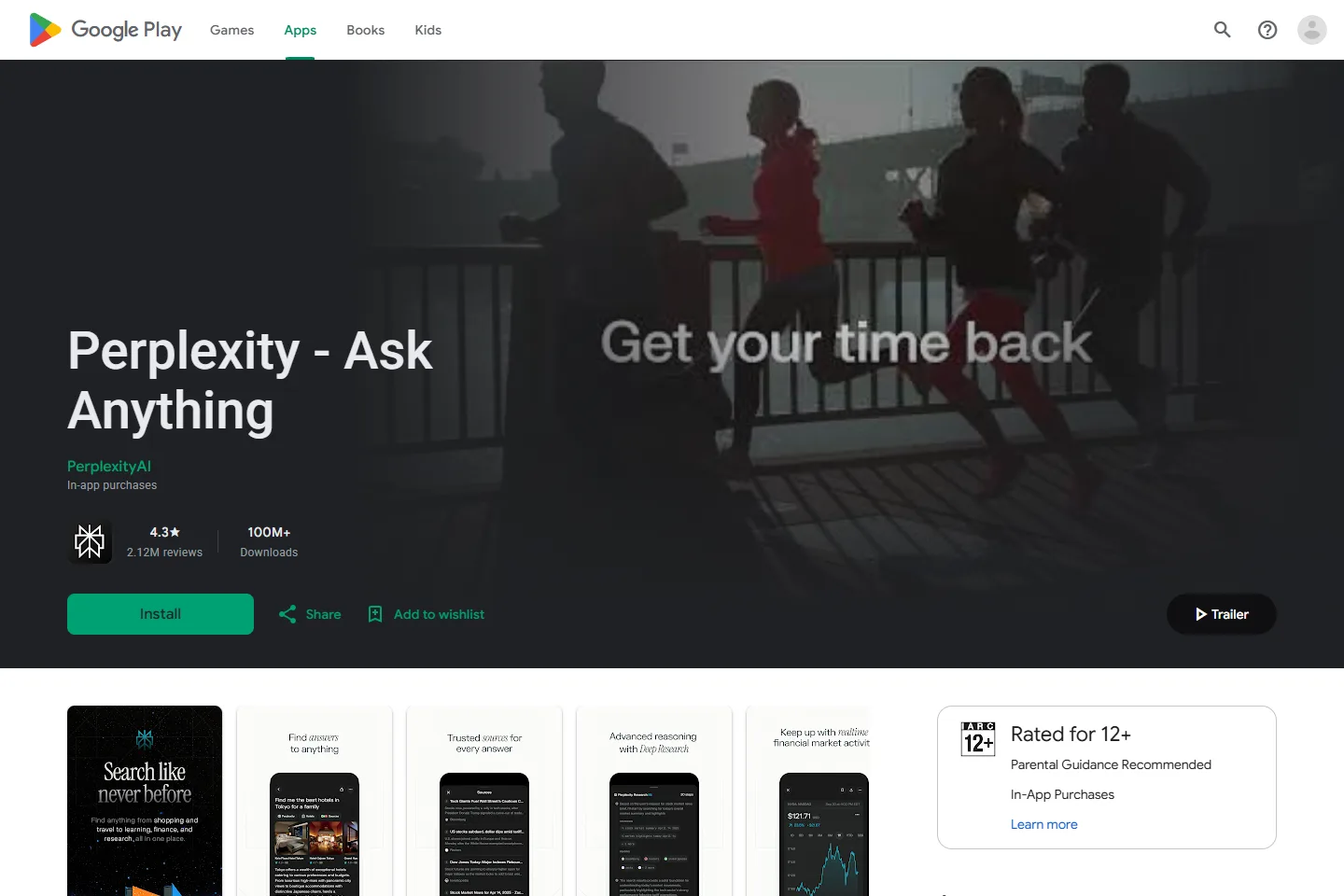
Perplexity is worth trying when the task begins with a question and you want to continue into an action. Its Android Assistant provides a device-level assistant experience, rather than requiring you to open a fresh chat for each request. The Android app is free to install; paid Perplexity features and services remain separate considerations.
The important setup step is Android’s default digital assistant, not simply installing the app. Perplexity’s official setup instructions direct users to Settings → Apps → Default Apps → Digital assist app, then select Perplexity. Samsung side-key settings and other manufacturer controls can affect how you launch it. Test one information request and one harmless action before building a routine around it.
Use the supported actions available on your own device as the deciding factor. An Android assistant is not equivalent to an iOS voice app, and app availability does not guarantee identical permissions on both operating systems. For sensitive messages or bookings, review the actual result in the destination app.
4. Natural AI Phone — a dedicated AI smartphone for Japan
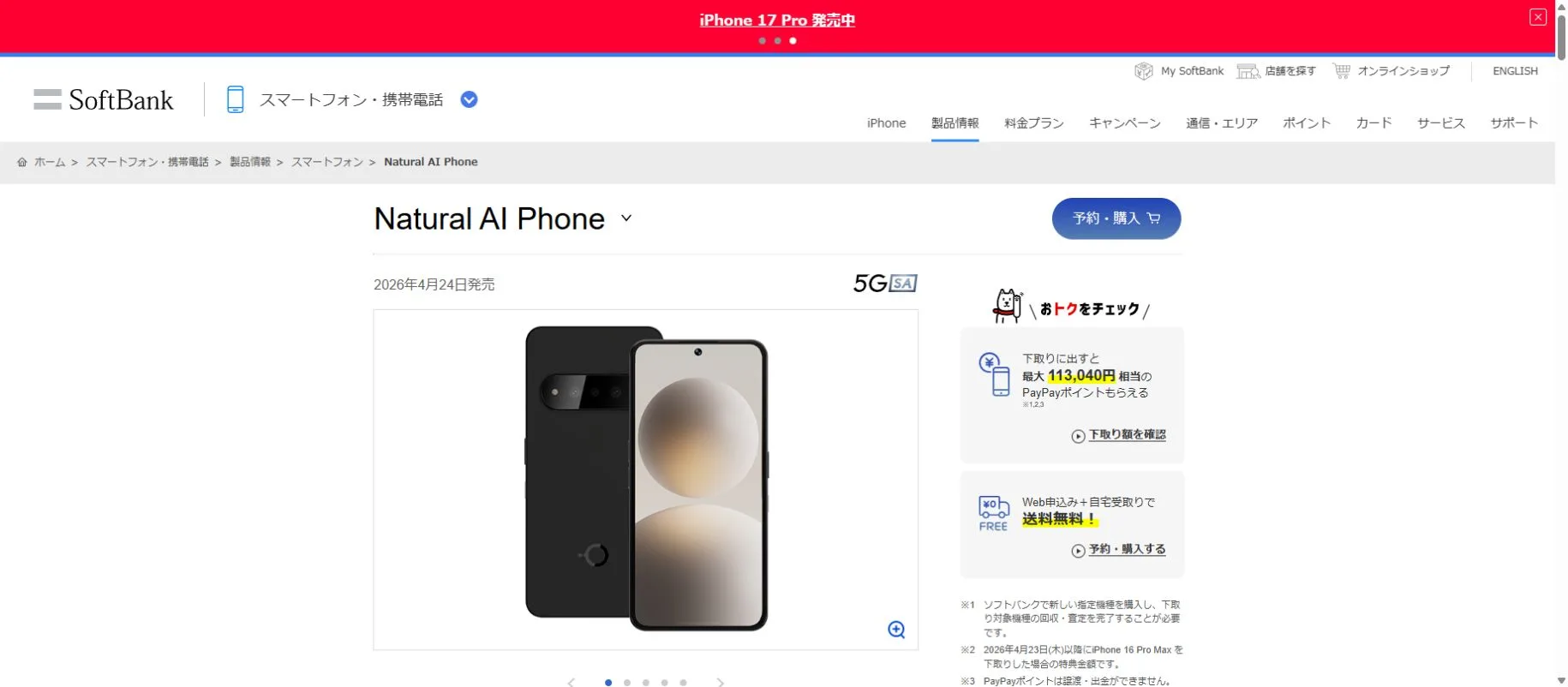
Natural AI Phone takes the hardware route. SoftBank released the Brain Technologies-developed phone on April 24, 2026, with an initial one-year exclusive sales period in Japan. An AI button and the FocusSpace home experience put requests and follow-up actions close to the current phone screen. It is most relevant if you are shopping for a handset in Japan and want an integrated experience.
SoftBank describes workflows spanning a calendar, restaurant search and LINE. Its published supported-app list, explicitly dated April 2026, includes Gmail, Google Maps, Google Calendar, YouTube, LINE, Tabelog, Amazon, Rakuten and Yahoo! Shopping. Internet access is required for these AI functions. Check your own essential apps instead of assuming that every Japanese service is supported.
The listed handset price is ¥93,600 including tax. This is a hardware price, not an AI subscription or the total cost of mobile service. Trade-in and return-based offers have additional conditions. Before replacing a working phone, compare the actual tasks you can complete with those already available through an assistant app.
5. Open-AutoGLM — an open phone-agent framework for technical users
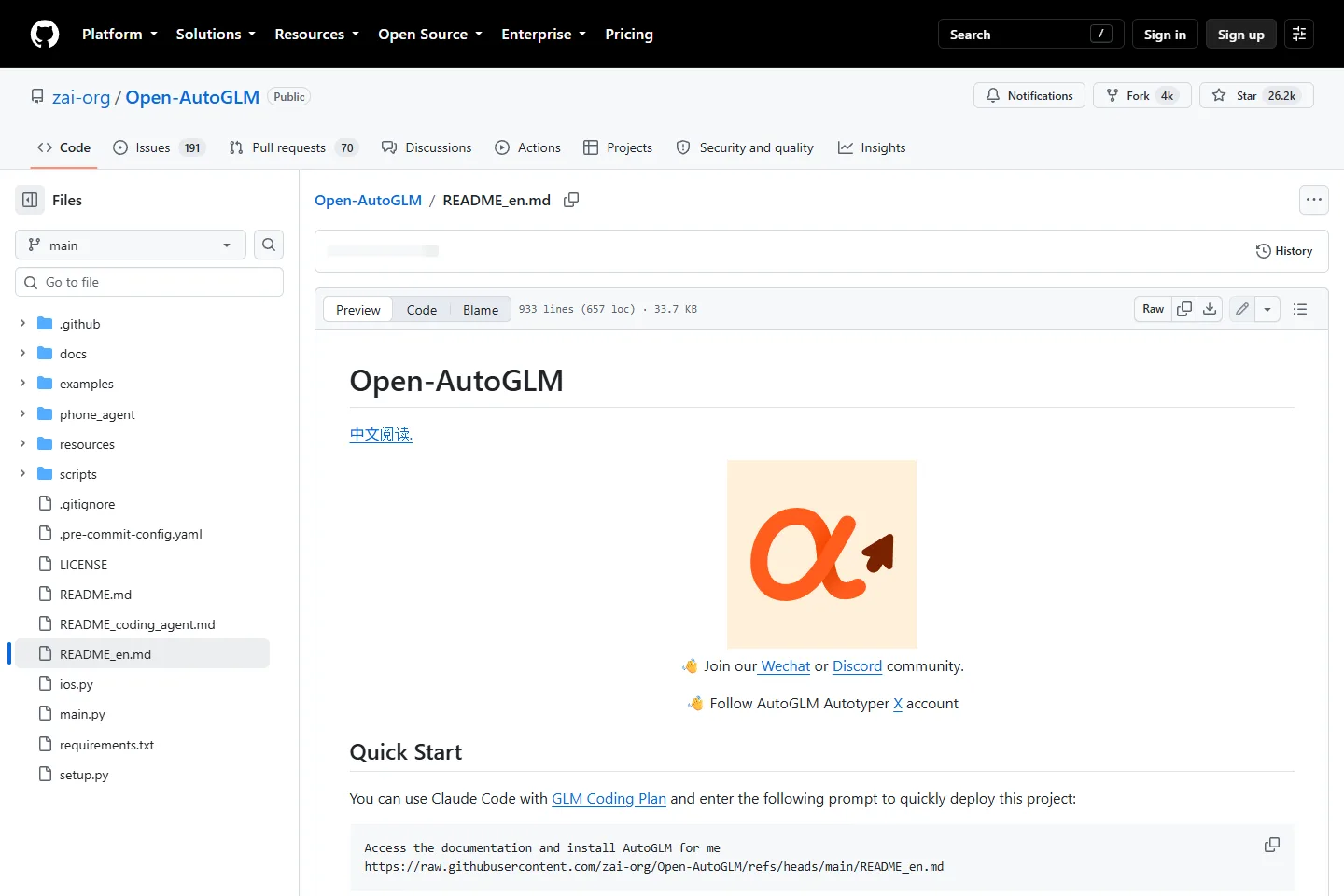
Open-AutoGLM links screen understanding and action planning to device control. The documented Android route uses ADB, while HarmonyOS uses HDC. A computer or server supplies the model service, or the framework connects to a hosted model endpoint. The “Phone” model name does not mean an ordinary phone runs the full model locally.
Choose it to experiment with a task you can describe but do not want to hard-code into a fixed sequence. You need debugging permissions, a reliable connection and an appropriate model endpoint; for Android text input, the setup also documents ADB Keyboard. The open-source download does not eliminate inference, hardware or maintenance costs. Start on a spare device and test the actual language and app interface: “multilingual” is not a guarantee of reliable Japanese app operation.
6. Mobilerun — flexible device automation for developers and QA
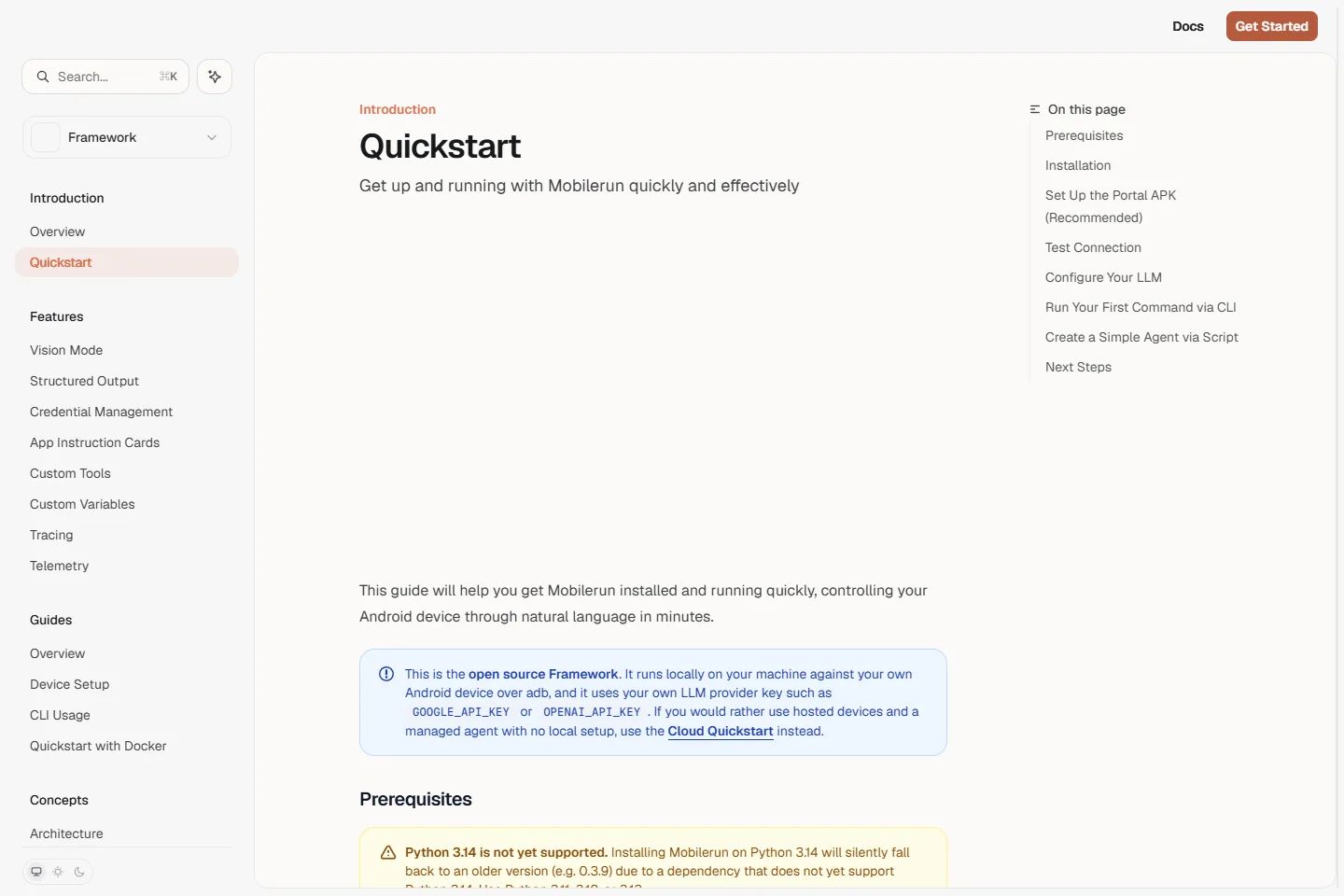
The project formerly known as DroidRun now points to Mobilerun. Its framework exposes mobile actions to different language-model providers, using interface information and screenshots to guide taps, swipes and text entry. It is a strong category fit for app QA, repeatable device workflows and code-controlled experiments where you need to inspect what happened.
The local quickstart requires Python 3.11–3.13, an Android debugging connection and a Portal setup. iOS support uses a separate flow; it is not achieved merely by installing the same Android companion app. The MIT-licensed framework and managed cloud service also have different economics: local execution can still incur model charges, while hosted phones add infrastructure costs. Choose this route when logs, integration and repeatability matter more than minimal setup.
A practical first-task workflow
Begin with a task whose result is easy to inspect. Reading a public page and preparing a note is a better first test than sending money, placing an order or editing a shared work calendar. Keep the first run short enough that you can recognize a wrong turn immediately.
- Choose one input and one destination: for example, a restaurant page and a draft note.
- Define completion: name the fields you need, such as address, opening hours and the source link.
- Set a stopping point: ask for a draft and require review before sending or purchasing.
- Check the destination: confirm the item exists, rather than relying only on the assistant’s success message.
- Repeat after app updates: changed screens or permissions can break a previously successful workflow.
Example request: “Read this café page. Put the name, address and opening hours into a draft note, including the source link. If the hours are unclear, mark them unconfirmed. Do not book anything or send a message.” Adjust the destination to an action your chosen tool actually supports.
For an iPhone Shortcut, connect the shared text or page to Use Model, ask it to extract the fields, then show the result before the save action. For a developer framework, establish device connectivity and a small action limit before trying a longer sequence. This separates connection problems from reasoning errors.
Free software, hardware and usage costs
Compare the cost per successfully completed routine, not just the app download price. A free assistant that needs several corrections may save less time than a simple Shortcut. Conversely, buying a new AI phone is difficult to justify if you only need occasional summaries.
- Existing-phone route: Gemini, Perplexity and supported Shortcuts features can be tried without buying a dedicated AI handset; eligibility, service limits and optional paid features still matter.
- New-hardware route: Natural AI Phone’s ¥93,600 listed price is an upfront device cost; add your actual connectivity and contract costs.
- Developer route: budget for model calls, server resources if self-hosting, device availability and time spent maintaining workflows. Open source describes software access, not zero total cost.
There is no meaningful universal “seconds per task” figure across these options. Network latency, model choice, the number of screens and human confirmations all contribute. During a trial, record elapsed time, retries and corrections for the same three tasks on your own phone. That comparison is more useful than a vendor demo completing an unrelated task.
Frequently asked questions
Is an AI phone agent the same as an AI assistant?
The labels overlap. An assistant may answer questions and launch supported actions; an agent usually describes a system that plans and executes a sequence. Look for the documented action path and supported apps rather than relying on the product label.
Can an AI agent control every app on my phone?
Do not assume so. Connected services expose selected actions, Shortcuts depends on available app actions, and screen-control tools can fail on changed interfaces or protected screens. Test the app and operation you care about before subscribing.
Can I use Gemini screen automation in Japan?
Google’s current screen-automation requirements list the US and Korea, with English and Korean support and additional device restrictions. The general Gemini app and Japanese assistance are separate features; access to those does not unlock this beta.
What is the easiest iPhone option?
For a recurring task, start with the Shortcuts Gallery and a small Apple Intelligence workflow on a compatible device. Choose a supported input, preview the model’s response and then connect a save action. Avoid treating a general voice chat as proof of unrestricted app control.
Can these tools work offline?
Some Apple Intelligence on-device model operations can work offline, but web retrieval and connected services cannot. A framework running on your computer may still call a cloud model. Verify the model endpoint and each action’s connectivity needs separately.
How should I handle private information and unexpected actions?
Keep passwords and payment details out of task prompts. Review permissions, logs and any uploaded screen content. Use the tool’s stop or handoff control when the task diverges, and verify recipients, amounts and destinations yourself before a consequential action.
Choose by task, then by device
For most people, the best first investment is a small workflow on the phone they already own. Try Gemini or Perplexity for supported Android assistance, and Shortcuts for a reusable iPhone routine. In Japan, Natural AI Phone is a distinct hardware option, but the buying decision should follow a real app-compatibility check.
Open-AutoGLM and Mobilerun become interesting when you need custom device actions, integration or repeatable testing and can maintain the setup. Start with one verifiable task, keep a review step, and expand only after the routine works consistently. The useful upgrade is fewer reliable steps between an intention and its result.
Related
Best 6 AI Video Editors in 2026

Best AI App Builders for No-Code App Creation
NovelAI Payment Failed? Card Declines, 3DS, PayPal and What to Do

AI Is Making Identity Theft Smarter: Here's How PureVPN Identity Threat Protection Keeps You a Step Ahead
Best AI Coloring Page Generators to Create Printable Coloring Sheets
Virtual Try-On in 2025: The AI Tools Changing How We Shop