Best 5 Image to 3D Generators in 2026
Compare the best image to 3D tools for turning photos, sketches, product images, and concept art into usable 3D models.
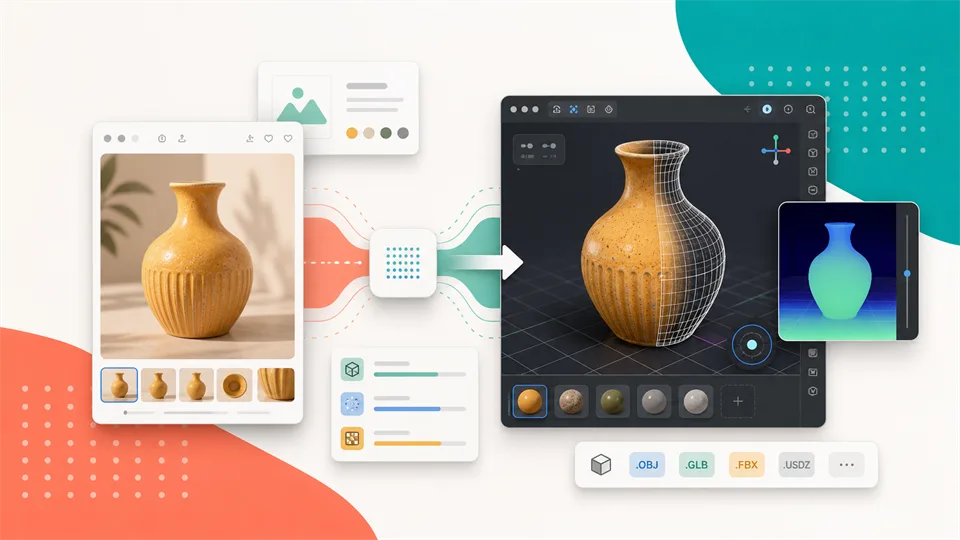

Turning a picture into a 3D model used to mean photogrammetry, manual sculpting, retopology, UV work, and a lot of cleanup. AI image to 3D tools do not remove every technical step, but they can turn a reference image into a usable starting model much faster than traditional modeling from scratch.
The important word is “starting.” Some tools are great for quick concept assets. Some are better for game-ready props. Some expose developer APIs. Some add human review or production cleanup. The right choice depends on whether you need a fast visual prototype, a downloadable GLB, a mesh for a game engine, a product CGI asset, or a model your 3D team can refine.
This guide compares five of the best image to 3D tools in 2026, with a focus on practical workflows rather than hype.
Table of Contents
- How I Chose the Best Image to 3D Tools
- Image to 3D Tools at a Glance
- 1. Meshy
- 2. Hyper3D Rodin
- 3. Tripo AI
- 4. Sloyd
- 5. Kaedim
- Which Image to 3D Tool Should You Choose?
- How to Get Better Results from Image to 3D
- FAQ
How I Chose the Best Image to 3D Tools
A useful image to 3D tool should do more than create a spinning preview. It should give you a model that can move into the next step of your workflow: Blender, Unity, Unreal Engine, WebGL, AR, product visualization, 3D printing, or a client review.
For this list, I looked at seven factors:
1. Input flexibility: Does the tool accept photos, concept art, sketches, product images, or multiple views?
2. Output quality: Are the shape, proportions, texture, and surface details useful enough to refine?
3. Mesh usability: Does it offer topology, UVs, PBR textures, polygon controls, or game-ready options?
4. Export formats: Can users export GLB, FBX, OBJ, STL, USDZ, or other common 3D formats?
5. Workflow fit: Is it best for beginners, indie creators, developers, studios, or production teams?
6. Control: Can users adjust generation quality, topology, texture resolution, pose, polycount, or revisions?
7. Practical limits: Are there credits, licensing limits, plan restrictions, API requirements, or cleanup steps?
AI 3D generation is changing quickly, so always check each tool’s current pricing, export rights, and file-format support before committing it to a production workflow.
Image to 3D Tools at a Glance
| Tool | Best for | Standout strengths | Main limitation |
|---|---|---|---|
| Meshy | Most creators and general image-to-model workflows | Image to 3D, multi-view support, Smart Topology, pose control, 3D Agent | Free-plan licensing and download limits need checking |
| Hyper3D Rodin | Fast production-style 3D asset generation | Fast generation, PBR textures, many export formats, strong hard-surface positioning | Quality and commercial rights depend on plan |
| Tripo AI | Developers and API-based 3D generation | Image-to-model API, PBR option, texture quality settings, async workflow | Less beginner-friendly if you mainly want a visual web app |
| Sloyd | Game assets, iteration, and editable 3D workflows | Image to 3D, multi-image to 3D, topology controls, templates, plugins | Generated meshes may still need editing for polished production |
| Kaedim | Studios and production teams | Human-in-the-loop refinement, game-ready assets, revision workflow, confidential work | More enterprise/studio-oriented than casual self-serve tools |
1. Meshy
Best image to 3D tool for most creators
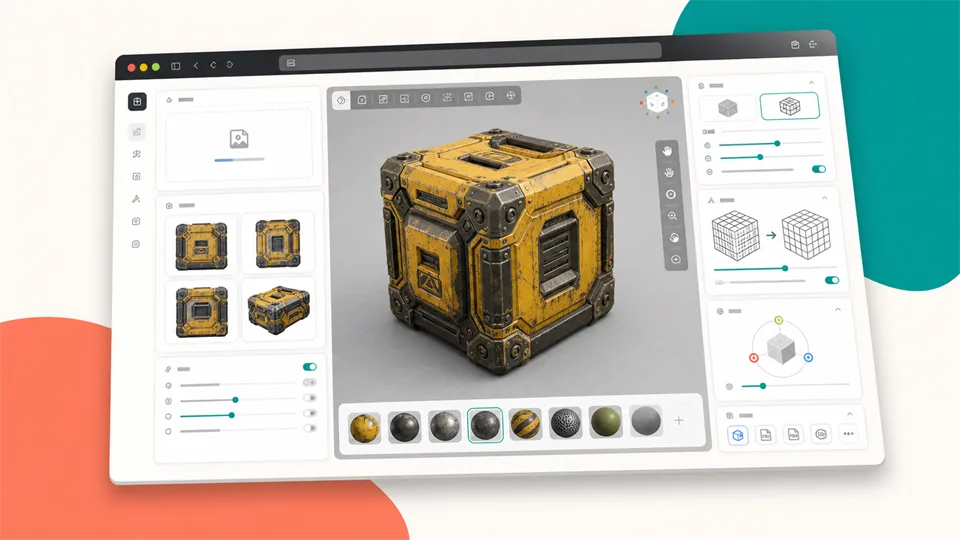
Meshy is one of the strongest general-purpose tools for turning images into 3D models. Its documentation describes Image to 3D as a workflow for uploading a reference image and generating a textured 3D model that matches the visual target more closely than a text prompt alone.
Meshy is especially useful when you have a clear visual idea: concept art, a product-style image, a character sketch, a prop design, or an AI-generated reference. Its docs recommend Image to 3D when you need more control over shape and visual details than Text to 3D can provide. That makes sense: a picture gives the model a concrete silhouette, material direction, and proportion target.
The platform is also broad. Meshy supports image-to-model generation, text-to-3D, AI texturing, remeshing, rigging, exports, batch image workflows, and a 3D Agent that can guide creation through a chat-style process. For people who want one AI 3D workspace rather than a single conversion utility, that matters.
Meshy’s Image to 3D docs mention useful controls such as Standard detail, Smart Topology, Image Enhancement, multi-view input, and pose control. Multi-view is particularly helpful when a single front image does not show enough depth or back-side detail. If you are trying to create a more complete object, front, side, back, and three-quarter references can reduce guessing.
The main limitation is that AI output still needs review. Even a strong image to 3D model can have odd back geometry, texture artifacts, awkward edges, or proportions that do not fully match the reference. Free-plan licensing and download access also need to be checked before using generated assets commercially.
Key functions
- Image to 3D model generation
- Text to 3D
- Multi-view Images to 3D
- Standard and Smart Topology modes
- Image Enhancement
- Pose control
- Batch Images to 3D
- AI texturing, remesh, rigging, and export workflow
- 3D Agent for guided creation
Pros
- Best all-around choice for most users
- Good balance of ease of use and control
- Multi-view support helps with accuracy
- Smart Topology is useful for real-time and game workflows
- Broad 3D creation ecosystem beyond one conversion step
Cons
- Generated models still need human review
- Commercial licensing depends on plan
- Free users may face download or model-version restrictions
- Complex reflective, transparent, or occluded subjects can be difficult
Verdict
Meshy is the best starting point for most image to 3D users. It is approachable enough for beginners, but has enough controls to be useful for creators who want more than a quick preview.
2. Hyper3D Rodin
Best image to 3D tool for fast production-style assets
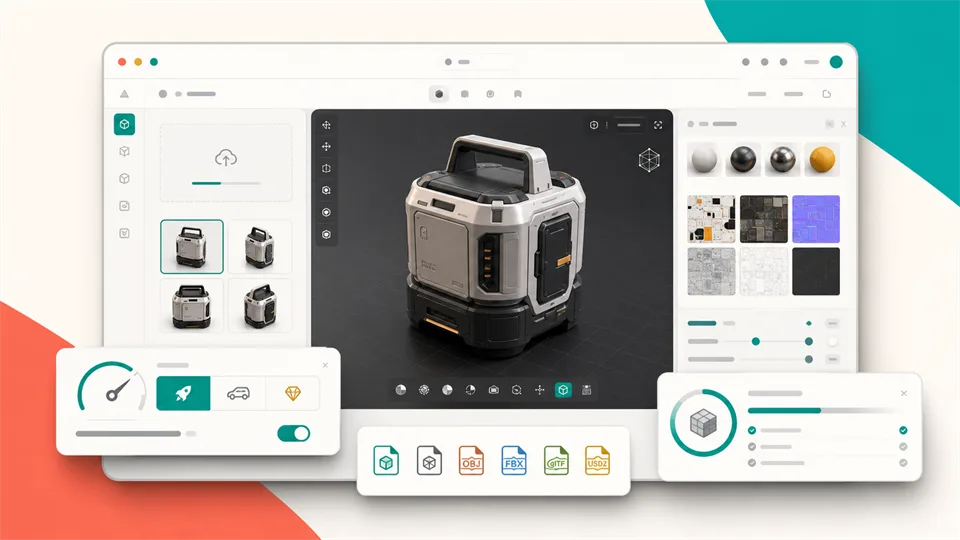
Hyper3D Rodin is built around fast image-to-model generation for games, AR, 3D printing, and product workflows. Its official page positions Rodin as an AI image to 3D generator that can create textured assets from a picture, product photo, or concept image.
The strongest reason to consider Rodin is speed and export flexibility. Hyper3D says users can upload a photo, generate geometry and textures, preview in the browser, and export formats such as GLB, FBX, OBJ, STL, USDZ, glTF, 3MF, and DXF. That format range is useful if your output might go to Blender, a game engine, a web viewer, AR, CAD-adjacent tools, or a slicer for 3D printing.
Rodin also emphasizes PBR textures and production-ready mesh quality. Its page discusses image understanding, 3D reconstruction, AI texture generation, and pipeline-ready output. For users who care about textures, material believability, and hard-surface details, that positioning is important.
This image to 3D tool is a good fit for product mockups, stylized props, hard-surface objects, small game assets, AR previews, and early-stage visualization. It is also useful when you need a fast model from a single clear image and do not want to set up photogrammetry or manual modeling.
The usual AI 3D caveats still apply. A single photo cannot show hidden surfaces, so back-side details may be inferred. Glossy metal, glass, cluttered backgrounds, cut-off objects, strong shadows, and distorted lens angles can all hurt the result. You should also check plan details for commercial use, resolution, exports, and credit limits.
Key functions
- Image to 3D generation
- Text to image/3D workflows
- Browser preview
- PBR texture generation
- Multiple effort/speed modes
- Multi-view input support
- Export to GLB, FBX, OBJ, STL, USDZ, glTF, 3MF, DXF, and more
- 3D editing and related tools
Pros
- Very strong format support
- Good fit for games, AR, product previews, and 3D printing
- Fast generation positioning
- PBR textures are useful for realistic outputs
- Clear official guidance on good input images
Cons
- Hidden geometry still requires AI guessing
- Plan limits and commercial licensing should be checked
- Very reflective or transparent subjects are harder
- Production use may still require cleanup in Blender or a DCC tool
Verdict
Hyper3D Rodin is the best choice if speed, export formats, and production-style output matter. It is especially useful for users who need a 3D asset they can quickly test in several downstream tools.
3. Tripo AI
Best image to 3D tool for developers and API workflows
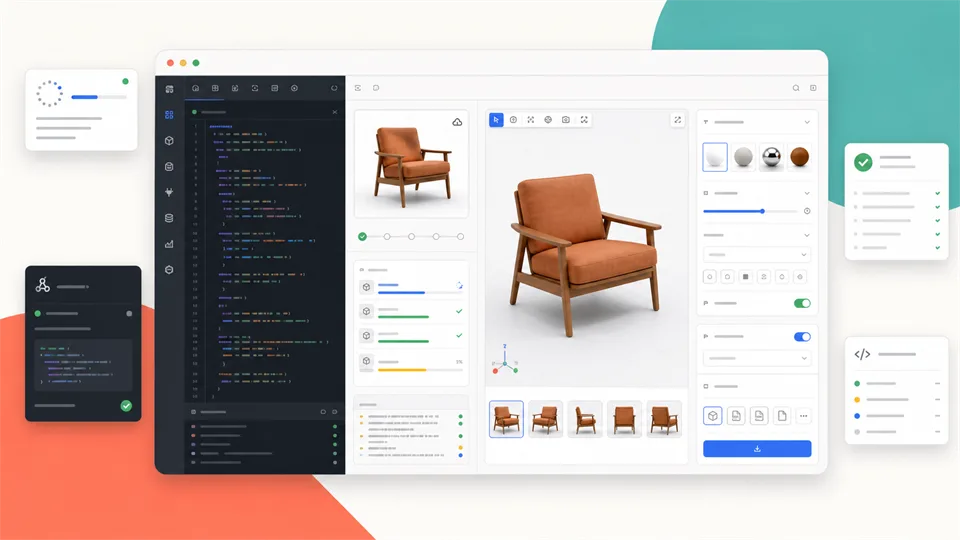
Tripo AI is a strong option if you want image to 3D generation inside an application, pipeline, or automated workflow. Its developer documentation includes an Image to 3D Model endpoint that accepts an image input and returns an asynchronous generation task.
Tripo’s developer docs are practical. The image-to-model API can take a file token, a public image URL, or a task ID from a previous image generation task. It supports PNG, JPEG, and WebP inputs, with a documented 20 MB max file size and a recommended minimum resolution. The response includes a model URL and rendered preview once the task is complete.
That makes Tripo especially relevant for builders. If you are creating a game UGC tool, an e-commerce configurator, an AR product prototype, a design app, or a 3D asset automation workflow, an API matters more than a pretty web interface. You can let users upload a picture, generate a model in the background, poll the task, and retrieve the result.
Tripo also exposes settings that developers care about, including model version, texture generation, PBR output, texture quality, UV export, image autofix, and orientation options. That gives teams more control over output consistency.
The tradeoff is that Tripo is less ideal if you just want a friendly consumer web tool. Developers will appreciate the API and documentation; casual creators may prefer Meshy, Sloyd, or Rodin depending on the workflow. Also, API costs, rate limits, and commercial terms should be checked before building a product around it.
Key functions
- Image-to-model API
- File token, image URL, or task ID input
- PNG, JPEG, and WebP support
- Texture and PBR options
- Texture quality settings
- UV export control
- Image autofix
- Orientation alignment
- Asynchronous task polling
Pros
- Best fit for developers
- Practical API-first workflow
- Useful generation settings for product pipelines
- PBR and texture controls
- Good for apps that need user-uploaded image to 3D generation
Cons
- Less beginner-friendly than visual web tools
- Requires API key and implementation work
- Costs and rate limits matter for production
- Output still needs quality checks before final use
Verdict
Tripo AI is the best image to 3D option for developers. If you need to integrate AI 3D generation into your own product, its API workflow is more important than a simple upload page.
4. Sloyd
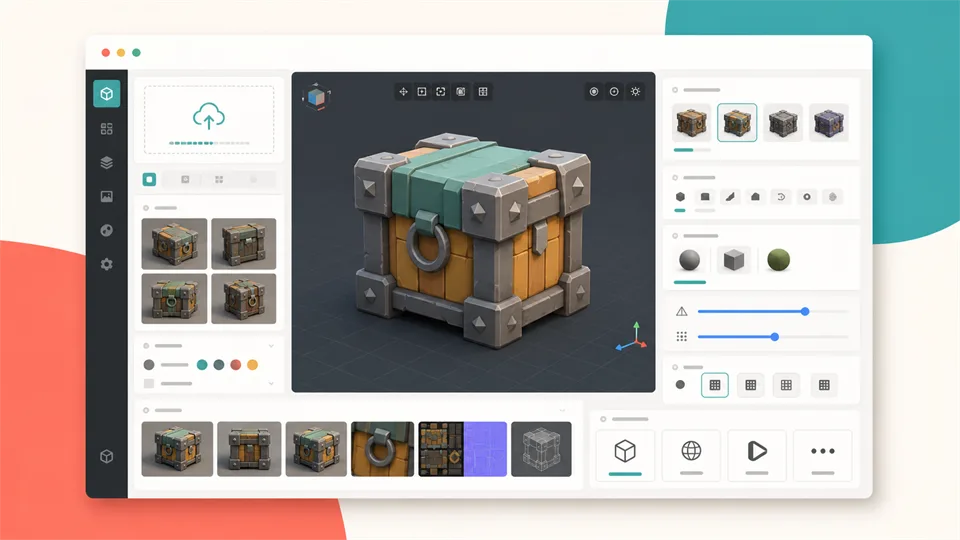
Best image to 3D tool for game assets and fast iteration
Sloyd is a browser-based AI 3D creation platform with text-to-3D, image-to-3D, multi-image-to-3D, editable templates, texturing tools, animation features, and plugins. It is especially interesting for game developers and creators who want to iterate quickly.
Sloyd’s image-to-3D tool lets users upload a photo or reference image and generate a textured model based on its shape and proportions. Its app interface also exposes useful controls such as polycount, topology, texture resolution, and enhancement options. That makes it more adjustable than a basic “upload and hope” converter.
What makes Sloyd different is the mix of generative AI and editable templates. The official documentation describes two complementary workflows: generative AI for original image-to-3D and text-to-3D assets, and parametric templates for more predictable hard-surface models. If you are building game props, stylized assets, buildings, vehicles, weapons, or reusable object variations, this combination is helpful.
Sloyd also emphasizes plugins and handoff to tools like Unity, Unreal, and Blender. For game-ready experiments and early prototypes, that can save time. You can use image to 3D for a specific reference, then use templates or editing tools when you need more consistency.
The main limitation is that image-generated models may not be as editable as parametric template models, and final production assets still need review. If you need a hero asset for a shipped game, you should expect cleanup, optimization, and art direction. But for ideation, placeholder assets, UGC, and fast iteration, Sloyd is a strong pick.
Key functions
- Image to 3D
- Multi-image to 3D
- Text to 3D
- Editable 3D templates
- Polycount controls
- Topology controls
- Texture resolution options
- Retexturing and texture editing
- Animation and rigging-related tools
- Plugins for common 3D workflows
Pros
- Strong for game assets and rapid iteration
- Combines generative AI with editable templates
- Useful topology and texture controls
- Browser-based workflow
- Good fit for indie developers and creators
Cons
- Image-generated models may still need cleanup
- Parametric templates are more predictable than pure image-to-3D
- Final production art requires review
- Best results depend heavily on clean references
Verdict
Sloyd is the best choice if you want image to 3D as part of a larger game-asset creation workflow. It is not only a converter; it is a fast iteration environment.
5. Kaedim
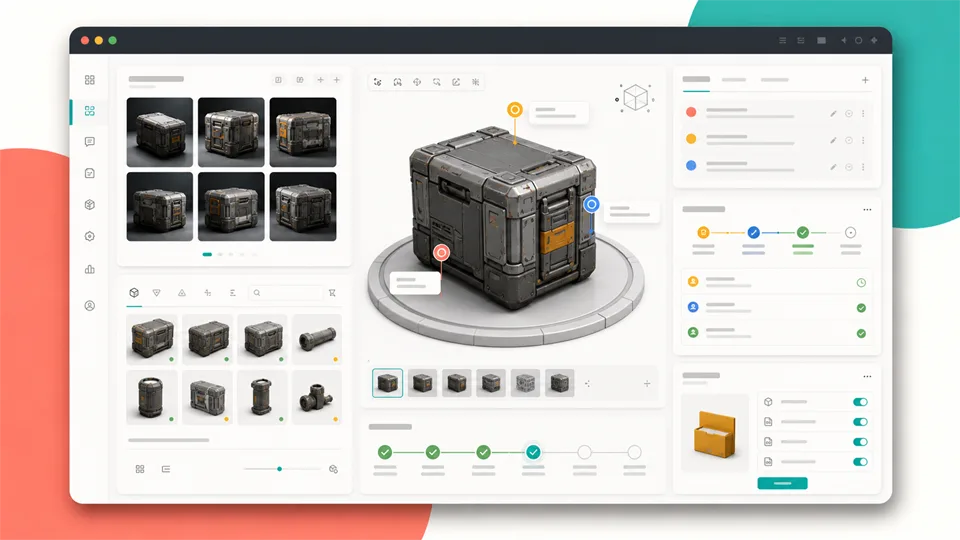
Best image to 3D tool for studios and production teams
Kaedim is different from the other tools on this list because it is built more for production teams than casual self-serve conversion. Its platform turns sketches, product photos, reference packs, briefs, and art direction into 3D assets that teams can inspect, mark up, revise, and move into the next production stage.
Kaedim’s documentation explains that it combines machine learning with an in-house art team. That human-in-the-loop approach is important for studios because AI output is rarely perfect on the first pass. A workflow that supports review, markup, refinement, revisions, and approval can be more valuable than a faster but messier one-click model.
The platform supports 2D images to 3D models, and its quick-start docs say users can upload up to 10 images of the same object from different views. Its documentation also mentions export formats such as OBJ, FBX, GLB, GLTF, USD, MTL, and related production outputs. For teams building game props, product visuals, architectural concepts, e-commerce assets, or branded 3D content, this is a more serious workflow.
Kaedim is especially compelling when consistency matters. A studio may not only need one model; it may need a series of assets that follow the same art bible, product direction, or campaign style. Kaedim’s current positioning is strongly oriented around studios, brands, game developers, and enterprise teams.
The limitation is accessibility. If you just want to test a single photo to 3D model for fun, Kaedim may be more than you need. It is better for teams with production needs, confidentiality concerns, and a willingness to work through a review process.
Key functions
- 2D image to 3D asset generation
- Sketch, photo, reference pack, and brief-based workflows
- Up to 10 image inputs for the same object
- Human-in-the-loop refinement
- Review, markup, revision, and approval workflow
- Game-ready asset options
- Export formats such as OBJ, FBX, GLB, GLTF, USD, and MTL
- Studio and enterprise workflows
Pros
- Best fit for professional studios and brands
- Human review can improve production reliability
- Strong workflow for revisions and approvals
- Supports multi-image references
- Useful for games, product design, commerce, and marketing
Cons
- Less casual than one-click web tools
- Not ideal for quick hobby experiments
- Pricing and access may be more enterprise-oriented
- Turnaround may include review/refinement time
Verdict
Kaedim is the best image to 3D choice for studios that need reliable, reviewable assets. It is not the lightest option, but it is built for teams that care about production quality and workflow control.
Which Image to 3D Tool Should You Choose?
Choose Meshy if you want the best all-around option. It is a good first pick for creators, indie teams, students, and general users who want a balanced image-to-model workflow.
Choose Hyper3D Rodin if you care about speed, export formats, and production-style output. It is especially useful for AR, game props, product mockups, and 3D printing tests.
Choose Tripo AI if you are a developer. Its API-first workflow is the best fit for apps, automation, UGC tools, and product integrations.
Choose Sloyd if you are making game assets or iterating quickly. The mix of image to 3D, multi-image generation, templates, topology controls, and plugins makes it useful for asset exploration.
Choose Kaedim if you are a studio, brand, or production team. Its human-in-the-loop workflow and revision process are better suited to serious asset pipelines than casual experimentation.
How to Get Better Results from Image to 3D
The input image matters more than most people expect. A weak reference forces the AI to guess. A strong reference gives it shape, silhouette, material, and proportion clues.
Use these habits before uploading:
- Use one clear subject, not a busy scene.
- Keep the full object visible without cut-off edges.
- Use even lighting and avoid heavy shadows.
- Prefer a plain or transparent background.
- Avoid strong lens distortion and extreme perspective.
- Use high-resolution images when possible.
- For complex objects, upload multiple views if the tool supports it.
- Avoid glass, mirrors, shiny metal, smoke, fur, and transparent materials when accuracy matters.
- Check the back side and underside of the model before using it.
- Expect to clean up final assets in Blender, Maya, ZBrush, Unity, Unreal, or another tool.
For products and props, a clean three-quarter view often works well. For characters, neutral poses are easier than dynamic action poses. For game assets, check topology, UVs, texture resolution, polygon count, scale, and material assignments before importing into a real project.
FAQ
What is image to 3D?
Image to 3D is a workflow where AI analyzes a 2D image and generates a 3D model with geometry and, often, textures. The source image can be a photo, sketch, concept art, product render, or AI-generated image.
Can AI turn any image into a 3D model?
AI can try, but not every image produces a good result. Clear, well-lit images of one complete object work best. Busy scenes, cropped subjects, reflective materials, and strong shadows usually create worse models.
What is the best image to 3D tool?
Meshy is the best general starting point for most users. Hyper3D Rodin is strong for fast production-style assets, Tripo AI is best for developers, Sloyd is strong for game-asset iteration, and Kaedim is best for studio workflows.
Can I use image to 3D models in games?
Yes, but you should inspect and optimize the model first. Check polygon count, topology, UVs, textures, scale, pivots, collision, and material setup before importing the asset into Unity, Unreal Engine, Godot, or Roblox Studio.
Can image to 3D create 3D-printable models?
Sometimes. Tools that export STL or 3MF are more convenient for 3D printing, but you still need to check whether the model is watertight, manifold, properly scaled, and strong enough to print.
Is image to 3D better than photogrammetry?
It depends. Photogrammetry can be more accurate when you have many photos of a real object and a controlled capture setup. Image to 3D is faster and easier when you only have one reference image or concept art, but hidden details are inferred.
Do I still need Blender or another 3D app?
For serious work, yes. AI image to 3D tools can create a useful base model, but final assets often need cleanup, remeshing, UV fixes, material edits, rigging, scale adjustments, or export preparation.
Final Thoughts
Image to 3D tools are already useful, but they are not magic replacements for 3D artists. The best workflow is to treat AI as a fast first pass: generate the base shape, inspect the mesh, fix the weak areas, and then polish the asset for its real destination.
For most users, start with Meshy. If you need fast export-ready experiments, try Hyper3D Rodin. If you are building with an API, look at Tripo AI. If you are making game assets, test Sloyd. If your team needs reviewable production assets, Kaedim is the most studio-oriented option.
Related Reviews
MP3 to Text: 5 Best Tools to Convert Audio to Text Accurately

Top 6 AI Resume Builders for Faster, Smarter Job Applications

Canva Craft Review: 2K Images, Wide Formats, Text and Editing Limits
Best 5 Email Marketing Services in 2026
Best 9 AI Content Detectors in 2026
MiniMax M3.1 Flash Review: Coding, API Cost, Open Weights and Limits