

The useful starting point is not the longest feature list: decide whether you want a newly generated scene, a plain color or an existing background image. Product photos need accurate labels and edges; portraits need believable hair, skin and lighting.
AirMore offers a photo-and-prompt workflow; Adobe Express and Canva make more sense when the final job also includes typography and layout. The nine options below cover background generation, replacement and finishing, with different account and export conditions.
Choose the right kind of background tool
A cutout-and-replacement tool removes the old background and adds a color or an image you supply. A generative tool invents a new scene from a description. A design editor adds text, layouts and other finishing steps. These are related tasks, not interchangeable features.
For a store listing, prioritize product shape, label fidelity, space around the object and export dimensions. For a portrait, inspect hair, glasses and skin tone. For an advertisement, the ability to add localized copy and resize the composition may matter more than a dramatic background.
Nine tools at a glance
| Tool | Best fit | What to expect |
|---|---|---|
| 1. AirMore | Single-photo product and portrait scenes | Generate a background; compare one or two results |
| 2. Adobe Express | Background replacement plus finished layouts | Design editor |
| 3. PicWish | Product images with prompted or reference scenes | Generative background workflow |
| 4. Photoroom | A repeatable product-photo editing workflow | Product-photo editor |
| 5. Fotor | Background generation with broader photo editing | Photo editor and scene generator |
| 6. Erase.bg | A quick cutout with a new color or background | Removal and replacement |
| 7. Canva | Turning the image into a social post or advertisement | Design and background editing |
| 8. Picsart | Expressive portraits and social images | Creative photo editor |
| 9. FlexClip | Photo scenes that will also enter a video workflow | Text-based background replacement |
The nine background tools
1. AirMore — A new scene from one photo and a description
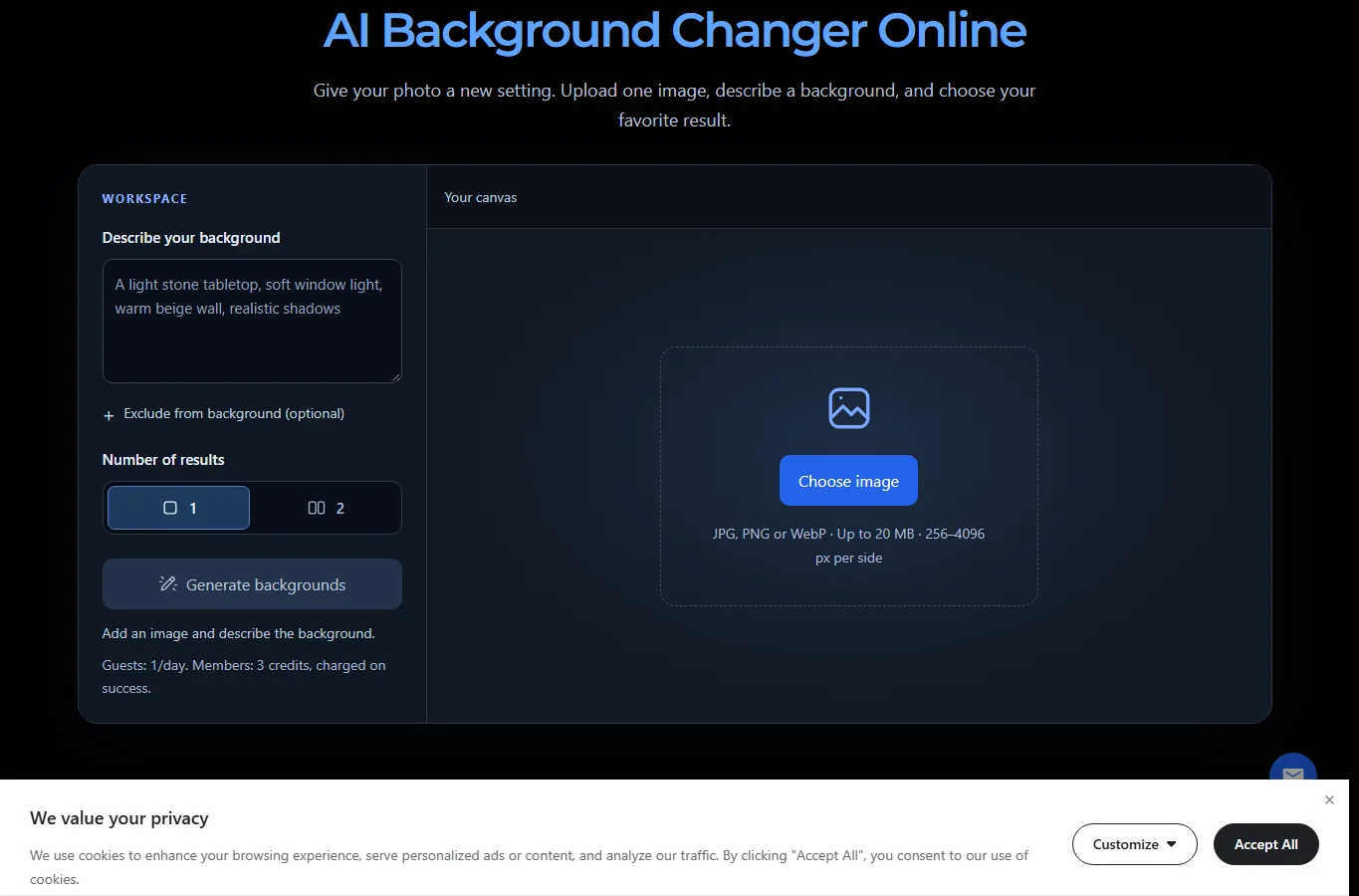
AirMore automatically isolates the subject and generates a setting from your description. It suits a few variations of one photo rather than uploading an entire product catalog at once. You can ask for one result or two alternatives from the same source.
Start with a clearly visible subject. Fine hair, glass, transparent objects and complicated edges remain difficult; compare faces, logos and product labels with the original. Input limits do not promise a fixed output resolution or exact pixel preservation.
AirMore: from upload to download
- Upload one JPG, PNG or WebP, up to 20 MB, with each side between 256 and 4096 pixels.
- Describe the place, surface, light and colors. A product example is “pale stone table, warm beige wall, soft window light from the left.” For a portrait, match the light direction to the source photo. These are illustrative prompts, not tested quality claims.
- Use the optional exclusion field for unwanted elements, choose one or two results and start generation. Two results are alternatives for one input, not a two-photo batch.
- Switch between the original and results, check edges and details, then download within one hour. If interrupted, use “Check current task” to inspect the task.
The public interface checked on November 5, 2026 shows one daily guest use and a member charge of 3 credits on success. A task counts as successful when a downloadable final background image is available; intermediate cutouts are not separate successes. Failed tasks do not consume the AirMore allowance. Credits are not a universal cash price, so do not convert them into dollars without the applicable purchase terms.
2. Adobe Express — Background replacement plus finished layouts
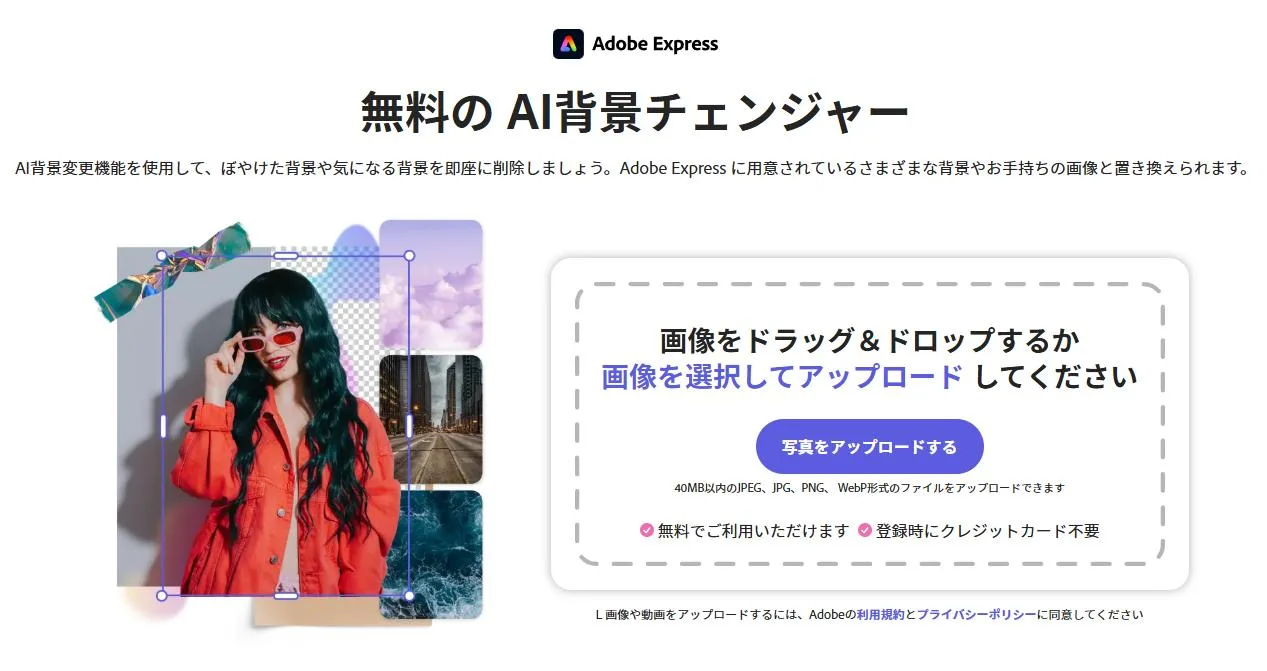
Official tool: Adobe Express
Adobe Express is a useful fit when changing the background is only one stage of a social post, banner or presentation visual. Start with the photo, remove or replace its background, then adjust the composition and add text or other design elements in the same workspace.
Separate the basic background-changing action from generative AI features and premium assets: access is not necessarily identical. Before doing a whole campaign, export one sample and check resolution, font availability and which elements require an account or paid plan. It is more workspace than you need for a single plain-color replacement.
3. PicWish — Product images with prompted or reference scenes
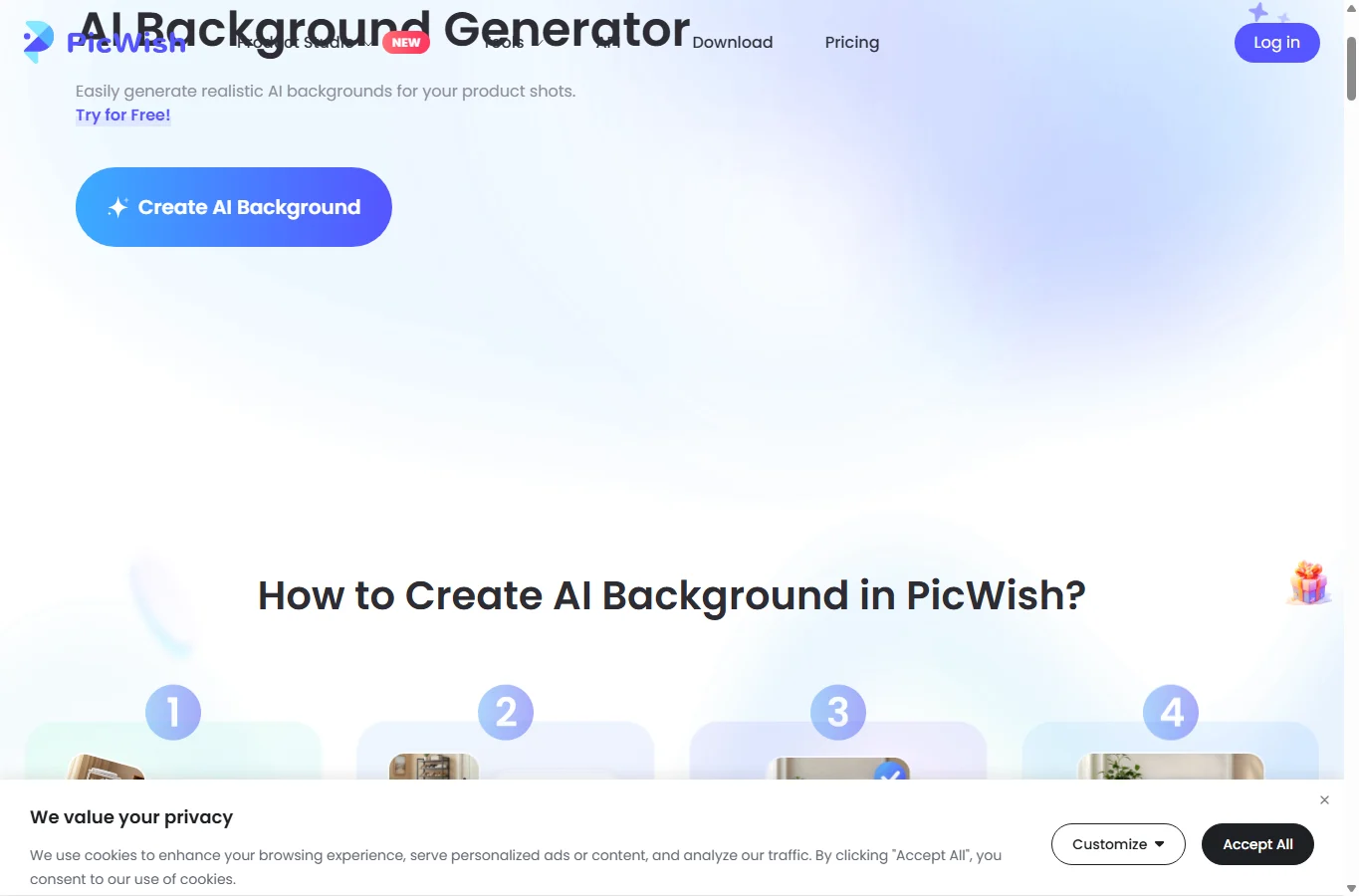
Official tool: PicWish
PicWish’s background generator accepts a photo and lets you describe a backdrop or select a reference from its library. That makes it relevant to sellers who want a product shown in a studio or lifestyle setting without organizing another shoot.
Keep the description focused on the surface, wall and lighting rather than asking it to redesign the object. Compare labels, proportions and contact shadows with the source. The generator and the wider service’s other tools should not be treated as having one unlimited free allowance; confirm the generation and download entitlement for the account you use.
4. Photoroom — A repeatable product-photo editing workflow
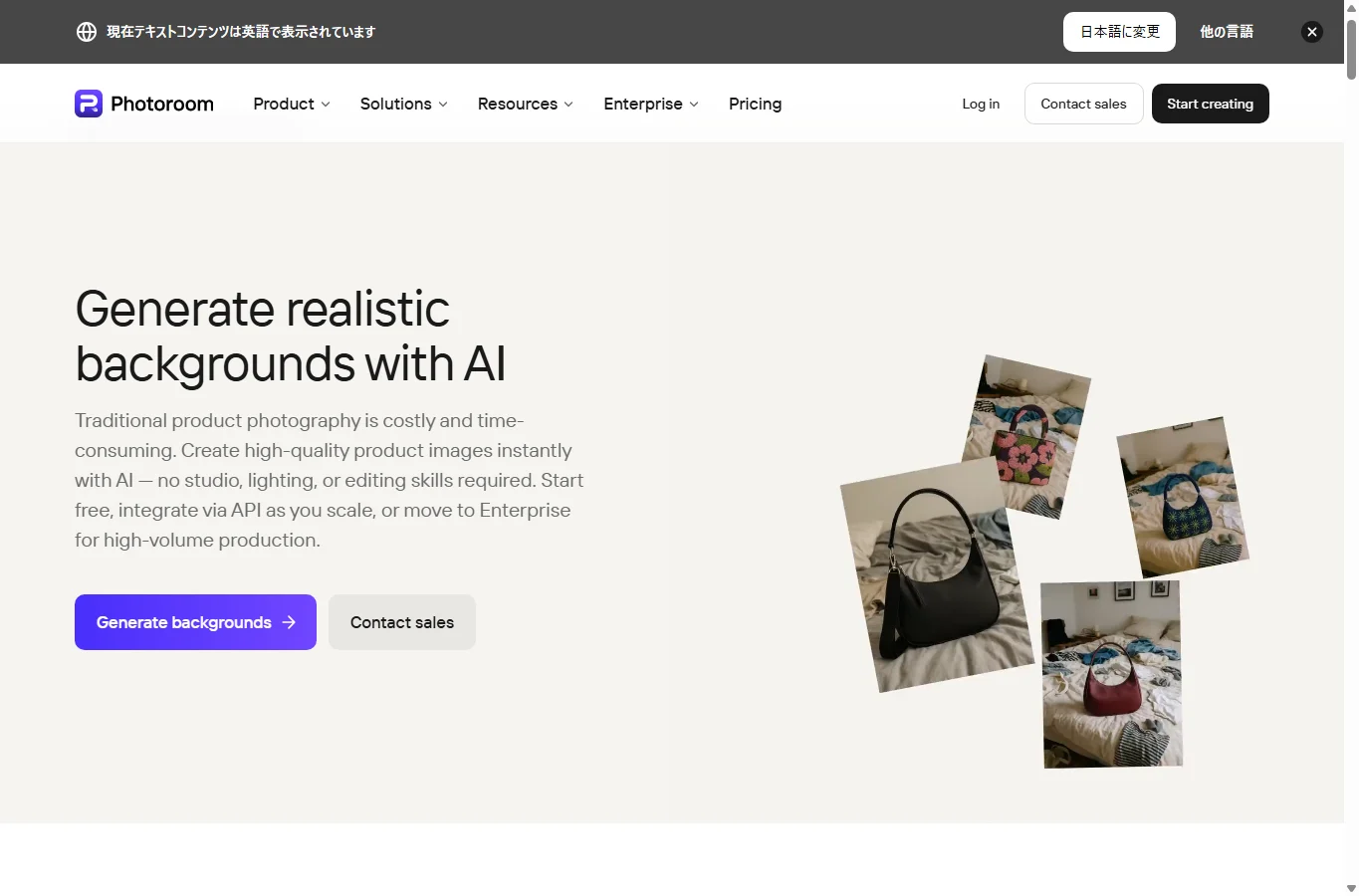
Official tool: Photoroom
Photoroom combines subject isolation with background editing and AI-generated scenes. It is a strong candidate when you want a consistent product presentation, not simply a different landscape behind one portrait. Reuse a visual direction and composition across a series rather than generating unrelated scenes for every item.
The current web help states that AI background replacement consumes AI credits. Basic removal, AI generation and bulk work are different capabilities, so a free starting point does not establish unlimited production access. Check a sample of your most difficult objects before committing: transparent packaging and fine jewelry are more revealing than a simple box.
5. Fotor — Background generation with broader photo editing
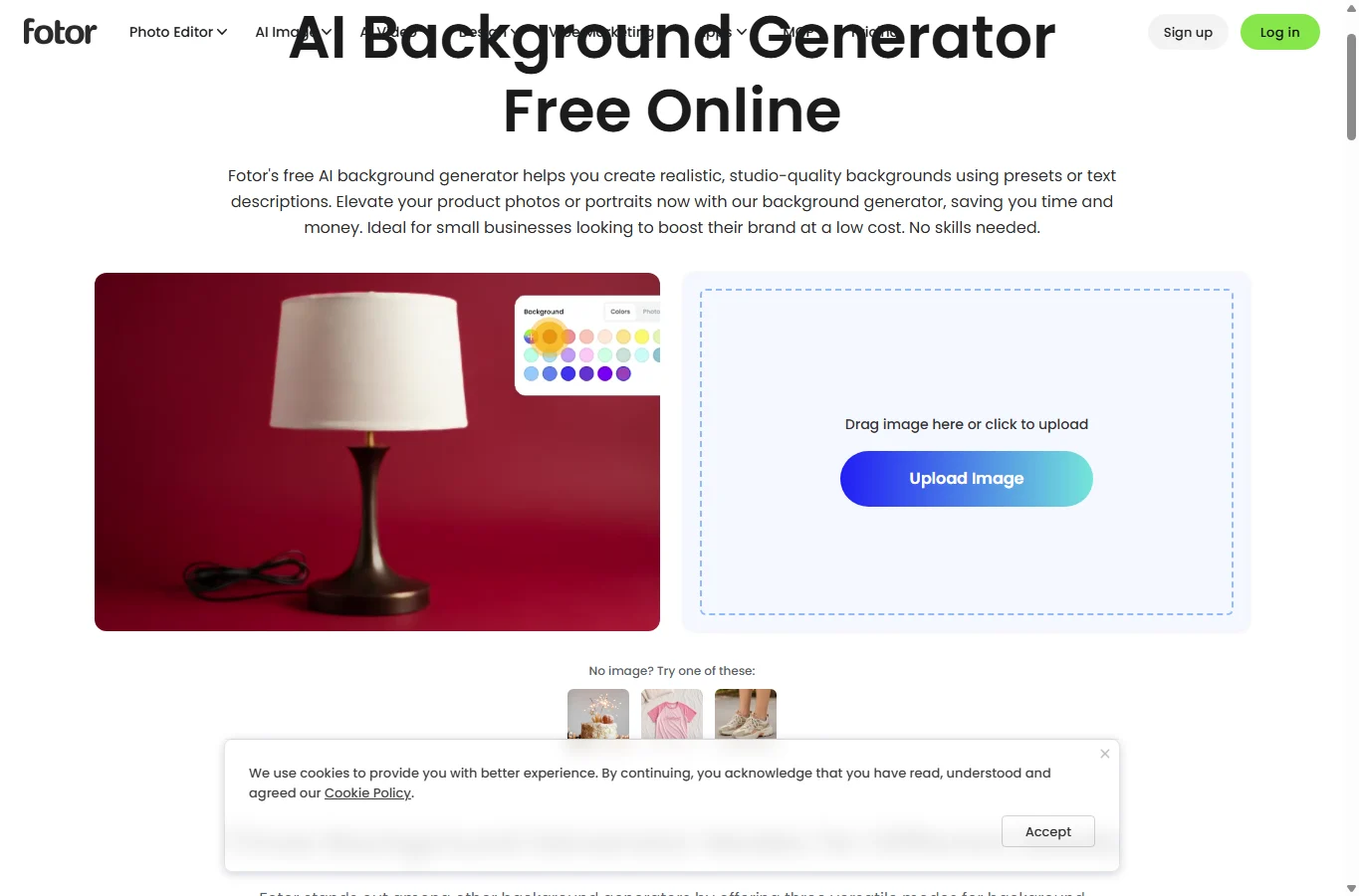
Official tool: Fotor
Fotor’s background generator is useful when you also need to adjust a photo’s brightness, color or framing. Generate the new setting first, then make restrained corrections to help the subject and background share a similar color temperature and contrast.
Keep ordinary background replacement separate from AI scene generation: they can use different workflows and allowances. A free preview is not proof that every final export is unrestricted or full resolution. For portraits, avoid strong retouching that changes the person while you are only trying to improve the setting.
6. Erase.bg — A quick cutout with a new color or background
Official tool: Erase.bg
Erase.bg is a direct route for removing a distracting backdrop and changing its color or theme. Upload the photo, inspect the isolated subject, use the editing options for the replacement, then download the composition. This is especially relevant when a simple white or colored setting already meets the brief.
You do not need a newly invented room to make every listing image clearer. Check the cutout first: missing hair or transparent edges will remain a problem under a different color. Distinguish the background-changing page from the service’s separate AI-generation options, and verify the export entitlement before relying on original-size downloads.
7. Canva — Turning the image into a social post or advertisement
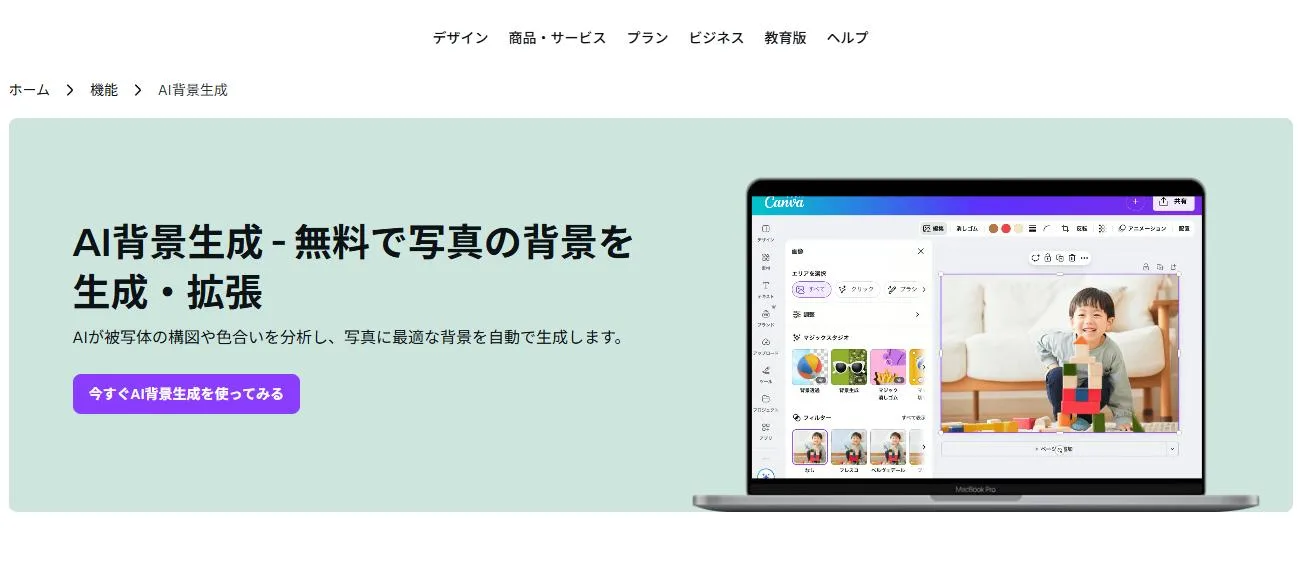
Official tool: Canva
Canva makes sense when the background edit belongs inside a larger design. After isolating the subject or making a new background, arrange the text, shapes, brand colors and layout around it. This avoids repeatedly exporting a photo between separate tools just to finish a poster or social card.
Background removal, background generation, premium templates and brand functions do not automatically share the same free access. Check which account features the design actually uses before building a team template. Keep text editable in the design rather than asking an image generator to render all the campaign copy.
8. Picsart — Expressive portraits and social images
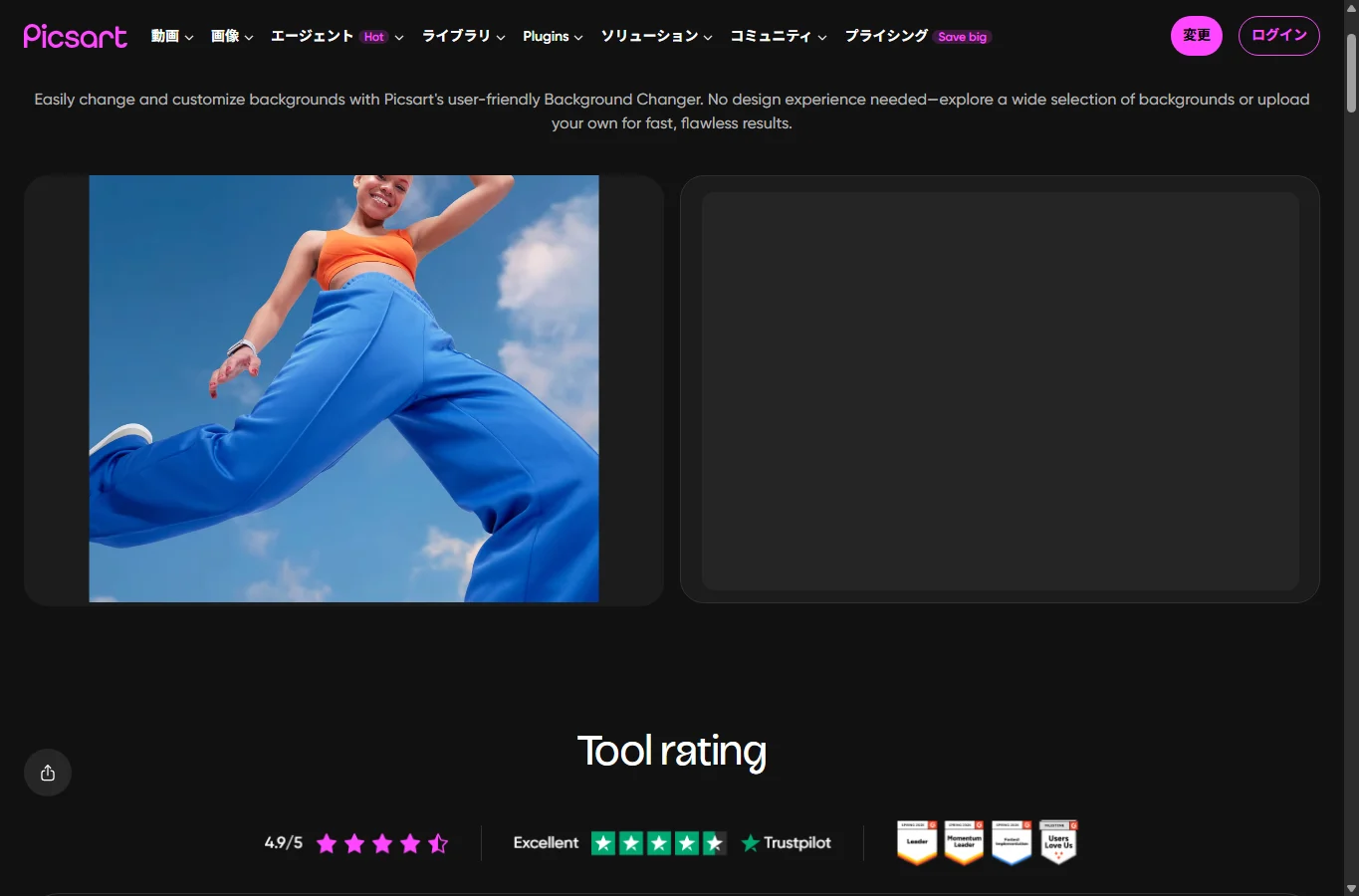
Official tool: Picsart
Picsart offers background changes alongside filters, effects and other creative editing. It suits an eye-catching profile image or social composition where a deliberately stylized setting is acceptable. Replace the background, then balance its saturation and brightness with the person or object.
A dramatic effect is less useful for a listing that must represent a product precisely. Keep an untouched original and inspect skin, clothing, edges and colors after each major edit. Separate standard editor functions from premium or AI options; do a trial export before assuming that a preview is ready for commercial delivery.
9. FlexClip — Photo scenes that will also enter a video workflow
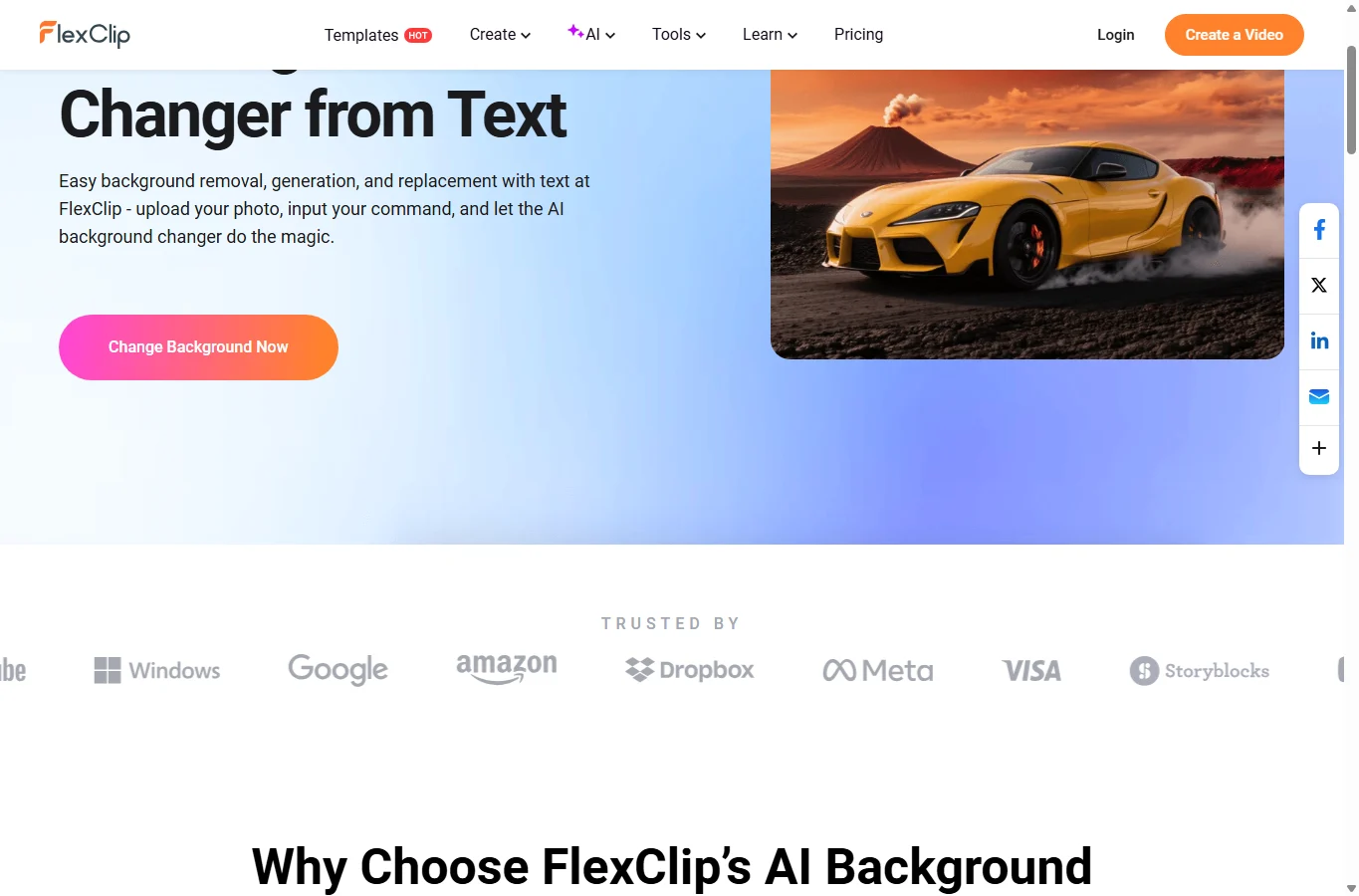
Official tool: FlexClip
FlexClip’s current background tool does more than create an empty background asset: it accepts a photo and a written instruction to replace the setting. Select its Change Background effect, describe the new scene, generate and download a result. That is relevant for thumbnails, profile photos and visual material for a video project.
Treat the photo background change and the final video export as separate jobs with potentially different account limits. For a thumbnail, leave intentional space for a title and check the subject at small display size. Do not repeat marketing promises about one-second processing or perfectly preserved detail as measured facts.
A practical workflow for natural results
- Begin with the highest-quality original you have. A well-lit subject against a reasonably distinct background gives the tool less ambiguity than a compressed screenshot or a crowded group photo.
- Specify a small number of visual constraints: surface, setting, light direction and dominant color. For a shop image, a neutral tabletop and believable contact shadow are often more useful than a complicated fantasy location.
- Compare the result with the original at 100% zoom. If the face, label or shape has changed, simplify the request or use a cutout with a background image you control. Save a separate export and check its pixel dimensions before publishing.
Checks before using the image
- Inspect hair, glasses, transparent packaging, narrow handles and the ground contact area.
- Match light direction, perspective, color temperature and shadow softness. A subject can look pasted on even when the cutout is clean.
- Do not assume all nine tools are unlimited or free. Account requirements, generation allowances, paid assets, watermarks and export sizes can differ.
- For commercial use, check rights to the source photo, any added image or template and the service’s applicable terms. AI generation alone does not establish exclusive rights.
- Cloud editing involves uploading a photo. Avoid client-confidential or sensitive personal images without the necessary permission and data-handling arrangements.
Which should you try first?
Try AirMore for a photo-and-description experiment, PicWish or Photoroom for a product-photo workflow, and Adobe Express or Canva when you also need a finished layout. Use Erase.bg when a straightforward cutout and color change will do; consider Fotor, Picsart or FlexClip when their wider editing workflow fits your final output.
Test one representative photo before moving a whole batch or paying for a plan. A usable export with correct subject details matters more than an impressive sample gallery.
Localized from the Japanese edition and checked against public product pages on November 5, 2026. Features described are documented capabilities, not an independent speed or image-quality ranking. No paid generation comparison was performed. AI assisted research, writing and cover illustration; the cover is not a tool output.
Related
Best 10 Chrome Extensions in 2026: Practical Add-ons Worth Installing

AI Manga Generator: Best Tools to Create Manga-Style Art and Stories
AI Thumbnail Generator: Best Tools to Create Click-Worthy Thumbnails
Best AI Customer Service Tools for Faster Support
The Best Sticker Remover to Clean Your Photos in Seconds
Best AI App Builders for No-Code App Creation