
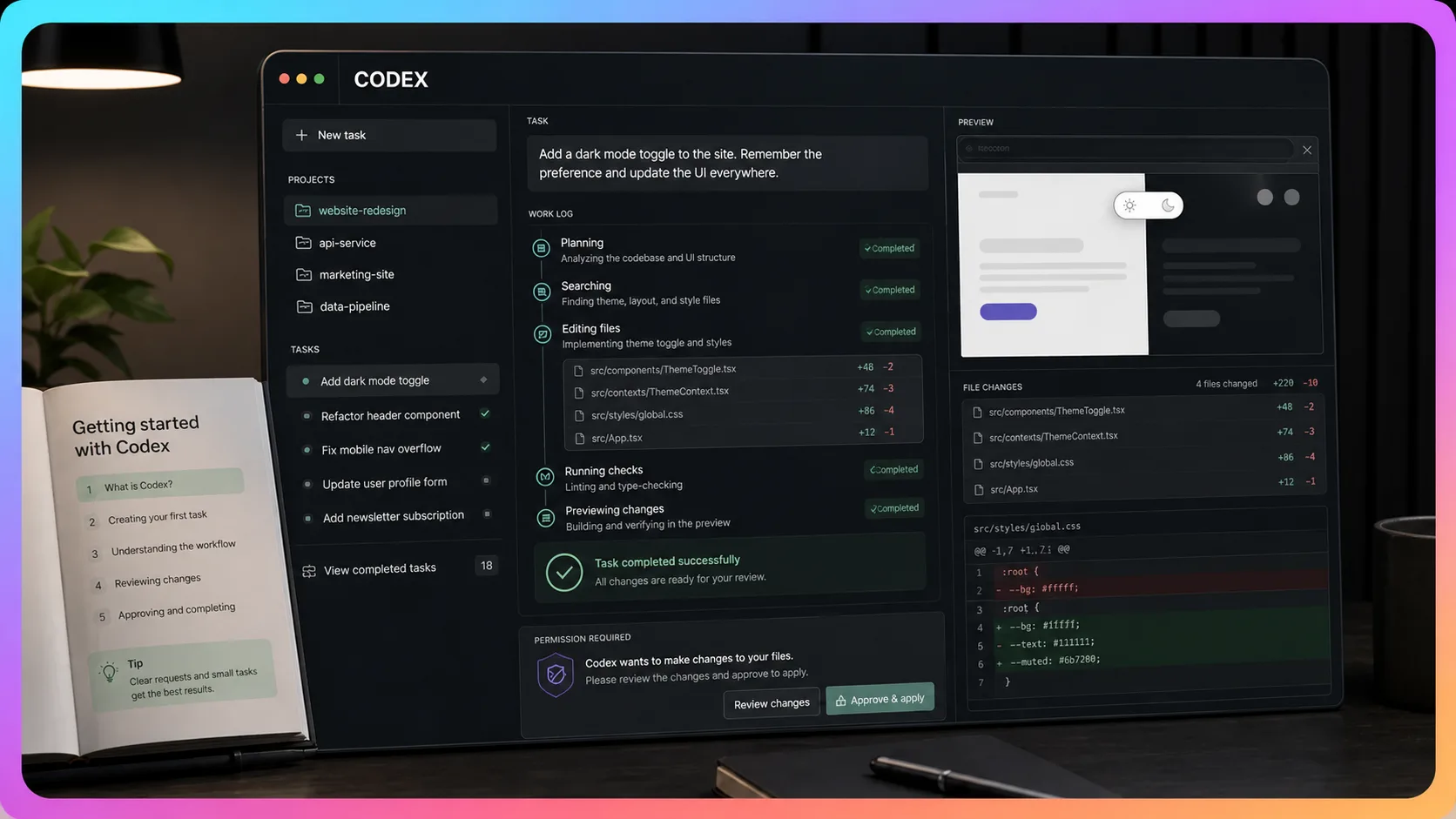
This guide focuses exclusively on Codex in the ChatGPT desktop app. It does not cover the Codex CLI, IDE extension, or API. The information is based on official OpenAI documentation; button names and available features may vary slightly by account, operating system, rollout, and organization policy.
▾ Table of Contents (click to collapse or expand)
- 1. What is Codex in ChatGPT?
- Part 1: Install and get started
- Part 2: Understand the Codex interface
- Part 3: Permissions and safety
- Part 4: Give Codex clear instructions
- Part 5: Practical examples
- Part 6: Verify the result
- Part 7: Troubleshooting
- Part 8: A five-day learning path
- The 10 most important rules
1. What is Codex in ChatGPT?
Codex in ChatGPT is an intelligent work agent that can use files and tools to complete tasks. A normal chat is mainly designed to answer questions; Codex is designed to deliver finished work. With the appropriate permission, it can:
- Read, analyze, organize, and create local files
- Create documents, spreadsheets, presentations, and PDFs
- Analyze CSV, Excel, and other structured data
- Read, modify, review, and test code
- Build websites, images, and data visualizations
- Search the web and verify information
- Use a browser or supported desktop applications
- Connect to external services through plugins and apps
- Continue longer-running work while you step away
- Revise its output in response to your feedback
Instead of asking only, “How do I make a sales analysis report?”, you can give Codex the data and request the finished deliverables:
Analyze this sales spreadsheet and create an Excel report with charts.
Also create a one-page management summary in English.

Do not overwrite the original file.
Codex can inspect the data, perform the analysis, create the files, verify them, and report where the finished files were saved.
Part 1: Install and get started
2. Install the ChatGPT desktop app
Codex in ChatGPT is primarily used through the ChatGPT desktop app:
- Open the official ChatGPT desktop app page.
- Download the version for Windows or macOS.
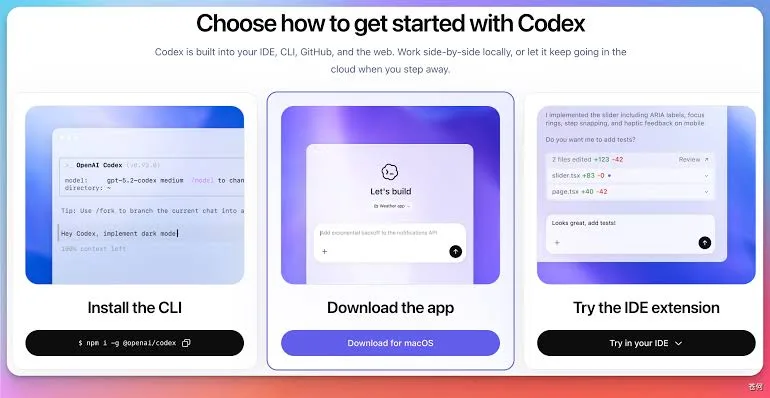
- Install and launch the app.
- Sign in with your ChatGPT account.
- Open Codex and create a new task.
- Select or open a workspace folder.
If you only plan to work with documents, images, spreadsheets, or general files, you usually do not need to install developer tools first. To build and run software, the project may also require Git, Node.js, Python, Java, project dependencies, or testing tools.
Check which tools and dependencies this project needs.

For now, report only:
1. Which tools are already installed
2. Which tools are missing
3. Which tools are required to run the project
4. The recommended installation order

Do not install anything or modify any files yet.
3. Create your first workspace folder
Codex works with files inside the workspace you select. Create a dedicated folder for each separate project, for example:
Documents/
└── Codex Projects/
 └── sales-report/
 ├── sales.csv
 ├── product-list.xlsx
 └── notes.txt
Beginners should avoid opening their entire home directory, Desktop, Downloads folder, or a directory containing large amounts of private data. A clearly limited workspace reduces the chance that Codex will read or modify unrelated files.
Part 2: Understand the Codex interface
4. Sidebar: projects and tasks
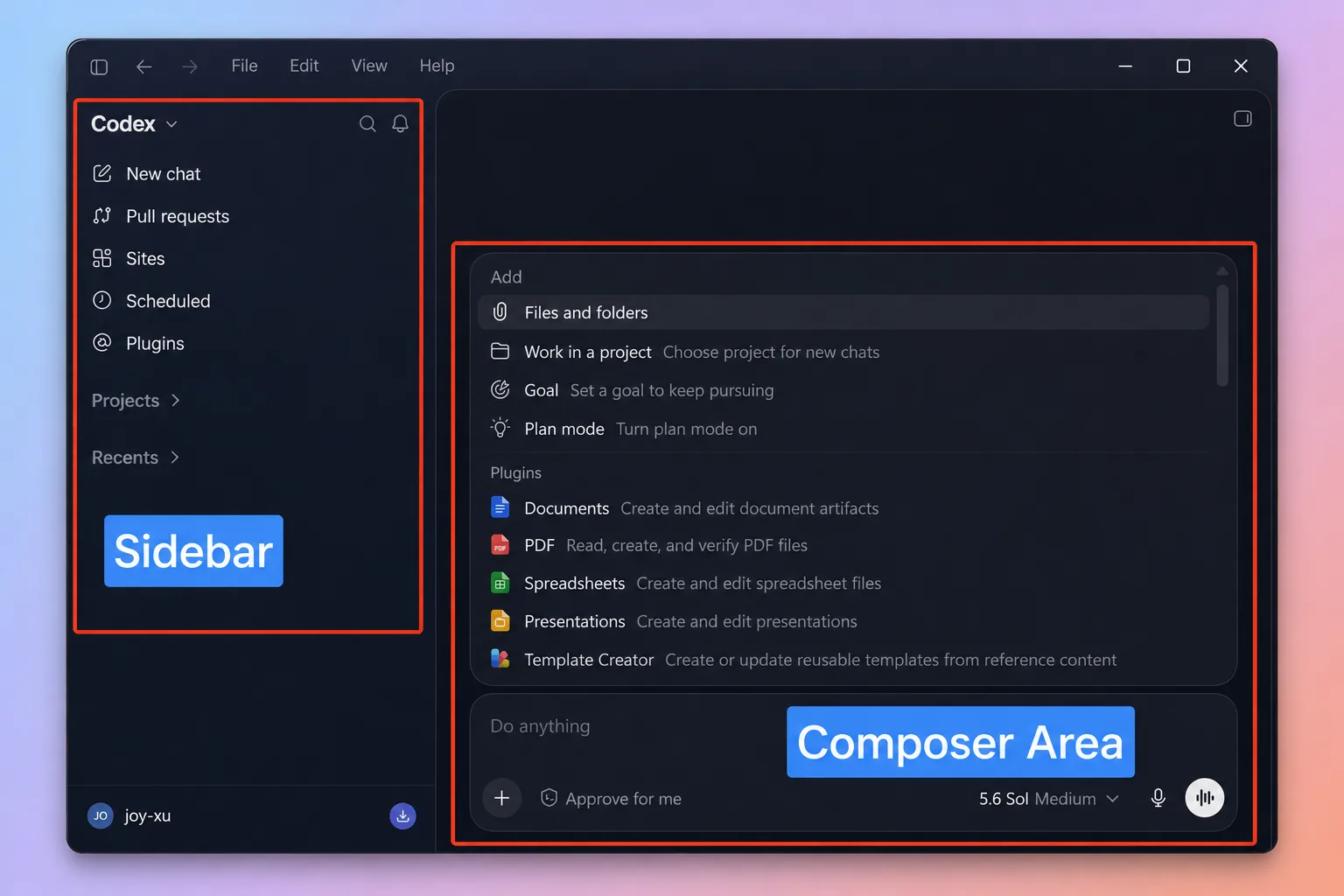
The sidebar is where you manage projects and tasks. A project is useful for related, longer-term work and can contain multiple tasks, a local folder, uploaded files, project instructions, and shared context. Each task should usually correspond to one clear outcome, such as creating a sales report, fixing a mobile menu, or reviewing contract risks.
If two pieces of work have very different goals, create separate tasks. Use a project when the work will continue over time, produce several related deliverables, or reuse the same source material. See the OpenAI projects guide for more details.
5. Composer: your task control center
Use the composer to enter instructions, attach files, upload images, add background information, change the task scope, and request revisions. A good request does not have to be long, but it should define the deliverable, scope, limits, and verification criteria.
Analyze the attached customer feedback spreadsheet.

Please:
1. Classify feedback by issue type
2. Count the number of comments in each category
3. Identify the five most common problems
4. Create an Excel analysis workbook
5. Create a one-page management summary in English

Do not modify the original file.
Every conclusion must be traceable to the spreadsheet data.
6. Main area: work in progress
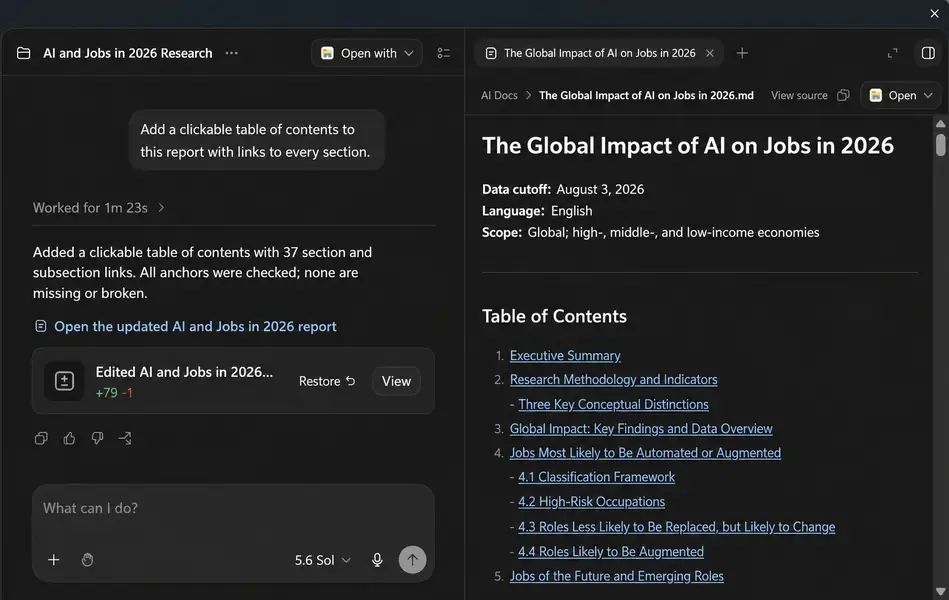
The main area shows your request, Codex’s understanding of the task, its current progress, the files and tools it used, permission requests, test results, and its final summary. If Codex is still working, you usually do not need to send the same request again. You can add information that does not change the overall direction, such as, “Additional requirement: write the final report in English.”
7. Files and preview area
The ChatGPT desktop app can preview Word, Excel, PowerPoint, PDF, Markdown, images, web pages, and code. After reviewing a first draft, you can point to a specific page or area and request a focused change.
Keep everything else unchanged. On slide 3 only:
- Shorten the title
- Enlarge the chart
- Remove the note in the lower-right corner
For more information, see OpenAI’s file creation, preview, and annotation guide.
8. Code changes and review area
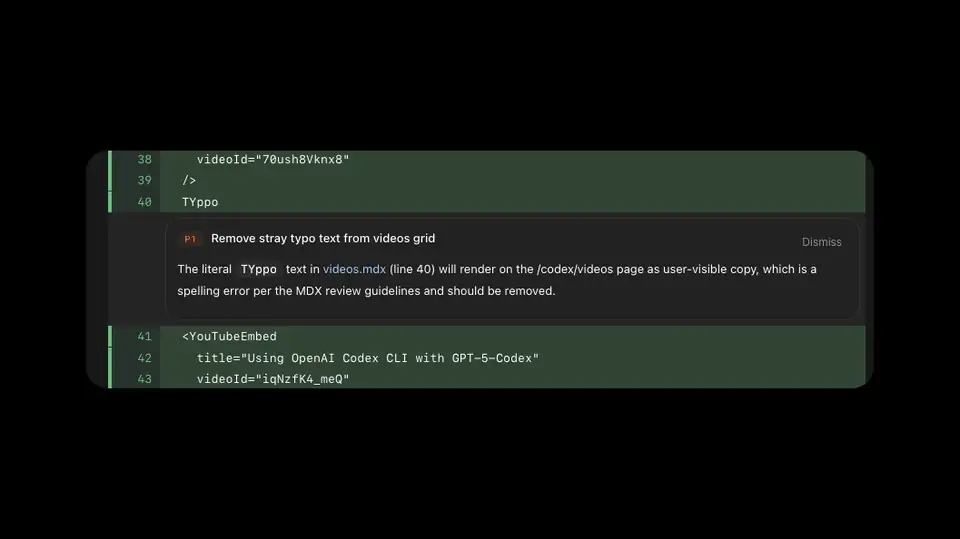
When Codex changes code or text files, the interface may show a diff between the original and revised versions. Review which files changed, whether anything outside the requested scope was modified, whether new dependencies were added, and whether the reported tests actually passed.
If the repository already contained uncommitted Git changes, the review area may include older changes as well. When available, switch to the most recent task or “Last turn” view. See the OpenAI code review guide.
Part 3: Permissions and safety
9. Why does Codex request permission?
Codex may need to read or edit files, run local commands, connect to the network, access a location outside the workspace, or control a browser or another application. The permission system determines which actions can happen automatically and which require your approval.
10. Choose a permission mode
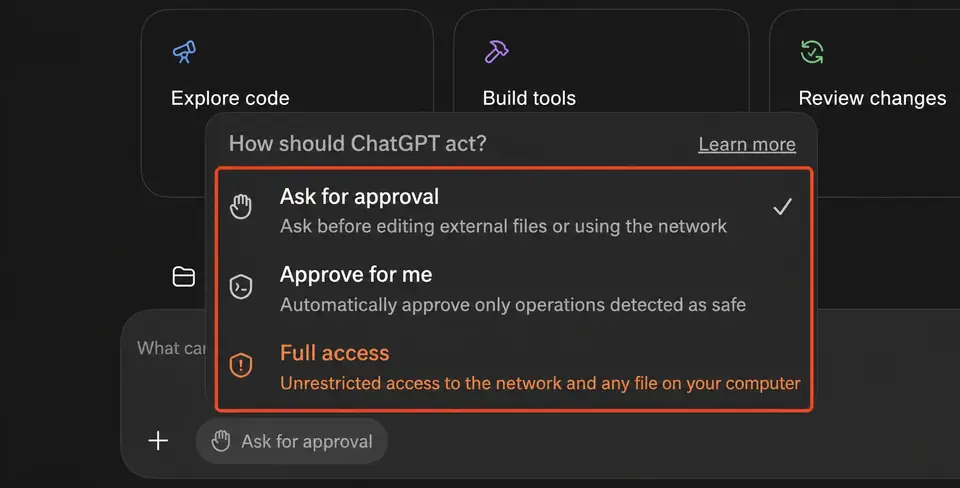
- Ask for approval: the best default for beginners. Codex can perform ordinary work in the workspace and asks before it goes beyond that scope.
- Approve for me: the system automatically reviews some additional permission requests. It is faster, but automated judgments can still be wrong.
- Full access: allows broader access to files and the network. It carries the greatest risk and is not a good everyday default for beginners.
For most work, begin with Ask for approval. See OpenAI’s permission modes guide for details.
11. How should you decide whether to approve?
Before approving, confirm that the action is directly related to the task, the folder is correct, the website is trustworthy, important files will not be overwritten or deleted, and a backup exists when needed. Be especially careful with file deletion, overwriting source data, publishing content, pushing code, sending messages, changing an online database, or handling passwords and keys.
Before I approve, explain:
1. Why this permission is required
2. Which files or websites you will access
3. Whether any data will be changed
4. Whether there is an alternative that does not require this permission
Part 4: Give Codex clear instructions
12. Five elements of a good task
- Goal: the final outcome you want.
- Inputs: the files or information Codex should use.
- Scope: what Codex is allowed to change.
- Constraints: what Codex must not do.
- Acceptance criteria: how to prove that the task is complete.
Complete [TASK GOAL].

Use these inputs:
- [FILES, FOLDERS, OR ATTACHMENTS]

Requirements:
- [CONTENT REQUIREMENTS]
- [FORMAT REQUIREMENTS]

Constraints:
- Do not [PROHIBITED ACTION]
- Modify only [ALLOWED SCOPE]

When finished:
- Check [ACCEPTANCE CRITERIA]
- List everything you changed
- Tell me where the output files are saved
13. Three useful task modes
Analyze only; do not modify
Inspect the current project and identify problems.
Analyze and report only. Do not modify files, install dependencies,
or run commands that change data.
Analyze first, then modify
First analyze the cause of the error. Explain the proposed fix,
wait for my confirmation, then modify the files and run tests.
Complete and verify
Fix the mobile navigation menu, which does not open.
Modify only related files, preserve desktop behavior, add no new framework,
and run the relevant tests when finished.
Part 5: Practical examples
14. Example 1: Organize and summarize information
Read the meeting notes and requirements documents in this folder and create a project summary.
Include the project goal, confirmed requirements, open questions, owners, deadlines,
risks, and next actions. Mark uncertain information as "To be confirmed."
Cite the source file for every important conclusion and output an English Word document.
15. Example 2: Analyze Excel or CSV data
Analyze sales.csv:
1. Check missing values, duplicates, and outliers
2. Summarize sales by month
3. Identify the five best-selling products
4. Compare growth rates by region
5. Create an Excel report with charts
6. Write an English management summary

Do not overwrite the original CSV or invent missing data.
16. Example 3: Create a presentation
Create an eight-slide project review presentation for management.
Use concise, professional, data-driven English.
Do not invent data. Mark missing information as "To be added."
When finished, check for text overflow, distorted images, and inconsistent type sizes.
17. Example 4: Build a simple website
Build a personal portfolio website in the current workspace.
Include an introduction, skills, three projects, and contact information.
Support mobile and desktop, use no large framework, and do not publish it.
Start a local preview and check the layout, links, responsiveness, and console errors.
18. Example 5: Understand an unfamiliar codebase
Do not modify any files yet.
Explain the project’s purpose, how to start it, its main folders, entry points,
data flow, existing tests, and the five files I should read first.
Finish with a 30-minute guided reading path.
19. Example 6: Fix a software bug
Diagnose and fix this error:
TypeError: Cannot read properties of undefined

Find the root cause and make only the minimum necessary change.
Do not alter working behavior, and add a regression test.
Report changed files, test results, and remaining risks.
20. Example 7: Research and write a report
Research five project management tools suitable for small teams in 2026.
Prioritize official websites and documentation. Compare price, core features,
automation, permissions, and learning curve. Separate facts from analysis,
and link sources for information that may change.
Part 6: Verify the result
21. Ask Codex for evidence of completion
Do not accept only “Done.” Ask Codex to state which files it created or changed, where they are located, which source data it used, which commands it ran, what it checked, and which limitations or risks remain.
Perform a final check of the work you just completed.
Do not add more features. Check only:
1. Whether every original requirement is satisfied
2. Whether anything outside the requested scope changed
3. Whether there are obvious errors
4. Whether every output file opens correctly
5. Whether the data and citations have support
6. Whether anything remains unfinished
22. How to review coding tasks
Ask Codex to review without modifying anything. Focus on functionality, edge cases, security, error handling, compatibility, test coverage, and unrelated changes. Before important coding work, create a Git restore point or commit.
23. How to review document and data tasks
Check that numbers match the source data, conclusions have evidence, citations work, chart units are correct, files open correctly, pages do not overflow, and original files were not overwritten.
Part 7: Troubleshooting
24. Codex cannot read a file
Confirm that you opened the correct folder, the file is inside the workspace, the required permission was granted, another program is not locking the file, and your organization administrator has not disabled local-file features.
Tell me which workspace directory and related files you can currently access.
Do not attempt to access any other location.
25. Codex cannot connect to the network
The permission mode may block network access, approval may still be pending, an organization policy may restrict the connection, the destination may be unavailable, or the network may be down. Do not enable Full access merely for convenience.
26. Codex stops and waits
Codex may be waiting for permission, account sign-in, a required file, an important choice, an external tool, or a test to finish. Read the most recent progress message before deciding what to do next.
27. The result is not what you expected
Do not say only, “This is bad.” Identify the file, page, or area with a problem; describe the result you expected; and state which parts must remain unchanged.
Part 8: A five-day learning path for beginners
- Day 1: Ask Codex to explain files or data without making changes.
- Day 2: Create a Markdown report, spreadsheet, or standalone web page.
- Day 3: Request a focused revision and review it in the preview or diff view.
- Day 4: Ask Codex to run tests, analyze data, or verify official information.
- Day 5: Complete the full cycle: define the goal → provide inputs → limit scope → execute → check → revise → accept.
The 10 most important rules
- Use a separate workspace folder for each project.
- Give each task one clear deliverable.
- State exactly which files Codex may modify.
- When you need analysis only, explicitly say, “Do not modify anything.”
- Beginners should use Ask for approval by default.
- Do not casually approve access outside the workspace.
- Do not let Codex overwrite original source data.
- Back up important files and keep a Git restore point for code projects.
- Ask Codex to verify the result, not merely create it.
- Personally review any publish, delete, send, or online-data change before it happens.
The most effective way to use Codex in ChatGPT is to treat it as a collaborator that can work with real files and tools. You define the goal, scope, constraints, and acceptance criteria; Codex analyzes, executes, verifies, and iterates.
Related
7 Best AI Quiz Generator Tools to Streamline Your Assessments in 2026

6 Best AI Rewriter Tools in 2026 for Clearer, More Natural Content
Best AI Email Writers for Work, Sales, and Everyday Messages
Best AI PDF Readers to Summarize, Search, and Chat With Documents
Best AI Image Extender and Outpainting Tools

How to Use Perplexity: A Complete Beginner’s Guide to Pro Search, Files and Comet (2026)