5 Best Data Recovery Software Tools in 2026
Compare the best data recovery software of 2026 for deleted files, formatted drives, external storage, advanced recovery, and free Windows use.
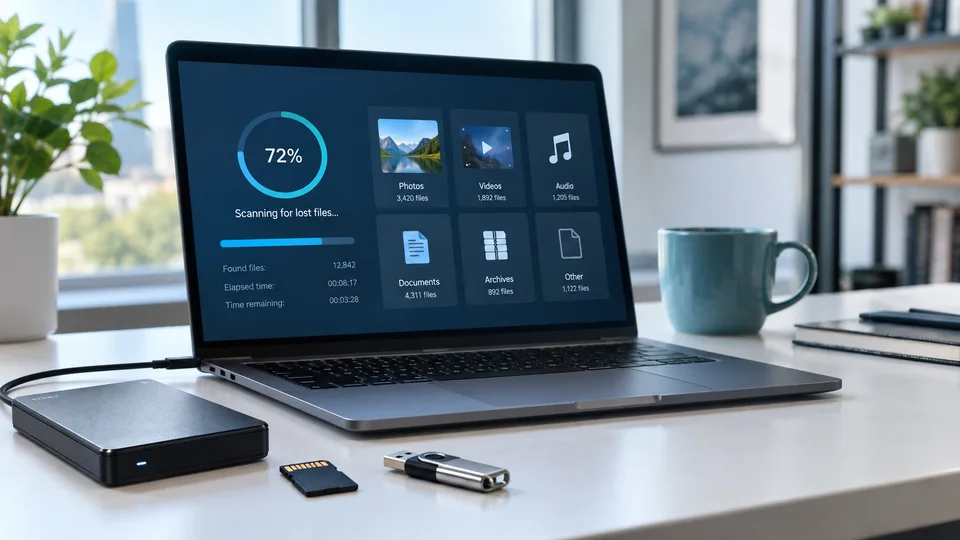

Accidentally deleting an important folder can feel disastrous, but deletion does not always erase the underlying data immediately. In many cases, the operating system simply marks that space as available. The right data recovery software may be able to locate the remaining file records or reconstruct files from recognizable data patterns—provided the lost data has not already been overwritten.
Recovery software can help after accidental deletion, an emptied Recycle Bin or Trash, quick formatting, a lost partition, a corrupted file system, or an unreadable external drive. It cannot repair physically damaged hardware, and no program can guarantee the recovery of overwritten data. SSDs also present a particular challenge because TRIM may clear deleted blocks before a recovery scan reaches them.
This guide compares five of the best data recovery software tools in 2026. The recommendations cover straightforward home recovery, large formatted drives, advanced disk imaging and RAID work, and a genuinely useful free option for Windows.
Table of Contents
- What to Do Before Running Data Recovery Software
- How We Evaluated the Best Data Recovery Software
- Best Data Recovery Software at a Glance
- 1. Disk Drill — Best Overall
- 2. EaseUS Data Recovery Wizard — Best for Beginners
- 3. Stellar Data Recovery — Best for Damaged or Unbootable Systems
- 4. R-Studio — Best for Advanced Users and RAID Recovery
- 5. Recuva — Best Free Data Recovery Software for Windows
- Which Data Recovery Software Should You Choose?
- How to Recover Deleted Files Safely
- Frequently Asked Questions
What to Do Before Running Data Recovery Software
Your actions immediately after data loss can matter more than the brand of software you choose. Every new download, update, temporary file, or application installation may overwrite space that still contains recoverable data.
- Stop using the affected drive. Do not save new files, install programs, download updates, or continue normal work on it.
- Do not install the recovery program on the source drive. Install it on another internal disk, a USB drive, or a different computer.
- Recover files to a separate destination. Never restore recovered files to the same drive being scanned.
- Do not format an unreadable drive just because Windows or macOS suggests it. Formatting changes file-system information and can make recovery harder.
- Make a disk image when the drive is unstable. Repeated scanning can place additional stress on a failing hard disk.
- Stop if the drive clicks, disconnects repeatedly, smells burned, or is not detected correctly. These symptoms suggest physical failure and require a professional recovery laboratory.
If the lost files were stored on the same system drive from which the computer is currently running, shut the computer down when practical. Connect the drive to another machine or use a bootable recovery environment. This reduces background writes from the operating system.
How We Evaluated the Best Data Recovery Software
There is no single recovery application that is best for every device and failure type. We compared the tools using common logical data-loss scenarios and the features that materially affect a safe recovery workflow.
The main evaluation criteria were:
- Recovery coverage: deleted files, emptied recycle bins, formatted volumes, lost partitions, RAW drives, and corrupted file systems
- Storage support: internal hard drives, SSDs, external drives, USB flash drives, and memory cards
- File-system support: NTFS, FAT, exFAT, APFS, HFS+, ext-family file systems, and other platform-specific formats
- Scan quality: quick scans, deep signature scans, partition searches, filters, and file previews
- Safety tools: disk imaging, read-only workflows, SMART monitoring, scan-session saving, and recovery to another destination
- Ease of use: setup, drive selection, result organization, previews, and recovery steps
- Advanced capability: RAID reconstruction, virtual disks, damaged volumes, bootable recovery, and hexadecimal inspection
- Free-version usefulness: whether the free edition can recover files rather than only scan and preview them
- Value: license duration, platform coverage, device limits, and the difference between consumer and technician licenses
Recovery results always depend on the original device and what happened after the files were lost. A successful preview is a useful sign, but it does not guarantee that every recovered file will open correctly.
Best Data Recovery Software at a Glance
| Software | Best for | Platforms | Useful free recovery | Disk imaging | Typical paid entry price |
|---|---|---|---|---|---|
| Disk Drill | Best overall balance of usability and features | Windows, macOS | Windows: up to 100 MB; Mac: preview and limited protected-file recovery | Yes | $89/year or $149 lifetime |
| EaseUS Data Recovery Wizard | Guided recovery for beginners | Windows, macOS | Up to 2 GB where the free offer is available | Available in supported editions | Windows plans commonly start at $69.95 |
| Stellar Data Recovery | Lost partitions, disk images, and unbootable systems | Windows, macOS | Up to 1 GB, with an additional allowance sometimes offered | Professional edition and above | Standard commonly starts around $59.99/year |
| R-Studio | Advanced recovery, RAID, and technical workflows | Windows, macOS, Linux | Demo can save files up to 1 MB each | Yes | $79.99 for the standard R-Studio license |
| Recuva | Free recovery of recently deleted Windows files | Windows | Yes | Virtual drive support is reserved for Professional | Free; Professional commonly costs $24.95 |
Prices and promotions can change by region and date. Check the license term, renewal rules, supported operating system, and recovery allowance before purchasing.
1. Disk Drill — Best Overall Data Recovery Software
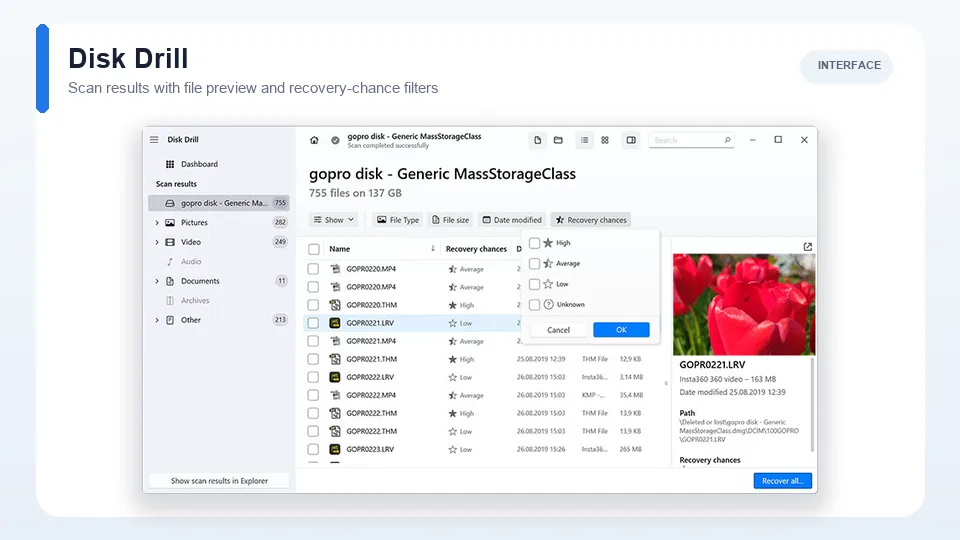
Disk Drill offers the best overall balance for people who want a modern interface without giving up useful technical features. The application presents physical disks, partitions, external storage, memory cards, and disk images in a clear device list. You select a source, start a search, filter the results, preview files, and recover selected items to a different drive.
Its scan workflow combines existing file-system records, lost-partition searches, and signature-based deep scanning. That makes it useful for recently deleted files as well as formatted or damaged volumes. Disk Drill also supports byte-to-byte backups, which let you scan an image instead of repeatedly reading an unstable source drive.
Key Features
- Quick and deep recovery methods presented in one scan workflow
- Support for internal drives, external disks, USB devices, memory cards, and disk images
- File previews and filters by type, size, date, and recovery status
- Byte-to-byte disk backups for safer work with questionable media
- Lost-partition detection and broad file-system coverage
- More than 400 file signatures for raw recovery
- One current license covering Windows and macOS, with up to three activations
Recovery Experience
Disk Drill is particularly good at turning a complicated scan into a manageable result list. Categories for pictures, video, audio, documents, archives, and other files help when filenames or folders have been lost. Previewing a document or photo before recovery helps identify intact files and prevents you from paying for a license without first confirming that the scan found useful data.
The main drawback is the free recovery limit. On Windows, Disk Drill Basic can recover up to 100 MB, which is enough for a handful of documents but not a large photo or video collection. On macOS, the free edition is primarily useful for scanning, previewing, and recovering files previously protected by its data-protection features.
Pros
- Friendly interface suitable for nontechnical users
- Strong combination of file recovery, partition search, and disk imaging
- Good previews and result filters
- Works on both Windows and macOS under one current license
- Annual and lifetime license options
Cons
- Very small free recovery allowance on Windows
- Mac free edition does not provide general unrestricted recovery
- More expensive than basic Windows-only utilities
Price: Disk Drill PRO is commonly offered at $89 per year or $149 for a lifetime license. Disk Drill Basic is free to scan and preview recoverable files.
Best for: home users, photographers, and small businesses that want an approachable recovery tool with imaging and strong scan organization.
2. EaseUS Data Recovery Wizard — Best for Beginners
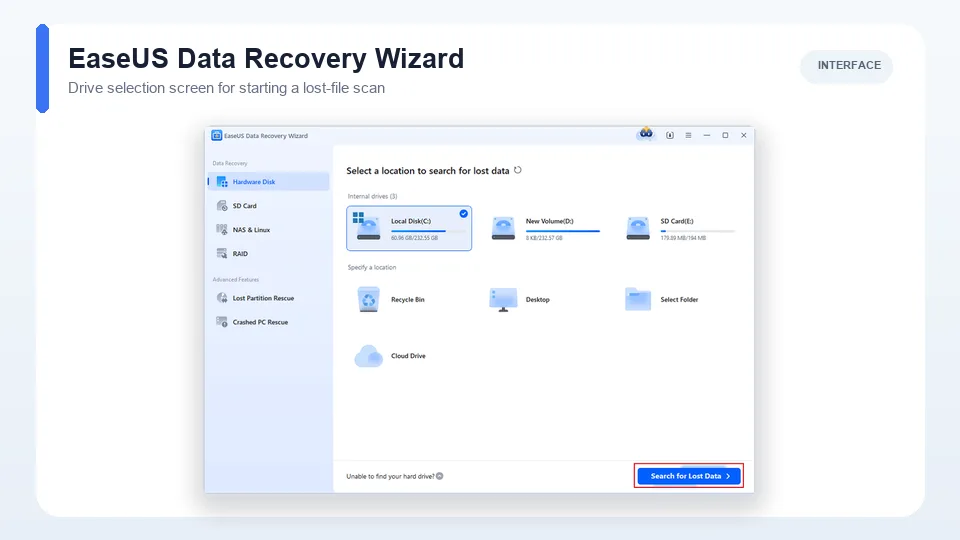
EaseUS Data Recovery Wizard is designed around a simple select-scan-recover process. It is a practical choice when someone has never used recovery software and wants the program to handle quick and deep scanning without requiring decisions about sectors, offsets, or file-system parameters.
The software can search internal and external drives, USB storage, memory cards, lost partitions, and formatted volumes. Scan results can be filtered by file type, date, size, and filename, while previews help distinguish usable files from damaged results.
Key Features
- Guided recovery workflow with minimal setup
- Deleted-file, formatted-drive, RAW-volume, and lost-partition recovery
- Support for hard drives, SSDs, USB drives, memory cards, and other removable storage
- Pause and resume controls for longer scans
- File filters, search, and previews
- Separate Windows and macOS editions
- Higher editions for bootable and technician use
Recovery Experience
EaseUS does a good job of reducing the number of choices shown before a scan. That simplicity is valuable when the loss is urgent and the user only knows which drive contained the files. The result browser is also easier to understand than the disk trees and technical objects used by professional recovery tools.
The tradeoff is pricing and license complexity. Monthly, annual, and lifetime options can differ between Windows and Mac, while technician licenses are substantially more expensive. The free edition is often advertised with a recovery allowance of up to 2 GB, but the exact allowance and any steps needed to unlock it should be checked in the current version.
Pros
- One of the easiest interfaces for first-time users
- Good file filtering and preview tools
- Covers common deletion, formatting, and partition-loss scenarios
- Can pause a scan and save time when the needed files appear early
- Multiple license durations are available
Cons
- Paid plans can be expensive for a one-time recovery
- Windows and Mac licenses are sold separately
- Free-recovery conditions can vary by version and promotion
- Less transparent and configurable than R-Studio for complex disk work
Price: Windows plans commonly start at $69.95, with longer maintenance or lifetime-upgrade options costing more. Mac licenses are usually more expensive.
Best for: beginners who want clear guidance and do not need to configure a technical recovery workflow.
3. Stellar Data Recovery — Best for Damaged or Unbootable Systems
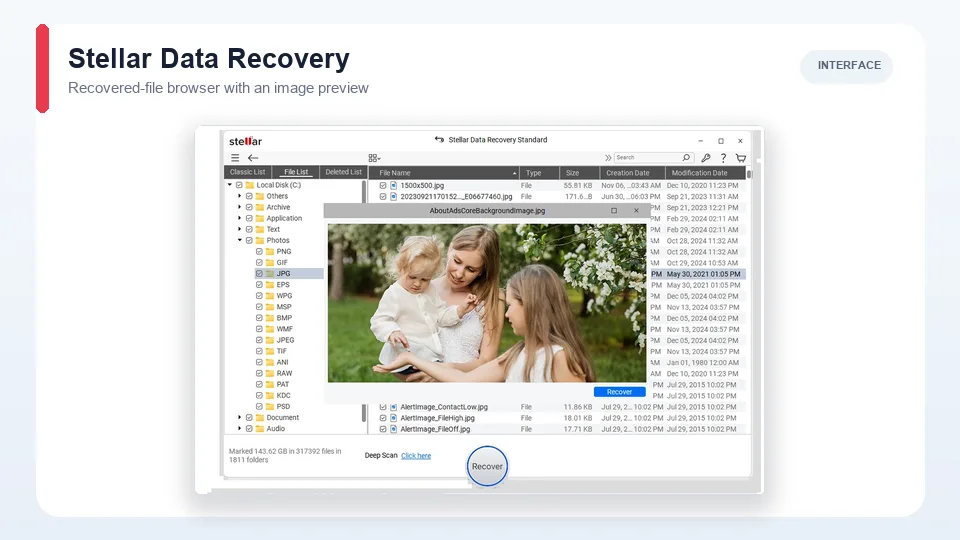
Stellar Data Recovery provides a straightforward interface at the entry level, then adds more serious recovery features as you move through its editions. Standard handles deleted and formatted files, while Professional adds lost-partition recovery, disk imaging, SMART monitoring, and tools for working with a Windows computer that will not boot.
This edition structure makes Stellar particularly useful when the recovery problem goes beyond an accidentally deleted folder. A disk image lets you preserve the source for later scanning, while bootable recovery can help when Windows cannot start. Premium adds photo and video repair, but file repair is separate from recovering the missing file itself.
Key Features
- Recovery from deleted files, formatted volumes, encrypted drives, and removable storage
- File-type selection before scanning
- Deep Scan for signature-based recovery
- Lost-partition recovery in Professional and higher editions
- Disk imaging and SMART drive monitoring in Professional
- Bootable recovery support for non-starting Windows systems
- Optional photo and video repair in Premium
Recovery Experience
Stellar begins by asking what type of data you want to recover and where it was stored. Limiting the scan to documents, photos, video, email, or another category can simplify the results. If a normal scan does not find the missing content, Deep Scan performs a more exhaustive search.
Before buying, pay attention to the edition comparison. Features such as lost-partition recovery, disk imaging, a bootable environment, media repair, RAID, and NAS recovery are divided across increasingly expensive tiers. The free edition currently offers an initial recovery allowance, with an additional amount sometimes unlocked through a promotional action.
Pros
- Simple recovery flow for ordinary files
- Professional edition adds valuable imaging and bootable-recovery tools
- SMART monitoring can warn about deteriorating hard drives
- Useful free allowance for testing recovery quality
- Specialized higher editions are available for media repair, RAID, and NAS
Cons
- The edition structure can be confusing
- Important safety and partition features require Professional or above
- Promotional prices and free allowances can change
- Annual licensing may be costly if you only need one recovery
Price: Stellar Data Recovery Standard for Windows commonly starts around $59.99 per year during current offers. Professional and Premium cost more, depending on the required imaging, bootable-recovery, or repair features.
Best for: Windows users who need a guided tool with an upgrade path to lost-partition, disk-image, and non-booting-system recovery.
4. R-Studio — Best for Advanced Users and RAID Recovery
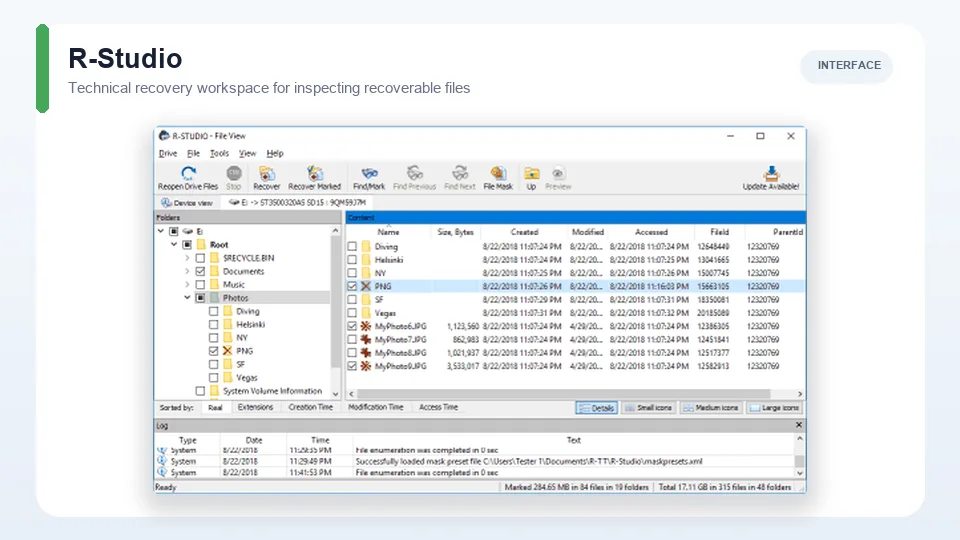
R-Studio is the strongest option in this list for experienced users, IT teams, and recovery technicians. It exposes physical disks, partitions, regions, disk images, file systems, and scan results in a detailed interface. That additional control is valuable for unusual partition layouts, heavily corrupted volumes, virtual disks, and RAID arrays, but it creates a steeper learning curve.
The program supports Windows, macOS, and Linux and can work with a broad range of local and cross-platform file systems. It can create images, scan them without touching the original device again, reconstruct virtual RAID layouts, inspect sectors, and preview files before recovery.
Key Features
- Windows, macOS, and Linux versions
- Detailed disk and partition scanning with configurable parameters
- Disk-image creation and support for common virtual-disk formats
- Virtual RAID construction and custom RAID parameters
- Hex viewer and editor for low-level inspection
- Recovery from local, removable, network, and severely damaged logical volumes
- Separate Corporate and Technician licenses for remote or commercial recovery work
Recovery Experience
R-Studio rewards users who understand disks and file systems. You can choose scan regions, enable specific file systems, add known file types, inspect recognized partitions, and build virtual objects. These controls can help when a simplified wizard hides information that matters.
For a basic undelete job, however, the interface may feel unnecessarily dense. A beginner can still use it, but should read the recovery manual and avoid changing disk structures. The demo allows full scanning and previews, while recovered files are limited to 1 MB each. This makes the demo good for evaluating results, not for restoring a modern photo or video library.
Pros
- Excellent control over complex recovery jobs
- Strong RAID, partition, disk-image, and virtual-disk support
- Available for Windows, macOS, and Linux
- Useful previews and low-level inspection tools
- Competitive price for its professional feature set
Cons
- Steeper learning curve than consumer-focused tools
- Demo only saves files up to 1 MB each
- Some remote and commercial capabilities require expensive licenses
- Technical options can overwhelm users who only need to restore a few files
Price: The standard R-Studio license is currently listed at $79.99. Corporate, Technician, and specialized editions cost more.
Best for: advanced users, IT administrators, multi-platform environments, RAID recovery, and cases where disk imaging and low-level control are important.
5. Recuva — Best Free Data Recovery Software for Windows
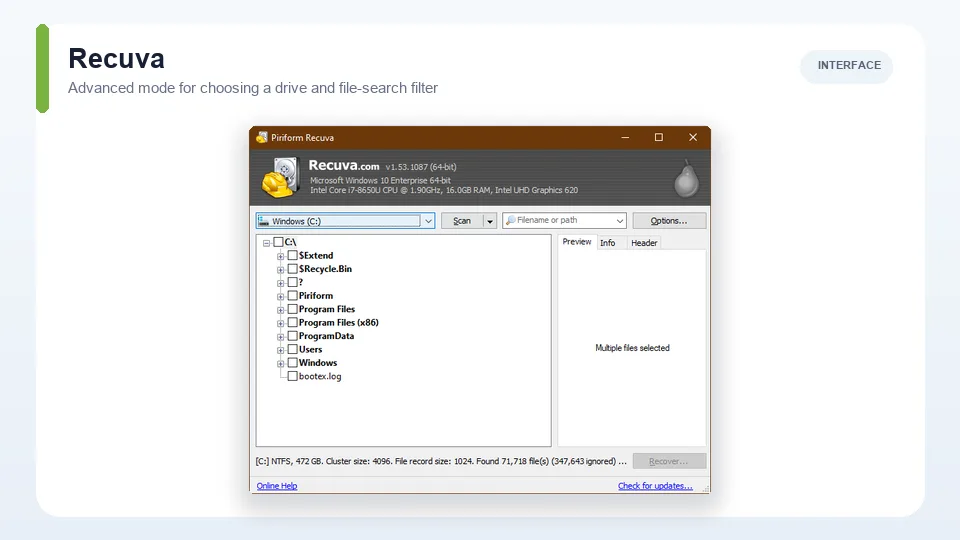
Recuva remains a useful choice for simple Windows recovery when budget matters more than advanced features. It can search for deleted documents, photos, music, video, email, and other files on internal drives, external disks, USB drives, and memory cards. Its wizard asks what type of file was lost and where to search, making a basic recovery quick to start.
A normal scan is suitable for recent deletion, while Deep Scan looks for additional traces on damaged or newly formatted media. Recuva can also securely overwrite files when you want the opposite result, so check which action is selected before proceeding.
Key Features
- Free recovery for common deleted-file scenarios
- Simple wizard and advanced mode
- Quick Scan and Deep Scan
- Support for internal disks, external drives, USB devices, and memory cards
- Recovery from damaged disks and newly formatted drives
- Secure file deletion
- Virtual hard-drive support, automatic updates, and premium support in Professional
Recovery Experience
Recuva is best used soon after a file has been deleted from a healthy Windows drive. The traffic-light recovery indicators provide a quick estimate of whether a result is intact, partially overwritten, or unlikely to work. Advanced mode adds filters and a more detailed result list without making the program difficult to operate.
It is less suitable for modern Mac file systems, Linux storage, complex lost partitions, RAID arrays, or seriously corrupted disks. The product is also Windows-only, and its interface and technical range are more limited than newer cross-platform suites.
Pros
- Free edition can perform practical file recovery
- Small, simple, and quick to learn
- Useful for recently deleted files on healthy Windows storage
- Deep Scan is available when the normal search is insufficient
- Professional edition is inexpensive
Cons
- Windows only
- Limited support for complex partitions, modern non-Windows file systems, and RAID
- Result organization and previews are less polished than leading paid tools
- Not the right choice for physically failing drives
Price: Recuva Free is available at no cost. Recuva Professional is commonly listed at $24.95 and adds virtual-drive support, automatic updates, and premium support.
Best for: Windows users who need to recover recently deleted files without paying for a full recovery suite.
Which Data Recovery Software Should You Choose?
| Situation | Recommended software | Why |
|---|---|---|
| You want the best all-round recovery software | Disk Drill | It combines a clear interface with strong scanning, previews, partition searches, and disk imaging. |
| You have never recovered files before | EaseUS Data Recovery Wizard | The guided workflow keeps setup and result filtering simple. |
| Windows will not boot or you need a disk image | Stellar Data Recovery Professional | Professional includes bootable recovery, imaging, partition recovery, and SMART monitoring. |
| You need RAID, Linux, or advanced control | R-Studio | It provides multi-platform support, virtual RAID tools, disk images, and low-level configuration. |
| You want free Windows undelete software | Recuva | The free edition can recover ordinary deleted files without a small data cap. |
| You need to recover a large photo or video collection | Disk Drill or EaseUS | Both organize results by type and provide previews; confirm the files are intact before buying. |
| The disk clicks or disconnects repeatedly | None | Power it down and contact a professional recovery laboratory to avoid worsening physical damage. |
For most people, start with Disk Drill if you value imaging and a polished interface, or EaseUS if you want the simplest possible wizard. Try Recuva first for a recent deletion on a healthy Windows drive. Choose Stellar Professional for an unbootable Windows system, and use R-Studio when the storage configuration is complex enough to justify technical control.
How to Recover Deleted Files Safely
- Stop all activity on the source drive. If it is an external device, safely disconnect it. If it is the system drive, shut the computer down where practical.
- Prepare another drive. You need a separate location with enough free space for the recovered files and any disk image.
- Install the recovery software elsewhere. Use another internal disk, a portable installation where supported, or a different computer.
- Create a byte-for-byte image if the disk is unstable. Scan the image rather than repeatedly reading the original hardware.
- Run the least intensive scan first. A quick file-system scan can recover recently deleted files while preserving names and folders.
- Use a deep scan if necessary. Signature scanning may find files after formatting or severe file-system damage, but filenames and folder structures can be lost.
- Filter and preview the results. Open previews of several important files. A correct filename alone does not mean the data is intact.
- Recover to the separate destination. Never save results back to the source drive.
- Verify the recovered files. Open documents, play videos, inspect full-resolution photos, and compare file sizes before considering the job complete.
- Back up the recovered data. Keep at least one additional copy on another device or trusted cloud service.
Important Limits of Data Recovery Software
- Overwritten data cannot be reconstructed. If new information occupies the same physical blocks, software has nothing left to recover.
- SSD TRIM can make deleted files disappear quickly. The operating system and SSD controller may clear unused blocks automatically.
- Encryption requires the correct credentials. Recovery software cannot normally bypass strong encryption without the password or recovery key.
- Physical damage needs specialist equipment. Software cannot repair failed heads, motors, controllers, burned components, or scratched platters.
- Raw recovery loses context. Signature scans may restore file contents but not original names, dates, or folder paths.
- Preview support varies by format. A file that cannot be previewed is not automatically unrecoverable, but uncertainty is higher.
Frequently Asked Questions
What is the best data recovery software in 2026?
Disk Drill is the best overall choice for most home users because it balances recovery capability, disk imaging, previews, and ease of use. EaseUS is especially approachable for beginners, Stellar is useful for non-booting Windows systems, R-Studio is better for advanced and RAID recovery, and Recuva is the strongest free option for simple Windows undelete jobs.
Can data recovery software recover permanently deleted files?
Sometimes. A permanently deleted file may remain recoverable until its disk space is reused. Stop using the drive immediately and scan it from another disk or computer. Recovery becomes impossible once the relevant data has been overwritten or cleared by SSD TRIM.
Is free data recovery software really free?
Some tools are genuinely useful for free, while others only scan and preview results. Recuva Free can recover ordinary Windows files. Disk Drill, EaseUS, and Stellar impose platform-specific or data-size limits, and R-Studio Demo only saves files up to 1 MB each.
Can I recover data from a formatted hard drive?
A quick-formatted hard drive may still contain recoverable data if the drive has not been reused. Run a partition or deep scan and save the results elsewhere. Recovery after a full overwrite, secure erase, or extensive reuse is far less likely.
Can data recovery software recover files from an SSD?
It can recover some SSD files, but TRIM significantly reduces the odds. When TRIM is active, deleted blocks may be cleared soon after deletion. Disconnect the SSD or shut down the computer promptly, then evaluate it from another system.
Can I recover data from an external hard drive or USB drive?
Yes, provided the device is detected and the problem is logical rather than physical. Connect it directly, avoid formatting it, scan it with a suitable tool, and restore the recovered files to a different drive.
Should I use a quick scan or deep scan?
Start with a quick scan after recent deletion because it can preserve original filenames and folders. Use a deep scan when the quick scan fails, the volume was formatted, or the file system is badly damaged. Deep scans take longer and may return files without their original names.
Is it safe to install data recovery software on the affected drive?
No. Installation writes new data and may overwrite the files you are trying to recover. Install the software on another drive or computer, and also choose a separate destination for restored files.
Can data recovery software fix corrupted files?
Recovery and repair are different processes. Recovery software retrieves the available file data, but the recovered file may still be incomplete or corrupted. Some higher editions include separate photo or video repair tools, but repair cannot recreate missing data perfectly.
Can I recover files from a phone with desktop recovery software?
Not usually in the same way as a removable disk. Modern iPhones and Android devices use encryption, restricted storage access, and flash management. Use a phone-specific recovery method, an existing cloud or computer backup, or a qualified specialist.
How long does data recovery take?
A quick scan may finish in minutes, while a deep scan of a multi-terabyte disk can take hours. Drive speed, connection type, bad sectors, scan method, file-system damage, and the number of files all affect the duration. Imaging an unstable disk can add substantial time but is often safer.
When should I stop using software and contact a professional?
Stop if the drive clicks, grinds, overheats, smells burned, disappears repeatedly, spins inconsistently, or has suffered impact, fire, or water damage. Also consider professional help when the lost data is unique, business-critical, legally important, or more valuable than the cost of laboratory recovery.
Final Verdict
The best data recovery software is the one that matches the storage device, failure type, and user’s technical experience. Disk Drill is the strongest all-round recommendation, EaseUS provides the easiest guided workflow, Stellar adds useful tools for difficult Windows cases, R-Studio offers the deepest control for advanced recovery, and Recuva remains an excellent free choice for recently deleted Windows files.
Whatever tool you choose, the safest procedure stays the same: stop writing to the affected drive, image unstable media, preview the scan results, and recover files to a separate destination. If the drive shows signs of physical failure, software is not the answer—power it down and seek professional assistance.
Latest Reviews
HunyuanVideo 1.5 Review: Quality, VRAM, ComfyUI, Pricing and Limits

Generate Stained-Glass Designs from Written Ideas
MiniMax M3.1 Flash Review: Coding, API Cost, Open Weights and Limits
Best Antivirus Software in 2026: 5 Reliable Choices for Malware Protection
FLUX 3 Review: Image, Klein, Local Hardware and Real Editing Limits
Best 5 Password Managers in 2026
