6 Best Video Compressor Tools in 2026
Compare six video compressor tools for shrinking MP4 files, meeting upload limits, preserving quality, and compressing videos online or locally.


Oversized video files create familiar problems: slow uploads, rejected email attachments, wasted cloud storage, and frustrating sharing limits. A good video compressor reduces the file size while keeping faces, text, motion, and audio clear enough for the way the video will actually be watched.
The right tool depends on your workflow. A browser-based compressor is convenient for a quick MP4 reduction, while a desktop encoder offers better privacy, batch processing, and control over codecs or bitrate. This guide compares six practical options for creators, marketers, students, and teams that need smaller videos without an obvious drop in quality.
Table of Contents
- How I Chose the Best Video Compressor Tools
- Video Compressor Tools at a Glance
- 1. VEED
- 2. FreeConvert
- 3. Clideo
- 4. Kapwing
- 5. CapCut
- 6. HandBrake
- Which Video Compressor Should You Choose?
- How to Reduce Video Size Without Ruining Quality
- FAQ
How I Chose the Best Video Compressor Tools
A useful video compressor should do more than make a file smaller. It should help you choose the right balance between size, quality, compatibility, and speed. For example, compressing a phone video for WhatsApp is different from preparing a client proof, a website background video, a YouTube upload, or a long training recording.
For this list, I looked at seven practical factors:
1. Compression control: Can you adjust quality, resolution, bitrate, frame rate, codec, or target file size?
2. Ease of use: Can a non-technical user reduce video size quickly?
3. Online access: Does the tool work in the browser, and how smooth is the upload/export process?
4. Format support: Does it support common formats like MP4, MOV, AVI, MKV, WebM, and GIF?
5. Output quality: Does the result stay watchable, especially for faces, text, screen recordings, and motion?
6. Limits: Are there free upload limits, watermarks, account requirements, export caps, or file retention issues?
7. Workflow fit: Is it better for social media, email attachments, business videos, batch encoding, or private local files?
The tools below are not ranked only by compression ratio. A tiny file is not always a good file. The goal is to find the right compressor for the way you actually share video.
Video Compressor Tools at a Glance
| Tool | Best for | Online or desktop | Standout strengths | Main limitation |
|---|---|---|---|---|
| VEED | Creators who want compression plus editing | Online | Simple compression, quality/resolution controls, built-in editor and sharing | Free plan limits apply for larger or watermark-free work |
| FreeConvert | Exact file-size targets and advanced settings | Online | H.264/H.265, CRF, percentage target, max bitrate, resize options | Interface is more technical than one-click tools |
| Clideo | Simple no-learning-curve compression | Online | Very easy interface, popular format support, preview before download | Free exports include watermark and 500 MB file limit |
| Kapwing | Social and team video workflows | Online | Compression inside a full browser editor, media library, sharing URLs | Free plan has upload/export limits and watermark |
| CapCut | Short-form creators and social videos | Online and app | Compression, editing, trimming, cropping, resolution and frame-rate changes | Requires workspace-style editing flow, not only a tiny utility |
| HandBrake | Local batch compression and privacy | Desktop | Free, open source, MP4/MKV/WebM, modern codecs, presets, queueing | Less friendly for beginners than online tools |
1. VEED
Best video compressor for creators who also need editing tools
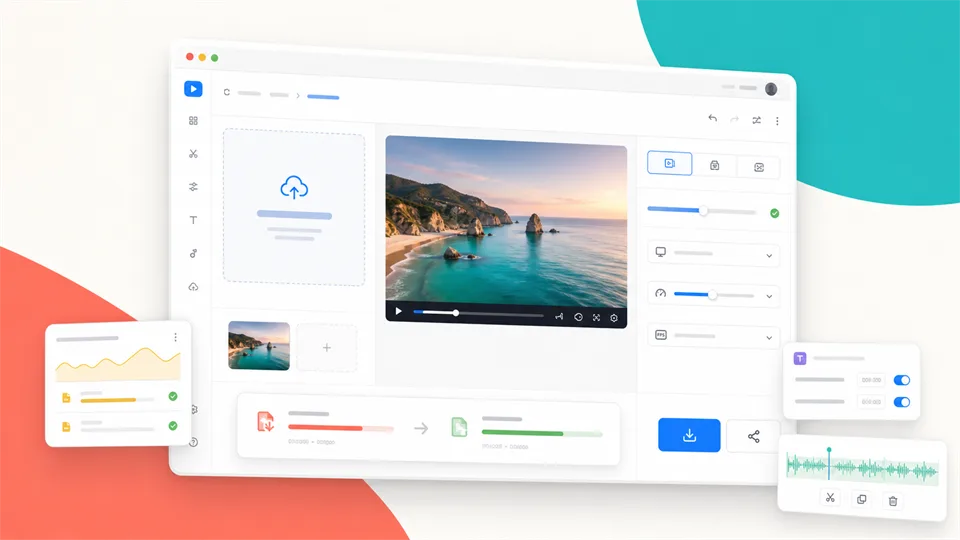
VEED is one of the best options if you want a video compressor online that still feels like part of a broader editing workflow. Instead of only shrinking a file and sending you away, VEED lets you compress, export, keep editing, add subtitles, trim clips, resize formats, and share videos through hosting links.
The compressor is built for normal sharing problems: email attachment limits, slow uploads, social media posting, mobile data, and smoother playback. VEED says its compressor supports major formats such as MP4, MOV, AVI, MKV, WebM, WMV, and GIF. It also offers file-size estimates as you adjust quality, so you are not guessing blindly.
VEED is especially useful when you need to reduce video size but still want creative control. You can lower resolution, adjust quality, use advanced settings such as bitrate and frame rate, or continue into the editor after compression. That makes it a strong pick for social clips, client updates, sales videos, tutorials, and quick marketing content.
The downside is that VEED is not the cheapest tool if you need heavy use, larger uploads, watermark-free exports, or advanced team features. Its help center notes a free compression limit of up to 1GB, while paid plans unlock more usage and broader editing benefits. For one-off jobs, that is generous enough. For production work, you will want to check the current plan limits.
Key functions
- Online video compression
- Quality and resolution controls
- Advanced settings for bitrate and frame rate
- MP4 compression
- Support for major video formats
- Built-in editor
- Subtitles, trimming, resizing, and hosting links
- Real-time file-size estimates
Pros
- Easy for beginners
- Good fit for social and marketing workflows
- Lets you compress and keep editing in one place
- Useful file-size estimates
- Supports many common formats
Cons
- Paid plan may be needed for heavier use
- Browser upload time matters for large files
- More editor than you need for a simple offline compression job
Verdict
VEED is the best all-around video compressor for creators who want more than a basic file shrinker. It is easy enough for fast jobs, but flexible enough for people who also need subtitles, resizing, trimming, and sharing.
2. FreeConvert
Best video compressor online for target file sizes
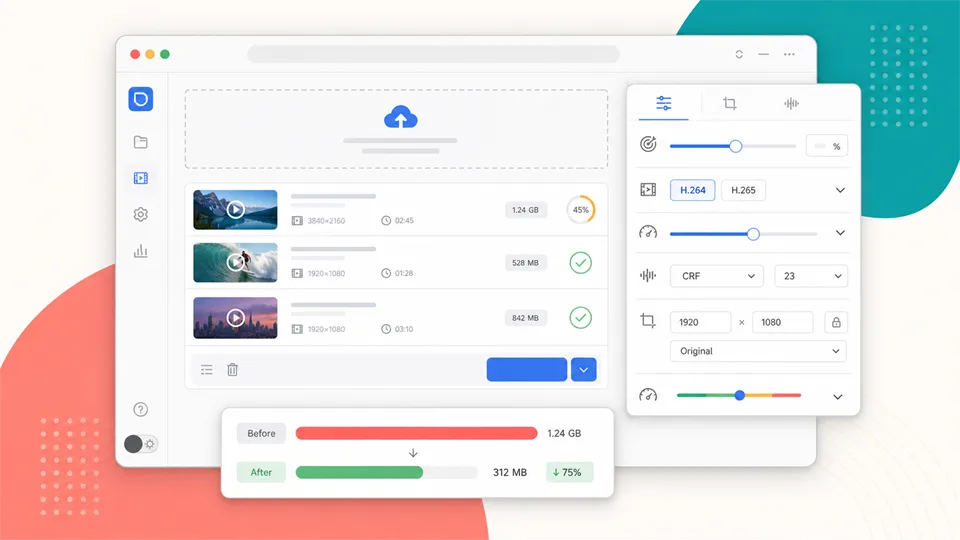
FreeConvert is the best choice when you need more control over the final result. It lets you compress MP4, AVI, MKV, MOV, WebM, and many other video formats, with options that go beyond a simple quality slider.
The biggest advantage is its compression method selection. You can choose a target file size as a percentage of the original, use a quality-based method, set a max bitrate, or resize the video dimensions. That is helpful when you need to hit a specific upload requirement, such as keeping a video under a platform limit, a form limit, or an email attachment threshold.
FreeConvert also supports H.264 and H.265 compression. Its page notes that H.265 can reduce video size more than H.264, especially for higher-resolution footage. That matters if you are working with 1080p or 4K videos and your viewers use modern devices that can play H.265 smoothly.
This tool is more technical than Clideo or VEED. If you only want the fastest possible workflow, the advanced settings may feel like extra noise. But if you understand terms like CRF, bitrate, codec, and resolution, FreeConvert gives you a lot of practical control from a browser.
Key functions
- Online video compression
- H.264 and H.265 codec options
- Target file size by percentage
- Quality-based compression
- Max bitrate setting
- Video resizing
- Subtitle handling options
- Upload from device, URL, Dropbox, Google Drive, and OneDrive
Pros
- Best for exact size targets
- Strong advanced settings
- Supports many input formats
- Useful H.265 option for better compression
- Good for technical users who want browser convenience
Cons
- Interface can feel dense for beginners
- Upload and processing depend on file size and connection
- H.265 may not be ideal for older devices
Verdict
FreeConvert is the best option when you need to control the output size, not just make a video smaller. It is a practical video file size reducer for users who want browser access plus technical settings.
3. Clideo
Best video compressor for simple one-off jobs
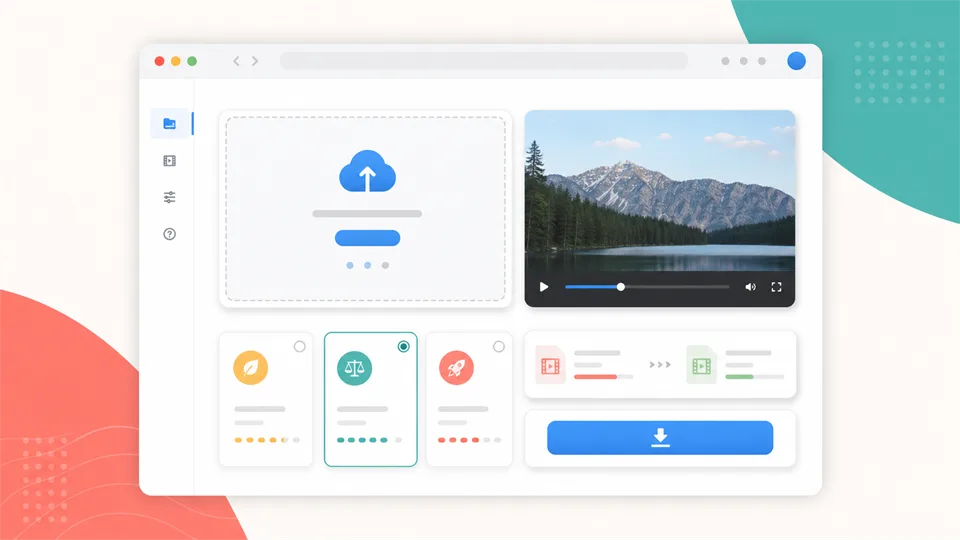
Clideo is built for people who do not want to learn compression settings. You upload a file, choose a compression preset, preview the result, and download it. If your main goal is simply to make a file smaller for email, social media, a website upload, or messaging, Clideo is one of the easiest tools to understand.
Clideo works entirely online, so you do not need to install anything. Its compressor supports popular formats including MP4, MOV, AVI, WMV, and more. The workflow is also friendly on different devices, which is useful if you are trying to reduce video size from an iPhone, Android phone, Mac, or Windows laptop.
The tradeoff is limits. Clideo’s help center says free visitors and registered users can upload files up to 500 MB, and free exports include a small watermark. Premium users get higher limits, faster processing, and watermark-free exports. That makes Clideo best for casual jobs, drafts, or people who are willing to pay for frequent use.
Clideo is less compelling if you need exact bitrate control, codec selection, batch processing, or no-watermark exports on a free plan. It is better as a quick online video compressor than a technical encoding tool.
Key functions
- Online video compressor
- Compression presets
- Preview before download
- Supports common formats such as MP4, MOV, AVI, and WMV
- Browser-based workflow
- Import from device or cloud storage
- iPhone app option
Pros
- Very easy to use
- Good for beginners and casual users
- No software installation
- Supports common video formats
- Preview helps catch obvious quality problems
Cons
- Free exports include watermark
- Free upload limit is lower than some competitors
- Less control than FreeConvert or HandBrake
Verdict
Clideo is the best choice when you want a simple video compressor online and do not want to think about codecs or bitrate. It is not the most powerful option, but it is one of the fastest to understand.
4. Kapwing
Best video compressor for collaborative social video

Kapwing is a good fit if compression is only one part of your content workflow. It is a browser-based editor with tools for trimming, resizing, subtitles, AI-assisted edits, media storage, and sharing links. If you work with a team or create social content often, that can be more useful than a standalone compressor.
Kapwing’s compressor is designed for shareability. You can upload a video, adjust export settings to the size you want, and export a compressed result. The broader editor supports common video formats such as MP4, MOV, AVI, and WebM, and Kapwing positions itself as a tool for creators who need fast browser editing across desktop and mobile devices.
This video compressor is especially helpful for social media managers, small marketing teams, educators, and creators who frequently need to trim a clip, add captions, resize for a platform, and then reduce video size before sharing. The media library and URL-based sharing can also reduce the need to send attachments at all.
The free plan is useful for testing, but it has real limits. Kapwing’s help center says free users have limits around upload size, export duration, quality, project storage, and watermarking. If you need clean client exports, longer videos, or larger files, you will likely need a paid plan.
Key functions
- Online video compression
- Browser-based video editor
- Export setting controls
- Trimming and resizing
- Subtitle and caption tools
- Media library
- Shareable video URLs
- Team-friendly workspace
Pros
- Good for social teams and repeat creators
- Compression fits into a larger editing workflow
- Helpful sharing and storage options
- Works in the browser
- Supports popular video formats
Cons
- Free plan has watermark and limits
- Not ideal for private local files
- More complex than a basic compressor
Verdict
Kapwing is the best video compressor for creators who also need collaboration and editing. If you only need one tiny file, use a simpler tool. If you need an online content workspace, Kapwing makes more sense.
5. CapCut
Best video compressor for short-form creators

CapCut is a strong pick for TikTok, Reels, Shorts, and creator-style videos. Its online compressor is tied to CapCut’s editing environment, so you can trim, crop, resize, adjust resolution, change frame rate, set quality, and export a more shareable file.
CapCut is useful when the best way to compress a clip is not only compression. A 90-second video becomes smaller if you cut dead time. A 4K phone recording becomes much smaller if you export at 1080p. A 60 fps clip can often be exported at 30 fps for social platforms without ruining the viewing experience. CapCut puts those practical decisions in the same place.
The tool supports popular formats such as MP4, MOV, AVI, MKV, 3GP, MPEG, WMV, and FLV. It also offers social-media-friendly workflows, direct sharing options, and editing features that many creators already know from CapCut’s broader ecosystem.
CapCut is not the cleanest option if you only want to drag in a file and download a smaller file as quickly as possible. The editing workspace can be more than you need. But for creators who already trim, crop, caption, and resize videos before posting, CapCut is a very natural video compressor choice.
Key functions
- Online video compression
- Resolution and quality adjustment
- Frame-rate changes
- Trimming and cropping
- Social media resizing
- Format conversion
- Direct sharing options
- Broader video editing workspace
Pros
- Excellent fit for short-form video
- Compression and editing happen together
- Helps reduce file size by trimming and resizing
- Supports many common formats
- Familiar for many social creators
Cons
- Not as direct as a single-purpose compressor
- Account/workspace flow may slow down quick jobs
- Exact technical controls are not as deep as HandBrake or FreeConvert
Verdict
CapCut is best for creators who want to reduce video size while preparing a clip for social media. It is strongest when compression is part of the editing and export process.
6. HandBrake
Best free video compressor for local batch processing
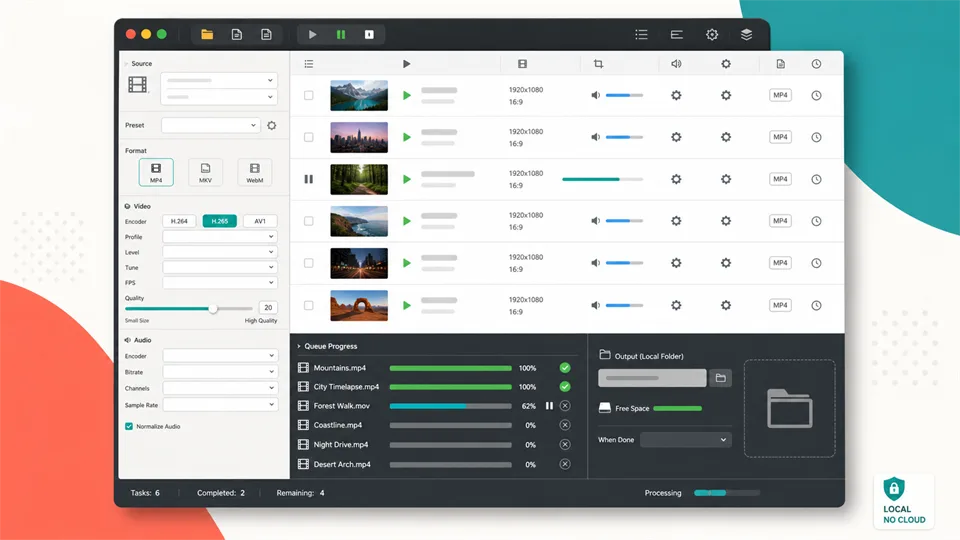
HandBrake is the best choice if you want a free, open-source, local video compressor instead of an online service. It works on Windows, macOS, and Linux, and its documentation describes it as a tool for converting video from common source formats into modern formats such as MP4, MKV, and WebM.
HandBrake is more technical than the online tools in this list, but that is also why it is powerful. You can choose presets, control quality, change resolution, crop, scale, use filters, manage audio tracks, add subtitles, queue multiple files, and encode with modern codecs such as H.264, H.265, AV1, VP8, and VP9. Its features page also lists optional hardware-accelerated encoding.
This is the best tool when privacy, repeatability, or batch work matters. You do not need to upload files to a server, and you can create repeatable settings for a whole folder of videos. It is useful for screen recordings, course videos, archived phone footage, webinar exports, and any situation where you need a lot of files compressed consistently.
The drawback is the learning curve. HandBrake uses compression concepts like RF values, presets, encoders, containers, and bitrate. Beginners can start with built-in presets, but getting the best size-to-quality balance takes experimentation.
Key functions
- Local video compression
- Free and open source
- Windows, macOS, and Linux support
- MP4, MKV, and WebM output
- H.264, H.265, AV1, VP8, and VP9 encoders
- Presets for devices and general use
- Batch queue
- Cropping, scaling, denoise, deinterlace, and subtitle tools
- Optional hardware acceleration
Pros
- No upload required
- Great for privacy and large files
- Excellent batch processing
- Deep codec and quality controls
- Completely free
Cons
- More technical than online tools
- Not a full video editor
- Wrong settings can create oversized files or poor quality
Verdict
HandBrake is the best video compressor for users who want local control, privacy, and repeatable compression settings. It is less convenient than browser tools, but much stronger for serious file management.
Which Video Compressor Should You Choose?
- VEED: best when compression is part of a wider editing and sharing workflow.
- FreeConvert: best for target file sizes, bitrate choices, and browser-based technical controls.
- Clideo: best for a quick one-off job with almost no learning curve.
- Kapwing: best for social teams that also need captions, resizing, storage, and collaboration.
- CapCut: best for short-form creators who compress while trimming and preparing a post.
- HandBrake: best for private files, repeatable presets, and local batch compression.
If you are unsure, test the same 30-second section in two tools. Compare the final size as well as faces, small text, fast movement, gradients, and audio. The best compressor is the one that meets your upload limit without making the compromise obvious.
How to Reduce Video Size Without Ruining Quality
- Trim first. Removing unused intros, pauses, and extra endings saves space with no quality loss.
- Use the resolution viewers need. A clean 1080p export is usually more useful than an unnecessarily large 4K file.
- Choose the right codec. H.264 offers broad compatibility; H.265 or AV1 can create smaller files for modern devices.
- Lower frame rate only when appropriate. A 60 fps clip can often become 30 fps, but sports and fast motion may suffer.
- Test a short sample. Check faces, text, dark scenes, gradients, and movement before encoding the whole file.
- Keep a high-quality master. Compress copies for delivery instead of repeatedly compressing the only original.
FAQ
What is a video compressor?
A video compressor is a tool that reduces the file size of a video by changing settings such as bitrate, codec, resolution, frame rate, or audio quality. Some compressors use simple presets, while others give you detailed control over encoding settings.
What is the best video compressor online?
VEED is the best all-around choice for online compression plus editing, while FreeConvert is better if you need exact target-size controls. Clideo is the easiest for one-off jobs, and Kapwing is better for social teams.
How do I reduce video size without losing quality?
You cannot reduce video size heavily with zero quality change, but you can avoid obvious damage. Start with moderate compression, keep resolution appropriate for the use case, avoid extremely low bitrate, and test a short sample before processing the full video.
Is MP4 the best format for compressed videos?
MP4 with H.264 is usually the safest format because it works almost everywhere. H.265 can make smaller files at similar quality, but older devices and some browsers may have compatibility problems.
Should I use an online video compressor or desktop software?
Use an online video compressor for quick, non-sensitive clips. Use desktop software such as HandBrake for large files, private videos, batch compression, or repeatable settings.
Why is my compressed video still large?
The file may still be large because the resolution, bitrate, frame rate, duration, or audio settings are still high. Long videos and 4K videos need more data. Try trimming the clip, lowering resolution, reducing bitrate, or using a more efficient codec.
Can I compress videos for email?
Yes, but email attachment limits are often small. If the video is still too large after compression, consider trimming it, exporting at 720p, removing audio if possible, or sharing a cloud/video hosting link instead of attaching the file.
Final Recommendation
VEED is the most balanced browser option, FreeConvert offers the strongest online size controls, Clideo is the simplest, Kapwing suits collaborative content, CapCut fits social editing, and HandBrake remains the best free local choice.
Start with the destination: email, social media, a website, client review, or archive. Once the required size and playback devices are clear, choosing the right resolution, codec, and compressor becomes much easier.
Related Reviews
5 Best AI Poster Makers in 2026: Tested and Compared

Best 5 AI Grammar Checkers in 2026

Best 5 Image to 3D Generators in 2026
Best 5 Invoice Generators in 2026
How to Create More Authentic Content With AI Tools
Best 6 Audio Translator Tools for Podcasts, Meetings, and Global Content