6 Best Picture-to-Drawing Converters in 2026
Compare six picture-to-drawing converters for turning photos into pencil sketches, line art, cartoons, and stylized illustrations online.


Turning a photo into a drawing is no longer limited to a single black-and-white filter. Today’s picture-to-drawing converters can create pencil sketches, ink outlines, colored illustrations, portraits, cartoons, and painterly styles in a few clicks.
The best tool depends on the result you want. A portrait needs clean facial detail, while architecture benefits from strong lines and product photos often need a controlled background. This guide compares six useful photo-to-sketch tools for creators, students, marketers, and anyone who wants a convincing drawing without learning illustration software.
Table of Contents
- How I Chose the Best Picture to Drawing Converters
- Picture to Drawing Converters at a Glance
- 1. Fotor
- 2. Picsart
- 3. Media.io
- 4. VanceAI VansPortrait
- 5. BeFunky
- 6. LunaPic
- Which Picture to Drawing Converter Should You Choose?
- Tips for Better Picture to Sketch Results
- FAQ
How I Chose the Best Picture to Drawing Converters
Photo-to-sketch tools often look similar at first: upload a picture, apply an effect, download the result. But the final quality can vary a lot. Some tools create clean pencil drawings. Some create muddy gray filters. Some preserve faces well but struggle with landscapes. Some are useful only if you plan to keep editing the output inside a larger design editor.
For this list, I evaluated each tool using these criteria:
1. Sketch quality: The output should look like an intentional drawing, not just a desaturated photo with harsh edges.
2. Style variety: A good picture to drawing converter should support more than one look, such as pencil sketch, line drawing, ink, comic, colored pencil, or outline art.
3. Ease of use: The workflow should be clear enough for beginners.
4. Editing control: Useful tools let users adjust intensity, contrast, detail, or continue editing after conversion.
5. Best-fit photo types: Portraits, pets, products, buildings, and landscapes do not always work equally well in the same converter.
6. Export quality: The final sketch should be useful for sharing, printing, or design work.
7. Free vs paid limits: Some tools are free to try, while high-resolution exports or premium effects may require payment.
8. Privacy and upload handling: Since many users upload personal photos, clear file handling and reputable platforms matter.
No picture to sketch converter can fully fix a poor original. Blurry, dark, low-resolution, or cluttered images often create messy line work. Start with a clear photo, then choose the tool that matches the type of drawing you want.
Picture to Drawing Converters at a Glance
| Picture to drawing converter | Best for | Standout strengths | Main limitation |
|---|---|---|---|
| Fotor | Best overall picture to drawing converter | AI sketch styles, pencil sketch, line art, ink, portrait and creative outputs | Some advanced exports and styles may require an account or paid plan |
| Picsart | Best picture to sketch tool for social graphics | Fast sketch effects, mobile-friendly workflow, good for profile images and posts | Less precise for detailed print-style sketch work |
| Media.io | Best simple online image to sketch converter | Straightforward upload-convert-download flow, beginner-friendly interface | Fewer creative editing controls than full photo editors |
| VanceAI VansPortrait | Best for clean portrait and line drawing outputs | AI portrait sketch and line drawing focus, good for faces and profile-style images | Less flexible for broad design projects |
| BeFunky | Best for artistic sketch effects and manual control | Pencil, ink, crosshatch, graphic novel, and adjustable effects inside a full editor | Many best sketch effects are tied to BeFunky Plus |
| LunaPic | Best lightweight free sketch effect | Fast browser tool, no heavy setup, useful for quick experiments | Interface feels old and output control is limited |
1. Fotor
Best picture to drawing converter overall
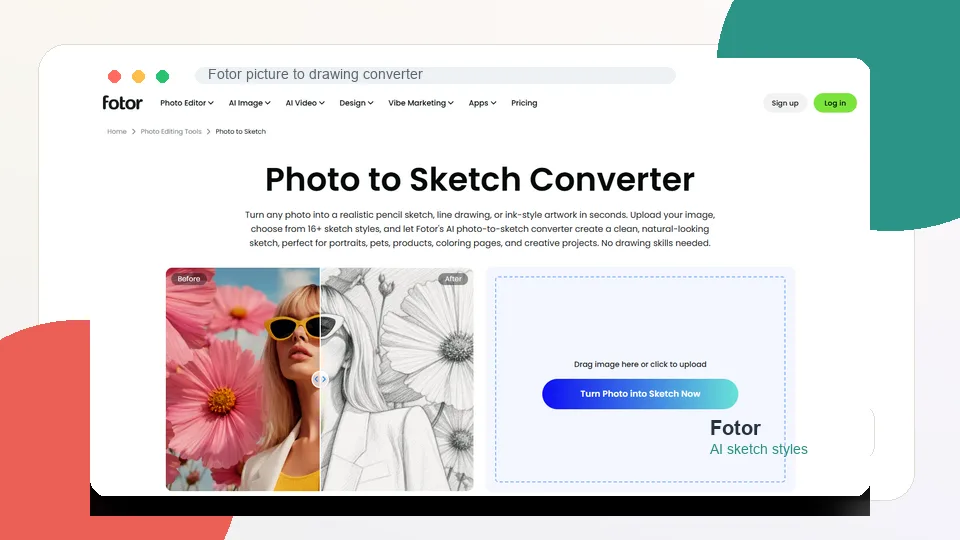
Fotor is the best overall option if you want a polished picture to drawing converter with multiple sketch styles. Its Photo to Sketch page is built specifically for turning photos into pencil sketches, line drawings, ink-style artwork, cartoon sketches, clean outlines, and other drawing-like results. The tool is easy enough for beginners but flexible enough for creators who want more than a single black-and-white filter.
The biggest advantage is style range. Fotor says its tool includes more than 16 sketch styles, including pencil sketch, face outline sketch, comic line, anime line, ink drawing, cartoon sketch, clean line, contour sketch, continuous line, doodle style, outline drawing, etching sketch, blueprint sketch, geometric line, engraving style, and abstract line. That matters because not every photo needs the same treatment. A portrait may look best as a soft pencil sketch, while a product image may need a cleaner line drawing.
Fotor is also practical for everyday creative work. You can use it for profile pictures, pet portraits, printable artwork, tattoo references, social posts, book covers, flyers, and poster concepts. If you want a picture to sketch workflow that feels modern and AI-assisted, Fotor is one of the safest starting points.
The limitation is that not every style or export option may be fully free. Like many modern AI photo tools, Fotor uses a freemium model, so casual users should check whether the style, watermark policy, and resolution fit their needs before committing.
Key functions
- Photo to sketch conversion
- Pencil sketch, line art, ink drawing, and outline styles
- AI-assisted sketch filters
- Portrait, pet, product, landscape, and poster use cases
- JPG and PNG export
- Broader photo editor and design tools
- Mobile and desktop options
Pros
- Best all-around picture to drawing converter
- Many sketch styles in one place
- Good for portraits and creative projects
- Beginner-friendly upload workflow
- Strong for both social and design use
- Useful follow-up editing tools
Cons
- Some styles or exports may require an account or paid plan
- Results depend heavily on photo quality
- AI outputs may need several style tests before one feels natural
Verdict
Fotor is the best picture to drawing converter for most users because it combines style variety, ease of use, and practical output quality. Start here if you want a flexible tool for pencil sketches, line drawings, and creative sketch effects.
2. Picsart
Best picture to sketch tool for social graphics
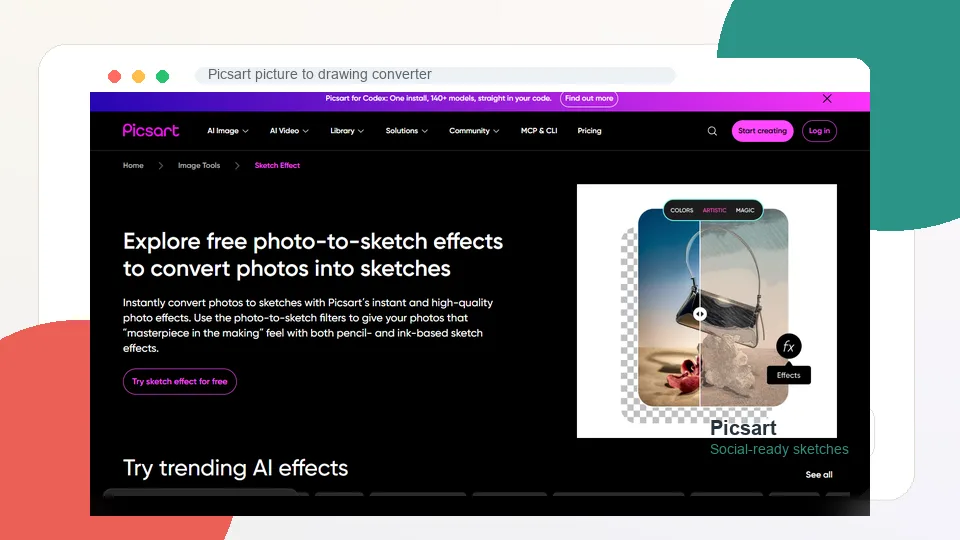
Picsart is a strong choice if your main goal is to turn a photo into a sketch for social media, profile images, thumbnails, collages, or quick design projects. Its Sketch Effect page focuses on free photo-to-sketch effects that can convert photos into pencil- and ink-style sketches. Because Picsart is also a full photo and design platform, the sketch effect can be used as one step in a larger creative workflow.
That workflow is the real reason to choose Picsart. You can start with a picture to sketch effect, then add text, stickers, backgrounds, filters, cutouts, templates, and other edits. If you are making an Instagram post, TikTok cover, YouTube thumbnail, digital poster, or casual profile image, Picsart is more useful than a converter that only downloads a single sketch file.
Picsart also works well for users who edit on mobile. The platform is known for social-style editing, and its sketch effects fit that audience. You do not need to understand advanced drawing controls. Upload the image, apply a sketch effect, adjust the design, and export.
The tradeoff is precision. Picsart is not the best tool if you need a highly controlled pencil portrait for printing or a clean technical line drawing. It is better for expressive, fast, shareable visuals than for fine-art conversion.
Key functions
- Photo-to-sketch effects
- Pencil and ink-inspired sketch styles
- Photo editor and design tools
- Stickers, text, backgrounds, and templates
- Mobile and web editing
- Social graphics workflow
- AI and creative effects library
Pros
- Great for social media visuals
- Easy mobile-friendly editing
- Combines sketch effects with design tools
- Fast workflow
- Good for profile images and thumbnails
- Useful creative effect library
Cons
- Not the most precise option for detailed sketch art
- Some assets and features may require paid access
- Output can feel more filter-like than hand-drawn on some images
Verdict
Picsart is the best picture to sketch tool for social creators. It is less about perfect pencil realism and more about turning a photo into a sketch-style graphic you can quickly customize and share.
3. Media.io
Best simple online picture to drawing converter
Media.io is a good choice if you want a simple online picture to drawing converter without a complicated editor. Its Image to Sketch tool is built around a direct workflow: upload an image, convert it into a sketch, and download the result. For many users, that is exactly enough.
The biggest strength is simplicity. Some photo editors surround the conversion with dozens of tools, templates, effects, and upgrade prompts. Media.io feels more focused. If you only need to turn a picture to sketch for a presentation, profile image, school project, quick concept, or creative test, a lightweight converter can be faster than opening a full design suite.
Media.io is also useful for people who do not edit images often. The interface is clear, the purpose of the page is obvious, and you do not need to know where a sketch filter is hidden inside a larger editor. This makes it a practical option for beginners.
The limitation is creative depth. Media.io is not as flexible as Fotor or BeFunky for choosing many art styles, adjusting details, or continuing into a broader design workflow. If you want detailed style control, use another tool. If you want a quick picture to drawing result, Media.io fits well.
Key functions
- Online image to sketch conversion
- Upload-convert-download workflow
- Browser-based processing
- Beginner-friendly interface
- Useful for portraits, simple photos, and quick creative outputs
- Part of a broader online media toolkit
Pros
- Very easy to use
- Good for quick conversions
- No complex editing workflow required
- Works in the browser
- Suitable for casual users
- Good when speed matters more than deep control
Cons
- Fewer style controls than Fotor or BeFunky
- Not ideal for advanced design projects
- Output quality still depends on image clarity
- Some features may depend on account or plan limits
Verdict
Media.io is the best picture to drawing converter for users who want a clean, simple online workflow. It is not the deepest editor, but it is efficient and beginner-friendly.
4. VanceAI VansPortrait
Best picture to drawing converter for portraits and line drawings
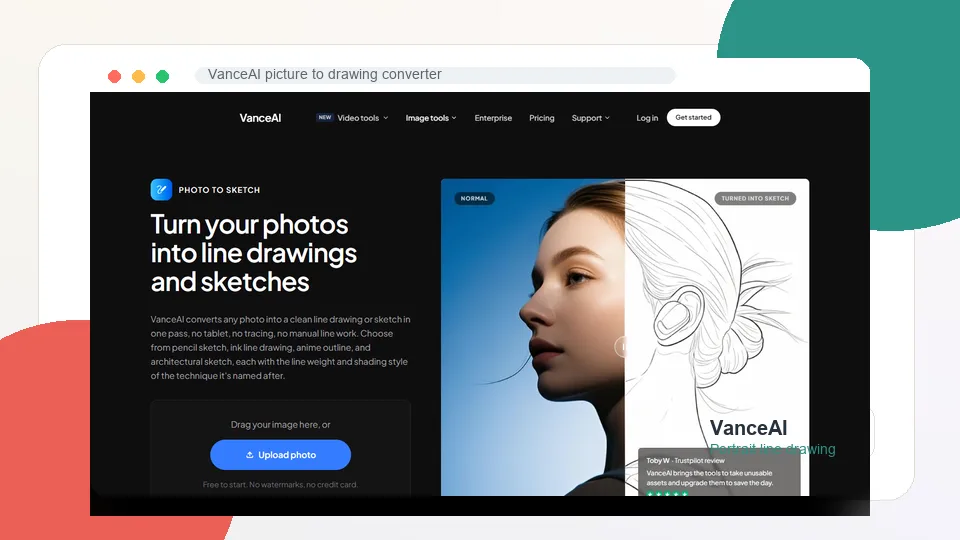
VanceAI VansPortrait is a specialized AI tool for turning photos into line drawings and sketch-style portraits. It is especially useful for headshots, profile images, character references, avatar-style drawings, and portrait-focused projects. If your picture to drawing task is mainly about faces, VansPortrait is worth considering.
The tool is more focused than broad design editors. Instead of offering every possible art effect, it aims to create clean line-drawing and pencil-sketch-style results from photos. That makes it a good option for users who want a simple portrait sketch without manually adjusting layers or filters.
VanceAI can also be useful for concept work. A clean face sketch can become a starting point for an avatar, illustration, tattoo reference, character design, or social profile. If you have a clear, well-lit portrait, the output can be more usable than a generic sketch filter that treats the entire image equally.
The limitation is versatility. VansPortrait is not the best choice for landscapes, product mockups, multi-person scenes, or social media design layouts. It is strongest when the subject is clear and portrait-oriented.
Key functions
- AI photo to sketch conversion
- Portrait line drawing
- Pencil sketch-style output
- Face-focused conversion
- Online upload workflow
- Useful for avatars, profile images, and references
- Part of the VanceAI image toolkit
Pros
- Strong for portraits
- Good for clean line drawing outputs
- Simple AI workflow
- Useful for avatar and profile use cases
- More focused than general photo editors
- Works well with clear headshots
Cons
- Less useful for landscapes or complex scenes
- Style variety is narrower than Fotor
- Best results require clear faces and good lighting
- Free usage may be limited
Verdict
VanceAI VansPortrait is the best picture to drawing converter for portrait sketches and clean face line drawings. Choose it when your source photo is a person rather than a general scene.
5. BeFunky
Best for artistic sketch effects and manual control
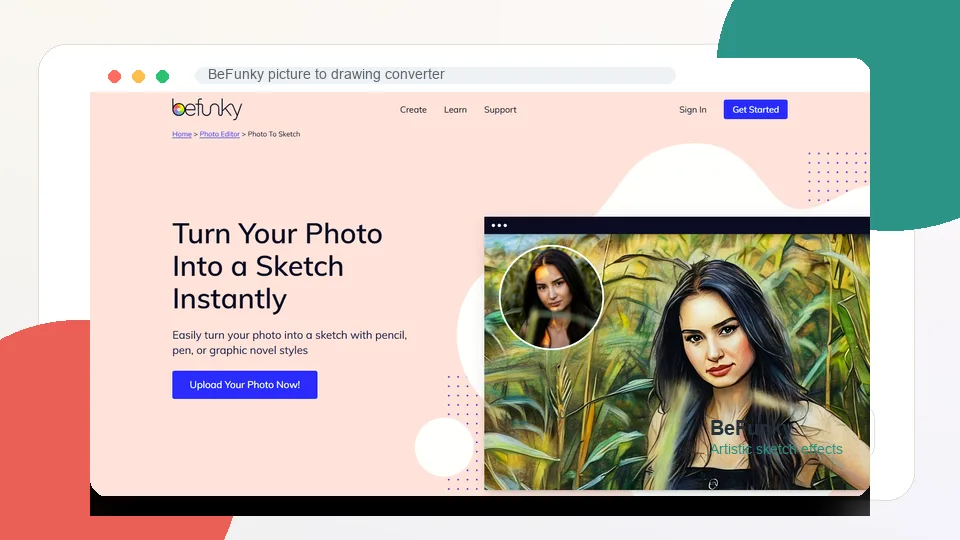
BeFunky is a strong option if you want picture to sketch effects inside a full creative photo editor. Its Photo to Sketch page highlights pencil, pen, graphic novel, ink, crosshatch, colored pencil, crayon, and other drawing-inspired styles. The tool is especially appealing for people who want the result to feel more artistic than automatic.
The main advantage is control. BeFunky is not just a one-click converter. It lets you use sketch effects inside a broader photo editor, which means you can continue adjusting the image, adding effects, layering design elements, or preparing a final graphic. This is useful when a sketch conversion is only part of the finished design.
BeFunky also offers distinct art styles. Some tools create one generic sketch look, but BeFunky separates styles such as graphic novel, ink, cross hatch, pen art, sketcher, ink wash, colored pencil, and crayon. That variety helps when you want a more expressive look for portraits, pets, travel photos, cards, posters, or creative marketing graphics.
The biggest downside is that many of the strongest sketch effects are tied to BeFunky Plus. If you want a fully free picture to drawing converter, BeFunky may not be the best match. If you are willing to use a paid editor for higher-quality artistic effects, it becomes much more attractive.
Key functions
- Photo to sketch effects
- Pencil, ink, pen, crosshatch, colored pencil, and graphic novel styles
- Adjustable photo editor workflow
- Mobile and browser access
- Design and collage tools
- Tutorials and creative project ideas
- Export to common image formats
Pros
- Strong artistic effect variety
- More control than basic converters
- Good for portraits, pets, architecture, and cards
- Works inside a full photo editor
- Useful for finished creative projects
- Distinctive sketch styles
Cons
- Many best effects require BeFunky Plus
- More steps than a simple converter
- Not ideal if you only need a free quick sketch
- Interface may feel heavier than single-purpose tools
Verdict
BeFunky is the best picture to sketch tool for users who want artistic control and multiple traditional drawing styles. It is strongest when you treat sketch conversion as part of a broader creative edit.
6. LunaPic
Best lightweight free tool for quick sketch effects
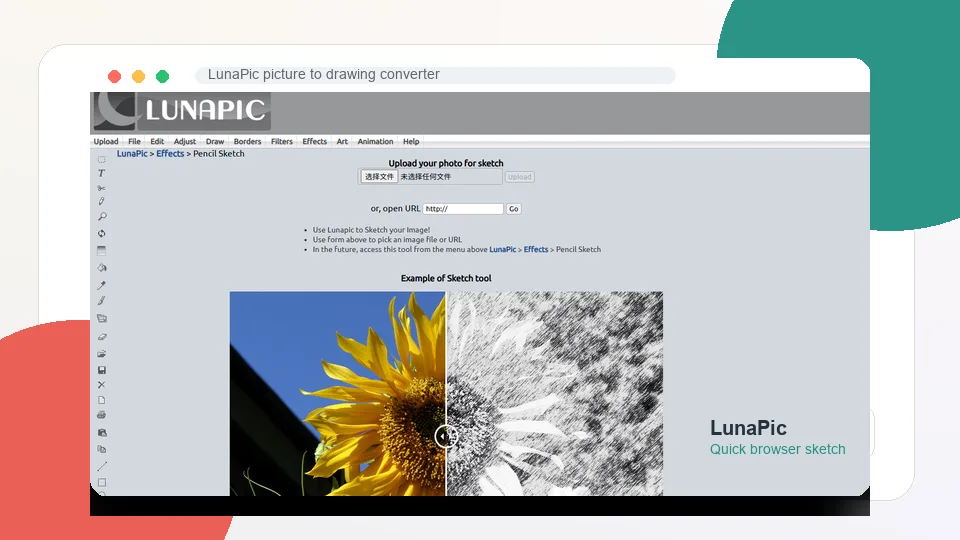
LunaPic is an older online photo editor, but it remains useful for quick effects. If you want a lightweight picture to sketch tool and do not care about a modern interface, LunaPic can be a surprisingly handy fallback. It includes many simple effects and filters, including sketch-style and drawing-style looks.
The best reason to use LunaPic is speed. You do not need a large design platform, AI credit system, or multi-step project editor. Upload a photo, apply an effect, adjust if needed, and download. For quick experiments, classroom projects, simple web graphics, or rough visual ideas, that can be enough.
LunaPic also works well as a test tool. If you are not sure whether a picture will convert well into a sketch, you can run it through LunaPic quickly before deciding whether to use a more polished converter such as Fotor or BeFunky.
The limitations are clear. The interface feels dated, the results can be less refined, and the controls are not as polished as newer AI tools. It is not the best option for professional portraits, client work, or high-end design. But for quick free picture to drawing experiments, it still has a place.
Key functions
- Online photo effects
- Sketch-style and drawing-style filters
- Browser-based upload workflow
- Basic image editing tools
- Fast experimentation
- Free lightweight processing
Pros
- Quick and lightweight
- Useful for simple picture to sketch tests
- No heavy design workflow
- Good for casual experiments
- Browser-based
- Free to use for basic effects
Cons
- Interface feels old
- Output is less polished than AI tools
- Limited professional controls
- Not ideal for high-resolution design work
- Results can vary widely by photo
Verdict
LunaPic is the best lightweight option for quick picture to drawing effects. It is not the most modern converter, but it is useful when you need a fast, simple sketch effect without opening a full design suite.
Which Picture-to-Drawing Converter Should You Choose?
- Fotor: best all-around option for quick pencil, ink, and illustration styles.
- Picsart: best for social content and further editing after the effect is applied.
- Media.io: best for a simple browser workflow with AI art variations.
- VanceAI VansPortrait: best for portraits that need cleaner lines and face-focused detail.
- BeFunky: best for users who want familiar photo editing alongside drawing effects.
- LunaPic: best for free, lightweight experiments without a polished AI workflow.
For the fairest comparison, use the same high-resolution photo in two or three tools. Check the eyes, hair, fingers, text, straight edges, and background before choosing a final result.
Tips for Better Picture-to-Drawing Results
- Start with a clear photo. Good lighting and sharp edges give the converter more useful information.
- Choose a simple background. Busy scenes can turn into distracting lines and dark patches.
- Match the style to the subject. Pencil works well for portraits, while ink or line art often suits buildings and products.
- Adjust the strength. The strongest effect is not always the most natural one.
- Inspect faces and hands. These areas reveal AI mistakes quickly.
- Export at a useful resolution. A small preview may look fine but fall apart when printed or enlarged.
FAQ
What is the best picture to drawing converter overall?
Fotor is the best picture to drawing converter overall because it offers many AI sketch styles, including pencil sketch, line art, ink drawing, outline drawing, and more. It works well for portraits, pets, products, and creative projects.
What is the best free picture to sketch tool?
Picsart and Media.io are good free starting points, depending on what you need. Picsart is better for social graphics, while Media.io is better for a simple picture to sketch workflow. LunaPic is also useful for quick free experiments.
Can I turn a picture into a pencil drawing online?
Yes. Tools like Fotor, BeFunky, Media.io, Picsart, VanceAI, and LunaPic can turn a picture into a pencil drawing or sketch-style image online. Results depend on the quality and lighting of the original photo.
What photos work best for picture to drawing conversion?
Clear portraits, pets, architecture, products on plain backgrounds, and well-lit landscapes usually work best. Blurry, dark, cluttered, or low-resolution images often produce messy sketch lines.
What is the difference between picture to drawing and picture to sketch?
They are often used interchangeably. “Picture to sketch” usually means pencil, line, or ink-style conversion. “Picture to drawing” can be broader and may include cartoon, colored pencil, contour, doodle, or illustration-style outputs.
Can I use a picture to drawing converter for tattoo references?
Yes, especially if you use clean line art, outline, or minimal sketch styles. Fotor and VanceAI can be useful for tattoo-style references, but a tattoo artist should still redraw and adapt the final design professionally.
Are AI sketch converters good for printing?
They can be, but check the resolution before printing. Use the highest-quality export available and start with a sharp original photo. For large prints, inspect the final sketch at 100% size.
Can I convert a group photo to a sketch?
Yes, but group photos often lose detail because faces are smaller and backgrounds are busier. Crop closer to the people or use a pencil sketch style that preserves shading.
Is my uploaded photo safe?
Use reputable tools and read their privacy or file-handling policies before uploading personal photos. Avoid uploading sensitive documents, private images, or client photos unless you trust the service.
Why does my sketch look too dark or too messy?
The original photo may have low contrast, heavy shadows, background clutter, or too much texture. Try brightening the photo, cropping the subject, choosing a simpler style, or using a different converter.
Related Reviews
MiniMax H3 Image Studio Review: ComfyUI Images, Reference Editing & Video Workflow

Best 5 AI Image Editors in 2026
Pony V7 Review: AuraFlow, LoRA Ecosystem, V6 Comparison, and NSFW Strengths
Qwen-Image-2.1 Review: Transparent Images, Editing, API Pricing and NSFW
ERNIE-Image Review: Open-Source Image AI, LoRA, Local Setup and NSFW Policy
The 5 Best Image Watermark Remover AI Tools in 2026
