5 Best Video Quality Enhancers in 2026: AI Upscaling Compared
Compare Topaz Video, HitPaw VikPea, AVCLabs, UniFab, TensorPix, and VideoUpscaler for AI upscaling, denoising, 4K enhancement, old-video restoration, and online processing.
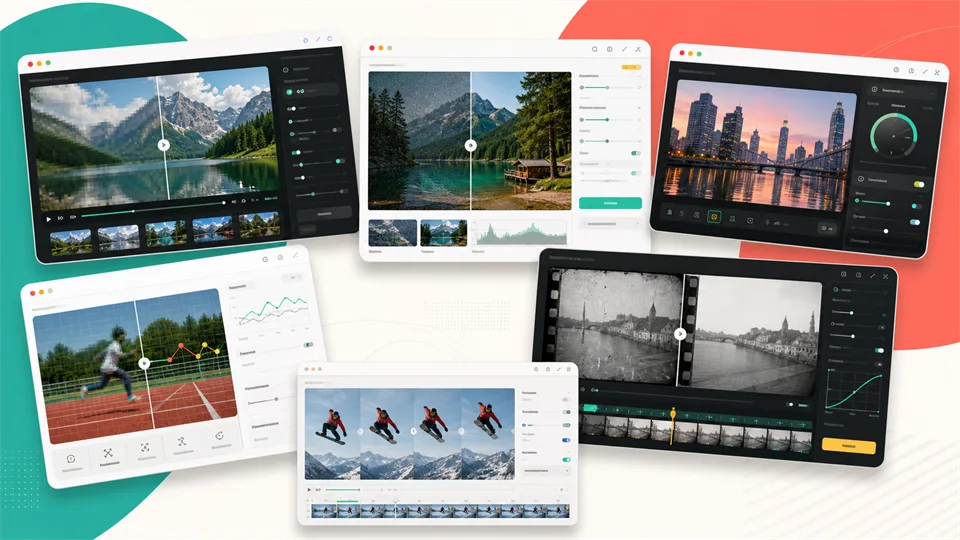

A good video quality enhancer can make soft, noisy, compressed, or low-resolution footage easier to watch on modern screens. It cannot turn every poor recording into native 4K, but the right AI model can improve old home videos, phone clips, webcam recordings, low-light footage, downloaded social videos, and AI-generated clips.
Start by identifying the main problem. Low resolution, sensor noise, motion blur, compression artifacts, camera shake, faded color, low frame rate, and indistinct faces require different treatments. Professional desktop software offers more control and local processing, while simpler apps and browser tools prioritize speed and convenience.
This guide compares five of the best video quality enhancers in 2026 by practical use case. We look at enhancement quality, AI models, controls, processing method, output options, hardware demands, and everyday limitations so you can choose the right tool without overprocessing your footage.
Table of Contents
- How We Evaluated the Best Video Quality Enhancers
- Best Video Quality Enhancers at a Glance
- 1. Topaz Video
- 2. HitPaw VikPea
- 3. AVCLabs Video Enhancer AI
- 4. UniFab
- 5. TensorPix
- Which Video Quality Enhancer Is Right for You?
- How to Improve Video Quality Without Making It Look Artificial
- FAQ
How We Evaluated the Best Video Quality Enhancers
A useful video quality enhancer should improve footage without making it look waxy, over-sharpened, or obviously synthetic. Upscaling is only one part of the job; the tool also needs to handle noise, blur, frame consistency, faces, color, motion, and export quality.
For this list, I looked at seven factors:
1. Core enhancement quality: Does the tool upscale, denoise, sharpen, restore, or stabilize video in a meaningful way?
2. Model variety: Does it offer different AI models for faces, old footage, anime, low light, compression, frame interpolation, or HDR?
3. Control: Can users preview, tune, compare, and choose output settings?
4. Workflow fit: Is it best for professional editors, beginners, content creators, archivists, or online users?
5. Processing location: Does it run locally, in the cloud, or both?
6. Output options: Can it export HD, 4K, 8K, high frame rate, or higher-end formats?
7. Practical limits: Are there watermarks, credit limits, hardware requirements, upload limits, or long processing times?
Plans, model names, and export limits change often. Treat this as a practical short list, then check each product’s current pricing and system requirements before buying.
Best Video Quality Enhancers at a Glance
| Tool | Best for | Standout strengths | Main limitation |
|---|---|---|---|
| Topaz Video | Professional desktop enhancement | Local rendering, 20+ AI models, upscale, denoise, stabilize, interpolate, slow motion | Requires a capable computer for smooth local processing |
| HitPaw VikPea | Easy one-click enhancement | 4K/8K upscaling, blur repair, denoise, color, stabilization, frame interpolation | Less granular than pro tools for advanced editors |
| AVCLabs Video Enhancer AI | Old footage and face restoration | AI enhancement, face enhancement, colorize, motion compensation, SDR to HDR | Desktop workflow can be slower on weak hardware |
| UniFab | High-resolution upscaling and batch workflows | 4K/8K/16K desktop options, online 2x enhancement, denoise, colorize, face enhancement | Advanced output quality depends on desktop app and hardware/cloud mode |
| TensorPix | Online video enhancement | Cloud processing, mobile-friendly browser use, AI upscale, denoise, FPS boost, stabilization | Uploading and credit use matter for long or large files. |
1. Topaz Video
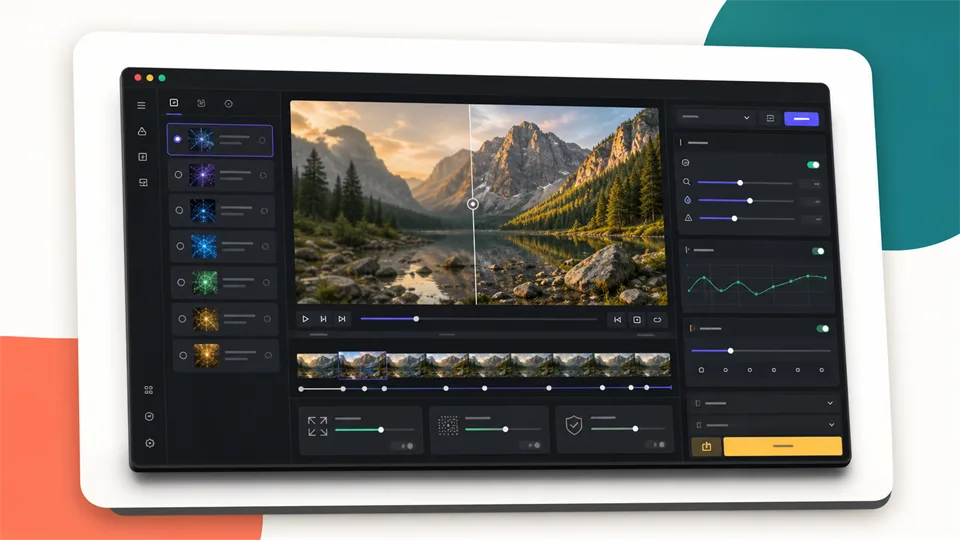
Best for professional desktop enhancement
Topaz Video is the strongest choice if you want a professional video quality enhancer that runs locally and gives you serious control. Topaz describes the app as AI-powered software for upscaling, denoising, sharpening, restoring, stabilizing, slow motion, and frame interpolation.
The biggest reason to choose Topaz is quality-focused control. Its documentation says the desktop app includes a variety of AI models for enhancing and upscaling footage, frame interpolation, stabilization, SDR to HDR conversion, motion deblur, and denoising. That range makes it useful for editors who need to diagnose footage rather than click a single magic button.
Topaz is especially useful for archival footage, low-light clips, documentary material, older digital video, soft camera footage, and client work where privacy matters. The official product page emphasizes local rendering, which means your files can stay on your computer instead of being uploaded to a cloud service.
This video enhancer is not the easiest pick for someone who wants a quick browser tool. Local AI processing is demanding, and long videos can take time. You also need to understand which model is right for the source: denoise for grain, upscale for resolution, stabilization for camera shake, interpolation for frame rate, and deblur for softness.
Key functions
- AI upscaling
- Denoising and sharpening
- Focus restoration and motion deblur
- Stabilization
- Frame interpolation
- Slow motion
- SDR to HDR conversion
- Local rendering and cloud rendering options
- Standalone app and workflow-oriented tools
Pros
- Best overall quality for professional users
- Local rendering is helpful for private or client footage
- Wide range of AI models
- Strong for restoration, upscaling, and frame repair
- Good fit for editors who want control
Cons
- Requires a capable computer for local processing
- More expensive and complex than casual online tools
- Model choice and settings can take practice
Bottom line
Topaz Video is the best option for editors, restoration specialists, agencies, and serious creators who need control. It is the most complete tool here when quality matters more than one-click convenience.
2. HitPaw VikPea

Best for easy 4K and 8K upscaling
HitPaw VikPea is a practical video enhancer for people who want strong results without learning a professional restoration workflow. HitPaw says VikPea can upscale videos to 4K or 8K, remove noise, fix blur, enhance AI-generated content, stabilize shaky footage, boost frame rates up to 60 FPS, and repair old or damaged videos.
The main advantage is accessibility. VikPea is built around AI models for common problems: blurry footage, low resolution, portrait detail, restoration, color enhancement, frame interpolation, stabilization, and low-light improvement. That makes it easier to choose a path if you know what looks wrong but do not want to tune dozens of advanced settings.
HitPaw is also a good option for creators who work with social clips, AI-generated videos, family memories, e-commerce footage, YouTube material, or simple client deliverables. Its product page specifically mentions enhancing AI videos from generators such as Kling, Sora, Veo, and Seedance, which is useful as more creators need to clean up generated clips before posting.
This video quality enhancer is less appealing if you need the deepest manual control, local privacy-first processing, or professional pipeline integration. But for most casual and semi-pro users, the balance of features and simplicity is strong.
Key functions
- 4K and 8K AI upscaling
- Blur repair and denoising
- Portrait model
- Old video restoration
- Color enhancement and colorization
- Stabilization
- Frame interpolation up to 60 FPS
- AI-generated video enhancement
- Desktop, online, and mobile access options
Pros
- Easier to use than professional tools
- Good model variety for everyday problems
- Strong for blurry, old, noisy, or low-resolution clips
- Useful for AI-generated video cleanup
- Good fit for creators and family-video restoration
Cons
- Less granular than Topaz for pro tuning
- Export quality and features depend on plan/app version
- One-click workflows can overprocess some footage
Bottom line
HitPaw VikPea is the best choice if you want an approachable tool that can upscale, clean, and repair videos quickly. It is especially useful for creators who want better-looking footage without a technical learning curve.
3. AVCLabs Video Enhancer AI
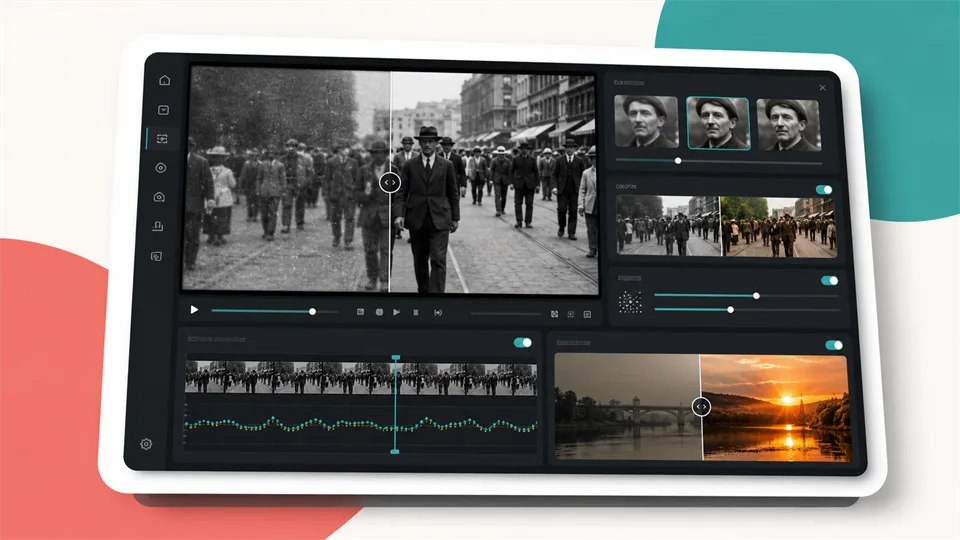
Best for old footage and face restoration
AVCLabs Video Enhancer AI is a strong choice when your footage includes old recordings, soft faces, low resolution, faded color, or noisy scenes. Its official AI model guide says the software can enhance, upscale, denoise, colorize, restore, convert footage to higher frame rates, create smooth slow-motion effects, and refine faces.
AVCLabs stands out because its model categories map neatly to common restoration needs. The AI Enhancement model is for general quality improvement and upscaling. Face Enhancement is for recovering and refining faces. Colorize helps with black-and-white or faded footage. Motion Compensation supports smoother motion, and SDR to HDR can help footage look more vivid on modern displays.
This video enhancer is useful for family archives, old camcorder files, early phone videos, low-quality downloads, and footage where faces matter. If the most important part of the clip is a person, a face-focused model can be more helpful than a generic upscaler.
The tradeoff is that desktop enhancement can be slow, especially on older hardware. You also need to preview results carefully, because face enhancement and colorization can look artificial if pushed too far.
Key functions
- AI video enhancement
- Upscaling to HD, 4K, and 8K
- Denoising
- Face enhancement
- Colorization
- Motion compensation
- SDR to HDR
- Slow-motion and higher frame-rate workflows
Pros
- Strong fit for old videos and face-heavy footage
- Useful model categories
- Good for restoration and family memories
- Supports colorization and HDR workflows
- Helpful when generic sharpening is not enough
Cons
- Processing can be slow on weaker computers
- Face recovery and colorization need careful review
- Less modern creator-focused than some online tools
Bottom line
AVCLabs Video Enhancer AI is best for users who want to restore old footage, improve faces, and make older clips more watchable. It is a strong middle ground between simple apps and professional restoration software.
4. UniFab
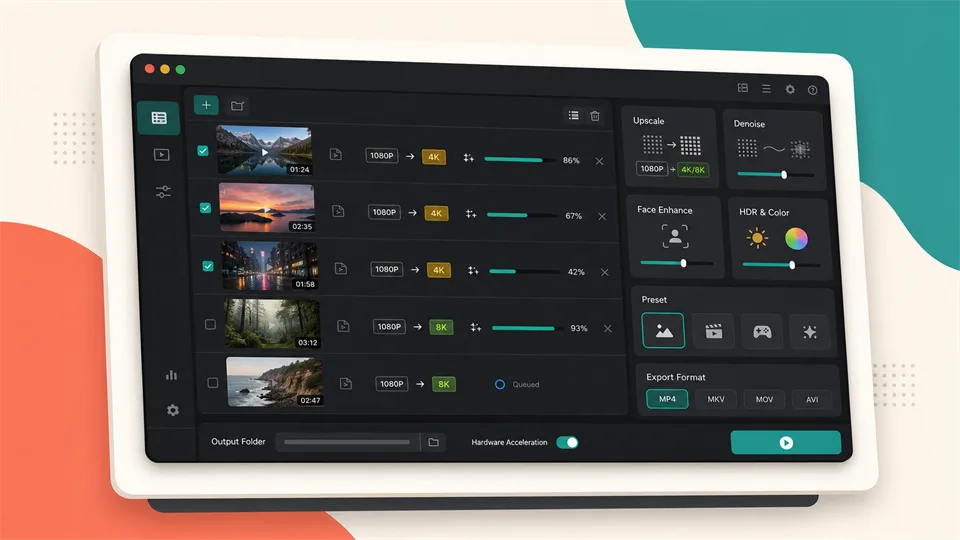
Best for high-resolution upscaling and batch processing
UniFab is built for users who want to increase video quality across several enhancement tasks, including video upscaling, denoising, colorization, face enhancement, HDR conversion, high frame rates, and format conversion. Its official site says UniFab can upscale videos to 1080p, 4K, 8K, or even 16K in desktop workflows.
UniFab is interesting because it offers both desktop and online enhancement paths. The online AI video enhancer supports 2x upscaling, which means 1080p can become 4K, while the desktop app is positioned for more advanced AI features such as 4x upscaling, 8K or 16K workflows, local GPU acceleration, and broader model access.
This video quality enhancer is especially relevant for users with a backlog of clips: YouTubers preparing uploads, creators cleaning downloaded or compressed videos, people restoring family videos, and users who want batch processing rather than one-off experiments.
The main thing to watch is expectation management. Very high-resolution outputs sound exciting, but a 16K file is only useful if the source has enough recoverable detail and your workflow can handle huge files. For most people, a clean 1080p or 4K output is more useful than chasing the largest number.
Key functions
- AI video upscaling
- Desktop upscaling to 1080p, 4K, 8K, and 16K
- Online 2x enhancement
- Denoising
- Face enhancement
- Colorization
- SDR to HDR
- Frame-rate enhancement
- Format conversion and compression tools
Pros
- Strong high-resolution positioning
- Useful desktop and online options
- Good for batches and creator backlogs
- Covers upscaling, denoise, color, faces, and HDR
- Online tool can run without powerful local hardware
Cons
- Advanced results depend on desktop app, hardware, or cloud mode
- 16K output is overkill for many workflows
- Needs previewing to avoid over-enhancement
Bottom line
UniFab is the best choice if you want high-resolution upscaling, batch-style cleanup, and a mix of desktop and online workflows. It is practical for creators who need to process more than one clip at a time.
5. TensorPix

Best for online video enhancement
TensorPix is the best option on this list if you want an online video quality enhancer that runs in the browser. Its official site says it uses AI to enhance and upscale video and image quality, with online video enhancement, upscaling up to 4K, old footage restoration, FPS improvement, stabilization, denoising, and mobile-friendly browser access.
The main appeal is convenience. You upload a clip, select AI filters, process it in the cloud, and download the enhanced result when it is ready. TensorPix help docs explain that its video enhancer focuses on increasing resolution, removing compression artifacts, reducing blur, reducing noise, increasing frame rate, and creating smooth slow-motion videos.
TensorPix is useful when you do not want to install desktop software or your computer is not powerful enough for local AI processing. It is also handy for quick jobs from a phone, Chromebook, work laptop, or shared computer.
This video enhancer is not the best pick for every situation. Large files take time to upload, long videos consume credits, and cloud processing may not be ideal for private or confidential footage. But for quick online enhancement, it is one of the cleanest options.
Key functions
- Online AI video enhancement
- AI upscaling to HD, 2K, and 4K workflows
- Denoising
- Blur and compression artifact reduction
- FPS booster
- Slow motion
- Stabilization
- Browser-based mobile-friendly workflow
- API options
Pros
- No desktop installation
- Good for users without powerful computers
- Simple browser workflow
- Useful on phones and lightweight devices
- Covers common issues like noise, blur, low resolution, and low FPS
Cons
- Upload time matters for large files
- Cloud processing may not suit confidential footage
- Credits and file limits affect heavy users
Bottom line
TensorPix is the best online option for quick enhancement without installing software. It is ideal for creators, small businesses, and casual users who want cloud processing instead of desktop AI rendering.
Which Video Quality Enhancer Is Right for You?
Choose Topaz Video if you want the best professional desktop workflow with local rendering, model control, and serious restoration capability.
Choose HitPaw VikPea if you want an easy video enhancer for 4K or 8K upscaling, blur repair, denoise, color, stabilization, and AI-generated clip cleanup.
Choose AVCLabs Video Enhancer AI if your main goal is old footage restoration, face improvement, colorization, or making family videos look better.
Choose UniFab if you want high-resolution upscaling, batch-style enhancement, online and desktop options, and a broader video utility suite.
Choose VideoUpscaler if you want an online video quality enhancer that works from a browser without installing a heavy desktop app.
If you are still unsure, use this rule:
- For professional restoration, start with Topaz Video.
- For simple creator-friendly enhancement, try HitPaw VikPea.
- For faces and old family footage, look at AVCLabs.
- For high-resolution batch workflows, test UniFab.
- For online enhancement, use TensorPix.
How to Improve Video Quality Without Making It Look Artificial
The easiest way to increase video quality badly is to overdo everything at once. Too much sharpening creates halos. Too much denoising removes texture. Too much face enhancement can make people look artificial.
Use these practical tips:
1. Start with the biggest problem. Fix noise before sharpening, and stabilize before judging detail.
2. Do a short preview first. Test 5 to 10 seconds before processing a full video.
3. Avoid maximum settings by default. The strongest model is not always the best model.
4. Keep output realistic. A clean 1080p file may look better than an exaggerated 8K upscale.
5. Watch faces, hands, text, and hair. These areas reveal AI artifacts quickly.
6. Compare before and after at normal viewing size. Pixel peeping can push you toward overprocessing.
7. Use the right tool for the source. Anime, faces, low light, old film, and AI-generated video need different models.
8. Export a high-quality master. Avoid re-compressing the final video too aggressively.
FAQ
What is a video quality enhancer?
A video quality enhancer is software that improves footage by upscaling resolution, reducing noise, sharpening detail, correcting blur, stabilizing shaky motion, improving color, or increasing frame rate.
What is the best video enhancer in 2026?
Topaz Video is the best professional video enhancer overall, while HitPaw VikPea is easier for everyday users. AVCLabs is strong for old footage and faces, UniFab is good for high-resolution batch workflows, and TensorPix is best for online enhancement.
Can AI increase video quality?
AI can increase video quality when the source has recoverable detail or a clear pattern to improve. It can upscale, denoise, reduce compression artifacts, smooth motion, and restore faces, but it cannot perfectly recreate information that was never captured.
Can a video quality enhancer make 480p footage look like 4K?
A video quality enhancer can upscale 480p footage and make it cleaner, but it will not truly match native 4K footage from a good camera. The best result is usually a sharper, more watchable version of the original.
Which video enhancer is best for old home videos?
AVCLabs, Topaz Video, HitPaw VikPea, and UniFab are all good options for old home videos. Look for restoration, denoise, face enhancement, colorization, deinterlacing, and stabilization features.
Which tool is best to increase video quality online?
TensorPix is the strongest online pick in this list because it runs in the browser and supports AI upscaling, denoise, blur reduction, FPS improvement, and stabilization. UniFab also offers an online enhancer for 2x upscaling.
Is a desktop video enhancer better than an online tool?
A desktop video enhancer is often better for privacy, long videos, and advanced control. An online tool is better when you want convenience, cloud processing, or do not have a powerful GPU.
Can video enhancers fix blurry footage?
Some can reduce blur and improve perceived sharpness, but results depend on the cause. Slight softness, compression blur, and low-resolution blur are easier to improve than severe motion blur or badly out-of-focus footage.
Can video enhancers remove noise from low-light video?
Yes. Topaz Video, HitPaw VikPea, AVCLabs, UniFab, and TensorPix all address denoising in some form. The best results usually come from balancing noise reduction with detail preservation.
Are video quality enhancer tools worth paying for?
They are worth paying for if you regularly restore old videos, upscale clips for clients, improve social content, clean AI-generated videos, or prepare footage for larger screens. For one short casual clip, a free trial or online credit may be enough.
Final Recommendation
The best choice depends on the footage and the way you work. Topaz Video offers the strongest professional desktop workflow and local control. HitPaw VikPea is easier for everyday creators. AVCLabs is well suited to faces and old recordings, UniFab works well for high-resolution and batch jobs, and TensorPix is the most convenient browser-based option.
Before processing an entire video, test a representative 5- to 10-second section. Choose the model that addresses the actual problem, compare the result at normal viewing size, and stop before faces, hair, text, or textures begin to look artificial. Effective enhancement should make the footage cleaner and easier to watch without drawing attention to the processing.
Related Reviews
Best 5 AI Video Detectors in 2026

Best AI Tools to Win January 2026: Top AI Tools to Start the Year Strong

How to Create More Authentic Content With AI Tools
Best 5 Online Signature Generators in 2026
Nucleus Image Review: 17B Sparse MoE, Local Setup, NSFW Support, and Apache 2.0 Open Weights
Best 5 Invoice Generators in 2026