5 Best Online Photo Text Editors in 2026
Compare the five best conversational photo text editors in 2026. Upload an image and use natural-language prompts to replace, remove, translate, or add text.

Changing words inside a picture used to mean opening a complex editor, erasing the old lettering, rebuilding the background, and matching the font by hand. In 2026, a new type of photo text editor makes the process much easier: upload an image, describe the change in a conversation, and let AI create the revised version.
For example, you can say, “Replace ‘Summer Sale’ with ‘Autumn Sale,’ keep the same font and color, and do not change anything else.” You can then continue with a follow-up such as, “Make the new text slightly smaller and move it to the left.” This conversational workflow is useful when you need to edit text in image files but do not have the original layered design.
Not every AI image editor handles text equally well. Some regenerate the selected area, while others recognize the words and rebuild them as editable layers. This guide compares five online tools that support natural-language or conversational image editing: ChatGPT, Canva AI, Fotor AI Agent, Google Gemini, and insMind AI Agent.
Table of Contents
- Quick Comparison
- How Conversational Text Editing Works
- ChatGPT
- Canva AI
- Fotor AI Agent
- Google Gemini
- insMind AI Agent
- How to Choose
- Prompt Tips
- Frequently Asked Questions
- Final Verdict
Quick Comparison of the Best Conversational Photo Text Editors
| Photo Text Editor | Best For | Conversational Workflow | How It Changes Text | Main Limitation |
|---|---|---|---|---|
| ChatGPT | Best overall conversational editing | Full multi-turn chat | Generates an edited version from instructions or a selected area | Small details outside the text area can sometimes change |
| Canva AI | Editable marketing designs | Conversational and agentic editing | Can adjust headlines and rebuild flat images as editable layers | Some newer capabilities have regional, plan, or preview limitations |
| Fotor AI Agent | Fast replacement of existing image text | Chat-style prompts and follow-up edits | Detects text, reconstructs the background, and inserts replacement wording | Complex textures and unusual fonts may need correction |
| Google Gemini | Creative multi-step image revisions | Full multi-turn chat | Regenerates selected visual content using natural-language instructions | Exact typography and unchanged details are not always guaranteed |
| insMind AI Agent | Product and promotional visuals | Chat-based creation and AI Edit follow-ups | Replaces text or other elements through natural-language requests | Results depend on AI credits and source-image complexity |
How Conversational Text Editing Works
A normal photo editor expects you to select tools, create masks, choose fonts, and position every element manually. A conversational editor starts with your intent. You upload a JPG, PNG, screenshot, poster, or other image and explain what should change.
There are two main ways these tools handle the request:
- Generative replacement: The AI removes the old words, reconstructs the area behind them, and generates the new lettering as part of the image. ChatGPT and Gemini often use this approach.
- Text recognition and layered editing: The system identifies the existing words and turns them into editable elements or places matched text over a repaired background. Canva and Fotor provide workflows closer to this model.
Generative replacement is flexible and works well when the new wording must follow perspective, lighting, or a textured surface. Layered editing is usually better when exact spelling, font adjustments, and later revisions matter.
Whichever method is used, inspect every word before publishing. AI can miss letters, alter punctuation, choose a similar rather than identical typeface, or modify nearby details. The best tools make follow-up corrections easy, but they do not remove the need for proofreading.
1. ChatGPT — Best Overall Conversational Photo Text Editor
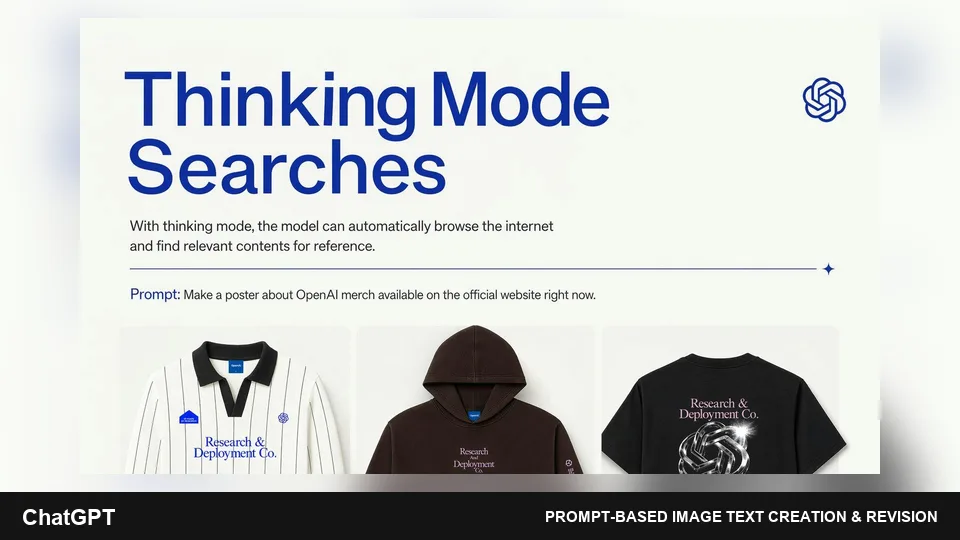
ChatGPT offers the most natural conversational workflow in this comparison. Upload an existing image, describe the words you want to replace, and specify what must remain unchanged. After the first result appears, you can continue refining it in the same conversation.
You can edit the full image through a written instruction or select a specific area before describing the change. The selection method is useful when the image contains several text blocks and only one should be modified. It reduces ambiguity and helps keep the edit focused.
ChatGPT is particularly good when the lettering is integrated into the scene—for example, text printed on packaging, a shop sign photographed at an angle, or a headline with lighting and texture. You can ask it to preserve perspective, shadows, material, position, and surrounding objects while changing only the wording.
The conversational context is its main advantage. If the first result is close but not perfect, follow up with precise corrections: “The spelling is wrong,” “Use all caps,” “Keep the original blue gradient,” or “Restore the logo in the upper-right corner.” This is much faster than rewriting the complete instruction for every attempt.
Key Features
- Upload and edit an existing image through conversation
- Multi-turn refinements that retain the editing context
- Area selection for more focused changes
- Ability to add, remove, replace, and restyle image text
- Natural-language control over placement, color, scale, perspective, and visual style
- Web and mobile availability
- Image saving and reuse from the conversation
Pros
- The most intuitive chat experience
- Handles both simple graphic text and lettering integrated into real scenes
- Easy to explain what must change and what must stay the same
- Convenient for iterative corrections
- No traditional photo-editing skills required
Cons
- Edits may extend beyond the selected text area
- Long or dense wording can still contain errors
- An exact commercial font may not be reproduced
- Availability and usage limits depend on the account and workspace
- It does not automatically provide a traditional editable text layer
Best for: Users who want to upload almost any picture, explain the change naturally, and refine the result through a genuine multi-turn conversation.
2. Canva AI — Best for Editable Marketing Designs
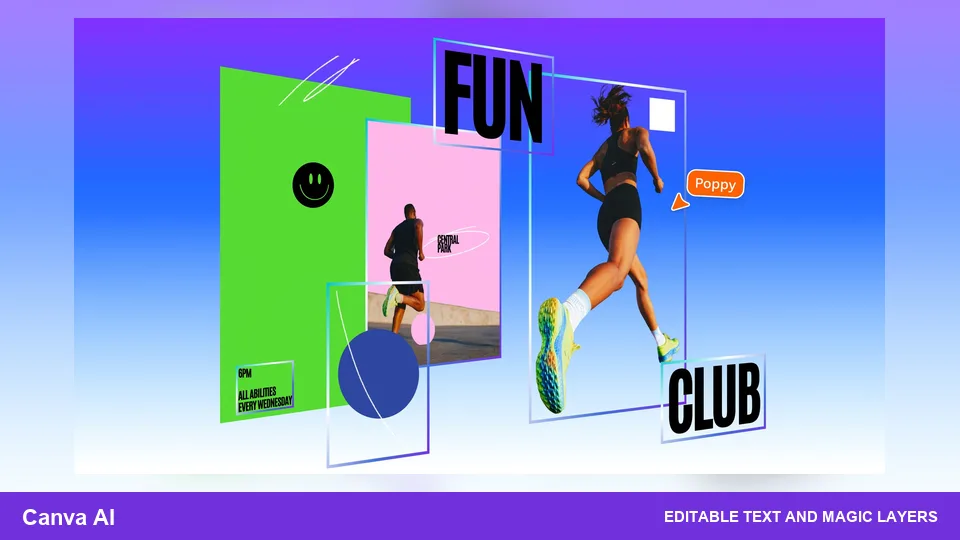
Canva AI is a strong choice when changing text is part of a larger design workflow. Its conversational system can create and revise layouts, update headlines, apply brand styles, and keep individual design elements editable.
The biggest benefit is structural control. Canva’s newer layered-image technology can turn a flat AI image into an editable design by identifying text, objects, and backgrounds as separate elements. Instead of permanently regenerating every word into the pixels, the workflow can restore text as a live element that can be rewritten, resized, recolored, translated, or moved later.
This makes Canva particularly practical for social posts, flyers, advertisements, product graphics, presentation slides, and campaign assets. You can ask Canva AI to replace a headline, shorten the copy, translate it, apply a Brand Kit, and resize the design for another platform without rebuilding everything manually.
Canva AI also supports ongoing conversational refinement. You can start with a rough request, review the result, and ask for changes to the wording or layout. However, some of its newest conversational and layered-editing capabilities may be released as previews or vary by region, account type, connected assistant, and usage allowance.
Key Features
- Conversational design creation and iterative editing
- Prompt-based headline and copy revisions
- Layered, editable design elements
- Magic Layers for converting flat visual content into workable layers
- Magic Grab and Grab Text for isolating elements and lettering
- Brand Kit integration for fonts, colors, and logos
- Resize and repurpose workflows for multiple platforms
Pros
- Replacement text can remain editable after the AI step
- Excellent for marketing and brand content
- Combines conversational editing with a familiar visual editor
- Easy to make final manual adjustments
- Strong templates, font library, and export options
Cons
- Advanced AI tools may require a paid plan or available credits
- Newer AI 2.0 features may still be in preview
- Flat-image decomposition is not always perfect
- Availability can differ by region or integration
- The full editor contains more features than a quick correction needs
Best for: Marketers, small businesses, and content teams that need conversational changes plus editable layers, brand consistency, and multi-format publishing.
3. Fotor AI Agent — Best for Fast Image Text Replacement
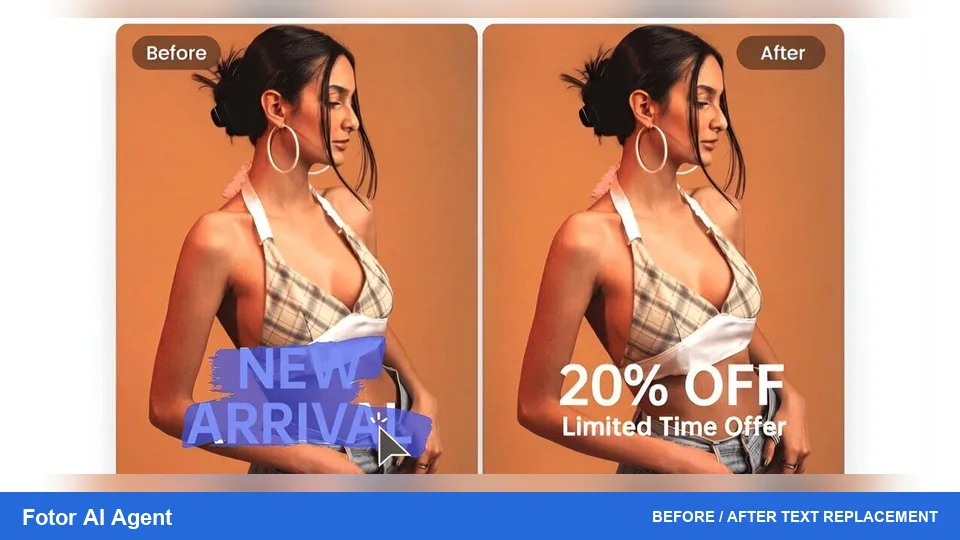
Fotor combines a chat-style AI Agent with a dedicated image text editor. It is one of the most focused options for users who want to replace existing text in screenshots, posters, memes, brochures, or promotional images.
You can upload an image and use a direct prompt such as, “Change the date to April 2.” Fotor says its text editor can locate the target lettering, remove it, rebuild the background, insert the new words, and attempt to match the original typeface and styling.
The AI Agent provides a broader conversational workspace. You can describe a complete visual change, preview the result, and continue adjusting the text, colors, background, objects, or overall style. This makes it useful when a text correction is only one part of a larger photo update.
Fotor works best when the original text is clear and the background is reasonably predictable. Very small lettering, handwriting, decorative fonts, heavy perspective, or text over a complicated texture may require another attempt or a manual correction.
Key Features
- AI Agent with chat-style image creation and editing
- Prompt-based text replacement
- Automatic text detection and selectable text regions
- Font, color, size, and style matching
- AI background reconstruction after text removal
- Follow-up changes to color, background, objects, and style
- Browser and mobile access
Pros
- More focused on embedded text than many general AI editors
- Simple prompts can handle common date, price, and headline changes
- Combines OCR-style recognition with generative background repair
- Easy for beginners
- Useful for old marketing graphics without source files
Cons
- Complex backgrounds can produce visible artifacts
- The closest available font may differ from the original
- Some AI features and exports depend on credits or plan level
- Recognition can miss tiny or stylized text
- Generated results still need careful proofreading
Best for: Quick corrections to dates, prices, headlines, labels, screenshots, memes, and promotional materials when the original design file is unavailable.
4. Google Gemini — Best for Creative Multi-Step Revisions
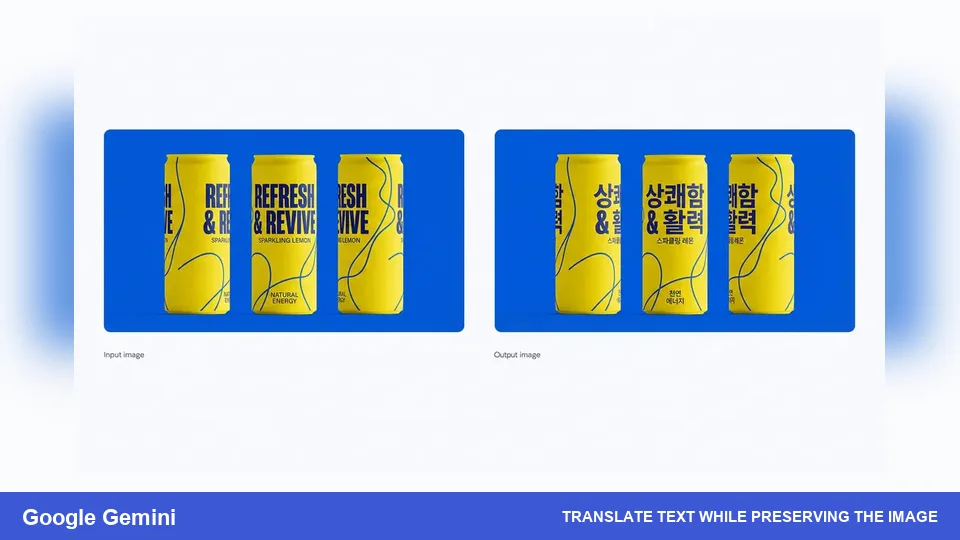
Google Gemini supports native image editing inside a conversation. You can upload an image, describe a change, review the output, and continue with follow-up instructions while Gemini keeps the visual context.
The tool is particularly flexible for local edits and creative transformations. If the words are painted on a wall, printed on an object, placed inside a poster, or integrated into a larger scene, Gemini can regenerate the relevant area and blend the new content into the image.
Gemini’s multi-step workflow is helpful when the task involves more than a literal word swap. You might first replace the headline, then change the background color, add a product, and finally adapt the image to a different visual style. Each request can build on the previous result.
For exact production typography, Gemini has the same limitation as other generative editors: the output is usually a regenerated image rather than a live text layer. Short text is safer than a paragraph, and precise spelling should always be checked. Google also applies SynthID to AI-generated or edited images, and watermark behavior can evolve with the product.
Key Features
- Upload and edit images in the Gemini conversation
- Multi-step, context-aware refinements
- Local edits through simple natural-language commands
- Ability to replace, add, or transform visual elements
- Support for combining multiple ideas or reference images
- Good subject consistency across iterative changes
- Access through the Gemini web experience
Pros
- Natural multi-turn conversation
- Strong for broader creative edits around the replacement text
- Can preserve the subject while changing a specific region
- Works without learning layers or masks
- Useful for exploring several visual directions
Cons
- Exact font reproduction is difficult
- Nearby visual details may change during regeneration
- Long text can contain rendering errors
- It does not provide a normal editable type layer
- Availability can vary by country, language, account, or workspace
Best for: Users who want to change image text as part of a wider, creative, multi-stage visual revision.
5. insMind AI Agent — Best for Product and Promotional Images
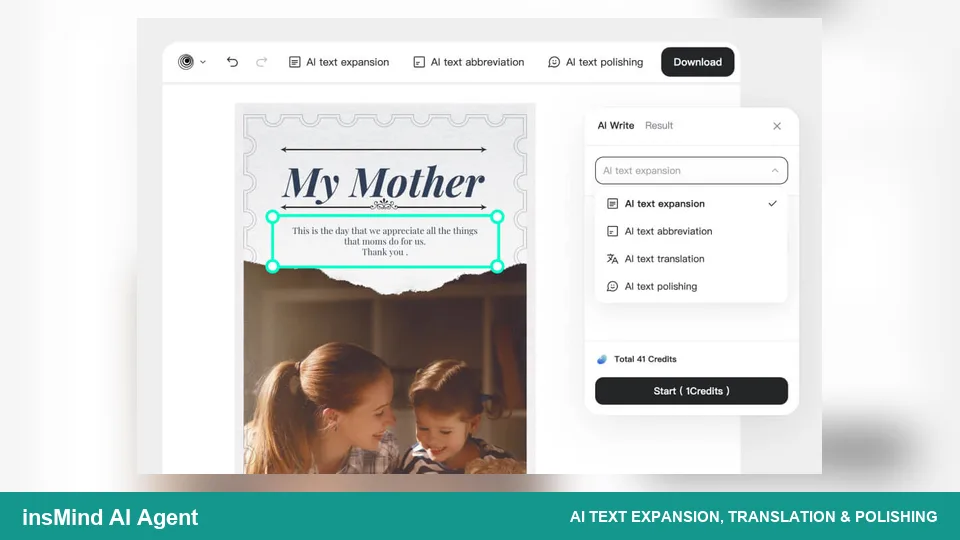
insMind AI Agent provides a chat-based workspace for creating and editing images. You can enter an instruction or upload a reference photo, allow the agent to generate an initial result, and then use AI Edit to request further changes.
Its editing workflow explicitly supports replacing text or objects, modifying subjects, and changing backgrounds through natural-language requests. That makes it suitable for product images, advertisements, promotional posters, marketplace graphics, and social media visuals.
For example, a seller can upload a product promotion and ask the agent to replace the discount, translate the headline, or change a campaign label. Follow-up requests can then adjust the background, add decorative elements, or create a variation for another platform.
As with other generative tools, the quality depends on the source. Clean, large text is easier to replace than curved lettering over a detailed package. Users should compare the edited product, logo, and surrounding design with the original before publishing.
Key Features
- Chat-based image creation and editing
- Image upload and reference-photo support
- AI Edit for replacing text, objects, backgrounds, and subjects
- Follow-up variations and style changes
- Tools oriented toward product and marketing visuals
- Natural-language instructions without manual masking
- Online workspace for preview and download
Pros
- Designed around an accessible AI-agent workflow
- Useful for promotional and ecommerce content
- Supports text replacement within broader design changes
- No advanced editing skills required
- Convenient for producing variations
Cons
- Exact text and font matching may require retries
- AI credits or plan restrictions can limit repeated edits
- Complex packaging and logos must be checked carefully
- Less manual typography control than a layered design editor
- Results can vary between images
Best for: Online sellers, marketers, and small businesses that want to revise wording while also improving product or campaign visuals.
How to Choose a Conversational Photo Text Editor
Choose ChatGPT for the Most Natural Conversation
If you want to describe an edit, inspect the result, and keep refining it without learning a design interface, ChatGPT offers the strongest overall conversational experience.
Choose Canva AI When Text Must Stay Editable
Canva is more suitable when the result needs further manual editing, brand fonts, translated versions, team collaboration, or resizing for multiple channels.
Choose Fotor for a Direct Text Swap
Fotor is a practical choice when the main goal is to replace a date, price, label, or headline in a flat image as quickly as possible.
Choose Gemini for Broader Creative Changes
Gemini works well when replacing text is one step in a larger transformation involving the setting, objects, colors, or overall visual direction.
Choose insMind for Product Promotions
insMind is useful when ecommerce or promotional content needs updated text together with product-oriented background and campaign changes.
How to Write Better Prompts for Image Text Editing
A good prompt identifies the exact old words, gives the exact replacement, and defines everything that must remain unchanged. Short, specific requests usually produce more reliable results than broad instructions.
Use this structure:
Replace “[old text]” with “[new text].” Match the original font style, size, color, spacing, position, perspective, lighting, and shadow. Keep the background, people, products, logos, dimensions, and all other details unchanged. Do not add any other text.
For a difficult image, add location details such as “the headline in the upper-left corner” or “the white lettering on the red package.” If the tool offers a selection feature, highlight only the intended area before sending the instruction.
Make one correction at a time. A focused follow-up such as “Keep this version, but reduce the headline by 10%” is less likely to disturb the rest of the design than a request containing several unrelated changes.
Important Limitations
- Exact spelling is not guaranteed: Check every character, especially numbers, names, URLs, and non-English text.
- The original font may be unavailable: AI can imitate a look, but brand typography may require Canva or another editor with the actual font.
- Nearby details can change: Generative edits may modify textures, logos, faces, or objects close to the selected text.
- Long text is harder: Keep image copy short and finish dense typography in a layer-based design tool.
- Flat images remain flat: ChatGPT, Gemini, and similar tools usually return a new raster image rather than an editable text layer.
- Usage limits vary: Free access, credits, supported regions, and preview features can change, so check the current account terms before starting a large project.
Frequently Asked Questions
What is a conversational photo text editor?
It is an AI image editor that accepts natural-language instructions. Instead of manually selecting fonts, masks, and repair tools, you upload a picture and explain which text should be added, removed, translated, or replaced. The best tools also accept follow-up corrections in the same conversation.
Can AI edit text that is already inside a JPG or PNG?
Yes. The editor may recognize and separate the words, or it may remove the old lettering and regenerate the area with new text. Results are usually better when the original words are large, straight, sharp, and clearly separated from the background.
What is the best conversational photo text editor in 2026?
ChatGPT is the best overall option for multi-turn image editing. Canva AI is better when replacement text must remain editable, while Fotor is particularly convenient for direct text recognition and replacement.
Can I change text on a picture without the original design file?
Yes. Upload the flat image and specify both the old and new wording. Ask the editor to preserve the original font, position, color, perspective, background, and every unrelated detail. Inspect the result carefully and use follow-up prompts if needed.
Which tool is best for matching the original font?
Fotor attempts to match the detected type style automatically, while Canva provides more control when the words can be converted into editable layers. Generative editors can imitate the appearance, but an exact match may require identifying and applying the original font manually.
Which tool is best for translating text inside an image?
Canva is a strong choice for editable layouts and later adjustments. Fotor offers image-text translation and replacement tools, while ChatGPT can handle translation and visual editing in one conversation. Always check line breaks and whether the translated text fits the available space.
Can these tools preserve the rest of the image?
They try to, especially when the prompt clearly lists what must remain unchanged. However, generative editing can affect nearby pixels. Compare faces, products, logos, hands, small objects, and background details with the source before using the image publicly.
Are conversational photo text editors free?
Several tools provide limited free access, but image generation, high-resolution downloads, advanced AI editing, or repeated revisions may require credits or a paid plan. Availability changes frequently, so review the current plan before committing to a large batch.
Can I use the edited images commercially?
Commercial use depends on the source image, fonts, logos, templates, generated elements, and each platform’s current terms. Make sure you own or have permission to modify the original visual, and review the relevant license before publishing client or advertising work.
How can I improve text accuracy?
Use short replacement copy, put the exact words in quotation marks, specify capitalization, identify the text’s location, and say that no other text should be added. Zoom in after every generation and correct one issue at a time.
Final Verdict
For most users, ChatGPT is the best conversational photo text editor in 2026. It offers the most natural multi-turn experience and can handle text placed in both graphic designs and real-world scenes.
- Canva AI is best when the design needs editable layers, brand control, and additional publishing formats.
- Fotor AI Agent is best for fast, focused replacement of existing image text.
- Google Gemini is best for creative, multi-stage visual changes.
- insMind AI Agent is best for product images and promotional graphics.
Conversational editing can save substantial time, but it should be treated as an assisted workflow rather than a guaranteed one-click fix. Give exact instructions, keep replacement copy concise, check every word, and use follow-up prompts to correct typography or restore any detail that changed unexpectedly.
Latest Reviews
5 Best Photo Printers for Home Use in 2026

Gemini 4 Argon Review: Coding, Pricing, Long Context and NSFW Limits

Top 10 AI Models in 2026: Arena Rankings, Prices and Best Uses
Matrix-Game 4.0 Review: RTX 5090 AI Games, Setup and NSFW Limits
Nanosaur 2 Review: What a 670M Anime Image Model Can (and Can’t) Do
The 6 Best 3D Printers We Tested in 2026