Best 5 Image to Video AI Tools in 2026
Compare the best image to video AI tools for animating photos, product shots, portraits, social clips, cinematic scenes, and brand-safe videos.
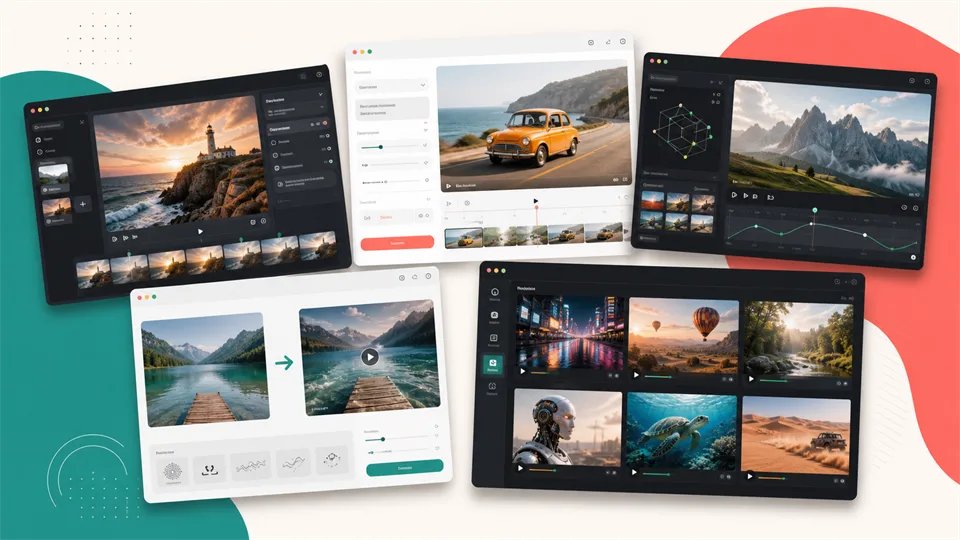

Image to video AI has become one of the most useful creative workflows in generative video. Instead of starting from a blank prompt, you begin with an existing photo, product render, illustration, character design, poster, frame, or AI-generated image, then use a prompt to describe how it should move.
That small difference changes the whole workflow. Text-to-video is good when you want the model to invent everything. AI image to video is better when you already have a look, a subject, a product, a character, or a composition you want to preserve. The input image acts like an anchor: it gives the model the subject, lighting, framing, colors, and style, while your prompt controls motion, camera direction, expression, atmosphere, and timing.
The best photo to video AI tool depends on what you are making. A filmmaker needs motion control and consistent scenes. A marketer may need product movement and clean exports. A social creator may want fast meme-style effects. A brand team may care about commercial safety and Adobe workflow integration.
This guide compares five strong image to video AI tools in 2026 by real use case, not hype.
Table of Contents
- How I Chose the Best Image to Video AI Tools
- Image to Video AI Tools at a Glance
- 1. Runway
- 2. Luma Dream Machine
- 3. Kling AI
- 4. Pika
- 5. Adobe Firefly
- Which Image to Video AI Tool Should You Choose?
- How to Get Better Results from Photo to Video AI
- FAQ
How I Chose the Best Image to Video AI Tools
Image to video AI tools are not all trying to solve the same problem. Some are made for professional cinematic shots. Some are better for social clips. Some are developer-friendly. Some are useful because they sit inside a bigger design or editing ecosystem.
For this list, I looked at seven factors:
1. Image-to-video support: Can the tool clearly start from a still image, not only a text prompt?
2. Motion quality: Does it create believable camera movement, subject motion, and temporal consistency?
3. Control: Can you guide motion, aspect ratio, duration, start/end frames, style, or camera behavior?
4. Identity and composition preservation: Does the tool keep the subject recognizable, or does it morph too much?
5. Workflow fit: Is it better for filmmakers, marketers, social creators, designers, or developers?
6. Export and editing: Can you refine, extend, upscale, or edit clips after generation?
7. Commercial considerations: Does the platform provide useful licensing, brand-safety, or enterprise workflow options?
Pricing, model access, credits, and resolution limits change often. Use this as a practical buyer’s guide, then check each provider’s current plan page before paying.
Image to Video AI Tools at a Glance
| Image to video AI tool | Best for | Standout strengths | Main limitation |
|---|---|---|---|
| Runway | Professional creative workflows | Gen-4.5 image-to-video, editing tools, model choice, export workflow | Best features are plan- and credit-dependent |
| Luma Dream Machine | Cinematic photo animation | Keyframes, Ray models, smooth motion, draft-to-final workflow | Can require prompt iteration to control exactly what moves |
| Kling AI | Character, product, and talking-image videos | Image-to-video, start/end frames, native audio, lip-sync, 1080p/4K options | Some advanced output quality and watermark removal require paid plans |
| Pika | Social-first image-to-video clips | Image-to-video, Pikaframes, effects, mobile app, short-form creativity | More playful than production-grade for some brand workflows |
| Adobe Firefly | Brand-safe creative teams | Image-to-video inside Adobe Firefly, keyframe images, multiple models, commercial-safety positioning | Credit limits and model availability depend on plan |
1. Runway
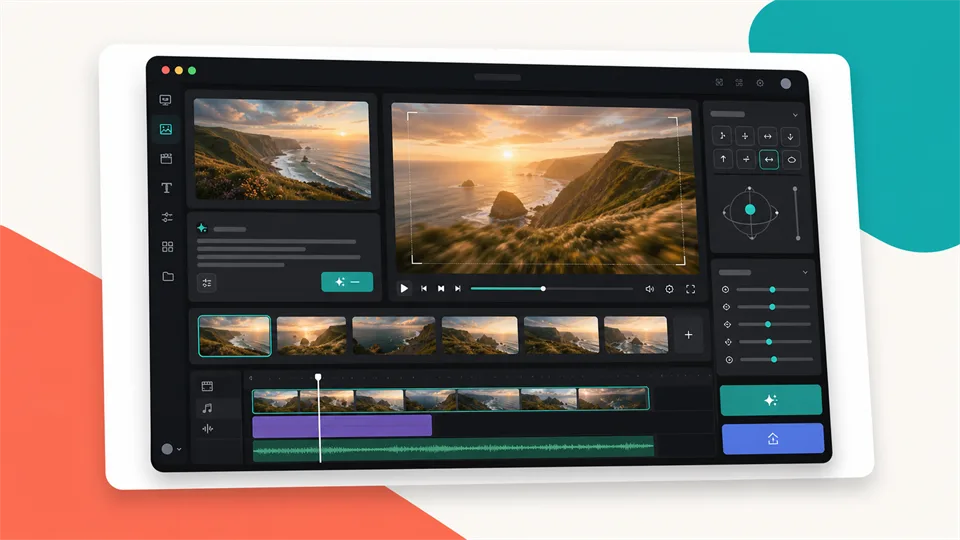
Best image to video AI tool for professional creative workflows
Runway is one of the strongest choices if you want image to video AI inside a broader video creation and editing workflow. It supports generating video from text, an image, or a clip, then refining the result with other AI video tools. That matters because image-to-video generation is rarely finished in one click. You often need to extend, upscale, trim, edit, or regenerate parts of the clip.
Runway is especially useful for directors, agencies, motion designers, concept artists, music video creators, and teams that need repeatable creative control. Its official image-to-video prompting guide explains the core idea clearly: the input image defines the composition, subject matter, lighting, and style, while the text prompt describes what should happen over time. That is exactly how most serious AI image to video work should be approached.
Runway’s current ecosystem also includes Gen-4.5 image-to-video support, Gen-4 Turbo image-to-video, video editing apps, upscaling, extension, and access to multiple third-party models inside the same workspace. In practice, that means you can start with a reference image, generate a clip, then continue shaping it without jumping across half a dozen tools.
Runway is not always the fastest or cheapest choice for casual creators. If you only want to animate a profile photo once, Kling or Pika may feel more direct. But if you care about a polished creative pipeline, Runway is the most complete image to video AI tool on this list.
Key functions
- Generate video from text, image, or existing clips
- Gen-4.5 image-to-video support
- Gen-4 Turbo image-to-video model
- Prompt-based motion and camera guidance
- Video extension and upscaling
- AI video editing apps such as backdrop changes, object edits, and relighting
- Web-based creative workspace
- API access for supported models
Pros
- Strong professional workflow
- Good balance of generation, editing, and export tools
- Helpful prompting documentation for image-to-video work
- Good fit for cinematic, brand, concept, and agency projects
- Supports more than one video generation path
Cons
- Credit costs can add up during iteration
- Best models and higher-end workflows depend on plan access
- Casual users may find it more complex than a simple photo animation app
Verdict
Runway is the best image to video AI tool for creators who want a serious production workflow. It is strongest when you need to generate, refine, extend, edit, and export clips as part of a larger creative process.
2. Luma Dream Machine
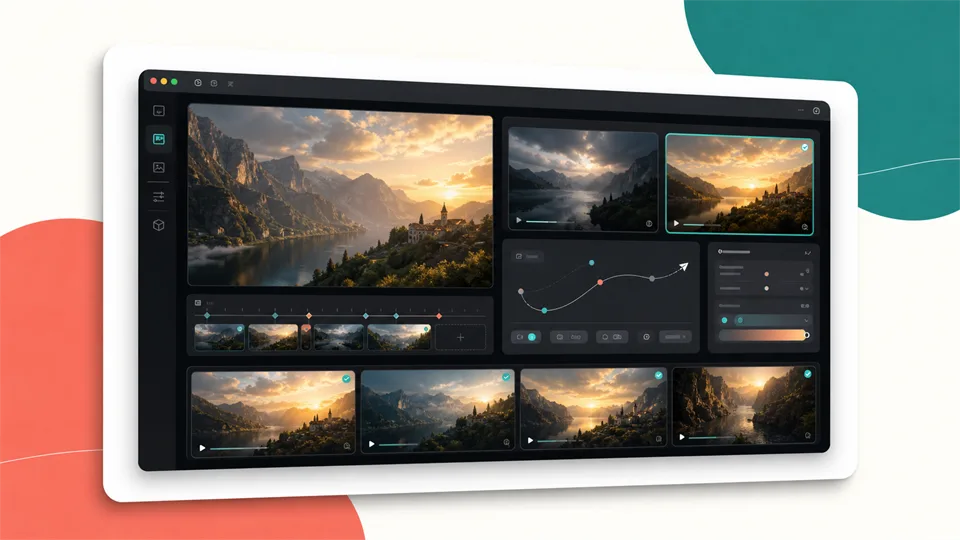
Best photo to video AI tool for cinematic animation
Luma Dream Machine is one of the most natural tools for turning a still photo into cinematic motion. Its photo-to-video workflow lets you upload an image, add an optional prompt, choose settings, and generate a short clip. Luma’s help documentation also explains a keyframe workflow where the uploaded photo acts as the starting frame of the video.
Luma is particularly good for images that already have strong visual potential: landscapes, portraits, fashion shots, cinematic stills, architecture, vehicles, product scenes, fantasy art, and AI-generated keyframes. Instead of asking the model to invent everything, you give it a frame with composition and mood already locked in.
The workflow encourages a sensible draft process. Luma’s documentation recommends using Draft Mode to test motion before committing credits to higher quality. That is good advice for all AI image to video tools. A prompt that sounds fine in writing may move the wrong object, overanimate the scene, or drift away from the original photo. Drafting helps you find the right motion before spending more.
Luma also offers useful control ideas such as keyframes, extensions, style references, and web/iOS access. It can create clips that feel smooth and cinematic, especially when you describe the motion clearly: what moves, what stays still, how the camera travels, and what mood the shot should have.
Key functions
- Photo-to-video generation from uploaded images
- Optional motion prompt
- Keyframe workflow for using an image as the starting frame
- Draft Mode for testing before final output
- Video extension workflows
- Style references and creative boards
- Web and iOS access
Pros
- Excellent for cinematic photo animation
- Strong fit for portraits, landscapes, product scenes, and AI art
- Draft workflow helps control credit use
- Keyframe and extension tools support longer creative sequences
- Simple enough for beginners but useful for advanced creators
Cons
- Precise motion can take several attempts
- Best results require strong source images
- Not as broad a video editing suite as Runway
Verdict
Luma Dream Machine is the best photo to video AI tool if you want still images to become cinematic clips with natural movement. It is especially good when your source image already looks like a strong frame from a film.
3. Kling AI
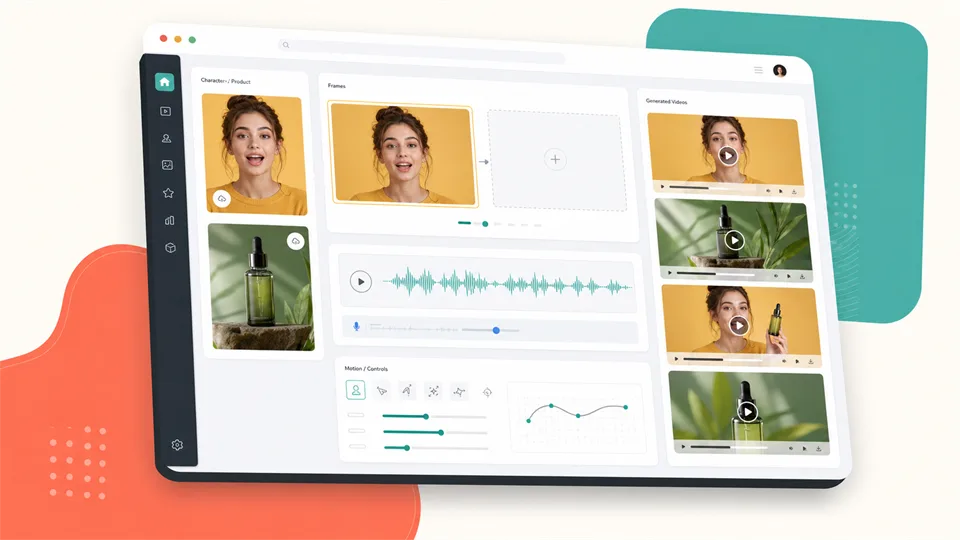
Best AI image to video tool for characters, products, and talking images
Kling AI is a strong choice when you want an image to become a moving, speaking, or product-ready video. Its official image-to-video page describes uploading an image, describing the motion, and generating a video. It also emphasizes character consistency, native audio, lip-sync, start/end frames, motion control, and 1080p or 4K output depending on plan.
That makes Kling especially interesting for portraits, avatars, product photos, e-commerce visuals, social ads, and short narrative clips. Many photo to video AI tools can make a still image drift or blink. Kling is more ambitious: it is trying to keep characters consistent, generate native audio, and support talking-image workflows where the subject speaks.
For marketers, Kling’s product and character strengths matter. A product shot needs to remain recognizable when the camera moves. A portrait needs to avoid face morphing. A talking image needs believable lip movement. Kling’s positioning is built around those problems.
Kling is also useful if you want longer short clips. Its page describes up to 15 seconds and advanced motion control, with higher-quality exports available on paid tiers. Free users can test image-to-video generation, but watermark removal, 4K, and some advanced capabilities may require membership.
Key functions
- Image-to-video generation from uploaded photos or illustrations
- Motion prompts
- Start and end frame support
- Character consistency controls
- Native audio and lip-sync features
- Motion control for pans, tilts, and zooms
- 1080p free generation and 4K options for Pro users
- Commercial/social use positioning
Pros
- Strong for portraits and talking images
- Useful for product animation and social ads
- Supports native audio and lip-sync workflows
- Start/end frames help define transitions
- Good fit for short-form creator and marketing content
Cons
- Free output may include watermarks
- Advanced resolution and longer outputs are plan-dependent
- Character consistency still needs testing on your own content
Verdict
Kling AI is the best AI image to video option when people, products, and talking-image clips matter. It is especially useful for creators who want a still photo to become a short, expressive, share-ready video.
4. Pika
Best image to video AI tool for social-first creative clips
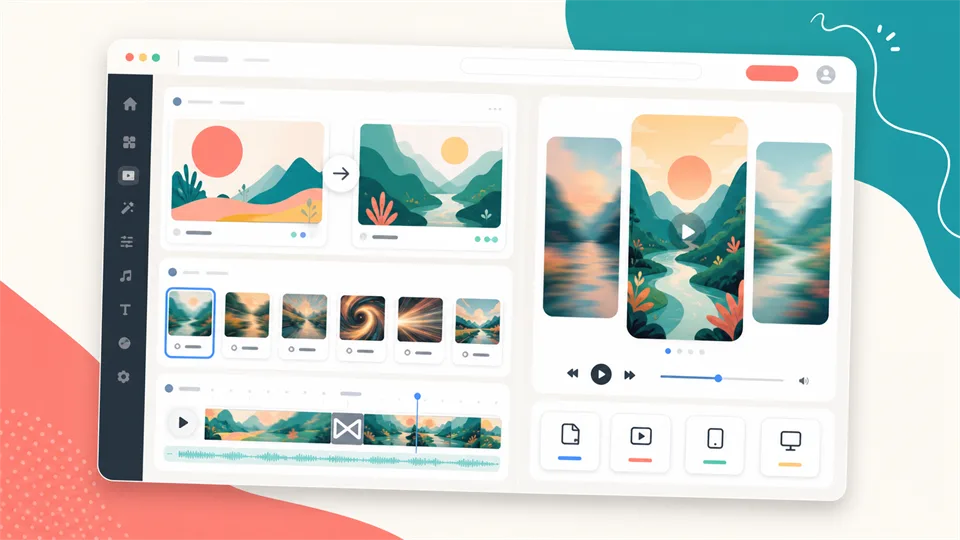
Pika is built for social-first video creation. It supports text-to-video, image-to-video, and video-to-video features, and its FAQ describes Pika as a video generation platform for AI-created social content. Pika 2.2 introduced Pikaframes, an image-to-video feature that lets users upload first and last frames as still images and choose generation length from 1 to 10 seconds.
Pika’s strength is not just realism. It is speed, playfulness, and shareability. The platform is known for effects, visual transformations, short-form content, and mobile-friendly creation. If Runway feels like a production studio, Pika feels closer to a social video playground.
That makes Pika a good fit for TikTok, Reels, Shorts, memes, music snippets, visual hooks, creative experiments, creator promos, and quick campaign ideas. Its pricing page also lists a free Basic plan with monthly video credits and support for image-to-video-related features, though resolution and credit costs vary by feature and plan.
The tradeoff is that Pika may not be the first choice for conservative brand workflows or long-form production planning. It is best when you want fast clips that grab attention, not when you need frame-perfect control over every camera move.
Key functions
- Image-to-video generation
- Text-to-video and video-to-video workflows
- Pikaframes with first and last image frames
- Short generation lengths with plan-dependent resolution
- Pikaffects and other creative effects
- Mobile app and browser access
- Social-first video formats and effects
Pros
- Great for short-form social clips
- Fun and fast creative workflow
- First/last frame control with Pikaframes
- Free plan available with monthly video credits
- Good fit for creators, memes, hooks, and visual experiments
Cons
- Less production-focused than Runway
- Some features and resolutions require paid plans
- Playful effects may not suit every brand
Verdict
Pika is the best image to video AI tool for social-first creators. Use it when you want quick, eye-catching clips from images rather than a heavy production pipeline.
5. Adobe Firefly
Best image to video AI tool for Adobe and brand-safe workflows
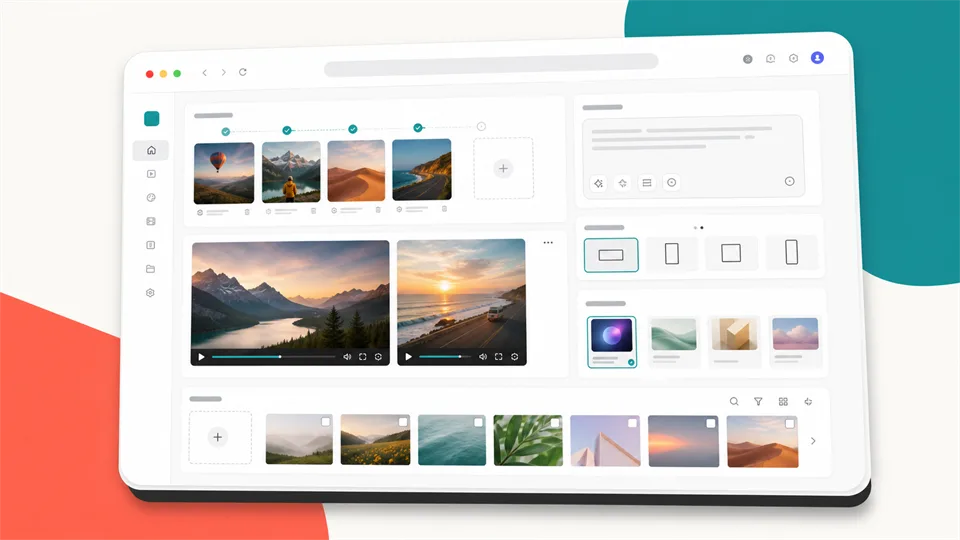
Adobe Firefly is the strongest choice for designers, marketers, and creative teams that already work in Adobe’s ecosystem. Its image-to-video feature lets users upload photos or AI-generated images, add a prompt, choose models and framing settings, and generate video clips inside Firefly.
Adobe’s official help documentation describes generating videos using keyframe images and text prompts. It also positions Firefly Video as commercially safe and useful for creating new video clips from images and prompts. That commercial-safety angle is one of Firefly’s biggest advantages for businesses. Many teams are not only asking, “Can this model make a cool clip?” They are asking, “Can we use this in a real campaign without creating unnecessary licensing risk?”
Firefly is also becoming more of an AI creative studio than a single generator. Adobe’s image-to-video page shows model choices such as Firefly Video and third-party models, plus aspect ratio options like 16:9 and 9:16. For teams already using Photoshop, Adobe Express, Premiere workflows, or Adobe creative assets, that ecosystem fit matters.
Firefly may not always feel as experimental as Pika or as specialized as Runway for AI filmmaking. But for brand teams, social marketers, designers, and agencies that need a familiar creative environment, it is a practical choice.
Key functions
- Image-to-video generation from uploaded photos or AI images
- Text prompts for motion and style
- Keyframe image workflows
- Multiple model options inside Firefly
- 16:9 and 9:16 framing options
- Adobe creative ecosystem integration
- Commercial-safety positioning for Firefly models
Pros
- Strong fit for Adobe users
- Useful for brand, marketing, and design workflows
- Commercial-safety positioning is important for teams
- Supports both images and text prompts
- Easy to connect with broader creative assets
Cons
- Credit limits and model access depend on plan
- Some third-party models may have different terms than Firefly models
- Less playful than Pika and less specialized than Runway for some AI video workflows
Verdict
Adobe Firefly is the best image to video AI tool for brand-safe creative teams and Adobe users. It is especially useful when the output needs to fit into a real marketing or design workflow.
Which Image to Video AI Tool Should You Choose?
Choose Runway if you want the best professional workflow for generating, editing, extending, upscaling, and refining AI video.
Choose Luma Dream Machine if you want cinematic photo animation from strong still images and like a draft-to-final workflow.
Choose Kling AI if you need character consistency, product animation, talking images, native audio, or lip-sync.
Choose Pika if you want social-first image-to-video clips, playful effects, first/last frame control, and fast creative experiments.
Choose Adobe Firefly if you already use Adobe tools and care about brand-safe, commercially oriented creative workflows.
If you are still unsure, use this rule:
- For professional AI video production, start with Runway.
- For cinematic photo animation, try Luma Dream Machine.
- For portraits, products, and talking images, test Kling AI.
- For social clips and visual effects, use Pika.
- For brand and Adobe workflows, choose Firefly.
How to Get Better Results from Photo to Video AI
The quality of image to video AI depends heavily on the source image and the prompt. A weak photo with unclear subjects, poor lighting, or messy composition gives the model less to work with.
Use these practical tips:
1. Start with a strong image. Clear subjects, clean lighting, and obvious depth usually animate better.
2. Describe motion, not the whole image. The image already provides the look. Your prompt should explain what changes over time.
3. Say what should stay still. If only the hair, water, clouds, or camera should move, say that clearly.
4. Control camera movement. Try phrases like slow push-in, gentle orbit, handheld drift, crane up, locked-off shot, or subtle parallax.
5. Avoid asking for too much. A still portrait turning, smiling, speaking, changing clothes, and walking away may be too many transformations at once.
6. Use short drafts first. Test motion cheaply before spending credits on high-quality output.
7. Keep clips short. Most AI image-to-video tools are strongest in short durations.
8. Use start and end frames when available. This helps guide transitions and reduce random motion.
9. Check faces and hands carefully. Portraits, fingers, teeth, and eyes can still distort.
10. Review commercial terms. If the video is for a client, ad, product page, or paid campaign, check the tool’s usage rights and model terms.
FAQ
What is image to video AI?
Image to video AI is a generative video workflow that turns a still image into a short moving video. You upload a photo, product image, illustration, or AI-generated image, then use a prompt to describe the motion, camera movement, expression, atmosphere, or transition.
What is the best image to video AI tool in 2026?
Runway is the best overall option for professional workflows. Luma Dream Machine is excellent for cinematic photo animation. Kling AI is strong for portraits, products, and talking images. Pika is best for social-first clips, and Adobe Firefly is best for Adobe and brand-safe workflows.
What is the difference between image to video AI and text to video AI?
Text to video AI generates a video from a written prompt alone. Image to video AI starts with an existing image, so the model has a visual reference for composition, subject, style, lighting, and colors. Use image-to-video when you want to preserve a specific look or subject.
Can photo to video AI animate a real portrait?
Yes, many tools can animate portraits with head movement, blinking, expression changes, or talking-video effects. Kling AI and Pika are especially relevant for portrait and talking-image workflows. Always check the result carefully for face morphing or unnatural lip movement.
Can I turn product photos into videos with AI?
Yes. Image to video AI can add camera movement, product rotation, environmental motion, lighting changes, or social-ad-style animation to product photos. Kling, Runway, Luma, and Firefly are all worth testing for product visuals.
Is image to video AI free?
Some tools offer free plans, trials, or limited credits, but serious use usually requires paid credits or a subscription. Free tiers may include watermarks, lower resolution, shorter clips, slower generation, or limited model access.
Which image to video AI tool is best for social media?
Pika is the strongest social-first option because it is built around short, attention-grabbing clips and creative effects. Kling is also strong for TikTok, Reels, Shorts, product ads, and talking-image content.
Which image to video AI tool is best for commercial use?
Adobe Firefly is the clearest choice for teams that prioritize brand-safe workflows, especially when using Firefly models under Adobe’s commercial-safety positioning. Runway and Kling can also be used in commercial creative workflows, but you should check the current plan terms before publishing client work.
How long are AI image-to-video clips?
Most tools create short clips, often around 5 to 10 seconds depending on the model and plan. Some platforms support extensions, longer durations, or start/end keyframes. Luma, Runway, Kling, and Pika all offer different ways to extend or control clips.
Can image to video AI replace video editing?
No. It can create motion from still images, but editing still matters. You may need to trim clips, combine scenes, add sound, correct timing, upscale, remove artifacts, and adjust final pacing. The best workflow treats image to video AI as a generation step inside a larger editing process.
Final Thoughts
The best image to video AI tool depends on the kind of motion you need. Runway is the most complete professional option. Luma Dream Machine is excellent for cinematic photo animation. Kling AI is strong for character consistency, products, and talking images. Pika is built for fast social clips. Adobe Firefly is the best fit for Adobe users and brand-safe creative teams.
The smartest workflow is to start with the strongest still image you can make, write a motion-focused prompt, generate short drafts, and only then spend credits on higher-quality output. AI image to video is powerful, but it rewards patience. The better your source frame and motion direction, the better the final clip will feel.
Latest Reviews
Kling 4.0 Review: 30-Second AI Video, Pricing, Keyframes and NSFW Limits

MOSS-Image Review: Text, Layout Control, NSFW, VRAM and ComfyUI
5 Best Photo Printers for Home Use in 2026

Gemini 4 Argon Review: Coding, Pricing, Long Context and NSFW Limits
Top 10 AI Models in 2026: Arena Rankings, Prices and Best Uses
Matrix-Game 4.0 Review: RTX 5090 AI Games, Setup and NSFW Limits