5 Best Collage Maker Tools in 2026
Compare 5 top collage maker tools for templates, social posts, large photo grids, branded designs, and one-click layouts, with pros and cons.

A collage is easy to underestimate. Drop a few photos into a grid, add a border, and the job should be done. In practice, the difference between a tidy collage and a frustrating one comes down to small things: how the tool crops faces, whether you can swap images without rebuilding the layout, how precisely you can control spacing, and whether the final file is sharp enough to print or share.
The right collage maker also depends on what you are creating. A family photo board needs a different workflow from an Instagram carousel cover. A product comparison may need clean, consistent cells, while a mood board benefits from freeform layers, text, and overlapping images. Some people want the fastest possible photo collage maker. Others need brand controls, team collaboration, AI editing, or a layout that can hold dozens of pictures.
I compared five strong options for different jobs: Canva, Adobe Express, Fotor, PhotoGrid, and BeFunky. All five can combine multiple photos into one design, but they take noticeably different approaches to templates, automation, editing, and export.
Table of Contents
- How I Chose the Best Collage Makers
- Collage Makers at a Glance
- 1. Adobe Express
- 2. Canva
- 3. Fotor
- 4. PhotoGrid
- 5. BeFunky
- Which Collage Maker Should You Choose?
- Tips for Making a Better Photo Collage
- FAQ
How I Chose the Best Collage Makers
A useful photo collage maker should do more than place images in boxes. I evaluated each tool around the parts of the workflow that tend to save—or waste—the most time.
1. Layout range: A good tool should offer classic grids, irregular arrangements, social formats, and ideally some room for freeform design.
2. Cropping behavior: Automatic layouts should frame people and important details well, while still letting you reposition or resize individual photos.
3. Spacing control: Borders, margins, cell gaps, corner radius, and background color have a big effect on the final result.
4. Photo editing: It should be possible to crop, adjust, filter, enhance, or remove a background without constantly moving between apps.
5. Template quality: Ready-made templates are most useful when they cover real jobs such as birthdays, weddings, mood boards, product comparisons, social posts, and printable gifts.
6. Ease of rearranging: Swapping two photos or changing the aspect ratio should not destroy the entire composition.
7. Export quality: The collage should download cleanly in formats such as PNG or JPG, with enough resolution for its intended use.
8. Free-plan limits: Watermarks, locked templates, premium assets, export restrictions, and AI credits can change the practical value of a free collage maker.
9. Best-fit use case: The highest-rated general design app is not automatically the best tool for a 30-photo grid, a one-click family collage, or a fast mobile post.
I also favored tools with an active official product page and a clear collage workflow. Features and plan limits can change, so check the current export and licensing terms before starting an important print or commercial project.
Collage Makers at a Glance
| Collage maker | Best for | Standout strengths | Main limitation |
|---|---|---|---|
| Adobe Express | Best overall for polished, personalized collages | Customizable layouts and templates, Adobe Stock access, easy photo editing, flexible design and resizing tools | Less specialized for very large or unusual photo grids |
| Canva | Template variety and flexible design | Huge template library, flexible canvas, stock assets, brand tools, collaboration | The best assets and background tools often require Pro |
| Fotor | Large photo grids and AI-assisted editing | 2,000+ layouts, bulk upload, smart fill, detailed spacing controls, HD export | Some AI and premium features use credits or paid access |
| PhotoGrid | Mobile-first and social media collages | Thousands of layouts, photo and video support, stickers, text, AI tools, cross-platform workflow | The broad feature set can feel busy for a simple print collage |
| BeFunky | Fast one-click collages without aggressive cropping | Collage Wizard, no-crop arrangement, adjustable cells, integrated photo editor | Some of the strongest tools and assets are part of BeFunky Plus |
1. Adobe Express
Best overall for polished, personalized collages
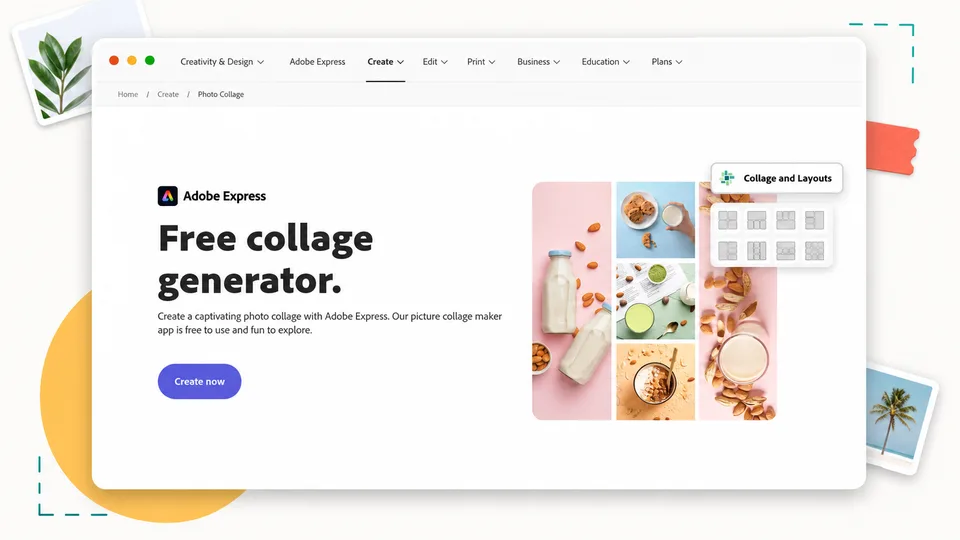
Adobe Express combines an approachable collage-making workflow with enough customization options to create polished designs for personal, social, and professional use. To make a collage, you can upload your own photos, choose a layout, rearrange and crop images, and adjust spacing to build the composition you want. From there, you can personalize the collage with text, graphics, filters, and other design elements rather than stopping at a basic photo grid.
The editor makes that customization accessible even without extensive design experience. Templates provide a starting point for projects such as event recaps, school projects, portfolios, social posts, promotional materials, and personal photo collections, while users can adjust the design to suit their own images and purpose.
Adobe Stock integration provides additional photos and design assets when your own images do not cover everything you need. Brand controls can also help businesses and teams apply consistent fonts, colors, and logos when creating collages for professional use.
The tool goes beyond arranging photos into a grid. Once a collage is assembled, you can add text and graphics, apply filters, remove or change backgrounds, and resize or adapt the finished design for different formats. This flexibility makes it useful when a personalized collage needs to be shared online, incorporated into social content, or repurposed for another creative project.
The tradeoff is specialization. Adobe Express is well suited to users who want to turn their photos into a polished, customizable finished design, but it is less focused than Fotor or BeFunky on automatically arranging very large photo batches. For many everyday collage projects, however, its combination of ease of use, personalization, design flexibility, and options for repurposing finished work makes it the most well-rounded choice in this comparison.
Key functions
- Quick photo upload and grid generation
- Drag-and-drop image swapping and cropping
- Border, gap, and spacing adjustment
- Templates for social, print, education, events, and business
- Adobe Stock photos and design assets
- Text, icons, graphics, filters, and animations
- Background removal and generative editing on supported plans
- Brand kits and reusable styles
- Resize and repurpose tools for other content formats
- Web and mobile editing
Pros
- Produces clean, professional-looking layouts quickly
- Strong balance of personalization, ease of use, and design flexibility
- Smooth path from simple grid to finished graphic design
- Useful stock-photo and typography ecosystem
- Good for personal, social, and professional projects
- Easy enough for non-designers
Cons
- Less focused on very large photo grids
- Some templates, assets, and advanced features require a paid plan
- Can be more tool than needed for a basic two-photo layout
- Most attractive if you already value the Adobe ecosystem
Verdict
Choose Adobe Express if you want an approachable collage maker that combines personalization with polished design tools. It is a particularly well-rounded choice for creating collages for personal projects, social content, presentations, events, or business use, especially when you may want to resize or adapt the finished design for other formats.
2. Canva
Best for template variety and flexible design
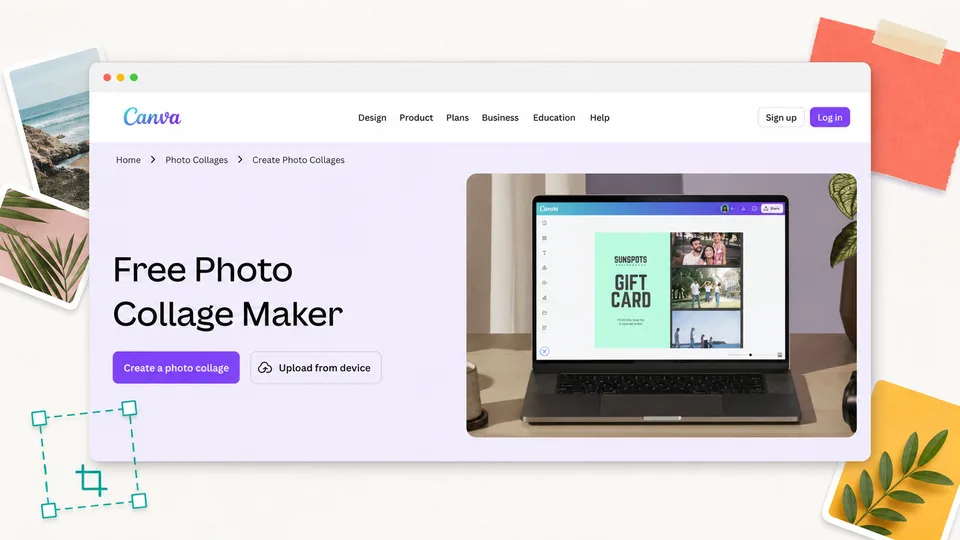
Canva is a strong choice for users who want a large selection of templates and plenty of flexibility beyond basic photo grids. It combines a straightforward editor with a very large library of templates, stock images, fonts, frames, illustrations, and graphics. You can start with a classic photo grid, a scrapbook-style design, a mood board, a thank-you card, a product collage, or a social post and then change almost every visible element.
The biggest advantage is that Canva does not lock you into the original template. Frames can be resized, photos can be moved or layered, backgrounds can be replaced, and text can be added anywhere on the canvas. That makes it more flexible than a collage app that only lets you choose a fixed grid and adjust the gap between cells.
Canva is also a good choice when the collage is only one part of a larger project. A small business can reuse the same photos in an Instagram post, flyer, presentation, product sheet, or banner. Creators and teams can share a design, leave comments, and keep colors, fonts, and logos consistent with a brand kit.
The photo editing tools cover the essentials. You can crop, rotate, adjust brightness and color, add filters, blur backgrounds, apply shadows, and use frames or mockups. More advanced tools such as background removal are especially useful for product collages and layered editorial layouts, although some are tied to Canva Pro.
Canva’s main weakness is that its popularity can make designs look familiar. A template will not automatically create a distinctive result. You still need to change the typography, spacing, crop choices, colors, and supporting elements if you want the collage to feel personal rather than pre-made.
Key functions
- Drag-and-drop photo collage editor
- Large collection of professional templates
- Classic grids, frames, layered designs, and free form layouts
- Stock photos, illustrations, icons, stickers, and fonts
- Crop, filter, color, blur, shadow, and basic enhancement tools
- Background removal and AI-assisted editing on supported plans
- Brand kits for colors, fonts, and logos
- Real-time collaboration, comments, and shared design access
- PNG, JPG, PDF, and other export options depending on the design
- Web, desktop, iOS, and Android access
Pros
- Strong balance of templates, flexibility, and ease of use
- Works for personal memories, social posts, business graphics, and print projects
- Easy to turn a collage into other design formats
- Strong collaboration features
- Large free template and asset selection
- Good choice for beginners who still want room to customize
Cons
- Some of the strongest assets and editing tools require Canva Pro
- Popular templates can look generic without customization
- Not the fastest option for automatically arranging dozens of photos
- Precise image editing remains lighter than a dedicated photo editor
Verdict
Choose Canva if you want a template-rich collage maker with plenty of flexibility for different types of projects. It is particularly well suited to family collages, mood boards, social content, brand visuals, invitations, and printable designs.
3. Fotor
Best collage maker for large photo grids and AI-assisted editing
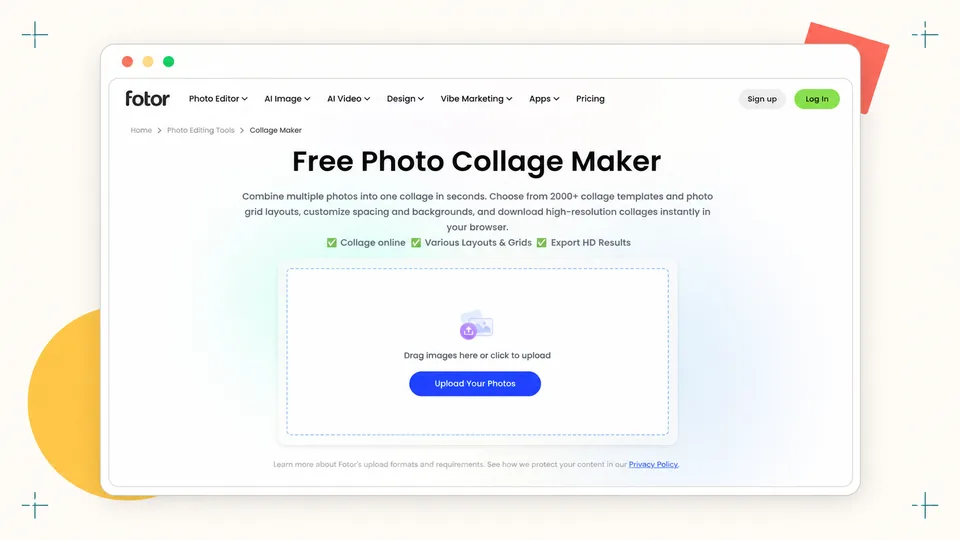
Fotor is one of the most collage-focused tools in this list. Its official maker supports structured photo grids, creative layouts, shape collages, mood boards, social formats, and large batches of images. The combination of bulk upload, automatic filling, cell swapping, and detailed spacing controls makes it particularly useful when you need to organize many photos without arranging every frame by hand.
The smart layout behavior is a major time saver. Fotor can place uploaded images into a selected grid, account for their orientation, and let you swap photos while keeping the composition intact. You can adjust inner borders, outer margins, corner roundness, backgrounds, and the aspect ratio. This is useful for year-in-review boards, travel recaps, classroom projects, contact sheets, product grids, before-and-after comparisons, and printable gifts.
Fotor also includes a fuller photo editor than many dedicated collage apps. Individual images can be cropped, filtered, color-corrected, enhanced, retouched, or separated from their backgrounds from inside the broader workflow. AI tools can help generate supporting visuals or clean up source images before they enter the final layout.
For users working with dozens of photos, Fotor has an advantage over template-first design platforms. Its standard layouts can accommodate large image counts, and additional cells can be added manually. The finished design can be exported for screens or print in common high-resolution formats.
The limitation is the plan structure. Some AI functions, premium templates, and high-end export options may require credits or paid access. The interface also presents a lot of possibilities, so a first-time user may need a few minutes to understand which layout mode is best.
Key functions
- Thousands of collage templates and photo-grid layouts
- Bulk photo upload and automatic grid filling
- Smart image orientation and layout behavior
- Drag-to-swap images between cells
- Inner spacing, outer margins, corner radius, and background controls
- Structured grids, freeform designs, shapes, and mood boards
- Text, stickers, illustrations, filters, and overlays
- Integrated photo enhancement and background tools
- Flexible aspect ratios for social, screen, and print use
- High-resolution PNG, JPG, and supported print exports
Pros
- Excellent for large photo grids
- More detailed spacing controls than many general design tools
- Strong mix of collage layout and photo editing
- Good for both symmetrical grids and creative arrangements
- Useful for print, comparisons, mood boards, and social content
- AI tools can improve or extend source images
Cons
- Some AI and premium features require credits or a paid plan
- The number of tools can feel busy at first
- Template quality varies by category
- AI output may require several attempts
Verdict
Choose Fotor if your photo collage contains many images or needs precise grid controls. It is also a strong option when source photos require more editing than a basic template tool can provide.
4. PhotoGrid
Best collage maker for mobile and social media layouts
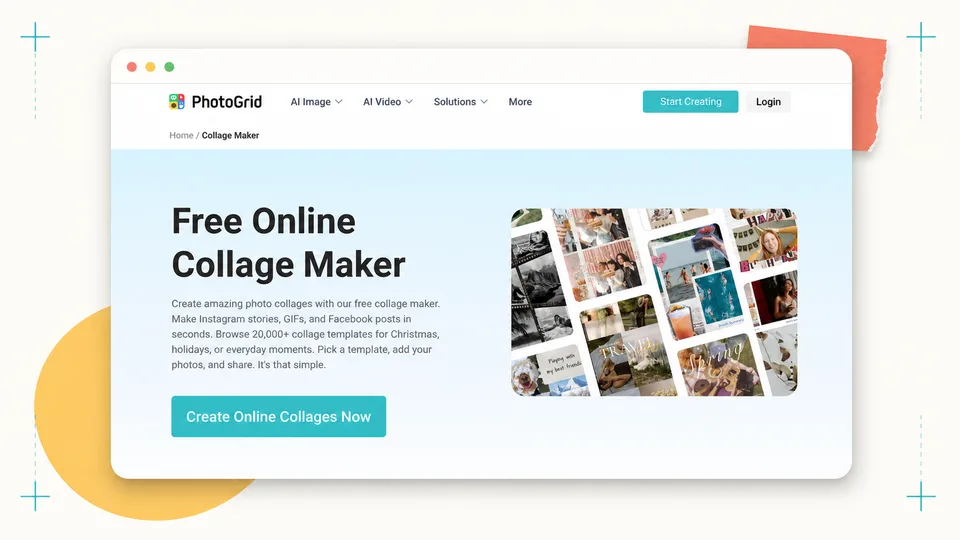
PhotoGrid is built around the idea that a collage should be fast to create and easy to share. It offers a large library of layouts, templates, stickers, backgrounds, and text effects, with workflows designed for phones as well as desktop browsers. That makes it a practical choice for Instagram posts and Stories, travel recaps, birthday boards, product showcases, fan edits, and everyday photo collections.
The tool handles both classic grids and more expressive social designs. You can combine several images, change spacing, adjust borders, replace backgrounds, add text, and apply filters without needing a separate design app. PhotoGrid also supports video-oriented creative work, which is useful for people who want to mix still photos and motion in social formats.
Its broader AI suite adds another layer. Image enhancement, background removal, object cleanup, filters, restoration, and expansion tools can help prepare photos before they are placed into a collage. For quick mobile work, having those features inside the same ecosystem is more convenient than exporting images between several apps.
PhotoGrid’s template collection is one of its strongest assets. It covers holidays, birthdays, relationships, travel, e-commerce, and social formats. The editor also supports more practical layouts such as side-by-side comparisons and product collages.
The downside is that the product has grown far beyond simple collages. AI image and video tools, templates, filters, and promotional options can make the interface feel crowded when all you want is a clean four-photo grid. Free and premium allowances also differ across the web and app versions, so check the current plan before relying on a particular export option.
Key functions
- Ready-made grid and collage layouts
- Templates for Instagram, Facebook, holidays, events, and products
- Support for multiple photos and social-friendly aspect ratios
- Photo and video collage workflows
- Spacing, borders, backgrounds, text, and stickers
- Filters, image enhancement, and background tools
- AI editing, restoration, object removal, and expansion
- Mobile apps and browser access
- Large creative asset library
- Sharing and export options for social platforms
Pros
- Strong mobile-first workflow
- Excellent for social posts and Stories
- Large variety of themed templates
- Useful mix of photo, video, and AI editing
- Good for quick personal and creator content
- Easier than a full design suite for many mobile jobs
Cons
- Interface can feel crowded with extra AI and video features
- Some assets and tools require premium access
- Free-plan behavior can vary by platform
- Less restrained than Adobe Express for formal brand work
Verdict
Choose PhotoGrid if you create collages mainly for a phone, social feed, Story, or creator account. It is fast, template-rich, and especially useful when you want to mix collage creation with AI editing or video.
5. BeFunky
Best photo collage maker for one-click layouts without heavy cropping
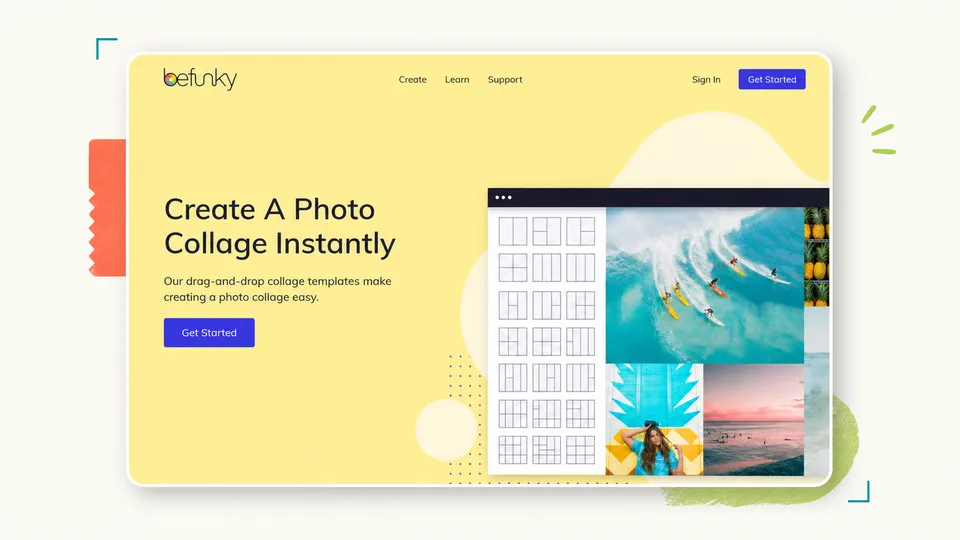
BeFunky stands out because of its Collage Wizard. Instead of asking you to choose a rigid template first, the wizard can arrange uploaded photos into a balanced, high-resolution layout while trying to avoid cropping or clipping them. That makes it useful for family albums, travel collections, wedding photos, school memories, and any project where keeping the whole image matters.
The one-click result is only a starting point. You can swap images, resize cells, change the aspect ratio, add or remove frames, adjust colors, and move toward a more customized design. BeFunky also offers classic grids, big-photo layouts, wide banners, tall collages, square social formats, and shaped arrangements.
Its integrated photo editor is another advantage. Individual collage images can be adjusted without leaving the project. This helps when a set of photos has inconsistent lighting or color, or when one portrait needs a quick touch-up before it sits next to the others.
BeFunky works well for users who want automation but do not want to lose control. The Collage Wizard gets the layout started, while the editor still allows text, graphics, patterns, background colors, and other design elements. Finished collages can be saved in formats such as JPG, PNG, or PDF depending on the workflow.
The limitation is that some of BeFunky’s most appealing effects, assets, and advanced options are part of BeFunky Plus. Its design ecosystem is also smaller than Canva’s. But for quick, balanced layouts that respect the original photos, the Collage Wizard remains a distinctive feature.
Key functions
- Collage Wizard for automatic layout generation
- No-crop-oriented arrangement of uploaded photos
- Classic grid, big-photo, wide, tall, square, and shape layouts
- Adjustable aspect ratio, cells, spacing, and background
- Drag-and-drop image swapping
- Integrated photo editor and effects
- Text, vector graphics, stickers, and patterns
- Social, Pinterest, greeting-card, and print formats
- Stock-image access
- JPG, PNG, and PDF saving options
Pros
- Fast automatic arrangement
- Good at preserving complete photos
- Easy to customize after using the wizard
- Useful integrated photo editor
- Strong choice for family, travel, and event memories
- Clear workflow for non-designers
Cons
- Some advanced tools and assets require BeFunky Plus
- Smaller template ecosystem than Canva
- Less focused on collaborative brand workflows
- Mobile and social features are not as broad as PhotoGrid’s
Verdict
Choose BeFunky if you want to upload a group of photos and receive a balanced layout with minimal manual work. Its Collage Wizard is especially helpful when aggressive automatic cropping would ruin important details.
Which Collage Maker Should You Choose?
Choose Adobe Express if you want the best overall balance of ease of use, personalization, polished design, and flexibility to adapt a finished collage for different formats.
Choose Canva if you want extensive template variety, freeform design, brand content, print projects, and team collaboration.
Choose Fotor if you need a large photo grid, detailed border and spacing controls, bulk upload, or AI-assisted photo editing.
Choose PhotoGrid if you create mainly on a phone or need fast social posts, Stories, themed templates, photo-and-video layouts, and creator-friendly effects.
Choose BeFunky if you want the fastest one-click arrangement and care about keeping full photos visible rather than letting a template crop them heavily.
For most people, Adobe Express is the most well-rounded starting point, particularly if you want to create a personalized collage and then refine, resize, or repurpose the finished design. Canva stands out for template variety and flexible design, Fotor is better for large and precise grids, BeFunky is the easiest automatic option, and PhotoGrid is the most natural fit for mobile-first social content.
Tips for Making a Better Photo Collage
Choose the final format first. A square Instagram post, widescreen presentation, vertical Story, and printed poster need different layouts. Changing the aspect ratio at the end can create awkward crops.
Start with a clear visual story. Use photos from the same event, color palette, product range, or theme. A collage feels more intentional when the images have a reason to appear together.
Pick one focal image. If every frame is the same size, viewers may not know where to look. A larger hero photo can create hierarchy while smaller images support it.
Keep spacing consistent. Uneven gaps and margins make a grid look accidental. Match inner borders, outer margins, and corner styles unless the irregularity is intentional.
Check every crop. Automatic layouts often cut off faces, text, or product details. Reposition each important image before exporting.
Apply edits consistently. A warm photo beside a cool blue photo can feel disconnected. Similar exposure, contrast, saturation, and filter choices help the images belong together.
Do not add too many decorative elements. Stickers, textures, text, and illustrations can support a theme, but they should not compete with the photos.
Use readable text. Keep captions short, maintain strong contrast, and leave enough padding around the words. Small text may disappear on a phone or after social compression.
Export at the intended resolution. A collage designed for print needs more pixels than one made for a social thumbnail. Avoid enlarging a small exported file later.
Save an editable project. If a client, family member, or teammate asks to replace one image, an editable source file will save you from rebuilding the collage.
FAQ
What is the best collage maker overall?
Adobe Express is the best overall collage maker in this comparison for users who want a balance of easy customization, polished design, and flexibility for different types of projects. It lets users arrange and personalize their photos with layouts, templates, text, graphics, and editing tools, then adapt the finished design for different formats. Canva remains a strong choice for template variety and flexible design, while Fotor is better suited to large photo grids and BeFunky is especially useful for automatic arrangements.
What is the best free photo collage maker?
Canva, Adobe Express, Fotor, PhotoGrid, and BeFunky all offer free ways to create collages, but their limits differ. Check whether your chosen template, asset, export resolution, or background tool requires a paid plan before investing time in the design.
Can I make a photo collage without downloading software?
Yes. All five tools in this guide provide a browser-based collage workflow. You can upload photos, choose a layout, customize the design, and export the result online. Mobile apps are also available for several of them.
Which collage maker is best for many photos?
Fotor is a strong choice for many photos because it supports bulk upload, large grids, automatic filling, image swapping, and detailed spacing controls. BeFunky’s Collage Wizard is another good option when you want an automatic layout that avoids heavy cropping.
Which photo collage maker is best for Instagram?
PhotoGrid is particularly well suited to Instagram posts and Stories because it offers social templates, mobile editing, stickers, text effects, and photo-and-video layouts. Canva and Adobe Express are also useful, but PhotoGrid is the social-first choice in this list.
Can I create a collage for printing?
Yes. Start with the correct physical dimensions and enough resolution for the intended print size. Use high-quality source images and export in a high-resolution format. For important prints, confirm the tool’s current resolution, PDF, color, and licensing options.
How many photos should I put in a collage?
There is no fixed limit, but fewer images usually create a stronger focal point. Two to six photos work well for social posts and cards. Larger travel, family, classroom, or year-in-review boards may use 10, 20, or more photos if the final canvas is large enough.
What is the difference between a photo grid and a photo collage?
A photo grid usually follows a regular structure with aligned rows and columns. A photo collage can be more flexible, using different frame sizes, overlapping layers, shapes, text, and decorative elements. Many modern collage makers support both styles.
Can I remove the background from a photo inside a collage maker?
Many collage makers include background removal, but it may require a paid plan or AI credits. Canva, Adobe Express, Fotor, and PhotoGrid all provide background-related tools in their broader editing suites. Check current plan limits before starting a large batch.
Why do my photos look blurry in the final collage?
The source images may be too small, the collage may have been exported at low resolution, or an image may have been enlarged beyond its original size. Use high-resolution originals, design at the final dimensions, and export at the highest practical quality.
Can I sell collages made with these tools?
It depends on the tool, template, stock asset, font, AI feature, and subscription license. Review the current commercial-use terms for every third-party element. For products you plan to sell, your own photos and properly licensed assets are the safest foundation.
Related Reviews
Tsubaki.3 Review: Anime, Manga, Pricing & NSFW (2026)

Best 6 Free QR Code Generators in 2026
5 Best AI Poster Makers in 2026: Tested and Compared
Best 5 Invoice Generators in 2026

6 Best Picture-to-Drawing Converters in 2026
Gemini Omni 1.1 Flash Review: Google Video AI, 4K, API, and NSFW Limits