
Table of Contents
- What Is Veo 3.1?
- Veo 3.1 Review Summary
- Key Features of Veo 3.1
- Video Quality and Motion
- Native Audio
- Veo 3.1 Pricing
- Veo 3.1 Pros and Cons
- Who Should Use Veo 3.1?
- Veo 3.1 vs Sora, Runway, Kling, and Luma
- Veo 3.1 Prompt Tips
- Best Veo 3.1 Alternatives
- FAQ
What Is Veo 3.1?
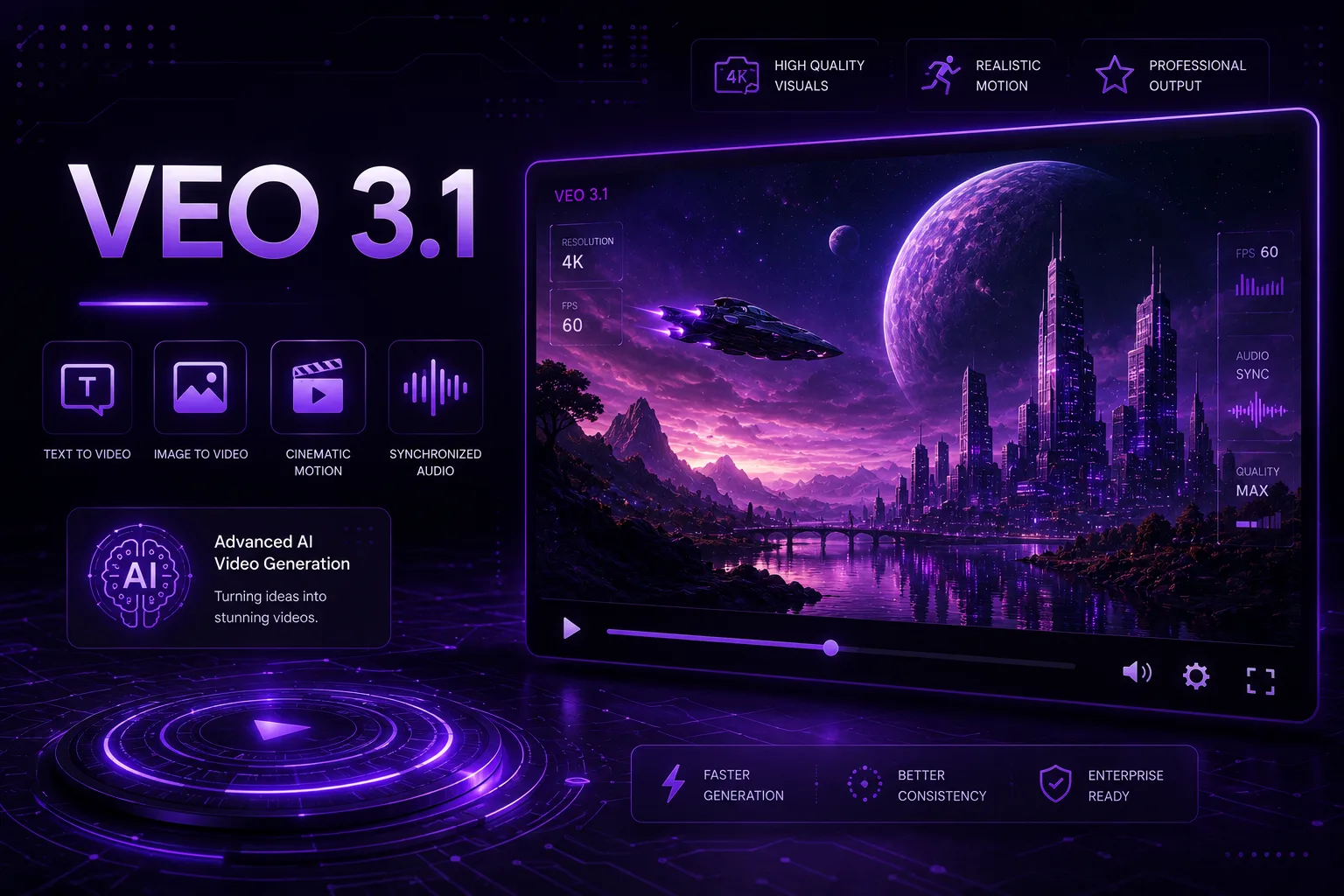
Veo 3.1 is Google’s AI video generation model for creating short videos from prompts, images, and structured creative direction. It is available through Google’s AI ecosystem, including developer access through the Gemini API. According to Google’s developer documentation, Veo 3.1 can generate 8-second videos at 720p, 1080p, or 4K and includes natively generated audio.
That combination is important. Many AI video tools can generate silent clips, but a useful video workflow often needs sound, ambience, movement, and visual storytelling together. Veo 3.1 is designed for users who want a stronger connection between video and audio instead of treating sound as an afterthought.
This Veo 3.1 review looks at its main features, best use cases, pricing considerations, strengths, limitations, prompt tips, and alternatives.
Veo 3.1 Review Summary
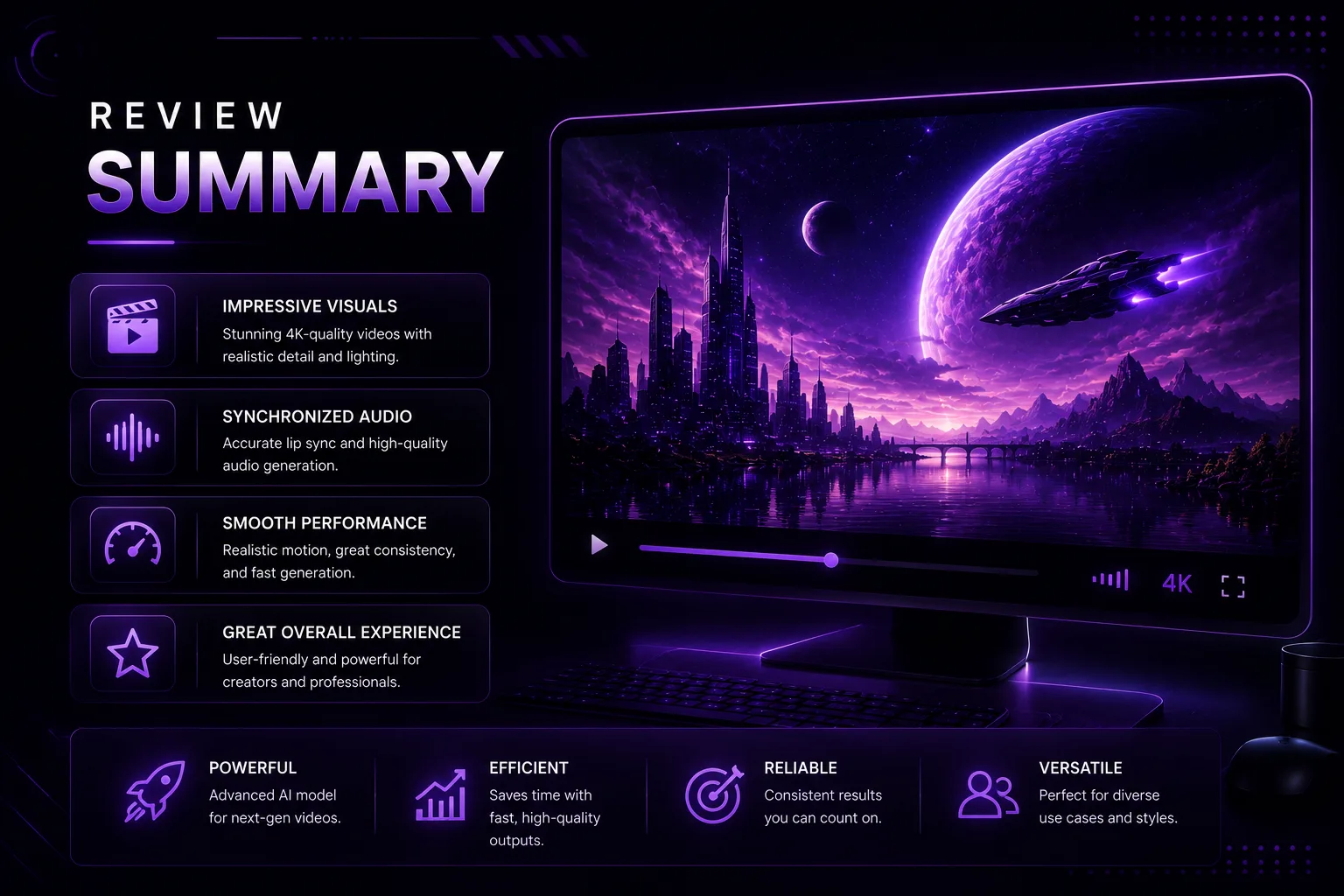
Veo 3.1 is one of the strongest AI video models for users who want high-end short clips with native audio and access through a serious developer ecosystem. It is especially interesting for creators, marketers, developers, product teams, and agencies that want realistic motion, cinematic visuals, and programmatic video generation.
Its biggest strengths are video quality, native audio, image-to-video support, API access, and Google’s broader ecosystem. It is a strong choice for cinematic concepts, ads, product videos, storyboards, educational clips, and short creative scenes.
However, Veo 3.1 is not the perfect tool for everyone. The 8-second output length may feel short for some projects. Pricing and access can also matter, especially for high-volume users. If you need long social videos, heavy editing, avatar presenters, or template-based business videos, other tools may fit better.
Quick verdict: Veo 3.1 is worth trying if you want high-quality AI video with native audio, strong cinematic output, and API access. It is less ideal if you need long-form video editing or a simple template-based workflow.
Key Features of Veo 3.1
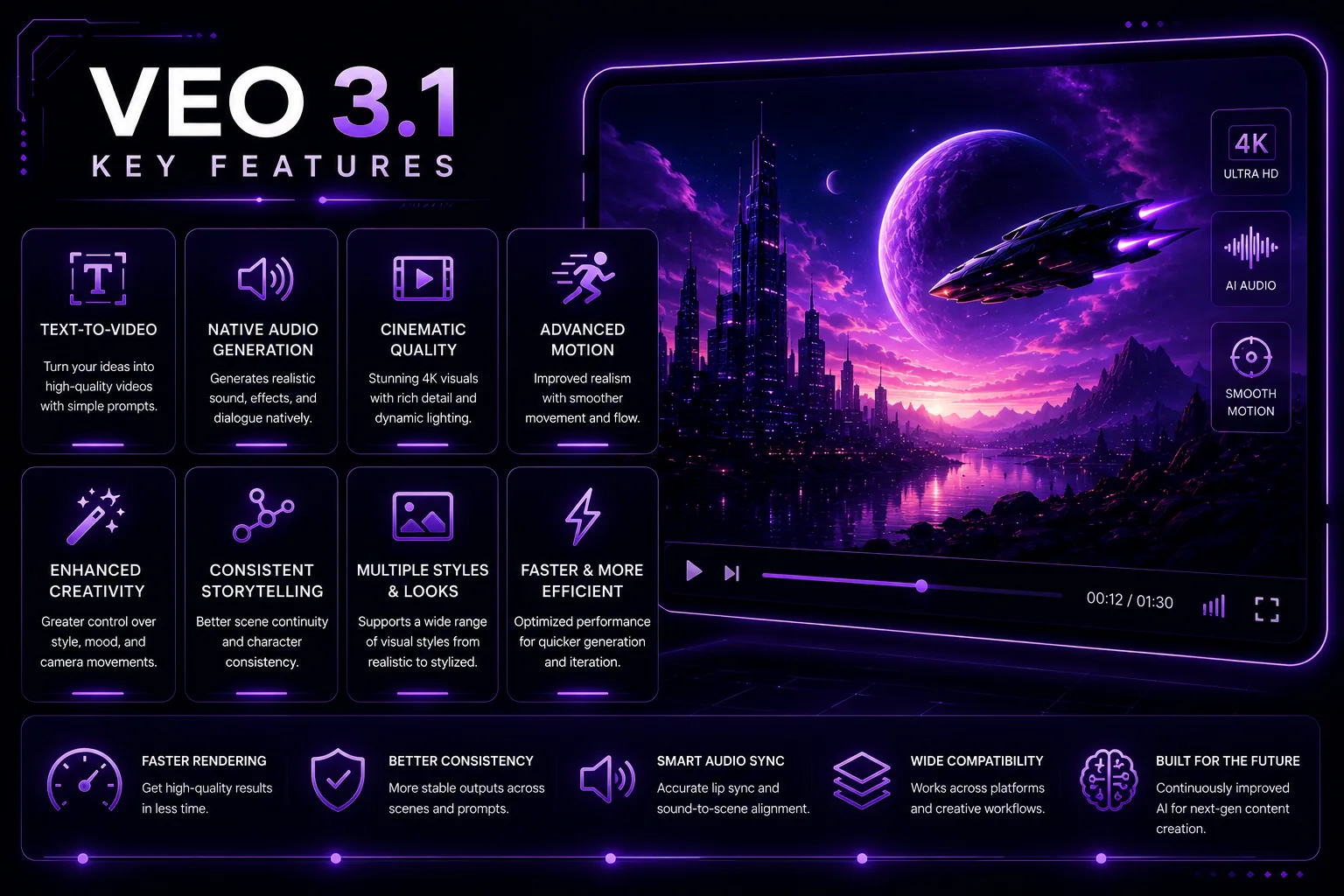
Veo 3.1 is built for short, high-quality video generation. Its features make it especially relevant for creators who need more than a silent moving image.
Text to Video
Veo 3.1 can generate video from text prompts. This is useful for scenes, product concepts, ads, fictional clips, visual storytelling, and quick creative testing. The better your prompt, the better the output usually becomes.
Good prompts should include subject, action, camera movement, setting, lighting, style, mood, and audio direction. A vague prompt may produce a pretty clip, but a specific prompt gives the model more to follow.
Image to Video
Image-to-video is one of the most useful Veo 3.1 workflows. You can start with a still image, product shot, storyboard frame, character reference, or design concept, then animate it into a short video.
This is useful for creators who already have visuals and want motion. For example, a product marketer can animate a hero image, a designer can bring a concept frame to life, and a filmmaker can test a shot before producing it manually.
Native Audio
Veo 3.1 includes natively generated audio, which makes it more useful than silent video tools. Native audio can include ambience, sound effects, and other audio elements that fit the generated scene.
This does not mean every audio result will be production-ready, but it can make drafts feel more complete. For social clips, ads, and concept videos, native audio can save time.
Resolution Options
Google’s documentation lists 720p, 1080p, and 4K options for Veo 3.1. This gives users more control over quality, cost, and speed. Lower resolution can be useful for drafts, while 4K is better for polished outputs.
API Access
Veo 3.1 is available through the Gemini API, which makes it useful for developers and businesses. API access matters if you want to build video generation into a product, automate creative workflows, generate variations, or integrate AI video into internal systems.
Video Quality and Motion
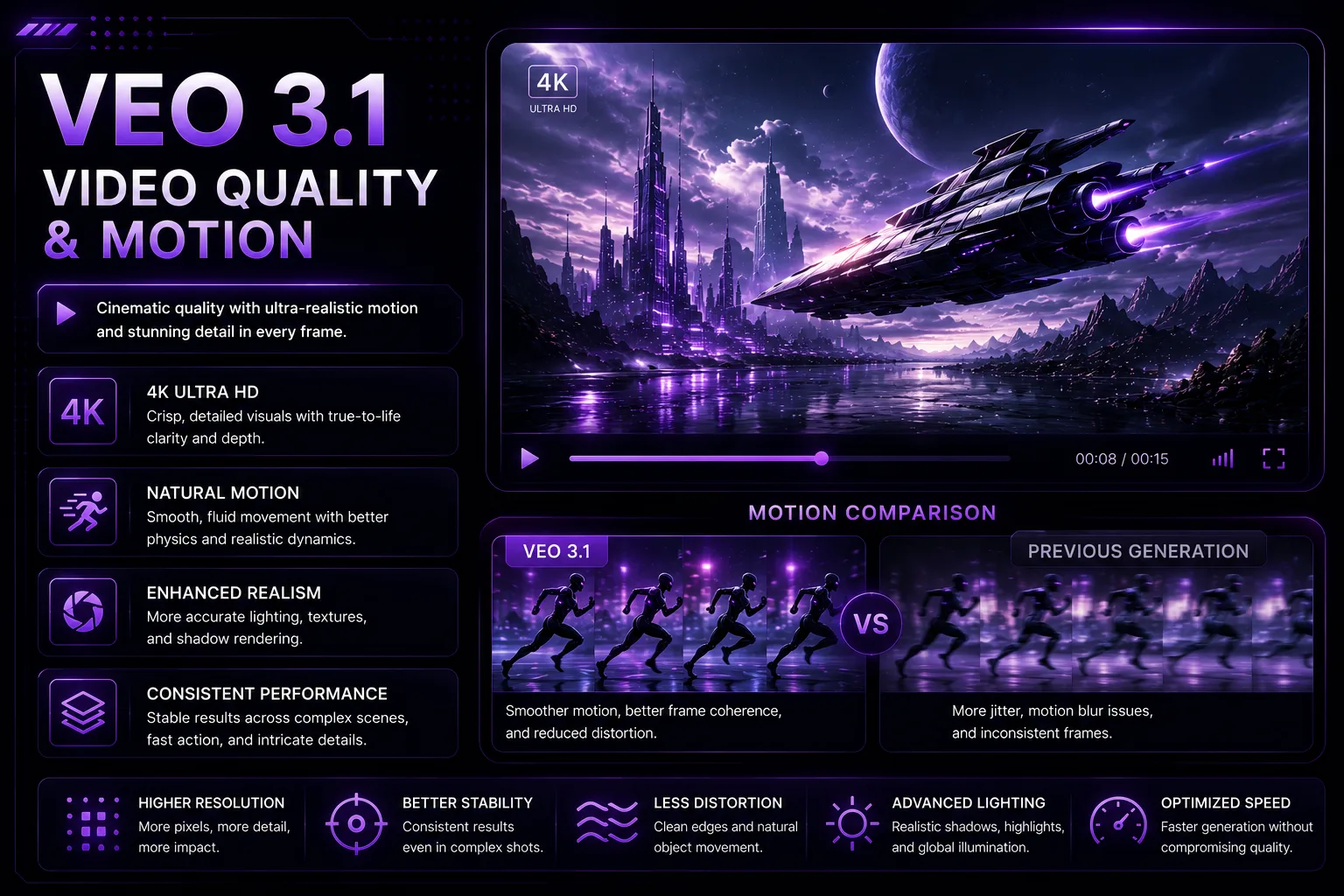
Veo 3.1 is strongest when the prompt asks for a clear cinematic scene. It can handle camera language such as dolly shots, aerial views, close-ups, time-lapse, tracking shots, and slow motion. It also performs better when the scene is visually coherent and not overloaded with too many actions.
In practice, Veo 3.1 works well for:
- Cinematic short clips
- Product concept videos
- Social media scenes
- Storyboard visualization
- Educational visuals
- Advertising concepts
- Image-to-video animation
- Mood videos and creative tests
Like every AI video model, it still has limits. Complex hand movements, exact text, logos, continuity across many shots, and precise character consistency may need several attempts. AI video can look impressive, but it is still not the same as a fully controllable film production pipeline.
Native Audio
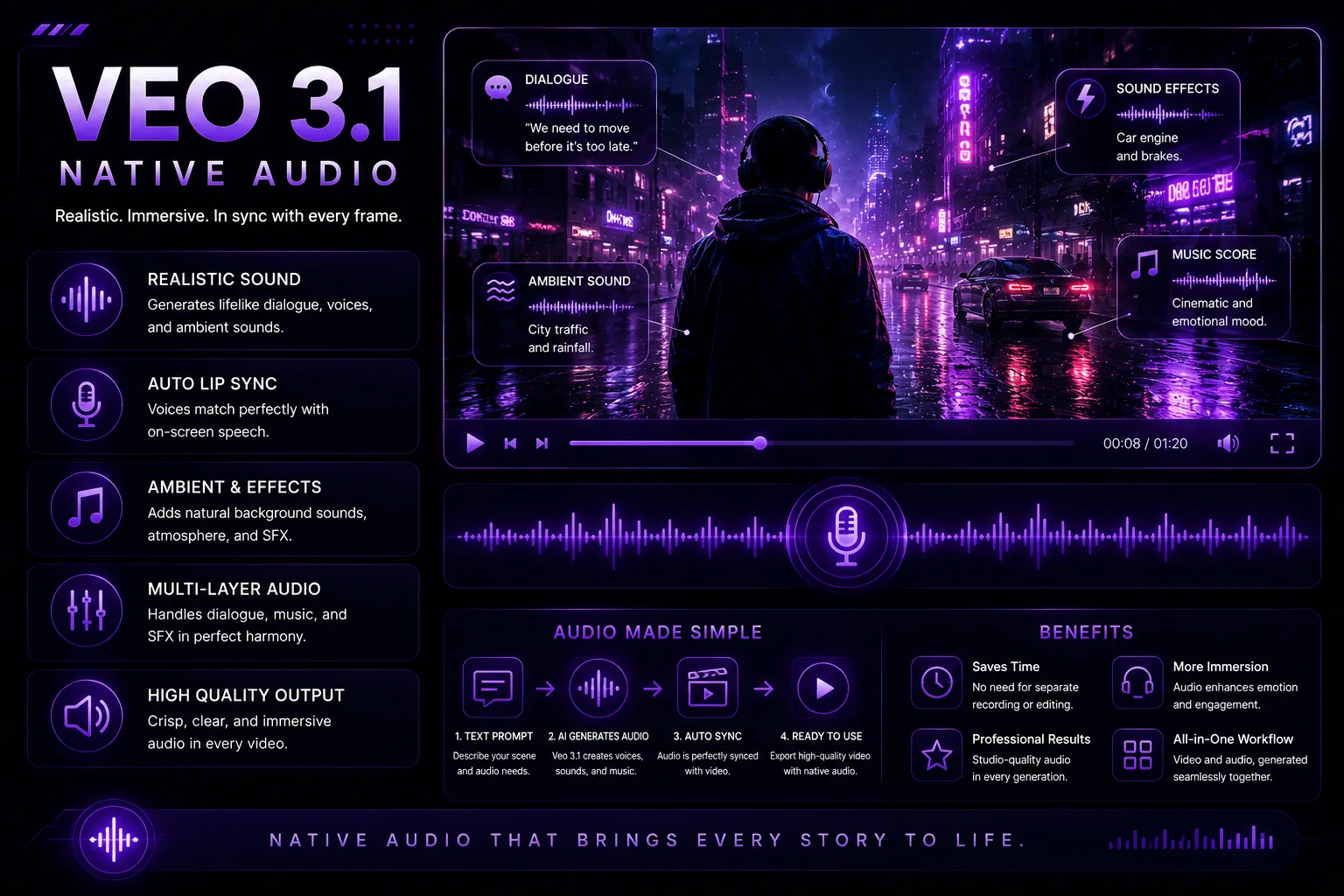
Native audio is one of Veo 3.1’s most important advantages. Instead of creating a silent clip and adding audio later, the model can generate audio as part of the video process.
This is helpful for:
- Ambient sound in nature or city scenes
- Object sounds such as footsteps, doors, rain, engines, or crowd noise
- More complete draft videos
- Social clips that feel less empty
- Concept videos with a stronger mood
However, native audio still needs review. For polished commercial work, you may want to replace or edit the audio in a video editor. Treat Veo 3.1 audio as a strong first draft, not always a final mix.
Veo 3.1 Pricing
Veo 3.1 pricing depends on how you access it. Some users may use it through Google’s creative interfaces, while developers may use it through the Gemini API. Pricing, availability, model variants, resolution, and generation cost can change, so it is important to check the current Google pricing page before building a large workflow around it.
For casual users, the main question is whether the output quality justifies the cost. For developers and businesses, the bigger questions are cost per video, reliability, rate limits, output resolution, and whether the API fits production needs.
When evaluating Veo 3.1 pricing, consider:
- How many videos you need each month
- Whether you need 720p, 1080p, or 4K
- Whether native audio is required
- Whether drafts and failed generations count toward cost
- Whether you need API automation
- Whether another tool is cheaper for simple social videos
If you only need occasional AI video clips, Veo 3.1 may be worth testing without a large commitment. If you need hundreds or thousands of videos, calculate the cost carefully.
Veo 3.1 Pros and Cons
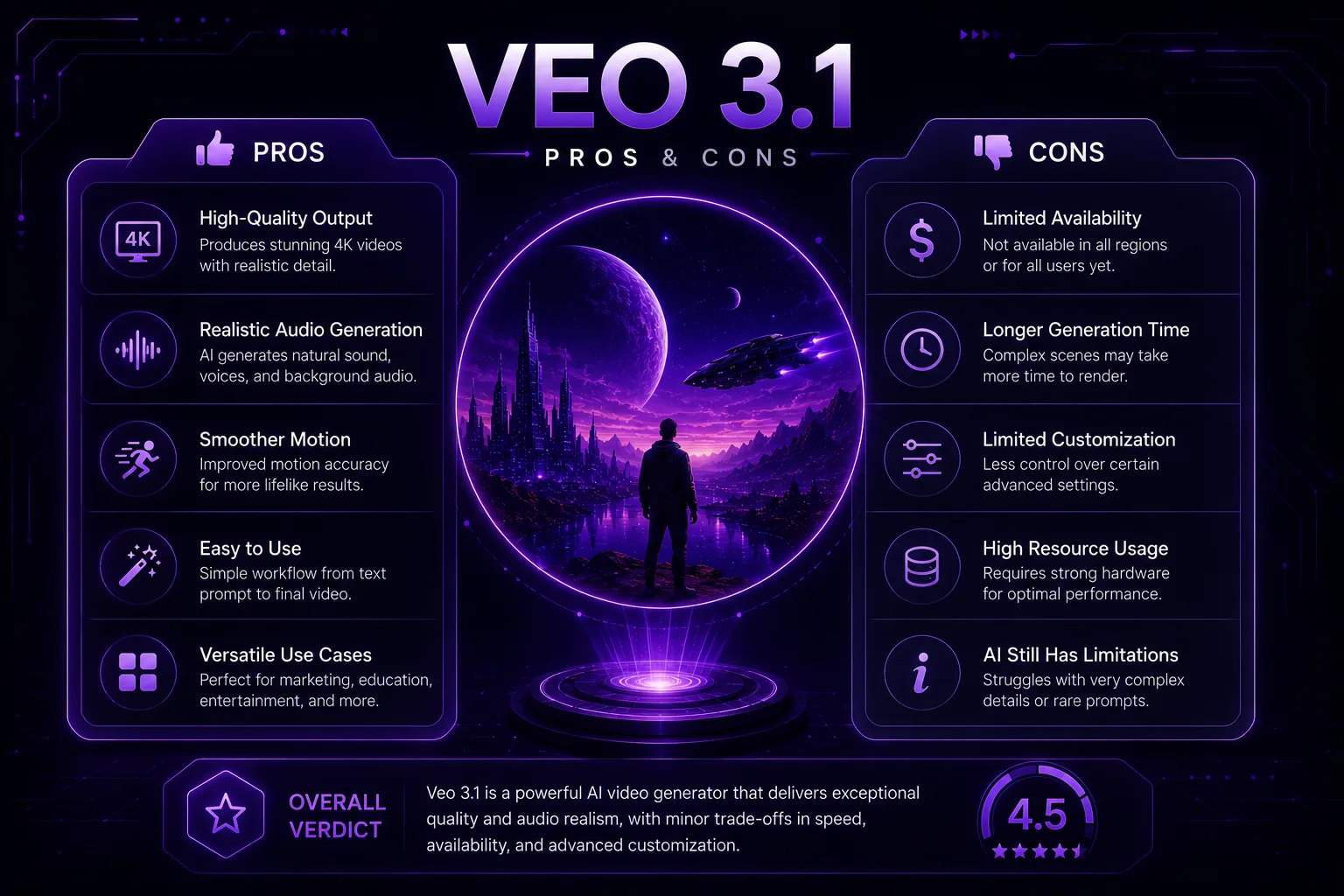
Pros
- Strong AI video quality
- Native audio generation
- Text-to-video and image-to-video support
- 720p, 1080p, and 4K options
- Good fit for cinematic prompts
- Useful for developers through Gemini API
- Strong choice after Sora’s discontinuation timeline
- Works well for short concepts, ads, and creative testing
Cons
- 8-second output may be short for some projects
- Pricing can matter for high-volume generation
- Exact text and logo control may still be unreliable
- Complex scenes may need several attempts
- Not a full traditional video editor
- Best value may be inside Google’s ecosystem
- Human review is still needed for professional publishing
Who Should Use Veo 3.1?
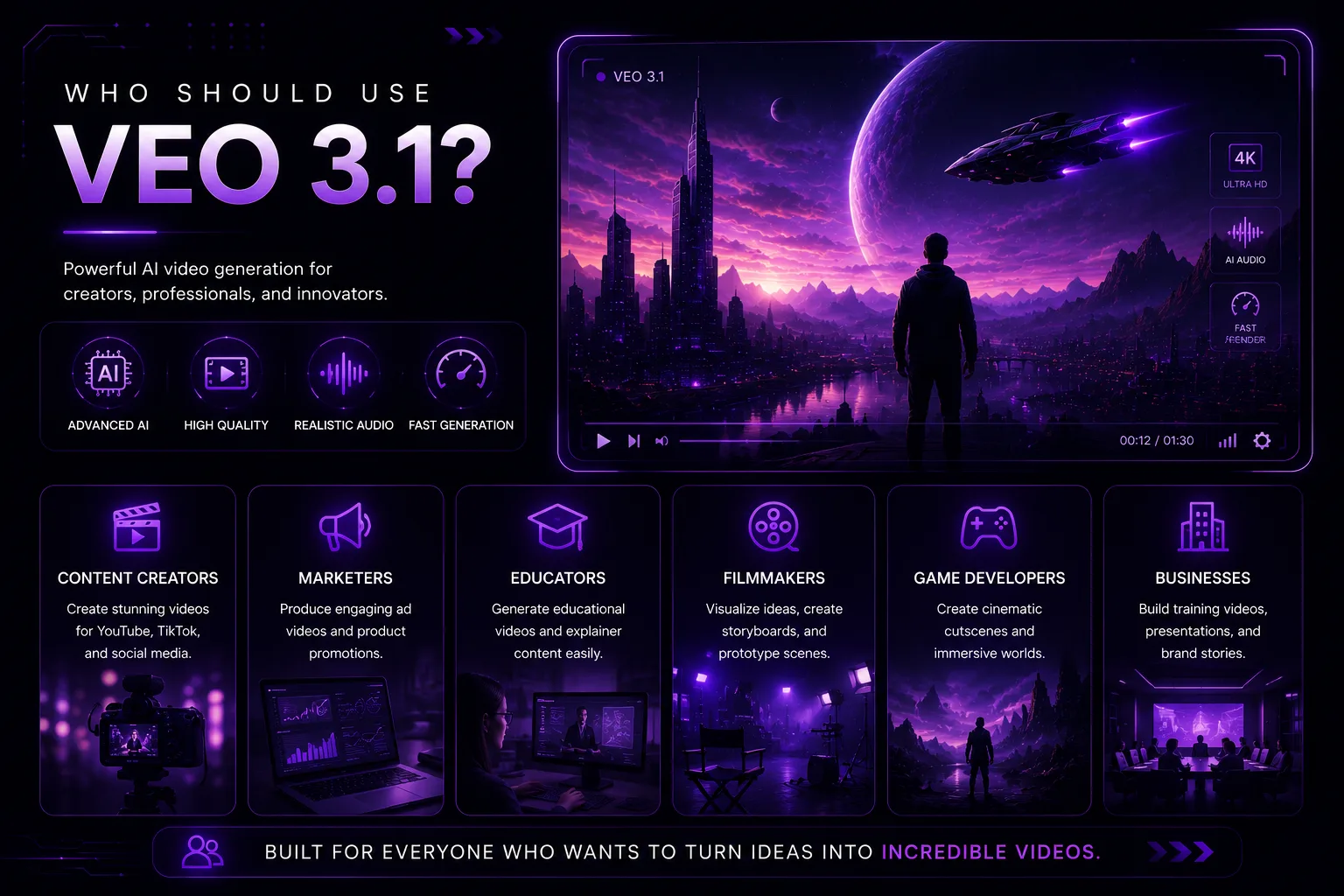
Veo 3.1 is best for users who need high-quality short AI videos, especially when audio and cinematic output matter.
It is a good fit for:
- Filmmakers testing shot ideas
- Marketers creating campaign concepts
- Social media teams making short clips
- Product teams animating hero visuals
- Educators creating visual explainers
- Developers building video tools
- Agencies producing creative options for clients
- Startups prototyping video ads
It may not be the best fit for:
- Users who need long videos in one generation
- Teams that only need simple template-based business videos
- Avatar video creators
- Users who need exact text on screen
- People who want a free unlimited video generator
Veo 3.1 vs Sora, Runway, Kling, and Luma
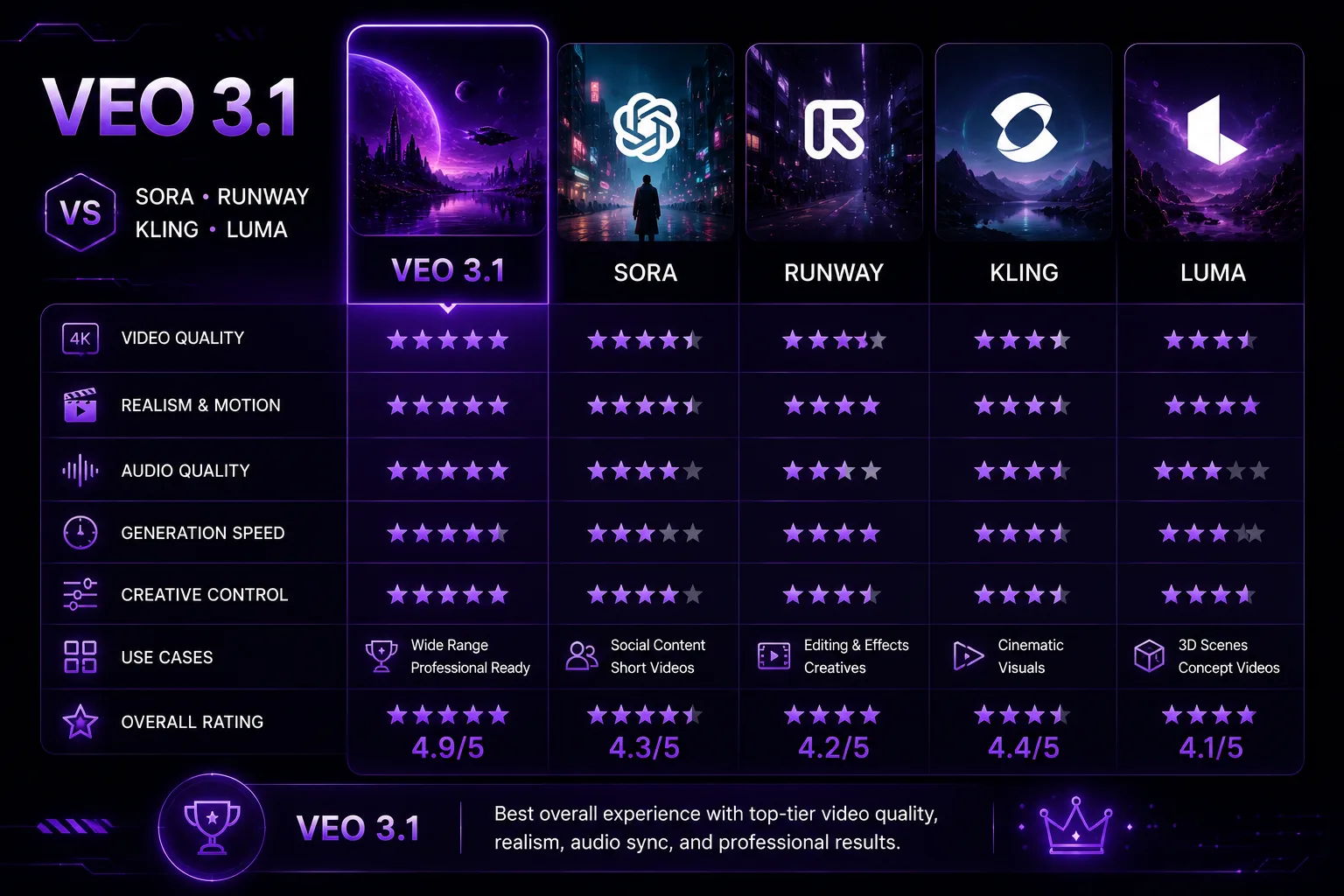
Veo 3.1 is now one of the most important Sora alternatives because Sora’s web and app experiences have been discontinued and the API has a scheduled shutdown date. For users who need a major AI video model with API access, Veo 3.1 is a practical replacement to evaluate.
Compared with Sora, Veo 3.1 is the more practical option in 2026 because it is actively available through Google’s ecosystem. It also offers native audio and strong API-based workflows.
Compared with Runway Gen-4.5, Veo 3.1 feels more model-and-API centered, while Runway feels more like a dedicated creative production platform. Runway may be better for artists and editors who want a polished video creation environment.
Compared with Kling AI 3.0, Veo 3.1 may be stronger inside Google’s ecosystem, while Kling may appeal to users who want longer clips and aggressive video-generation features.
Compared with Luma AI Ray, Veo 3.1 is a strong all-around model, while Luma can be especially attractive for cinematic image-to-video and motion-focused creative workflows.
In short:
- Choose Veo 3.1 for native audio, strong model quality, and Google API access.
- Choose Runway for professional creative video workflows.
- Choose Kling AI for longer generated scenes and native audio experimentation.
- Choose Luma AI for cinematic image-to-video and motion control.
Veo 3.1 Prompt Tips
Veo 3.1 works better when your prompt reads like a short creative brief. Do not only describe the object. Describe the shot.
A useful Veo 3.1 prompt can include:
- Subject
- Action
- Setting
- Camera movement
- Lighting
- Mood
- Visual style
- Audio direction
- Duration or pacing
- What to avoid
Try prompts like these:
A cinematic 8-second shot of a red electric car driving through a rainy city street at night, slow tracking camera, reflections on wet asphalt, realistic motion, soft engine sound and rain ambience.Animate this product image into a clean studio hero video. Slow rotating camera, soft shadows, premium lighting, subtle background movement, no text, no logo changes, gentle electronic ambience.A close-up documentary-style shot of a ceramic coffee cup on a wooden table, morning sunlight, steam rising naturally, shallow depth of field, quiet cafe ambience.A futuristic classroom explainer scene showing a glowing 3D Earth model, smooth camera push-in, clean educational style, soft narration-ready pacing, no readable text.For better results, avoid asking for too many actions in one short clip. One clear action with strong camera direction usually works better than a crowded scene.
Best Veo 3.1 Alternatives
Veo 3.1 is strong, but it is not the only AI video tool worth considering.
Runway Gen-4.5 is one of the best alternatives for professional creative production, video editing, and high-end visual fidelity.
Kling AI 3.0 is worth testing if you want longer generated clips, native audio, and cinematic scenes.
Luma AI Ray is strong for image-to-video generation, motion control, and cinematic shot direction.
Pika is useful for short social videos, creative effects, and quick experiments.
Adobe Firefly Video is a good option if you want AI video inside a broader design workflow.
Google Vids is better for workplace videos, training, explainers, and business communication.
The best alternative depends on the project. For cinematic AI video, compare Veo 3.1, Runway, Kling, and Luma. For social clips, compare Pika, Canva, and CapCut. For business videos, compare Google Vids and HeyGen.
FAQ
What is Veo 3.1?
Veo 3.1 is Google’s AI video generation model. It can generate short videos from prompts and images, and Google’s developer documentation says it supports 8-second videos with natively generated audio.
Is Veo 3.1 free?
Access and pricing can vary depending on how you use it. Some interfaces may have limited access or plan-based usage, while developers can use it through Google’s API options. Always check current pricing before using it heavily.
How long are Veo 3.1 videos?
Google’s developer documentation describes Veo 3.1 as generating 8-second videos. If you need longer content, you may need to generate multiple clips or use another editing workflow.
Does Veo 3.1 generate audio?
Yes. Veo 3.1 supports natively generated audio, which can make its video outputs feel more complete than silent AI video clips.
Can Veo 3.1 turn images into videos?
Yes. Veo 3.1 supports image-to-video workflows, which makes it useful for animating product shots, concept art, storyboards, and still images.
Is Veo 3.1 better than Sora?
In 2026, Veo 3.1 is more practical for many users because Sora’s web and app experiences were discontinued on April 26, 2026, and the API is scheduled to stop on September 24, 2026. Veo 3.1 is a strong replacement to test, especially for native audio and API workflows.
Is Veo 3.1 better than Runway?
It depends on your workflow. Veo 3.1 is strong for model quality, native audio, and API use. Runway may be better if you want a dedicated creative video platform with production-focused tools.
What is Veo 3.1 best for?
Veo 3.1 is best for short cinematic videos, product concepts, social clips, AI video experiments, image-to-video animation, developer workflows, and videos where native audio matters.
Final Thoughts
Veo 3.1 is one of the most important AI video models to review in 2026. It offers strong short-video generation, native audio, image-to-video support, high-resolution options, and developer access through Google’s ecosystem.
It is not perfect. The 8-second format can be limiting, costs can add up, and professional projects still need review and editing. But if you are looking for a serious AI video model after Sora’s discontinuation timeline, Veo 3.1 belongs near the top of the list.
For the best results, test it with clear prompts, compare it with Runway, Kling, and Luma, and choose based on your real workflow rather than model hype alone.
Related
7 Best AI Quiz Generator Tools to Streamline Your Assessments in 2026

Best AI Flyer Generators for Small Businesses and Events
AI Is Making Identity Theft Smarter: Here's How PureVPN Identity Threat Protection Keeps You a Step Ahead
AI Answer Engine Optimization: How to Improve Visibility in AI Search
How to Manage Email Overload with AI: Prioritize, Delegate and Follow Up

AI Audio Enhancer: Best Tools to Improve Sound Quality